
Turn recordings into transcripts and summaries in minutes
Upload audio or video for multilingual transcription, AI notes, and action items
Google Meet is a top choice for many companies for remote meetings, but occasionally you may want to keep your camera off—maybe your environment is messy, you want to save bandwidth, or you simply want some privacy. Turning off your video is easy, but the key is: after turning off the camera, how do you fully capture the meeting content? This article uses Tinrec (Miaoting Recording) as an example to walk you through setting up Google Meet without video and using Tinrec to convert meeting conversations into high-quality transcripts and automatically generate meeting minutes. Tinrec supports iOS, Android, and a web version, with a free tier that offers basic transcription credits each month, making it suitable for general office workers and small-to-medium business employees.
Before You Start | What You'll Need
• A Google Meet meeting link: Whether it's a scheduled weekly meeting, project meeting, or an impromptu discussion. • A phone or computer (phone recommended): A separate recording device works better than a built-in computer microphone and avoids picking up system notification sounds. • Download the Tinrec App: Search for "Tinrec Miaoting Recording" on the App Store or Google Play, or use the web version at tinrec.com. • Create an account: Supports Google or Apple ID one-click login—no lengthy forms to fill out. • Confirm Google Meet camera permissions: Before joining a meeting, the browser or app will ask for camera permission; just click "Block" or disable it in the settings beforehand.

Step 1 | Record the Meeting—Replace Your Microphone with Tinrec
The goal of this step is to get a complete, clear recording of the meeting, which is the foundation for all subsequent processing.
Open Tinrec and tap the large round button at the bottom of the main screen to start recording. Then, go back to Google Meet. On the preview screen, make sure the camera icon has a line through it (off), and click "Join Meeting." Place your phone near your computer speaker or simply on the conference table—the closer it is, the clearer the audio, and the higher Tinrec's AI transcription accuracy.
Why not use Google Meet's built-in recording? Because Meet's recording notifies all participants, requires host permission, and only produces a single audio file with no transcription or organization features. Using Tinrec to record independently is not only discreet but also generates transcripts and meeting minutes afterward.
When finished, you'll see the new recording in Tinrec's list, showing duration and file size.
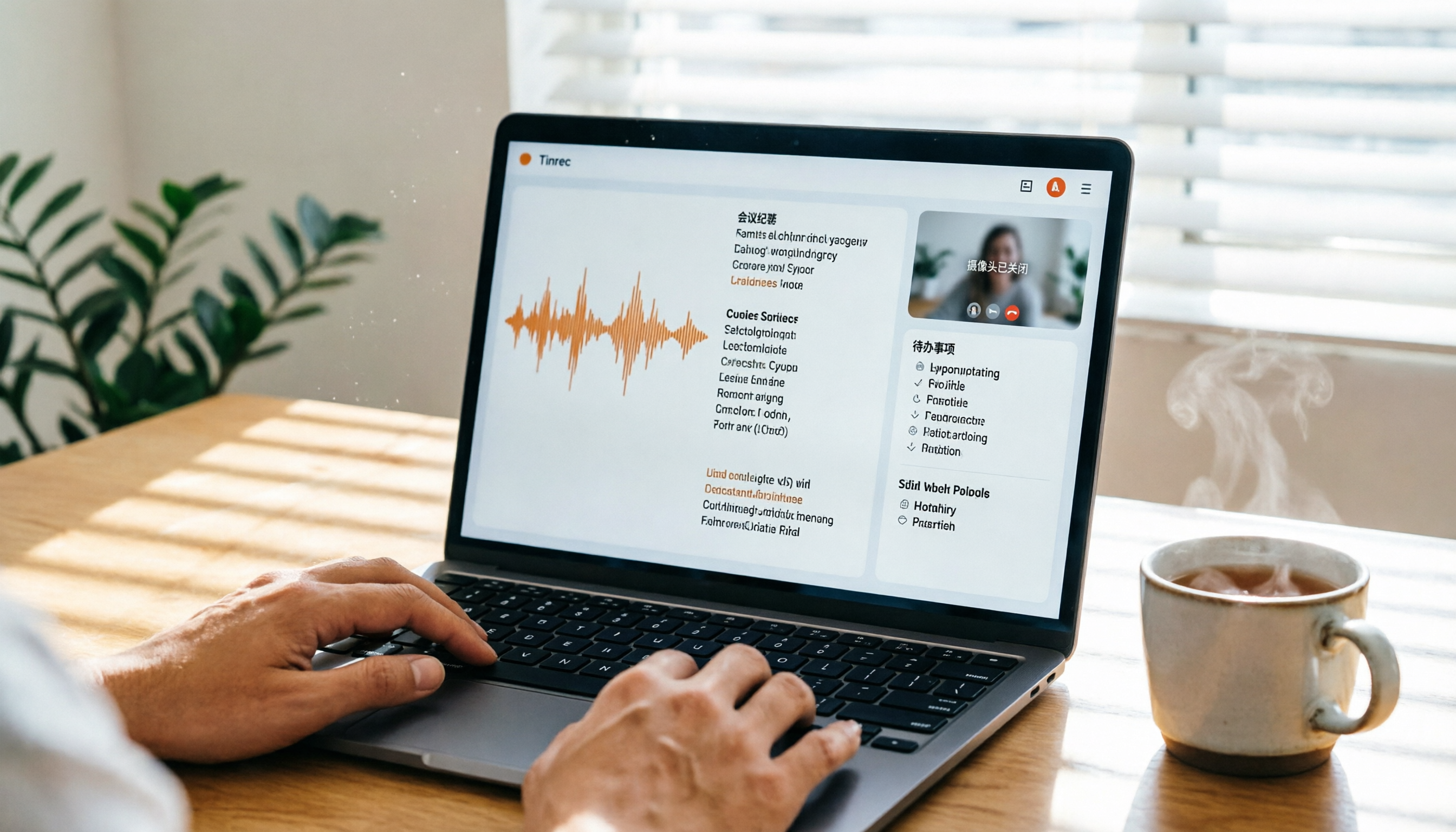
(Illustration: Phone placed next to laptop during a Google Meet meeting; phone screen shows Tinrec's real-time recording waveform and preliminary Chinese text recognition.)
Step 2 | Let AI Create a Transcript for You
The goal of this step is to turn the audio into searchable, editable text for quick browsing or quoting.
In Tinrec, tap the recording you just made. The system will automatically start transcribing; if it doesn't, manually click "Transcribe." Depending on the recording length, it takes about 1 minute to transcribe 10 minutes of audio. While waiting, you can turn off the screen or switch to another app—Tinrec works in the background.
Why not transcribe manually? Transcribing a 1-hour meeting by listening would take at least 3 hours. Tinrec's AI transcription is not only fast but also correctly identifies Chinese punctuation and paragraphs, making it especially suitable for meetings that mix Chinese and English (many international competitors have limited support for Chinese).
Once transcription is complete, a timestamped transcript is generated, with each sentence corresponding to a point in the audio.
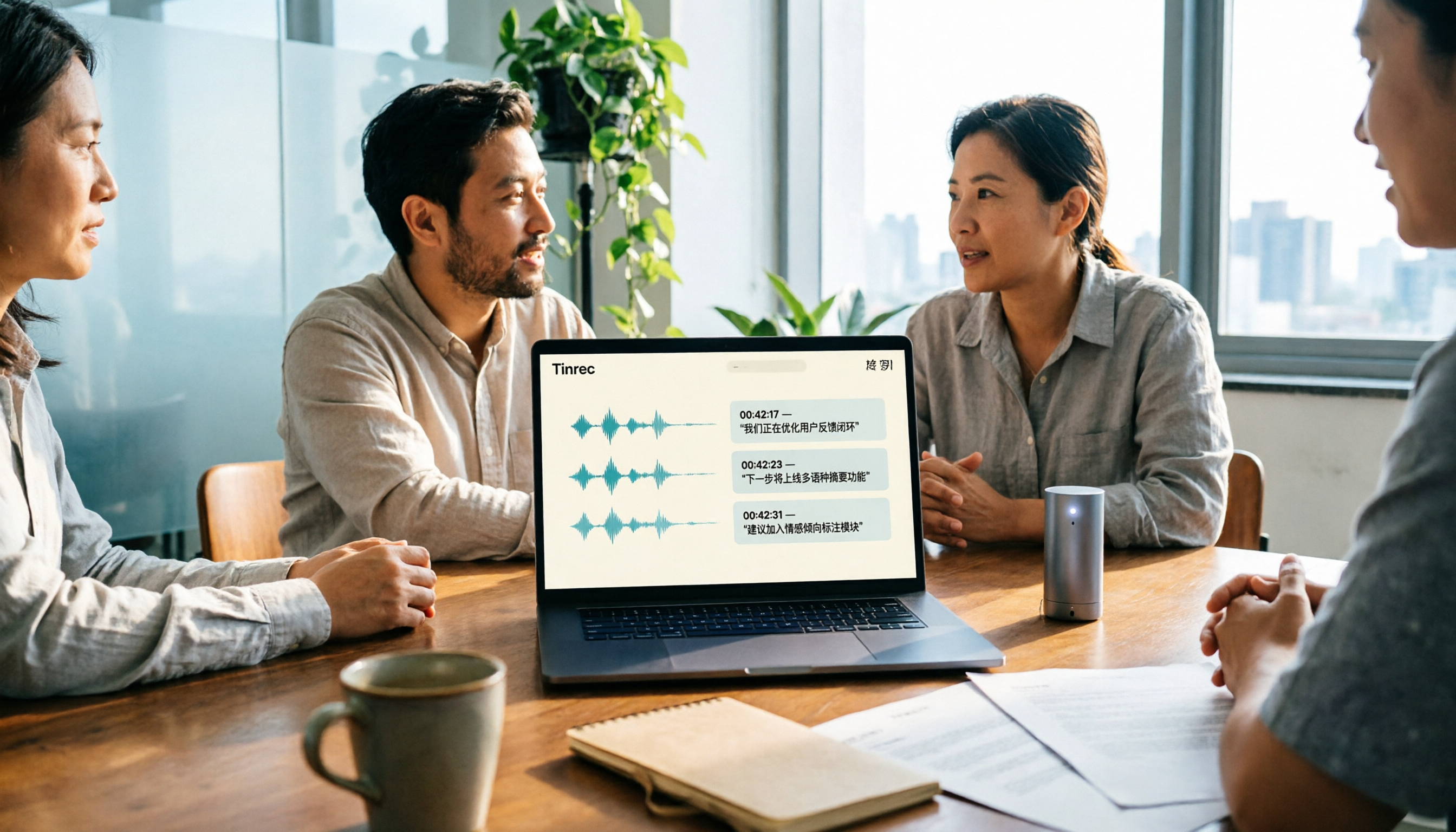
(Illustration: Computer screen showing the completed transcript with timestamps on the left and speech content on the right; the top shows the recording file name and duration.)
Step 3 | Quickly Proofread the Transcript and Highlight Key Points
The goal of this step is to correct any minor errors and mark important points, making the subsequent meeting minutes more precise.
Play the recording while editing the transcript; if you hear an important decision, long-press that segment to add a "highlight." Tinrec also supports adding memo notes directly, such as "Q3 budget confirmed" or "To-do: Contact vendor."
Stop organizing recordings by hand
Upload audio or video and automatically get a transcript, summary, and action items
Why proofread? AI may occasionally misinterpret proper nouns, names, or non-standard accents. Spending 5 minutes to quickly review can significantly improve the quality of the AI summary later. Rather than producing error-filled meeting notes, it's worth the extra time to proofread.
After proofreading, your transcript becomes clean and highlights are clear—it can even serve as a backup meeting record.
(Illustration: Phone or tablet editing a transcript; some text is highlighted in yellow as key points, with a memo window popping up.)
Step 4 | Generate Meeting Minutes with One Click
The goal of this step is to extract key information from the lengthy conversation and turn it into a meeting record that can be sent directly to the team.
On the transcript page, click "AI Summary" or "Meeting Minutes" (depending on the version). Tinrec will extract discussion topics, decisions, and action items within seconds. Even better, you can tap "AI Q&A" and ask questions directly, such as "What is the deadline for this discussion?" The AI will accurately answer based on the recording content.
Why not write it by hand? Traditional meeting notes are prone to omissions, and different people may have different conclusions. Having AI organize everything, then you confirm, saves time and adds credibility.
Once done, you'll have a structured meeting summary with action items that can be posted directly to your work group.
(Illustration: A meeting summary titled "Weekly Meeting 2026/07/04" with three sections: Discussion Items, Decisions, and Action Items, each with assignees and deadlines.)
Step 5 | Export and Share with the Team
The goal of this step is to seamlessly integrate the organized results into your team's existing workflow.
Tinrec supports exporting to Word, PDF, plain text, subtitle files, and more. It also offers sharing links or direct sync to Notion, Google Docs, Dropbox, and other common services. Click "Share" or "Export," choose your team's preferred format, and it's done in seconds.
Why export? If the record stays only in your app, it loses its collaborative value. After exporting to Word or Google Docs, colleagues without Tinrec can also edit and add feedback.
Now, meeting notes are no longer just your personal notes but a knowledge asset for the entire team.
(Illustration: Export menu showing icons for Word, PDF, TXT, etc., with arrows pointing to Notion and Google Docs logos.)
FAQ and Troubleshooting
Q: After turning off video in Google Meet, can others still see my screen? A: No. As long as you click the camera icon so it shows a red line, others will not see your video at all—they will only see your profile photo or name initials. Q: Will recording with my phone pick up ambient noise? A: It might, but Tinrec has built-in smart noise cancellation that can be enabled in settings to filter out stable background sounds like fans or air conditioning. Compared to using the phone's built-in recorder, Tinrec's audio processing before transcription improves transcript quality. Q: If multiple people speak, can Tinrec distinguish who said what? A: Yes. Tinrec has speaker separation and will label speakers as "Speaker 1," "Speaker 2," etc. Although it cannot automatically identify names, you can manually rename them for easier tracking later. Q: Is the free transcription credit enough? A: The free plan provides basic monthly credits, typically sufficient for 2–3 meetings per week (each about 1 hour). If you have frequent meetings or need to process long recordings, consider the weekly pass or Pro plan. Q: Do I need to inform participants before recording? A: According to Taiwan's Communications Protection and Surveillance Act and the Personal Data Protection Act, it is recommended to verbally inform participants at the start of the meeting that "this meeting will be recorded for note-taking purposes" or obtain their consent to avoid disputes.
Pro Tips | 3 Ways to Boost Tinrec Efficiency
1. Use AI Q&A to Find Key Meeting Information Instantly
Can't recall a number or decision after a meeting? Open Tinrec's AI chat and ask "What was the marketing budget discussed last time?" or "Who is responsible for following up with Client A?" The AI will answer based on the entire recording, even highlighting the time stamp. Most transcription tools only give you a static transcript; Tinrec lets you query meetings like a search engine, which is especially useful for historical databases.
2. Cross-Platform Sync—Seamless Transition Between Mobile and Desktop
Record on your phone, then open Tinrec's web version at the office—all recordings and transcripts are synced. You can quickly proofread using a keyboard, copy and paste, which is much more efficient than editing on a phone. This is something app-only recording tools can't do.
3. Turn Google Meet Recording Videos into Text Reports
If your meeting used Google Meet's auto-recording feature (with participant notification), you can download the mp4 and upload it to Tinrec. It will transcribe the video and generate meeting minutes of the same quality, capturing everything discussed. This way, you don't have to rewatch the video; just skim the text to grasp the key points.
If You're Not Using Tinrec, Here Are Alternatives
Of course, there are other tools on the market: Otter.ai can automatically join English meetings and summarize, but its Chinese transcription is weaker; Notta also offers good transcription quality but lacks Tinrec's online video analysis and deep AI Q&A. If you primarily handle Chinese meetings and want to manage recording and organization in one go, Tinrec is a more balanced choice.
Summary
With these 5 steps, you can now confidently turn off your camera in any Google Meet meeting while using Tinrec to turn the entire conversation into a searchable transcript, automatically generate meeting minutes, and even query key points with AI. Next step: download the free version of Tinrec and try it with your next weekly meeting. The monthly basic credits are enough for you to experience the full process without having to pay upfront.
Turn every recording into actionable outcomes
Get 60 free transcription minutes when you sign in. No credit card required.
Related Reading
You might also like

2026 Audio-to-Text Comparison: Tinrec vs Otter.ai for Chinese Meetings & Team Knowledge
How to choose an audio-to-text tool in 2026? This article compares Tinrec and Otter.ai across 5 dimensions: Chinese meeting transcription, bot-free online meeting capture, audio file organization, post-meeting workflows, and team data governance. Based on public features and pricing, it helps you decide which is better suited for meeting notes needs in Taiwan.

How to Choose an Online Audio-to-Text Tool in 2026: 5 Steps to Pick the Right One and Get a Transcript
How do you choose an online audio-to-text tool? This article reviews 6 online options—Tinrec, MyEdit, cSubtitle, CyberLink, Yating Transcript, and Monica—comparing free quotas, Chinese recognition, export formats, and team collaboration. It also walks you through 5 steps to turn an audio file into a transcript.
2024 Review of 4 Audio-to-Text Tools: Which Saves the Most Time on Chinese Meeting Transcripts and AI Summaries?
The 2024 audio-to-text comparison isn't just about transcription speed—it's about whether the tool can organize your meeting notes afterward. Based on real meetings and interviews, this review compares Tinrec, Notta, Granola, and PLAUD on audio sources, transcripts, AI summaries, action items, team collaboration, and pricing limits to help you choose the right tool.

4 Free Online Audio-to-Text Tools Compared (2026): Which Offers the Best Free Tier and Chinese Recognition?
A comparison of Tinrec, MyEdit, cSubtitle, and Monica's free online audio-to-text offerings, covering free quotas, Chinese recognition, export formats, and post-meeting AI organization to help you decide which suits meetings, interviews, and subtitles.

4 Free AI Audio-to-Text Tools Tested: Which Free Tier Is Enough in 2026?
There are many free AI audio-to-text tools, but free quotas, single-recording length limits, Chinese recognition, and post-meeting organization capabilities vary widely. This article compares the free plans and use cases of 4 tools, using Tinrec's no-bot recording, AI Q&A, and team spaces as selection references.

2026 Comparison of 2 Online Audio-to-Text Tools: Tinrec vs Otter.ai — Which Is Better for Chinese Meetings?
Starting from common misconceptions, this comparison examines Tinrec and Otter.ai in Chinese meetings, bot-free recording, post-meeting organization, real-time translation, and team data retention to help you decide which online audio-to-text tool fits your daily work.

2026 Comparison of 2 Audio-to-Text Platforms: Free Tiers, Chinese Recognition, and Post-Meeting Organization at a Glance
A side-by-side comparison of Tinrec and Notta across free tiers, Chinese recognition, online meeting recording, post-meeting organization, and team collaboration, helping you decide whether the free version is enough and when to upgrade.

iPhone Voice Memos vs Tinrec in 2026: 5-Dimension Comparison — Is Free Transcription Enough?
iPhone's built-in Voice Memos can now transcribe recordings for free, so do you still need a separate tool? This article compares iPhone's built-in features with Tinrec across 5 practical dimensions and honestly explains where the free limits are, helping you decide which approach fits your meeting volume.

4 Free Audio-to-Text Tools Tested for 2026: Which Free Tier Is Actually Enough?
There are plenty of free audio-to-text tools, but few can handle a full meeting. This hands-on comparison tests the free plans of Tinrec, Otter.ai, Notta, and TurboScribe—breaking down how limits are calculated, transcript post-processing, audio retention, and team collaboration—to help you decide which free version is truly usable.