

Turn recordings into transcripts and summaries in minutes
Upload audio or video for multilingual transcription, AI notes, and action items
Before You Start | What You Need
Preparation is key for smooth transcription of medical audio with Tinrec. Here's what you'll need:
- A smartphone or computer (iPhone, Android phone, Windows or Mac – Tinrec has an app and web version, both sync seamlessly)
- Download the Tinrec app and create an account (free download from App Store or Google Play, one-click login with Google or Apple ID)
- Prepare a medical recording (e.g., case discussion audio, doctor dictation, cross-department meeting recording, or an existing audio file)
- Stable internet connection (real-time transcription requires internet; if your hospital network is unstable, you can download offline language packs in the app settings beforehand)
Step 1 | Record What You Want to Transcribe
The goal of this step is to get a clear recording – audio quality directly determines transcription accuracy.
Open Tinrec, tap the record button on the main screen to start recording. Place your phone near the speaker – the closer, the clearer the audio. For multi-person discussions, place it in the center of the table. If it's a doctor dictating solo, a distance of about 30 cm (12 inches) is sufficient.
Why emphasize the recording environment? Because AI transcription accuracy heavily depends on audio quality – excessive background noise or distant speakers will result in more errors in the transcript. It's better to spend an extra 30 seconds positioning the phone than to spend time proofreading later.
Once done, you'll see the recording on Tinrec's main screen with its duration and file size, indicating it's ready for the next step.
(Illustration: A healthcare professional in a meeting room, phone placed on the table recording, surrounded by colleagues discussing a case – professional and natural scene)
Step 2 | Let AI Transcribe into Text
After recording, Tinrec automatically starts transcription without manual intervention. You can also import existing audio or video files, supporting common formats like mp3, wav, mp4.
During transcription, the screen displays the real-time transcript, with text appearing as you record. Medical recordings often include English drug names and technical terms – Tinrec handles Chinese-English mixed speech well, which is important for the Hong Kong medical context.
Once complete, you'll have a full transcript ready for proofreading.
(Illustration: Phone screen showing real-time transcription text, background is a hospital office, clean and clear)
Step 3 | Quickly Proofread the Transcript
AI-generated text still needs a review. Tinrec's editing interface offers several helpful features:
- Highlight key points: Use a highlighter to mark critical info, such as diagnosis conclusions or medication dosages.
- Notes feature: Add your own notes anytime, e.g., "Need to double-check here."
- Speaker differentiation: If the recording has multiple speakers, Tinrec automatically splits paragraphs and labels them as Speaker A, B, so you can quickly identify who said what.
During proofreading, you don't have to listen from start to finish – open the AI summary to review key points, then jump to relevant paragraphs. This is much more efficient.
(Illustration: Transcript editing screen, different speakers color-coded, key points highlighted)
Step 4 | Let AI Generate Medical Meeting Notes
This is Tinrec's standout feature – it doesn't just transcribe; it also organizes content.
After proofreading, tap "AI Summary" and Tinrec will automatically generate a structured summary including:
- Meeting highlights (e.g., "Confirmed transfer of Patient A to Queen Mary Hospital", "New drug trial starts next week")
- Action items (e.g., "Dr. Zhang to submit report by March 7", "Pharmacy to confirm drug inventory")
- Decisions recorded (e.g., "Agreed to adjust antibiotic regimen")
Stop organizing recordings by hand
Upload audio or video and automatically get a transcript, summary, and action items
These summaries can serve as preliminary medical meeting notes, saving a lot of typing time.
(Illustration: AI-generated summary screen listing key points and action items, clean and easy to read)
Step 5 | Export and Share
Once organized, you'll want to share the notes with colleagues. Tinrec supports multiple export formats:
- Text files (TXT, DOCX): For further editing in Word or Google Docs.
- PDF: Suitable for formal archiving or sending to supervisors.
- Cloud sync (Google Drive, Notion, OneDrive, etc.): Save notes directly to a shared team folder.
You can also share a link with one click – colleagues without Tinrec can still view the transcript and summary, with password protection available to safeguard patient privacy.
(Illustration: Export options screen showing multiple formats and cloud service icons, intuitive interface)
FAQ and Troubleshooting
Q: The recording environment is noisy, resulting in many errors in the transcript. What should I do? Usually, this is due to excessive background noise or the speaker being too far away. Tinrec has a built-in smart noise reduction feature – turn it on in settings before recording to filter out ambient noise like air conditioning or street sounds. If you're using an already recorded file, you can manually select the "High Noise Environment" mode after importing – a thoughtful option not found in many transcription tools.
Q: Will medical terms be misrecognized? Common Chinese and English drug names and disease names are recognized, but very obscure terms may be incorrect. In such cases, use the "Custom Vocabulary" feature during proofreading to pre-add frequently used terms, improving accuracy.
Q: The recording is too long, and it's hard to find a specific section? Tinrec's AI Q&A feature can help. You can ask, "Which part mentions penicillin allergy?" and the system will search the transcript and highlight the relevant paragraphs – much faster than scrolling manually.
Q: When multiple people speak, can the AI distinguish who is who? Tinrec's speaker separation feature automatically labels Speaker 1, Speaker 2, etc. You can rename them during proofreading. For best results, use individual microphones for each speaker during recording.
Advanced Tips | 3 Ways to Double Tinrec's Efficiency
1. AI Dialogue Queries: Turn Historical Recordings into a Knowledge Base
Tinrec's AI dialogue function lets you ask questions about the recording content, such as: "Summarize key points from diabetes case discussions over the past three months" or "What decisions were made in this meeting?" This feature works not only within a single recording but also across recordings – all recordings in your account become a searchable database. While typical transcription tools only let you view transcripts, Tinrec transforms recordings into an interactive knowledge base.
(Illustration: AI dialogue interface, user enters a question, system responds with a summary and cited paragraphs)
2. Web Video Transcription: Organize Medical Conference Live Streams
Besides live recording, Tinrec can also paste public video links from YouTube or Bilibili and directly transcribe them into text and summaries. If you're watching an online medical seminar live stream, just copy the link, and Tinrec will automatically extract the audio for analysis – no need to record your screen and upload. This is a unique selling point not found in many competitors.
3. Cross-Platform Sync: Record on Phone, Continue Editing on Computer
Record on your iPhone, then open Tinrec's web version on your Windows computer at the office – all recordings and transcripts are synced, ready for immediate proofreading or export. No need to email yourself or use a USB drive; this seamless experience is really impressive.
If You Don't Use Tinrec, Here Are Alternatives
- Otter.ai: Excellent for English meeting notes, but Chinese (especially Cantonese) recognition is average, and it's primarily an online meeting bot without web video transcription. If your team mainly holds meetings in English, Otter is a good choice; for Cantonese medical recordings, Tinrec is more suitable.
- Notta: Features similar to Tinrec, with more transcription minutes in the monthly plan, but its AI summary and Q&A depth are not as strong as Tinrec's, and Hong Kong localization support is less comprehensive.
Overall, if you need a tool that handles Cantonese, Chinese-English mixed speech, and has powerful AI organization features, Tinrec offers great value.
Summary
Now that you've learned these 5 steps, you can use Tinrec to turn any medical recording or meeting discussion into a transcript, then use AI to automatically generate summaries, action items, and even search and ask questions across recordings. Next step: download the free version of Tinrec, import one of your own medical recordings and try it. You get 100 minutes of free transcription per month, enough to handle two or three meetings – try it and see how much time it saves.
Turn every recording into actionable outcomes
Get 60 free transcription minutes when you sign in. No credit card required.
Related Reading
You might also like

iPhone Voice Memos vs Tinrec in 2026: 5-Factor Comparison — Which Is Better for Transcribing Meetings?
From the built-in iPhone Voice Memos app to Tinrec, we compare 5 practical factors to help you decide which iPhone transcription solution best fits your meetings, interviews, and team collaboration.

4 AI Meeting Notes Tools Tested for 2026: Which Saves the Most Time for Cantonese Meetings?
Cantonese meetings with mixed Chinese and English, then having to listen to recordings and type up minutes yourself? This article breaks down 4 key factors for choosing an AI meeting notes tool and compares Tinrec, Subanana, Notta, and PLAUD to clarify which suits Hong Kong teams and which are traps.

2026 Comparison of 3 Meeting Minutes Templates: Tinrec Auto-Generates Chinese Minutes Fastest
When searching for meeting minutes Chinese templates, most people want a format they can directly apply. This article provides 3 Chinese meeting minutes templates for enterprise project meetings, client interviews, and school club meetings, and compares Tinrec and Notta on bot-free recording, Chinese transcription, post-meeting outputs, and team data retention, helping you decide whether to write manually or use a tool.

2026 Mac Transcription Software Guide: Tinrec's Bot-Free Recording + AI Q&A for Meeting Notes
The real difference between Mac transcription apps isn't how fast they transcribe—it's how much time you spend organizing afterward. This guide compares MacWhisper and Tinrec across five dimensions: how meetings are captured, post-meeting output, AI follow-up questions, cross-language handling, and team data ownership. Includes a ready-to-use starter checklist.
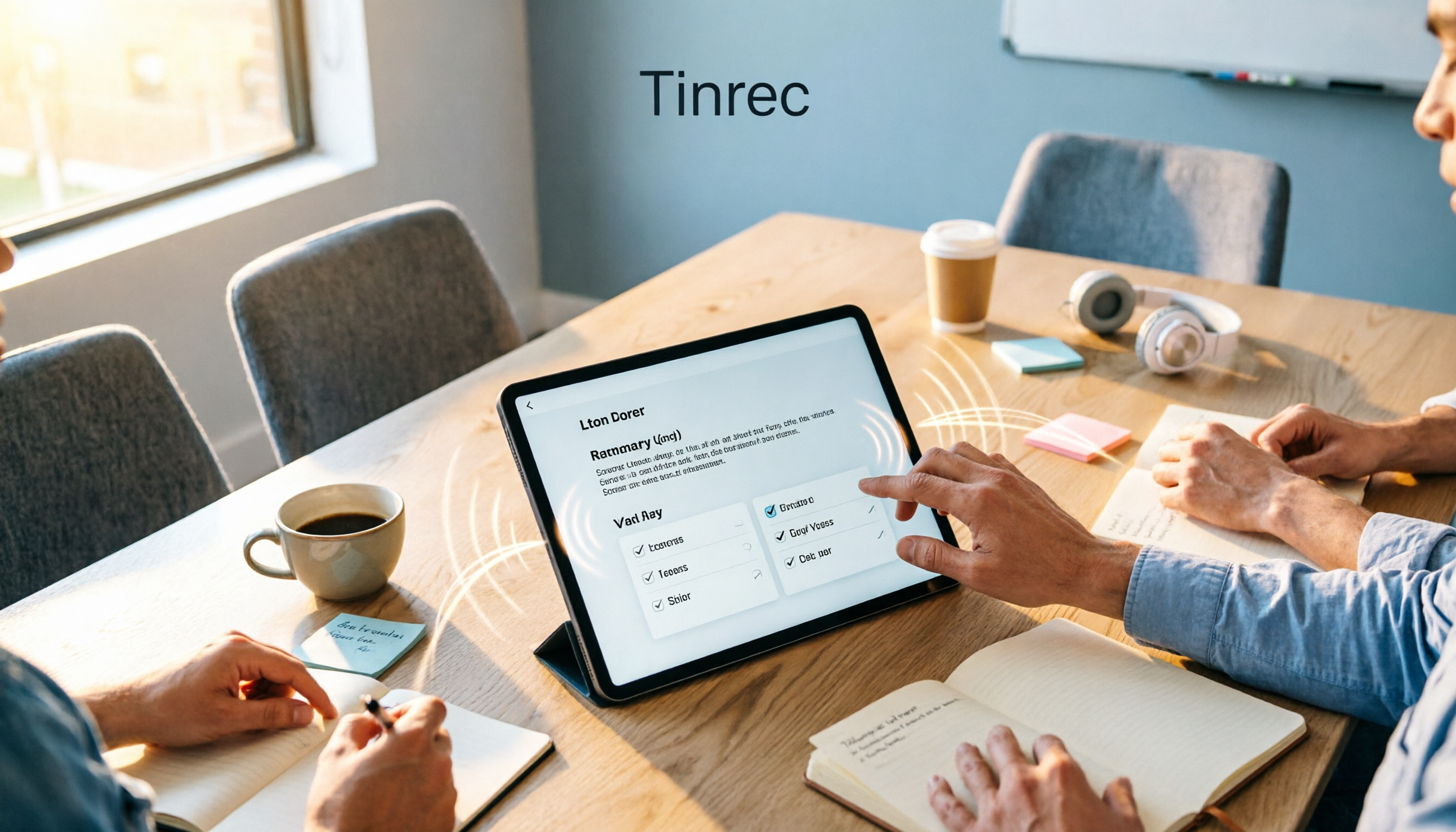
Tinrec vs Notta 2026: 5-Dimension Comparison for iPad Meeting Notes
Many people think recording a meeting on an iPad is enough, but they still have to listen to the 90-minute audio afterward. This article debunks two common myths about iPad meeting note apps and compares Tinrec and Notta across five dimensions: transcription, AI summaries, action item extraction, team knowledge retention, and governance. It also covers practical use cases and buying tips.

6 Meeting Minutes Tools Compared for 2026: From MoM Abbreviation to AI-Generated Summaries
Meeting minutes are abbreviated as MoM (Minutes of Meeting), but 'minutes' here doesn't mean time. This article first breaks down common abbreviations and terms like take the minutes, minutes taker, resolution, and action items, then compares six meeting minutes solutions—Tinrec, Otter.ai, Notta, Granola, TurboScribe, and PLAUD—from the decision-making perspective of whether to organize minutes yourself or let a tool do it, helping you choose the right workflow for your meeting style.

2026 Voice-to-Transcript Tools Compared: NotebookLM vs. Tinrec — Which Saves More Time?
No more manual typing for meeting transcripts. This hands-on comparison of NotebookLM, Tinrec, EchoScript, and Otter.ai covers Chinese transcription, post-meeting organization, online meeting audio capture, and team collaboration, plus 4 key buying factors and common pitfalls to help you pick the one that truly saves time.

2026 Comparison of 4 Meeting Minutes Tools: Which Saves the Most Time After Using a Template?
Most people looking for meeting minutes templates get stuck not on the format, but on filling them out after the meeting. Starting from a 12-field meeting minutes template skeleton, this article explains 5 key points to consider before choosing a tool, and compares Tinrec, Notta, Otter.ai, and Granola in terms of efficiency, limitations, and suitable users for filling out templates.
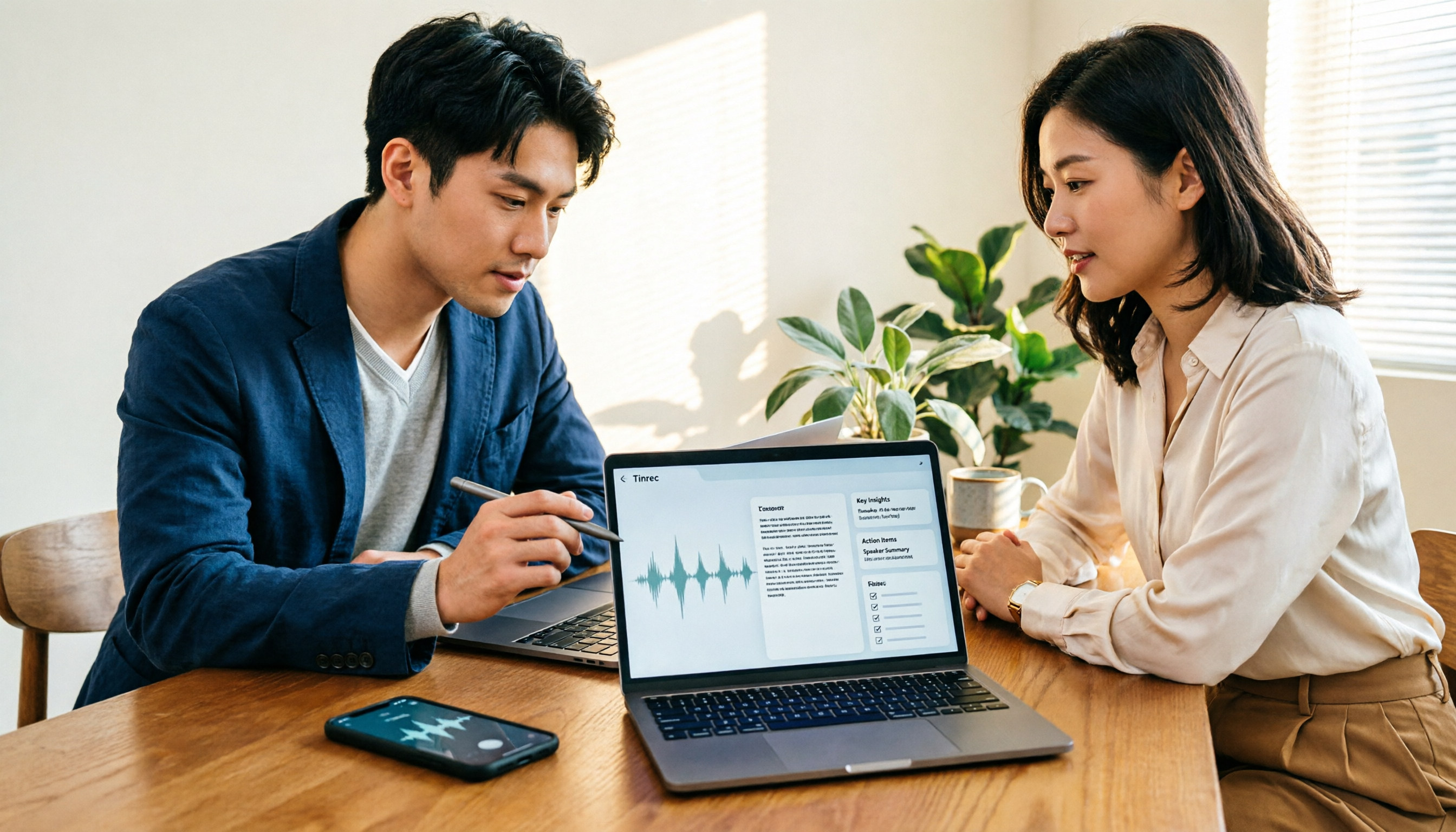
2026 Comparison of 5 iPhone Recording-to-Meeting-Notes Tools: Is the Free Version Enough?
What's the most time-saving way to turn iPhone recordings into meeting notes? This article starts with common misconceptions and compares 5 approaches: built-in Voice Memos, Notes app, third-party transcription apps, meeting bot tools, and Tinrec desktop bot-free recording. It uses Tinrec to demonstrate the complete workflow from recording, transcription, AI summary to to-dos and team collaboration, with buying tips and FAQs.