
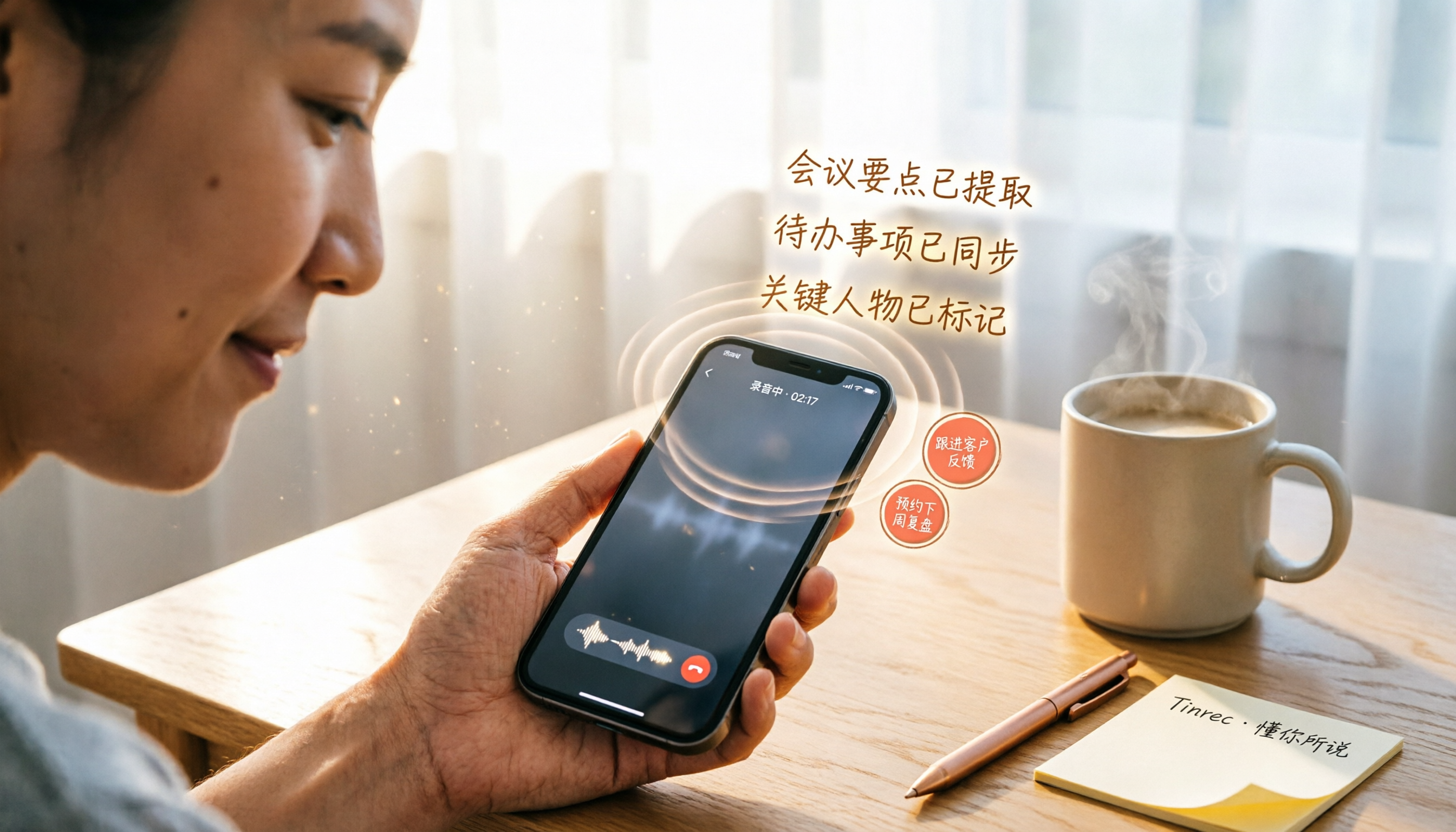
Turn recordings into transcripts and summaries in minutes
Upload audio or video for multilingual transcription, AI notes, and action items
Meetings, interviews, important calls—what you need is not just a “recording” but something ready to use
Ever had this happen: you wrap up an important deal on LINE, hang up, and realize you only remember the conclusion while the details are gone? Or you interview a guest online, record for an hour, and then dread the thought of transcribing it?
Previously, iPhone users who wanted to record LINE calls either had to use a second phone or rely on risky third-party apps. But now, after upgrading to iOS 26, the built-in “Local Capture” feature solves the recording problem—and the other party won’t be notified.
The real challenge, though, starts after recording. Do you have an audio file that just sits in a folder and never gets opened again? This article is here to solve that pain point: not only recording, but also quickly converting the conversation into text, summaries, and to-dos, so you have ready-to-use material when the call ends.
Before choosing a LINE call recording organizer, understand these 3 key points
If you think pressing the record button is enough, what we’re about to tell you might save you a lot of time. To turn a recording into “actually usable material,” these three things matter more than specs.
1. Make sure you can record LINE calls: 3 steps with iOS 26 “Local Capture”
Fortunately, today's iPhone doesn’t require jailbreaking or external devices. As long as you’re on iOS 26, the built-in feature will get the job done.
The steps are simple:
- Open “Settings” > “Control Center” and add “Local Capture” to your controls.
- After placing or answering a LINE call, swipe down from the top-right of the screen to open Control Center, tap the Local Capture icon, and the system will start recording.
- To stop, long-press the red dot on the Dynamic Island, or go back into Control Center and tap it again. The recording will be saved automatically to the “Downloads” folder in the Files app.
One important thing: make sure to turn on “Speaker” during the call. If you don’t, the system will only pick up your microphone, and the other person’s voice will be almost inaudible. So remember: as soon as the call connects, tap Speaker first, then start recording, so both sides are clear.
The recorded file is in a standard format, so you can keep it on your phone, upload it to the cloud, or import it into another organizer—that’s the key to the next step.
2. Accuracy isn’t about what the official site says—it’s about “real-world scenarios”
Many tools claim “98% accuracy,” but that’s the result of speaking slowly into a microphone in a soundproof room. In a conference room, a coffee shop, or when recording a LINE call on speakerphone, background noise, network latency, and people talking over each other will all drag down performance.
For this review, we used the most common scenario: one iPhone on speaker recording a 5-minute Chinese conversation with light keyboard clicks and low-frequency air-conditioner noise in the background. Under these conditions, the gaps between transcription tools really show.
3. Free isn’t unlimited—know the allowance so you don't get caught off guard
Almost every tool has a free plan, but the allowances vary a lot. Some give you over a hundred minutes per month, some just a few trial runs, and some don't even offer transcription on the free tier. If you only occasionally record a meeting or interview, the free plan might be enough. But if you need it every week, it’s more practical to look directly at paid options.
Cross-platform support also matters. You might record on your iPhone now and want to edit on your computer later—if the tool only has a mobile app, you'll have a hard time. The tools below all support at least iOS and web versions, so you can switch seamlessly between devices.
Tinrec—our top pick after hands-on testing
Tinrec is an AI recording and audio/video organizer designed for meetings, studying, interviews, and content creation, with support for iOS, Android, and web. What sets it apart is that it doesn’t just turn speech into text—it helps you “understand” the content and turn it into material you can directly use.
Recording isn’t the end—it’s where organizing begins
After you record a LINE call with iOS’s Local Capture, upload the audio to Tinrec, and it will automatically generate a summary, chapters, and to-dos while transcribing. For example: you discuss a project’s progress with a client, and when the meeting ends, Tinrec has already organized an action list of “who is responsible for what and when the deadline is.” You just copy and paste it into a group chat for confirmation—no need to re-listen to anything.
Even more impressive is the AI conversation query. You can ask Tinrec, “Where in the last call was the budget mentioned?” Instead of just returning keyword search results, it uses semantic understanding to point directly to that segment and timestamp. Almost no competitor at the same price point offers this feature.
Stop organizing recordings by hand
Upload audio or video and automatically get a transcript, summary, and action items
Test results: stable Chinese transcription performance
In our scenario (iPhone speakerphone recording, light background noise), Tinrec had a Chinese character error rate of about 7.5%, while Notta came in at about 8.2%, and Otter—which focuses mainly on English—performed slightly weaker with about 9.8%. Note that this is the result under our specific recording conditions; your actual experience will still vary depending on audio quality, accents, and speaking pace.
Pros and who it’s for
- Multiple input sources: Besides uploading audio files, you can paste links from YouTube, Bilibili, and other online videos to convert them into text—handy for content creators.
- Strong post-processing: Output isn’t just a transcript; it also includes summaries, mind maps, subtitles, and can even generate meeting reports or tables.
- Seamless cross-platform: Record on your phone, then open the web version on your computer to continue editing and exporting—no file transfers back and forth.
The limitation is that the free plan provides a basic monthly transcription allowance (exact minutes depend on the official page), and heavy users will need a paid plan. But for most people who record LINE calls only a few times a week, the allowance is sufficient.
Who is it for? If, after a call, you need quick access to key points, to-dos, or want to turn your historical recordings into a searchable database, Tinrec is currently the best fit.
What else is out there besides Tinrec?
Of course, everyone’s needs are different. If you want to look at other options, here are two solutions worth knowing about.
Otter.ai: the first choice for English meetings—but Chinese users should think twice
Otter is an established AI meeting note tool from a Silicon Valley team, with strengths in real-time transcription and team collaboration. The free plan offers 300 transcription minutes per month, which is generous. However, it’s mainly designed for English, and in our tests its Chinese transcription was clearly worse than Tinrec’s, and it doesn’t support Cantonese. If you mostly work with English content, Otter is a better deal than Tinrec—this is the only scenario where we recommend a competitor.
Notta: decent transcription, but organizing falls a bit short
Notta overlaps heavily with Tinrec, also supporting multiple platforms and real-time transcription. In our tests, Chinese accuracy was decent (8.2%), but the free plan only offers 120 minutes per month, so heavy users will hit the ceiling quickly. More importantly, Notta doesn’t currently have an AI conversation query feature—after recording, you can only use keyword search on the transcript, which makes the organizing step a little less efficient. If you just want a clean transcript, it’s worth considering. But if you want to “ask questions about the recording and get answers,” Tinrec remains the more complete choice.
Pitfalls to avoid: 3 mistakes people make when choosing a recording organizer
Pitfall 1: Focusing only on recording and ignoring “organizing” costs
Many people spend a lot of time looking for the clearest recording method, then put the file away after recording. In fact, the AI summarization and query features of transcription tools are what actually save time. Instead of re-listening to a 30-minute recording, just ask the AI “What’s the conclusion?”.
Pitfall 2: Chasing high accuracy numbers blindly
As mentioned earlier, the official 98% accuracy figure comes from lab conditions. In real-world scenarios, the difference between tools is probably 2–5%, and that small difference doesn’t have much impact on your ability to read a summary. Rather than obsessing over a few percentage points, find a tool with AI that helps you pick out the key points.
Pitfall 3: Not considering cross-platform and future needs
You might only use an iPhone now, but what if you later need to edit on a computer or sync your recording database to Notion? If the tool doesn’t support cross-platform use or restricts exporting, you’ll want to kick your past self. Tinrec’s flexibility in exporting and cross-platform support is another reason we recommend it.
Summary: Which one should you choose?
Overall, Tinrec is the solution we found best suited to organizing Chinese LINE call recordings after hands-on testing. It doesn’t just transcribe text; it also helps you save time on the follow-up organizing.
- Need to ask AI for key points and generate to-dos right after recording → Tinrec (the only one with AI conversation query)
- Mostly English meetings and don’t care about Chinese transcription → Otter.ai (free 300 minutes is the best deal)
- Just need a clean transcript and have a limited budget → Notta (free 120 minutes, acceptable accuracy)
One last note: first use the built-in iOS 26 feature to record your LINE call, then pick an organizer tool to try. Tinrec’s free plan is enough for a few experiences; upgrade only if you find it useful. There’s no need to pay upfront.
Tags: iOS tutorials, iPhone recording, LINE tips, call recording, AI transcription tools
Author: Pseric
References
- 【Mobile Know-how】LINE call recording is here! iPhone built-in phone recording trick, no notification to the other party! | JS Communications–the market’s lowest prices
- LINE call recording iPhone tutorial, combine with iOS 26 Local Capture to easily record call audio - Mr. Mad
- LINE can finally record calls! No plugins or external devices needed—just use the built-in iPhone feature
- The complete guide to LINE call recording: Android, iPhone, computer—all covered! – AirDroid
- iPhone LINE call recording tutorial|One-touch recording with no notification to the other party!
Turn every recording into actionable outcomes
Get 60 free transcription minutes when you sign in. No credit card required.
Related Reading
You might also like
Best Recording App 2026: Hands-On Test of 4 — Tinrec Wins for AI Transcription & Organization
We tested the most download-worthy recording apps of 2026, comparing 4 tools from free to paid. In our hands-on review, Tinrec's AI transcription, summarization, and Q&A features proved the most practical. Whether for meeting notes, lecture notes, or content creation, it turns recordings into searchable material.

Which iPhone Voice-to-Text App Is Best? We Tested 4 in 2026 – This Cross-Platform AI Query Tool Is the Most Convenient
We tested four voice-to-text tools: iPhone's built-in Voice Memos, Yating, Otter.ai, and Tinrec. We compared language support, AI summarization, cross-platform use, and free plans to help you find the right fit.

Free Speech-to-Text Apps in 2026: 5 Options at a Glance
Can't keep up with lecture notes? This article rounds up the 5 free speech-to-text apps most used by college students, from fully free options to the best value picks, to help you easily handle class recordings and meeting minutes.

2026 MP3-to-Text Tools Tested and Compared: Which AI Saves You the Most Time?
Converting MP3 recordings to text is only the first step. The real key is getting AI to summarize, highlight key points, and even answer questions. I tested four tools to find out which one works best for organizing Chinese content.

2026 Meeting Recording & Transcription Tools: 2 Hands-On Reviews & Legal Recording Tips
Is it illegal to record a meeting? This article unpacks the legal boundaries of recording for self-protection, then compares two meeting recording/organizing tools—Tinrec and PLAUD Note—across recording methods, multi-source input, AI organization, and price, helping you choose the best fit.

2026 Comparison of 4 Cantonese Voice-to-Text Tools: Which One Has the Best AI Organization?
After testing multiple Cantonese voice-to-text tools, I found that the key selection factor is not just accuracy, but also AI-powered organization and flexibility. This article shares my hands-on experience and buying advice to help you find the best solution.
Free Speech-to-Text App Roundup for 2026: 5 Options Compared
A curated list of 5 speech-to-text apps that offer free plans, including Tinrec, Yating Transcriber, cSubtitle, Notta, and Easemate AI. Compare features, pricing, and suitability—from fully free to paid—to find the right tool for your needs.

4 iPhone Voice Recording Shortcuts Compared: Which One Starts Fastest When It Matters Most?
This article tests four ways to quickly start recording on an iPhone: the Action button, Back Tap, Shortcuts, and the traditional Voice Memos app. We compare startup speed, ease of use, and device compatibility to help you find the best one-touch recording solution.

2026 Hands-On Test: 3 Covert Recording Methods – Which Balances Stealth and AI Auto-Organization?
This article tests three covert recording methods, including iPhone back-tap recording, third-party hidden recording apps, and call recording considerations, and recommends using Tinrec for AI-powered post-processing to turn recordings into transcripts, summaries, and action items, ideal for meetings, interviews, and backing up important conversations.