

Turn recordings into transcripts and summaries in minutes
Upload audio or video for multilingual transcription, AI notes, and action items
Tinrec vs Word Built-in Transcription in 2026: 5-Dimension Comparison — Which Should You Choose for Audio-to-Word Transcription?
The real choice isn't "which software to use" — it's "what to do after transcription"
Turning an audio file into Word sounds like just three steps: upload, transcribe, save as.
But what really trips people up is usually the fourth step — after opening that multi-thousand-word .docx, you still have to read through it from the beginning to know who said what, what the conclusions were, and who needs to deliver what next week.
So this article isn't just comparing "who transcribes faster." I'll look at 5 dimensions: audio import, document export, post-meeting organization, Chinese recognition, and quota pricing.
Bottom line first: if you only occasionally turn a recording into text, Word's built-in transcription is enough; if you deal with meeting, interview, or course recordings every week and want to get summaries and action items right after transcription, the difference will be very obvious.
Before choosing a tool, understand these 5 key points
1. Can it handle "existing audio files"?
This is where most people get confused. Word's "Dictate" is real-time voice input — you speak a sentence and it types it, suitable for replacing typing; "Transcribe" is what processes already-recorded audio files. Many tools only do the former, and you only find out after buying that you can't upload yesterday's meeting recording.
2. Can the exported file be edited directly in Word?
Not every "Word file" is the same. Some tools output plain text with no paragraph breaks, punctuation, or timestamps — you still have to manually organize it after importing into Word. When choosing a tool, check directly whether it offers a downloadable document file, not just a blob of text on a webpage.
3. Does it provide summaries and action items after transcription?
Getting only a transcript means only half the work is done. A 60-minute meeting generates nearly 10,000 words; finding the "decisions" and "who does what" from it with Ctrl+F is exhausting.
4. Does it understand Chinese and mixed Chinese-English?
Meetings in Taiwan are rarely pure Chinese. Product names, KPIs, and system terminology fly around — whether it can handle Chinese-English switching and custom terminology affects the actual experience more than the stated accuracy rate.
5. How is the quota calculated?
There are two ways free quotas work: one is "total minutes per month," the other is "per-file limit." Some tools give 120 minutes per month on the free plan, but only 3 minutes per transcription — a one-hour meeting recording is unusable. Check the limits clearly before deciding.
Tinrec: After transcription, you get usable meeting materials directly
Tinrec is an AI meeting notes and collaboration tool for individuals and teams, available on web, desktop, and mobile. Its biggest difference from pure transcription tools is that it handles the most time-consuming work "after the meeting ends."
Here's how it works in practice. During a meeting, open the Tinrec desktop app — it directly captures your computer's system audio, handling online meetings on Zoom, Google Meet, Microsoft Teams, and Webex without inviting a meeting bot to join as a participant. This is especially noticeable for external client meetings — one less unfamiliar account on the list makes things much cleaner.
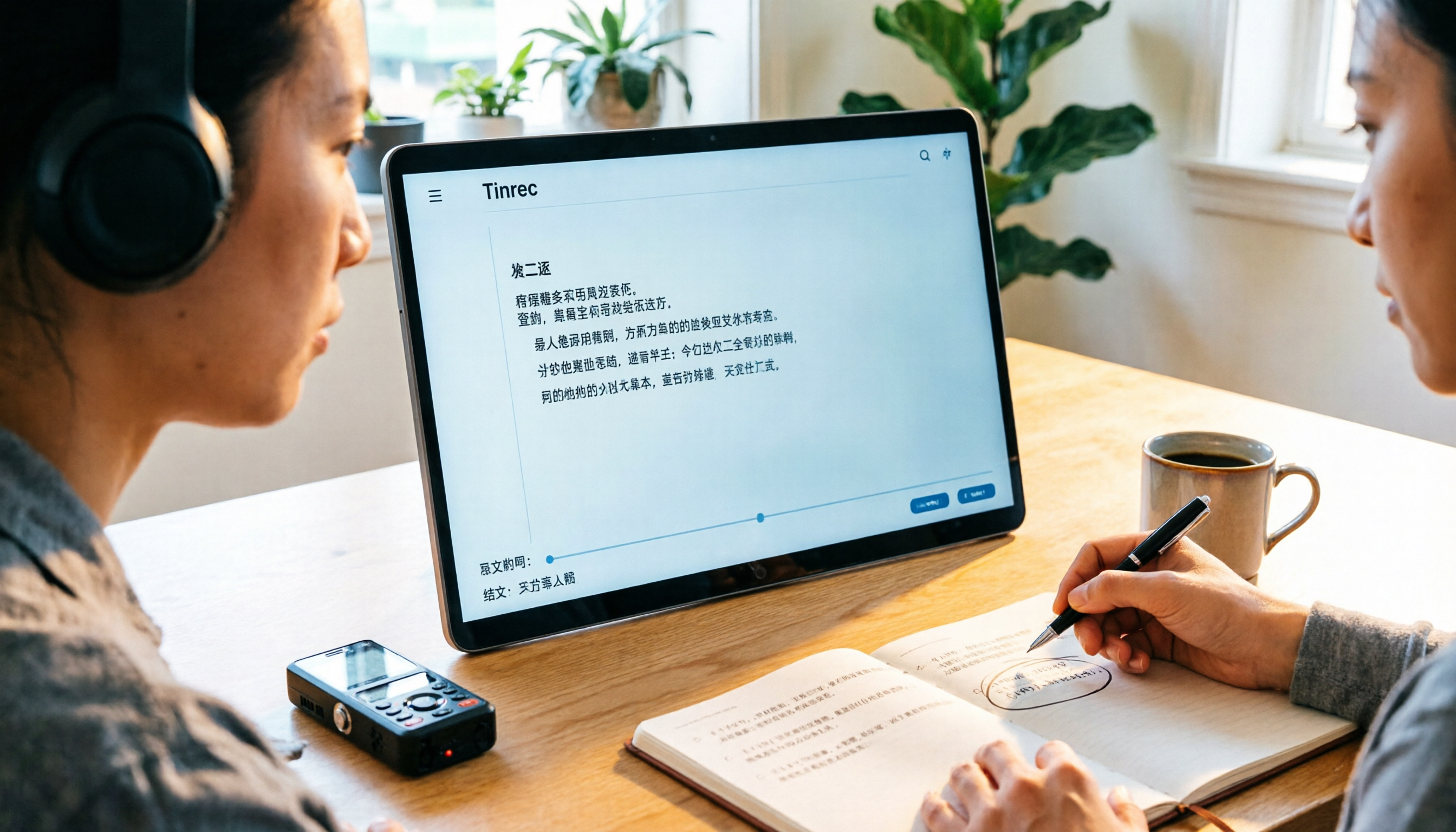
When the meeting ends, the transcript is already there. At the same time, it automatically generates summaries, chapters, and action items — who's responsible for what and what to discuss next time, without digging through ten thousand words yourself.
Even better is AI Q&A. You can ask it directly, for example "What were the client's concerns about the budget?" or "What was the conclusion about the launch date from the last meeting?" It finds relevant passages by meaning and answers, rather than throwing a bunch of keyword search results at you. This is where it pulls ahead of most pure transcription tools.
Finally, output. Tinrec supports exporting in multiple file formats — you can take transcripts and summaries to Word or other common documents or Google Docs for further editing, and also export to Notion, OneNote, and other tools. Historical recordings are stored centrally, and you can search and ask follow-up questions later.
Limitations to be honest about: the free version provides a basic quota, suitable for first checking whether the workflow suits you; heavy users need to upgrade to a paid plan. Also, transcription quality is affected by the recording environment — background noise, people talking over each other, and heavy accents will reduce results; for important content, it's recommended to replay and verify against timestamps.
Stop organizing recordings by hand
Upload audio or video and automatically get a transcript, summary, and action items
Team use is another level. The team version is an independent team space, not multiple people sharing one account: you can create multiple teams, invite members via link, set Owner/Admin/Member roles, and allocate seats. Meeting data belongs to the team; when a member leaves or is removed, resources are transferred to other members and don't disappear with the individual account. Admins can also view usage trends, member rankings, and operation audits.
Currently, the team version offers a first-time 7-day trial, 1 free seat, and 300 minutes of shared team import quota; paid seats are USD 29.80/month or USD 199/year (about USD 16.58/month), each paid seat includes 2,000 minutes of shared team import quota per month, and real-time recording under an active plan is currently not deducted by minute. Prices and benefits are subject to the official purchase page.
Besides Tinrec, what other options are there?
Microsoft Word built-in transcription
If you already have Microsoft 365, Word's "Transcribe" is the easiest starting point: after uploading a recording, you can "Add all to document" — the transcript appears as regular text in the document, and the audio is linked to OneDrive via hyperlink, so when sharing the document, others can also open the transcription pane to compare. Note that it's tied to the Microsoft 365 ecosystem, and users have reported a monthly transcription limit of about 300 minutes (actual depends on account licensing); audio playback in the transcription pane is also not open to shared recipients by default. It gives you a text record, with no summaries, action items, or ability to ask questions about the content — which is exactly the extra part Tinrec provides.
cSubtitle
cSubtitle is an online Chinese transcription service that emphasizes no account required, upload and transcribe, supporting files up to 4GB and 5 hours, accepting MP4/MOV/MP3/WAV/M4A/OGG/WMA, outputting text files and Word files with timestamps, and also providing .srt/.vtt subtitle files — suitable for people who need to subtitle videos. Its positioning is clearly "turn files into text"; the summary, Q&A, team collaboration, and historical data management after transcription are covered by Tinrec.
Notta
Notta is another option with higher overlap, offering multi-platform transcription, document import, translation, and team plans. The official free version currently offers 120 minutes per month with a 3-minute per-transcription limit; Pro annual billing is about USD 8.17/month (1,800 minutes per month), Business annual billing is about USD 16.67/seat/month. If you want to compare "per-minute price for pure transcription," it's worth including; if you want bot-free online meeting recording plus post-meeting AI follow-up questions, Tinrec should be your priority.
Pitfall guide: 4 most common mistakes when processing audio files
Pitfall 1: Using "Dictate" as "Transcribe."
Dictation is real-time input — you speak into the microphone and it types for you; meeting recordings are existing files that need transcription. Mixing the two up means you'll only find out after downloading the app that you can't upload audio files.
Pitfall 2: Only looking at monthly minutes, ignoring per-file limits.
A free plan saying "120 minutes per month" sounds plenty, but if each transcription is limited to 3 minutes, a one-hour meeting recording needs to be split into 20 segments — you'll give up just from the queue.
Pitfall 3: Saving the transcript without organizing it.
The real cost of audio-to-text isn't transcription — it's reading. After transcription, look at the summary and action items first, then decide whether to read the full text in detail; this can save a lot of time. This is also why tools like Tinrec put AI summaries and Q&A up front.
Pitfall 4: Teams saving money by "sharing one account."
It looks cost-effective short-term, but permissions are unclear, usage can't be measured accurately, and once a member leaves, data ownership immediately becomes a problem. If you need collaboration, use a team space directly and manage roles and seats separately.
Conclusion: Which one should you choose?
In one sentence: If you only occasionally transcribe a recording and already have Microsoft 365 → start with Word built-in transcription; if you want to turn recordings into data that fits into your workflow → choose Tinrec.
- Need to upload existing audio files and output editable documents → Tinrec (multi-format export, both transcript and summary can be taken away)
- Want to know conclusions and action items directly after transcription → Tinrec (summary, chapters, action items, and AI Q&A)
- Don't want a bot joining online meetings → Tinrec (desktop app captures system audio)
- Chinese + mixed Chinese-English meetings → Tinrec (Chinese and multilingual scenarios, team hotwords)
- Multiple people sharing meeting data, need to manage permissions and usage → Tinrec team version (roles, seats, usage, audit)
- Just want to subtitle videos → cSubtitle (complete subtitle files, it's very good at this)
Don't pay right away. First use Tinrec's free version basic quota and run a complete workflow with one of your own real meeting recordings — from uploading, viewing the summary, asking a question, to exporting as a document. After that, you'll know whether what you need is "a transcript" or "data you can directly use to get things done."
References
Turn every recording into actionable outcomes
Get 60 free transcription minutes when you sign in. No credit card required.
Related Reading
You might also like

4 LINE Call Recording Methods Tested for 2026: Which One Actually Captures the Other Person's Voice on iPhone and Android?
LINE has no built-in call recording feature, and iPhone screen recording often captures only your own voice. This article tests four LINE call recording methods, covering system limitations, common failure reasons, and legal reminders, and explains how to use Tinrec to turn recordings into transcripts, summaries, and action items so the call content can be reused.

5 Best Online Audio-to-Text Tools in 2026: Free vs. Paid vs. Team Plans Compared
A practical comparison of 5 online audio transcription tools, covering free tiers, meeting capture methods, post-meeting AI processing, and team collaboration. Tinrec is the primary hands-on test subject, helping you decide which tool fits your meeting style and budget.
3 Audio-to-Text Tools Tested: Which Is Best for Chinese Meeting Transcripts in 2026?
How can you transcribe audio efficiently? Based on real meetings and interviews, this guide covers 5 key factors for choosing a tool, compares Tinrec, Otter.ai, Notta, and TurboScribe on input sources, Chinese handling, post-meeting organization, and pricing, and includes a full walkthrough plus 3 common pitfalls to help you find the most time-saving solution.

4 LINE Call Recording Methods Tested for 2026: How to Turn Recordings into Transcripts
LINE doesn't have a built-in call recording feature, but there are workable methods on both iPhone and Android. This article compares four LINE call recording methods in practice, including iOS 26's native capture, Android's built-in call recording, screen recording, and speakerphone with computer recording. It also covers the legal risks of recording and how to use Tinrec to turn audio files into searchable transcripts, summaries, and action items.

LINE vs Tinrec 2026: 5-Dimension Comparison — Why LINE Can't Record Calls and How to Solve It
LINE has no official call recording feature—not because you're missing a setting, but due to privacy policy, VoIP protocol, and system permission restrictions. This article explains the real reasons LINE can't record, compares Android screen recording, iPhone built-in options, external recording devices, and Tinrec, and shows how to turn recordings into searchable, queryable, deliverable meeting data.

2026 Audio-to-Text App Comparison: Which One Turns Meetings into Usable Data?
There are plenty of audio-to-text apps, but most people get stuck not on transcription but on what comes after. This article starts with common pitfalls, explains the four key points to consider when choosing, and compares Tinrec, Notta, TurboScribe, and Granola on meeting recording, Chinese transcription, post-meeting organization, and team collaboration, with a guide to avoiding pitfalls and selection advice.

2026 Comparison of 2 Phone Recording-to-Text Tools: Tinrec vs PLAUD Note — Which Is Better for Mobile Users?
The most common misconception about phone recording-to-text is thinking you need to buy a voice recorder first. This article compares Tinrec and PLAUD Note across five dimensions: ease of use, online meetings, Chinese transcription, post-meeting organization, and team collaboration, with pricing and free quota details to help you decide which approach fits your recording habits.

How to Record LINE Calls in 2026: 5-Step Guide
LINE doesn't have a built-in call recording feature, and screen recording often captures only your own voice. This guide covers the actual steps for iPhone (iOS 26 Native Capture) and Android in 2026, common failure reasons, and legal reminders. It also explains how to use Tinrec to turn recordings into transcripts, summaries, and action items.

LINE Voice Messages Expired in 2026? 5 Steps to Rescue and Back Up
Can't hear LINE voice messages or missing call recordings? This guide covers three different LINE recording retention rules, 5 rescue and backup steps, the real limits of Keep Notes, and how to turn recovered audio into transcripts and action items—so one-time voice messages become long-term usable data.