

Turn recordings into transcripts and summaries in minutes
Upload audio or video for multilingual transcription, AI notes, and action items
I was recently rushing to finish a meeting report, and my fingers were starting to ache as I typed. I thought: "Word has voice input, right? Why not just say it?" So I opened Word's built-in dictation feature and tried it for a few minutes. It turned out that while it could transcribe text, its support for Traditional Chinese was still a bit rough, and it couldn't automatically organize key points. I then tried a few other options and finally found a way to smoothly "speak and write" in Word. This article is my hands-on review of three Word voice input solutions—from built-in features, to third-party tools, to AI transcription workspaces like Tinrec. I hope this helps you find the one that best fits your document workflow.
Before You Start | What You'll Need
- A computer (Windows or Mac) and a stable internet connection
- If you want to use Word's built-in dictation, you'll need a Microsoft 365 subscription or use the free online version of Word
- If you want to try Windows Speech Recognition, you'll need Windows 10 or 11
- If you want to try Tinrec, download the Tinrec app on your phone or computer first (the free plan includes a monthly basic allowance)
- A quiet environment, or a microphone with clear audio capture (if your recording environment is noisy, Tinrec's smart noise reduction can help a lot)
Step 1 | Record the Audio You Want to Turn into Text (Using Tinrec as an Example)
The goal of this step is to get high-quality audio material.
Open Tinrec, tap the record button, and speak the content you want to write in Word. Whether it's a meeting discussion, class notes, or your own brainstorming, it all works. While recording, keep your phone or computer microphone close to you—the closer the mic, the clearer the audio, and the more accurate the transcription will be.
Why record first instead of dictating directly in Word? Because Word's built-in dictation requires a live internet connection; if the network is unstable, it interrupts your writing flow. Recording the full content first and then using AI to turn it into text lets you preserve your complete train of thought and fine-tune it later.
When you're done, you'll see the recording on Tinrec's main screen, including its duration and file size. At this step, you've effectively "saved" your thoughts as an audio asset.
Step 2 | Let AI Turn Your Audio into a Transcript
Tinrec automatically uploads and processes the recording, and within a few minutes you'll see the full transcript. If it's clear Chinese speech, the recognition quality is quite high; if you speak quickly or have an accent, it still has a degree of error tolerance.
Compare that with Word's built-in dictation: it can input in real time, but it occasionally mishears or drops characters, and if the connection drops, you have to start over. With Tinrec, you can speak all at once and then comfortably receive the full text.
Once the transcription is ready, you can browse the transcript directly in Tinrec's editor and get ready for the next proofreading step.
Step 3 | Quickly Proofread the Transcript to Reduce Errors
Tinrec's transcript already includes basic punctuation and paragraph breaks, but small errors can still happen. I listen to the recording while comparing it to the text and fix any obvious typos. This step usually takes less than five minutes, and Tinrec's timeline feature lets you quickly jump to the section that needs fixing instead of listening from start to finish.
Why not use Word's dictation and proofread there? Because after Word's dictation, you have to go back to the keyboard to make corrections, which breaks the flow of speaking. Getting a complete transcript first and then making all the edits at once is friendlier to your writing rhythm.
Step 4 | Put the Cleaned-Up Text into Word
After proofreading, you can:
- Select all, copy, and paste it into a Word document.
- Or use Tinrec's "Export" function to save it as a Word (.docx) or plain text file, then open it for editing.
At this point, your draft is already in Word. The rest is standard document processing: adjust formatting, add headings, and polish the layout.
Stop organizing recordings by hand
Upload audio or video and automatically get a transcript, summary, and action items
But Tinrec has an extra advantage: it doesn't just give you a transcript—it can also automatically generate summaries and extract action items. If you recorded a meeting, it helps pull out conclusions and action items; if you're listening to a lecture, it splits into sections and can even generate a mind map. You can paste all of this into Word as well, saving even more organizing time.
FAQ and Troubleshooting
Q: I already use Word dictation. Do I still need Tinrec? If you only need to type a few sentences, Word dictation works fine. But if you need to handle long recordings, multi-person meetings, or want automated summaries and to-do items, Tinrec's post-processing capabilities will save you a lot of time. Also, Word dictation sometimes doesn't support automatic Traditional Chinese punctuation input, while Tinrec adds punctuation automatically and offers more accurate voice commands.
Q: My recording environment is noisy, and the transcript is full of errors. What should I do? Tinrec has built-in smart noise reduction that can be enabled before recording. If you already have a recorded file, you can also select "High Noise Environment" mode after uploading. That gives you more flexibility than most tools, which can only passively accept the original audio.
Q: I'm a Mac user. Can I use it too? Yes. Tinrec has iOS, Android, web, and desktop apps that support cross-platform sync. You can record on your phone and edit and export on your computer, regardless of your ecosystem.
Pro Tips | 3 Ways to Make Tinrec Twice as Efficient
1. Use AI Conversations to Mine Key Points from Past Recordings Tinrec's "AI Q&A" feature lets you ask your recordings questions just like a database. For example: "In last week's project meeting, what three requirements did the client mention?" It will pull the answers directly from the transcript. This feature is entirely built around your data, and almost no other voice input tool can do that.
2. Paste a Video Link and Turn It Into a Report If you often need to reference YouTube or Bilibili tutorial videos or interviews for reports, just copy the link and Tinrec will convert it into text and a summary, saving you typing time. Even Word's online dictation doesn't have this ability.
3. Sync Across Platforms and Import into Word Anytime Record an interview on your phone, then open your computer at home—Tinrec has already synced the transcript. Export it directly to Word for a seamless handoff. No more fiddling with file transfers or format conversions.
If You Don't Use Tinrec, Here Are Other Options
Windows Built-in Speech Recognition: It can dictate in any application, including Word, but it requires training, Traditional Chinese accuracy is average, and there's no post-processing. It suits people who use it occasionally and don't want to install extra software.
Word Online Dictation: It now supports Traditional Chinese and can add punctuation automatically. It's free and requires no installation. The downside is it must be used online—no offline support; long dictation sessions can lag, and it doesn't provide summaries or to-do items.
These two options only provide "transcription," whereas Tinrec is a complete workflow from recording to fully processed document material. If you want voice input to continue into notes, reports, or even a knowledge base, Tinrec is the more complete answer.
Summary
You now know three ways to turn your voice into Word text, and the limitations of each. If you only need it occasionally, Word's built-in dictation and Windows Speech Recognition are enough. If you want to turn voice input into a productivity weapon that helps you turn meetings, lectures, and interviews into well-organized document material, Tinrec is a more reliable partner.
Next step: download the free version of Tinrec and try it with one of your own recordings. There's a monthly free allowance that's enough for several meetings. As you gradually build a "speak-write" workflow, you'll notice your keyboard getting some relief.
Quick start checklist:
- Download Tinrec and sign up (iOS/Android/Web all work)
- Record the content you want to turn into Word text, or upload an existing recording
- Let AI generate the transcript and summary
- Proofread and edit, then export to Word in one click
- Try asking AI about an old recording to dig out more usable content
References
- Dictate your documents in Word | Microsoft Support
- How to enable voice typing and dictation in Word | Speechify
- Dictate your documents in Word - Microsoft Support
- Not a Fast Typer? Use Multiple Voice Input Methods in Office, Google Docs to Let You Say It Faster Than You Type | T客邦
- Use the Free Online Word to Recognize Traditional Chinese Voice Dictation and Automatically Enter Punctuation
Turn every recording into actionable outcomes
Get 60 free transcription minutes when you sign in. No credit card required.
Related Reading
You might also like

2026 AI Speech-to-Text Tools: Speaker Diarization & AI Q&A in One
Struggling to turn meeting recordings and lecture audio into text? This article highlights 5 AI speech-to-text tools, from speaker diarization to AI-powered Q&A, to help you find the best solution and boost your productivity.

Tinrec vs Otter.ai 2026 Hands-On Comparison: Which Is the Ultimate Tool for Online Meeting Notes?
Essential for remote work! This article dives deep into the differences between Tinrec and Otter.ai in Chinese recognition, audio/video sources, AI Q&A, and free plans, helping you choose the best tool for organizing meetings and course content.

How to Choose an Interview Recording Review Tool in 2026? 5 Steps Comparing Tinrec vs PLAUD Note
Recording your interviews is a powerful way to grow, but choosing the right analysis tool is key. This article compares software solution Tinrec with hardware solution PLAUD Note across five dimensions: recording method, Chinese speech recognition, AI analysis, output formats, and long-term cost, to help you find the best AI tool for interview review.

2026 Google AI Studio Alternatives for Audio-to-Text: Chinese Transcription + AI Summaries
Wondering if Google AI Studio supports Chinese? This article answers that and tests 3 audio-to-text tools, recommending Tinrec as the best solution for Traditional Chinese users.
How to Solve Cross-Device Sync for Voice-to-Text in 2026? 5 Steps to Pick the Right Tool
Tired of meeting recordings stuck on your phone and unable to organize them on your computer? This article tests multiple tools and teaches you 5 steps to choose the best cross-device voice-to-text solution, with detailed reviews of Tinrec (Miao Ting Lu Yin) and other popular options.

Tinrec vs Otter.ai 2026: 5-Dimension Comparison for Secure Chinese Speech-to-Text
With more speech-to-text tools available, is yours truly secure? This article compares Tinrec and Otter.ai across five dimensions: accuracy, AI features, input sources, cross-platform support, and data security. It also explains why AES encryption is key to protecting your recordings, helping you choose the most reliable tool.

2026 Hands-On Comparison of 2 Recording-to-Text Tools: Tinrec App vs Plaud Note – Which Should You Choose?
A hands-on comparison of Tinrec App and Plaud Note recording hardware, covering input sources, Cantonese accuracy, post-processing features, and pricing to help you pick the best recording-to-text tool for Hong Kong users.
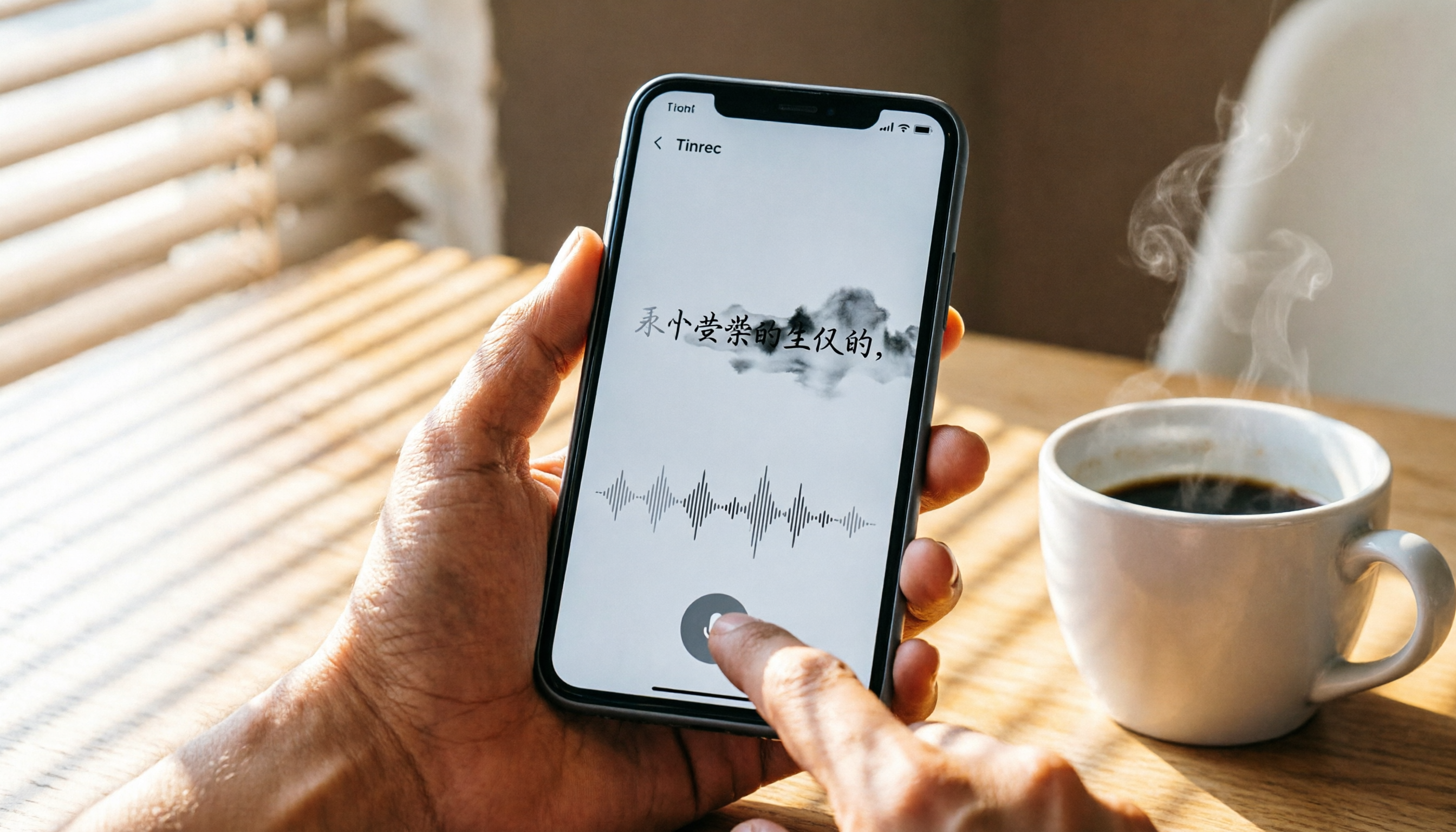
How to Use iPhone Voice Typing in 2026: A 5-Step Complete Guide
From iPhone's built-in dictation to professional recording-to-text tools, this guide provides hands-on comparisons to help you find the best voice input solution for your needs.

Tinrec vs Otter.ai in 2026: AI Speech Recognition Custom Vocabulary Showdown – Who Understands Your Industry Terms Better?
How do AI speech recognition tools handle industry-specific terminology? This article compares five tools—Tinrec, Otter.ai, Notta, Google Cloud Speech-to-Text, and Vocol.ai—based on the practical need for custom vocabularies, helping you find the best speech-to-text solution for professional scenarios.