
Turn recordings into transcripts and summaries in minutes
Upload audio or video for multilingual transcription, AI notes, and action items
Last week, a student messaged me after class, saying that every time she has to organize an interview recording, she has to listen to it multiple times, transcribe it into a document that runs ten-plus pages, and then still extract the key points and add timestamps herself.
She asked: "Is there a smarter way, teacher?"
My first reaction wasn't to recommend a tool; I asked her: "Do you think a transcript is just a text file, or is it something you can put to use right away?"
She paused.
That's exactly the common misunderstanding people have about transcripts.
A transcript isn't just about turning audio into text
According to Wikipedia, a transcript is a word-for-word written record of audio content, usually used in academic interviews, lectures, meetings, and other situations where the original words need to be fully preserved.
But looking at the literal definition, it's easy to reduce the task to a simple "listen → type → archive" routine.
In reality, a good transcript should save you time on the follow-up organization.
In other words, instead of spending three hours transcribing and another two hours summarizing, you can let a tool do it all at once—not just giving you the text, but also marking chapters, summaries, action items, and even letting you ask, "In this audio, who said what key point?"
That's the real value of modern transcription tools.
When choosing a tool, these four factors matter more than "minutes"
When many people look for a speech-to-text tool, the first thing they compare is the free quota.
But in my experience, if a tool doesn't truly fit into your workflow, even a huge number of free minutes will just sit unused.
I prioritize these four points:
- Does it support a wide range of input sources?: Can it only record meetings, or can it also process your old audio files and online videos?
- Post-transcription organization capabilities: Does it offer automatic summaries, chapters, and action items, or does it just hand you a big block of plain text?
- Chinese and mixed-language recognition: Do Chinese-English mixed conversations and proper nouns turn into garbled text, or are they recognized accurately?
- How can you use it afterward?: Can you export to Notion or Google Docs, or have the AI generate further reports directly?
With these four criteria, I tested three tools.
Three tools tested: which one turns transcripts into usable knowledge?
Otter.ai: a top performer for English meetings
Otter is the go-to for many English meeting users. It can automatically join online meetings, identify speakers in real time, and generate summaries immediately after the meeting.
My first test used a fully English product-discussion meeting, and Otter performed impressively—the summary and action items were spot-on.
But when I switched to an interview recording with mixed Chinese and English, Otter started to struggle—common Chinese names and company names were sometimes recognized as completely unrelated English words.
Also, Otter is designed for meetings at its core. If you want to organize classroom recordings or YouTube videos, you have to find a way to get the audio file first, then upload it—adding several extra steps.
(Screenshot location: Otter meeting summary screen, with an arrow pointing to the incorrectly recognized person name in the summary)
Notta: strong transcription, but what happens after that?
Notta has solid multilingual transcription, with good performance in Chinese, Japanese, and Cantonese.
When I uploaded a Chinese course recording, the transcript accuracy was indeed satisfying, and even some specialized terms came through intact.
Stop organizing recordings by hand
Upload audio or video and automatically get a transcript, summary, and action items
But here's the problem: after transcription, Notta mainly gives me a text file, plus a reasonably clear auto-generated summary.
When I wanted to quickly find "the three case studies the teacher mentioned" from a 50-minute recording, Notta doesn't have a direct Q&A feature. I could only search by keywords and then slowly dig through the content.
It felt like I was handed a stack of accurate lecture notes, but I still had to search through them myself.
(Screenshot location: Notta transcript list, with an arrow pointing to the plain text content, which lacks structured key points)
Tinrec: transforming audio and video into a conversational database
Finally, I tried Tinrec, and it completely flipped my idea of what a "transcription tool" can be.
When you open the app, next to the record button there are three clear input options: "Record," "File," and "Link." That means I can not only record a live meeting, but also upload old interview recordings from my phone, or even paste a YouTube URL to let it organize public course content.
(Screenshot location: Tinrec homepage, with arrows pointing to the three input source icons)
What really amazed me was the post-transcription AI capability.
After recording a team meeting, I didn't read through the transcript from the start. Instead, I directly asked Tinrec: "How many conclusions were there in this meeting? Who is responsible for what?" It understood the semantics and, in one second, gave me three conclusions and two action items—no manual searching needed.
(Screenshot location: Tinrec AI Q&A screen, showing the question "Who is responsible for the design draft?" and the response)
In comparison, with typical transcription tools, I used to have to wait for the transcript, then jump to my note-taking app to organize it myself. Now Tinrec lays out summaries, chapters, and action items for me. I just review, adjust, and export to Notion to continue working.
Moreover, Tinrec's Chinese support is very natural. For mixed Chinese-English dialogue, the recognized person and company names need almost no edits.
Why I ultimately switched my entire workflow to Tinrec
Each of these three tools has its own strengths: Otter is great for pure English meetings, and Notta is great for scenarios that need highly accurate plain transcription.
But my own work scenarios are varied: meetings in the morning, listening to podcasts for inspiration at noon, interviews in the afternoon, and online courses in the evening. I need a "multi-source audio and video organization center," not just a meeting-minutes bot.
Tinrec exactly fills that gap:
- Any audio or video enters the same workflow: It seamlessly handles meetings, courses, interviews, and online videos, without me having to decide which tool to use first.
- Transcription is just the beginning: AI summaries, action items, and Q&A mean I'm not just getting text; I'm getting answers.
- Follow-up processing is incredibly convenient: Export to Notion or Google Docs, or let the AI generate a meeting report—directly turning it into a deliverable.
Plus, you don't need to buy any extra recording equipment. Your phone and computer are the most convenient entry points.
If you're also starting to feel that manually transcribing and finding key points drains your willpower, Tinrec is worth a try.
Start organizing your knowledge with Tinrec: three quick steps
- Download Tinrec and start with the free plan: You get a basic monthly quota, so you can test it with one of your own meeting or course recordings.
- Try all three input types: Record a live conversation, upload an old audio file, and paste a YouTube video URL to see which one best solves your current pain point.
- Develop the habit of asking questions: Once you get the transcript, don't just read it—ask Tinrec directly, "What are the key points?" and "What are the action items?" You'll notice your organizing time drops in half.
Test each feature step by step, and gradually turn your audio and video into truly usable knowledge—you can do it too.
References
- How to transcribe audio into text | SpeedCat Professional Team
- What is a transcript? (How teachers write transcripts) | Xiaoyou
- Transcript - Wikipedia, the free encyclopedia
- Excuse me, silly question: what does transcript mean and what does it contain? | PTT ask board
- What is a transcript? | Free online audio-to-text transcript generator | Subanana
Turn every recording into actionable outcomes
Get 60 free transcription minutes when you sign in. No credit card required.
Related Reading
You might also like
2026 Police Interview Recording Guide: Legal Self-Protection & AI Summarization
Can you record your own police interview? A senior student shares hard-won lessons, legal rules, and practical tips on when and how to record legally—and how Tinrec can auto-transcribe, summarize, and help protect your statement.

2026 Free Recording Organization Solutions: 2 Tools Compared
iPhone Notes is built-in and free, but Tinrec offers automatic transcription, AI summaries, and cross-platform organization. This article compares two free recording organization options across transcription, organization features, syncing, and exporting to help you find the right productivity tool.
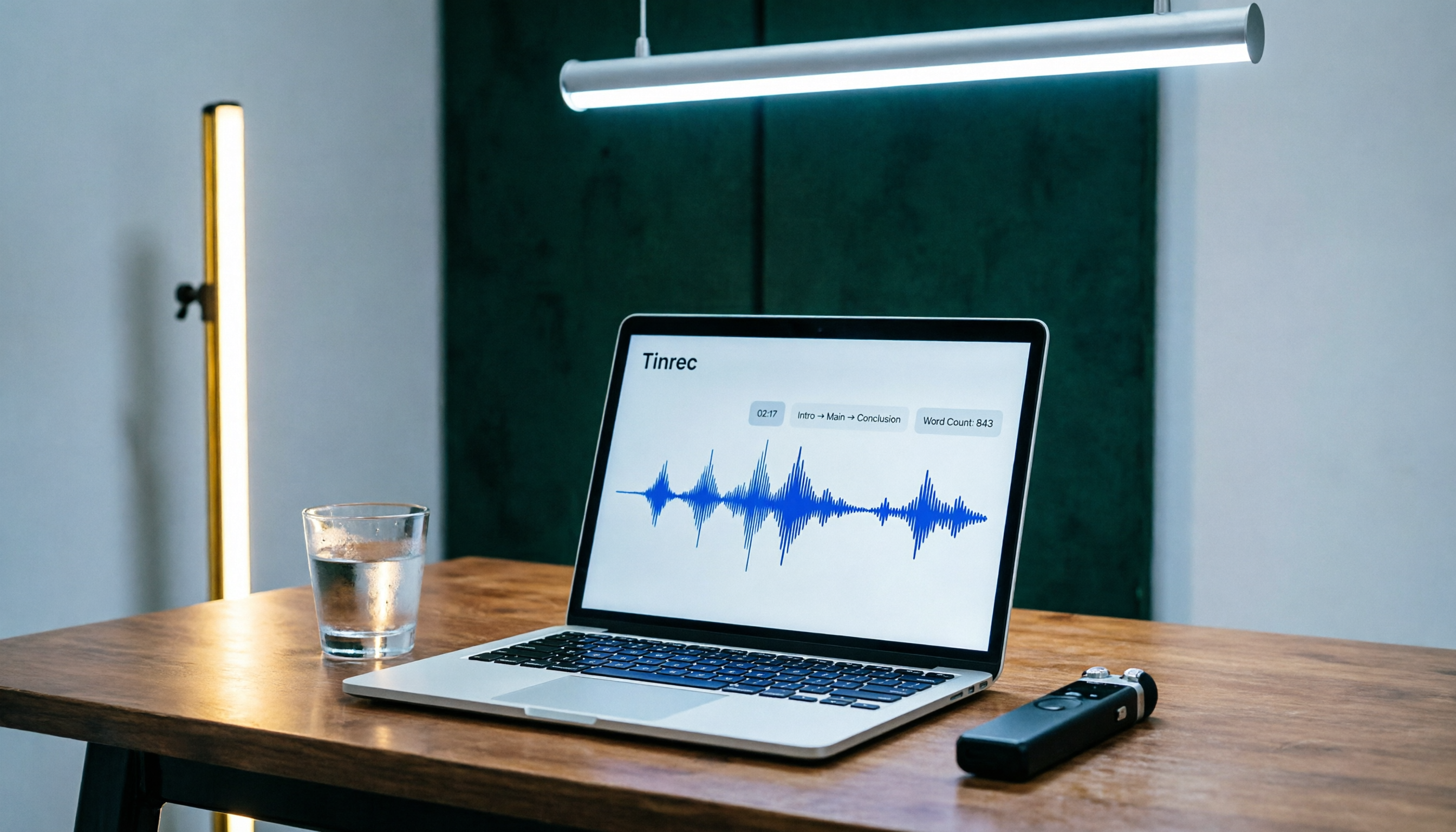
Tinrec Speech-to-Text 2026 Tutorial: Precisely Calculate 1,000-Word Speech Time + AI Auto-Organization
How long does a 1,000-word speech take? This article teaches you to calculate speaking rate based on the occasion and use Tinrec's speech-to-text feature to test your speech time, auto-generate transcripts and key summaries, so you can keep every presentation on schedule.
How to Change Font in iPhone Notes in 2026: A 5-Step Complete Guide
Changing fonts in iPhone Notes has its limits. This guide shows you how to use the latest iOS 18 features to apply bold, italics, headings, and text color, and compares Notes with Notion's full font capabilities to help you choose the right note-taking app for your needs.
Add Text to Photos on iPhone in 2026: Built-In Feature (No App Needed) + Top App Recommendations
Want to write on your iPhone photos without downloading an app? This guide covers the built-in Markup tool and several popular apps, from simple captions to advanced design, to help you find the best method.

2026 Free Computer Screen Recording Solutions: 3 Tools at a Glance
Tested by a manager! Stop paying for voice recorders — use Windows built-in, online tools, or Tinrec to record computer audio, and automatically turn meeting notes into text and to-do items.
Best Meeting Notes App in 2026? We Tested 3, and This One Handles Chinese Best
Meeting notes are no longer a headache! Using Tinrec as an example, this article teaches you 3 steps to quickly turn meeting recordings into text, auto summaries, and to-do lists. We also tested 3 tools to show you which one is best for Chinese meetings and multi-source audio/video organization.

How Long Can ChatGPT Record? 2026 Hands-On Test of 3 Recording-to-Text Tools: Tinrec Best for Hong Kong Office Workers
Many people ask how long ChatGPT can record. The native ChatGPT recording mode maxes out at 120 minutes, but it’s not purpose-built for meeting notes. This article tests 3 tools and shows how to use Tinrec to turn recordings into meeting minutes and transcripts in a few steps, plus an AI Q&A feature that helps you skip overtime.

2026 Free iPhone Recording-to-Transcript Tools: 3 Options Compared
Learn about 3 free ways to turn iPhone recordings into transcripts, including the built-in Voice Memos app and third-party tools. We also recommend Tinrec, an AI recording organizer ideal for students, helping you save time and effort converting class and meeting recordings to text.