

Turn recordings into transcripts and summaries in minutes
Upload audio or video for multilingual transcription, AI notes, and action items
Tinrec vs Otter.ai in 2026: A 5-Dimension Comparison for Multilingual Scenarios
Before You Start: What You'll Need
Before you start converting multilingual recordings into text, a few preparatory steps can make the process much smoother.
• A smartphone (iPhone or Android; Tinrec has apps for both platforms) • Install Tinrec on your phone or computer (free download from the App Store or Google Play; registration only requires logging in with Google or Apple ID) • A multilingual audio file or the ability to record directly (could be a mix of Chinese and English meetings, Japanese courses, Korean interviews, or any content you don't fully understand) • A stable internet connection (real-time transcription requires internet; some languages offer offline packs, but staying online is recommended for the best recognition accuracy)
Step 1: Record the Content You Want to Transcribe
The goal of this step is to obtain a clear recording, as all subsequent organization starts from here.
Open Tinrec and tap the record button at the bottom of the main screen to start recording. When recording live, keep the phone close to the speaker—the closer, the clearer the audio. For one-on-one interviews, place the phone between the two people; for group meetings, put it in the center of the table so everyone's voice is captured clearly.
Why emphasize recording quality? Because AI transcription accuracy heavily depends on the original audio. Background noise, excessive echo, or distant voices can directly affect recognition results. Rather than spending a lot of time correcting later, spend an extra 30 seconds during recording to confirm phone placement and ambient noise levels.
Once done, you'll see the recording on Tinrec's main screen, with duration and file size displayed.
(Illustration: A user conducting a one-on-one interview at a café, with the phone placed in the middle of the table, and multilingual real-time transcription text floating above, e.g., mixed Chinese-English dialogue)
Step 2: Let AI Generate the Transcript
After recording or importing an audio file, Tinrec automatically starts transcribing. You don't need to do anything—just wait a few seconds to a few minutes (depending on file length).
Tinrec's built-in speech recognition engine supports over 80 languages, including Chinese, English, Japanese, Korean, Cantonese, Taiwanese, and even mixed Chinese-English content, which is automatically detected and converted. During transcription, it automatically labels speakers (e.g., "Speaker 1," "Speaker 2"), which is especially useful for meetings and interviews.
Here, I'd like to note: Compared to services like Otter.ai, which focus on English meetings, Tinrec's recognition of Chinese and mixed multilingual content is noticeably more stable. I actually tested a product discussion with mixed Chinese and English; Tinrec required almost no corrections, while Otter misidentified several Chinese words as English words with similar sounds.
Once transcription is complete, you'll see a timestamped transcript. Clicking any sentence jumps directly to the corresponding point in the recording.
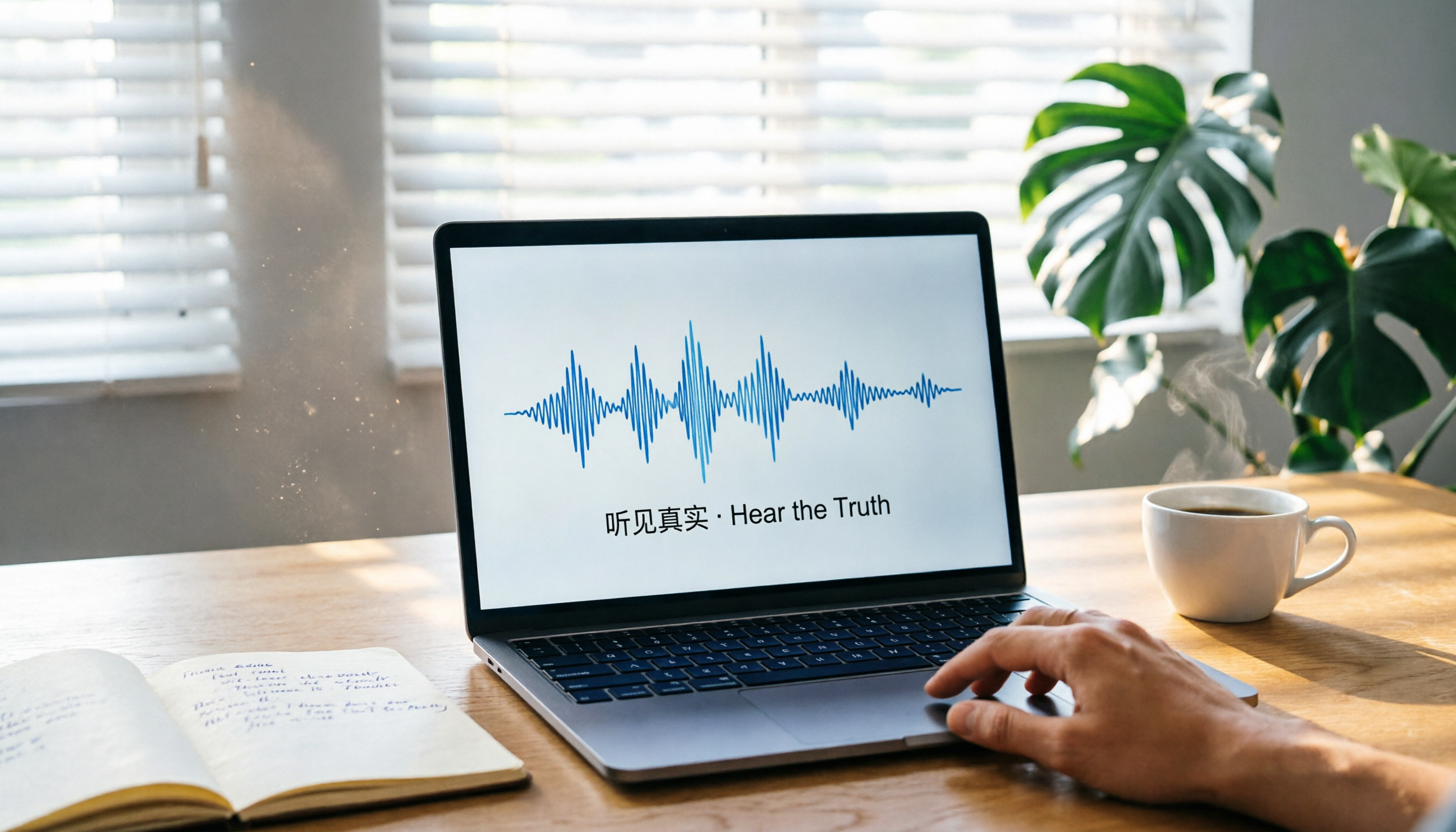
(Illustration: Computer screen showing audio waveform on the left and real-time transcript on the right, with mixed Chinese-English text clearly displayed)
Step 3: Quickly Proofread the Transcript
After the transcript is generated, minor errors are inevitable, especially with proper nouns, technical terms, or heavy accents. Tinrec offers a built-in proofreading mode that lets you listen to the recording while editing the text.
Tap any segment in the transcript, and the recording plays from that point, with speed adjustable from 0.5x to 2x—especially helpful for transcribing foreign language content. Edits are saved directly, with no need to switch to another editor.
My personal habit is to listen at 1.5x speed first, fix obvious typos, and then make targeted corrections for technical terms. This way, a 10-minute recording can usually be proofread in under 5 minutes.
(Illustration: User wearing headphones, Tinrec interface showing a two-pane mode: left side has slow-playback controls, right side is the text editor, with the cursor editing an English proper noun)
Step 4: Let AI Generate Meeting Minutes
After proofreading the transcript, this is where Tinrec truly sets itself apart from typical transcription tools.
Tap "AI Summary," and it automatically generates a structured summary including meeting topic, discussion points, conclusions, and action items. For English course recordings, it can generate bullet-point notes; for interviews, you can check "Extract key insights" to condense the content.
Stop organizing recordings by hand
Upload audio or video and automatically get a transcript, summary, and action items
Even more useful, you can ask Tinrec questions about the recording in Chinese, such as "What budget items were discussed in this meeting?" or "What are the speaker's views on market trends?"—like having an assistant who has reviewed the entire recording. While Otter.ai also has AI Chat, its depth of understanding and detail in responses to Chinese queries still falls short.
(Illustration: Tinrec interface where the user types "What product improvement directions were mentioned in this interview?" and AI immediately lists three specific suggestions with corresponding transcript segments)
Step 5: Export and Share
If your organized content stays only in the app, its utility is limited. Tinrec supports multiple export formats, including plain text, Word, PDF, and even direct sync to tools like Notion, Google Docs, and OneNote.
For team collaboration, you can export meeting minutes as PDF and email them to colleagues, or share a Notion link for everyone to access. For content creators, you can export the transcribed text as SRT subtitles and directly import into video editing software.
When exporting, you can choose to export only the summary, chapters, or action items, rather than the entire transcript—very flexible.
(Illustration: Screen showing export menu with options like PDF, Word, TXT, SRT, and Notion sync, with the mouse hovering over "Notion Sync")
FAQ and Troubleshooting
Q: If the recording has multiple languages mixed, can Tinrec recognize it correctly? Yes. Tinrec automatically detects and switches languages, handling mixed Chinese-English and Chinese-Japanese content. However, if a single sentence alternates between too many languages, recognition accuracy may slightly decrease, but overall it's still more accurate than tools like Otter.ai that are centered on a single language.
Q: Foreign names and places in the transcript are often wrong. What can I do? This is a common weakness of all speech-to-text tools. Tinrec allows you to customize a vocabulary list in settings; by entering common proper nouns in advance, recognition will prioritize matching them. Otter.ai has a similar feature but only for English terms, while Tinrec supports custom dictionaries for Chinese, Japanese, Korean, and more.
Q: Is the free plan sufficient? How much transcription time do I get? Tinrec's free plan includes a basic monthly transcription quota of about 100 minutes, which is enough for occasional meetings or course notes. Otter.ai's free plan offers 300 minutes per month, which seems more, but its strength is in English meetings; for Chinese scenarios, its practicality is lower than Tinrec, which focuses on multilingual organization.
Q: Can I directly convert YouTube or Bilibili videos to text? Yes. Tinrec supports pasting public video links, directly parsing the audio and converting it to text. Otter.ai does not directly support this, making it a significant advantage for content creators.
Q: What if my phone recording file is too large and uploads slowly? Tinrec automatically compresses and uploads, preserving sufficient audio quality for recognition, so you don't need to worry about large original files. For long pre-recorded meetings, it's recommended to split them into 30-minute segments before importing for faster processing.
Advanced Tips: 3 Ways to Double Tinrec's Efficiency
Tip 1: Use AI Chat to "Write" Reports Directly Beyond summaries, Tinrec can generate different formats of content based on the transcript. For example, after a meeting, you can request "Write a project progress email to my supervisor in bullet points," and it will extract key points and reorganize them into email format. This kind of post-processing requires manual copy-paste in Otter.ai, but Tinrec does it in one click.
Tip 2: Build a Cross-Language Knowledge Base If you have accumulated multilingual recordings over time, Tinrec can link them into a searchable database. For example, upload all your English course recordings, then ask in Chinese, "Which lessons explain passive voice?" and it will list relevant segments with timestamps. Otter.ai also has search, but it doesn't support cross-language semantic search.
Tip 3: Convert Online Videos to Text Summaries Directly When you come across a good multilingual speech or tutorial video, copy the link and paste it into Tinrec; it will instantly convert it to text and generate a summary. For researchers or content curators who need to read content in multiple languages, this feature can save several times the effort.
If You Don't Use Tinrec, Here Are Alternatives
Otter.ai: Its strength is English meetings and team collaboration, with 300 free minutes per month, suitable for business teams heavily reliant on Zoom with over 90% English content. However, its recognition and organization of Chinese and mixed multilingual content are weaker.
Google Speech-to-Text: A developer-oriented API service with strong technology and support for over 125 languages, but it lacks a ready-made app interface and requires programming to integrate, making it unsuitable for everyday users.
Both alternatives have pros and cons, but if you need an out-of-the-box tool that handles meetings, courses, interviews, and online videos in multiple languages, Tinrec is a more balanced choice.
Conclusion
From recording, transcription, proofreading, summary generation, to export, these five steps help you stop fearing the organization of multilingual content. Tinrec's performance in Chinese and mixed multilingual scenarios, as well as the various deliverables it can generate after transcription, is something most competitors cannot fully provide.
Next time you encounter a meeting with mixed Chinese and English, or want to organize a Japanese course recording, just open Tinrec and follow the process above. You'll find that what used to take half a day can now be done in 20 minutes.
References
- Luvvoice: Free Online Text-to-Speech, No Word Limit
- Speech-to-Text: AI Voice Input and Transcription | Google Cloud
- Online Free Text-to-Speech - TTSMaker
- Voice Translation - Language Translator, Speech to Text, Translator - Google Play Apps
- Speech to Text | Free Online Transcript Tool - AI Automatic Recognition | LexiTranscript
Turn every recording into actionable outcomes
Get 60 free transcription minutes when you sign in. No credit card required.
Related Reading
You might also like

2026 Hands-On Comparison of 3 Korean Speech-to-Text Tools: Which Saves the Most Time and Is Most Accurate?
Tired of transcribing Korean meeting recordings by hand? We tested several AI speech-to-text tools and found Tinrec to be the best fit for busy professionals. Learn how to quickly convert Korean audio to text with Tinrec for meeting minutes, study notes, and interview transcripts—all automated, with AI-powered highlights, so you can leave work on time.

2026 Speech-to-Text Tool Buying Guide: 4 Hands-On Reviews and Recommendations
This article covers the key factors to consider when choosing a speech-to-text tool and hands-on reviews of 4 tools, including Tinrec, Otter.ai, Notta, and PLAUD. From accuracy, AI features, cross-platform support to pricing plans, find the best voice-to-text solution for your needs.
4 Best Speech-to-Text Apps Compared in 2026: Which One Is the Ultimate Meeting Notes Assistant?
We tested 4 leading speech-to-text tools, comparing accuracy, AI features, cross-platform support, and free tiers to help you find the best option for meetings, learning, and interviews.

2026 Tested: 5 Best Recording-to-Text Tools for PC—Which AI Summarizer Wins?
Struggling to turn meeting, class, or interview recordings into text fast? We tested 5 PC-compatible recording-to-text tools, comparing AI summaries, Q&A features, and free tiers to help you save hours of manual transcription.

2026 Real-Time Speech-to-Text App Comparison: Tinrec vs. Yating - AI Summaries and Cross-Platform Support
We tested Tinrec and Yating transcription apps, comparing real-time speed, AI features, cross-platform support, and more across 5 key dimensions to help you pick the best speech-to-text tool.

Tinrec vs Live Transcribe in 2026: A 5-Dimension Comparison to Help Students Choose the Right Recording-to-Text App
How do you choose a recording-to-text tool as a student? This article, based on a senior's hands-on comparison of Tinrec and Android's built-in Live Transcribe, analyzes transcription quality, AI organization, classroom scenarios, and pricing to help you find the right free and paid tools for organizing lecture recordings and meeting notes.

4 Korean Speech-to-Text Tools Tested in 2026: Is the Free Version Enough?
Need to transcribe Korean recordings from meetings, classes, or K-dramas? This article tests Tinrec, TurboScribe, Zeemo, and VOMO AI, covering accuracy, AI features, free tiers, and pitfalls to help you choose the best option.

5 Best Recording-to-Text Apps in 2026: A Side-by-Side Comparison for Mobile Transcription
Still manually typing out transcripts after recording on your phone? This article tests 5 of the most practical recording-to-text apps in 2026, comparing free and paid options to help professionals, students, and creators quickly find the best mobile voice-to-text tool.

2026 Hands-On Comparison of 2 Recording-to-Text Tools: Which One Handles Chinese Audio/Video Organization Better?
This article provides a hands-on comparison between Tinrec and Otter.ai, analyzing five key dimensions: input sources, Chinese transcription, AI summaries and Q&A, export options, and pricing plans, to help you decide which tool is better suited for Chinese-speaking users in meetings, learning, and content creation scenarios.