
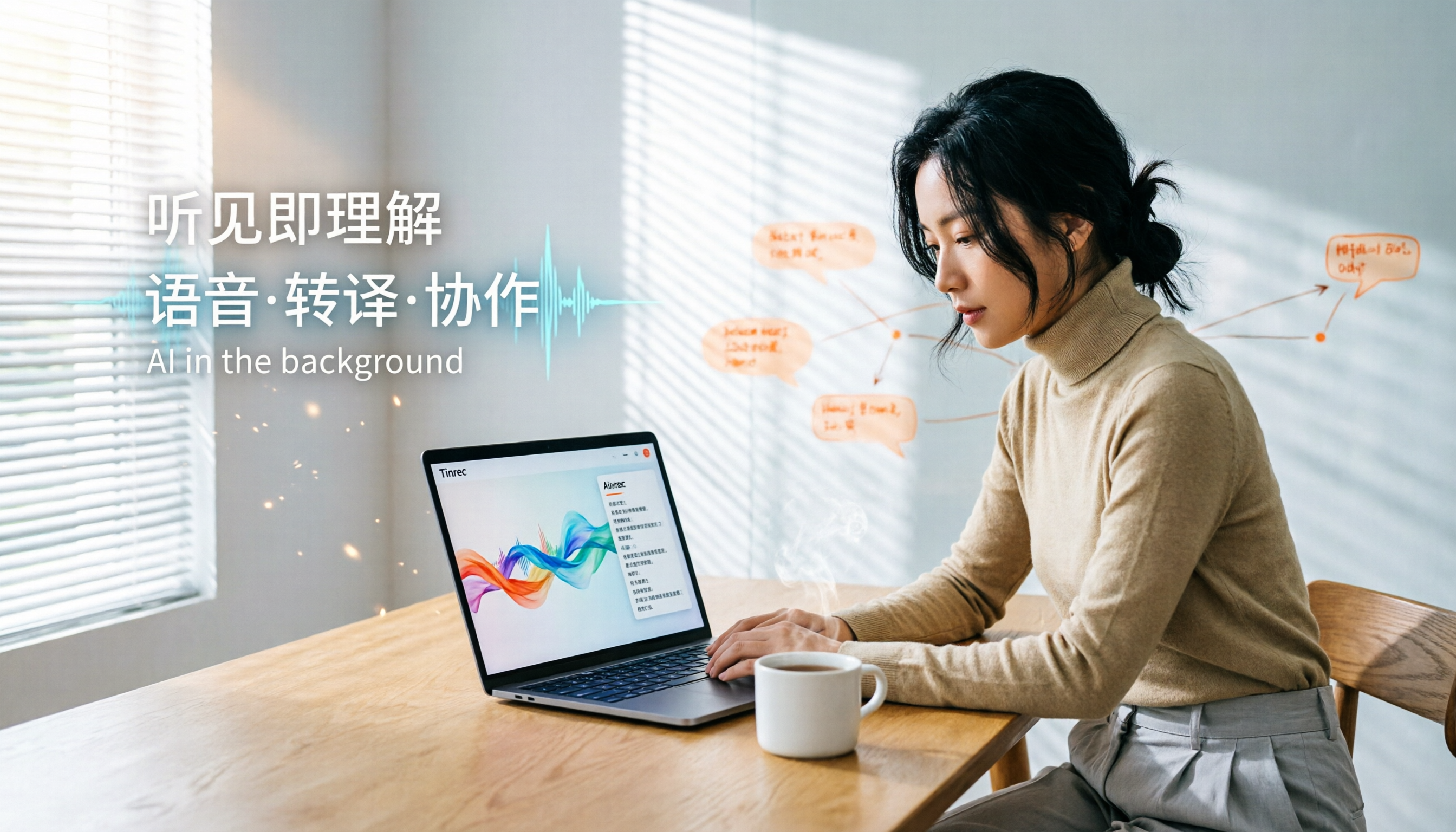
Turn recordings into transcripts and summaries in minutes
Upload audio or video for multilingual transcription, AI notes, and action items
Let me ask you a question: How many action items came out of last week's meeting? If you can't answer that, your meeting notes might need an upgrade. Many people search for "how to use Otter in Chinese" because they want to solve meeting notes and audio-to-text problems. This article uses Tinrec (Seconds Recording), which I've tested and found better suited for Chinese users, as an example. I'll walk you through 5 steps to transcribe audio, generate AI summaries, and share your notes. At the end, I'll also compare it with Otter.
Before You Start | What You'll Need
- A smartphone or computer (Tinrec supports iOS, Android, and desktop)
- Download the Tinrec app (free from the App Store or Google Play; sign in with Google or Apple ID)
- Prepare an audio recording (could be a meeting, interview, or use live recording)
- A stable internet connection (live transcription requires internet; for offline use, download language packs in advance)
Step 1 | Record the Content You Want to Transcribe
This step is about getting a clear audio file, which is the foundation for transcription quality. Open Tinrec and tap the record button on the main screen to start. Holding your phone closer to the speaker works best; for multi-person meetings, place it in the center of the table. For online meetings (Zoom, Google Meet, Teams), use the Tinrec desktop app—it captures system audio directly, so you don't need to invite a bot to the meeting. Why emphasize audio quality? AI transcription accuracy heavily depends on audio clarity. Instead of spending a lot of time correcting later, spend an extra 30 seconds adjusting the position during recording. When done, the main screen shows the recording with duration and file size. (Illustration: In a meeting room, a phone is placed in the center of the table recording, with the screen showing live transcription text)
Step 2 | Let AI Transcribe It for You
Tinrec automatically generates a transcript within seconds after recording ends; if you import an old audio file, it will also transcribe automatically after upload. The transcript shows timestamps for each sentence; click a sentence to play the corresponding audio for quick verification. If there's mixed Chinese-English content, Tinrec can recognize and preserve the original text. You don't need to do anything in this step—just wait for it to finish. I usually pack up while waiting; a 30-minute meeting takes about 1–2 minutes to see the text. (Illustration: Computer screen showing transcript with timeline markers)
Step 3 | Quickly Proofread the Transcript
AI can make mistakes, especially with technical terms or heavy accents. Don't read from start to finish; use the search function to find key decision points or numbers and quickly scan those sections. Tinrec supports "sentence-by-sentence playback"—click a sentence to hear the original audio, which is much faster than manual proofreading. If your team has common terms, you can add them to "Team Keywords" in settings to reduce errors on proper nouns. I usually spend only 5–10 minutes proofreading a 1-hour meeting, focusing on numbers, dates, names, and conclusions. (Illustration: User clicks a sentence in the transcript, headphones play the audio)
Stop organizing recordings by hand
Upload audio or video and automatically get a transcript, summary, and action items
Step 4 | Let AI Generate Meeting Minutes for You
Transcripts are too long; your boss wants the highlights. Tinrec's AI summary automatically organizes sections, key points, and action items, and even generates a mind map. Click the "Summary" tab, select the "Meeting Minutes" template, and AI will list discussion topics, decisions, and action items. I usually copy it directly into a report or forward it to the team. Action items clearly list assignees and deadlines (if mentioned in the audio), saving me time from manually compiling them. (Illustration: AI-generated key summary and to-do list, clean interface)
Step 5 | Export and Share
Your organized data should fit into your workflow. Tinrec supports exporting to Word, PDF, TXT, SRT subtitles, and can send directly to Notion, Google Docs, OneNote, or Dropbox. For team use, you can save meeting data to a Tinrec team space where members can view, search, and even ask AI follow-up questions. This way, every meeting becomes team knowledge, not scattered across personal devices. (Illustration: Export menu showing multiple format options, with team space sharing icon on the right)
FAQ and Troubleshooting
Q: The transcription has many errors. What should I do? Usually, the recording environment is too noisy or the distance is too far. Tinrec has built-in smart noise reduction; enable it in settings before recording. For imported files, you can manually select "High Noise Environment" mode. Otter's Chinese transcription has higher error rates with certain accents, while Tinrec is more stable for Chinese and Traditional Chinese recognition.
Q: Can I record online meetings? Yes, and you don't need to invite a bot. The Tinrec desktop app captures system audio directly, so participants won't see an extra attendee. Otter has a similar feature, but Tinrec has been tested more extensively for compatibility with Zoom, Meet, and Teams in Chinese environments.
Q: Is the free version enough? The free version has basic usage limits, suitable for occasional transcription. Since I have many meetings weekly, I upgraded to Pro; it costs less than two Starbucks coffees a month but saves me hours of organizing time.
Q: How can teams share? Create a Tinrec team space, invite members, and admins can allocate seats, view usage, and audit logs. Otter's team plan is feature-rich, but its Chinese interface and Traditional Chinese terminology aren't as well adapted as Tinrec's.
Pro Tips | 3 Ways to Double Your Efficiency with Tinrec
- AI Q&A to find answers directly: Instead of scrolling through transcripts, ask "What was the budget cap discussed last time?" Tinrec will answer across multiple meeting files and provide timestamps. Otter also has AI Chat, but in my testing, Tinrec is more accurate for Chinese understanding.
- Real-time bilingual translation: For meetings with mixed Chinese and English, enable "Bilingual Mode" to see the original text on the left and translation on the right—great for foreign companies or cross-border teams. This is Tinrec's strength; Otter's Chinese translations often sound awkward.
- Team keyword library: Add product names and project codes to keywords to significantly reduce transcription errors. Otter doesn't have the same team terminology management feature.
If You Don't Use Tinrec, Here Are Alternatives
- Otter.ai: A top choice for English meeting assistants, feature-rich, but its Chinese interface, accent recognition, and Traditional Chinese output aren't as tailored to Taiwanese users as Tinrec, and it's more expensive monthly.
- Notta: Good multilingual transcription, but lacks bot-based online meeting recording and team knowledge management features. I switched from Otter to Tinrec mainly because I have a high proportion of Chinese meetings weekly; Tinrec's transcription quality and support for Taiwanese terminology save me a lot of proofreading time.
Conclusion
With these 5 steps, you can now turn any recording into a transcript, automatically generate meeting minutes, use AI Q&A to find key points, and share with your team. If you were originally searching for "how to use Otter in Chinese," why not download the free version of Tinrec and try it on a real meeting to experience the smoothness of Chinese audio-to-text transcription. There's a monthly free quota, enough to evaluate whether it's worth upgrading.
References
Turn every recording into actionable outcomes
Get 60 free transcription minutes when you sign in. No credit card required.
Related Reading
You might also like

Best Sales Meeting Transcription Tools in 2026: 4 Tested, Tinrec Wins for Online Review
Sales meeting notes aren't just about uploading audio to the cloud. This article compares Tinrec, Otter.ai, Granola, and PLAUD across four dimensions—review experience, Chinese recognition, recording methods, and team governance—to identify the best selection criteria and pitfalls to avoid for sales teams in 2026.

6 Free Sales Meeting Notes Templates Tested for 2026: Fill These Fields to Track Deal Signals
Even a detailed sales meeting note won't help you close if the fields are wrong. This article compiles free, copy-ready sales meeting note templates, breaks down 5 key selection criteria, and tests Tinrec, Notta, Otter.ai, Granola, and two free templates to show how to turn customer quotes, concerns, and action items into follow-up leverage.

5 Best Speech-to-Text Apps of 2026 Tested: Which Handles Chinese Meetings Best?
We tested the latest speech-to-text apps of 2026, comparing free tiers, Chinese recognition, meeting summaries, AI Q&A, and team collaboration to help you decide which app best fits your daily meetings and transcript needs. Using Tinrec as an example, we illustrate a real-world workflow and plan selection.
4 Best Free Speech-to-Text Tools in 2026: Free Tiers and Chinese Support Compared
We tested 4 free speech-to-text tools in 2026—Tinrec, cSubtitle, Monica, and MyEdit—comparing free tiers, Chinese language support, post-meeting organization, and team collaboration to help you pick the right free plan for your needs.
2026 AI Meeting Assistant Comparison: 4 Tools Tested — How to Start and Which Saves the Most Time
Many people search "how to start an AI meeting assistant" but get stuck not on the button, but on their assumptions. This article addresses three common misconceptions, outlines 4 key points to understand before starting an AI meeting assistant, tests the full desktop workflow of Tinrec, compares Otter.ai, Granola, and Notta in positioning and pricing, and ends with a pitfalls guide and selection advice.

How to Use an AI Meeting Assistant in 2026: 5 Steps from Recording to Meeting Minutes
There are many AI meeting assistants, but the key isn't which one is the most powerful—it's where your meetings take place, whether you need a transcript or minutes, and whether it's for personal or team use. This article first provides 3 questions to ask and 4 key factors for choosing, then demonstrates Tinrec's complete workflow in 5 steps: recording, real-time transcription, AI summary, and export. It also covers plan limitations, team version benefits, and common pitfalls to avoid.

2026 AI Meeting Assistant Cost Comparison: How Many Meeting Minutes per Dollar?
The cost of an AI meeting assistant isn't just the monthly fee. This article breaks down the pricing units, free quotas, team seats, and real limits of 'unlimited' plans for 5 tools, using Tinrec's personal and team pricing as an example to calculate your actual annual cost, and concludes with actionable recommendations.
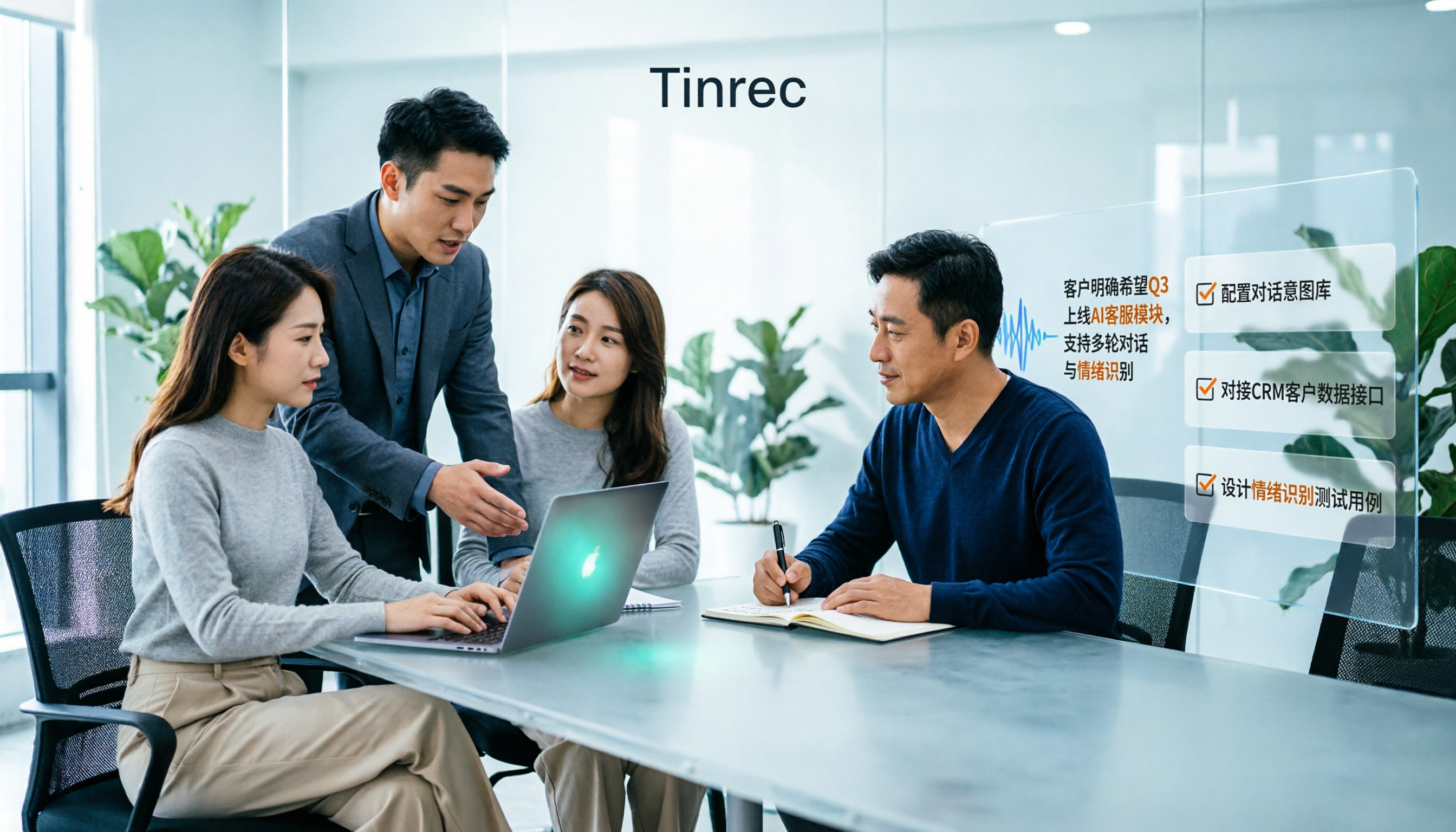
5 Sales Meeting Note Tools Compared for 2026: From Transcripts to AI Action Items
Sales meeting notes are hard to write because after the meeting you have to reconstruct customer needs, objections, and commitments. This article examines four dimensions—meeting capture method, Chinese recognition, post-meeting Q&A, and team data ownership—and hands-on compares tools like Tinrec, Notta, Granola, and Otter.ai. It also covers four common pitfalls when choosing a tool, helping you pick the right one for your sales team.

3 Recommended Ways to Install AI Meeting Assistants in 2026: From Mobile Apps to Desktop
How should you install an AI meeting assistant? Most people get stuck not on features but on choosing the wrong version or not enabling permissions, ending up with an hour of blank audio. This article breaks down three installation routes—mobile app, desktop, and web—using Tinrec as an example to explain the complete setup steps, plus 5 key considerations before installation and common FAQs.