
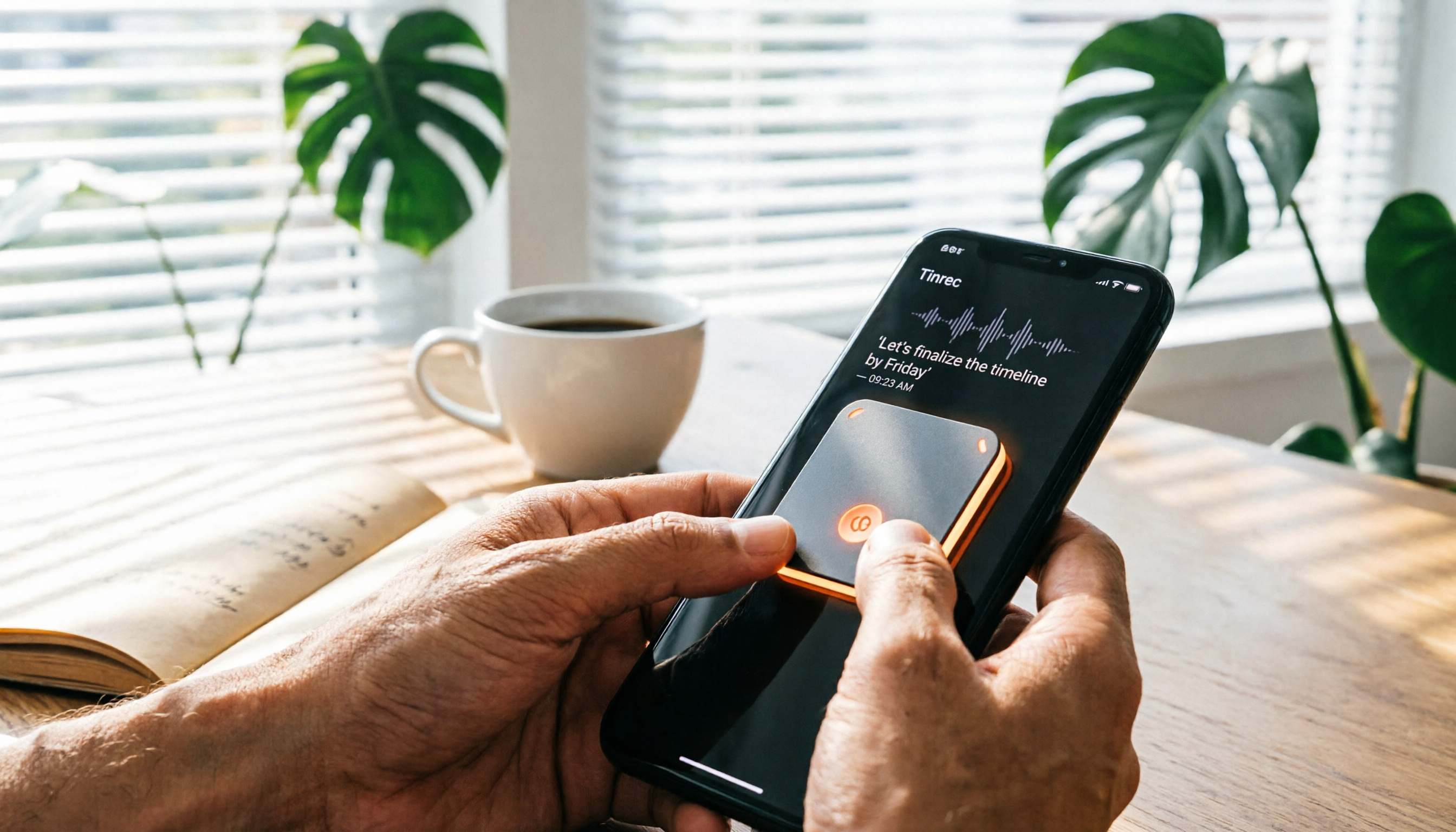
Turn recordings into transcripts and summaries in minutes
Upload audio or video for multilingual transcription, AI notes, and action items
PLAUD NOTE Recording: First, Know Which Mode You Need
The PLAUD NOTE is a portable AI-powered recording card. Its core function is simple: press once to start recording, press again to stop.
However, many users get stuck on one thing: how do you switch between voice memo and call recording modes?
In short, the PLAUD NOTE has two recording modes:
- Voice Memo: Ideal for meetings, classes, interviews, and quick notes.
- Call Recording: Designed for phone calls; requires a MagSafe case or magnetic ring to attach to the back of your phone.
This guide is divided into three parts: pre-recording setup, step-by-step instructions for both modes, and how to convert recordings into transcripts.
Before You Record: Complete These 3 Steps
1. Download the PLAUD App
The PLAUD NOTE works with the dedicated "PLAUD" app.
Scan the QR code in the manual to install it. After installation, log in to your account and follow the in-app instructions to connect your PLAUD NOTE device.
2. Check the Recording Mode Switch
The PLAUD NOTE has a recording mode switch located near the top-left of the device.
- Switch down: Voice Memo mode.
- Switch up: Call Recording mode.
Before you start recording, make sure the correct mode is selected. Especially for call recording, using the wrong mode may result in poor audio quality.
3. Inform the Other Party
For call recording, always inform the other party beforehand and obtain their explicit consent.
This is not only polite but also a basic step to comply with local laws.
Voice Memo Recording: For Meetings, Classes, and Interviews
Voice Memo is the most commonly used mode on the PLAUD NOTE, suitable for scenarios where you don't need to record phone calls.
Here's how to do it:
- Switch the mode switch down.
- Press and hold the record button for 1 second.
- You'll feel one vibration, indicating that recording has started.
- To stop recording, press and hold the record button for 1 second again.
- You'll feel two vibrations, indicating that recording has stopped.
This vibration feedback is a thoughtful design—you don't need to keep looking at the device; you can confirm the status even when it's in your pocket or bag.
Note: While voice memo is convenient, being too far from the speaker or in a noisy environment can affect the quality of the transcript.
Call Recording: How to Attach the Device for Phone Calls
Call Recording mode is for capturing phone conversations.
First, switch the mode, then attach the device, and finally start recording.
Step 1: Switch the Mode Switch Up
Flip the recording mode switch up to enter Call Recording mode.
Step 2: Attach the PLAUD NOTE to the Back of Your Phone
If your phone supports MagSafe:
Stop organizing recordings by hand
Upload audio or video and automatically get a transcript, summary, and action items
- Use a MagSafe case to attach the PLAUD NOTE to the back of your phone.
If your phone does not support MagSafe:
- Use the included magnetic ring.
- Peel off the plastic backing from the ring.
- Stick the ring to the back of your phone to enable MagSafe functionality.
The PLAUD NOTE is slim and lightweight, and adding the magnetic ring doesn't add much bulk, which is very convenient in practice.
Step 3: Start Call Recording
Once attached, the operation is the same as voice memo:
- Press and hold the record button for 1 second.
- You'll feel one vibration, indicating that call recording has started.
- Press and hold the record button for 1 second.
- You'll feel two vibrations, indicating that call recording has stopped.
The manufacturer specifically notes: In Call Recording mode, the audio quality is optimized for phone calls. Always select the mode before starting the recording.
After Recording: How to Generate Transcripts and Summaries
After recording, open the PLAUD App, tap on the audio file, and select "Generate."
PLAUD uses AI to convert the recording into a transcript and provides key summaries.
New users who register and connect their PLAUD NOTE device receive 300 minutes of free transcription time per month. If you need more, you can purchase additional time via in-app purchases or by buying time pack code cards.
In addition to transcripts, PLAUD's AI can automatically generate summaries, saving you time from having to re-listen to recordings. This is especially useful for business meetings, interviews, or class notes.
FAQ
Do I need to keep the app open while recording?
No. You can start and stop recordings directly using the button on the device. You only need to open the app afterward to process the audio files.
Why isn't the record button responding when I press and hold it?
First, check that the recording mode switch is set correctly. Also, make sure you press and hold for about 1 second; pressing too briefly may not trigger the recording.
Can I switch between call recording and voice memo after recording?
No. Call recording works best when the device is in Call Recording mode. Always select the mode before starting the recording.
How long can the PLAUD NOTE record?
According to official data, the PLAUD NOTE supports up to 30 hours of continuous recording and can store up to approximately 480 hours of audio. Standby time is up to 2 months.
How do I transfer recordings to my computer?
If you're not using the PLAUD App or PLAUD WEB, you can connect the PLAUD NOTE directly to your computer to transfer files. For detailed instructions, refer to the official PLAUD support page.
Do unused free transcription minutes roll over to the next month?
The 300 free transcription minutes are provided on a monthly basis. Please refer to the actual balance and validity period shown in the PLAUD App.
References
- PLAUD NOTE | AI Smart Recorder | Free 300 Minutes of Transcription per Month - Esentra
- Plaud User Guide | Full Tutorial and Operation Manual
- Call Recording is Impressive! AI Recorder "PLAUD NOTE" with GPT-4o Review! A Great Companion for Business | Saiga NAK
- How to Start Recording with Plaud Note?
- Recording Guide | Plaud Taiwan
Turn every recording into actionable outcomes
Get 60 free transcription minutes when you sign in. No credit card required.
Related Reading
You might also like

3 Transcription Tools Tested for 2026: How Long Can Yating Record, and Which Tool Is Best for Long Meetings?
How long can Yating Transcribe record? The official documentation doesn't specify a single-recording limit; the real constraints are audio-file billing and free hours. This article breaks down Yating's duration and pricing rules, and compares Notta, TurboScribe, and Tinrec on long meetings, post-meeting organization, and team collaboration to help you choose the right tool.

4 Online Audio Transcription Tools Tested in 2026: PLAUD File-to-Text vs. AI Meeting Summaries—Which Saves the Most Time?
Stuck with a pile of PLAUD recordings and unsure how to quickly transcribe and summarize them online? This article uses a real meeting workflow to compare Tinrec, PLAUD, Otter.ai, and Notta, and shows you how to export audio from the PLAUD App and turn it into searchable, queryable meeting data.

Tinrec vs Plaud Note in 2026: 5-Dimension Comparison — Is Plaud Recording Still Worth It?
How to choose an AI recording tool in 2026? This article compares Tinrec and Plaud Note across 5 dimensions: bot-free online meeting recording, post-meeting summaries and AI Q&A, team spaces and seat management, and the cost structure of hardware versus subscription. It's for SMB managers and team leads evaluating meeting note tools, with a pitfalls guide and scenario-based selection advice at the end.

2026 AI Recording & Note-Taking Tools Compared: After Plaud's Cloud Playback, Which One Actually Saves You Time?
Starting from the real frustration of 'Plaud recording online viewing,' this hands-on comparison of Plaud, Otter.ai, Granola, and Tinrec examines differences in meeting transcription, post-meeting organization, Chinese language support, and team collaboration, offering mid-level managers who need to report upward and track downward an actionable selection guide.

2026 Plaud Recording Software Download Guide: Tinrec, a No-Hardware Alternative
Many people search for "Plaud recording software download" without realizing that Plaud Desktop currently requires hardware binding. Starting from student use cases, this article explains the prerequisites before downloading Plaud and compares Tinrec's practical uses in bot-free online meetings, real-time transcription, AI summaries, to-dos, Q&A, export, and team spaces, helping you decide whether to switch to a more flexible alternative.

2026 Free Plaud Recorder Plans Compared: 4 Options at a Glance
Many people search for a "free Plaud recorder," but PLAUD is a hardware device—what's free is the 300 transcription minutes per month. This article compares free plans from PLAUD, Tinrec, Otter.ai, and Notta, covering hardware costs, Chinese support, post-meeting organization, and team collaboration to help you choose the right tool.

2026 AI Voice Recorder Comparison: Plaud Note, Note Pro, NotePin vs Tinrec — Which Should You Choose?
What's the difference between Plaud Note, Note Pro, and NotePin? This guide compares four AI voice recorders based on real workflows for online meetings and in-person interviews, covering recording methods, post-meeting organization, subscription costs, and team data ownership to help you decide between hardware and software.

2026 AI Recorder Comparison: Plaud Free Tier & Pricing Explained — Which Tool Fits You Best?
People searching for 'Plaud free recording' often mistake the monthly free quota for a long-term free plan, only to discover the real cost is hardware plus subscription. This article breaks down free quotas and pricing, tests Plaud, Notta, Otter.ai, and Tinrec, and shares 4 key buying factors and common pitfalls.

Tinrec vs Plaud Note 2026: 5-Dimension Comparison — Do You Need Meeting Recording Hardware?
People searching for 'which Plaud recorder' often think a new device will solve their meeting notes problems, but the real bottleneck is what happens after recording: organizing, follow-up questions, and team handoff. This article compares AI recording hardware like Plaud Note with a hardware-free meeting notes tool like Tinrec across 5 dimensions—online meeting capture, post-meeting output, team governance, and cost structure—and gives clear scenario-based recommendations.