
Turn recordings into transcripts and summaries in minutes
Upload audio or video for multilingual transcription, AI notes, and action items
Can You Join Google Meet on iPhone Without the App?
Yes. Google now allows iPhone and iPad users to join Google Meet meetings directly through Safari, without downloading an app or needing a Google account. For those with limited phone storage or who don't want to add another app, this option is now available.
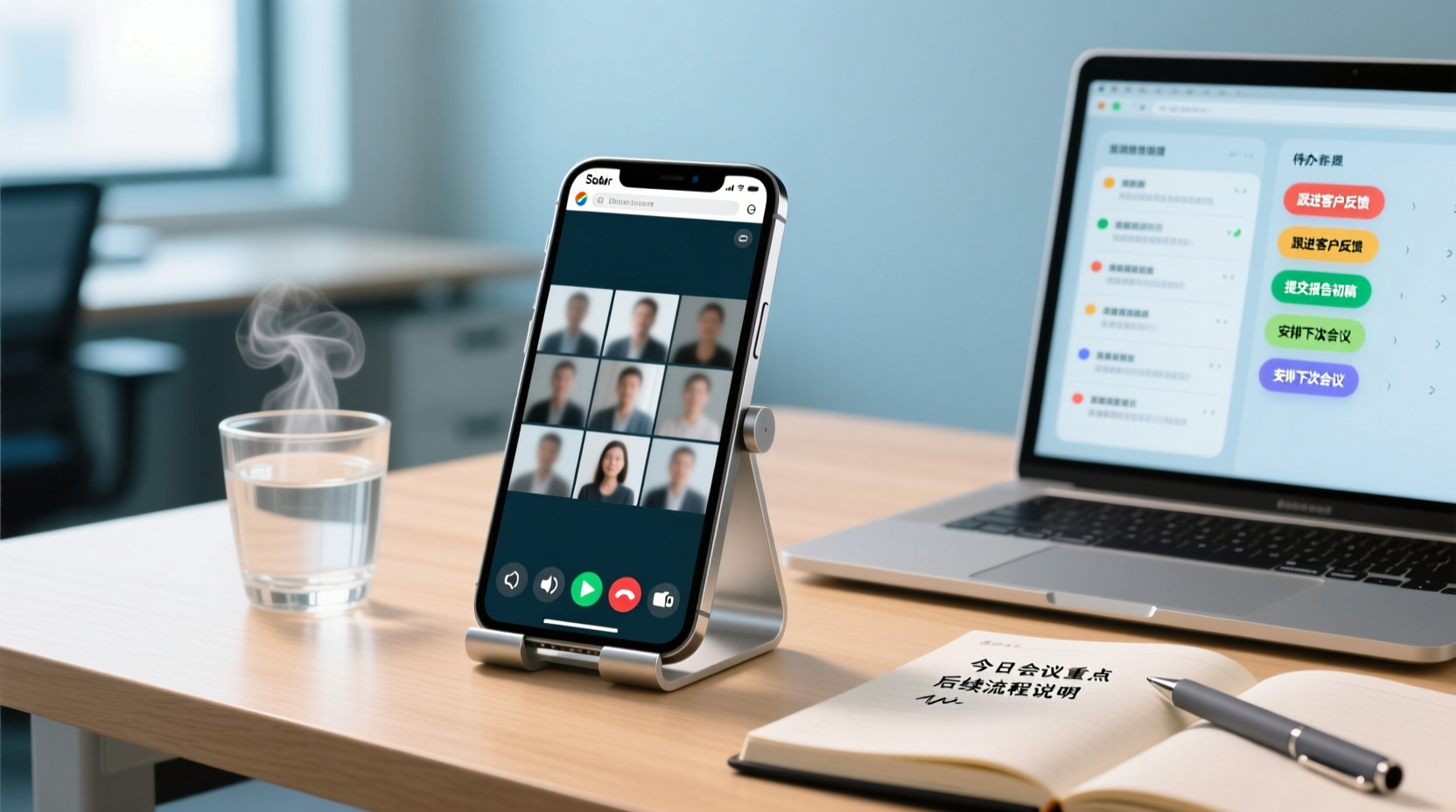
A common scenario: you're out and about, a client or colleague drops a Google Meet link into a group chat, and the meeting starts in five minutes. You only have your iPhone, don't want to install an app for one meeting, and aren't sure if it will take up space. At this point, you need to handle two things: first, how to get in smoothly using the browser; second, how to capture the meeting content once you're in.
This article follows the actual order of operations, first explaining the steps to join using Safari or Chrome, then discussing the functional limitations of browser-based participation, and finally covering the workflow for recording and organizing after the meeting.
Steps to Join a Meeting Using Safari or Chrome
To join Google Meet on iPhone without installing an app, follow these steps:
1. Tap the meeting link. In your iPhone's Mail, Calendar, or messaging app, tap the Google Meet link provided by the host.
2. Confirm to open in browser. If the system prompts "Open in Google Meet app?", choose to stay in Safari or Chrome. If you don't have the app installed, the system will usually open it directly in the browser.
3. Enter your display name. If you don't have a Google account, you only need to enter your name to identify yourself to others in the meeting.
4. Request to join the meeting. After submitting, you'll need the meeting host or a participant to admit you. This is an existing Google Meet rule, not a limitation specific to the browser version.
5. Check microphone and camera. A preview screen will appear before joining; you can turn off the camera, check your microphone status, and then tap Join.
The entire process requires no downloads. If you're using Chrome, the steps are the same; the only difference is the browser itself.
Functional Limitations of Joining via Browser
Browser-based participation can handle basic meeting needs, but compared to the app version, there are a few points to confirm beforehand:
- Some features may not be available. For example, screen sharing or in-meeting recording may not be fully supported in a browser environment. It's advisable to confirm before the meeting whether these actions are needed.
- Admission still requires host approval. You can join without installing an app or signing in, but whether you get in depends on the meeting settings and the host's approval.
- Limited mobile browser experience. On a small iPhone screen, switching views, checking the chat, or sharing content is less smooth than on desktop.
- In-meeting recording is usually unavailable. When joining as a guest or via browser, you often cannot use the meeting's built-in recording. If the meeting involves requirement confirmations, commitments, or task assignments, you may be left with only a vague memory afterward.
In other words, the browser solves the "getting in" problem, but not the "keeping a record" problem.
Recording Meeting Content with Tinrec Web Version
If you're joining via iPhone browser, recording the meeting audio requires a separate solution. Tinrec offers a web version that works in the browser, converting meeting content into transcripts, summaries, chapters, and action items.
Stop organizing recordings by hand
Upload audio or video and automatically get a transcript, summary, and action items
To use it, open Tinrec's web version in another tab after the meeting starts, start recording, and let it capture the meeting audio. It generates a live transcript as the meeting progresses. After the meeting, you'll have a searchable text record instead of just an audio file you need to listen to again.
Note that recording and transcription involve participants' rights. It's recommended to inform attendees before the meeting starts and comply with local regulations. Transcription results may also be affected by audio quality, accents, and overlapping speech. For important content, it's advisable to cross-check with the original audio and transcript.
Organizing into Minutes and Action Items After the Meeting
After the meeting, Tinrec further organizes the transcript into summaries, chapters, key points, and action items. You can continue asking questions about the meeting content, or let the AI assistant use the meeting minutes and context to turn action items into action plans, follow-up materials, reports, or tables.
The difference here is: typical transcription tools stop at "giving you a transcript," while the AI assistant continues to work. For example, after a project meeting, it organizes the assigned tasks into an action plan; after a client meeting, it organizes the client's requirements and commitments into follow-up materials. Important commitments, external communications, and key decisions should still be confirmed by a human before sending.
The organized content can be exported and brought into your existing documents or collaboration tools for further processing.
Team Edition: Enabling Shared and Followed-Up Meeting Data
If you're a project team, meeting records usually don't stay with just one person. Tinrec's Team Edition provides a separate team space to store meeting data centrally, rather than scattered across individual devices and chat histories.
The first aspect is sharing meeting data. After the meeting, transcripts, summaries, and action items can be placed in the team space. Members can view the same meeting record without requesting files separately. For cross-departmental or cross-timezone projects, this solves the problem of "meeting conclusions being known only to those present that day."
The second aspect is member handover and continuous follow-up. Team resources belong to the team. When a responsible person takes leave, transfers, or leaves the project, meeting data and action items don't disappear with the individual; they can be handed over to other active members to continue. Note that the Team Edition currently focuses on team-level sharing; roles control governance permissions, and seats control usage eligibility. It is not designed to set independent access scopes for each file.
If your team frequently needs to review past meetings and track action items, this centralized storage approach makes it easier to find than pasting minutes into a group chat.
FAQ: Browser Compatibility and Recording Boundaries
Can I join with both Safari and Chrome?
Yes, both work. The main difference is the browser's own user experience; the basic process for joining a meeting is the same.
Will joining without the app limit features significantly?
Basic meeting participation, speaking, and viewing the screen work fine, but features like screen sharing or in-meeting recording may not be fully supported in a browser environment. It's best to confirm before the meeting.
Can I join without a Google account?
Yes. You only need to provide a display name, and the meeting host or a participant will admit you.
How do I record meeting content when joining via browser?
In-meeting recording is usually unavailable. It's recommended to use Tinrec's web version to record and generate transcripts, summaries, and action items. Please inform attendees before recording and comply with relevant regulations.
Can transcription results be used externally as is?
Not recommended. Transcription may be affected by audio quality and overlapping speech. Important commitments, external communications, and key decisions should still be confirmed by a human.
References
- iPhone users can now join Google Meet calls without downloading an app
- Is it possible to use Google Meet on an iPhone without installing the app? - Quora
- Join Google Meet Without App In 2026
- Google Meet on Safari iPhone: No App or Account Needed << Apple :: Gadget Hacks
- Google Meet iPhone Browser: Join Calls Without the App
Turn every recording into actionable outcomes
Get 60 free transcription minutes when you sign in. No credit card required.
Related Reading
You might also like

2026 Comparison of 4 Meeting Data Centralization Solutions: Stop Treating Cloud Storage as Organization
Centralizing meeting data isn't just dumping attachments into a shared cloud drive. This article examines common pitfalls, breaks down four common approaches to meeting data management, and uses Tinrec as an example to explain real-time transcription, AI summaries and action items, AI Q&A, team spaces, and seat governance. It concludes with 5 purchasing considerations and FAQs.

Tinrec vs Notta 2026: 5-Dimension Comparison — Which Is Better for Team Meeting Databases?
A mid-level manager who holds 15 meetings a week compares Tinrec and Notta across 5 dimensions to help you choose the right team meeting database. From bot-free recording and AI action item extraction to team spaces and pricing quotas, get it all in one article.

How to Take Sales Meeting Notes in 2026: 5 Steps from Recording to Customer Follow-Up
Sales meeting notes shouldn't wait until the meeting ends. This article breaks down the complete process in 5 steps, from recording, transcription, AI summaries to customer follow-up, and compares Tinrec and Otter.ai dimension by dimension to see which is better suited for Hong Kong sales teams communicating in Chinese.

5 AI Meeting Knowledge Base Tools Tested and Compared in 2026: Can Meeting Notes Become Searchable Team Assets?
Meeting notes aren't just about speed—you need to find them later. This article approaches the topic from a purchasing decision perspective, breaking down the core capabilities of AI meeting knowledge base tools, real-world use cases, and 5 key buying considerations. It uses Tinrec to demonstrate a complete workflow: bot-free online meeting recording, transcripts and real-time translation, AI summaries and action items, AI Q&A, and team spaces with seat governance.

2026 AI Meeting Agent Tools: Record Zoom Without Bots, Auto-Generate Action Items
Two-hour meeting, then another two hours to organize? This guide shows you how to choose an AI meeting agent tool, breaking down four key aspects: bot-free recording, AI summaries and action items, AI follow-up questions, and team spaces. It also compares Tinrec with Otter.ai, Granola, and PLAUD Note, and provides clear recommendations based on scenarios.

Tinrec vs Granola 2026: 5-Dimension Comparison for Chinese Meetings
Meetings are easy, but taking notes is hard. Can AI meeting agents really help? This article compares Tinrec and Granola across 5 dimensions, with brief reviews of Otter.ai and Notta, covering bot-free recording, post-meeting summaries and action items, AI Q&A, and team seat management to help you save overtime after every meeting.

2026 Meeting AI Agent Solutions: Bot-Free Recording + Auto-Generated Action Items
The meeting is over, but the work has just begun. This article addresses the real pain points of mid-level managers, explaining 4 key factors for choosing a meeting AI agent solution. It tests Tinrec's bot-free online meeting recording, AI Q&A, and action item extraction, compares it with Otter.ai, Granola, and Notta, and provides selection advice for team plan seat and usage management.

Tinrec vs Otter.ai 2026: 5-Dimension Comparison — Which Free AI Meeting Agent Is Right for You?
Before searching for a free AI meeting agent, understand how free quotas work. This article compares Tinrec and Otter.ai across 5 practical dimensions, with brief notes on Notta and Granola, covering differences in Chinese/Cantonese meeting support, bot-free recording, post-meeting AI Q&A, and team data management. Includes a pitfalls guide and selection advice to help you save time writing meeting minutes.

2026 Smart Meeting Agent Comparison: Tinrec vs Otter.ai — Which Is Better for Chinese-Speaking Teams?
Smart meeting agents don't just transcribe meetings—they also summarize, extract action items, and answer questions. This article compares Tinrec and Otter.ai across five dimensions: meeting capture, Chinese-language experience, post-meeting organization, team governance, and pricing, to help you decide which one fits your meeting scenarios.