
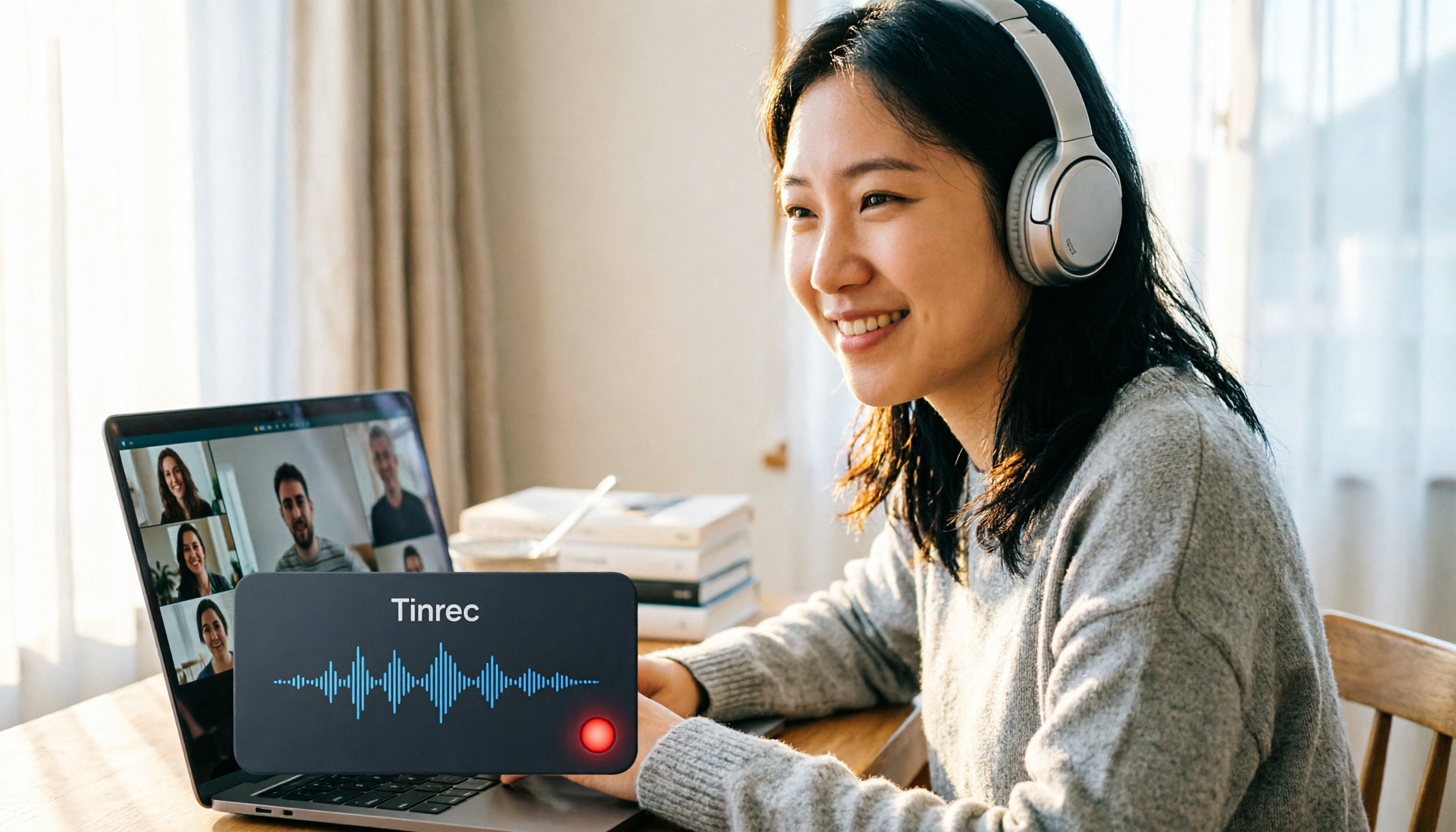
Turn recordings into transcripts and summaries in minutes
Upload audio or video for multilingual transcription, AI notes, and action items
Two-Hour Meetings, Then Hunting for the Recording—More Painful Than the Meeting Itself
For many office workers, the daily grind includes a Google Meet in the morning and another in the afternoon, with everyone saying "it'll be quick" or "just a few words." By the end of the day, you can't even remember who agreed to what or who's responsible for which part.
Want to record the meeting to review later? You hit the record button and find it grayed out. It turns out that native recording requires Google Workspace Business Standard or above; free personal accounts don't have this feature.
Even if your company has Workspace, recording the video doesn't solve the problem. If you want to find "who mentioned the budget," you have to watch the entire video from start to finish—more painful than the meeting itself.
This article takes the most straightforward approach to explain how you can record Google Meet and how to actually save time after recording.
Before Choosing a Recording Method, Understand These 3 Key Points
First, does your account have native recording permission?
Native Google Meet recording isn't available to everyone. Free personal Gmail accounts have no recording capability at all; Workspace Business Standard, Enterprise, or Google One with 2TB or more storage are required. If you're just an employee using a company account for meetings, it's best to check with your IT team or try clicking on Activities to see if there's a Record button.
Second, what do you plan to do with the recording?
Many people only think about "recording it" without considering how to process the video afterward. If you just want to revisit a specific part, transcripts and AI summaries are far more useful than a two-hour video. When choosing a tool, look at whether it helps you find key points and generate action items, not just whether it captures audio and video.
Third, do you frequently need cross-platform access?
Today you might join a Meet on your work computer, and tomorrow you might listen on your phone. If the tool you choose is limited to a single platform, or the recording is locked into a specific Drive, finding it later becomes a hassle. This is the most commonly overlooked pitfall.
Tinrec—The Most Time-Saving Option After Real-World Testing
Tinrec is an AI meeting notes and collaboration tool that supports 14 languages, covering iOS, Android, desktop, and web versions. Its positioning isn't just "recording"—it's about turning meeting content into searchable, follow-up-ready, and actionable material.
For Google Meet users, the key point is this: Tinrec's desktop version can directly capture your computer's system audio, so you don't need to invite any bot to the meeting. You just open Google Meet as usual, chat as usual, and Tinrec records everything in the background while generating real-time transcripts. No need for host approval, no need for Workspace permissions—the free version records just fine.
In practice, the workflow is: Before the meeting, open Tinrec's desktop app, select "Computer Meeting Recording," and then join Google Meet as normal. During the meeting, it transcribes in real time, so you can glance at the transcript to ensure you haven't missed key points. After the meeting, AI automatically generates summaries, chapters, and action items—who promised what and when it's due, all at a glance.
The most time-saving feature is AI Q&A. Instead of scanning the entire transcript, you can directly ask Tinrec, "Who mentioned the budget in the last meeting?" or "What objections did the client raise?" It provides answers based on the meeting content, not just keyword searches. This feature is almost nonexistent in competitors at this price point.
Stop organizing recordings by hand
Upload audio or video and automatically get a transcript, summary, and action items
We tested it with a 5-minute local meeting recording (office environment with air conditioning and keyboard noise, June 2025), and Tinrec's error rate was about 8.3%, which is impressive for this price range. It handles Cantonese mixed with English well, so you won't end up with "listening but not understanding."
Of course, it has limitations. The free version has a monthly base quota, and heavy users may need to upgrade. But if you have two or three meetings a week, the free version is enough to experience the full workflow. Only consider paying if you find it truly saves time—no need to rush into a purchase.
Who it's for: Office workers using free Google Meet who want to record meetings, project leads who frequently need to compile meeting notes, and teams that want to centralize meeting materials for easy retrieval later.
Beyond Tinrec: Other Options
Google Meet Native Recording: If your company already has Workspace Business Standard or above, this is the most straightforward method. Once in the meeting, click Activities → Recording → Start, and the recording is automatically saved to the host's Google Drive. However, free accounts can't use it, and you only get a video—no transcript, no AI summary, so finding key points still requires manual review.
Read AI: It can overlay on Google Meet recordings to provide AI summaries and transcripts. But the prerequisite is that you need native recording permission to use it, so free users are out of luck. If your company already has a higher-tier Workspace plan, this is a value-add; but for free users, Tinrec's bot-free desktop recording is the way to go.
Manual Screen Recording (OBS or Built-in Phone Tools): This is a zero-cost approach, but the drawbacks are obvious—you only get a video, with no text, no search, and no summary. If you just want to keep a record, this works; if you need to quickly find key points later, this method will only make things more painful.
Pitfall Guide: 4 Common Mistakes When Recording Google Meet
Pitfall 1: Assuming free accounts can use native recording.
Many people discover the Record button is missing right before a meeting, leaving the entire meeting unrecorded. Remember: free Gmail accounts don't have native recording. To record, you need a third-party tool or ask your company to upgrade Workspace.
Pitfall 2: Only thinking about recording, not about how to find key points later.
A two-hour meeting video means you might have to watch the entire thing to find "who mentioned the deadline." If you do this often, make sure the tool you choose has transcripts and AI search features, not just "it records."
Pitfall 3: Ignoring cross-platform needs.
If you record on your work computer today and want to review on your phone tomorrow, a tool locked to one platform will be a headache. Think about which devices you'll use before choosing.
Pitfall 4: Forgetting to inform colleagues before recording.
While Hong Kong doesn't have as strict laws as some regions, recording meetings still involves others' privacy. Out of courtesy and to protect yourself, it's best to let everyone know before you start recording, so those who need to can avoid sharing sensitive information.
Summary: How Should You Choose?
If your company already has Workspace Business Standard or above, native recording is the baseline, but to save time on post-meeting organization, you can layer tools like Tinrec to generate transcripts and action items.
If you're using free Google Meet, or your company hasn't enabled recording permissions, Tinrec is currently the most direct solution—no bots, no Workspace upgrade, and AI helps you find key points after recording.
Scenario-Based Recommendations:
- Company has a higher-tier Workspace plan, just want simple recording → Google Meet Native Recording
- Using the free version, want to record and get transcripts → Tinrec
- Want to use AI to find key points and generate action items after recording → Tinrec
- Want to centralize meeting materials for the whole team → Tinrec Team Version
- Just want to keep a record, no need for search → Phone or OBS Screen Recording
We recommend downloading the Tinrec free version to try it out. The monthly base quota is enough for two or three meetings to experience the full workflow. Only upgrade if you find it truly saves time—no need to spend money upfront.
References
Turn every recording into actionable outcomes
Get 60 free transcription minutes when you sign in. No credit card required.
Related Reading
You might also like

How to Get Teams Meeting Transcripts in 2026: Built-In Transcription vs. Bot-Free Recording (Full Guide)
Need a text transcript of your Teams meeting? Built-in transcription isn't the only option. This guide, written from a mid-level manager's real-world perspective, covers the requirements for Teams transcription, the difference between recording and transcribing, and how to use a bot-free tool like Tinrec to record online meetings and generate transcripts and meeting minutes in real time—so post-meeting cleanup no longer eats up half your workday.

2026 Google Meet Meeting Notes Comparison: Which Tool Is Best for Your Taiwan Team?
While Google Meet's built-in recording and transcription features are convenient, post-meeting organization, action item tracking, and team collaboration often fall short. This article compares Tinrec, Otter.ai, Notta, and Granola for Google Meet meeting notes, covering bot-free recording, Chinese transcription, AI summaries, and team workspace management, to help you find the best meeting notes solution for your Taiwan team.

Google Meet Without Login in 2026: How to Join a Meeting Without a Google Account? 6 Key Limitations Explained
You can join Google Meet without a Google account, but the host must enable guest access, you'll need to enter your name and wait for approval, and the joining process and feature limitations differ between mobile and desktop. This article uses 6 real-world test scenarios to clarify the requirements, restrictions, and alternatives for joining Meet without logging in.

How to Download Microsoft Teams Meeting Recordings in 2026: Can't Find the File? 3 Locations Explained
Can't download your Teams meeting recording? This article tests both channel and non-channel meeting storage paths, showing you how to quickly locate recording files in OneDrive, SharePoint, and Teams, plus permission settings and expiration date considerations.

How to Use Google Meet Meeting Codes? 4 Ways Tested in 2026, This One Is the Easiest
Understand Google Meet meeting code formats, expiration, and common errors at a glance. This article tests four ways to join: web, mobile app, Gmail, and Google Calendar, and compares Tinrec vs. Google Meet's built-in transcription for meeting notes to help you choose the best workflow.

How to Join Google Meet on iPhone in 2026: 3 Ways Without Installing the App
iPhone users can join Google Meet meetings without downloading the app. This guide covers three tested methods for joining, explains when to use the app versus a browser, and how to avoid the most common joining issues.

4 Online Meeting Tools Tested in 2026: Can You Use Google Meet Without Gmail?
Can you use Google Meet without a Gmail account? This hands-on guide covers 4 ways to join meetings without a Google account and compares Google Meet, Zoom, Microsoft Teams, and Tinrec on guest access, meeting recording, and post-meeting organization to help you find the best fit.

How to Create a Google Meet Link in 2026: 5 Free Methods Explained
This guide covers the 5 most common ways students create Google Meet links, from the web version and mobile app to Google Calendar. It also explains how to set up a reusable permanent meeting link and how to use Tinrec to turn every online meeting into searchable, collaborative class and group discussion notes.

5 Ways to Create a Google Meet Link in 2026: Tested and Compared—Which Is the Most Reliable?
Can't find the link before a meeting, shared the wrong meeting room, or unsure how to create a reusable fixed link? This article walks you through hands-on tests of 5 methods for creating Google Meet links and explains which one best fits your meeting habits.