

Turn recordings into transcripts and summaries in minutes
Upload audio or video for multilingual transcription, AI notes, and action items
Discovering Google Meet won't let you in 10 minutes before a meeting—you need an actionable checklist, not endless page refreshes
The worst part of online meetings isn't the meeting itself—it's when the time comes and Google Meet keeps spinning, shows "Unable to join meeting," or the screen freezes and audio cuts out after you get in. Most people's first reaction is to refresh, switch browsers, or even restart their computer, but these actions are often a waste of time if you haven't first determined whether the problem lies with Google or your own network.
What's more, some people mistake "can't sign in to Google Meet" for "Google Meet is down," when it could actually be caused by browser cache, corporate firewalls, or Google Workspace account permissions. This article walks you through a simple diagnostic flow, from confirming service status to troubleshooting and emergency backup, so you have clear next steps before your meeting starts.
First, confirm if Google Meet is actually down: 4 status sources worth checking
1. Google Workspace Status Dashboard: Official first-hand information
When you encounter Google Meet issues, the first step should be to check Google's official "Google Workspace Status Dashboard." If Google is investigating a problem, you'll see a message like "We're investigating reports of an issue with Google Meet," with updates on the scope and progress of the fix.
The value of the official status page is that the information comes directly from Google, so it won't mistake personal network issues for service outages. However, note that the official status page may not update in real-time; minor or regional issues can take a while to appear on the dashboard.
2. Downdetector: Use report volume to determine if it's a widespread outage
Downdetector collects user-submitted reports of issues and shows a graph of reports over the past 24 hours. If the curve spikes suddenly, it usually means a large number of users are experiencing problems at the same time, pointing to a Google Meet server-side issue. If report volume is low and only you can't get in, the problem is likely in your personal environment.
When checking Downdetector, don't just look at individual comments. The comment section tends to have emotional posts, like someone complaining, "Status says it's up and running. What a load of crap! It's not even letting me in!" Treat such comments as anecdotal, not as official conclusions. Focus on the overall reporting trends and the distribution of issue types.
3. StatusGator and IsDown: Combine official status with historical records
StatusGator monitors Google Workspace's official status page and logs the timing, update frequency, and average latency of past acknowledged incidents. IsDown primarily uses the official status page as its data source while also aggregating user reports, making it a good cross-reference tool.
Another benefit of these services is historical data. If you rely heavily on Google Meet for meetings, you can observe the frequency and duration of outages over the past few months to assess whether you need a formal backup plan, rather than scrambling for alternatives each time an issue occurs.
4. IsItDownRightNow: Quickly check if meet.google.com is responding
IsItDownRightNow pings the Google Meet website from the server side to confirm if the service is offline. If even this site shows Google Meet is unresponsive, the problem may be more serious. If the site responds normally but you still can't use it, troubleshoot your personal device, browser, or network environment.
Self-troubleshooting: 5 common reasons Google Meet isn't down but you still can't get in
1. Browser cache and extension interference
Google Meet is sensitive to the browser environment; old cache or certain extensions can affect microphone, camera permissions, or page loading. Try opening Google Meet in an incognito window first. If incognito works, your regular browser environment is the culprit.
2. Corporate network or firewall blocking
Some corporate networks restrict the connections Google Meet requires. If you can't connect at work but it works fine on your phone's hotspot, the issue is likely network policy, and you'll need IT to check firewall settings.
Stop organizing recordings by hand
Upload audio or video and automatically get a transcript, summary, and action items
3. Google Workspace account or meeting permission issues
If the meeting was created by someone else, the host may not have allowed external guests, or your account may not be signed into the correct Workspace organization. Check whether the error message says "Unable to connect" or "No permission"—these two situations require completely different approaches.
4. Device audio or video driver issues
If you can enter the Google Meet page but the microphone or camera won't start, it's usually a driver or browser permission issue. First, check your operating system's audio input/output settings, then verify that the browser allows Google Meet to use the microphone and camera.
5. Outdated browser version
Google Meet gradually stops supporting older browser versions. If your Chrome, Edge, or Safari hasn't been updated in a while, you may not be able to join meetings properly. Update your browser and try again—this resolves most compatibility issues.
If Google Meet is truly down, you have 3 practical backup options
1. Switch to instant messaging tools other than Google Meet for meetings
If all meeting participants use Google accounts, you can quickly switch to Google Chat or the built-in video feature in Gmail. If your company also uses Microsoft Teams, Zoom, or other video tools, you can switch there too. The key is not to rely solely on a Google Meet link; for important meetings, prepare a link for a second platform in advance.
2. Use conference calls or voice calls to handle critical discussions first
When video platforms are completely down but the meeting must proceed, switch to a regular conference call or a group phone call to handle decisions that need to be made immediately. Video and screen sharing are convenient, but not every meeting absolutely requires them.
3. Use AI meeting notes tools to preserve meeting content
If you switch to another platform or use a phone call during a Google Meet outage, the cost of organizing meeting content afterward increases significantly. AI meeting notes tools like Tinrec (秒听录音) can capture computer system audio directly via the desktop app, without needing an extra meeting bot to join, allowing you to record and transcribe in real time, and generate summaries, chapters, and action items after the meeting.
In practice, when you're forced to switch from Google Meet to another video platform, Tinrec's value lies in not having to adapt to different platforms' built-in transcription features. As long as your computer can play the meeting audio, it can continuously record and organize. This is especially important for teams that need to preserve a complete meeting trail.
Pitfall avoidance: 4 common mistakes when checking Google Meet status
Mistake 1: Drawing conclusions from a single user comment
Individual comments on Downdetector or social media only indicate that someone is having an issue at that moment; they don't prove Google Meet is completely down. Always cross-reference the official status page and report volume trends to avoid being misled by an emotional post.
Mistake 2: Mistaking browser issues for service outages
Often, Google Meet not working is actually due to browser cache, extensions, or outdated versions. Test with an incognito window first, then decide whether to check your network or account—this saves a lot of waiting time.
Mistake 3: Not preparing backup links for important meetings
Google Meet is fairly stable, but any cloud service can have unexpected issues. If an important meeting has only one video link, a platform failure means postponing or canceling. Get into the habit of preparing a second platform link so meetings aren't held hostage by service interruptions.
Mistake 4: No backup record of the meeting
Even if Google Meet recovers, if the meeting wasn't recorded, you'll have to rely on memory. Especially when the service is unstable, video may cut out, but the discussion content still needs to be preserved. Using an independent meeting notes tool reduces the impact of platform failures on meeting data integrity.
Summary: Confirm status first, then troubleshoot personal issues, and finally activate backup
When Google Meet won't let you in, follow this order for maximum efficiency: First, check the Google Workspace official status page to confirm if it's a server-side issue, then cross-reference with Downdetector or IsDown for reporting trends. If the official status is normal, go back and check your browser, network, and account permissions. If you confirm Google Meet is actually down, immediately switch to a backup video platform or conference call, and keep a meeting notes tool running to preserve the discussion.
If you want to retain complete meeting transcripts and key points even when the meeting platform is unstable, Tinrec is a tool worth considering. It supports bot-free recording of online meetings, audio/video file transcription, AI summaries, and action item extraction, and can store meeting data in team spaces, preventing loss of important discussions when switching platforms. Start with the free tier to experience the basic quota, and decide whether to upgrade after confirming it fits your meeting workflow.
References
- Google Meet down? Current outages and problems | Downdetector US
- Incident details | Google Workspace Status Dashboard
- Google Meet Status. Check if Google Meet is down or having an outage. | StatusGator
- Is Meet down? Check all meet.google.com outages
- Is Google Meet Down? Check current status and user reports | IsDown
Turn every recording into actionable outcomes
Get 60 free transcription minutes when you sign in. No credit card required.
Related Reading
You might also like

2026 Audio-to-Text Tool Buying Guide: 5 Key Dimensions Tested and Recommended
How to choose an audio-to-text tool? This guide starts with three key considerations: audio source type, post-meeting organization needs, and team data ownership. It then outlines 5 practical buying dimensions and uses Tinrec as an example to demonstrate bot-free online meeting recording, AI summaries and action item extraction, AI conversational search, and team spaces. A FAQ section is included at the end.

2026 Comparison of 4 Foreign Language Meeting Translation Tools: From Real-Time Bilingual Subtitles to Post-Meeting Summaries
Can you understand foreign language meetings but struggle to remember or follow up? This article starts with common misconceptions and breaks down 4 key factors for choosing a foreign language meeting translation tool. It compares Tinrec, Otter.ai, Notta, and Granola in real-time translation, bilingual comparison, post-meeting summaries, and team collaboration, and lists the 4 most common pitfalls to help you choose the right tool at once.
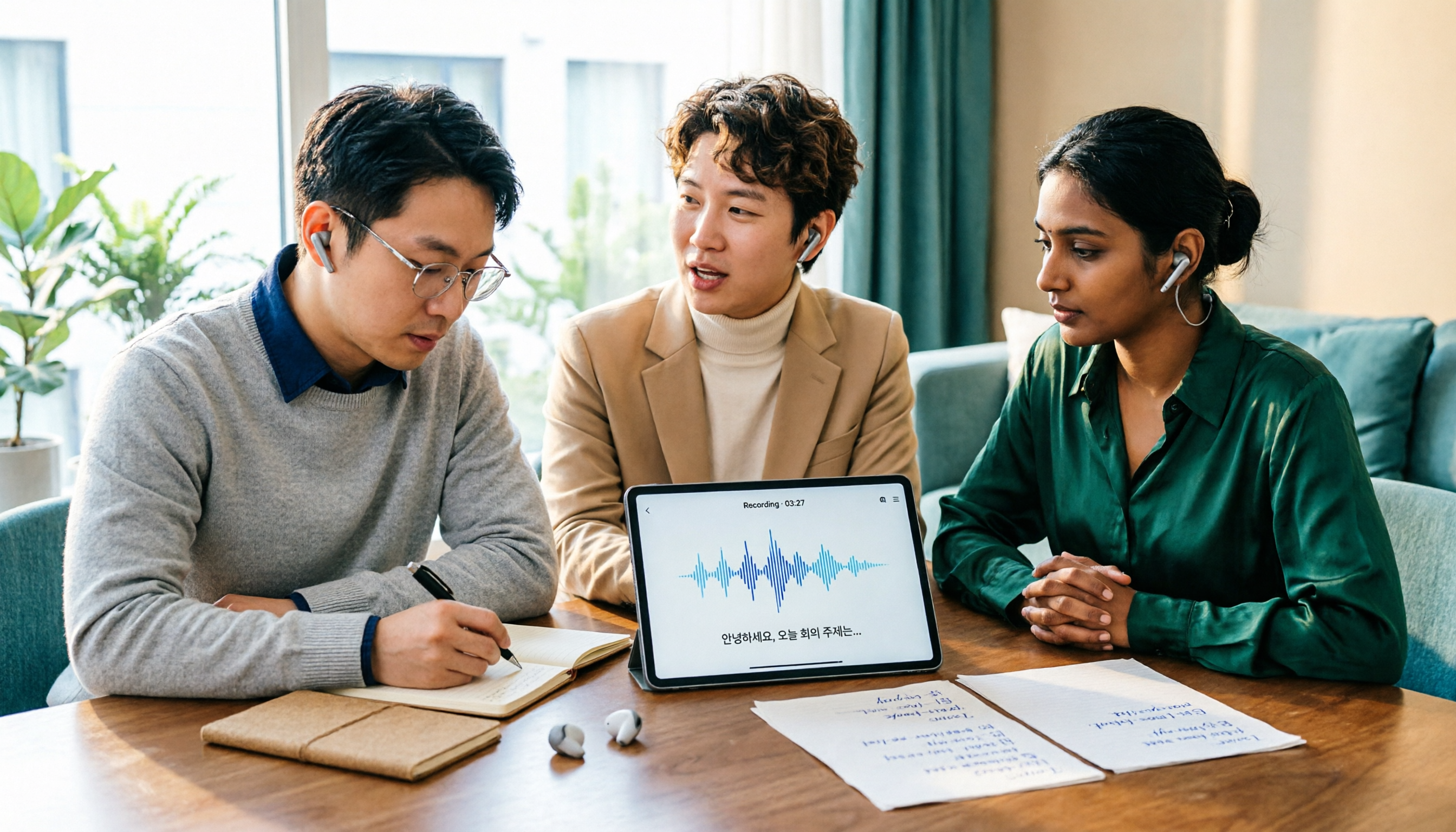
Tinrec vs Musely 2026: 5-Dimension Comparison, Tinrec for Korean Meeting Notes
How to choose a Korean audio-to-text tool? This article compares Tinrec and Musely across 5 dimensions: Korean recognition, post-meeting organization, team collaboration, export, and free quota. It also covers alternatives like MyEdit and Sonix to help you decide when pure transcripts vs. meeting notes are suitable.

2026 Comparison of 4 Audio-to-Text Tools: Which One Actually Saves You Time?
From meeting notes and transcripts to post-meeting follow-ups, compare Tinrec, Canva, MyEdit, and Otter.ai in terms of positioning, limitations, and best-fit scenarios to help you choose the right audio-to-text tool.

2026 Shanghai Dialect Speech-to-Text Buyer's Guide: 4 Tools Tested and Selection Tips
Shanghai dialect has voiced consonants and tone sandhi, so speech-to-text often fails on entire sentences. This guide breaks down 5 key factors for choosing a Shanghai dialect speech-to-text tool based on recognition, usability, and retention, with hands-on testing of Tinrec (Miao Ting Lu Yin) and comparisons to Notta, Otter.ai, and Granola, plus a pitfall checklist and getting-started steps.

4 Best Speech-to-Text Tools in 2026: Live Transcription vs. Post-Meeting Notes and Team Knowledge
Compare Tinrec, Notta, Otter.ai, and TurboScribe on positioning, pricing, and use cases, focusing on live transcription and post-meeting organization. Includes 4 key buying factors and 4 common pitfalls to help you choose the right speech-to-text tool with a single table.

5 Southern Min Input Methods Compared (2026): Is Free Good Enough, and Which One Should You Start With?
Most people install a Southern Min input method but still can't type—the problem usually isn't the software, but unclear romanization schemes, dictionary sources, and cross-platform support. This hands-on comparison covers the Ministry of Education Taiwan Southern Min Chinese Character Input Method, PhahTaigi, Lohankha, RIME, and built-in mobile options, outlining selection criteria, common pitfalls, and use cases to help you choose the right one.

2026 Comparison of 6 Audio-to-Text Tools: Accuracy Isn't About Official Numbers, It's About Real-World Scenarios
Audio-to-text accuracy isn't just about the advertised 98% figure. This article summarizes key evaluation points for 6 tools in Chinese, noise, multi-person conversations, and post-meeting organization, and compares free and paid plans to help you find a truly usable transcription tool.

4 Best Speech-to-Text Tools for 2026: Free Tiers and Post-Meeting Workflows Explained
Looking for a speech-to-text tool? Based on real meeting scenarios, this guide compares Tinrec, Otter.ai, Notta, and TurboScribe—covering free tiers, limitations, and ideal users. It also explains 4 key factors to consider before choosing, 4 common pitfalls, and scenario-based recommendations.