

Turn recordings into transcripts and summaries in minutes
Upload audio or video for multilingual transcription, AI notes, and action items
Google Meet Built-in Recording: What It Can Capture Now
A 60-minute weekly meeting ends, the meeting room closes, and you're left with a video file. What usually happens next: rewatch, pick out key points, write notes, assign action items, and report upward. This often takes another 40 to 60 minutes, effectively doubling the meeting time.
So let's be clear upfront: what exactly does Google Meet's built-in recording leave you with?
According to Google Workspace official documentation, Google Meet recording has several clear prerequisites:
- Not all accounts can record: Recording is a Workspace plan feature; free personal accounts typically cannot use it. Whether you can record depends on your plan and admin settings.
- Admins can disable it: Organizations can decide whether to allow recording, and may require all participants to give explicit consent before enabling certain features.
- Someone must start the recording: Recording doesn't happen automatically; a participant in the meeting must press record.
- The recording is saved to the initiator's cloud drive: After recording, the file belongs to the meeting initiator's Google Drive, and the initiator shares it with others.
In other words, built-in recording solves the problem of "capturing the screen and audio," and what it leaves behind is a video, not a meeting record you can send out directly.
A Recording Is Not Meeting Notes: Where the Real Breakpoint Happens After the Meeting
The value of a recording is that it's "reviewable," but its problems are also clear:
First, it's linear. To find "the part where the client mentioned the budget cap," you have to drag the timeline and listen back and forth. In a 60-minute meeting, finding one decision point might take ten minutes.
Second, it's not searchable. The dialogue in the video isn't text, so keyword search doesn't work, and you can't copy a passage to paste into an email or group chat.
Third, it doesn't tell you who's responsible for what. When someone says "let's have the sales team confirm this next week," the recording faithfully captures that sentence, but it won't turn it into an action item with an owner and a deadline.
Fourth, sharing it doesn't mean it gets watched. Paste the recording link into a group chat, and most members won't actually click to rewatch 60 minutes. The result: you recorded, but no one used it.
This is the real breakpoint after the meeting—you have the raw material, but not yet a deliverable you can use for reporting and delegation. Decisions, action items, and owners still have to be manually extracted from the video.
From Recording to Transcript: Turning Audio into Searchable Text
To cross this breakpoint, the first step is turning audio into text.
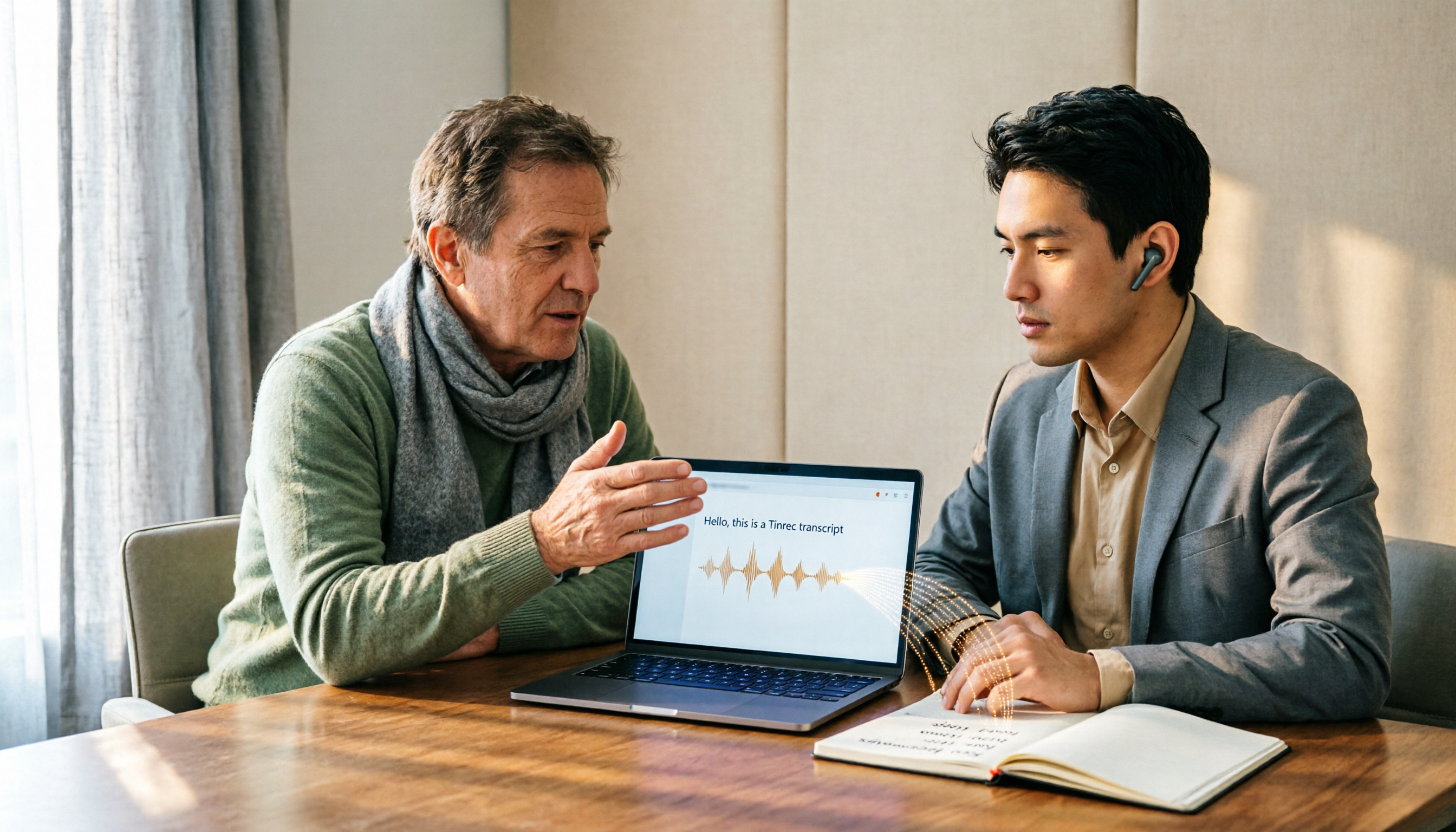
If you use Tinrec, the desktop version can directly capture your computer's system audio to record online meetings, without inviting a meeting bot to join. This is especially useful for meetings like Google Meet: no unfamiliar participant appears in the meeting room, the participant list stays clean, and you don't have to worry about the bot joining causing concerns for the other party.
In terms of operation, the process is roughly:
1. Open the Google Meet meeting on your computer, and open the Tinrec desktop version at the same time.
2. Tinrec captures the system audio and generates a transcript while the meeting is ongoing.
3. After the meeting ends, the transcript is ready—searchable, copyable, and timestamped.
If the meeting is already over and only the recording file remains, you can also import the audio or video file into Tinrec for transcription, turning past meetings into text data.
The practical difference this step makes: a sentence that originally required 60 minutes of re-listening to find can now be located in seconds with a keyword search. The transcript is the foundation for all subsequent organization; without it, summaries and action items can only rely on memory.
From Transcript to Notes and Action Items: How Far the AI Assistant Can Take It
With the transcript in hand, the next question is: who turns it into notes you can send out?
Tinrec automatically generates summaries, chapters, and key points, breaking long meetings into a browsable structure; it also extracts action items from the discussion. For people who host multiple meetings every week, this step saves the most tedious work hours.
Stop organizing recordings by hand
Upload audio or video and automatically get a transcript, summary, and action items
But the real differentiator is the step after that. Most tools stop at "giving you a summary and a to-do list," and you still have to write the action items into an action plan, organize client commitments into follow-up materials, and turn management meeting conclusions into reports. Tinrec's AI assistant (i.e., Agent) can, based on meeting notes and context, continue to help process action items into action plans, follow-up materials, reports, tables, or documents.
Let's illustrate with a specific scenario (the following is a fictional teaching example, not a real case):
> A project weekly meeting ends, and three action items appear in the transcript: confirm the scope of specification changes, reply to the client about the delivery date, and propose a test plan next week.
>
> The traditional approach: you paste these three items into your notes, then write the corresponding documents for each.
>
> The Tinrec approach: hand the meeting notes to the AI assistant and ask it to produce a draft action plan for each of the three action items, a draft email replying to the client about the delivery date, and a test plan outline. What you get is a finished product you can edit, not just the sentence "propose a test plan next week."
Here we must clarify the boundary: the AI assistant produces drafts, not final decisions. For external commitments, pricing, contract terms, or key technical conclusions, it's still recommended to have a human confirm before sending. Its value is turning "writing from scratch" into "editing from a draft," not replacing your judgment.
Putting Meeting Data into a Team Space: Sharing and Ongoing Follow-Up
At this point, the meeting in your personal hands has become usable data. But if this only stays in your account, the team will still face the old problems: decisions scattered across different people's notes, action items no one tracks, and last week's conclusions needing to be asked again next week.
Tinrec's team edition connects this part. It's not multiple people sharing one personal account, but an independent team collaboration space. For managers who host multiple meetings every week, two aspects are especially practical:
Aspect one: Meeting data is centralized in the team space. Recordings, transcripts, summaries, action items, and post-meeting deliverables are all stored in the team space, rather than scattered across personal cloud drives or chat records. New members joining the project can directly view historical meeting data without asking someone to resend the recording link. Note that the team edition currently focuses on team-level sharing; all active members can read team data. This is not file-level granular permission control, so content requiring strict isolation should still be handled separately.
Aspect two: Member handover and ongoing follow-up. When a member responsible for an action item goes on leave, transfers departments, or leaves the team, team resources belong to the team and can be handed over to other active members to continue follow-up, without the entire segment disappearing because a personal account is deactivated. This is especially important for project-based teams—the value of meeting notes lies in "the next person can still pick up."
If your meetings have grown to the point where someone needs to specifically track action items, upgrading meeting data from personal notes to a team space will be more effective than holding yet another follow-up meeting.
Usage Boundaries: Participant Consent, Accuracy, and Human Confirmation
Finally, let's clarify a few boundaries that are easy to trip over, so using the tool doesn't backfire.
Participant consent and regulations. Recording meetings involves participant consent, and Google Meet itself may require all participants to give explicit consent before enabling recording. Different countries and regions have different laws on recording, so before recording, confirm local legal requirements and inform participants at the start of the meeting. This is not a formality, but a necessary step to avoid subsequent disputes.
Accuracy is not a fixed value. The quality of transcription and summaries can be affected by recording quality, background noise, accents, overlapping speakers, and technical terminology. Performance is better with clear audio and common scenarios, but don't expect 100% accuracy. For important numbers, names, amounts, and commitments, it's recommended to cross-check against transcript timestamps and recording playback.
AI output needs human oversight. Summaries may miss details, and action items may misjudge owners. Treat AI-generated notes as a first draft, not the final version; before sending externally or making key decisions, a human should still confirm.
Don't treat the tool as an automated black box. The Tinrec desktop version is user-initiated recording, not automatically joining all calendar meetings; it also has no official partnership with Google. Understanding it as "you press start, and it helps turn your meeting into usable data" is more accurate.
Back to the time cost at the beginning: Google Meet's built-in recording leaves you with a reviewable video, which is necessary but not the endpoint. What really saves time is connecting this video to the subsequent workflow of transcript, notes, action items, and team sharing. Recording solves "whether it's captured"; workflow solves "whether it can be used after it's captured."
If these records need to be maintained by more than one person, consider Tinrec for Teams for a more consistent collaboration workflow.
References
- Record Meeting for Google Meet™ - Google Workspace Marketplace
- Record Google Meet - Chrome Web Store
- How do I record my video calls in google meet ? - Google Meet Community
- Record a video meeting - Computer - Google Meet Help
- Turn Meet recording on or off for your organization | Google Workspace Help
Turn every recording into actionable outcomes
Get 60 free transcription minutes when you sign in. No credit card required.
Related Reading
You might also like

4 Best Speech-to-Text Tools in 2026: Live Transcription vs. Post-Meeting Notes and Team Knowledge
Compare Tinrec, Notta, Otter.ai, and TurboScribe on positioning, pricing, and use cases, focusing on live transcription and post-meeting organization. Includes 4 key buying factors and 4 common pitfalls to help you choose the right speech-to-text tool with a single table.

5 Southern Min Input Methods Compared (2026): Is Free Good Enough, and Which One Should You Start With?
Most people install a Southern Min input method but still can't type—the problem usually isn't the software, but unclear romanization schemes, dictionary sources, and cross-platform support. This hands-on comparison covers the Ministry of Education Taiwan Southern Min Chinese Character Input Method, PhahTaigi, Lohankha, RIME, and built-in mobile options, outlining selection criteria, common pitfalls, and use cases to help you choose the right one.

2026 Comparison of 6 Audio-to-Text Tools: Accuracy Isn't About Official Numbers, It's About Real-World Scenarios
Audio-to-text accuracy isn't just about the advertised 98% figure. This article summarizes key evaluation points for 6 tools in Chinese, noise, multi-person conversations, and post-meeting organization, and compares free and paid plans to help you find a truly usable transcription tool.

4 Best Speech-to-Text Tools for 2026: Free Tiers and Post-Meeting Workflows Explained
Looking for a speech-to-text tool? Based on real meeting scenarios, this guide compares Tinrec, Otter.ai, Notta, and TurboScribe—covering free tiers, limitations, and ideal users. It also explains 4 key factors to consider before choosing, 4 common pitfalls, and scenario-based recommendations.

5 Free Speech-to-Text Tools Tested and Compared in 2026: Which Free Tier Is Actually Enough?
Comparing the free speech-to-text options from Tinrec, Notta, TurboScribe, Otter, and MyEdit across free quota, online meeting recording, post-meeting organization, and team data, to help you decide which free version is truly sufficient.

4 Desktop Speech-to-Text Tools Tested: Free Tiers, Chinese Accuracy, and Post-Meeting Organization
After an online meeting, do you still spend two hours typing up the transcript? This article compares four desktop speech-to-text tools based on real-world use cases: which can record computer system audio directly, which only offer web upload, which just give you text, and which can also generate summaries, action items, and AI Q&A. It includes free tiers, pricing, and team seat details to help you choose the one that truly saves time.

2026 Korean Speech-to-Text Showdown: Tinrec vs Musely — Which Is Better for Teams?
Starting from the pain of organizing notes after a meeting with a Korean client, this comparison of Tinrec and Musely across 5 dimensions — audio capture, Korean honorific handling, post-meeting organization, export, and team governance — helps you decide between a Korean-specific transcription tool and a collaborative meeting-notes platform.
How to Choose Audio-to-Text Software in 2026: 5 Steps to Avoid Pitfalls and Pick the Right Tool
Many people looking for audio-to-text software make the mistake of treating Word dictation as a transcription tool. This article uses 5 checkpoints to help you avoid pitfalls around free quotas, Chinese recognition, and post-meeting organization, and compares Tinrec and Otter.ai dimension by dimension to help you determine which one fits your workflow.

2026 Multilingual Speech-to-Text Comparison: Which Tool Handles Cantonese and Mixed Chinese-English Best?
Instead of comparing how many languages a tool supports, look at real meeting performance. This article uses the same Cantonese and mixed Chinese-English meeting recording to test 4 popular multilingual speech-to-text tools, explains selection criteria, each tool's strengths and weaknesses, and gives clear recommendations by scenario.