

Turn recordings into transcripts and summaries in minutes
Upload audio or video for multilingual transcription, AI notes, and action items
The Real Challenge of Cross-Language Meetings: It's Not Comprehension—It's Lagging Half a Beat Behind
When you're in a Google Meet with overseas clients or a cross-language team, most people's first concern is "not understanding." But after a few meetings, you realize the real problem isn't vocabulary—it's pacing.
The other person finishes explaining a set of requirements in English, and by the time you've read the Chinese translation in the captions, everyone else has moved on to the next topic. By the time you've confirmed your understanding, the discussion has already moved forward. You spend the entire meeting playing catch-up, with no room to judge, ask questions, or push back. After the meeting ends, decisions, commitments, and assignments are scattered across a conversation in two languages, and no one can fully reconstruct what happened.
This is why "Google Meet has translation" doesn't mean "cross-language meetings are solved." Translation solves real-time comprehension, not post-meeting action. Translation converts a sentence from Language A to Language B, but what a meeting really needs to preserve is "who decided what under what conditions, and who is responsible for the next step." Between these two things, there's still a workflow gap that needs to be filled.
Below, we'll first explain what Google Meet's built-in translation can currently do and where its boundaries lie, then provide a repeatable post-meeting organization workflow.
What Google Meet's Built-in Translation Can Currently Do
According to Google's official documentation, Google Meet's current translation capabilities fall into two main paths:
- Speech Translation: Translates your speech into another language in real time during a meeting and plays it back to the other person in a voice that closely resembles your own. Official documentation states this feature has a 90-minute limit per meeting.
- Translated Captions: After enabling captions in a meeting, you can select the meeting language to display translated caption content. The general path is to first select the language in the meeting, then enable translated captions.
Google's official blog also explains that this real-time language translation is AI-based and can complete translations in near real-time, allowing participants who speak different languages to communicate with each other.
One prerequisite needs to be made clear upfront: The availability and supported languages of these features vary depending on your Google Workspace plan, account type, and administrator settings. It's not a feature available to all Google accounts, nor does it mean every language combination is fully supported. Before writing "using Google Meet translation for meetings" into your team's workflow, first confirm which capabilities your account can actually access.
How Live Captions and Translation Work, and Common Failure Scenarios
The logic behind real-time translation is to first convert speech to text, then perform language conversion, and finally output it as captions or speech. Each segment in this chain can go wrong, and errors accumulate downstream.
Common failure scenarios include:
- Accents and speaking speed: Non-native accents, connected speech, and fast speaking speeds make it easy for the speech recognition stage to mishear words, and the subsequent translation naturally follows suit.
- Technical terminology and product names: Industry abbreviations, internal code names, and product names are often not in general-purpose dictionaries and can easily be replaced with words that read smoothly but have the wrong meaning.
- Multiple people speaking over each other: When two people speak simultaneously, the recognition results may get mixed together, making it even harder to tell who said what after translation.
- Background noise and audio quality: Conference room echo, keyboard sounds, and sentence breaks caused by network latency all affect recognition stability.
- Context and tone: Rhetorical questions, concessions, and conditional sentences may lose their original strength after translation, making "we could consider" sound like "we've already agreed."
These aren't feature defects—they're the realistic limitations of real-time speech processing. Understanding this is what prevents you from treating translated captions as meeting notes.
Translation Solves Real-Time Comprehension; Post-Meeting Action Still Requires Your Own Effort
Putting the above two sections together, the conclusion is clear:
Google Meet's translation and captions solve "understanding during the meeting"; they are not responsible for producing "data you can act on after the meeting."
After the meeting ends, you typically still face these tasks:
- Content in two languages is mixed in the same conversation and needs to be organized into a version both parties can verify.
- Decisions and commitments are scattered across different points in time and need to be extracted and written clearly.
- Action items need to be mapped to people and deadlines, rather than remaining as "we'll discuss this later."
- Externally sent content requires word choice confirmation—you can't just use translated captions as formal documents.
In other words, translation helps you cross the "comprehension" threshold, but "recording, organizing, assigning, and following up" still require a separate workflow.
Turning Cross-Language Meetings into Verifiable Bilingual Data
Post-meeting outputs for cross-language meetings have one key difference from monolingual meetings: they must be verifiable.
Verifiable means both parties can return to the original text to confirm "what was actually said at the time." If you only provide a translated summary, the other party has no way to confirm whether your understanding is correct; if you only provide an original-language transcript, it's hard for you to quickly grasp the key points.
Stop organizing recordings by hand
Upload audio or video and automatically get a transcript, summary, and action items
Therefore, the ideal output is dual-track:
- Bilingual transcript: Original and translated text side by side, allowing comparison, search, and timestamp review.
- Bilingual notes and action items: Decisions, commitments, and assignments presented in a language both parties can read.
Tinrec's role in this segment is to capture meeting audio and produce the above data. It supports real-time translation and allows viewing content in original, translated, or bilingual side-by-side format, so you don't have to switch between two documents after the meeting.
Below, we explain the practical approach in two steps.
Step 1: Record Meeting Audio and Obtain a Bilingual Transcript
Input: Google Meet meeting audio.
Method: Tinrec's desktop version processes online meetings by capturing computer system audio, without needing to invite a meeting bot to join. This means the participant list won't show an unfamiliar account, minimizing the impact on the meeting experience for external clients. You can record and transcribe simultaneously during the meeting, and get the transcript directly afterward.
Output: A timestamped transcript that can be viewed in original, translated, or bilingual side-by-side format.
What problem does this solve: Previously, getting a bilingual transcript from a cross-language meeting usually required first having an original-language transcript, then separately finding someone to translate it or comparing it yourself, which was prone to missing segments. Now both languages are aligned in the same document, and both parties can point to the same sentence to confirm understanding.
Boundaries: Before recording, confirm that you have obtained participant consent and comply with local regulations and company policies. The actual effectiveness of transcription and translation is affected by accents, noise, technical terminology, and overlapping speech. For important sections, it's recommended to cross-check with audio playback.
Step 2: Organize Summaries, Action Items, and Bilingual Post-Meeting Materials
Input: The transcript obtained in the previous step and meeting context.
Method: Tinrec automatically generates summaries, chapters, and action items, breaking long meetings into browsable structures. Then, an AI assistant (Agent) uses the meeting notes and context to help further process action items into usable post-meeting outputs, such as action plans, follow-up materials, reports, tables, or meeting notes documents.
Output: A bilingual summary you can send directly to participants, plus an action item list mapped to people and deadlines, and materials needed for follow-up.
What problem does this solve: What's most easily missed in cross-language meetings isn't the discussion content—it's "who agreed to what." Extracting action items from the transcript, writing them as clear sentences, and processing them into deliverable documents is equivalent to moving the meeting from "heard" to "ready to start working."
Boundaries: Content produced by the AI assistant is a draft, not a final version. Externally sent documents, important commitments involving amounts or timelines, and key decisions should still be confirmed by a person before sending. The AI assistant won't send things externally on your behalf, nor will it make final decisions for you.
Team Edition: Enabling Bilingual Meeting Data to Be Shared and Continuously Followed Up
In cross-language meetings, you're usually not the only person who needs this data. Projects interfacing with overseas clients often involve sales, product, and delivery roles simultaneously, and each person needs a different level of granularity.
Step 1: Put meeting data into a shared team space.
Tinrec's team edition provides an independent team space where meeting recordings, transcripts, summaries, and action items can be stored centrally in one place, rather than scattered across individual accounts or chat logs. For cross-language projects, this means newly joined members can directly view historical meeting data without having to ask you for a summary of "what was discussed with the client last time." Note that the team edition currently focuses on team-level sharing, managing governance and usage eligibility through roles and seats, rather than setting individual access scopes for single files.
Step 2: Use team hotwords to maintain technical terminology.
One of the most common sources of distortion in cross-language meetings is product names, project code names, and industry abbreviations being recognized as words that read smoothly but have the wrong meaning. The team edition supports maintaining team hotwords, centrally managing commonly used team terminology so that recognition and translation are closer to your actual usage for these terms. This is especially noticeable for teams that work with the same overseas clients long-term, because once terminology is fixed, data from every subsequent meeting is easier to verify.
If your team has cross-language meetings every week and post-meeting data needs to be shared among multiple people and searched long-term, you can learn more about Tinrec team edition's actual configuration and applicable scenarios.
Usage Boundaries: Accents, Technical Terminology, and Human Confirmation
Finally, let's clarify a few boundaries that are easy to stumble on:
- Don't promise a fixed accuracy rate. The actual effectiveness of transcription and translation is affected by recording quality, accents, noise, overlapping speech, and technical terminology. Any claim of a "fixed percentage" doesn't hold.
- Important content should be verified against the original. For sentences involving amounts, timelines, responsibility attribution, and external commitments, it's recommended to return to the transcript timestamp and recording to confirm, rather than only looking at the translated version.
- External documents require human confirmation. Bilingual summaries and follow-up materials can greatly reduce organization time, but the responsible person should still confirm word choice and stance before sending.
- Feature availability may change. Google Meet's translation and captions are plan features—whether they're available and which languages are supported depends on your Workspace plan, account type, and administrator settings. Before publishing or implementing workflows, refer to official pages.
- Recording requires consent. Cross-language meetings often involve external parties. Before recording and transcribing, confirm that you have obtained participant consent and comply with local regulations and company policies.
Translation lets you understand in the moment, but what truly turns a meeting into action is the bilingual data afterward that both parties can verify, assign, and continuously follow up on.
References
- Learn about Speech Translation - Android - Google Meet Help
- Use translated captions in Google Meet - Computer - Google Meet Help
- How Google build real-time language translation for Meet
- Google Meet Translation and AI Note Taker - Chrome Web Store
- Check out Google Meet's speech translation to connect in near real-time across languages - Google Meet Community
Turn every recording into actionable outcomes
Get 60 free transcription minutes when you sign in. No credit card required.
Related Reading
You might also like

2026 Audio-to-Text Tool Buying Guide: 5 Key Dimensions Tested and Recommended
How to choose an audio-to-text tool? This guide starts with three key considerations: audio source type, post-meeting organization needs, and team data ownership. It then outlines 5 practical buying dimensions and uses Tinrec as an example to demonstrate bot-free online meeting recording, AI summaries and action item extraction, AI conversational search, and team spaces. A FAQ section is included at the end.
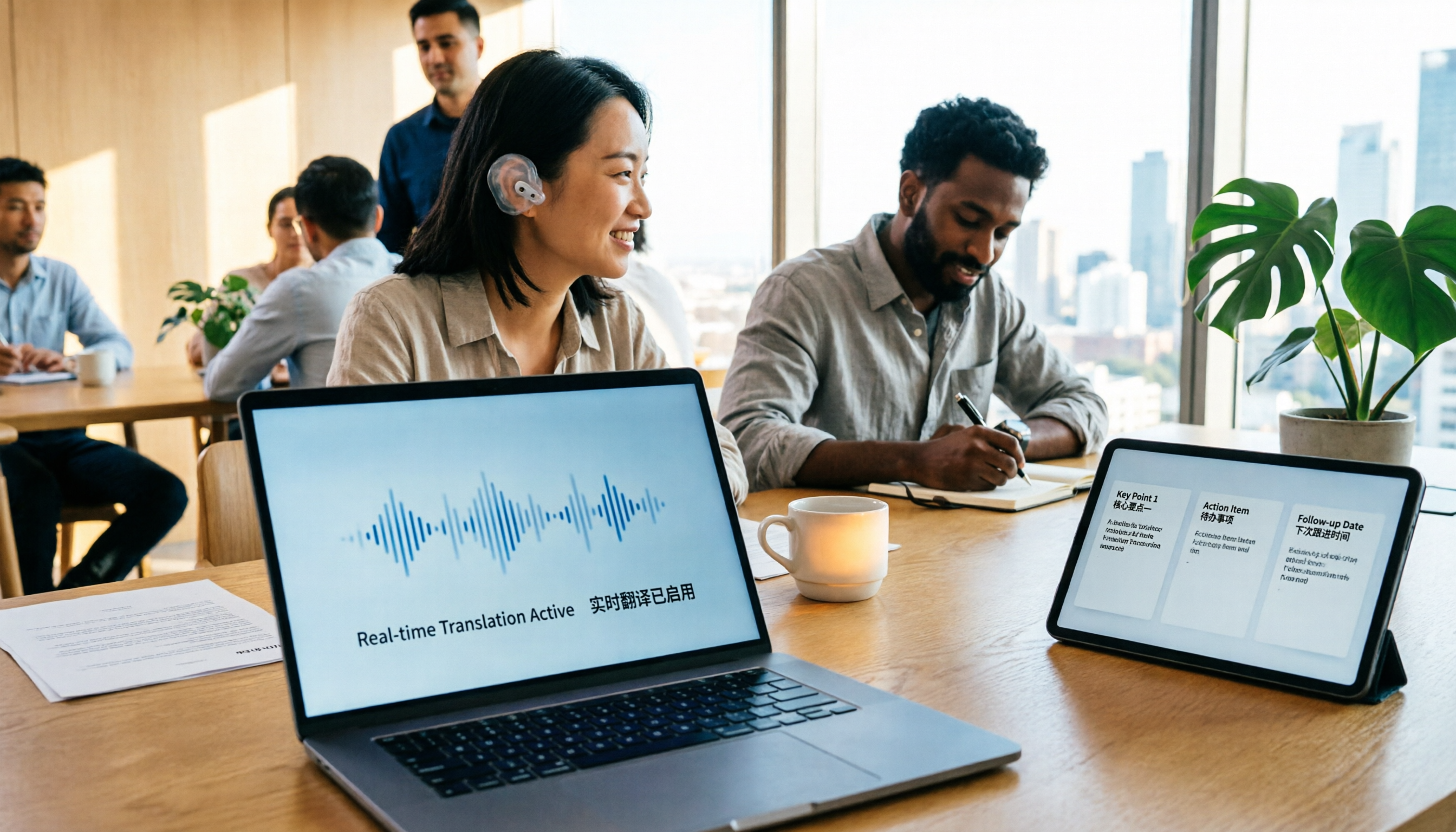
2026 Comparison of 4 Foreign Language Meeting Translation Tools: From Real-Time Bilingual Subtitles to Post-Meeting Summaries
Can you understand foreign language meetings but struggle to remember or follow up? This article starts with common misconceptions and breaks down 4 key factors for choosing a foreign language meeting translation tool. It compares Tinrec, Otter.ai, Notta, and Granola in real-time translation, bilingual comparison, post-meeting summaries, and team collaboration, and lists the 4 most common pitfalls to help you choose the right tool at once.
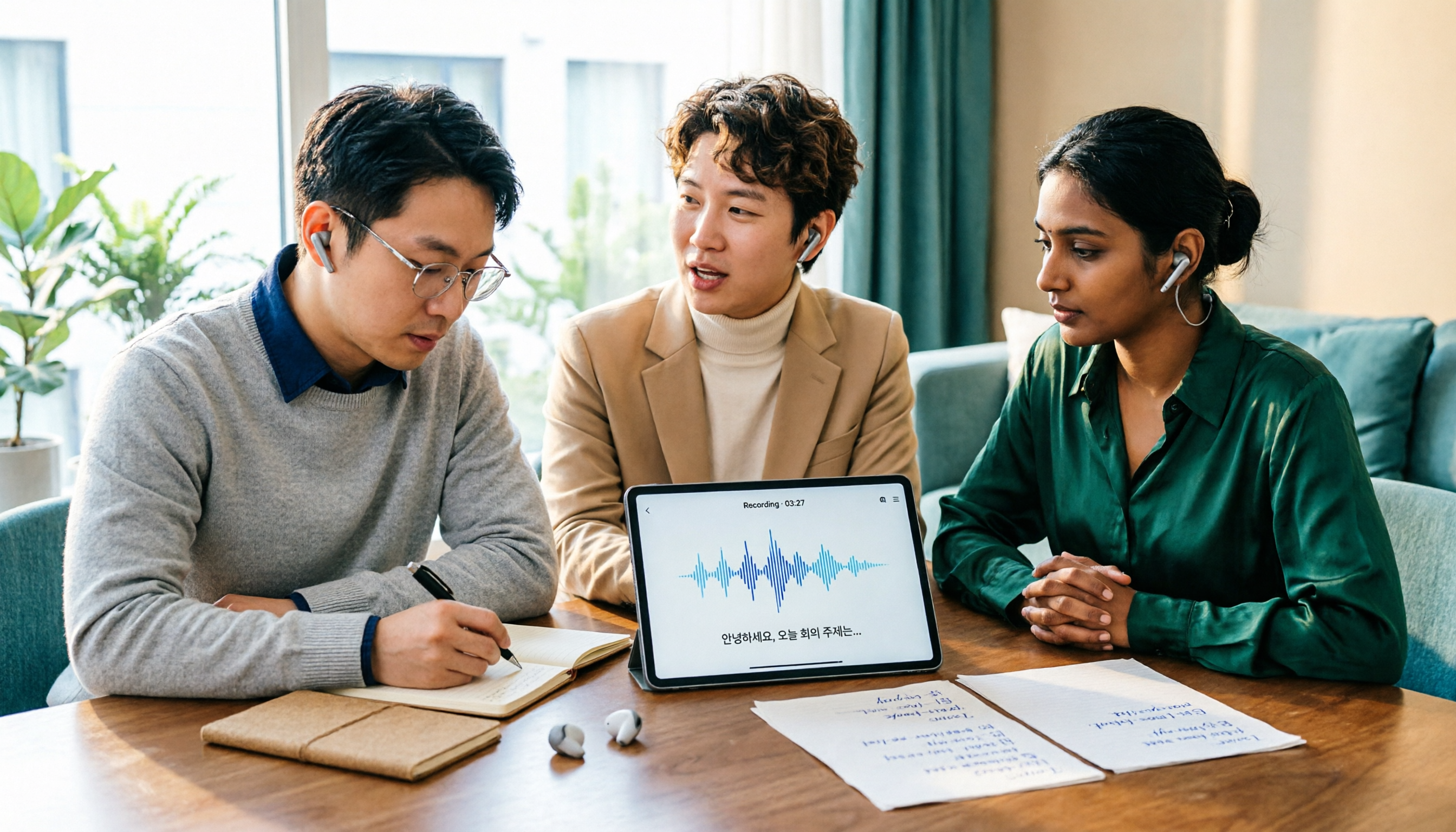
Tinrec vs Musely 2026: 5-Dimension Comparison, Tinrec for Korean Meeting Notes
How to choose a Korean audio-to-text tool? This article compares Tinrec and Musely across 5 dimensions: Korean recognition, post-meeting organization, team collaboration, export, and free quota. It also covers alternatives like MyEdit and Sonix to help you decide when pure transcripts vs. meeting notes are suitable.

2026 Comparison of 4 Audio-to-Text Tools: Which One Actually Saves You Time?
From meeting notes and transcripts to post-meeting follow-ups, compare Tinrec, Canva, MyEdit, and Otter.ai in terms of positioning, limitations, and best-fit scenarios to help you choose the right audio-to-text tool.

2026 Shanghai Dialect Speech-to-Text Buyer's Guide: 4 Tools Tested and Selection Tips
Shanghai dialect has voiced consonants and tone sandhi, so speech-to-text often fails on entire sentences. This guide breaks down 5 key factors for choosing a Shanghai dialect speech-to-text tool based on recognition, usability, and retention, with hands-on testing of Tinrec (Miao Ting Lu Yin) and comparisons to Notta, Otter.ai, and Granola, plus a pitfall checklist and getting-started steps.

4 Best Speech-to-Text Tools in 2026: Live Transcription vs. Post-Meeting Notes and Team Knowledge
Compare Tinrec, Notta, Otter.ai, and TurboScribe on positioning, pricing, and use cases, focusing on live transcription and post-meeting organization. Includes 4 key buying factors and 4 common pitfalls to help you choose the right speech-to-text tool with a single table.

5 Southern Min Input Methods Compared (2026): Is Free Good Enough, and Which One Should You Start With?
Most people install a Southern Min input method but still can't type—the problem usually isn't the software, but unclear romanization schemes, dictionary sources, and cross-platform support. This hands-on comparison covers the Ministry of Education Taiwan Southern Min Chinese Character Input Method, PhahTaigi, Lohankha, RIME, and built-in mobile options, outlining selection criteria, common pitfalls, and use cases to help you choose the right one.

2026 Comparison of 6 Audio-to-Text Tools: Accuracy Isn't About Official Numbers, It's About Real-World Scenarios
Audio-to-text accuracy isn't just about the advertised 98% figure. This article summarizes key evaluation points for 6 tools in Chinese, noise, multi-person conversations, and post-meeting organization, and compares free and paid plans to help you find a truly usable transcription tool.

4 Best Speech-to-Text Tools for 2026: Free Tiers and Post-Meeting Workflows Explained
Looking for a speech-to-text tool? Based on real meeting scenarios, this guide compares Tinrec, Otter.ai, Notta, and TurboScribe—covering free tiers, limitations, and ideal users. It also explains 4 key factors to consider before choosing, 4 common pitfalls, and scenario-based recommendations.