

Turn recordings into transcripts and summaries in minutes
Upload audio or video for multilingual transcription, AI notes, and action items
Can You Join Google Meet Without Downloading an App?
Yes. Google Meet is essentially a web service, and both desktop and mobile browsers can open a meeting room directly without installing an additional application. For anyone temporarily borrowing a public computer, using a company-managed device, or simply not wanting to install another app for a single meeting, this route works: open the meeting link, choose to join in the browser, and you can enter the meeting room.
But "getting in" and "remembering what was said" are two different things. Browser participation usually does not give you access to the meeting's built-in recording and transcription capabilities. If the meeting involves requirements confirmation, commitments, or task assignments, it is easy to end up with only a vague memory afterward. This article explains the actual sequence of steps: the requirements and limitations of joining via browser, the steps to enter from a link or meeting code, microphone and camera setup, and how to use Tinrec's web version afterward to record the meeting content and turn it into minutes and action items.
Requirements and Limitations for Joining via Browser
Here is the bottom line first: you can join without downloading an app, but it is not unconditional, and not all features are available.
Requirements to join
- You need a valid meeting link or meeting code.
- The meeting host or a participant in the meeting needs to let you in, especially when you join as a guest.
- The browser needs microphone permission; if you need to speak, you cannot skip this step.
- It is recommended to use a relatively recent version of Chrome, Edge, Safari, or Firefox to avoid getting stuck on the loading screen due to an outdated browser version.
Common limitations
- Under some account types or meeting settings, browser participation may not allow screen sharing, meeting recording, or breakout rooms. The actual available range depends on the meeting plan and the host's settings.
- Built-in meeting recording is usually a Workspace plan feature and needs to be actively started by a participant in the meeting; when joining as a guest, you may not have this permission.
- Browser participation is also affected by network quality. The stability of video and audio depends on the current connection conditions.
Therefore, if your meeting needs a record, it is best to confirm the recording method before joining, rather than remembering only after the meeting ends.
Step 1: Enter from a Meeting Link or Meeting Code
The most direct way is to open the meeting link. The link usually looks like meet.google.com/abc-defg-hij. After clicking it, the browser will directly open the meeting room page.
If you only have a meeting code (for example, abc-defg-hij), you can manually go to meet.google.com, paste the meeting code into the input field on the homepage, and then click join. The value of the meeting code is that you can enter the corresponding meeting without needing the full link.
The checkpoint for this step: confirm that you are opening the correct meeting, not last week's meeting room that has already ended.
Step 2: Choose "Join in Browser"
After entering the meeting page, the system may ask how you want to join. If you do not want to install an app, choose to join in the browser or continue using the web version, and do not click the button that guides you to download the desktop application.
If you are not signed in to a Google account, the screen will usually ask you to enter a display name and then request to join the meeting as a guest. At this point, you need to wait for a participant in the meeting to admit you before you actually enter the meeting room.
The checkpoint for this step: confirm that you are participating in a browser tab, not being directed to an app store or download page.
Step 3: Confirm Microphone and Camera Settings
Before entering the meeting room, the browser will pop up a permission request asking whether to allow use of the microphone and camera.
- Microphone: If you need to speak, you must allow it. If you are only listening in, you can turn off the microphone first to avoid background noise disrupting the meeting.
- Camera: Not turning on the camera does not affect your ability to join the meeting, listen to others, or speak with the microphone. If you are in an open office or your background is not suitable for appearing on camera, you can turn off the camera before joining.
- Device selection: If your computer has an external microphone or headset connected, remember to switch to the correct input device in the settings.
Stop organizing recordings by hand
Upload audio or video and automatically get a transcript, summary, and action items
The checkpoint for this step: ask other people in the meeting to confirm whether they can hear your voice, so you do not spend the whole meeting thinking you spoke when the microphone was actually off.
Step 4: Record Meeting Content with Tinrec's Web Version
Browser participation is convenient, but the meeting content will not be saved automatically. If you need a transcript, summary, and action items, you can use Tinrec's web version to handle the recording part while the meeting is in progress.
Tinrec supports real-time audio-to-text conversion, turning meeting audio into a transcript and automatically generating summaries, chapters, key points, and action items. For online meetings, Tinrec's desktop version captures system audio to handle platforms such as Zoom, Google Meet, Microsoft Teams, and Webex, without requiring a meeting bot to join the meeting; if you are meeting in a browser tab, you can also use the web version to complete recording and transcription.
In practice, you can arrange it like this:
1. Before the meeting starts, open Tinrec's web version and confirm recording permissions.
2. During the meeting, let Tinrec continue recording and generate a transcript in real time.
3. After the meeting ends, directly view the summary, chapters, and action items without having to listen to the entire recording again.
One reminder: recording and transcription involve participants' rights. It is recommended to inform attendees before the meeting starts and comply with local regulations and company policies. Transcription results may also be affected by recording quality, accents, and overlapping speech from multiple people. For important content, it is recommended to verify against transcript timestamps and recording playback.
Step 5: Turn It into Minutes and Action Items After the Meeting
After the meeting ends, what really takes time is turning the discussion into usable material. Tinrec's AI assistant can, based on meeting minutes and context, help further process action items into action plans, follow-up materials, reports, tables, or documents.
For example, after a project meeting ends, you can first confirm whether the transcript and summary are correct, then have the AI assistant organize the action items from the discussion into an action plan with owners and deadlines; if it is a client meeting, you can organize the commitments into follow-up materials. These outputs can be exported directly and brought into the documents or collaboration tools you already use for further processing.
Important commitments, externally sent content, and key decisions should still be confirmed by a human before being sent. AI can reduce organization costs, but it is not suitable to replace human final judgment.
Team Edition: Let Meeting Data Be Shared and Followed Up
If you are a project team, meeting records usually do not stay only with one person. Project meeting decisions, action items, and follow-up outputs need to be visible to other members so they can take over; otherwise, every meeting requires realigning from scratch.
Tinrec's team edition provides an independent team space where meeting recordings, transcripts, summaries, action items, and post-meeting outputs can be stored centrally. The first part is sharing meeting data: after the meeting ends, put the transcript and minutes into the team space so members who did not attend the meeting can directly view the discussion content and decisions without having to ask someone else to relay them. The second part is continuous follow-up: team members can view action items and follow-up outputs in the same space. During project handovers or member changes, the data still belongs to the team and will not disappear when an individual leaves.
One boundary to note: the team edition currently focuses on team-level sharing, managing governance and usage eligibility through roles and seats. It is not file-level fine-grained permission control. Members can view team data, and only after obtaining a seat can they perform operations such as recording, uploading, editing, and exporting.
If your meeting data has begun to require multi-person sharing and long-term accumulation, you can learn more about Tinrec's team edition team space and shared meeting data capabilities.
FAQ: Browser Compatibility, Feature Limitations, and Recording Boundaries
After joining via browser, I cannot hear audio in the meeting or others cannot hear me. What should I do?
First check whether the browser's microphone and speaker permissions have been allowed, then confirm whether the audio device in the meeting room is selected correctly. If you are using a public computer, a headset microphone is usually more stable than built-in speakers.
Without downloading an app, will many meeting features be missing?
Basic meeting participation, speaking, and viewing shared screens are usually fine, but whether advanced features such as screen sharing, meeting recording, and breakout rooms are available depends on the meeting plan and the host's settings. It is recommended to confirm with the host before the meeting.
When participating via browser, how can I ensure the meeting content is fully recorded?
Built-in meeting recording may not be available to guests, so it is recommended to prepare another recording method. You can use Tinrec's web version to record and generate a transcript during the meeting, then organize it into minutes and action items afterward. Before recording, inform attendees and obtain necessary consent.
Can the transcribed content be used directly?
It is not recommended to send it externally directly. Transcription results are affected by recording quality, accents, and overlapping speech from multiple people. Important decisions, commitments, and data should be verified against the transcript and recording before use.
References
Turn every recording into actionable outcomes
Get 60 free transcription minutes when you sign in. No credit card required.
Related Reading
You might also like

2026 Audio-to-Text Tool Buying Guide: 5 Key Dimensions Tested and Recommended
How to choose an audio-to-text tool? This guide starts with three key considerations: audio source type, post-meeting organization needs, and team data ownership. It then outlines 5 practical buying dimensions and uses Tinrec as an example to demonstrate bot-free online meeting recording, AI summaries and action item extraction, AI conversational search, and team spaces. A FAQ section is included at the end.
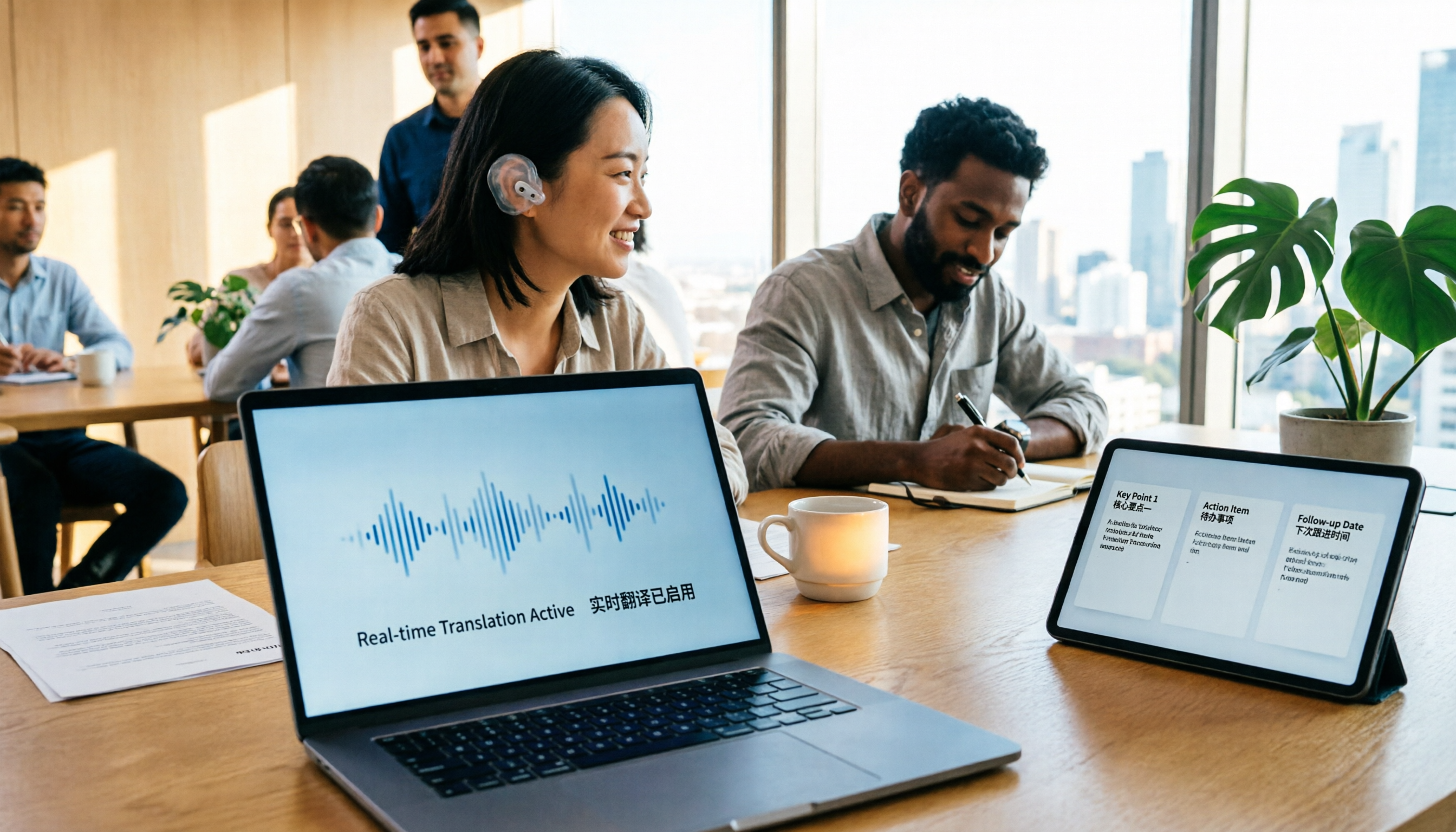
2026 Comparison of 4 Foreign Language Meeting Translation Tools: From Real-Time Bilingual Subtitles to Post-Meeting Summaries
Can you understand foreign language meetings but struggle to remember or follow up? This article starts with common misconceptions and breaks down 4 key factors for choosing a foreign language meeting translation tool. It compares Tinrec, Otter.ai, Notta, and Granola in real-time translation, bilingual comparison, post-meeting summaries, and team collaboration, and lists the 4 most common pitfalls to help you choose the right tool at once.
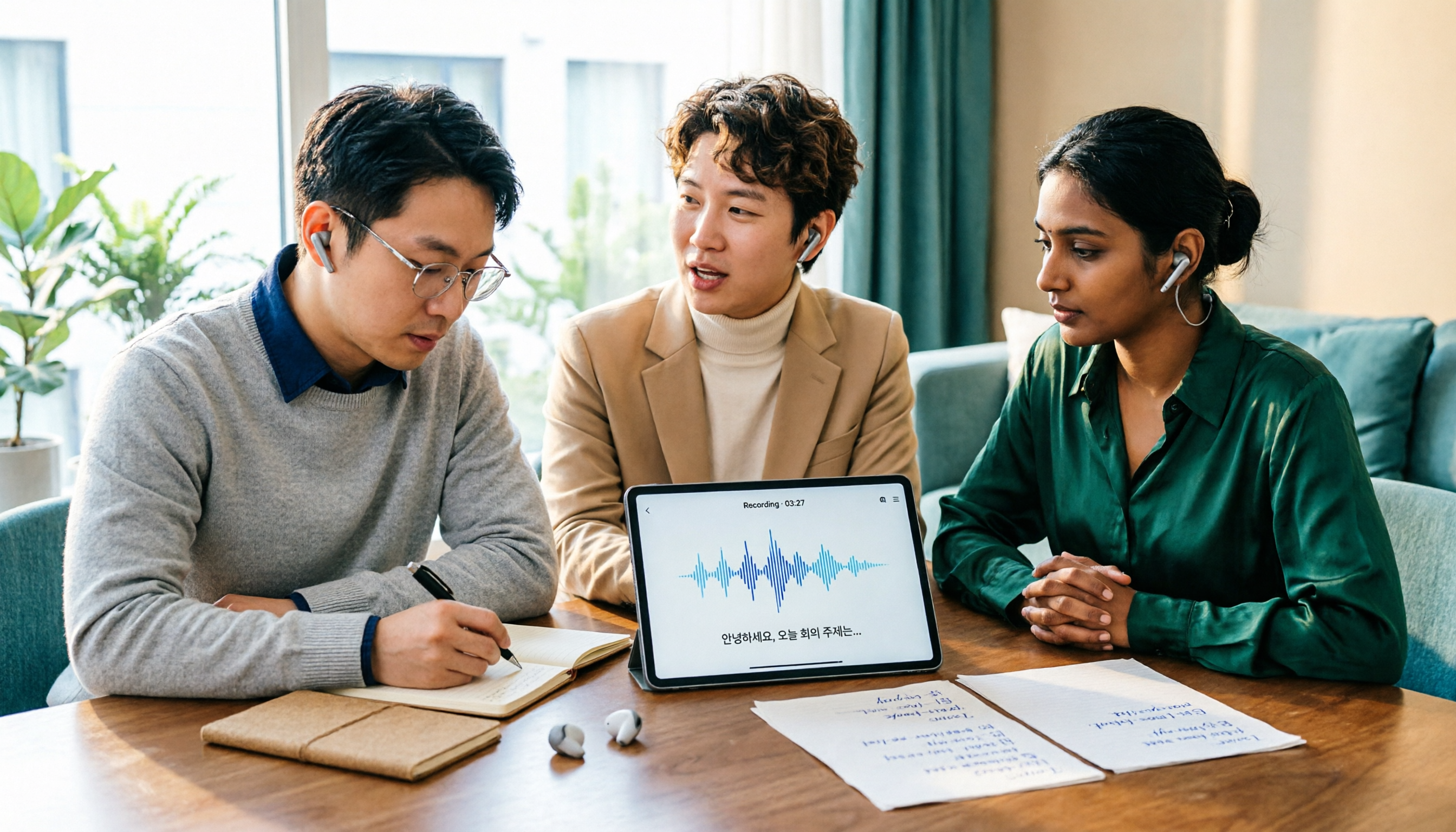
Tinrec vs Musely 2026: 5-Dimension Comparison, Tinrec for Korean Meeting Notes
How to choose a Korean audio-to-text tool? This article compares Tinrec and Musely across 5 dimensions: Korean recognition, post-meeting organization, team collaboration, export, and free quota. It also covers alternatives like MyEdit and Sonix to help you decide when pure transcripts vs. meeting notes are suitable.

2026 Comparison of 4 Audio-to-Text Tools: Which One Actually Saves You Time?
From meeting notes and transcripts to post-meeting follow-ups, compare Tinrec, Canva, MyEdit, and Otter.ai in terms of positioning, limitations, and best-fit scenarios to help you choose the right audio-to-text tool.

2026 Shanghai Dialect Speech-to-Text Buyer's Guide: 4 Tools Tested and Selection Tips
Shanghai dialect has voiced consonants and tone sandhi, so speech-to-text often fails on entire sentences. This guide breaks down 5 key factors for choosing a Shanghai dialect speech-to-text tool based on recognition, usability, and retention, with hands-on testing of Tinrec (Miao Ting Lu Yin) and comparisons to Notta, Otter.ai, and Granola, plus a pitfall checklist and getting-started steps.

4 Best Speech-to-Text Tools in 2026: Live Transcription vs. Post-Meeting Notes and Team Knowledge
Compare Tinrec, Notta, Otter.ai, and TurboScribe on positioning, pricing, and use cases, focusing on live transcription and post-meeting organization. Includes 4 key buying factors and 4 common pitfalls to help you choose the right speech-to-text tool with a single table.

5 Southern Min Input Methods Compared (2026): Is Free Good Enough, and Which One Should You Start With?
Most people install a Southern Min input method but still can't type—the problem usually isn't the software, but unclear romanization schemes, dictionary sources, and cross-platform support. This hands-on comparison covers the Ministry of Education Taiwan Southern Min Chinese Character Input Method, PhahTaigi, Lohankha, RIME, and built-in mobile options, outlining selection criteria, common pitfalls, and use cases to help you choose the right one.

2026 Comparison of 6 Audio-to-Text Tools: Accuracy Isn't About Official Numbers, It's About Real-World Scenarios
Audio-to-text accuracy isn't just about the advertised 98% figure. This article summarizes key evaluation points for 6 tools in Chinese, noise, multi-person conversations, and post-meeting organization, and compares free and paid plans to help you find a truly usable transcription tool.

4 Best Speech-to-Text Tools for 2026: Free Tiers and Post-Meeting Workflows Explained
Looking for a speech-to-text tool? Based on real meeting scenarios, this guide compares Tinrec, Otter.ai, Notta, and TurboScribe—covering free tiers, limitations, and ideal users. It also explains 4 key factors to consider before choosing, 4 common pitfalls, and scenario-based recommendations.