
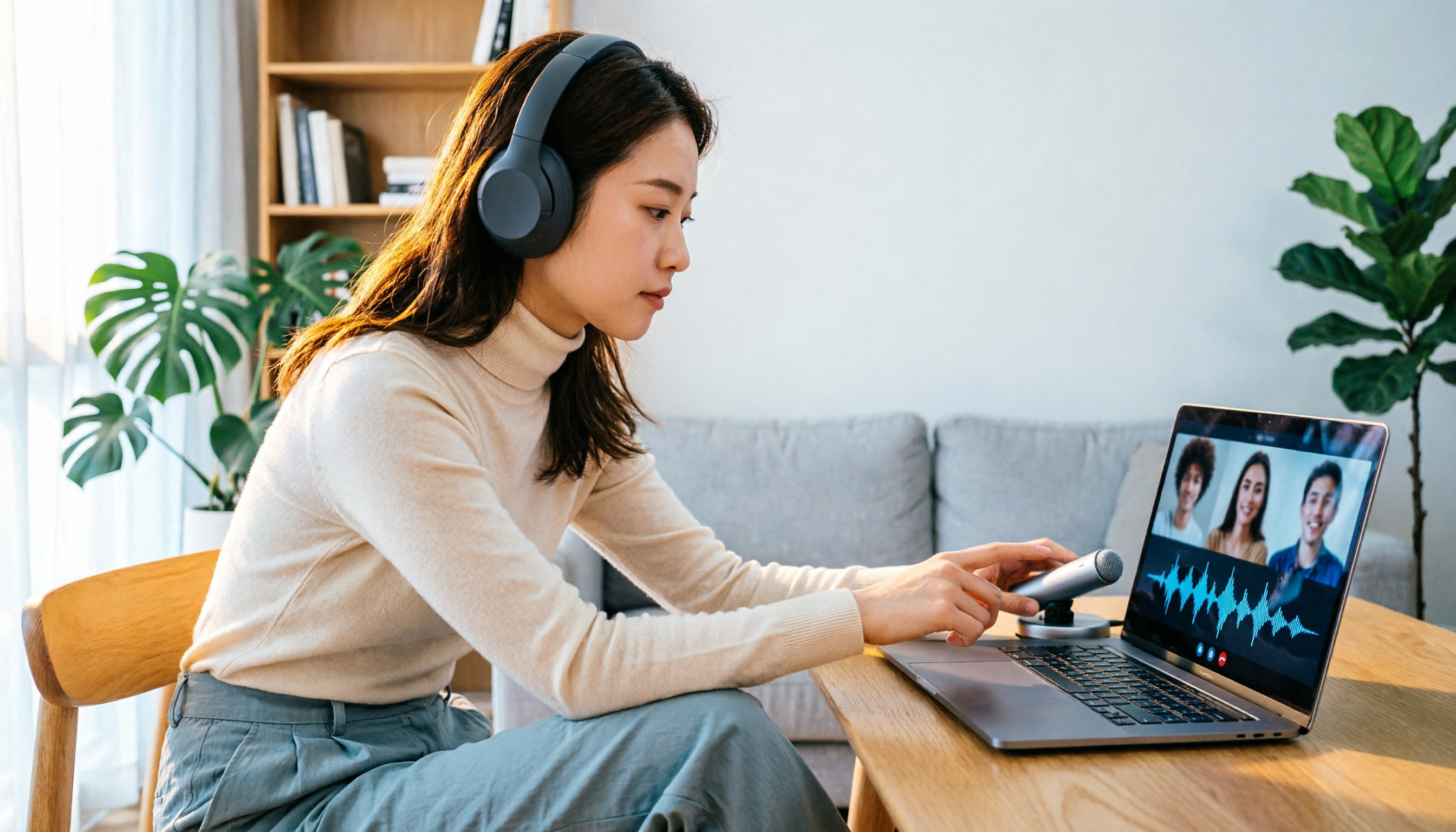
Turn recordings into transcripts and summaries in minutes
Upload audio or video for multilingual transcription, AI notes, and action items
The Meeting Started, but You're Stuck Typing
In online meetings, the biggest fear isn't unstable internet—it's a microphone that suddenly goes silent. You speak into the mic, but your colleagues ask in the chat: "Can you hear us?"
This issue is usually not a broken microphone but a misconfigured setting. Instead of panicking and restarting your computer, follow these 8 steps in order, starting with the most common causes and moving to hardware issues.
Start with These 4 Most Common Causes
1. Check the Microphone Icon at the Bottom of the Meeting Screen
After joining a Google Meet meeting, look at the microphone icon at the bottom of the screen. If the icon has a red slash, you are muted.
Simply click the icon to unmute, then test by speaking. This is the most common cause, yet it's often overlooked in a panic.
2. Browser Permissions Might Be Blocked
Google Meet requires browser permission to access your microphone. If you accidentally clicked "Block" earlier, Meet won't receive any audio.
For example, in Chrome: Click the "View site information" icon on the left side of the address bar, find the "Microphone" option, and ensure the permission is set to "Allow." If it shows "Block," change it to "Allow" and refresh the meeting page.
3. Select the Correct Microphone Before Joining the Meeting
On the "Ready to join" screen in Google Meet, there's a settings gear on the right. Click it, go to the "Audio" tab, and confirm the dropdown menu shows the microphone you're using.
If you're using an external USB microphone or headset, the system might default to the laptop's built-in mic. After selecting the correct device, speak into the mic and check if the input volume bar moves.
4. Check for Other Apps Using the Microphone
Some communication apps, recording software, or web pages might be using the microphone in the background, preventing Google Meet from accessing the audio input.
Open Task Manager (Windows) or Activity Monitor (macOS), and close any unnecessary programs that might be using the mic. After closing them, return to Meet and test again.
Still No Sound? Check System and Hardware
5. Verify Operating System Microphone Permissions
Browser permissions being correct doesn't mean the OS is also allowing access.
On Windows, go to "Settings" → "Privacy & security" → "Microphone" and ensure "Let apps access your microphone" is enabled. On macOS, go to "System Settings" → "Privacy & Security" → "Microphone" and confirm Chrome or Edge is checked.
6. Check External Microphone Connections
If you're using a USB mic, headset, or Bluetooth headphones, first check that the cable is securely plugged in. For USB devices, try a different port. For Bluetooth devices, ensure they are paired successfully and have sufficient battery.
Once physical connections are fine, go back to the OS sound settings and confirm the input device is set to the external device, not the built-in mic.
Stop organizing recordings by hand
Upload audio or video and automatically get a transcript, summary, and action items
7. Don't Speak in Companion Mode
Google Meet's Companion mode is mainly for projecting or collaborating; in this mode, both the microphone and speaker are disabled. If you're using Companion mode in a meeting room, you'll usually see a prompt on the screen.
Exit Companion mode and rejoin using the regular meeting mode to restore microphone functionality.
8. Test Hardware with System Recording
If you've tried all the above and Google Meet still isn't picking up audio, test the microphone using the OS's built-in recording app.
On Windows, open "Voice Recorder"; on macOS, open "Voice Memos." If even the system recording captures no sound, the issue is likely with the hardware itself. Try a different microphone or connect the external device to another computer to confirm.
An Easy-to-Miss Detail: Windows Communications Settings
If you're on Windows, there's another setting that can affect Meet's audio. Windows has a feature that automatically lowers other sounds or microphone volume when it detects communication activity.
Go to "Settings" → "System" → "Sound" → "Communications" and ensure it's not set to overly suppress. If your audio fluctuates during meetings, adjusting this option often helps.
Summary: Troubleshoot in Order, Don't Rush to Restart
Google Meet microphone issues are often due to permissions or wrong device selection, not actual hardware failure. We recommend checking in this order: "In-meeting mute → Browser permissions → Meet audio settings → Background apps → System permissions → Hardware connections." This usually resolves the issue within minutes.
If all settings are correct and system recording works, but Meet still doesn't pick up audio, try clearing the browser cache or testing with a different browser. These methods are conservative but effective in ruling out browser cache-related issues.
Frequently Asked Questions
Why is the Google Meet microphone icon red?
A red microphone icon means you are muted. Click the icon to unmute.
I allowed microphone permission, but there's still no sound. Why?
It could be that OS-level permissions are not enabled, or the Meet audio settings have selected the wrong input device. Check the system privacy settings and the Meet audio tab in order.
Can I use Bluetooth headphones with Google Meet?
Yes, but Bluetooth headphones may switch to a lower-quality mode during calls. If others can't hear you clearly, try wired headphones or a USB microphone instead.
What if my external microphone isn't found in Meet?
First, ensure the device is properly connected and recognized by the OS. If the system sees it but Meet doesn't, refreshing the meeting page or restarting the browser usually resolves it.
How do I fix a silent microphone on the Google Meet mobile app?
First, confirm the app has microphone permission enabled, then check if the phone is on silent or Do Not Disturb mode. If the issue persists, reinstalling the app is another option to try.
References
- Why Is Google Meet Microphone Not Working? Full Fix Guide
- Fix audio issues in Google Meet - Computer - Google Meet Help
- Cannot get microphone to work on Google Meet - Google Meet Community
- Microphone not working in Google Meet - Google Meet Community
- Why is my Google Meet Microphone not Working? | Claap
Turn every recording into actionable outcomes
Get 60 free transcription minutes when you sign in. No credit card required.
Related Reading
You might also like

2026 Transcription Tools Guide: AI Transcription Selection Tips + Tinrec Workflow
There are countless transcription tools, but the real challenge isn't transcription—it's what to do after. This guide covers selection criteria, hands-on testing, and pitfalls to avoid, rounding up transcription tools worth considering in 2026, and demonstrates how Tinrec turns meeting recordings into searchable, queryable, and shareable team knowledge.

4 AI Meeting Recorders Tested for 2026: Which Free Tier Works Best for Students?
A student's hands-on comparison of AI meeting note tools—Tinrec, Notta, Granola, and Otter.ai—covering free tiers, per-recording limits, post-transcript organization, and cross-platform use, with recommendations for class recordings, group projects, and final exam review.

How to Write Meeting Minutes in 2026: 5-Step Template Tutorial
Struggling to produce meeting minutes after the meeting ends? This article provides a ready-to-use meeting minutes template with fields and a 5-step process, and compares "template-only handwriting" vs. "template plus AI workflow" across recording, organizing, tracking, and team knowledge retention, helping you choose the right meeting minutes approach for your team.

2026 Tested: 4 AI Meeting Minutes Generators Compared — Which One Actually Saves You That Hour After the Meeting?
AI meeting minutes generation isn't just about uploading a recording. From the perspective of a mid-level manager who holds 15 meetings a week, I break down the most common misconceptions, 4 key purchasing criteria, and hands-on comparisons of Tinrec, Notta, Otter.ai, and Granola across Chinese-language meetings, bot-free recording, post-meeting Q&A, and team knowledge retention — with final recommendations by scenario.

Tinrec vs Granola 2026: 5-Dimension Comparison — Which Is Better for Chinese Meeting Notes?
Both avoid meeting bots, but how do Tinrec and Granola differ in meeting notes organization? This article compares them across 5 dimensions: meeting capture, Chinese-language experience, post-meeting outputs, input sources, and team governance, providing a side-by-side reference for your choice.
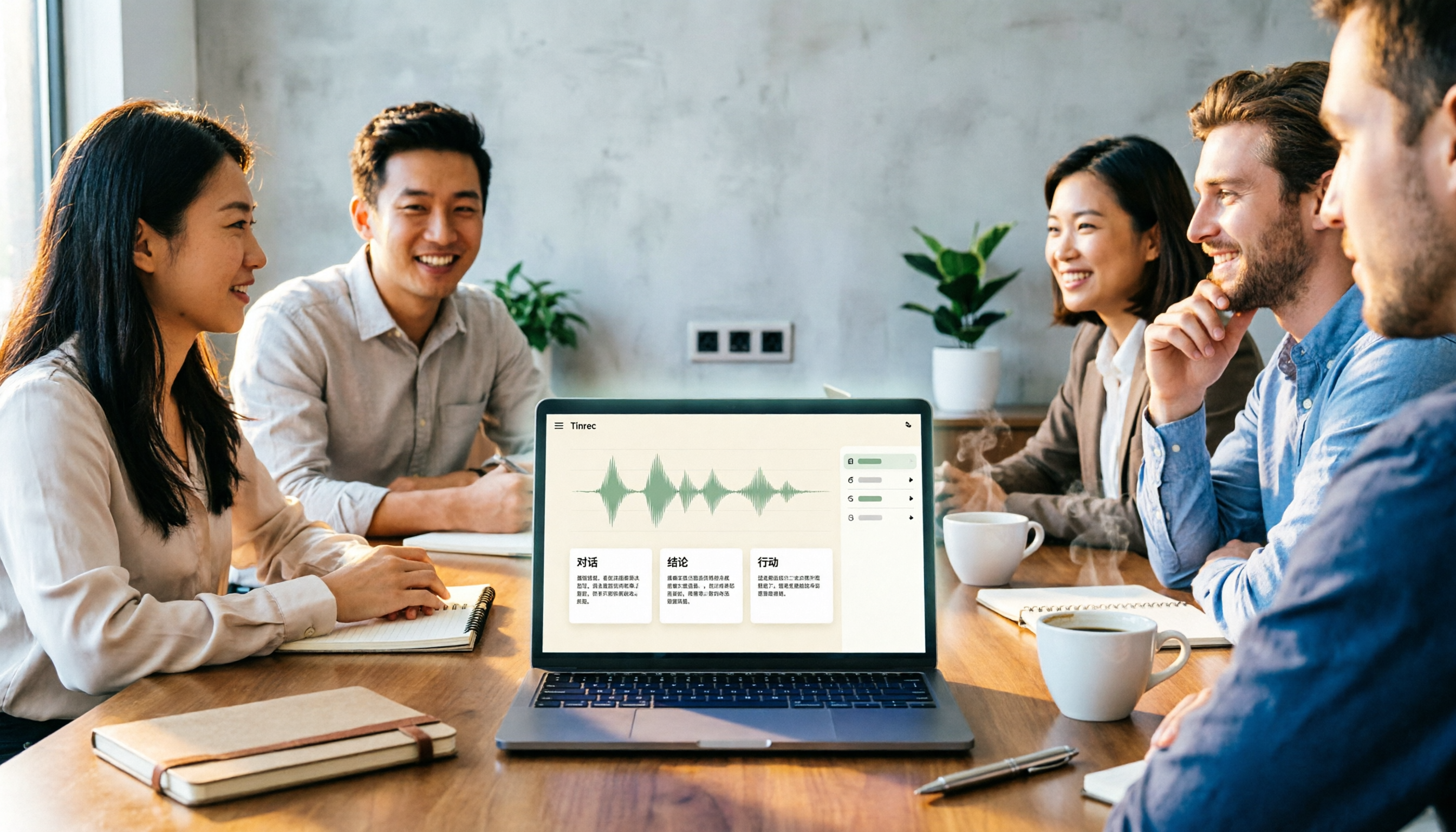
2026 Comparison of 4 Meeting Notes Tools: Which Free Version Is Good Enough?
There are countless meeting notes tools, but what really matters is whether they can turn recordings into trackable conclusions and action items. This article breaks down the selection criteria using 4 common tool approaches and demonstrates Tinrec's practical use for real-time transcription, AI summaries, action item extraction, AI Q&A, and team knowledge retention, along with buying tips and FAQs.

Teams Meeting Creation: 3 Methods Tested in 2026, Tinrec Makes Post-Meeting Cleanup Easier
A comparison of three common ways to create Teams meetings: Teams calendar, Outlook calendar, and channel meetings. Covers attendee invitations, external participants, recording storage, and post-meeting data management, plus how Tinrec fits into transcription, summaries, action items, and team knowledge retention.
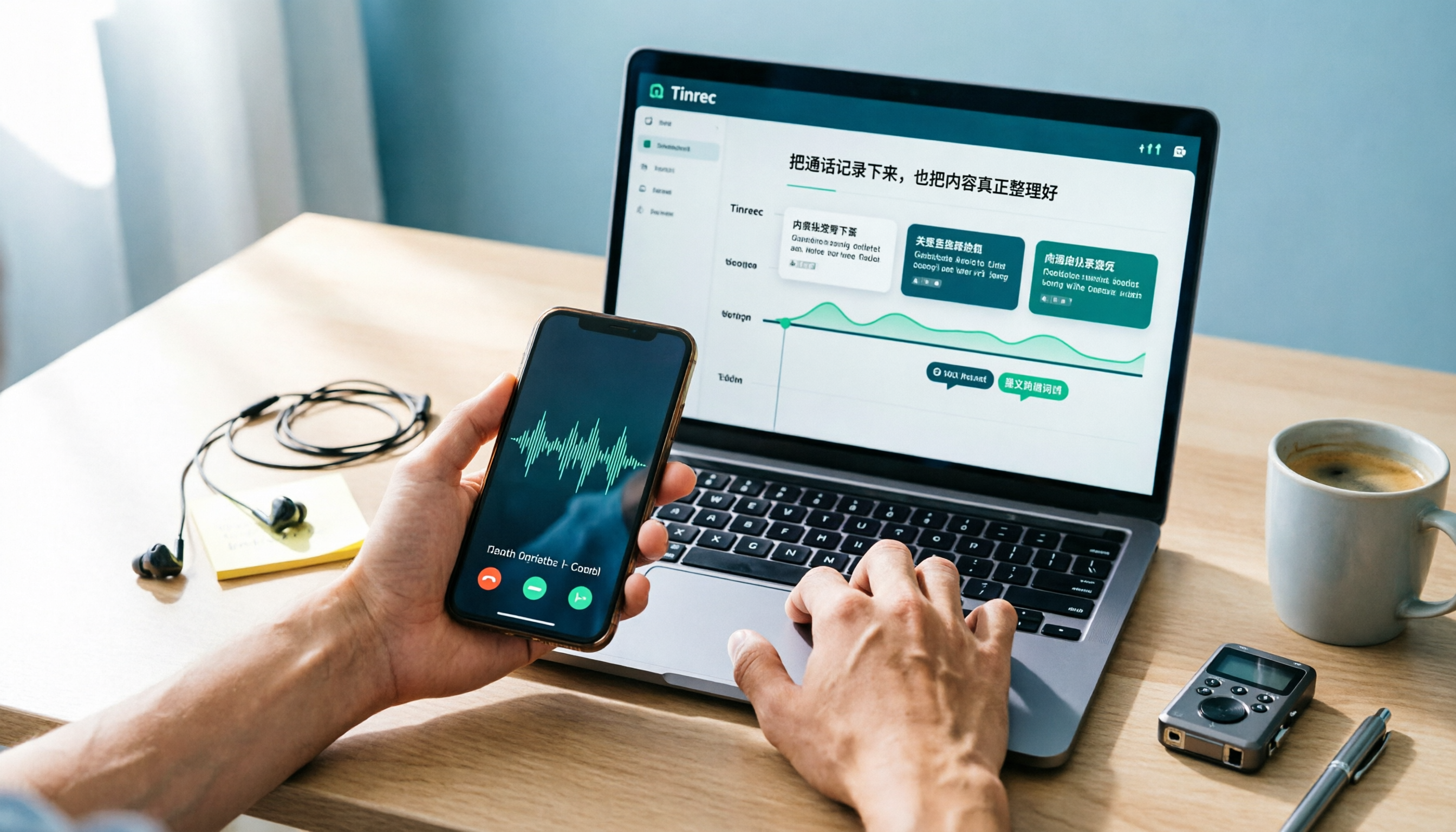
4 LINE Call Recording Methods Compared for 2026: How to Choose Between iPhone, Android, and Desktop
LINE doesn't have built-in call recording, but the methods fall into two layers: capturing the audio and then using it. This guide starts with the system limitations on iPhone and Android, compares screen recording, third-party call recording apps, external recording devices, and Tinrec's post-recording workflow, helping you choose the method that truly saves time.
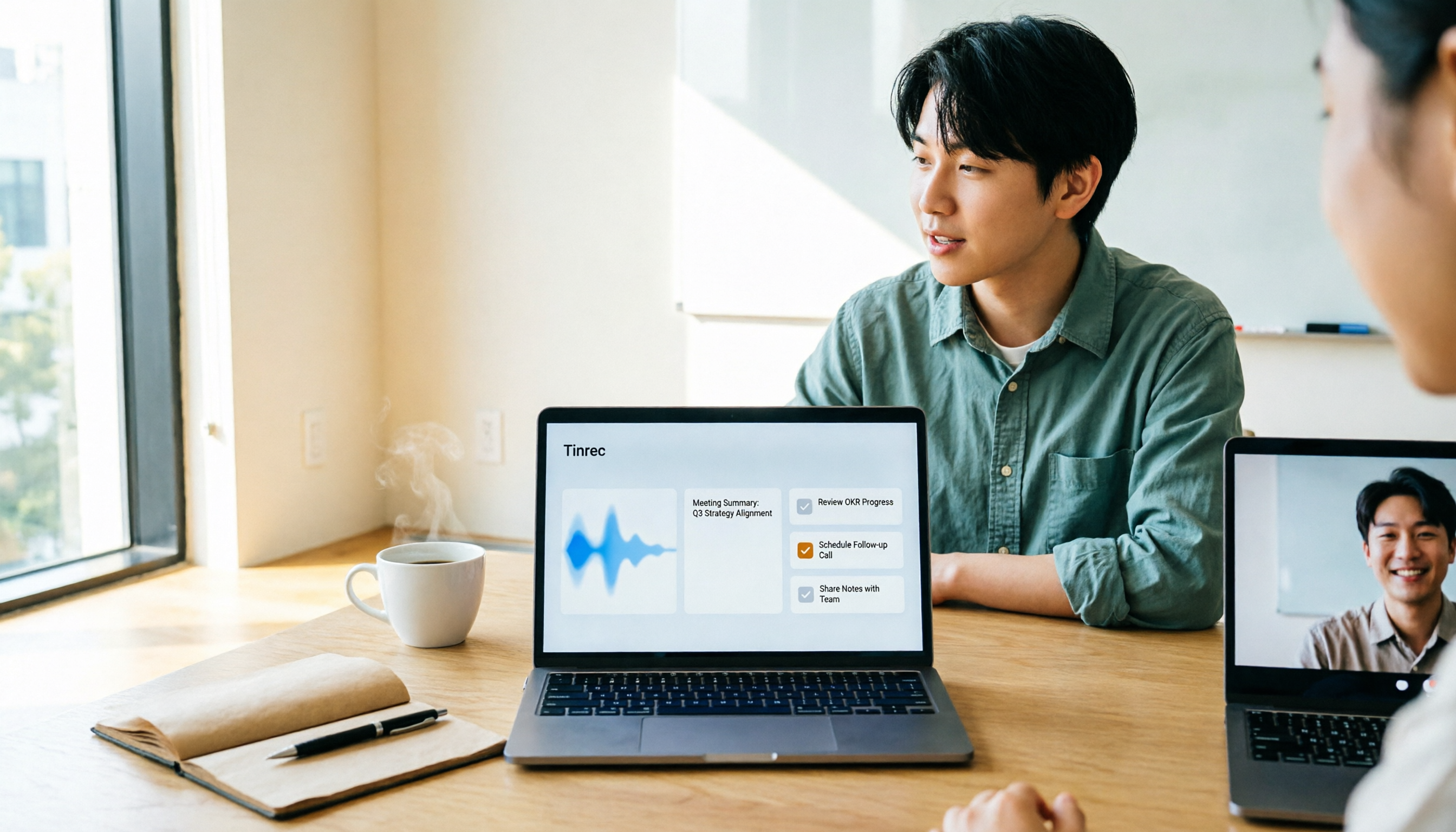
4 Ways to Start a New Meeting in Microsoft Teams: Instant Meeting, Calendar, Channel, or Outlook — Which Is Fastest?
A comparison of four ways to start a new meeting in Microsoft Teams: Calendar Instant Meeting, Calendar New Meeting, Team Channel Instant Meeting, and the Outlook add-in. It also covers how to use Tinrec to transcribe, summarize, and capture action items after the meeting.