

Turn recordings into transcripts and summaries in minutes
Upload audio or video for multilingual transcription, AI notes, and action items
Can You Use a Virtual Background on Google Meet: The Conclusion and Prerequisites First
Yes. Google Meet has virtual background and background blur capabilities for image processing, and third-party tutorials explicitly state that "Google Meet can use virtual backgrounds just like Zoom."
But "having the feature" and "being able to click the button right now" are two different things. Virtual backgrounds are an in-meeting image processing feature, and whether you can use it and what the options look like depend on your device, browser, and account type. A common scenario: the meeting starts in ten minutes, you want to replace the wall behind you, but you can't find the words "virtual background" anywhere in the settings.
This article breaks down the actual situations you'll encounter: first the availability requirements, then setup paths for desktop and mobile, and finally the order to check when you can't find the button, plus what virtual backgrounds themselves can't do.
What Is a Virtual Background: A One-Sentence Definition and the Problems It Solves
A virtual background is an in-meeting image processing feature: it replaces the real background captured by your camera with an image or applies a blur effect, so participants see something other than the room behind you.
It solves three very practical situations:
- Working from home with a bed, drying rack, or unorganized items behind you.
- In an open office or shared space, not wanting colleagues or clients to see who's sitting next to you.
- Wanting a consistent, professional look for interviews, external presentations, or client meetings.
First, make a clear distinction: virtual backgrounds handle "how others see you," not "what this meeting leaves behind." It won't record discussions, generate transcripts, or preserve decisions. These two things will be explained later.
Availability Requirements: Which Devices, Browsers, and Account Types Are Supported
Virtual backgrounds don't look the same in every environment. Before using them, check three things.
First, device type. Desktop (desktop, laptop) and mobile (phone, tablet) both have corresponding background processing options, but the entry points and adjustable details differ. Mobile usually has fewer options, and some effects are only complete on specific models.
Second, browser. This is the most commonly overlooked factor in practice. Third-party documentation directly states that Google Meet's virtual background doesn't work in some browsers and recommends using Chrome; other documentation states that virtual backgrounds are not supported in Safari. In other words, if you're using Safari or another non-Chrome browser, the entire option may not appear.
Third, account type and meeting settings. Some video effects are related to admin settings and plan type. If you're using a company or school account, the admin may have disabled certain effects; in that case, the problem isn't your device but the organization's settings.
| Check Item | Possible Impact | What to Do First |
|---|---|---|
| Device | Mobile options are fewer; some effects vary by model | First confirm the feature exists on desktop |
| Browser | Non-Chrome environments may not support it or the option may disappear | Switch to Chrome and open the same meeting |
| Account and admin settings | Organization may disable certain video effects | Test with a personal account or ask your admin |
| Meeting status | Some options only appear during a meeting, not in the pre-join preview | Join the meeting first, then open the effects menu |
Steps to Set a Virtual Background on Desktop
Desktop currently offers the most complete set of options. According to third-party documentation, the steps are roughly as follows:
1. Open Google Meet in Chrome and join the meeting. If you're still on the pre-join preview screen, some effects options may not appear; join the meeting first.
2. Find the more options in the screen. Third-party documentation states that after joining the call, you can click the three-dot menu to open the visual effects menu.
3. Select a background in the effects menu. This is usually divided into categories: background blur, built-in background images, and uploading your own image.
4. Choose or upload your background. After uploading, the effect applies in real time, and you can check from your own preview whether the edge processing looks natural.
5. Adjust if necessary. If the effect isn't ideal, you can switch back to blur or turn off the effect without leaving the meeting.
A practical tip: the edge processing of virtual backgrounds is affected by lighting, background clutter, and camera quality. With strong backlighting or when your background is similar in color to your clothes, edges may flicker or break up. This isn't a setting error but a common limitation of this type of feature.
Steps and Differences for Setting a Virtual Background on Mobile
Mobile works, but there are several clear differences from desktop.
Different entry point. Mobile effects options are usually hidden in the in-meeting control bar or more menu, not in the pre-join preview. In other words, you have to join the meeting first to find them.
Fewer options. Mobile typically offers background blur and some background replacement, and support for uploading your own image varies by platform and version. If you need a specific image, desktop is the more reliable choice.
More noticeable performance load. Mobile handles video encoding and background segmentation simultaneously, so long use may cause the device to heat up and battery to drain faster. If the meeting is long, check your battery first or switch to desktop.
Stop organizing recordings by hand
Upload audio or video and automatically get a transcript, summary, and action items
Participants see the same result. No matter which device you use to set it, the other party sees the applied image. No need to worry about that.
When You Can't Find the Button, Check These Things First
If you can't find the virtual background anywhere during a meeting, check in the following order rather than repeatedly restarting the meeting.
1. Which browser are you using? This is the most common cause. Third-party documentation clearly states that virtual backgrounds don't work in some browsers and recommends Chrome; other documentation states Safari doesn't support it. Switching to Chrome and opening the same meeting is the fastest step.
2. Are you still on the pre-join preview screen? Some effects options only appear after joining the meeting. Join first, then look for the three-dot menu.
3. Is your account a company or school account? Organization admins can disable certain video effects. If it works on a personal account but not on a company account, the problem is the organization's settings, not your device.
4. Does your device support it? Older devices or specific models may not offer the full effects options. Try another device to cross-check.
5. Does the meeting restrict certain features? Some meeting settings affect available effects, and this usually isn't something you can resolve on your own.
After checking these five items in order, most "can't find the button" situations can be traced to a cause.
What Virtual Backgrounds Can't Do: They Don't Change Meeting Records or Content Retention
Here we need to separate two layers so that later we don't mix up image issues with record issues.
During the meeting: what your background looks like, what others see. This is the scope of virtual backgrounds.
After the meeting: what was discussed, what was decided, who is responsible for which item, and when it's due. This layer won't automatically be preserved just because you changed your background.
In other words, virtual backgrounds solve "whether the image looks good," not "whether the meeting was recorded." If you finish a client meeting with a professional image but no one remembers what the other party promised or who follows up next, that's not a virtual background problem—it simply never handled that.
Usage Boundaries: Performance, Privacy, and Background Asset Licensing
Finally, three easily overlooked boundaries.
Performance. Virtual backgrounds require real-time segmentation of person and background, which puts a certain load on the device. On older computers or phones, you may see lag, increased fan speed, or faster battery drain. If you also need to share your screen during the meeting, the load is more noticeable.
Privacy. Virtual backgrounds mask the image, not the sound. People talking behind you, phone rings, and discussions in the next meeting room will still be picked up by the microphone. If the meeting involves sensitive content, what you need to handle is recording and participant consent, not changing a background image.
Asset licensing. When using photos taken by others, copyrighted images, or assets containing identifiable people as backgrounds, pay attention to the scope of the license. Putting someone else's photo into an external meeting screen may involve portrait and copyright issues. If unsure, using the platform's built-in backgrounds or your own photos is simpler.
Meeting Image Handled—Who Takes Over the Post-Meeting Content?
Background settings are a five-minute pre-meeting task; the real time-consuming part is usually after the meeting: organizing discussions into minutes, assigning to-dos, and turning commitments into deliverable materials.
Take a project weekly meeting as an example. A common breakpoint is this: during the meeting everyone discusses the same screen, changes requirements, sets timelines, and divides work; after the meeting, this content is scattered across everyone's notes and memories, and no one can fully reconstruct "what was decided at the time."
AI meeting note tools like Tinrec handle exactly this part. Its desktop version records online meetings by capturing computer system audio, without needing to invite an extra meeting bot; after the meeting, you can get transcripts, summaries, chapters, and to-dos. Then an AI assistant (i.e., an Agent) uses the meeting context to further process the to-dos into usable post-meeting outputs, such as action plans, follow-up materials, reports, tables, or meeting minutes documents. Important commitments, external sends, and key decisions should still be confirmed by a human before sending.
How the Team Edition Handles It: Two Practical Work Steps
If you're a team that meets with multiple people and needs to divide follow-up work after the meeting, you'll encounter a second breakpoint: data is only in one person's hands.
Step 1: Put meeting data into the team space. For individual use, transcripts and minutes are stored in your own account, and colleagues need to be sent them separately to view. Tinrec's Team Edition provides an independent team space where meeting recordings, transcripts, summaries, and to-dos can be centrally stored, and members can view and use them according to role and seat permissions. The practical result: a colleague newly joining the project can directly look up last month's meeting records instead of asking in the group chat "who has that minutes document?"
Step 2: Let post-meeting outputs be shared and continuously followed up. After AI assistant-generated action plans, follow-up materials, or reports are placed in the team space, the responsible person can continue to push them forward, and managers can view historical meetings and action progress. The practical result: meeting conclusions no longer stop on one person's computer but become searchable, traceable data for the team.
One reminder: the Team Edition currently focuses on team-level sharing, where members can view team data, and only after obtaining a seat can they record, upload, and edit; it is not a fine-grained permission system that sets independent permissions for each file.
(The above is a feature description, not a specific enterprise case.)
Summary: First Confirm Whether You Can Use It, Then Handle the Post-Meeting Part
Back to the original question: Google Meet can use virtual backgrounds, but whether you can use them depends on your device, browser, and account type. When you can't find the button, first switch to Chrome, join the meeting, and then check whether your account is restricted by organization settings—usually you can pinpoint the cause.
After the background is handled, what really needs to be supplemented is the post-meeting part: turning discussions into transcripts, minutes, and to-dos, and then letting them be shared and followed up by the team. If your meetings are already so numerous that post-meeting organization can't keep up, you can start with Tinrec Team Edition's team space and shared meeting data, so that every meeting leaves behind data that can continue to be used.
References
Turn every recording into actionable outcomes
Get 60 free transcription minutes when you sign in. No credit card required.
Related Reading
You might also like

Notta Transcription in 2026: Notta Sin Spread vs. Tinrec Comparison Guide
Searching for "notta sin spread review" might bring up Notta Sin, an Indian sugar-free chocolate spread, or Notta.ai, a meeting transcription tool. This guide clarifies the two, then focuses on the transcription tool: bot-free recording, post-transcript summaries and action items, team roles and seats, and compares Tinrec, Notta, Otter.ai, and Granola to help you make an informed choice in 2026.

How to Identify Meeting Note Tools in 2026: 3-Step Verification + Tinrec Hands-On Test
When searching for "notta nother builder reviews," half the results are UK construction company registration data and half are meeting note tool reviews. This guide first shows you how to verify a company's background in 3 steps, then explains how to choose a meeting note tool, and includes a hands-on test of Tinrec's complete workflow for bot-free recording, summarization, action items, and team knowledge retention.

2026 Nottage Hill Wine Price Comparison: US, UK, and Taiwan Market Prices at a Glance
How much should a bottle of Nottage Hill cost to be reasonable? This article compiles reference prices for Hardys Nottage Hill in the US, UK, and Taiwan, along with volume conversion and actual tasting notes, and highlights 4 easily overlooked points before buying to help you quickly decide whether the price is worth it at the wine shelf.

4 Free YouTube Video Summary Tools Tested in 2026: Free Tiers Vary Widely, but Few Support Follow-Up Work
Most people use free YouTube video summary tools with a common misconception: they think pasting a link is all it takes. This article tests and compares four tools—Tinrec, Notta, NoteGPT, and TurboScribe—from four angles: free quota, summary structure, follow-up organization, and Chinese recognition. It explains who each tool suits, where the free versions fall short, and how to avoid getting a summary that still requires rewatching the video.

Nottagen Guide | DQ7 Reimagined 7-Step Walkthrough: Save at the Right Time or Both Past and Present Are Ruined
Nottagen in Dragon Quest VII Reimagined is notorious for easy mistakes: can't find the monster in the church, a hidden battle in the well, and missing the save before the boss locks you into an outcome. This guide breaks the flow into 7 steps, plus branching choices, missable content, and common pitfalls so you clear it in one go and grab the achievement.
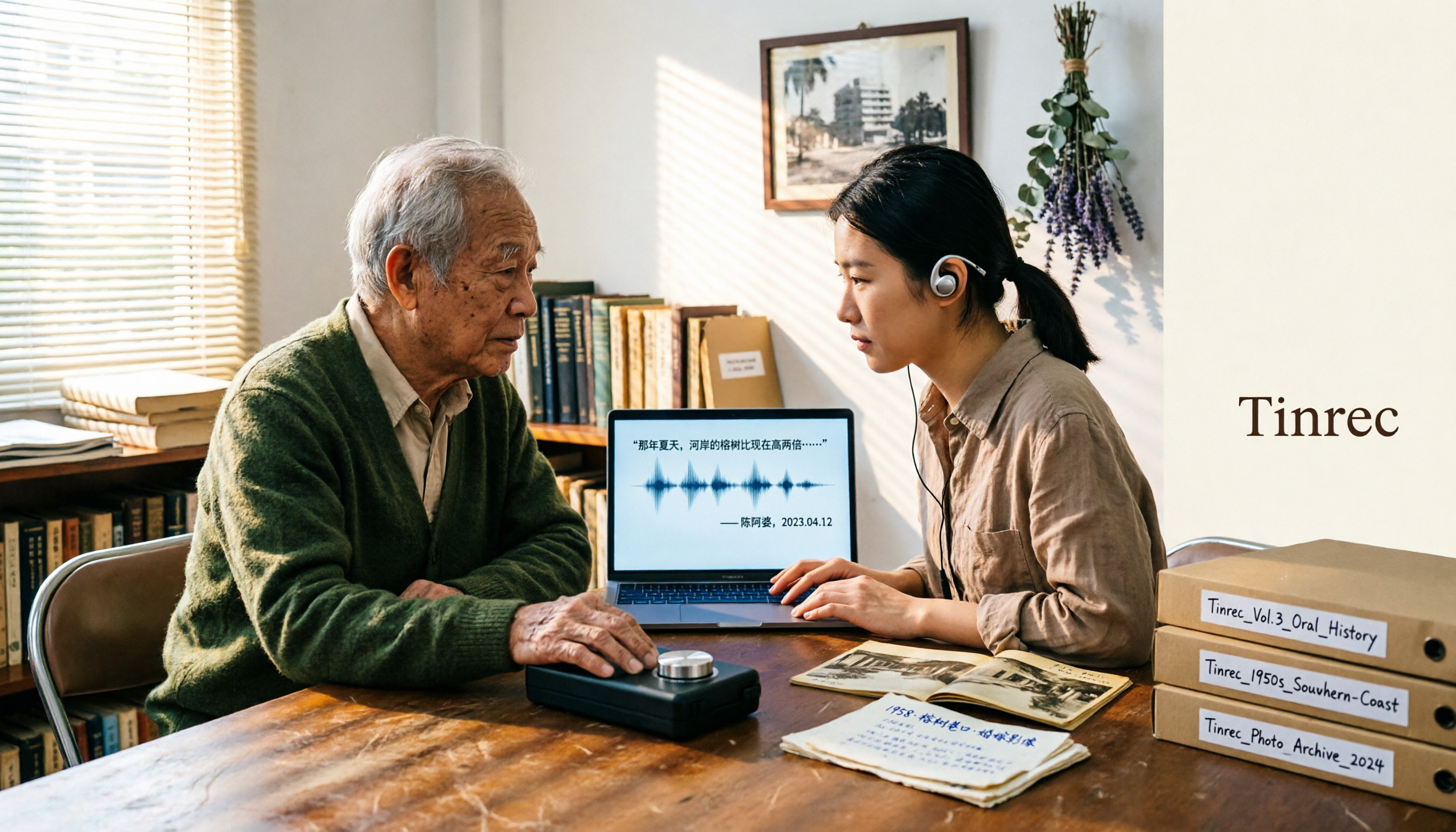
2026 Speech-to-Text Tools Tested: After the Nottoway Fire, How Oral History Survives
On May 15, 2026, Nottoway Plantation in White Castle, Louisiana, was destroyed by fire, leaving behind decades of oral memories from tour guides, researchers, and the community. This article addresses the common misconception that 'keeping a recording is not the same as preserving it,' explains four key considerations for organizing interview recordings, and tests and compares Tinrec, Otter.ai, Granola, and TurboScribe for oral history organization.

Good Tape Review 2026 & Audio Transcription Tool Buying Guide: 5 Comparisons and Recommendations
Starting from Good Tape's privacy positioning, actual transcription performance, and user feedback, this guide outlines key considerations for choosing an audio transcription tool and compares Tinrec, Otter, Notta, and TurboScribe in meeting notes, post-meeting organization, and team collaboration.
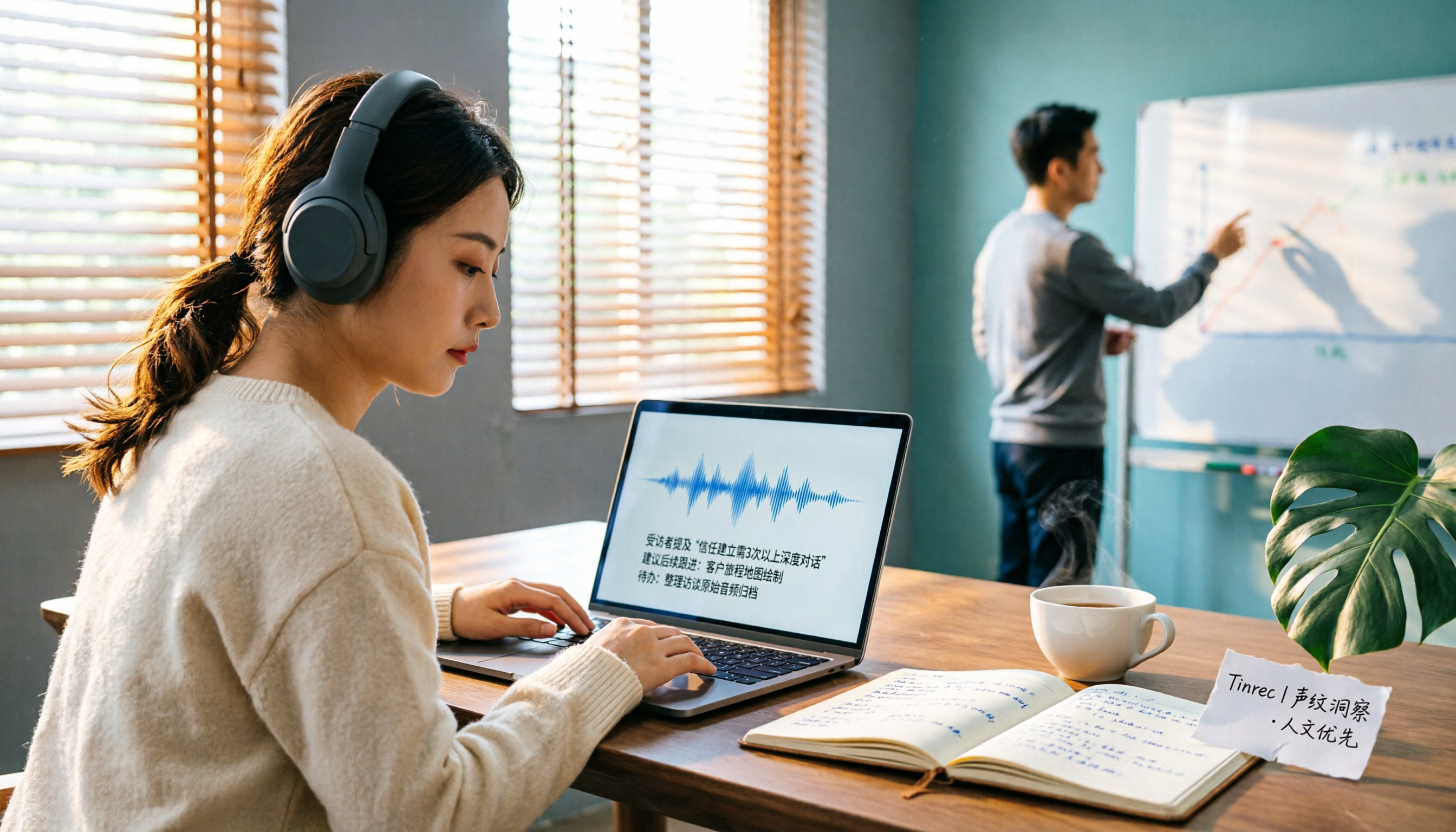
2026 AI Meeting Transcription Tools Compared: Is Notta AI Worth It? Plus a Better Option for Chinese Meetings
I tested three AI meeting transcription tools using the same set of real interview recordings. This article covers Notta AI's strengths, pricing, and privacy policy controversy, and explains why I ultimately moved my workflow to Tinrec: no-bot recording for online meetings, post-meeting summaries and action items, AI Q&A you can follow up with, and practical ways to retain team data.

2026 PLAUD Note Review & Buying Guide: 3 AI Meeting Tools Tested and Compared
Searching for 'PLAUD Note review Dcard' brings up plenty of recorder praise, but you still can't decide if it's worth buying. This guide starts from real Dcard user feedback, breaks down the 4 most misunderstood points about AI meeting tools, and tests Tinrec, PLAUD Note, Notta, and Granola across online meetings, in-person recording, post-meeting organization, and team collaboration. Includes a pitfalls guide and scenario-based recommendations.