

Turn recordings into transcripts and summaries in minutes
Upload audio or video for multilingual transcription, AI notes, and action items
4 Google Meet Recording Tools Tested and Compared in 2026: You Can Record with a Personal Account Too
After the meeting, you realize there was no record button at all
Last week, after a one-hour Google Meet with a client, I wanted to go back and check the details we discussed. When I opened the meeting notes, I realized the record button had never appeared.
I asked a colleague and learned it wasn't that he didn't know how to use it—it was that the company account's plan simply didn't include this feature.
More people run into a different situation: using a personal Gmail to host a meeting, they scroll through the row of buttons at the bottom of the meeting room three times but just can't find "Record."
If you're stuck here too, this article is for you. Google Meet can indeed record, but there are a few prerequisites. If those aren't met, there are still alternatives.
Can Google Meet record? Understand these 4 prerequisites first
Prerequisite 1: Your plan determines whether you have this button. Google Meet recording is a feature available only with paid Workspace plans, not all Google accounts. Meetings hosted with a personal Gmail usually won't show the recording option.
Prerequisite 2: Admins can turn it off entirely. Even with a paid plan, IT admins can disable recording in the Google Admin console. In other words, whether you can record isn't entirely up to you.
Prerequisite 3: Files are stored in the host's Google Drive. After recording, the file is saved to the host's Google Drive in the "Google Meet" folder. By default, it's kept for three months, then deleted. Many people only find this out afterward.
Prerequisite 4: Participants receive a notification. When recording starts or stops, attendees get a notice. They can't control the recording, but they'll know you're recording.
One more note: Starting April 30, 2026, members in an organization with viewer or commenter permissions can directly copy and download new Meet recordings.
If you need more than this—such as transcripts, summaries, action items, or if your account simply doesn't have recording permission—you'll need to look for third-party tools.
Tinrec — Record Google Meet without a meeting bot
Tinrec is an AI meeting notes and collaboration tool for individuals and teams. Its desktop version can directly capture your computer's system audio, making it useful for Google Meet, Zoom, Microsoft Teams, Webex, and other online meetings.
Its biggest difference from common meeting tools is that it doesn't require adding a meeting bot to the meeting room.
In the past, when using some tools to record Google Meet, an unfamiliar account would appear in the meeting room, and clients would ask who that was. Tinrec desktop captures system audio locally, so no extra participant appears in the meeting list, and it doesn't interrupt the meeting flow. You just open the desktop app before the meeting, press start, and it records while generating a transcript.
Three most useful aspects during a meeting:
First, real-time transcription. Text appears synchronously as the meeting progresses, and mixed Chinese-English content can be organized. After the meeting, you don't have to spend time re-listening to the entire recording.
Second, automatic summaries, chapters, and action items. After the meeting, the system breaks the long meeting into browsable sections and extracts action items from the discussion—who is responsible for what—much faster than manually going through the transcript.
Third, ask questions directly about the meeting content. This is where it differs most noticeably from most similar tools. You can directly ask which person mentioned a budget adjustment in the last meeting, and it will give an answer based on semantics, rather than just throwing a list of keyword search results.
It also supports real-time translation. For cross-language meetings, you can choose to view the original text, translation, or bilingual side-by-side. After the meeting, you can export results to Notion, Google Docs, OneNote, Dropbox, and other common tools for further processing.
Stop organizing recordings by hand
Upload audio or video and automatically get a transcript, summary, and action items
Hands-on observation: We used the desktop version to record a mixed Chinese-English Google Meet (indoor environment, laptop built-in microphone). The transcript's sentence breaks and paragraphs were generally readable; proper nouns needed reinforcement via team hotwords. Actual performance varies with recording quality, background noise, accents, and multiple people talking over each other.
Three clear advantages:
- Works with personal Gmail accounts, not limited by Workspace plans.
- No bot appears in the meeting room, so external meetings aren't awkward.
- The post-recording organization workflow is complete, from transcript to action items, reports, and tables.
Things to note: The free version offers a basic quota, suitable for trying out a meeting to confirm results. If you have several meetings to organize every week, you'll need to consider upgrading.
The team version is another level—it puts meeting data into a separate team space, so meeting resources belong to the team, and members leaving won't take data with them.
Admins can manage member roles and seats, view usage trends, export audit logs, and recover accidentally deleted audio from the recycle bin. Currently, the team version's first trial is 7 days, 1 free seat, and 300 shared import minutes. Paid seats are USD 29.80 per seat per month, or USD 199 per seat per year (about USD 16.58 per month), with each paid seat providing 2,000 team shared import minutes per month. Real-time recording under an active team plan currently does not deduct minutes; file and web link imports use the team shared quota.
In other words, the team version solves not just recording, but also who owns the data after recording, who can see it, and who can use it.
Besides Tinrec, what other ways are there to record Google Meet?
Google Meet built-in recording The easiest way, provided your plan qualifies and the admin hasn't disabled it. Recordings are saved to the host's Google Drive and kept for three months by default. Its biggest limitation: personal accounts usually don't have this button, and you only get a video with no transcript, summary, or action items. If you need that follow-up organization, you'll still need another tool.
Fireflies.ai Quite mature for meeting automation and sales analysis, offering AI summaries, AskFred, and many integrations. Annual Pro is USD 10 per seat per month. Its main method is sending a meeting bot into the meeting room. If clients are concerned about an unfamiliar account in the meeting, it can be awkward. Tinrec desktop doesn't require a bot to join—that's the most direct difference between the two.
Granola Also uses a bot-free desktop approach to record meetings, combining handwritten notes with AI output. Business plan is USD 14 per user per month. Note that it doesn't retain meeting audio files and doesn't support uploading existing recordings. Tinrec not only retains audio files but also imports historical meeting files, does real-time translation, and exports in multiple formats—more practical for teams that need to go back and verify.
Pitfall guide: The 3 most common mistakes when recording Google Meet
Pitfall 1: Assuming everyone has a record button. Google Meet recording depends on plan version and admin settings; it's not available just by logging in. Before the meeting, confirm whether you have permission—better than discovering mid-meeting that you can't record.
Pitfall 2: Assuming the file is yours. Built-in recordings are stored in the meeting host's Google Drive and kept for only three months by default. If the host is an external client, you might not even get the file. For important meetings, it's wise to make your own backup.
Pitfall 3: Ignoring notification and consent before recording. Attendees receive a notification when recording starts, but in practice it's still best to inform them proactively and obtain consent according to local regulations. This isn't just a matter of courtesy—it also involves legal compliance.
Conclusion: Which one should you choose?
- Company has a qualifying Workspace plan and you just need a video archive → Google Meet built-in recording is enough
- Personal Gmail account, or recording disabled by admin → Tinrec (desktop bot-free recording)
- Not just video, but also transcript, summary, action items, and AI Q&A → Tinrec
- Frequent meetings with clients or cross-department, meeting data needs team sharing, usage tracking, and permissions → Tinrec team version
- Only recording English meetings, zero budget → Otter.ai (the only exception scenario where a competitor is recommended in this article)
We suggest starting with Tinrec's free version, using a real meeting to check the quality of transcripts and summaries, and considering an upgrade only if it works for you—no need to pay from the start.
References
- Record a video meeting - Computer - Google Meet Help
- How do I record my video calls in google meet ? - Google Meet Community
- Record Meeting for Google Meet™ - Google Workspace Marketplace
- Record a video meeting - Android - Google Meet Help
- Turn Meet recording on or off for your organization | Google Workspace Help
Turn every recording into actionable outcomes
Get 60 free transcription minutes when you sign in. No credit card required.
Related Reading
You might also like

How to Download AI Meeting Notes Tools in 2026: 5 Steps from Installation to Team Testing
From download to real-world testing, we break down the 5 installation steps and 4 key purchasing factors for AI meeting notes tools, and compare Tinrec, Notta, Otter.ai, and TurboScribe on free quotas, pricing, and post-meeting outputs to help you choose the one that truly fits your team's needs.

5 Lynn Nottage Plays to Read in 2026: Should You Start with Sweat or Ruined?
Lynn Nottage is the first woman to win the Pulitzer Prize for Drama twice. This guide covers five of her most essential plays—from Sweat and Ruined to Intimate Apparel—with tips on how to choose your first read and how to turn your reading group discussions into useful notes, so you can decide which play to pick up first.

2026 AI Meeting Recorder Comparison: Meeting Ink App vs. Tinrec vs. Otter.ai — Which Handles Chinese Meetings Best?
How to choose between Meeting Ink App, Tinrec, and Otter.ai? This hands-on comparison tests everyday meeting workflows across four key areas: Chinese terminology, bot-free recording, post-meeting AI Q&A, and team collaboration. We also break down free and team plan pricing limits to help you pick the right tool for your meeting style.

4 Free AI Transcription Tools Tested for 2026: Is Notta's Free Plan's 120 Minutes Really Enough?
Notta's free plan offers 120 minutes per month with a 3-minute limit per file—is that enough? Starting from real meeting scenarios, this article breaks down the actual limitations and paid thresholds of Notta's free version, and compares the free quotas, post-meeting organization capabilities, and team usage differences of Tinrec, Otter.ai, and TurboScribe, helping you decide whether to stay on the free plan or switch tools.

2026 AI Meeting Notes Tools Cost Comparison: Beyond Notta, Which Has Lower Long-Term Costs?
Many people searching for notta ai costo only compare monthly fees, overlooking free plan single-session limits, AI features, and team seats. This article uses official public plans to estimate costs for Notta, Tinrec, and common meeting tools, helping you judge which option is better for long-term use based on post-meeting organization time, export needs, and team knowledge retention.
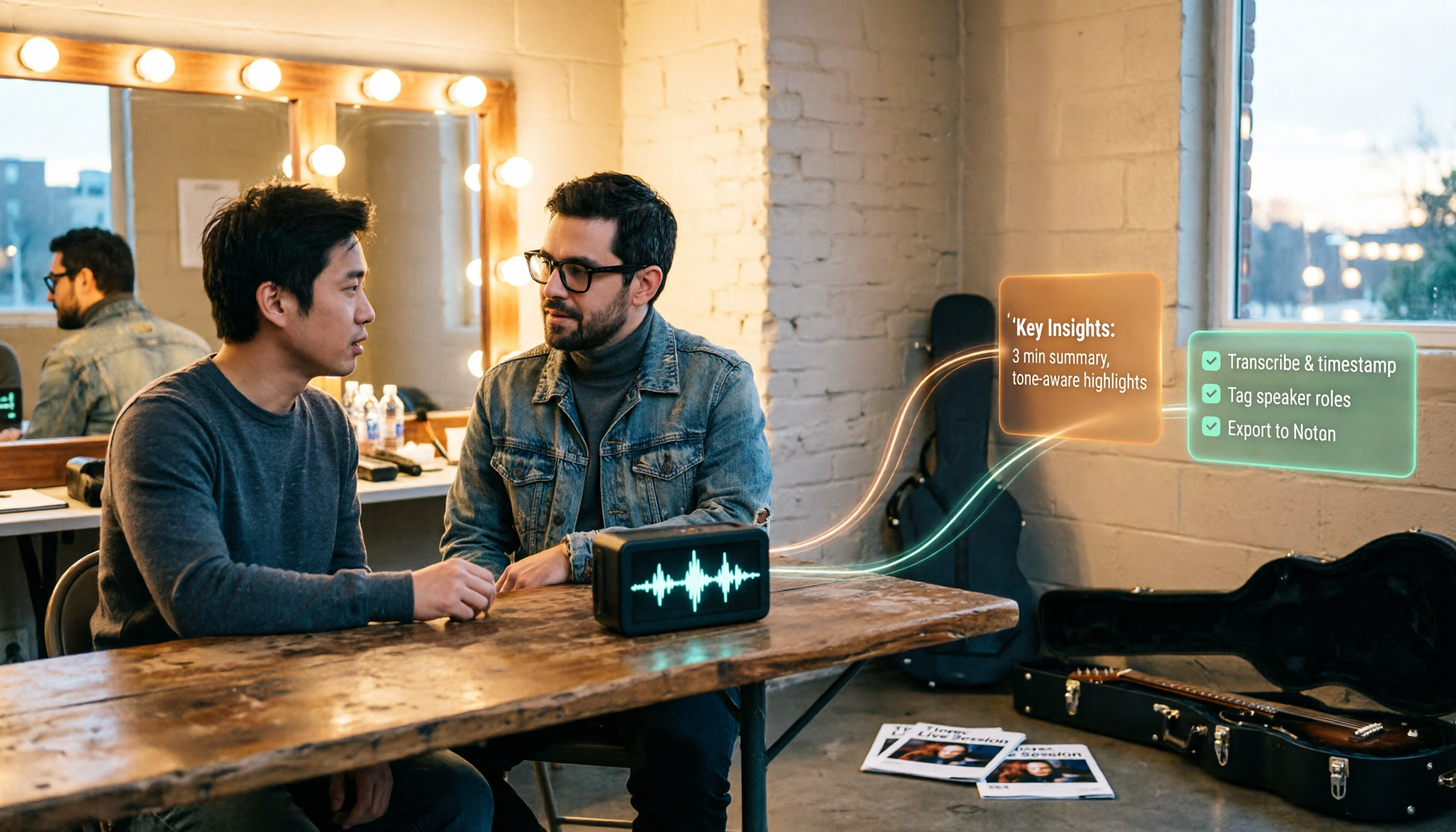
How to Use Tinrec in 2026: Turn Concert Interview Footage into AI Summaries and Action Items
Starting with Tape B's Red Rocks shows, this guide explains why recording audio isn't the same as organizing it. Using Tinrec as an example, it breaks down live transcription, AI summaries, action item extraction, and team spaces, plus pricing and 5 key considerations for choosing a tool.

Is Notta's Free Plan Enough in 2026? 4 Steps to Decide If You Need to Upgrade
Notta's free plan offers 120 minutes per month with a 3-minute cap per recording—is that actually enough? This article walks you through 4 steps to figure it out, comparing free tier limits, meeting capture, post-meeting output, Chinese-language experience, and team governance across five dimensions against Tinrec, helping you decide whether to stay on the free plan or switch tools.
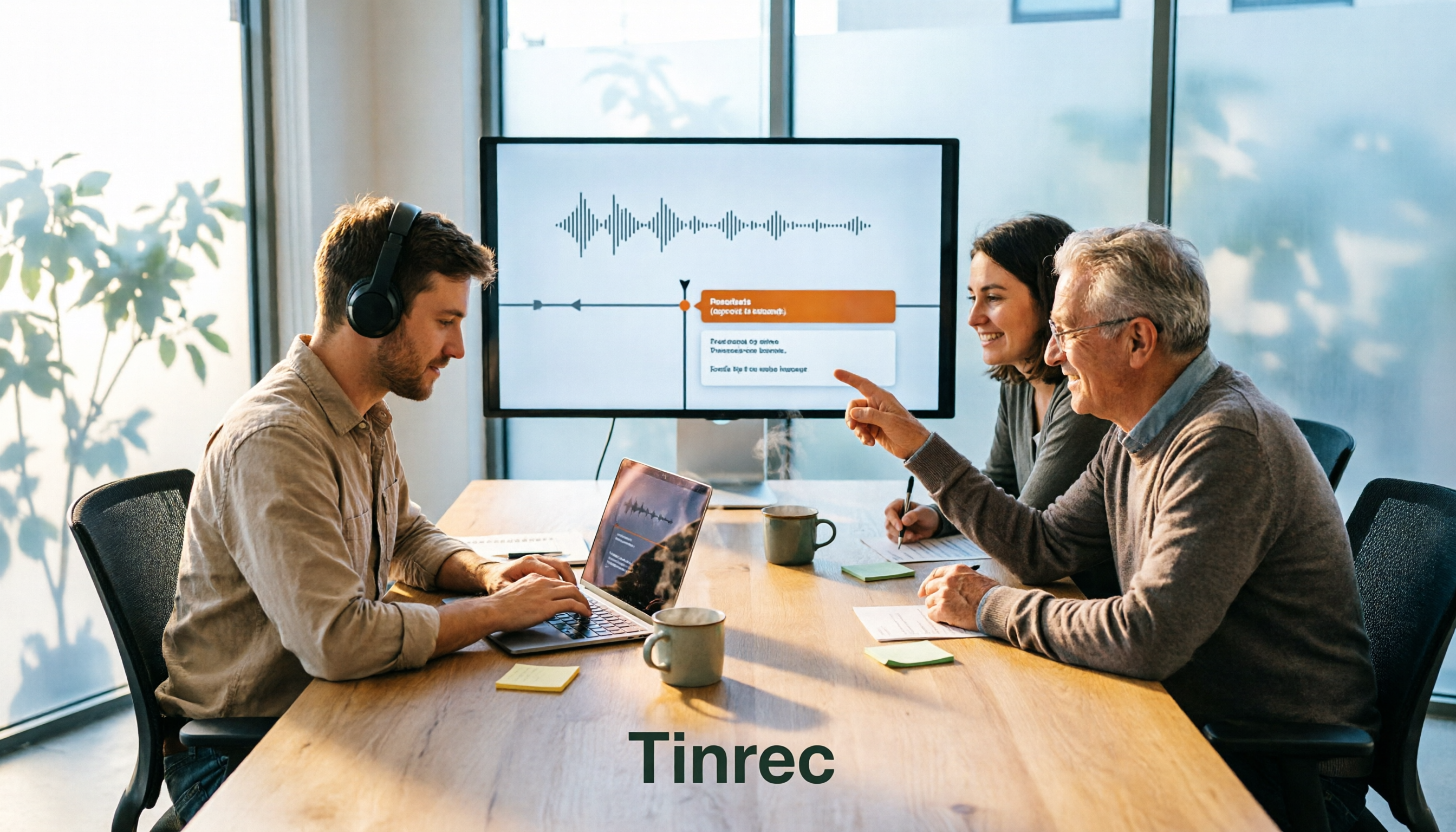
2026 AI Subtitle Tool Buying Guide: 5 Tested Criteria + 3 Pitfalls to Avoid
Starting from two needs—'adding subtitles to videos' and 'meeting transcripts'—this guide outlines 5 key criteria for choosing AI subtitle tools in 2026. It includes hands-on testing of Tinrec's performance in meeting organization, AI Q&A, and team collaboration, compares use cases for CapCut, FlexClip, Taption, and WayinVideo, and concludes with pitfalls and selection advice.

2026 Comparison of 3 Speech-to-Text Tools: Good Tape vs. Tinrec — Which Is Better for Chinese Meetings?
What is Good Tape and is it any good? This article starts from real meeting scenarios and compares Good Tape, Tinrec, and Otter.ai in a hands-on test, covering Chinese transcription, bot-free meeting recording, post-meeting summaries and action items, team collaboration, and pricing to help you decide which tool fits your workflow.