
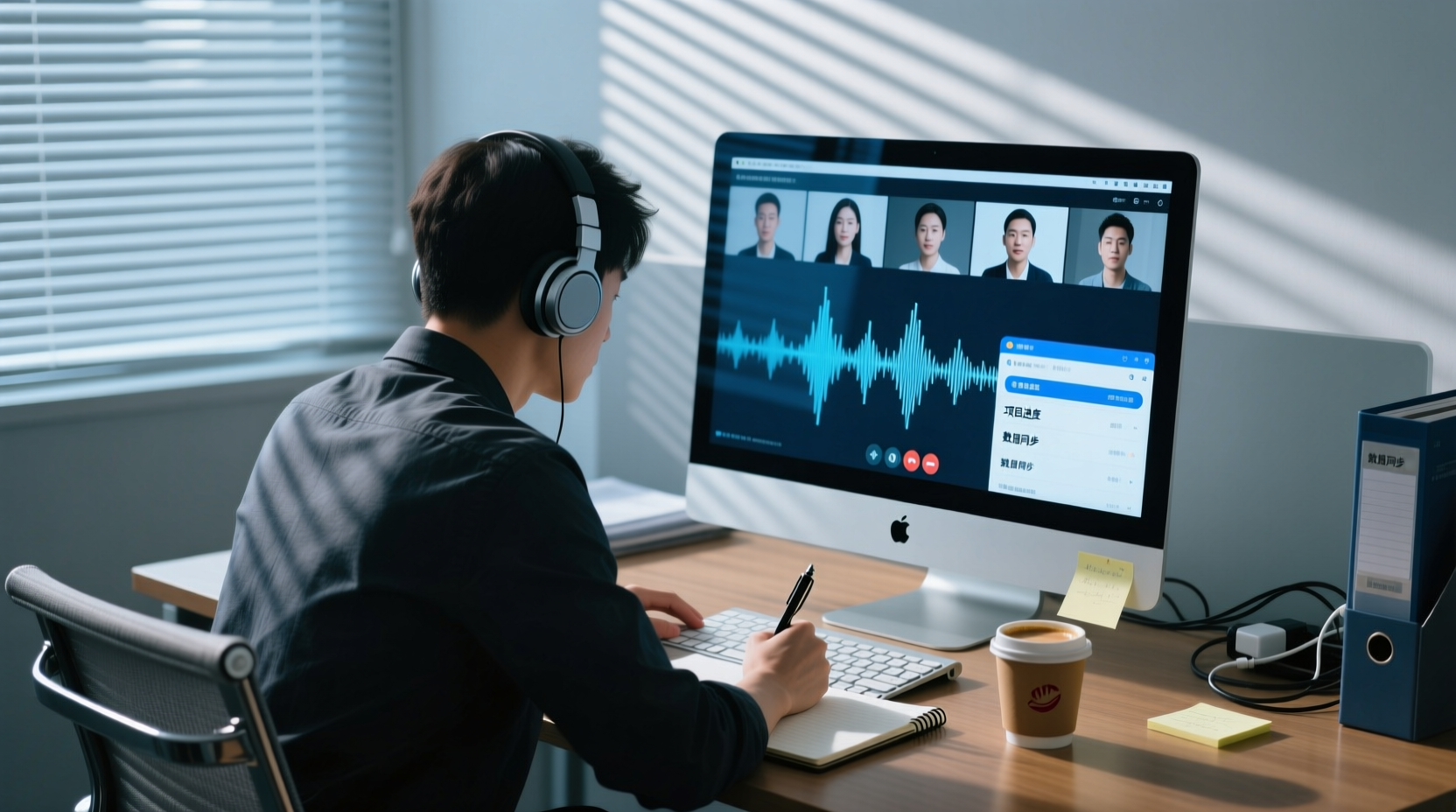
Turn recordings into transcripts and summaries in minutes
Upload audio or video for multilingual transcription, AI notes, and action items
Three Things to Confirm Before Recording Google Meet on Mac
On Windows, many people are used to just grabbing a recording app and hitting start for a Google Meet. On a Mac, the same approach often doesn't work. The reason isn't that Macs are more troublesome—it's that macOS splits "capturing system audio" and "using the microphone" into two separate privacy permissions, and there's an additional permission relationship among the browser, desktop app, and system settings.
So to complete a handoff-ready meeting record on a Mac, confirm three things before the meeting:
1. Who is responsible for recording this meeting: Is the host using Google Meet's built-in recording, or is a participant capturing system audio on their own computer? The permission prerequisites and file ownership differ between the two.
2. Are system audio and microphone permissions enabled: macOS privacy settings determine whether an app can hear other people in the meeting and whether it can receive your microphone.
3. What needs to be delivered after recording: Just the video file, or further organized into a transcript, summary, and action items? This determines which tool you use and which source files you keep.
The following sections address these three things in order: prerequisites, checkpoints, and deliverables.
How to Enable System Audio and Microphone Permissions on Mac
The biggest difference between Mac and Windows is how system audio is captured. On Windows, many recording programs let you simply check "system sound"; macOS puts audio input and screen/system audio authorization under "Privacy & Security," and apps must be allowed before they can access the corresponding audio sources.
There are roughly two categories of permissions to hand off:
- Microphone: Determines whether the app can receive your side of the conversation. If you only enable system audio and not the microphone, your own parts will be missing from the transcript.
- Screen & System Audio Recording (or similar system audio authorization): Determines whether the app can capture the sound played by other people in the meeting. The name and location of this item may vary across macOS versions.
Prerequisites and checkpoints:
- Permissions are granted per app, not globally once and for all. Allowing your browser doesn't mean you've allowed a desktop tool.
- After authorization, you usually need to restart the app for it to take effect. This is a common cause of "I enabled it but there's no sound."
- If your company-issued Mac is managed by IT, some privacy permissions may be restricted by organizational policy. Confirm with IT first rather than repeatedly reinstalling.
> Note: macOS privacy permission settings are version-dependent, and the actual path may change with system updates. Before publishing and actual operation, refer to Apple's official documentation and Tinrec's official documentation.
Capture System Audio with a Desktop App to Record Meetings—No Bot Required
After confirming permissions, the second thing to address is "how does the meeting audio come in?"
There are two common approaches. One is to send a meeting bot that joins the Google Meet room as an extra participant, adding an account to the meeting roster; the other is to use a desktop tool on your own Mac to directly capture the system audio played by that computer.
Tinrec desktop uses the latter: it processes online meetings played on your computer by capturing the device's system audio, without requiring a meeting bot to join as a participant. For external meetings, client meetings, or interviews where an unfamiliar account on the roster is inappropriate, this difference is practical.
Boundaries to clarify:
- This is a recording initiated by the user, not automatically joining all calendar meetings.
- Supporting the processing of Google Meet audio played on a computer does not imply an official partnership with Google.
- Before recording, confirm that participants have consented and comply with local laws regarding recording and transcription.
In terms of sequence, typically you open the desktop app on your Mac and confirm the audio source, then join the Google Meet so the meeting audio is captured via system output. If you switch output devices mid-meeting (e.g., from speakers to headphones), recheck whether the audio source is still correct.
What You Get After Recording: Transcript, Summary, and Action Items
After recording, what really determines your post-meeting workload is the level of output.
After recording or importing, Tinrec organizes the meeting content into several directly usable materials:
Stop organizing recordings by hand
Upload audio or video and automatically get a transcript, summary, and action items
- Transcript: Preserves the original spoken content, searchable and reviewable, for checking details.
- AI summary and chapters: Breaks long meetings into a browsable structure to quickly grasp key discussion points.
- Action items: Extracts follow-up actions from the discussion as a starting point for assignment and follow-up.
- AI Q&A: Allows continued questioning about the meeting content, such as where a certain decision was proposed.
- Multi-format export: Brings results into existing workflows, such as documents or spreadsheets.
One checkpoint to emphasize: Summaries and action items are organized results, not final conclusions. For important decisions, external commitments, amounts, timelines, and sensitive content, return to the corresponding timestamps in the transcript and recording playback to verify before sending externally. AI may miss or misinterpret details, and manual confirmation cannot be skipped.
Turning Meeting Content into Handoff-Ready Post-Meeting Materials
After getting the transcript and action items, you usually need to go one step further before handing off to the next person. This step is "turning meeting content into deliverable materials."
Tinrec's AI assistant (Agent) can, based on meeting minutes and context, help further process action items into usable post-meeting work products, such as action plans, follow-up materials, reports, spreadsheets, and documents. For a project meeting, the process is roughly:
1. Input: The meeting's transcript, summary, and extracted action items.
2. Action: Ask the AI assistant to organize assignments and timelines based on the discussion, or to compile client requirements into an external-facing explanation.
3. Output: A document, spreadsheet, or report that can go directly into review or response processes.
4. Manual confirmation: Before external sending, content involving commitments and resources is confirmed by the responsible person before being sent.
> The following is a fictional teaching example to illustrate the process, not a real customer case: A project weekly meeting discussed three action items; afterward, the AI assistant organized them into an action list with owners and expected completion dates, and the project lead verified one timeline before sending.
The value of this step is that meeting records no longer stop at the transcript but become materials the next stage can directly use.
Common Permission and Audio Troubleshooting on Mac
Problems on Mac mostly center on permissions and audio sources, not the recording function itself. Check in the following order:
- Other people's voices in the meeting aren't recorded: Likely system audio authorization is not enabled, or the app wasn't restarted after authorization.
- Only the other party's voice, not your own: Microphone permission is not enabled, or the wrong input device is selected.
- Audio issues after switching headphones or external microphone mid-meeting: After switching output/input devices, re-confirm the audio source settings.
- Company computer doesn't respond no matter what: Organizational device management policies may restrict privacy permissions; confirm with IT rather than repeatedly reinstalling.
- Browser and desktop app behave differently: Permissions are granted per app; allowing one doesn't mean the other is also enabled.
The basic troubleshooting principle: confirm permissions first, then devices, and only then suspect the tool itself.
How to Share and Hand Off Meeting Records in Team Scenarios
If the same Google Meet meeting record needs to be taken over by multiple people, the question shifts from "what did I record" to "where is the data, who can see it, and what happens when someone leaves."
Tinrec team plan provides a team space that centrally stores meeting recordings, transcripts, summaries, and action items, rather than scattering them across personal accounts or chat logs. For a project meeting, two specific aspects are:
- Sharing meeting data: After the meeting, transcripts and post-meeting outputs are placed in the team space, and project members can directly view and search historical meetings without requesting files from the recorder.
- Resource handoff: Team resources belong to the team. When the member responsible for recording exits, is removed, or loses their seat, their team resources can be handed off to other active members, so meeting data doesn't lose ownership when an individual leaves.
A distinction to make clear: the team plan currently focuses on team-level sharing, where all active members can read team data; roles determine who can manage the team and members, and seats determine whether members can record, upload, edit, and export. This is not document-level or member-level granular permission control, and should not be conflated in external explanations.
If your team is evaluating ways to share meeting records among multiple people, you can start by learning about the team space and shared meeting data capabilities. Specific plans and seat arrangements are subject to the official purchase page or official consultation results.
Summary
Recording Google Meet on a Mac really requires clarifying four things: whether permissions are enabled, where the audio comes from, what you get after recording, and who ultimately holds the data. Confirm these four things in order, and post-meeting organization won't get stuck on "I only realized after the meeting that it wasn't recorded" or "it was recorded but no one took over." For important decisions and external content, still rely on the transcript and recording playback, and have the responsible person confirm before sending.
References
- How to Use Google Meet on macOS Sequoia — Cyber Acoustics
- Google Meet for Mac - Download
- Guide for Using Google Meet App on Mac | Meeting Reminders
- Is there a native Mac desktop app I can download for Google Meet? Tired of looking for browser tabs - Google Meet Community
- https://meet.google.com/etc-ztyu-mac
Turn every recording into actionable outcomes
Get 60 free transcription minutes when you sign in. No credit card required.
Related Reading
You might also like

How to Download AI Meeting Notes Tools in 2026: 5 Steps from Installation to Team Testing
From download to real-world testing, we break down the 5 installation steps and 4 key purchasing factors for AI meeting notes tools, and compare Tinrec, Notta, Otter.ai, and TurboScribe on free quotas, pricing, and post-meeting outputs to help you choose the one that truly fits your team's needs.

5 Lynn Nottage Plays to Read in 2026: Should You Start with Sweat or Ruined?
Lynn Nottage is the first woman to win the Pulitzer Prize for Drama twice. This guide covers five of her most essential plays—from Sweat and Ruined to Intimate Apparel—with tips on how to choose your first read and how to turn your reading group discussions into useful notes, so you can decide which play to pick up first.

2026 AI Meeting Recorder Comparison: Meeting Ink App vs. Tinrec vs. Otter.ai — Which Handles Chinese Meetings Best?
How to choose between Meeting Ink App, Tinrec, and Otter.ai? This hands-on comparison tests everyday meeting workflows across four key areas: Chinese terminology, bot-free recording, post-meeting AI Q&A, and team collaboration. We also break down free and team plan pricing limits to help you pick the right tool for your meeting style.

4 Free AI Transcription Tools Tested for 2026: Is Notta's Free Plan's 120 Minutes Really Enough?
Notta's free plan offers 120 minutes per month with a 3-minute limit per file—is that enough? Starting from real meeting scenarios, this article breaks down the actual limitations and paid thresholds of Notta's free version, and compares the free quotas, post-meeting organization capabilities, and team usage differences of Tinrec, Otter.ai, and TurboScribe, helping you decide whether to stay on the free plan or switch tools.

2026 AI Meeting Notes Tools Cost Comparison: Beyond Notta, Which Has Lower Long-Term Costs?
Many people searching for notta ai costo only compare monthly fees, overlooking free plan single-session limits, AI features, and team seats. This article uses official public plans to estimate costs for Notta, Tinrec, and common meeting tools, helping you judge which option is better for long-term use based on post-meeting organization time, export needs, and team knowledge retention.
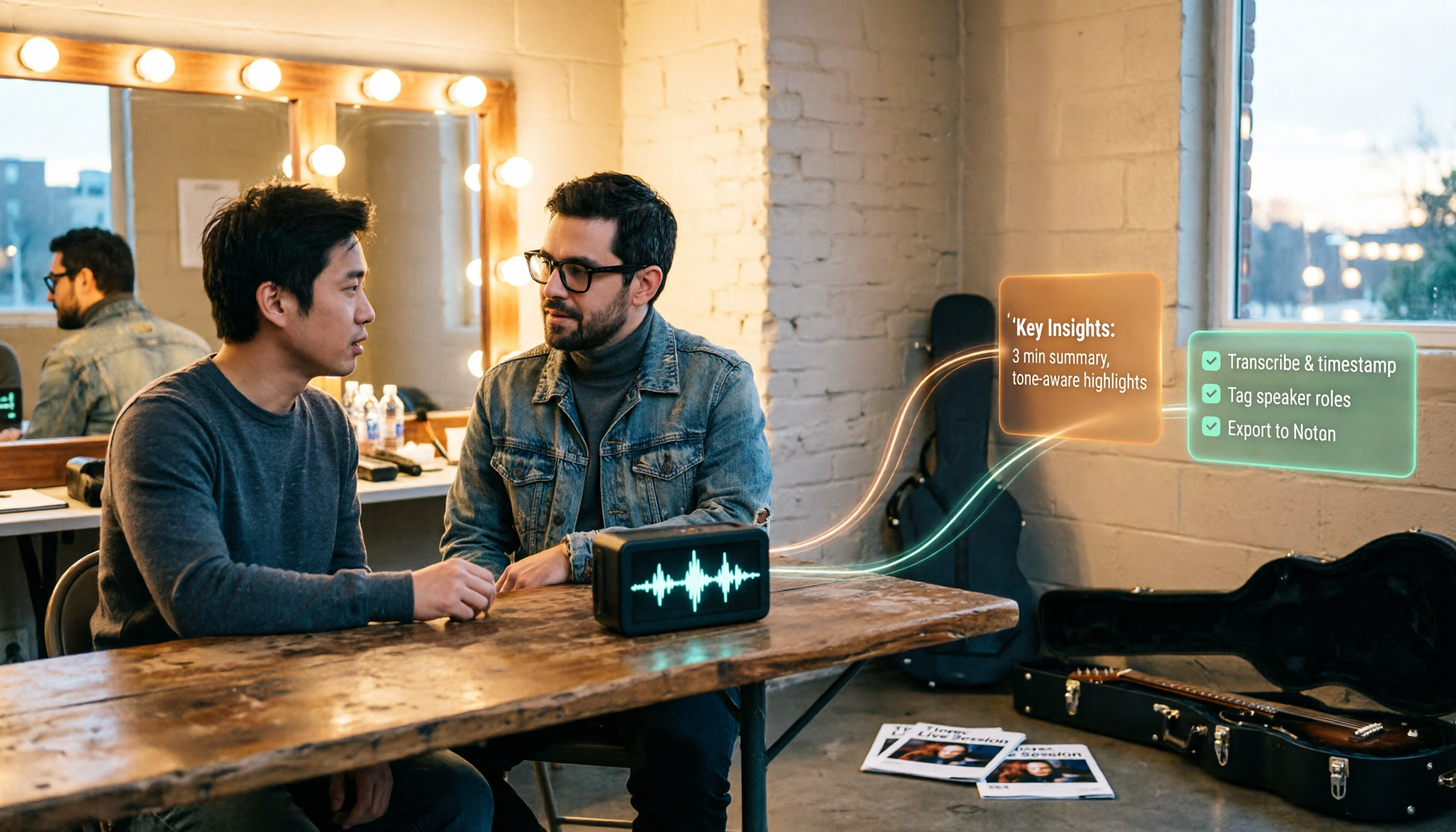
How to Use Tinrec in 2026: Turn Concert Interview Footage into AI Summaries and Action Items
Starting with Tape B's Red Rocks shows, this guide explains why recording audio isn't the same as organizing it. Using Tinrec as an example, it breaks down live transcription, AI summaries, action item extraction, and team spaces, plus pricing and 5 key considerations for choosing a tool.

Is Notta's Free Plan Enough in 2026? 4 Steps to Decide If You Need to Upgrade
Notta's free plan offers 120 minutes per month with a 3-minute cap per recording—is that actually enough? This article walks you through 4 steps to figure it out, comparing free tier limits, meeting capture, post-meeting output, Chinese-language experience, and team governance across five dimensions against Tinrec, helping you decide whether to stay on the free plan or switch tools.

2026 AI Subtitle Tool Buying Guide: 5 Tested Criteria + 3 Pitfalls to Avoid
Starting from two needs—'adding subtitles to videos' and 'meeting transcripts'—this guide outlines 5 key criteria for choosing AI subtitle tools in 2026. It includes hands-on testing of Tinrec's performance in meeting organization, AI Q&A, and team collaboration, compares use cases for CapCut, FlexClip, Taption, and WayinVideo, and concludes with pitfalls and selection advice.

2026 Comparison of 3 Speech-to-Text Tools: Good Tape vs. Tinrec — Which Is Better for Chinese Meetings?
What is Good Tape and is it any good? This article starts from real meeting scenarios and compares Good Tape, Tinrec, and Otter.ai in a hands-on test, covering Chinese transcription, bot-free meeting recording, post-meeting summaries and action items, team collaboration, and pricing to help you decide which tool fits your workflow.