
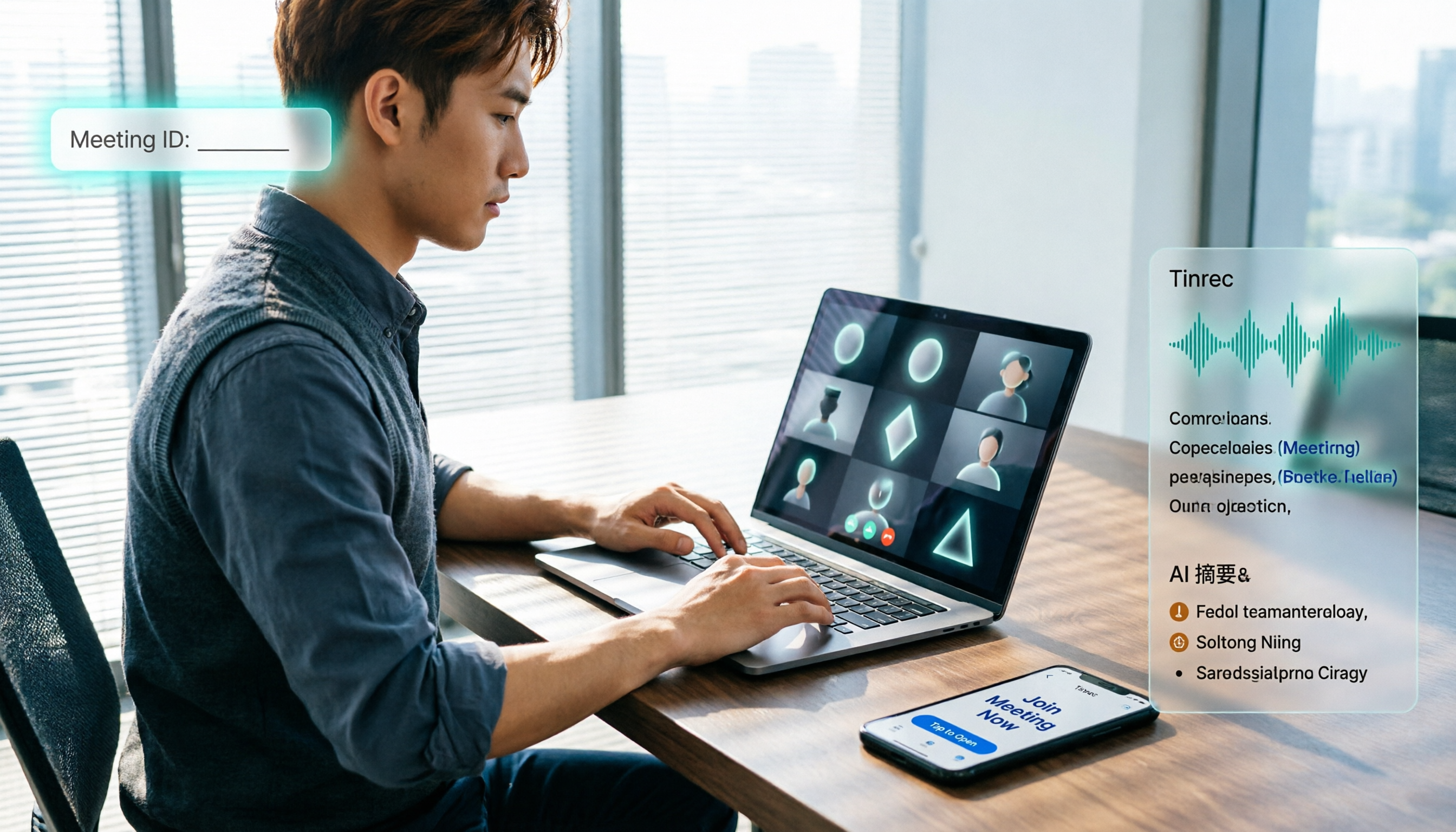
Turn recordings into transcripts and summaries in minutes
Upload audio or video for multilingual transcription, AI notes, and action items
If You Have a Code but Can't Get In, the Problem Usually Isn't the Code
"I entered the code, but the screen just says waiting for the host to admit me." I see this comment from readers about once a week.
Joining a Google Meet isn't hard, but the experience can vary wildly depending on which account you're signed into, the type of meeting room, and the host's settings.
This article covers the three ways I've tested to join, plus how to organize meeting content afterward.
Before You Join, Understand These 3 Key Points
1. What the code looks like
A Google Meet code is 10 characters split into three segments, like abc-defg-hij. The hyphens are optional, and capitalization doesn't matter, so you don't need to worry about typing the wrong case.
2. Where the code comes from
The three most common sources: a calendar invite, a meeting link someone sent you, or a string of text a teacher or colleague pasted directly. The abc-defg-hij at the end of a meeting link is the code.
3. You can join without a Google account
Yes, but someone has to let you in. The host or any participant in the meeting must approve you before you actually enter the room.
3 Ways to Join a Google Meet with a Code
Method 1: Desktop web (most universal)
- Open meet.google.com in your browser.
- Click the "Enter a code" field.
- Paste the code.
- Click "Join" and enter the name you want to display.
- Click "Ask to join" and wait for the host to admit you.
Method 2: Mobile app
Open the Google Meet app, tap "Enter a code," paste it, and tap Join. The process is almost identical to the web version—only the button locations differ.
Method 3: Click the link from Gmail or Calendar
If you received an invite, this is the fastest way. Click the link in the email or calendar event, and you'll go straight to the waiting screen—no need to paste the code.
Keep in mind: having a code doesn't guarantee immediate entry. Most meetings have host approval turned on, so if the host doesn't see the notification, you'll be stuck waiting outside.
Tinrec — The Real Hassle Is What Comes After the Meeting
Joining the meeting is just the first step. After an hour-long call, transcribing, identifying decisions, and organizing action items is where most professionals actually lose time.
Tinrec is an AI meeting notes and collaboration tool for individuals and teams. Its desktop version captures system audio to record online meetings—no need to invite a meeting bot into Google Meet, and no unfamiliar participant appears in the room. This is especially useful for client meetings.
During the meeting, it generates live transcripts and supports real-time translation, so you can view the original text, translation, or both. After the meeting, it automatically generates summaries, chapters, key points, and action items. You can also ask follow-up questions via AI Q&A—for example, "What was the budget conclusion of this meeting?"—and it will answer based on semantics, not just throw a list of keyword search results at you.
Outputs are portable. Transcripts and notes can be exported as documents, reports, or tables, and sent to Notion, Google Docs, OneNote, Dropbox, and other tools for further processing.
For team use, the Team plan centralizes data in one space: members can share and view past meetings; admins can manage roles and seats, view usage trends and details, query and export audit logs, and access an audio recycle bin (currently retained for 30 days) and team glossary for specialized terms. Note that roles determine governance permissions, while seats determine whether a member can record, upload, edit, and export; active members without a seat can only view, play, and read.
Stop organizing recordings by hand
Upload audio or video and automatically get a transcript, summary, and action items
Pricing: Team monthly is USD 29.80 per paid seat per month; annual is USD 199 per paid seat per year (about USD 16.58 per month). Eligible new teams get a 7-day trial with 1 free seat and 300 minutes of shared team import quota; paid seats include 2,000 minutes of shared import quota per month, and live recording is not currently deducted by the minute. Actual pricing and benefits are subject to the official purchase page. The Personal plan includes a free version, weekly pass, and Pro monthly/annual plans. For occasional recording organization, the free version is enough.
Limitations: transcription quality can be affected by recording environment, accents, people talking over each other, and specialized terminology. It's not recommended as a 100% accurate automatic record; for important content, verify against transcript timestamps and audio playback. Also check local regulations before recording and obtain consent from participants when necessary.
Overall, if you frequently hold meetings in Chinese, don't want a bot in the meeting room, and need quick summaries and action items afterward, Tinrec is the first option I'd recommend trying.
Besides Tinrec, What Are the Alternatives?
Otter.ai: A mature choice for English business meetings. Free version offers 300 minutes per month; Pro annual works out to about USD 8.49 per month. It excels at English meetings, but Chinese meetings and seat governance aren't its strengths; if your meetings are primarily in Chinese, Tinrec will be smoother.
Notta: Supports multilingual transcription and document import. Free version offers 120 minutes per month, max 3 minutes per session; Pro annual works out to about USD 8.17 per month. It overlaps significantly with Tinrec, but the difference is Tinrec emphasizes bot-free desktop recording and post-meeting Agent outputs, not just converting audio to text.
Granola: Also takes a bot-free approach, using system audio and microphone for real-time transcription. Business version is USD 14 per month. Note that it doesn't save meeting audio and doesn't support uploading existing recording files; if you need to keep audio files or organize old recordings, Tinrec's file import and audio retention will better fit your needs.
Pitfall Guide: The 4 Most Common Mistakes When Joining with a Code
Pitfall 1: Typing the code manually. Manual typing easily leads to missing or misread characters. The safest way is to copy and paste.
Pitfall 2: Using the wrong Google account. When signed into multiple accounts, Meet might send the join request from the wrong one. If you can't get in, first check which account is shown in the top right corner.
Pitfall 3: Assuming a code means instant entry. Unless the host has turned off approval, you'll have to wait to be admitted. Messaging the host to remind them is the most practical approach.
Pitfall 4: Using a transcription tool only for transcripts. This is the biggest waste. Features like Tinrec's summaries, action items, and AI Q&A are where the time savings come from. Using it only for transcripts means you're using just one-third of its capabilities.
Summary: What Should You Actually Do?
- Just need to join a Google Meet: Open meet.google.com, paste the code, wait for the host to admit you.
- Need to organize notes and action items after the meeting: Tinrec—bot-free desktop recording, automatically generates summaries and action items afterward.
- Team needs centralized meeting data management: Tinrec Team plan—manage members and permissions with roles and seats.
- Meetings are almost entirely in English and budget is zero: Otter.ai free version's 300 minutes per month can handle it.
- Need to batch transcribe many long files: This isn't Tinrec's strength; consider a dedicated file transcription tool.
Overall, Google Meet itself handles joining meetings well. The real differentiator is what happens after the meeting. I suggest starting with Tinrec's free version to see if the transcription quality matches your meeting scenarios, then decide whether to upgrade.
References
Turn every recording into actionable outcomes
Get 60 free transcription minutes when you sign in. No credit card required.
Related Reading
You might also like
Google Meet Not Working? 4 Alternatives Tested and Compared: Fix It or Switch?
When Google Meet stops working, most people just restart or switch browsers. This article first walks you through 5 key troubleshooting steps—app version, permissions, extensions, and plan limits—then hands-on compares meeting note alternatives like Tinrec, Otter.ai, Granola, and PLAUD, with a pitfalls guide and scenario-based recommendations.

Google Meet Not Working Today? 3 Backup Meeting Tools Compared: Troubleshooting and Alternatives
Don't rush to reinstall if Google Meet isn't working today. This article outlines the troubleshooting order for server-side and local issues, and compares backup meeting tools like Tinrec, Granola, and TurboScribe to help you capture transcripts, summaries, and action items even when meetings get stuck.

4 Google Meet Note-Taking Tools Tested for 2026: Which Bot-Free Recorder Saves the Most Time?
Google Meet updates frequently, but built-in transcription is still tied to specific plans and languages. This article starts with version checks, then tests and compares four meeting note-taking tools—Tinrec, Otter.ai, Granola, and Notta—and provides buying tips and pitfalls to avoid.
2026 Google Meet Note-Taking Showdown: 3 Tools Tested—Which Turns Transcripts into Action Items?
After a meeting on the latest Google Meet app, the real work begins. This guide covers 3 key factors for choosing a Google Meet note-taking solution, with hands-on comparisons of Tinrec, Google Meet's built-in Gemini notes, Otter.ai, and Notta. Includes common pitfalls and selection advice.
2026 Comparison of 3 Google Meet Note-Taking Tools: Tinrec vs Otter vs Granola — Which Can Record Without a Bot?
Searching for 'Google Meet join anyway' but stuck at the request to join screen? This article first explains the actual rules for joining a Google Meet, then tests three meeting note-taking tools—Tinrec, Otter, and Granola—to help you find the best post-meeting solution for users in Taiwan.
5 Google Meet Alternatives Tested in 2026: Automatic Meeting Notes Without a Bot
Looking for a Google Meet alternative but still stuck summarizing meetings yourself? We tested Tinrec, Otter.ai, Granola, and Jitsi Meet, comparing bot-free recording, transcripts, summaries, action items, AI Q&A, and team knowledge sharing. Plus common pitfalls and selection tips to help you find the tool that truly saves time.
2026 Online Meeting Tools Comparison: After Downloading Google Meet for Free, Who Handles the Meeting Notes?
Downloading the latest Google Meet for free is easy; the hard part comes after. This article starts with common misconceptions, outlines 4 key points for choosing online meeting and note-taking tools, shares hands-on experience with Tinrec, and highlights 4 common pitfalls when downloading and using these tools. It helps you decide if the free version is enough and who should handle post-meeting organization.
4 Google Meet Note-Taking Tools Tested in 2026: Bot-Free Recording vs. Chinese Summaries—Which Is More Practical?
Google Meet recently added Ask Gemini, Take notes for me, automatic room check-in, and CarPlay support, but post-meeting organization remains unsolved. This article addresses common misconceptions, explains four key points for choosing a meeting note-taking tool, and compares Tinrec, Google Meet's built-in Gemini, Otter.ai, and Notta.
Google Meet APK Download Guide & 4 Meeting Note Tools Compared (2026)
How to safely find the latest Google Meet APK, understand Split APK architecture and admin restrictions, plus a hands-on comparison of 4 meeting note methods—and why you still need a tool that turns meetings into searchable data after installing Google Meet.