
Turn recordings into transcripts and summaries in minutes
Upload audio or video for multilingual transcription, AI notes, and action items
Many professionals and freelancers often use LINE for voice calls or remote meetings, but LINE itself does not provide built-in recording functionality, making it difficult to review important decisions or verify details after the call ends, and manual note-taking is time-consuming and labor-intensive.
This article will compile the latest 4 methods for LINE call recording in 2025 (covering iPhone and Android), provide an objective tool comparison table, and teach you step-by-step how to convert recording files into transcripts and key summaries, followed by a common questions FAQ.
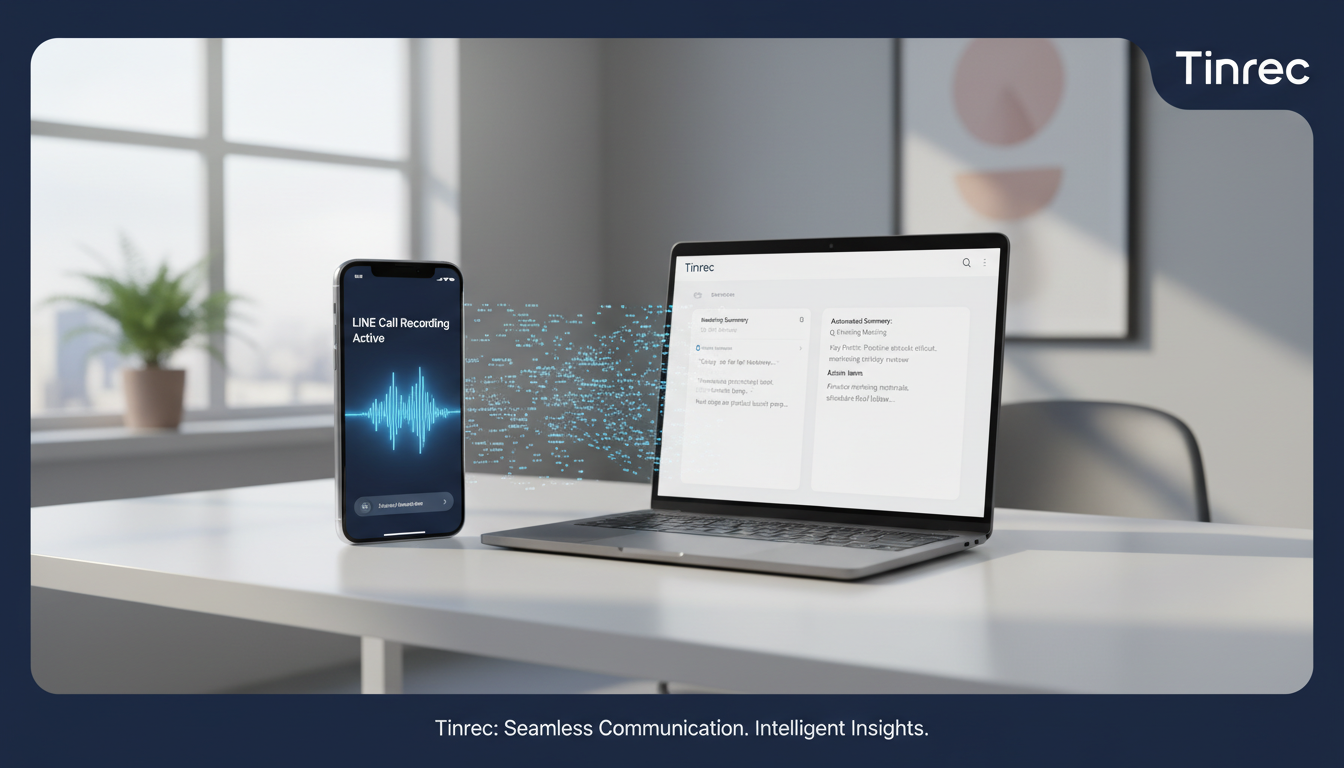
Quick conclusion: If you are an iPhone user with iOS 18.1 or later, you can directly use the system's call recording feature; Android users can choose third-party apps; if you value "meeting minutes output" and "key point search" after recording, you can refer to AI recording-to-text tools like Tinrec to improve post-processing efficiency.
Current Pain Points: Why Is LINE Call Recording So Difficult?
LINE has become a primary tool for many professionals to communicate with clients and conduct remote meetings. However, due to privacy and system limitations, LINE does not provide built-in call recording in its app. This leads many people to face problems such as forgetting details, lacking meeting records, and difficulty tracking decisions after important voice calls. Manually recording while on the call not only prevents focus on the conversation but also makes post-call information organization time-consuming and labor-intensive, which is why "LINE call recording" has always been a hot search topic for users.
Latest LINE Call Recording Solutions in 2025 (iPhone & Android)
Depending on the device operating system, the method of recording LINE calls varies. Below are the top 4 effective methods:
1. iPhone Users: Via iOS System or Screen Recording
- Upgrade to iOS 18.1 or Newer: Go to LINE's "Settings" > "Calls", enable "Integrate iPhone Call Function" and "Integrate with iPhone Call History". When a LINE call comes in, tap the "Call Recording" button at the top left of the call interface to capture audio.
- Use System Screen Recording: Swipe down from the upper right corner of the iPhone screen to open Control Center, tap the "Screen Recording" button (circle icon), and it will record both the screen and audio during the LINE call.
- Use Dedicated Hardware: If it's inconvenient to use your phone, you can purchase a physical recording device (e.g., Magmo), attach it to the back of the phone via MagSafe, and set LINE to speakerphone mode for physical side recording.
2. Android Users: Use Third-Party Call Recording Apps
- Cube ACR Call Recorder: This is a free app that supports recording LINE voice calls. Download and install it from the app store, grant the necessary permissions, and enable "Auto Recording". When you make a LINE call, a dedicated recording icon will appear on the screen, indicating that the system is capturing the call audio in the background.
After Recording, What's Next? Comparison Table of LINE Call Recording-to-Text Tools
After solving the "how to record" problem, the next challenge is "how to use the recording." Traditional call recording files have extremely low information density; listening to an hour-long meeting often takes more than an hour. Therefore, choosing the right post-processing tool is crucial. Below is a multi-dimensional comparison of built-in phone recording, traditional third-party recording apps, and the new generation of AI recording-to-text assistants (using Tinrec as an example):
Stop organizing recordings by hand
Upload audio or video and automatically get a transcript, summary, and action items
| Evaluation Dimension | Built-in Recording / Screen Recording | Traditional Call Recording App (e.g., Cube ACR) | AI Recording-to-Text Assistant (e.g., Tinrec) |
|---|---|---|---|
| Language Support | No recognition | No recognition | Supports automatic recognition of 10 languages including Chinese, Japanese, English, Korean, Taiwanese, Cantonese, etc. |
| Real-time Transcription | No | No | Supports real-time transcription of recordings as text with no waiting required. |
| Summaries & Action Items | No | No | Automatically generates meeting minutes, conclusions, and to-do action items. |
| AI Query Search | Only manual scrubbing through progress bar blindly | Only manual scrubbing through progress bar blindly | Supports semantic-based AI conversational query, like asking an assistant to find key points. |
| Export & Integration | Only saves as original audio or video file | Only saves as original audio file | Supports multi-format text and audio export for easy cross-platform sharing. |
| Price / Free Tier | Free system feature | Basic free, advanced features paid | Offers 100 minutes of free recording per month; Basic plan at $4.9/month |
In-Depth Review: How to Efficiently Convert LINE Call Recordings into Meeting Minutes?
Simply recording the call only completes half the work. For professionals and freelancers, what is truly needed is "scannable, searchable, actionable text." Unlike traditional tools that only produce lengthy transcripts, Tinrec focuses on the complete workflow from "recording, understanding to action."
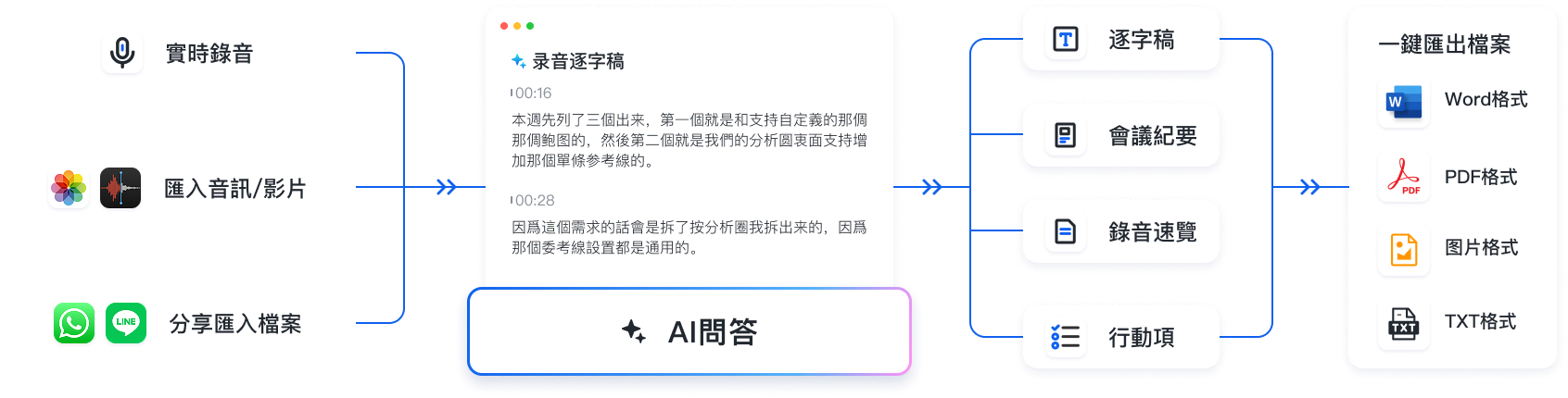
When you import a LINE call audio file into the system, it can automatically recognize cross-language content (even if the meeting mixes Chinese and English) and generate accurate, speaker-labeled transcripts. More importantly, it automatically extracts decision summaries and to-do lists, so once the LINE meeting ends, subsequent work arrangements are already organized, significantly reducing manual organization costs.
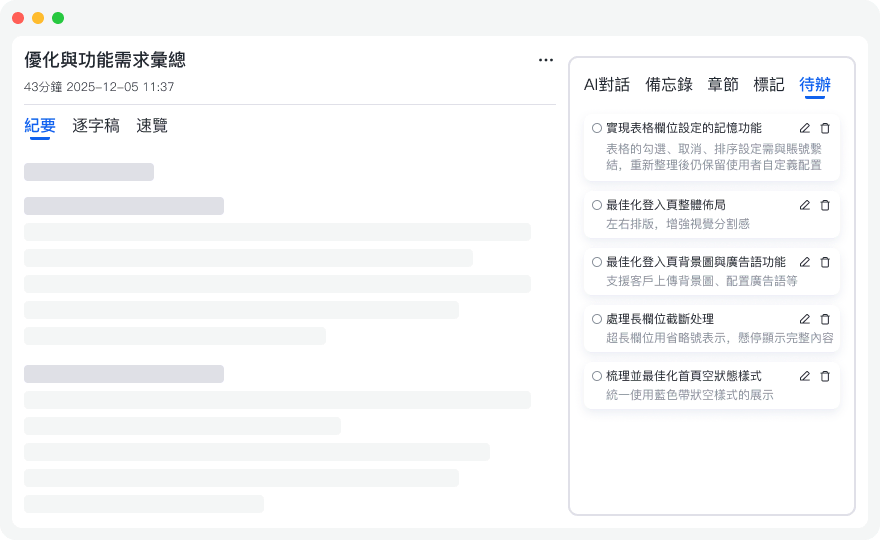
Practical Tutorial: 4 Steps to Convert LINE Call Recordings into Specific Actions
Whether you prefer to take notes while on the phone or organize the audio file afterward, you can follow these steps to put LINE call content into action:
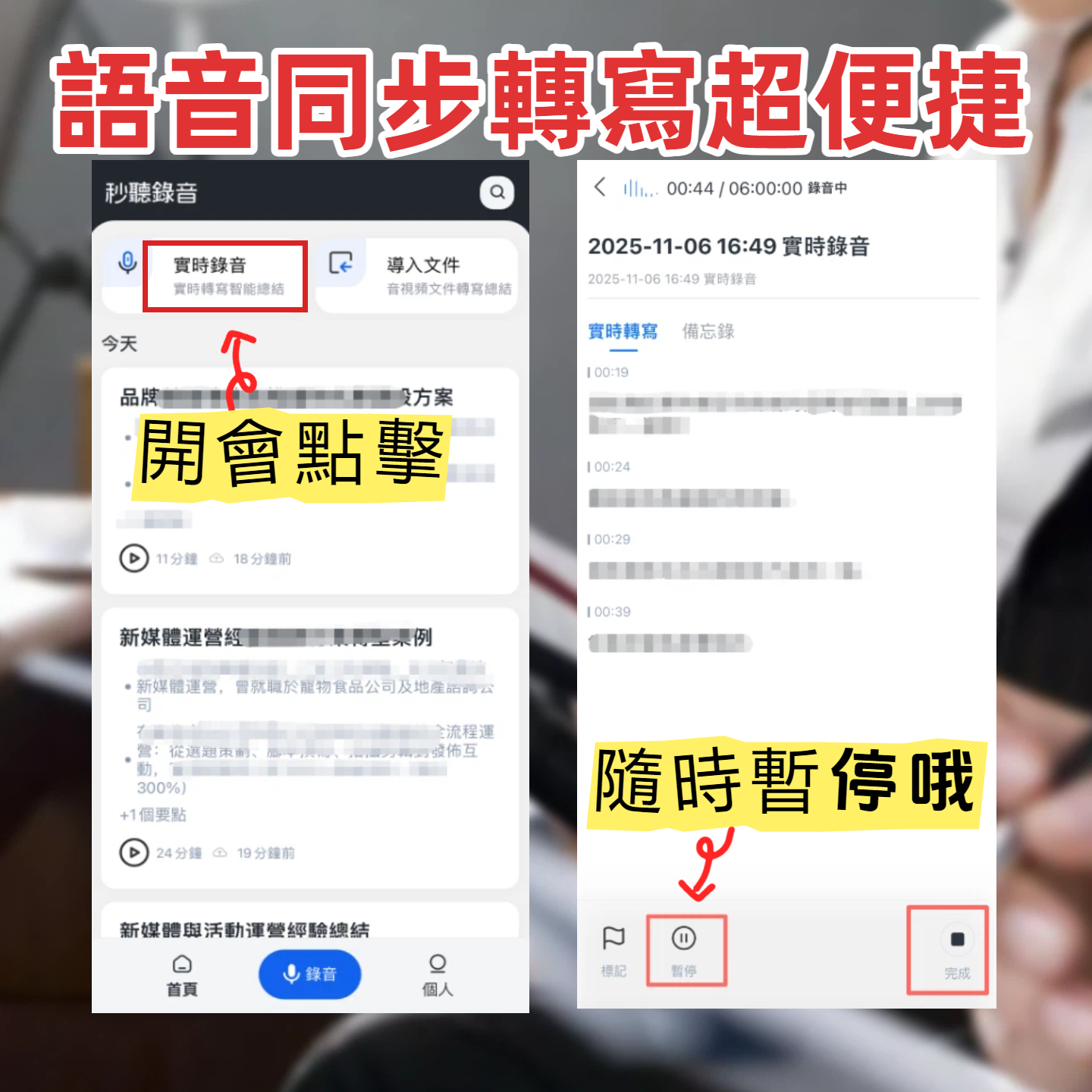
Step 1: During the Call, Use Real-Time Transcription
If you are conducting a LINE voice meeting on a computer, you can simultaneously open the browser or mobile app and use the "Real-Time Transcription" feature. The system will convert the conversation into text in real time, allowing you to keep track of discussion points at any moment.

Step 2: After the Call, Upload the Audio File for Transcription
If you have already recorded the LINE call using screen recording or a third-party app, simply import the saved audio or video file into the "Audio File to Text" module, and the system will automatically generate a transcript and AI summary, with different speakers distinguished.

Step 3: Cross-Department Collaboration, Use Online Video to Text
If your LINE meeting is recorded and uploaded to an internal cloud or saved as a YouTube video, you can directly paste the URL into the "Podcast/Online Video to Text" module, quickly parsing the text highlights without downloading large files.
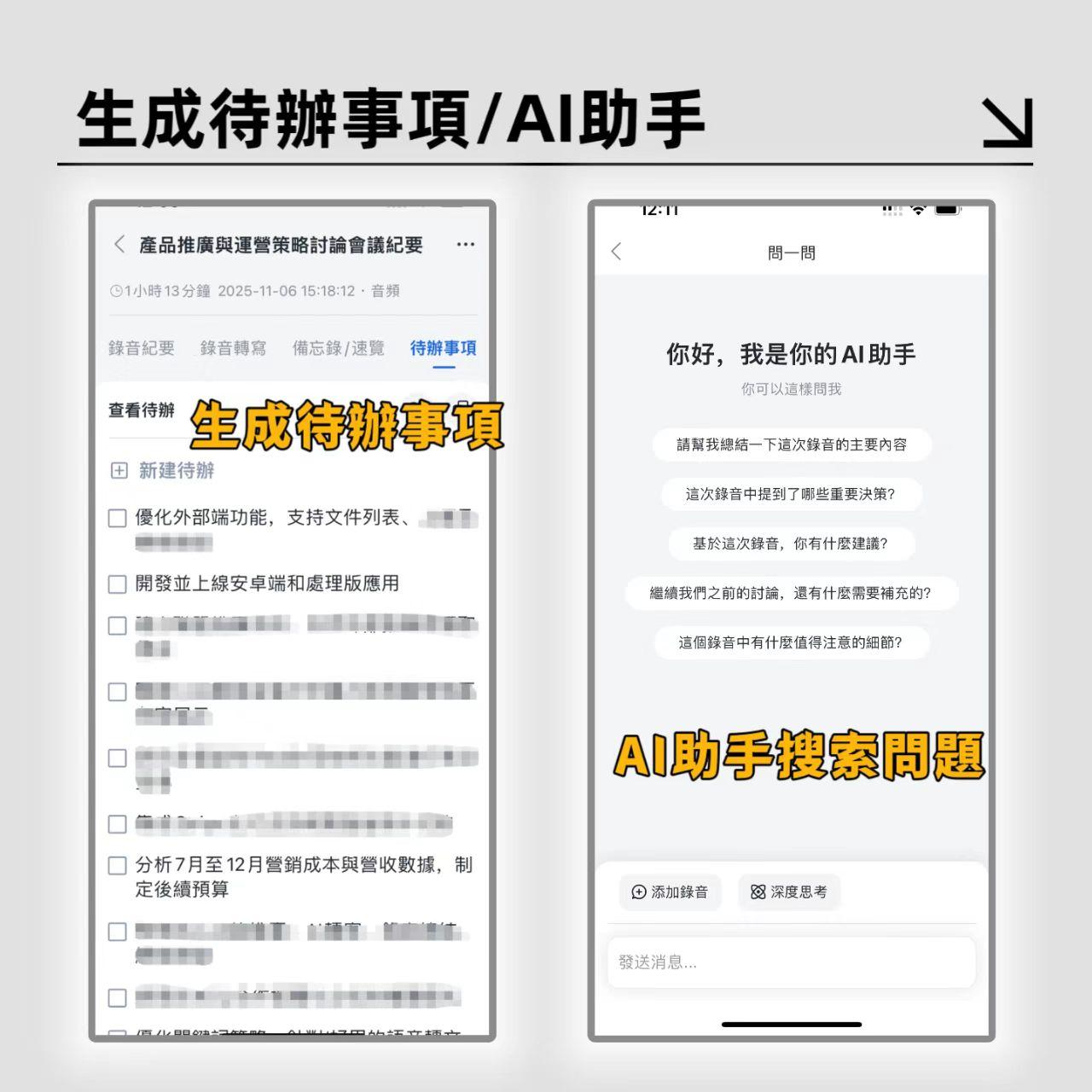
Step 4: Post-Meeting Review, Use AI Query to Quickly Find Answers
Instead of using Ctrl+F to blindly search for keywords in a one-hour-long call transcript, use the "AI Query" feature. You can simply ask: "What was the budget cap the client mentioned?" The AI will answer directly based on the recording content, quickly retrieving key information.
Frequently Asked Questions About LINE Call Recording (FAQ)
Q1: Does LINE have a built-in call recording feature?
Currently, LINE does not have a built-in recording feature in its app. Users must rely on iOS system updates (e.g., iOS 18.1), screen recording, third-party call recording software (e.g., Cube ACR), or physical recording devices to capture call content.
Q2: How can iPhone users record LINE voice calls most quickly?
If your iPhone is updated to iOS 18.1 or later, you can integrate the iPhone call function through LINE settings and record directly; if you cannot update, the fastest method is to enable "Screen Recording" from Control Center.
Q3: Will LINE recording files expire?
If you send a recording file in a LINE chat, files under 50 MB are stored permanently in the chat history; files over 50 MB are stored for only 30 days. It is recommended to download and back up important audio files or import them into transcription tools for preservation.
Q4: How can I convert LINE voice call records into transcripts for free?
You can export the recorded audio and use AI transcription tools that offer free tiers. For example, Tinrec provides up to 100 minutes of free recording per month, sufficient for daily short-to-medium LINE voice meetings and call organization.
Q5: How to quickly recover disappeared LINE call history?
In the LINE home, tap "Settings" > "Calls", scroll down to enable "Show Calls or LINE TODAY Tab" and select "Show Calls", then return to the home page to view the call time history. For deep data recovery of conversation content, consider third-party data recovery software.
Q6: Can LINE voice call content be downloaded and saved?
Yes. In the chat box, long-press the other party's voice message, select "Keep", or tap "Share" > "Save to Files" to download the voice to your phone's local storage for safekeeping, making it convenient to upload to AI tools for meeting minutes organization later.
Turn every recording into actionable outcomes
Get 60 free transcription minutes when you sign in. No credit card required.
Related Reading
You might also like

PLAUD Recorder 2026 Latest Version Review: Which of 3 Meeting Notes Solutions Is Right for You?
How to choose the latest PLAUD recorder? This article starts with common misconceptions and outlines the positioning and limitations of three recording devices: PLAUD Note, Note Pro, and NotePin. It also compares AI meeting tools like Tinrec in terms of bot-free recording, post-meeting summaries, AI follow-up questions, and team collaboration. Key buying factors and pitfalls to avoid are included to help you decide whether to buy hardware or switch tools.

2026 AI Speech-to-Text Comparison: How to Use Vocol, Why Tinrec Wins for Team Meetings
Hands-on comparison of Vocol.ai, Notta, and Tinrec across meeting recording methods, transcript quality, post-meeting organization, team collaboration, and seat management. Includes step-by-step Vocol instructions and real-world limitations to help you choose the right tool for your meeting scenarios.

Which Group Owns Vocol in 2026? 5 Steps to Verify Brand Ownership and Choose the Right Tool
Which group owns Vocol.ai? Cross-checking the official website, Google Play developer field, and public records, the currently verifiable developer registration name is AIELLO INTERNATIONAL TAIWAN CO., LTD., but no public information clearly indicates which larger group it belongs to. This article walks you through 5 steps to verify brand ownership and compares Vocol, Tinrec, Otter.ai, and Notta in Chinese meeting notes and team collaboration.

2026 AI Voice Collaboration Tools Comparison: What Does Vocol Mean and How to Choose?
Vocol is not an English word but a portmanteau of Voice and Collaboration, and also the name of the AI voice collaboration platform Vocol.ai. This article first explains the meaning of Vocol and the platform's positioning, then compares Vocol.ai, Otter.ai, and Tinrec across four key purchasing criteria, and lists four common pitfalls for Taiwanese users to help you determine which tool fits your meeting workflow.

2026 AI Recorder Comparison: Plaud Note vs NotePin vs Tinrec for Meeting Notes
PTT threads about the Plaud recorder are everywhere, but the real pain point isn't recording—it's post-meeting organization. This hands-on comparison looks at PLAUD Note and PLAUD NotePin AI recording hardware versus Tinrec's meeting workflow, so you can decide which fits your daily meetings, interviews, and team collaboration.

2026 AI Recording Tools Compared: How to Use PLAUD Recordings and Which Has the Fastest Workflow
Got a PLAUD recording and want to turn it into a transcript, summary, and a shareable meeting recap? This guide first walks through the full PLAUD process—pairing the device, recording, syncing, transcribing, and exporting—then compares Tinrec, Otter.ai, and Notta from a practical standpoint for Chinese meetings, online meetings, and post-meeting organization. It ends with four common pitfalls and selection advice.

Tinrec vs Plaud Recorder 2026: 5-Dimension Comparison — Software Collaboration or Portable Hardware?
Plaud is a popular AI recording hardware in 2026, but before buying a device, think about where your meetings happen. This article compares Plaud and Tinrec across 5 dimensions—device cost, online meeting handling, post-meeting workflow, language translation, and team governance—to help you decide between portable hardware and software collaboration.

4 AI Recorders Compared for 2026: PLAUD, Granola, Otter, and Tinrec — How to Choose
How do you choose an AI recorder in 2026? Starting from three real-world scenarios — online meetings, in-person interviews, and team handoffs — this article lays out 4 key buying criteria and compares the positioning, pricing, and limitations of Tinrec, PLAUD Note Pro/NotePin, Granola, and Otter.ai to help you decide whether to buy hardware or use software.

4 Recording Tools Tested for 2026: PLAUD's Latest vs. Tinrec — Which Saves More Post-Meeting Time?
Looking for the latest PLAUD recording version? This guide covers PLAUD Note Pro and NotePin specs, firmware updates, and subscription costs, plus hands-on comparisons of Tinrec, Otter.ai, and Notta for meeting notes, AI Q&A, and team collaboration—helping you choose the right tool for your budget and use case.