

Turn recordings into transcripts and summaries in minutes
Upload audio or video for multilingual transcription, AI notes, and action items
First, Ask Yourself: Do You Want to 'Record a LINE Call' or 'Turn the Call into Usable Data'?
A common question on forums is: How do I record a LINE call on iPhone? Many people have tried screen recording, only to find they get video but no audio from the other party.
Before looking for methods, distinguish between two things: 'recording the call' and 'turning the recording into a transcript, summary, and to-dos.' The former relies on your phone or a recording device; the latter can be handled by Tinrec.
Also, LINE currently does not have a built-in call recording feature. Before recording, you should inform the other party and get consent to avoid legal issues.
Option 1 | Tinrec — The AI Post-Recording Hub
Tinrec is an AI meeting notes and collaboration tool for individuals and teams. It is not designed to directly record LINE calls, but rather to help you organize legally obtained audio or meeting recordings into searchable, summarizable, and queryable data.
Key highlights:
- Automatically transcribes uploaded audio or video, and generates summaries, chapters, key points, and to-dos.
- Supports AI Q&A, allowing you to ask follow-up questions about meeting content—ideal for client communications, interviews, and project discussions.
- Export results to Notion, Google Docs, OneNote, Dropbox, and other tools; also generate reports, tables, and documents.
- Desktop version can capture system audio to handle online meetings on Zoom, Google Meet, Microsoft Teams, Webex, etc., without needing a meeting bot to join.
- Team version offers independent team spaces, member and seat management, usage analytics, audit logs, and audio recycle bin.
Pricing: Personal plans include a free version, weekly pass, Pro monthly, and Pro annual. Actual plans are subject to the official website. Team monthly is USD 29.80 per paid seat per month; annual is USD 199 per paid seat per year (about USD 16.58 per month). Each seat provides 2,000 minutes of shared team import quota per month. First eligible team trial is 7 days, 1 free seat, and 300 minutes of shared team import quota.
Who it's for: Those who already have LINE call recordings, or need to organize meetings, interviews, and client communications, and want to share with a team.
Option 2 | iPhone Built-in Call Recording — Integrates with LINE Calls After iOS 18
Sources mention that after upgrading to iOS 18, iPhone can integrate LINE calls into the iPhone calling feature and use built-in call recording. For iPhone users, this is the closest to directly recording a LINE call.
Note that starting a recording usually notifies the other party, and not all regions, models, or OS versions support it. Check legal and consent issues before recording.
Who it's for: iPhone users who just want to quickly record a one-time LINE call.
Option 3 | Screen Recording — Most Asked on Forums, But Often Fails
Many people on forums say they tried screen recording a LINE call but couldn't capture the other party's voice. This is because screen recording doesn't always capture call audio, and when using earphones, it's even more likely to only record your own voice.
Stop organizing recordings by hand
Upload audio or video and automatically get a transcript, summary, and action items
If you try this, test first: turn on speakerphone, check microphone permissions, and do a short test recording before the actual call.
Who it's for: Android users or those who need a quick fix and are willing to test beforehand.
Option 4 | Android System or Call Recording Apps
Some Android models have built-in call recording, or you can use third-party apps. However, Android versions and brands vary widely, and Google Play policies change frequently, so not every phone can record LINE calls.
Who it's for: Android users willing to spend time testing compatibility.
Option 5 | Voice Recorder or External Recording Device
If the other party agrees, you can put the phone on speaker and use a voice recorder or external microphone. This method is least dependent on phone system restrictions, but audio quality depends on the environment.
Who it's for: Those who need long recordings, value stability, and can accept physical devices.
With So Many Methods, How to Choose?
- Just want to record a LINE call on iPhone: First check if iOS 18 built-in call recording is supported.
- Need transcript, summary, to-dos, and AI Q&A after recording: Use Tinrec.
- Need team sharing of meeting data, seat and usage management: Choose Tinrec Team.
- Zero budget: Try Tinrec free version or built-in phone features first.
- Often use computer for Zoom, Meet, Teams: Tinrec desktop can record without a bot and transcribe in real time.
3 Things to Know Before Recording LINE Calls
- Legal and consent: Recording without consent may be illegal; for business calls, inform and get consent first.
- Audio quality and earphones: Wearing earphones, noisy environments, or overlapping speakers can affect transcription quality.
- File management: If recordings stay only on your phone, they're hard to find later. Using Tinrec to convert to transcript, summary, and to-dos makes searching and handoff easier.
FAQ
Q: Does LINE have built-in call recording? A: Currently no. LINE does not have a built-in recording feature; you need phone system, screen recording, recording device, or third-party tools.
Q: Why can't iPhone screen recording capture the other party's voice? A: Screen recording doesn't always capture call audio, especially with earphones, often only one side is recorded.
Q: Can Tinrec directly record LINE calls? A: Tinrec is positioned as an AI meeting notes and post-meeting organization tool, not a LINE call recording feature. You can import legally obtained recordings into Tinrec for transcription, summary, to-dos, and Q&A.
Q: How is Tinrec Team priced? A: Monthly USD 29.80 per paid seat per month; annual USD 199 per paid seat per year; each seat provides 2,000 minutes of shared team import quota per month. Actual pricing subject to official website.
Conclusion
There's no one-size-fits-all solution for LINE call recording. iPhone users can first check iOS 18 built-in call recording; Android or computer scenarios require testing each method.
If your goal is post-call organization, search, and team collaboration, Tinrec is more practical than just storing audio files. Legally record on your phone, then let Tinrec turn it into transcript, summary, and to-dos for a more complete workflow.
References
Turn every recording into actionable outcomes
Get 60 free transcription minutes when you sign in. No credit card required.
Related Reading
You might also like

Free AI Transcription in 2026: Tinrec vs Yating - Cantonese Recognition + Auto Summary
Stuck in a Central meeting until quitting time, then having to listen to recordings and type transcripts? This article uses the same Cantonese meeting recording to test Tinrec and Yating transcription, comparing free quotas, Cantonese recognition, post-meeting organization, cross-platform support, and team collaboration to tell you which free AI transcription tool is better for Hong Kong office workers.

2026 Top 5 AI Transcript Organizers Compared: Which One Actually Saves You Two Hours After a Meeting?
AI transcript organizers don't stop at converting speech to text. This hands-on comparison of 5 tools evaluates post-meeting organization, bot-free recording, AI Q&A, and team knowledge retention to show you which one truly saves time.

2026 Comparison of 3 Transcription Software: Which Saves the Most Time with AI Organization and Team Collaboration?
2026 transcription software comparison, featuring Tinrec, to help you understand core capabilities, real-world use cases, purchasing considerations, and FAQs, so you can find the most time-saving meeting organization solution.

4 Free Transcription Software Compared in 2026: Free Tiers, Chinese Recognition, and Post-Meeting Organization—Which One Is Actually Enough?
There are many free transcription tools, but "free trial" and "free plan" are two different things. This article starts with common misconceptions, outlines 4 key points for choosing transcription software, and compares the free tiers, Chinese recognition, and post-meeting organization capabilities of Tinrec, Yating Transcription, Otter.ai, and Notta to help you find the one that truly meets your needs.

2026 Free Transcription Generator Buying Guide: 4 Key Points and Recommendations
How to choose a free transcription generator? This article starts with common pitfalls, then covers use cases, core capabilities, and 4 key buying considerations for transcription generators. Using Tinrec as an example, it explains how to handle recording, transcription, summarization, to-dos, and team collaboration in one workflow.

How to Choose a Transcription Tool in 2026: 5 Steps to Searchable Meeting Notes
Recording is easy; the hard part is what comes after. Drawing from real interviews and meetings, this guide breaks down 4 key factors to consider before choosing a transcription tool, shares my actual workflow, reusable AI prompt templates, and 5 steps to turn recordings into searchable meeting notes.

6 Free Transcription Tools Tested in 2026: Which Free Tier Is Actually Enough?
We compare 6 transcription tools you can start using for free, covering free quotas, language support, and post-meeting organization, plus common misconceptions about free plans and tips for choosing.

2026 Complete Guide to Audio Transcription Software: A Practical Workflow from Recording to Meeting Minutes
Choosing audio transcription software based only on price and minutes is the most common mistake. This complete guide covers real-world use cases, core capabilities, and purchasing considerations, explaining how Tinrec turns meeting recordings into searchable, queryable, and reusable data, and outlines the quotas and pricing for the free and team versions.
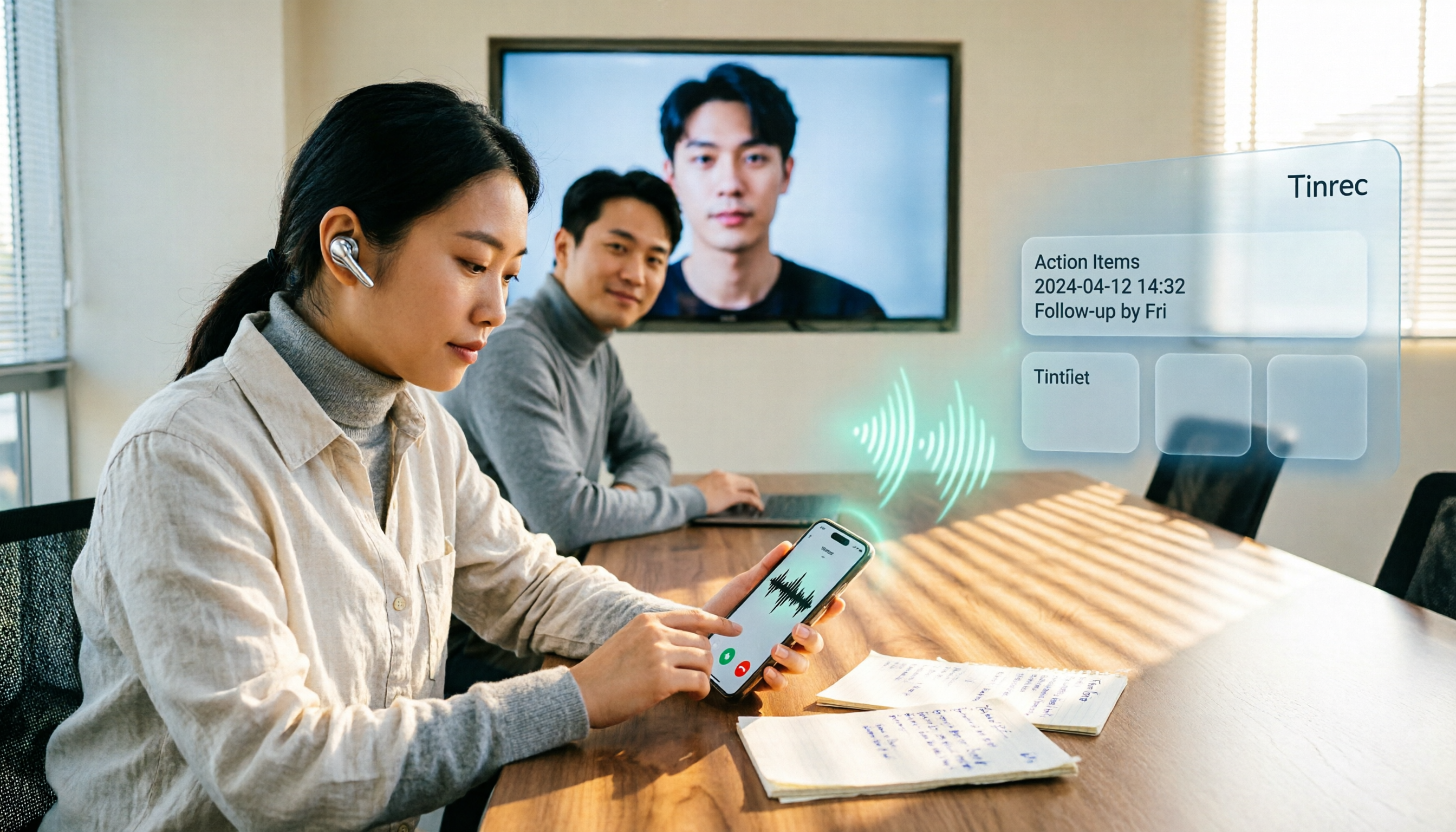
4 LINE Call Recording Methods Tested for 2026: Android vs. iPhone — Which Is Most Reliable?
LINE doesn't offer built-in call recording. Android relies on screen recording, while iPhone uses system call recording or external hardware—each with its own hurdles. This article breaks down four methods with real-world workflows and explains how to turn recordings into searchable, queryable, actionable meeting data using Tinrec.