

Turn recordings into transcripts and summaries in minutes
Upload audio or video for multilingual transcription, AI notes, and action items
iPhone Recording Not Playing Back? 2026 Complete Guide: From Troubleshooting to Fixing It with Tinrec
When You Can't Hear a Recording, Most People Do the Wrong Thing First
You finish recording on your iPhone, hit play, and there's no sound—do you immediately rush to a repair shop, only to have the technician say "Your speaker's broken, we'll need to replace it first"?
Don't panic. According to Apple support documentation, the iPhone's Voice Memos app is itself a portable recording device and normally won't go silent for no reason. The real issue is usually: when you were recording, the microphone was already covered by your phone case, your Bluetooth earbuds were still connected but not in your ears, or the other person simply wasn't speaking during a call recording. None of these are hardware failures—they're usage habits gone wrong.
The more common inefficient approach is: you only discover you can't hear it after recording, then spend half an hour figuring out why, and finally have to reschedule with people to record again. Rather than fixing things after the fact, it's better to use a tool that shows you text while recording—take Tinrec's instant recording transcription, for example. Its real-time transcription feature displays text synchronously during recording, so you know immediately whether audio is being captured. No need to wait until playback to discover the problem.
What Can Tinrec Do for You?
Scenario 1: See Text While Recording in Meetings—No Need to Wait Until After to Know If You Got Audio
With iPhone Voice Memos, you have to wait until the entire meeting ends and play it back to realize "Oh no, that part didn't get recorded." With Tinrec, its real-time recording-to-text feature generates a transcript as you speak—you just glance at the screen to know if anything's missing. Even if you eventually discover your iPhone's speaker has issues, you already have a complete text record and won't have wasted an entire meeting.
Scenario 2: Record Online Meetings Directly—No Bot Needed
For online meetings on Zoom, Google Meet, Microsoft Teams, or Webex, Tinrec's desktop version captures your computer's system audio directly—no need to invite an extra meeting bot. This is especially practical for multinational teams—no awkward extra "participant" sitting in, and no worrying about the other side feeling uncomfortable seeing a bot join.
Scenario 3: Organize Recordings After the Fact—AI Extracts the Key Points
Suppose you've accumulated a pile of old recordings on your iPhone. Playing them back one by one to find key points is extremely tedious. Tinrec supports uploading audio and video files for transcription, then automatically generates summaries, chapters, and action items. You no longer need to listen from start to finish—just read the summary to know which parts have substance.
Scenario 4: Share Meeting Materials with Your Team—No Fear of Files Leaving When Colleagues Do
Recording files shouldn't stay only on one person's iPhone. Tinrec's team plan provides an independent team workspace where meeting transcripts, summaries, and action items are stored centrally. When team members change, everything can be handed over—nothing disappears just because someone leaves.
What Are Tinrec's Core Capabilities?
1. Real-Time Transcription: Text Appears as You Record, with Minimal Delay
Tinrec's real-time transcription isn't "record first, transcribe later"—it outputs text while recording. In other words, you can confirm whether the content is captured the moment you're recording. For users dealing with "iPhone can't hear recordings," this is the most direct solution—you don't need to rely on playback to check; the text is already there.
2. AI Summaries and Chapters: Long Meetings at a Glance
A two-hour meeting might produce a transcript of ten thousand words. Tinrec automatically generates summaries and chapters, listing discussion topics, conclusions, and key points separately. You no longer need to spend time searching through a sea of text—just look at the structure to grasp everything.
3. Action Item Extraction: Who's Responsible, When It's Due—All Clear
The worst thing in meetings is "someone mentioned it that day but no one remembers." Tinrec extracts action items from conversations—who's responsible, what needs to be done, and when it's due, all clearly laid out.
4. AI Q&A: Ask Your Files Directly—No Need to Dig Through Recordings
After transcription is complete, you can ask Tinrec directly: "Who mentioned the budget issue in the meeting?" "What was the client's main feedback?" It answers based on semantic understanding—no need to scroll through the transcript yourself.
5. Multi-Format Export: Fits Into Your Existing Workflow
Tinrec supports exporting results to Notion, Google Docs, OneNote, Dropbox, and other tools. You don't need to change your existing work habits—just drop the meeting results right in.
6. Team Workspace and Seat Management
The team plan provides member, role, and seat management. Note that roles and seats are two different things: roles determine who can manage the team, while seats determine whether members can record, upload, edit, and export. Members without a seat can still view and read team materials—they just can't perform resource-consuming operations.
Stop organizing recordings by hand
Upload audio or video and automatically get a transcript, summary, and action items
Real-World Use Cases
Office Life: A Day of Meetings for a Downtown Professional
You work downtown, going from morning standup to end-of-day recap. You used to record all your meetings with iPhone Voice Memos, only to discover several segments you couldn't hear when you got home—maybe the phone was too far away, maybe the air conditioning drowned out voices. With Tinrec's desktop version, online meetings are recorded directly on your computer with real-time transcripts, and you have summaries and action items within five minutes after the meeting. Those days of staying late to write meeting notes are officially over.
Client Interviews: Sales Team's Requirements Documentation
Sales colleagues meeting clients constantly need to note down requirements, objections, and commitments. With Tinrec's recording transcription, you can export transcripts and summaries directly to the team after the meeting—no relying on individual memory. Especially when clients speak quickly or mix languages, the transcript preserves the original text for easy verification later.
Classes and Lectures: Students' Study Notes
University lectures often mix languages in instruction. Tinrec covers Chinese, Traditional Chinese, and multilingual scenarios. After recording, you can generate chapters and key points—just read the summary when reviewing.
Content Creation: YouTubers and Podcast Hosts
Before filming or recording a podcast, many creators record a spoken outline first. With Tinrec's real-time transcription, you can instantly turn spoken words into a text draft and edit from there. Much faster than typing sentence by sentence.
5 Things to Look For When Choosing a Recording Tool
1. Does It Have Real-Time Transcription?
Don't just look at "how accurate is the transcription"—ask "when does it transcribe." Some tools transcribe after recording ends, so you still have to wait. Tinrec's real-time transcription outputs text during recording, which is the most direct prevention for the "recorded but can't hear it" situation.
2. Does It Support Your Language?
Meetings rarely use just one language—most mix multiple languages. When choosing a tool, pay attention to its ability to handle mixed-language content. Tinrec covers Chinese, Traditional Chinese, and multilingual meeting scenarios, and supports real-time translation and bilingual viewing. Actual performance is affected by recording quality, accents, noise, and overlapping speakers—we recommend testing with your own recordings.
3. What Else Can You Do After Recording?
Transcription is just the first step. Whether it can generate summaries, extract action items, and support AI Q&A after transcription—these are the keys to saving time. Tinrec provides summaries, chapters, action items, mind maps, and AI Q&A after transcription, and can also generate reports and tables.
4. Are Your Meetings Online or In-Person?
If you mainly handle online meetings on Zoom, Google Meet, Teams, etc., pay attention to whether the tool requires a meeting bot to join. Tinrec's desktop version captures system audio directly—no bot as a participant needed.
5. Do You Need Team Collaboration?
Personal use and team use are two different things. If meeting materials need to be shared with colleagues, pay attention to the tool's team workspace, seat management, and permission design. Tinrec's team plan provides an independent team workspace where meeting materials belong to the team, and members can view and reuse historical data. The team plan's first eligible trial is 7 days, 1 free seat, and 300 minutes of team shared import quota; paid seats are USD 29.80/month or USD 199/year, which works out to about USD 16.58/month, with each seat providing 2,000 minutes of team shared import quota per month. Real-time recording under an active team plan and active seat is currently not deducted by the minute. Prices are subject to the official purchase page.
Frequently Asked Questions
If I Can't Hear My iPhone Recording, Is It Definitely a Hardware Problem?
Not necessarily. Most cases involve playback volume being too low, Bluetooth earbuds still connected, the microphone covered by a phone case, or the recording environment being too noisy. Check these first before considering hardware issues. If you want to prevent "recorded but can't hear it" at the source, you can use Tinrec's real-time transcription feature to see text synchronously during recording.
Does Tinrec Support iPhone?
Tinrec offers iOS, Android, and web versions. You can record on your phone, and the desktop version is better suited for handling online meetings. If you frequently record on your phone, you can think of Tinrec as an advanced alternative to iPhone Voice Memos.
Are There Legal Risks to Using Recording Tools?
Recording may involve personal privacy and local laws. As in other regions, you should understand relevant regulations before recording and obtain consent from participants when necessary. Tinrec reminds users in its product design to comply with local laws, but for specific legal questions, we recommend consulting professional advice.
What's the Difference Between the Team Plan and the Personal Plan?
Personal plan data is managed under an individual account. The team plan provides an independent team workspace where meeting materials belong to the team, plus additional capabilities including members, roles, seats, shared benefits, usage analytics, audit logs, and an audio recycle bin. If your entire team needs to use it, the team plan is easier to manage than each person opening their own personal plan.
Will My Recordings Disappear?
Tinrec's team plan provides an audio recycle bin. Accidentally deleted audio can be recovered before permanent cleanup begins—the current retention period is 30 days. However, we recommend regularly exporting and backing up important meeting materials to be safe.
Summary
If you can't hear your iPhone recordings, it's not necessarily a broken phone. More often, it's caused by usage habits and tool limitations. Rather than fixing things after each recording, choose a tool that shows you text from the moment you start recording.
Tinrec's value goes beyond transcription—it turns meetings into searchable, collaborative, and actionable data. For personal use, you can try the free plan to test basic quota; if you have regular weekly meeting needs, the Pro plan is more suitable; if your entire team needs to share meeting notes, the team plan's workspace, seat, and permission management is a more complete solution. If you want to save the time spent staying late to write meeting notes, it's worth a try.
References
- Record in Voice Memos on iPhone - Apple Support (Taiwan)
- How to Record Phone Calls on iPhone? 5 iPhone Call Recording Methods Revealed!
- Record and Transcribe Phone Calls on iPhone - Apple Support (Taiwan)
- [Phone Tips] 2026 iPhone Built-in Call Recording Feature Tutorial! iOS Enable Call Recording / Key Points to Note | Jyes Communication ~ Challenging the Lowest Phone Prices
- iPhone Call Recording Tutorial: Step-by-Step Guide to Recording Phone Calls
Turn every recording into actionable outcomes
Get 60 free transcription minutes when you sign in. No credit card required.
Related Reading
You might also like

5 Video Conferencing Software Compared in 2026: How to Choose Between Zoom, Teams, Meet, and Tinrec
We tested and compared Zoom, Microsoft Teams, Google Meet, and other video conferencing platforms, analyzing post-meeting organization pain points. Tinrec desktop version requires no meeting bot—it directly records system audio, instantly transcribes, summarizes, extracts action items, and even offers AI Q&A and team collaboration.

How to Download Zoom Meetings in 2026: Tinrec Bot-Free Transcription + AI Summary
Many people search for "Zoom meeting download" but overlook the cost of post-meeting organization. This article uses Tinrec as an example to show how to record Zoom and other online meetings without a meeting bot, automatically generate transcripts, summaries, and action items, and turn meetings into team knowledge.

How to Record Zoom Meetings in 2026: 5 Steps from Recording to AI Summary
Zoom makes meetings easy, but post-meeting organization is the real pain point. This guide covers 7 solutions that turn Zoom meetings into transcripts, summaries, and action items—from Zoom's native recording, Otter, Fireflies, Notta, and Granola to Tinrec and PLAUD recording hardware—with pricing and ideal use cases, plus a 5-step workflow from recording to AI summary.

3 Ways to Share iPhone Voice Memos in 2026: Which One Will They Actually Listen To?
Sharing an iPhone recording with someone is really two different choices: sending a file or sending the content. This guide breaks down three common methods, five key questions to ask before sharing, and shows how Tinrec turns an iPhone recording into a transcript, summary, and to-dos that people will actually read.

2026 Comparison of 4 Meeting Transcription Tools: Who Saves the Most Time After Adding a Meeting to Teams Chat?
Many people think that adding a meeting in a Teams chat means the meeting notes are taken care of. This article addresses the real pain points of post-meeting organization, explaining how bot-free recording, real-time transcription, AI summaries, and action items fill the gap after the meeting, and covers Tinrec Personal and Team plan pricing, limitations, and use cases.

Zoom Meeting Download Guide 2026: From Install to Meeting Notes
Looking to download Zoom? This guide starts with the official download channels, then compares Zoom's built-in recording with Tinrec across 5 dimensions—transcripts, Chinese recognition, post-meeting organization, data retention, and student budget analysis—to help you decide which one to install.

2026 Meeting App Comparison: Zoom Built-in Transcription vs Tinrec — Which Saves More Time?
Is Zoom's built-in AI summary enough for your meetings? This article compares Zoom Workplace and Tinrec across five dimensions—recording methods, post-meeting organization, Chinese language experience, team governance, and legacy file handling—to help you decide which one to use.
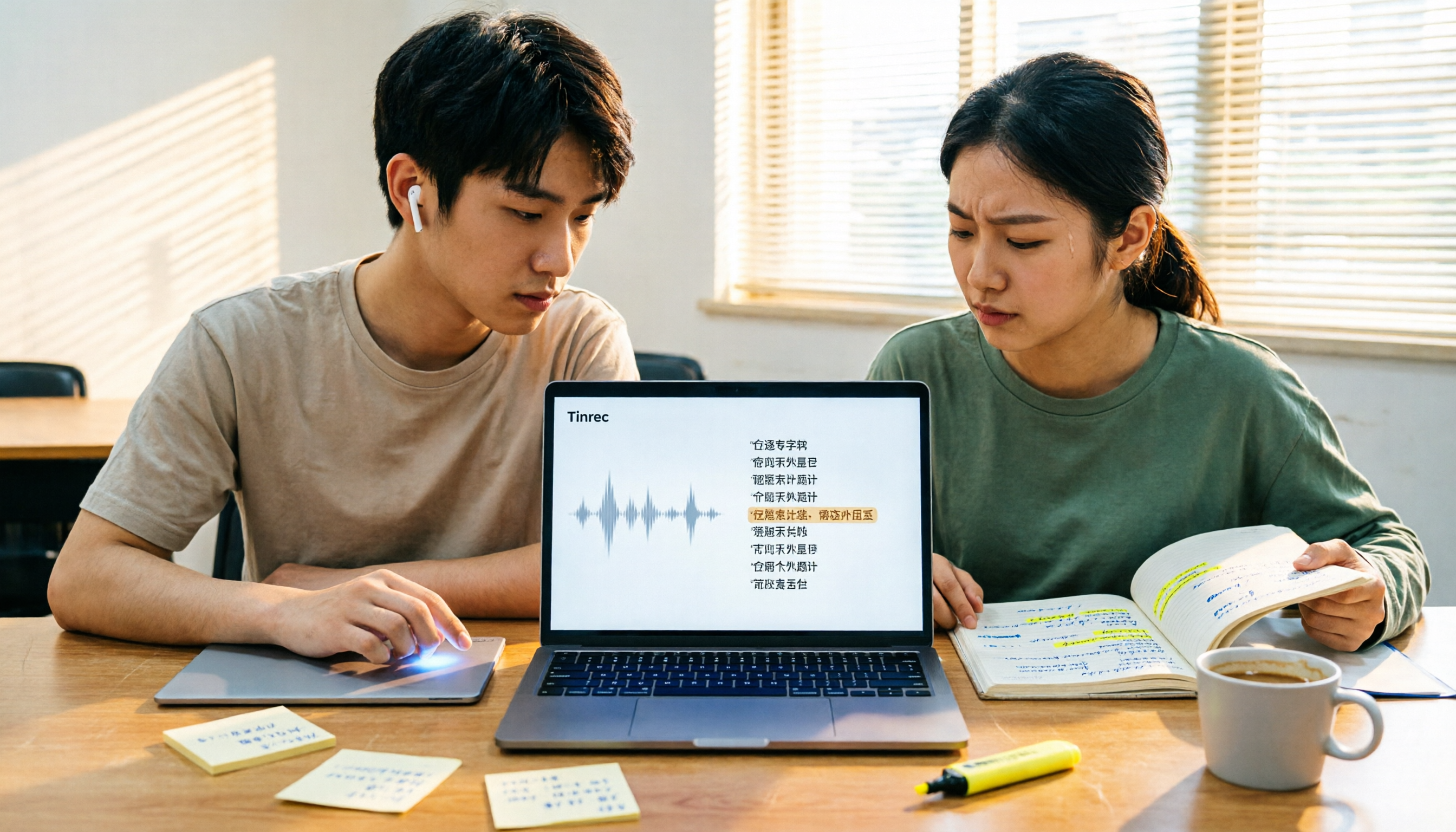
4 Best Transcription Tools for Students in 2026: Free Tier Comparison
From classroom recordings to handwritten note disasters, we tested Tinrec, Otter.ai, Notta, and PLAUD Note from a student's perspective, comparing free tiers, Chinese recognition, post-recording outputs, and whether group projects need team plans.

4 Best Free Transcription Tools in 2026: Free Tier Limits and Chinese Recognition Compared
We tested four free transcription tools in 2026, comparing free tier limits, Chinese recognition, post-meeting organization, and cross-platform support. Tinrec is our top pick for its free meeting workflow, and we also compare Otter.ai, Notta, and Granola to help you decide which free version can actually handle a full meeting transcription.