

Turn recordings into transcripts and summaries in minutes
Upload audio or video for multilingual transcription, AI notes, and action items
4 Teams Meeting Recorder Tools Tested in 2026: Where's the Meeting ID and How to Organize After Recording?
You receive a Teams meeting link, click it, but can't get in. The other person just says, "Join with the meeting ID."
At that point, you need to figure out: should you click the link directly, or manually enter the meeting ID? And after finally getting into the meeting, two hours later all you have is a recording—you have to fill in the transcript, decisions, and action items yourself. That's the real pain point for most office workers.
This article will first help you locate the Teams meeting ID, then discuss how to choose a meeting recorder tool.
Where Exactly Is the Teams Meeting ID? First, Determine What Kind of Link You Have
The most common scenario: the meeting ID is hidden in the "Join info" section of the meeting invite.
That section usually lists dial-in numbers, phone numbers, and a string of digits labeled "Meeting ID" or "Conference ID." If you're looking for this field, check the bottom of the invite or the detailed information area—it's usually right there.
If you scheduled a Teams meeting yourself from Outlook, the meeting ID and dial-in numbers are automatically included in the meeting details. You don't need to add them manually. This information is carried over when you schedule.
Another situation: the other person only gives you a link. In that case, you actually don't need the meeting ID—clicking the link usually opens Teams directly and takes you into the meeting.
It's worth noting that the meeting ID is also part of the join URL. If you just want to join the meeting, clicking the link is fastest; the meeting ID is mainly for those who can't click a link or need to manually enter it.
In the Teams app on your phone or computer, if you're not signed in, tapping "Join meeting" at the bottom will bring up a screen asking for your name and meeting ID. That's the practical use of that number.
After You Join the Meeting, the Real Trouble Begins
The meeting ID is just the ticket; the two hours inside are the real cost.
Multiple people talking over each other, air conditioning noise, keyboard clatter—after the meeting, you have to re-listen to the entire recording. When your boss asks, "Who was responsible for that thing we discussed last time?" you have to scroll through the transcript from the beginning.
Even more troublesome are cross-language meetings. Mixing Chinese and English, even with a transcript, organizing it into a presentable summary still takes another hour.
If you've encountered these situations, the problem usually isn't the meeting ID—it's that the tool you're using only does "recording" and doesn't help you make it "directly usable after the meeting."
Tinrec – Our Top Recommendation for Meeting Recording After Testing
Tinrec is an AI meeting recording and collaboration tool for individuals and teams, available on iOS, Android, web, and desktop.
Its biggest difference from ordinary recording software is that it remains useful after the meeting ends.
During a meeting, open the desktop version, and Tinrec will directly capture your computer's system audio, handling online meetings on Zoom, Google Meet, Microsoft Teams, Webex, and more—no need to invite a meeting bot. This is especially practical for Teams users—you're already meeting in Teams, so you don't need an extra bot hanging in the participant list.
While recording, the transcript is generated in real time. You can also view the original text, translation, or bilingual content while recording, so cross-language meetings don't require waiting until after the meeting to add translations.
After the meeting, AI automatically organizes summaries, chapters, and action items. My most-used feature is AI Q&A: you can directly ask it, "Who was responsible for the budget in this meeting?" or "What was the conclusion of last discussion?" It doesn't just throw a string of keywords at you—it answers directly based on semantics.
The recorded data can also be used to generate meeting minutes, reports, or tables, and exported to Notion, Google Docs, OneNote, Dropbox, and other tools for further processing. This means from recording, transcript, summary, action items to deliverable documents, everything is in one workflow.
Stop organizing recordings by hand
Upload audio or video and automatically get a transcript, summary, and action items
In terms of cost, the personal version has a free tier to try basic quotas. For short-term intensive use, there's a weekly pass; for long-term stable use, there are Pro monthly and annual plans.
For teams that need to share meeting data, the team version offers a 7-day trial (1 free seat, 300 minutes of team shared import quota). Team monthly payment is USD 29.80 per paid seat per month, annual payment is USD 199 per paid seat per year. Each paid seat has 2,000 minutes of team shared import quota per month. Real-time recording within the team package is currently not deducted by minutes; only file and web link imports use the team shared quota.
The team version also separates member, role, and seat management: active members can view, play, and read team data even without a seat; only after obtaining a seat can they record, upload, edit, and export. This is very practical for departments that need handovers—when a member leaves, meeting data still belongs to the team.
Note that Tinrec requires you to open the desktop version and initiate recording yourself; it's not a bot that automatically joins all meetings on your calendar. Also, the free quota may not be enough for heavy users who have meetings daily; in that case, consider a paid version. Actual transcription quality is also affected by recording quality, background noise, accents, and multiple people talking over each other. For important content, it's recommended to cross-check with recording playback.
Besides Tinrec, What Other Meeting Recorder Tools Are There?
Otter.ai: A mature choice for English business meetings. Basic free plan offers 300 minutes per month; Pro annual billing is about USD 8.49 per user per month, including 1,200 minutes per month and 10 file imports. If you mainly record English content, Otter is a very reasonable choice. But Chinese meetings are not its strength, and it lacks Tinrec's design of turning meeting data into a team space and controlling usage permissions with seats.
Notta: A multilingual transcription tool. Free plan offers 120 minutes per month with a maximum of 3 minutes per session; Pro annual billing is about USD 8.17 per month (1,800 minutes); Business annual billing is about USD 16.67 per seat per month. It has the highest overlap with Tinrec, both supporting multiple platforms and file imports. The difference is that Tinrec emphasizes bot-free online meeting recording, team space, and Agent post-processing, turning meetings into queryable, deliverable data.
Granola: Focuses on bot-free AI meeting notes. Basic is free; Business is USD 14 per user per month. It follows a "your notes plus AI enhancement" approach, does not save meeting audio, and does not support uploading pre-recorded audio files. If you need to keep recordings, import files afterward, or need Chinese and bilingual transcripts, Tinrec is more suitable; Granola's advantage is the note context across meetings.
Pitfall Guide: The 4 Most Common Mistakes When Finding Meeting IDs and Choosing Meeting Tools
Pitfall 1: Assuming a link will always get you in. Some links get stuck due to permissions, lobby settings, or device login status. When you really can't get in, go back to the "Join info" in the invite and manually join with the meeting ID—that usually solves it.
Pitfall 2: Treating the entire URL as the meeting ID. The meeting ID is a segment of the URL, not the whole link. When manually entering, don't paste the entire string.
Pitfall 3: Only comparing free minutes. Minutes matter, but the value of meeting recording is after the meeting. Tools that only give transcripts and no summaries or action items often cost you double the time in organizing.
Pitfall 4: Buying a tool but only using it as a voice recorder. If you only use "recording to text," you're only using one-third of the tool's capabilities. For example, Tinrec's AI Q&A lets you directly ask "What was the conclusion of this meeting?" after recording—much faster than manually scrolling through a 30-minute transcript.
Conclusion: Which One Should You Choose?
Overall, finding the meeting ID and successfully joining the meeting is the first step; whether the content can be used directly after the meeting is the key to determining whether a tool is good or bad.
Need Chinese and bilingual meetings, and don't want an extra meeting bot → Tinrec
Want to use AI to ask key points, generate minutes and action items right after recording → Tinrec
Team needs to share meeting data, manage members and seats → Tinrec Team Version
Zero budget, only recording English content → Otter.ai
Need batch transcription and subtitles for many long files → Consider document transcription tools like TurboScribe
We suggest starting with Tinrec's free version, testing it with a real Teams meeting, and considering an upgrade if it works for you. After all, the best way to know if a tool works is to record your own meeting once.
References
- Join a Microsoft Teams meeting by ID | Microsoft Teams
- How to find Teams meeting ID? Detailed explanation of where to find it, and other practical tips you might have overlooked! - Bidi Marketing
- r/MicrosoftTeams on Reddit: Where's the meeting ID? I'm not signed in or joining as a guest on Android or iOS?
- Add dial-in numbers to a meeting in Microsoft Teams - Microsoft Support
- Join a Teams meeting - Microsoft Support
Turn every recording into actionable outcomes
Get 60 free transcription minutes when you sign in. No credit card required.
Related Reading
You might also like

4 Apple Watch Recording to iPhone Tools Compared in 2026: Sync, Transcribe, AI Summarize
How do you sync Apple Watch recordings to iPhone? After syncing, how do you transcribe, summarize, and find key points? This article first shows you how to enable iCloud sync, then compares 4 recording organization tools side by side, including Tinrec, Otter.ai, Notta, and Granola, from free to paid at a glance.

2026 Comparison of 5 Recording Tools: How to Choose Between Plaud Voice Recorder and AI Meeting Assistants
Starting from Plaud recording use cases, this guide compares Plaud Note, NotePin, Tinrec, Otter, Notta, and TurboScribe in terms of recording, transcription, summarization, and pricing to help you decide whether to buy hardware or use an AI meeting tool.

Free Zoom Meetings in 2026: 100 Participants and 40-Minute Limit Explained
Free Zoom meetings support up to 100 participants, but meetings with 3 or more people are limited to 40 minutes. This article breaks down the actual limits of the free plan and common misconceptions, explains why post-meeting organization is the real time sink, and tests how Tinrec uses bot-free desktop recording, real-time transcription, AI summaries, and action items to turn Zoom meetings into searchable, trackable meeting data.

PLAUD NotePin Review 2026: AI Transcription Tested + Tinrec Meeting Notes Comparison
PLAUD NotePin review and buying guide. We test the wearable recording capsule from hardware audio capture to AI meeting notes, and compare Tinrec's Chinese meeting support, bot-free recording, and team collaboration to help you choose the right tool.

Tinrec vs PLAUD NotePin 2026: 5-Dimension Comparison — Is a Voice Recorder Worth Buying?
Starting from the PLAUD voice recorder trending on Dcard, this comparison examines PLAUD NotePin, Note Pro, and Tinrec across five dimensions: audio capture, post-meeting organization, team collaboration, cross-device support, and cost structure, helping you decide whether to buy hardware or choose software.
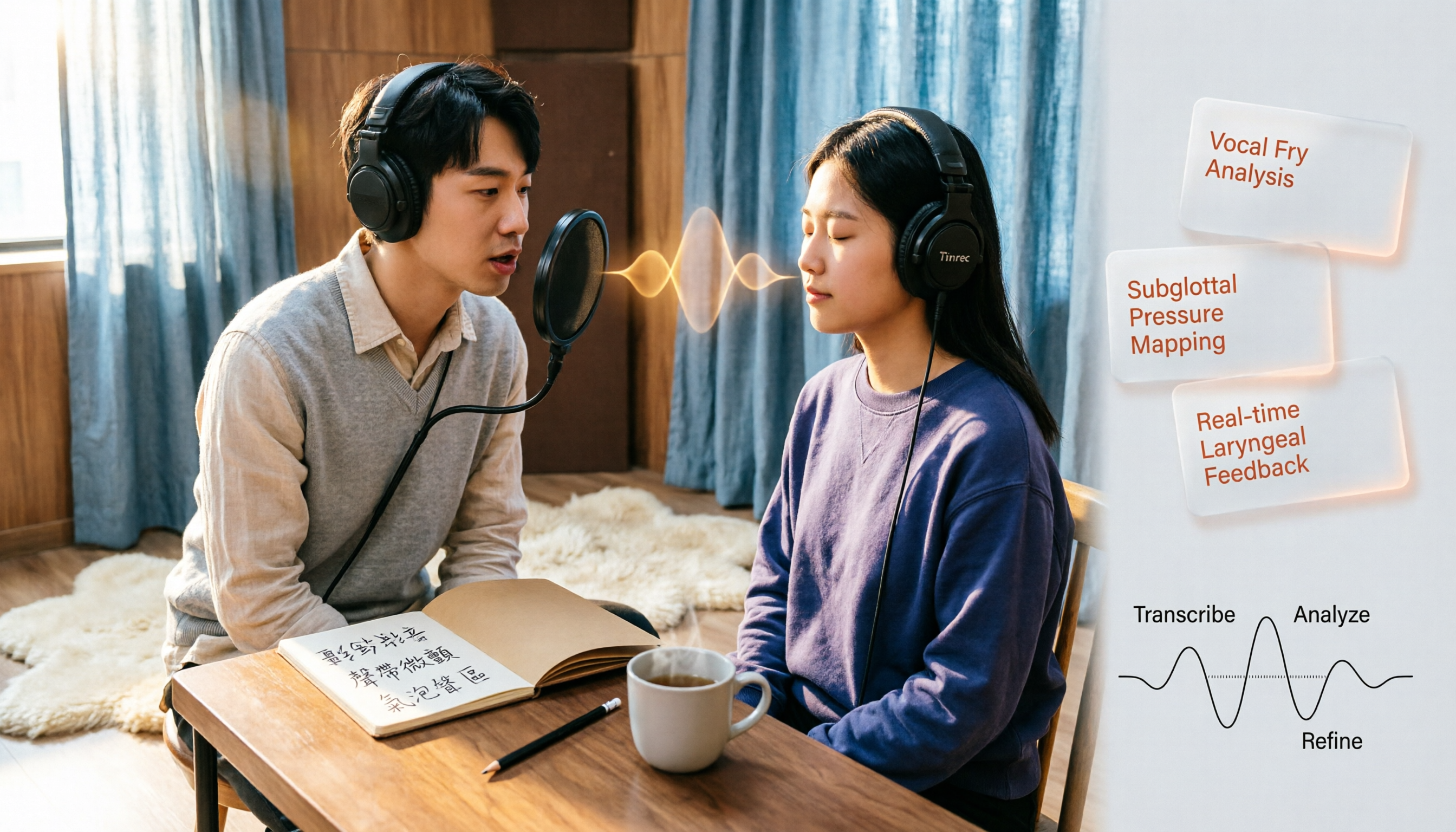
Vocal Fry in Chinese: 3 Translations Compared — Which Is Most Accurate?
The most common Chinese translation of vocal fry is "氣泡音" (qìpàoyīn), while some also call it "聲帶微顫" or "氣泡音聲區." This article compares common definitions from Cambridge Dictionary, Wikipedia, and singing tutorials, and explains the vocal mechanism, common misconceptions, and safe practice tips.

2026 Zoom Meeting Notes Tools Compared: Which AI Summarizer Works Best Without a Meeting Bot?
The pain starts after the Zoom call ends—notes are incomplete, you don't want to rewatch the recording, and records are scattered everywhere. This article tests three approaches: Tinrec, Zoom's built-in AI, and Otter.ai, comparing bot-free recording, Chinese recognition, post-meeting summaries, and team data ownership. It also highlights three common pitfalls to avoid before buying.
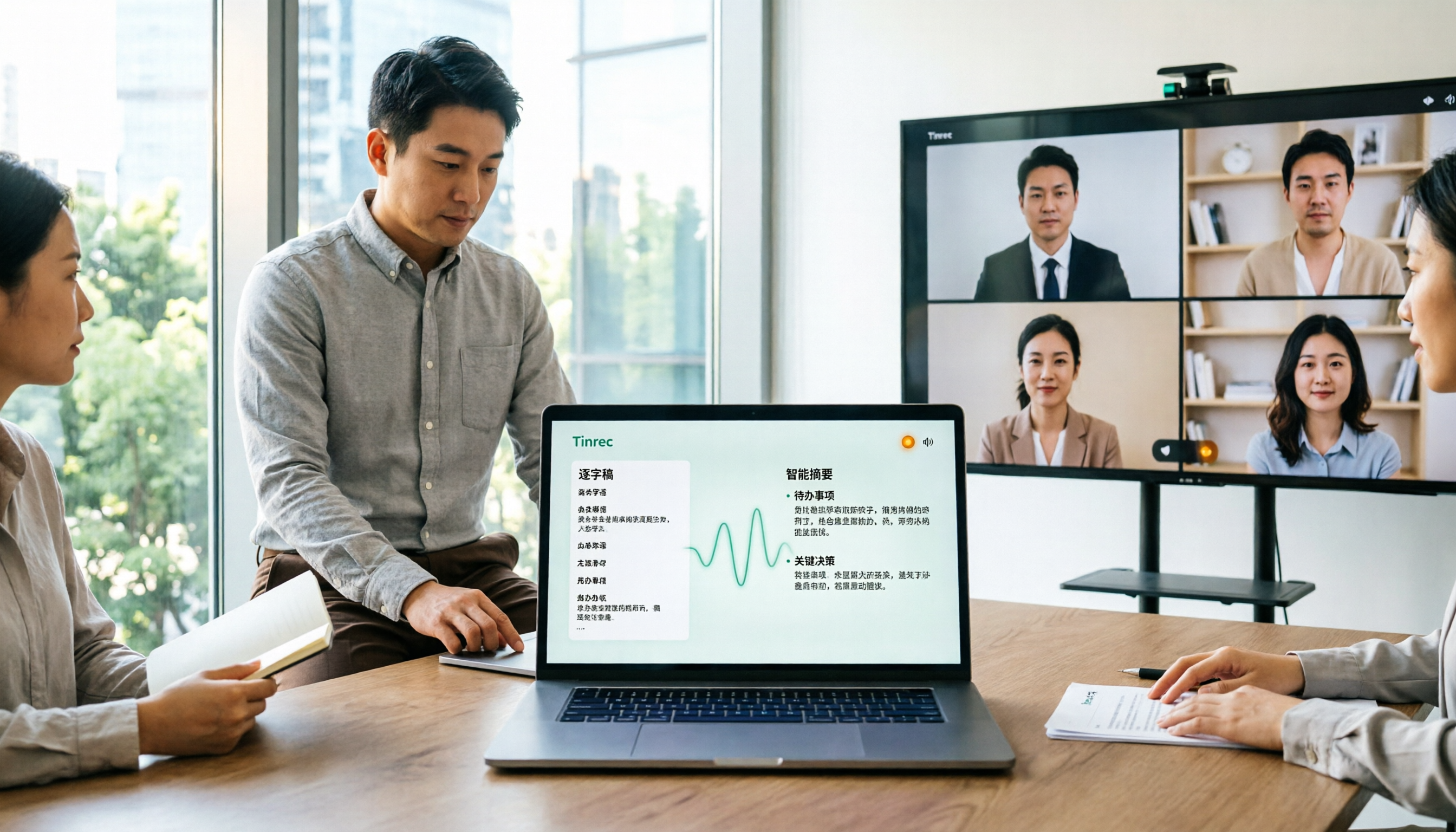
How to Use Microsoft Teams Meetings: 3 Meeting Note Methods Tested in 2026 — The One Without a Bot Is Easiest
Stuck in the lobby after clicking a Teams meeting invite? Can't find the meeting ID? This article first explains the 4 basic actions for using Teams meetings (joining a meeting, instant vs. scheduled meetings, in-meeting controls, cross-device access), then from the real needs of mid-level managers, tests and compares 3 meeting note methods, explaining why Tinrec — which doesn't use a meeting bot — is best suited for Chinese Teams meetings and team knowledge retention.

How to Use Zoom Meetings in 2026: 2 Recording Methods Compared — Which One Auto-Generates Meeting Notes?
Starting from the actual process of joining a Zoom meeting, this comparison examines Zoom's built-in transcription versus Tinrec across 5 dimensions: starting a recording, post-meeting organization, Chinese language experience, cross-platform data retention, and team collaboration — helping you decide which method to use for meeting records.