

Turn recordings into transcripts and summaries in minutes
Upload audio or video for multilingual transcription, AI notes, and action items
How to Use Microsoft Teams Meetings: 3 Meeting Note Methods Tested in 2026 — The One Without a Bot Is Easiest
The real nightmare starts after the meeting — you don't need a connection tutorial, you need that post-meeting record
At 9 a.m. last Wednesday, I clicked the Teams link three minutes early for a cross-department meeting. But I had copied the meeting ID missing one digit, and the screen showed "meeting not found." I re-entered, waited in the lobby for two minutes before being let in — the meeting had already started, and I completely missed the first two conclusions.
Connection issues can be solved in five minutes. The real trouble is after the meeting: decisions, action items, who's responsible for what — all scattered in your head and in chat windows. Teams has built-in recording and transcripts, plus various third-party tools are available. Which one suits your meeting style? This article first clarifies the basic actions for using Teams meetings, then shares the results of my team's real-world test of three note-taking methods.
How to Use Teams Meetings: Understand These 4 Key Actions First
1. Join a meeting: meeting ID or invite link
Meeting IDs are usually in the meeting invitation email; if you didn't receive an invite, contact the organizer directly. Note that with a personal Teams account, you can only join via the meeting invite link, not with just the meeting ID. Those with a Teams account can choose "Sign in" to join the meeting chat, then either enter the meeting directly or be taken to the lobby to wait for the organizer to admit them.
2. Instant meeting vs. scheduled meeting
On the team's "Posts" tab, click the "Meet now" icon to start a meeting immediately; to schedule one in advance, use "Schedule a meeting" to add it to the calendar. Use scheduled meetings for cross-department regulars, instant meetings for quick questions — this is where Teams is relatively convenient.
3. In-meeting controls
Select "Controls" to adjust organizer meeting options, deciding who can share screen, use microphone and camera; you can also lock the meeting, enable the lobby, and apply advanced protection settings. Under "More actions" you'll find options like start recording and apply background effects.
4. Works across devices
Teams meetings work on Windows, iOS, Android, Linux, or the web; if the invite includes a phone number and meeting ID, you can also dial in.
How to Choose a Meeting Note Method? Look at These 3 Key Points First
1. Whether to invite a meeting bot
A bot appears as a participant on the roster, which some clients or executives may mind. The desktop approach of directly capturing system audio keeps the roster clean — this is my current preference.
2. Just a transcript, or can it help you organize?
A 30-page transcript still means you have to read it all after work. What really saves time is summaries, chapters, and action item lists — that's the value of meeting notes.
3. Chinese meetings and team sharing
For meetings with mixed Chinese-English and lots of technical terms, different tools vary greatly in recognition experience; whether post-meeting data can be placed in a team space for colleagues to take over is also a practical consideration.
Tinrec — My Team's Choice So Far
Tinrec is an AI meeting notes and collaboration tool for individuals and teams, covering iOS, Android, and web, with a desktop version that can directly process meeting audio playing on your computer.
The key is that it doesn't need a meeting bot. The desktop version captures system audio, works with Teams, Zoom, Google Meet, Webex, and no unfamiliar account appears on the participant list. The transcript is generated in real time during the meeting, and after it ends, the summary, chapters, and action items are already organized — who's responsible for what, when it's due, can be assigned right after the meeting.
Stop organizing recordings by hand
Upload audio or video and automatically get a transcript, summary, and action items
The second thing that made me stay is AI Q&A. After recording, you can directly ask it "Who mentioned the budget in the last meeting?" It doesn't throw keyword search results at you — it answers directly. Among tools at the same price, few can treat meeting content as a database for follow-up questions. It also supports real-time translation, allowing mixed Chinese-English meetings to be viewed in original, translated, or bilingual mode; after the meeting, you can export to Notion, Google Docs, OneNote, etc., and when you need reports or tables, you can use Agent post-processing to generate them.
Limitations are also clear: Tinrec does not promise a fixed accuracy rate; actual performance is affected by recording quality, accents, multiple people talking over each other, and technical terms. For important content, it's recommended to cross-check with transcript timestamps and recordings. The free version offers a basic quota, suitable for trying a few meetings first.
The team version is another level: meeting data belongs to the team, you can create team spaces, invite members, set roles and seats, view usage and audit logs. Team monthly is USD 29.80 per paid seat, annual is USD 199 per paid seat, each paid seat provides 2,000 minutes of team shared import quota per month; eligible teams also get a 7-day trial with 1 free seat and 300 minutes of shared import quota. Actual prices are subject to the official purchase page.
Who it's for: people who frequently hold online meetings on Teams, Zoom, etc., need Chinese transcripts and post-meeting summaries, and don't want a bot joining the meeting.
Besides Tinrec, What Other Options Are There?
Otter.ai: A mature choice for English meetings. Basic free version offers 300 minutes per month, with complete team and workflow capabilities. But Chinese meetings and mixed Chinese-English content are not its strong suit, and the post-meeting output format is relatively fixed. If you mainly record English meetings, it's a good deal; but real-time translation and bilingual viewing for mixed Chinese-English is a scenario where Tinrec has an edge.
Notta: Good multilingual transcription and file processing. Free offers 120 minutes per month, max 3 minutes per session; Pro annual billing is about USD 8.17 per month, 1,800 minutes per month. The gap is that it leans toward a transcription tool, lacking Tinrec's collaboration layer that deposits meetings into team spaces and uses Agent to generate reports and tables.
PLAUD Note / NotePin: AI recording hardware, NotePin starts at USD 159. The advantage is portability, suitable for phone calls and on-site recording; the downside is you need to buy an extra device, and online meetings still require an app. To handle Teams meetings on your computer, Tinrec doesn't need extra hardware — this is where it clearly wins.
Pitfall Guide: 3 Most Common Mistakes When Using Teams for Meetings
Pitfall 1: Thinking Teams recording equals meeting notes.
Recording files are large and long; to find a decision you have to drag through the timeline, and nobody actually goes back to watch. The right approach is to have the tool produce summaries and action items first, with recording as backup.
Pitfall 2: Ignoring meeting ID and lobby restrictions.
Personal accounts can only join via link, and external guests may also get stuck in the lobby. For important meetings, test your connection five minutes early — don't make the whole table wait for you.
Pitfall 3: Forgetting recording consent.
Recording and transcription involve local regulations. Before recording, inform participants and get consent, especially for client and international meetings. This protects you and your team.
Summary: Which One Should You Choose?
In one sentence: if you need to record Teams, Zoom, Google Meet meetings on your computer, and need Chinese transcripts and post-meeting organization, Tinrec is my current top recommendation.
- Need bot-free recording of online meetings → Tinrec
- Want to ask AI directly for key points and action items after recording → Tinrec
- Mixed Chinese-English, need real-time translation and bilingual viewing → Tinrec
- Want to put post-meeting data into team space for sharing, manage seats and usage → Tinrec team version
- Mainly record English meetings, want to save budget → Otter.ai free version is a good start
- Need portable hardware recording, often take phone calls → PLAUD-type devices are more suitable
I suggest starting with Tinrec's free version, run one or two real meetings, see if the transcript and summary quality works for you, then consider upgrading — no need to pay from the start.
References
Turn every recording into actionable outcomes
Get 60 free transcription minutes when you sign in. No credit card required.
Related Reading
You might also like

4 Apple Watch Recording to iPhone Tools Compared in 2026: Sync, Transcribe, AI Summarize
How do you sync Apple Watch recordings to iPhone? After syncing, how do you transcribe, summarize, and find key points? This article first shows you how to enable iCloud sync, then compares 4 recording organization tools side by side, including Tinrec, Otter.ai, Notta, and Granola, from free to paid at a glance.

2026 Comparison of 5 Recording Tools: How to Choose Between Plaud Voice Recorder and AI Meeting Assistants
Starting from Plaud recording use cases, this guide compares Plaud Note, NotePin, Tinrec, Otter, Notta, and TurboScribe in terms of recording, transcription, summarization, and pricing to help you decide whether to buy hardware or use an AI meeting tool.

Free Zoom Meetings in 2026: 100 Participants and 40-Minute Limit Explained
Free Zoom meetings support up to 100 participants, but meetings with 3 or more people are limited to 40 minutes. This article breaks down the actual limits of the free plan and common misconceptions, explains why post-meeting organization is the real time sink, and tests how Tinrec uses bot-free desktop recording, real-time transcription, AI summaries, and action items to turn Zoom meetings into searchable, trackable meeting data.

PLAUD NotePin Review 2026: AI Transcription Tested + Tinrec Meeting Notes Comparison
PLAUD NotePin review and buying guide. We test the wearable recording capsule from hardware audio capture to AI meeting notes, and compare Tinrec's Chinese meeting support, bot-free recording, and team collaboration to help you choose the right tool.

Tinrec vs PLAUD NotePin 2026: 5-Dimension Comparison — Is a Voice Recorder Worth Buying?
Starting from the PLAUD voice recorder trending on Dcard, this comparison examines PLAUD NotePin, Note Pro, and Tinrec across five dimensions: audio capture, post-meeting organization, team collaboration, cross-device support, and cost structure, helping you decide whether to buy hardware or choose software.
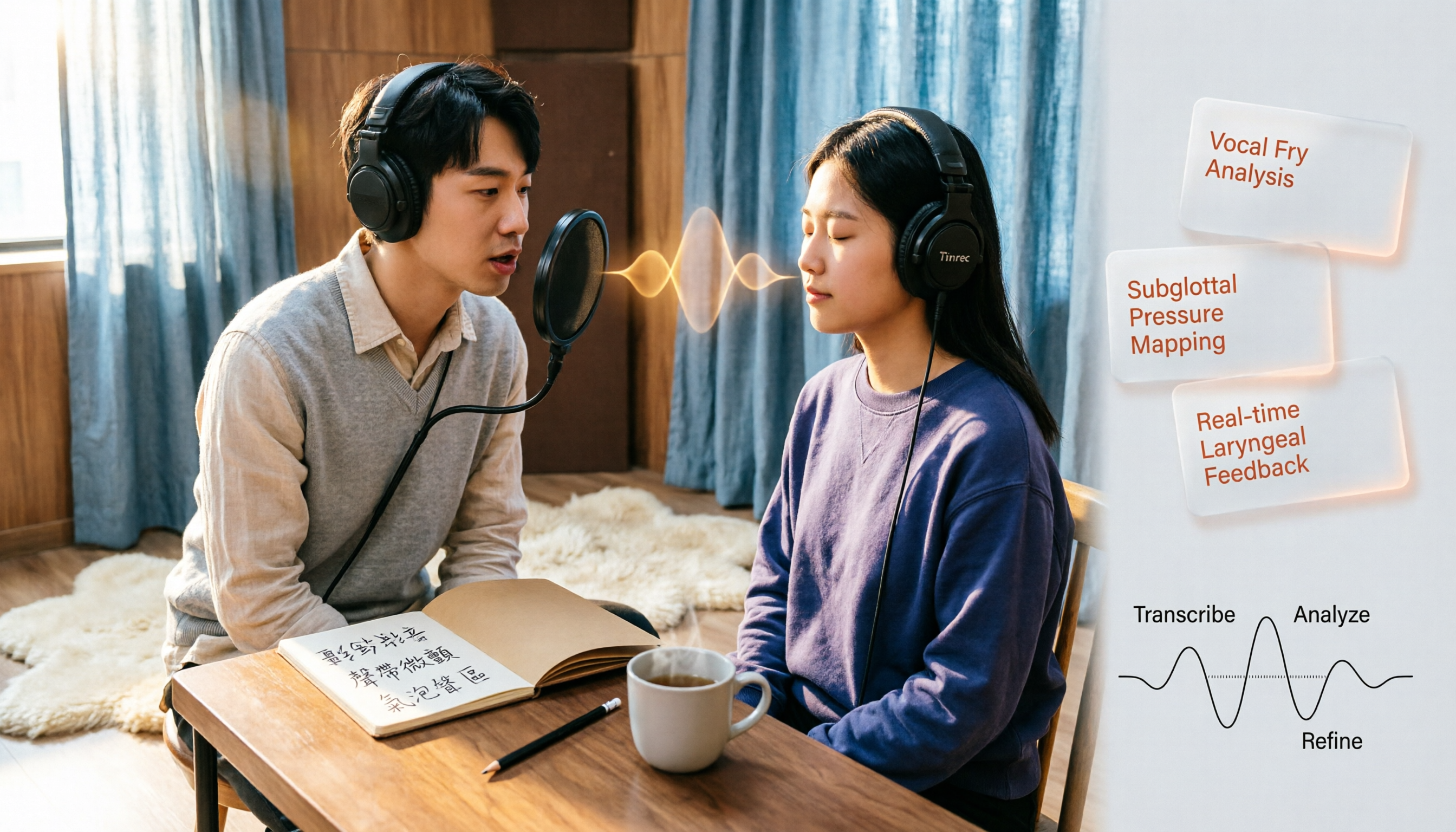
Vocal Fry in Chinese: 3 Translations Compared — Which Is Most Accurate?
The most common Chinese translation of vocal fry is "氣泡音" (qìpàoyīn), while some also call it "聲帶微顫" or "氣泡音聲區." This article compares common definitions from Cambridge Dictionary, Wikipedia, and singing tutorials, and explains the vocal mechanism, common misconceptions, and safe practice tips.

2026 Zoom Meeting Notes Tools Compared: Which AI Summarizer Works Best Without a Meeting Bot?
The pain starts after the Zoom call ends—notes are incomplete, you don't want to rewatch the recording, and records are scattered everywhere. This article tests three approaches: Tinrec, Zoom's built-in AI, and Otter.ai, comparing bot-free recording, Chinese recognition, post-meeting summaries, and team data ownership. It also highlights three common pitfalls to avoid before buying.

How to Use Zoom Meetings in 2026: 2 Recording Methods Compared — Which One Auto-Generates Meeting Notes?
Starting from the actual process of joining a Zoom meeting, this comparison examines Zoom's built-in transcription versus Tinrec across 5 dimensions: starting a recording, post-meeting organization, Chinese language experience, cross-platform data retention, and team collaboration — helping you decide which method to use for meeting records.

4 Teams Meeting Recorder Tools Tested in 2026: Where's the Meeting ID and How to Organize After Recording?
First, learn how to find your Teams meeting ID from the meeting invite, Outlook scheduling, and the Teams join screen. Then, we test and compare four meeting recorder tools—Tinrec, Otter.ai, Notta, and Granola—to see which is best for Chinese meetings, bot-free recording, and team data retention.