

Turn recordings into transcripts and summaries in minutes
Upload audio or video for multilingual transcription, AI notes, and action items
Bottom line: You need to know which platform's official version you're getting
People searching for "to download google meet" all get stuck at the same point: they don't know which is official, whether they need to install software on their computer, or how personal and work accounts differ. This article cuts to the chase—5 steps to get you set up, plus what costs money, what's free, and how to avoid taking notes manually after meetings.
Meetings are busy enough—why does downloading take half a day?
A client sends you a Meet link. The meeting is at 3 PM, and it's 2:50 PM now. You haven't installed the app. A search brings up a bunch of third-party download sites and APK websites, all claiming "100% safe." You have no idea which is official.
Even more frustrating: your company uses a Google Workspace account, and you also have a personal Gmail. The features you see differ between the two. You thought you had to install a desktop program, but it turns out you can just use a browser.
These aren't technical problems—they're information problems. Choose the right official channel and the right version, and you'll be done in 5 minutes.
Before downloading Google Meet, understand these 4 key points
1. Do you need the "app" or the "web version"? Google's official stance: to use Meet, go directly to meet.google.com or download the Google Meet Progressive Web App (PWA). That means you don't necessarily need a traditional installer on desktop—just open your browser.
2. Your account type determines what features you see. Meet works with Google Workspace accounts, personal accounts, and even phone numbers. Meeting features and recording permissions for personal vs. Workspace accounts are often set by company admins and vary by organization.
3. "Download" actually has several paths. Officially, Meet works on phones, tablets, web, and smart devices. So Android goes to Google Play, iPhone/iPad to the App Store, and desktop uses a browser or PWA—three different paths.
4. There are only three official channels: App Store, Google Play, and Google's official support page. Even if third-party download sites claim to be safe, they often redirect you to external sites with no guarantee of version or quality. Not worth the risk.
5 steps to download and install Google Meet
Step 1: Desktop—try the web version first, then consider PWA
Open Chrome or Edge, go to meet.google.com, and sign in with your Google account. For an "app-like" experience (standalone window, desktop shortcut), click "Install" in the Chrome address bar to get the PWA—no extra installer needed.
Step 2: Android—download the official app from Google Play
Search "Google Meet" on Google Play. Make sure the developer is Google LLC and the package name is com.google.android.apps.tachyon. If the developer isn't Google, don't install it. After installation, open it and sign in with your Google account.
Step 3: iPhone/iPad—download from the App Store
Search Google Meet in the App Store. The developer should also be Google. Tap "Get" to download. The iOS version supports initiating calls, scheduling meetings, and recording video messages for others to reply to later.
Step 4: Grant microphone, camera, and notification permissions
The first time you open the app, it will ask for microphone, camera, and notification permissions. Enable all of them, or you'll have no sound or video in meetings. Before joining a meeting, run an audio and video test.
Step 5: Join via link or create your own meeting
If the host sends a link, just open it. To start your own, tap "New meeting" and copy the link to send out. Scheduled meetings will automatically appear in Google Calendar.
After Google Meet: how to turn an hour of recording into searchable text
This is the part most people overlook. Google Meet's built-in meeting recording, AI notes, and live translation are officially premium paid features. Even if you record, you usually have to spend time reviewing and taking notes yourself. To turn meetings into searchable, queryable, shareable data, you need a post-meeting tool.
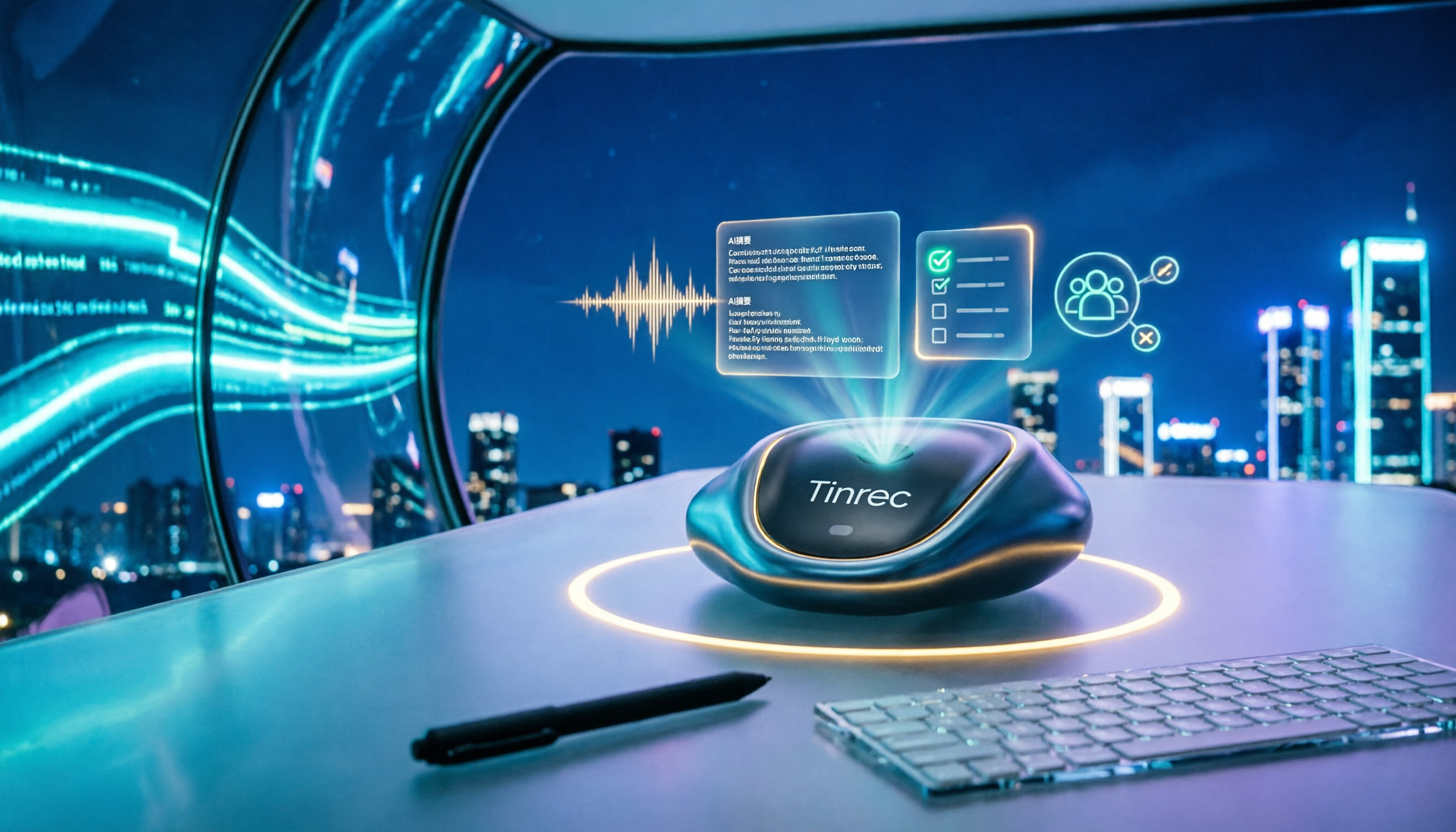
Tinrec is our top pick after testing. It's an AI meeting notes and collaboration tool for individuals and teams, available on iOS, Android, and web.
Stop organizing recordings by hand
Upload audio or video and automatically get a transcript, summary, and action items
The most impressive feature is "no-bot recording": Tinrec's desktop version captures system audio directly, handling online meetings on Zoom, Google Meet, Teams, and Webex without adding a bot to the meeting. Hosts and other participants won't see an extra person, and you don't need IT to grant permissions. While the meeting is happening, the transcript appears in real time. For cross-language meetings, you can view the original, translation, or bilingual side-by-side.
Automatic post-meeting organization is the second highlight. AI generates summaries, chapters, key points, and action items—who's responsible for what and when it's due, all at a glance. The most useful feature is AI Q&A—after recording, you can directly ask "Who mentioned the budget in the last meeting?" It doesn't dump a bunch of keyword search results on you; it answers based on semantic understanding. Currently, almost no competitor at this price point has this feature. You can also export to Notion, Google Docs, OneNote, Dropbox with one click, or use Agent to generate reports, tables, and documents.
For teams, Tinrec's team plan is a separate team space, not several people sharing a personal account: you can create and switch between multiple spaces, invite members via link, set owners/admins/regular members, and distinguish between "roles" and "seats"—roles manage governance permissions, seats determine whether you can record, upload, edit, and export. There are also team usage analytics, audit logs, team hotwords, and an audio recycle bin (30-day retention).
Limitations to note: the free version has a basic quota; heavy users need to pay. Accuracy can be affected by recording quality, noise, accents, and overlapping speech. For important content, cross-check with timestamps and audio playback. Also, check local laws before recording and get participant consent when required.
Who is it for? If you use Google Meet daily, need to produce minutes and action items after meetings, or have mixed Chinese-English meetings with colleagues in China or overseas, Tinrec is currently the best fit.
Besides Tinrec, what other options are there?
Granola: Also a no-bot AI meeting notes tool. Basic is free, Business is USD 14 per user per month. But official documentation states it doesn't support uploading pre-recorded audio files and doesn't save meeting audio—so you can't listen back to the original. Tinrec keeps recordings and supports direct import of audio/video files.
PLAUD Note/NotePin: AI recording hardware. NotePin is USD 159, Note Pro is USD 189. The selling point is portability and phone call recording. But you need to buy extra hardware and carry an additional device. Tinrec requires no hardware—works on phone, computer, and web, and can directly handle online meetings.
Google Meet built-in recording: No extra tool needed, sounds most convenient. But officially, recording is a premium feature, and data stays within Google's ecosystem, limiting cross-platform organization and semantic querying. Tinrec can take transcripts, summaries, and action items to the tools you already use.
Pitfall guide: 4 most common mistakes when downloading Google Meet
Pitfall 1: Going to third-party download sites or APK websites. These pages often just redirect you to external sites. You don't know the version or if it's been modified. Official entry points are the App Store, Google Play, and Google Support.
Pitfall 2: Thinking you must install a desktop program. Just go to meet.google.com. If you want an app-like feel, install the PWA. No need to hunt for installers.
Pitfall 3: Assuming you get all features after downloading. Meeting recording, AI notes, and voice translation are officially premium. Personal and Workspace account permissions also differ. For company devices, ask IT.
Pitfall 4: Recording without organizing. A 60-minute meeting can produce 8,000 words of transcript. Not organizing is like not having the meeting. Instead of listening back later, use the right tool from the start so summaries, key points, and action items are generated automatically.
Conclusion: What should you choose?
Just need to join meetings → Install the official Google Meet app on your phone, use meet.google.com on desktop. Don't overthink it.
Company uses Google Workspace → Sign in with your work account. Ask your admin about recording permissions.
Need to turn meeting content into text, summaries, action items, and searchable data → Tinrec (no-bot online meeting recording, AI Q&A, multi-format export, team spaces).
Only record English meetings, budget-first → Otter.ai (free plan offers 300 minutes per month, generous quota).
Want portable hardware recording → PLAUD series, but remember you need to buy the device separately.
Recommendation: Use the free quota to record one of your own meetings first. See if the transcript and summary fit your habits. If you like it, consider upgrading. No need to pay upfront.
References
Turn every recording into actionable outcomes
Get 60 free transcription minutes when you sign in. No credit card required.
Related Reading
You might also like

Google Meet Without App: Tinrec vs Otter.ai Comparison for 2026 Meeting Notes
Don't want to install the Google Meet app but still need to capture meeting notes? This hands-on comparison of Tinrec and Otter.ai evaluates bot-free recording, Chinese transcription, post-meeting organization, team collaboration, and pricing to help you decide which AI meeting tool best fits your workflow without the Google Meet app.

Google Meet vs Tinrec in 2026: 5-Dimension Comparison – Who Summarizes Your Meeting?
2026 Google Meet tutorial and post-meeting note solution comparison: start with real-time meetings, scheduling, cross-device, screen sharing, and post-meeting processing, then compare Google Meet built-in capabilities, Tinrec, Otter.ai, and Notta across 5 dimensions to help you decide when just having the meeting is enough and when you need a meeting notes solution that handles transcripts, summaries, action items, and team data together.

Google Meet Meeting Notes in 2026: Bot-Free Transcription + Automatic Summaries
After a Google Meet call, the real work begins. This guide starts with how to decide between built-in features and third-party tools, breaks down 4 key buying factors, and hands-on tests how Tinrec records Google Meet without a bot, automatically generates summaries and action items, and compares it with Otter.ai, Granola, and Notta, including pitfalls to avoid.

3 Ways to Download Google Meet in 2026: Mobile App vs Desktop PWA vs Web Compared
Not sure which way to use Google Meet? This hands-on comparison of the mobile app, desktop PWA, and web version covers installation, features, updates, and best use cases to help you find the smoothest way to use Google Meet.

4 Google Meet Note-Taking Tools Compared in 2026: Which One Does Transcription and AI Summaries Best?
Google Meet has live captions, but captions are not meeting notes. This article compares four common approaches—Google Meet's built-in capabilities, Otter.ai, Granola, and Tinrec—covering capture methods, language support, post-meeting organization, and team data ownership to help you choose the best meeting note-taking tool for your needs.

Best Free Video Conferencing Alternatives to Google Meet in 2026: 4 Options
Switching from Google Meet keeps meetings running smoothly, but post-meeting organization doesn't get any easier. This article, from the perspective of a mid-level manager who holds 15 meetings a week, outlines 4 directions for video conferencing without Google Meet and explains how a bot-free meeting notes tool handles transcripts, summaries, action items, and team knowledge retention, with recommendations for free and team plans.

Google Meet Built-in Recording vs Tinrec in 2026: 5-Dimension Showdown — Which Helps You Clock Out on Time?
Creating a Google Meet link takes 10 seconds, but post-meeting notes are the real time sink. This hands-on comparison of Google Meet built-in recording and Tinrec evaluates transcription accuracy, post-meeting organization, cross-platform support, team collaboration, and pricing across 5 dimensions to help you pick the most time-saving meeting notes tool.

4 Google Meet Alternatives Tested in 2026: Which One Works Without a Meeting Bot?
We tested 4 Google Meet alternatives in 2026, comparing bot-free recording, Chinese transcription, AI summary Q&A, and team collaboration. Tinrec excels at Chinese meetings and post-meeting organization, while Otter.ai, Notta, and Granola each suit different scenarios. This article uses real-world use cases to help you choose the best meeting notes solution.
Google Meet vs Zoom 2026: Which Online Meeting Tool Actually Works for Post-Meeting Notes?
Google Meet or Zoom? This hands-on comparison focuses on post-meeting organization, comparing the built-in transcription limits of both, and testing Tinrec desktop's bot-free meeting recording, AI summaries, action items, and team spaces to help you find a meeting notes solution that truly saves time.