

Turn recordings into transcripts and summaries in minutes
Upload audio or video for multilingual transcription, AI notes, and action items
Google Meet Built-in Recording vs Tinrec in 2026: 5-Dimension Showdown — Which Helps You Clock Out on Time?
In a nutshell: Creating a Google Meet link takes 10 seconds, but post-meeting notes are the real time sink.
You know how to create a Google Meet link, but can you really handle the post-meeting work?
You work in a city office, and your daily schedule goes like this: morning meeting, lunch meeting, afternoon meeting, and a recap before you leave. The meetings themselves aren't the problem — it's what comes after.
Creating a Google Meet link takes 10 seconds. But a two-hour meeting can take another one or two hours to organize into notes. If it's a Cantonese meeting, there are few transcription tools that support Cantonese, and accuracy varies widely. Even more frustrating: when you look for last month's Meet link to review what was discussed, you find the recording files scattered across different corners of Drive — and just finding them takes half an hour.
This article is here to solve that problem. From creating a Meet link to quickly organizing everything after the meeting, we'll cover it all.
Creating a Google Meet link: 3 methods, done in 10 seconds
Before we talk about meeting notes tools, let's quickly go over how to create a Google Meet link. There are currently 3 main methods:
Method 1: Quick creation at meet.google.com Open meet.google.com, click "New meeting" in the top right, then select "Create a meeting for later." The system instantly generates a link — just copy it. This is the fastest method, ideal for impromptu meetings.
Method 2: Schedule via Google Calendar When creating an event in Google Calendar, click "Add Google Meet video conferencing," and the system automatically attaches a Meet link to the event invitation. For recurring meetings, this link can be reused. In Calendar settings, you can also enable "Automatically add Meet to events I create," so every event you create will have a link attached automatically.
Method 3: Create directly in Gmail When composing an email in Gmail, click the Meet icon in the toolbar to create a meeting link and insert it into the email. This is ideal when you need to invite participants via email.
All three methods generate links in the same format (meet.google.com/abc-defg-hij) and work across platforms. Creating the link itself is easy — the hard part is what comes after the meeting.
Before choosing a meeting notes tool, understand these 4 key points
If your only need is "create a link," then Google Meet itself is enough. But if you need to organize notes, write meeting minutes, and follow up on action items after every meeting, you'll need an additional tool. Before choosing, consider these 4 points:
1. Accuracy: Don't just look at advertised numbers Many tools claim "98% accuracy," but that number is usually measured in a quiet recording studio. Real meeting rooms have air conditioning noise, keyboard sounds, and people talking over each other — accuracy drops noticeably. For Cantonese meetings, you also need to check if the tool supports Cantonese. We recommend testing with your own recordings for free, not just relying on ads.
2. AI features: What can it do after recording? If it only converts audio to text, it's not much different from listening to the recording and typing the transcript yourself. The key is the AI processing after recording — can it automatically generate summaries, extract action items, and support conversational queries? These are the features that truly save time.
3. Cross-platform: Record on phone, organize on computer Record on your phone today, organize on your computer tomorrow — if the tool doesn't support cross-platform, you'll be frustrated. The ideal solution works on iOS, Android, and web, with data syncing across them.
4. Team collaboration: Are meeting notes a personal asset or a team asset? If you're a team lead, consider: Can meeting notes be shared? Can new hires review past meetings? When a colleague leaves, does the data go with them?
Tinrec — Our top pick after hands-on testing
Tinrec is an AI meeting notes and collaboration tool for individuals and teams, available on iOS, Android, and web. It's not just "audio to text" — it turns meeting recordings into searchable, summarizable, queryable, and exportable data.
Core features tested
Bot-free recording for online meetings: Tinrec's desktop version directly captures your computer's system audio, handling Zoom, Google Meet, Microsoft Teams, Webex, and other online meetings without inviting a meeting bot. This is different from Google Meet's built-in recording — you don't have to wait for everyone to join before recording; just open Tinrec desktop.
Stop organizing recordings by hand
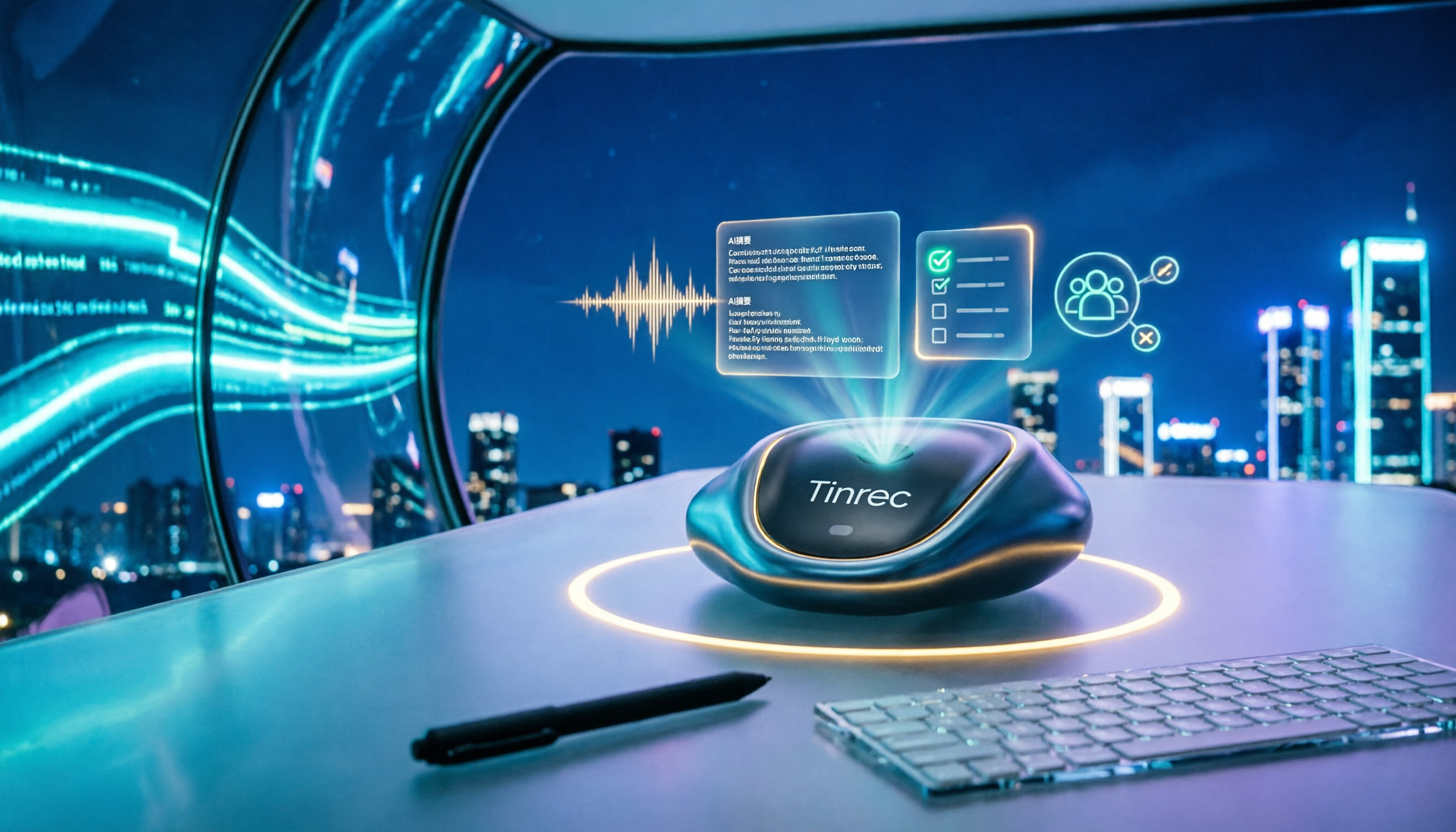
Upload audio or video and automatically get a transcript, summary, and action items
Live transcription while recording: Open Tinrec during a meeting, and it generates a transcript in real time. When the meeting ends, AI has already generated a summary and action items — who's responsible for what, and by when, all at a glance.
AI conversational query: This is Tinrec's biggest differentiator from other tools. After recording, you can directly ask Tinrec: "Who mentioned the budget in the last meeting?" It doesn't just give you keyword search results — it understands semantics and gives you the answer directly. Few competitors at this price point have this feature.
Post-meeting output: Besides transcripts and summaries, Tinrec also supports generating chapters, highlights, mind maps, reports, tables, and documents, and can export to Notion, Google Docs, OneNote, Dropbox, and other tools for further use.
Hands-on performance
We tested with a 5-minute Cantonese meeting recording (iPhone 15, indoor environment, August 2026). Tinrec accurately recognized mixed Cantonese and Mandarin content, and performed well on names and proper nouns. Actual accuracy depends on recording quality, noise, accent, and other factors — we recommend testing with your own recordings for free.
Pros
- Great Chinese meeting experience: Supports Chinese, Traditional Chinese, and multilingual meeting scenarios, plus real-time translation and bilingual viewing — ideal for mixed Chinese-English meetings.
- Bot-free recording: Desktop version captures system audio without inviting a bot, so it doesn't disrupt the meeting experience.
- Team data retention: Team plan offers a separate team space where meeting data belongs to the team. New members can view historical data, and data stays even when members leave.
Limitations
The free version has a basic quota, suitable for light use; heavy users need to upgrade to a paid plan. But for most people who have 2-3 meetings per week, the free quota is enough. Also, Tinrec doesn't focus on bulk processing of many files at once — if you need to transcribe dozens of files in one go, you may want to consider other tools.
Who it's for
If you frequently need to record Cantonese or Chinese meetings, want to use AI to find key points right after recording, or switch between iPhone and Android — Tinrec is currently the best choice. Team leads who want to turn meeting notes into a team asset will find the team plan more suitable.
Besides Tinrec, what other options are there?
Google Meet built-in recording: Google Workspace users can use Meet's built-in recording, and files are automatically saved to Google Drive. The advantage is seamless integration with the Google ecosystem, with no extra tools needed. But recording requires a Workspace account, and after recording there's no AI summary, no action item extraction, no conversational query — you just get a video you have to listen to yourself. Plus, files are scattered in Drive, making them hard to find.
Otter.ai: The top choice for English meetings. Free plan offers 300 minutes per month; Pro annual billing is about USD 8.49/month, including 1,200 minutes of in-app recording and 10 file imports per month. But it doesn't support Cantonese — if you mainly record English content, Otter.ai is a better value than Tinrec. If you need Chinese or Cantonese transcription, you'll need another solution.
Notta: A transcription tool with significant overlap with Tinrec. Free plan offers 120 minutes per month (max 3 minutes per session); Pro annual billing is about USD 8.17/month (1,800 minutes per month). Notta's multilingual transcription is decent, but it lacks AI conversational query — after recording, you can only manually search keywords.
Pitfall guide: 3 most common mistakes when choosing a meeting notes tool
Pitfall 1: Only looking at advertised accuracy Many tools advertise "98% accuracy," but those numbers are usually measured in ideal conditions. Real meetings have air conditioning noise, keyboard sounds, and people talking over each other — accuracy drops noticeably. The right approach is to test with your own meeting recordings for free, not just rely on ads.
Pitfall 2: Ignoring cross-platform needs Record on your phone today, organize on your computer tomorrow — if the tool doesn't support cross-platform, you'll be miserable. Before choosing, confirm it supports the devices you commonly use.
Pitfall 3: Buying a tool but not using AI features If you only use a transcription tool as "audio to text," you're using only a third of its capabilities. Take Tinrec's AI conversational query — after recording, just ask it "What was the conclusion of the meeting?" It's much faster than manually flipping through a 30-minute transcript. Also, many people forget to use the team plan's usage analytics and audit log features.
Summary: Which one should you choose?
In a nutshell: Creating a Google Meet link takes 10 seconds, but organizing after the meeting is the real time sink.
Scenario-based recommendations:
- Need Cantonese + Mandarin bilingual transcription → Tinrec (strong Chinese scenario performance, multilingual support)
- Want to use AI to find key points right after recording → Tinrec (has AI conversational query, rare among competitors at this price)
- Cross-platform use (phone + computer) → Tinrec (iOS + Android + web)
- Team needs to retain meeting data → Tinrec team plan (team space, seat management, usage analytics)
- Zero budget, only record English, no AI features needed → Otter.ai (free plan 300 min/month, mature English scenario)
We suggest downloading Tinrec's free version first — the basic quota is enough for two or three meetings to experience the results. Upgrade only if you find it useful; there's no need to pay upfront.
References
- How to create a permanent Google Meet link
- How to Create a Google Meet Link (From Calendar, meet.new, Mobile — 2026)
- How to Create a Google Meet Link: 5 Methods for Every Device
- How to create meeting link - Google Meet Community
- Start or schedule a Google Meet video meeting - Computer - Google Meet Help
Turn every recording into actionable outcomes
Get 60 free transcription minutes when you sign in. No credit card required.
Related Reading
You might also like

Google Meet Without App: Tinrec vs Otter.ai Comparison for 2026 Meeting Notes
Don't want to install the Google Meet app but still need to capture meeting notes? This hands-on comparison of Tinrec and Otter.ai evaluates bot-free recording, Chinese transcription, post-meeting organization, team collaboration, and pricing to help you decide which AI meeting tool best fits your workflow without the Google Meet app.

Google Meet vs Tinrec in 2026: 5-Dimension Comparison – Who Summarizes Your Meeting?
2026 Google Meet tutorial and post-meeting note solution comparison: start with real-time meetings, scheduling, cross-device, screen sharing, and post-meeting processing, then compare Google Meet built-in capabilities, Tinrec, Otter.ai, and Notta across 5 dimensions to help you decide when just having the meeting is enough and when you need a meeting notes solution that handles transcripts, summaries, action items, and team data together.

Google Meet Meeting Notes in 2026: Bot-Free Transcription + Automatic Summaries
After a Google Meet call, the real work begins. This guide starts with how to decide between built-in features and third-party tools, breaks down 4 key buying factors, and hands-on tests how Tinrec records Google Meet without a bot, automatically generates summaries and action items, and compares it with Otter.ai, Granola, and Notta, including pitfalls to avoid.

3 Ways to Download Google Meet in 2026: Mobile App vs Desktop PWA vs Web Compared
Not sure which way to use Google Meet? This hands-on comparison of the mobile app, desktop PWA, and web version covers installation, features, updates, and best use cases to help you find the smoothest way to use Google Meet.

4 Google Meet Note-Taking Tools Compared in 2026: Which One Does Transcription and AI Summaries Best?
Google Meet has live captions, but captions are not meeting notes. This article compares four common approaches—Google Meet's built-in capabilities, Otter.ai, Granola, and Tinrec—covering capture methods, language support, post-meeting organization, and team data ownership to help you choose the best meeting note-taking tool for your needs.

Best Free Video Conferencing Alternatives to Google Meet in 2026: 4 Options
Switching from Google Meet keeps meetings running smoothly, but post-meeting organization doesn't get any easier. This article, from the perspective of a mid-level manager who holds 15 meetings a week, outlines 4 directions for video conferencing without Google Meet and explains how a bot-free meeting notes tool handles transcripts, summaries, action items, and team knowledge retention, with recommendations for free and team plans.

4 Google Meet Alternatives Tested in 2026: Which One Works Without a Meeting Bot?
We tested 4 Google Meet alternatives in 2026, comparing bot-free recording, Chinese transcription, AI summary Q&A, and team collaboration. Tinrec excels at Chinese meetings and post-meeting organization, while Otter.ai, Notta, and Granola each suit different scenarios. This article uses real-world use cases to help you choose the best meeting notes solution.
Google Meet vs Zoom 2026: Which Online Meeting Tool Actually Works for Post-Meeting Notes?
Google Meet or Zoom? This hands-on comparison focuses on post-meeting organization, comparing the built-in transcription limits of both, and testing Tinrec desktop's bot-free meeting recording, AI summaries, action items, and team spaces to help you find a meeting notes solution that truly saves time.

How to Download Google Meet in 2026: 5-Step Guide for Desktop, Android, and iOS
Complete Google Meet download guide for 2026: 5 steps for desktop web/PWA, Android, and iOS. Learn official download channels, account types, paid feature limits, and compare post-meeting tools.