
Turn recordings into transcripts and summaries in minutes
Upload audio or video for multilingual transcription, AI notes, and action items
The professor covered 47 slides in two hours, and the recording I opened at home was 118 minutes long
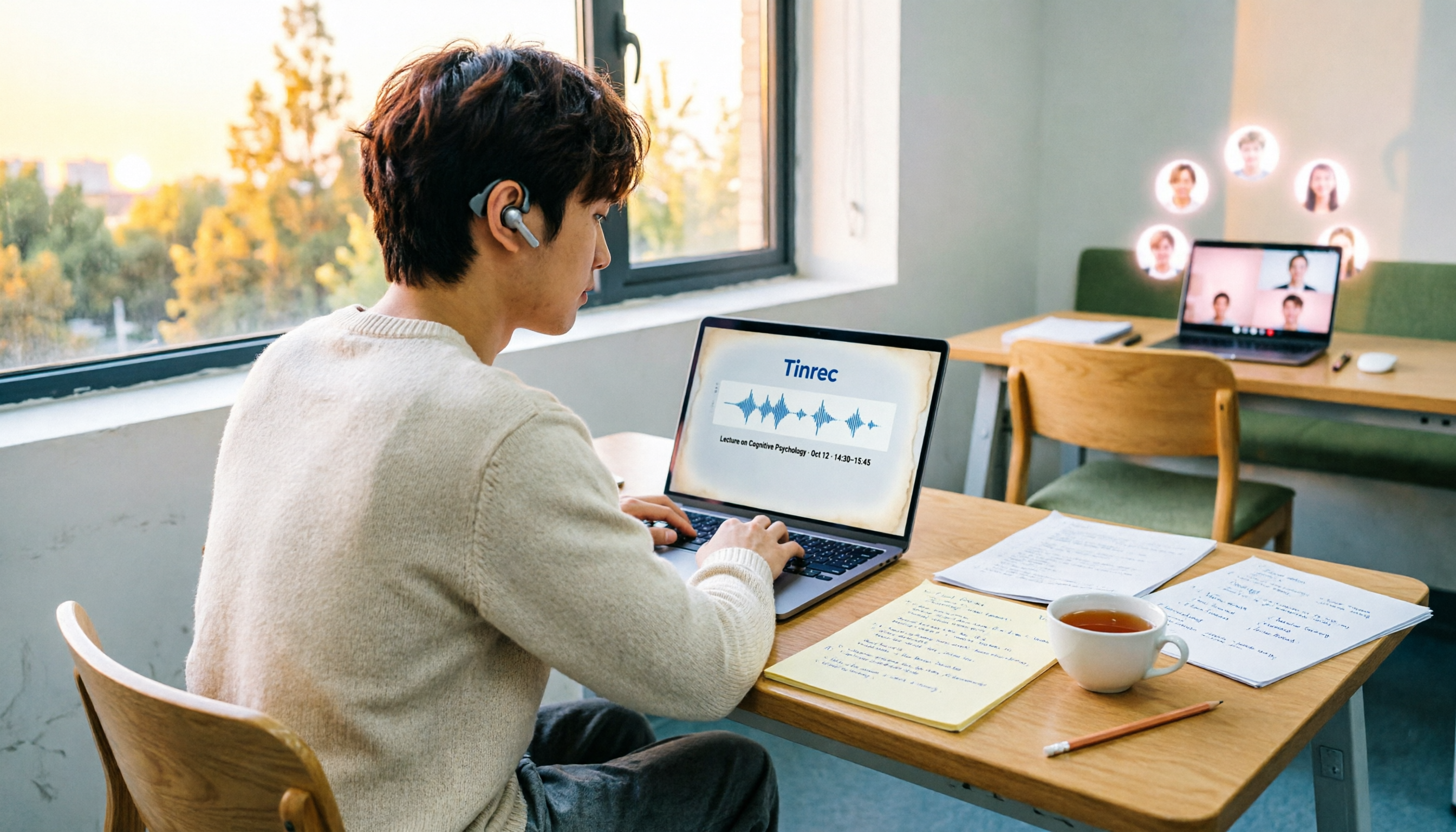
Last semester I took Operations Research. The professor spoke about 1.5 times faster than a normal person and flipped through slides even faster. I gave up after three pages of handwritten notes and just recorded the whole class on my phone, thinking I would organize it at home.
That night I opened the recording—118 minutes. The first sentence was “So last week we talked about,” and the last was “Okay, class dismissed.” Where were the key points? I dragged the timeline for half an hour and confirmed only one thing: listening to a recording again is not note-taking, it is another way to waste time.
The second scenario was group discussion. For our capstone project, five of us met in a library study room. Over two hours there was interrupting, going off topic, and “let’s talk about this later.” After the meeting everyone asked in the group chat, “So what was our conclusion?” No one could say.
The third scenario was even more realistic: for the final report I needed to quote something the professor had said, so I had to listen to a 30-minute file from start to finish just to find those 40 seconds.
So this semester I tried speech-to-text methods on a computer, from Google’s built-in option all the way to the tool I now use regularly. This is my own test record, including what works well, where I ran into problems, and whether students should actually pay.
Using Google for speech-to-text on a computer: understand these 4 key points first
1. Do you need “live dictation” or “organizing existing recordings”? These are completely different. Live dictation is “you speak, it types for you.” Organizing existing recordings is “you already have an mp3 or m4a and want to turn it into text.” Google Docs built-in voice typing is the former. If you have a pile of already-recorded class files, it cannot help. Before choosing a tool, confirm which type you are, or whether you need both.
2. Does the sound come from a microphone or from the computer itself? Recording an entire classroom with a phone or built-in computer microphone means distance, echo, and classmates chatting in the back, so recognition results naturally suffer. But for an online meeting, the sound comes out of the computer speakers. What you actually need is a tool that can capture “system audio,” not another microphone pointed at the speakers. Few people think of this at first.
3. Can you use it directly after transcription? A transcript is only a half-finished product. What really determines whether you save time is what comes after: automatic summaries, chapters, extracted action items, the ability to ask it questions directly, and one-click export to the Google Docs or Notion you already use. A tool that only gives you a transcript still leaves you to read the whole thing yourself.
4. Free tier and long-term cost Students have limited budgets, so the order should be: first confirm whether the free version gives you enough to try one round, then look for short-term options such as a weekly pass for finals crunch, and only then consider a long-term plan. Do not buy the longest plan right away when you do not even know how many times you will use it in a semester.
Tinrec—the one I kept after testing
Tinrec is an AI meeting notes and collaboration tool for individuals and teams, available on desktop, mobile, and web. It does more than turn sound into text; it turns recordings into searchable material you can question and keep working with. Here is what I actually used in campus scenarios.
Desktop version records online meetings without a bot. Our project group met on Google Meet. Before, I would open a separate recording program, but it only recorded me talking, and the sound coming out of the computer was not captured at all. Tinrec desktop captures system audio directly, without inviting a meeting bot into the room. Audio played on a computer from platforms like Zoom, Google Meet, Microsoft Teams, and Webex can be captured, and a transcript is generated while the meeting is happening.
Existing audio files can be uploaded directly for organizing. That 118-minute class recording from my phone was uploaded directly. It turned it into a transcript and automatically split it into chapters, pulling out key points and action items. Before, this took me a whole evening; now I upload it and go do something else.
AI Q&A is the main reason I kept it. After transcription, I can ask directly, “How many pages did the professor say the final report should be?” or “How many solution methods were mentioned in this class?” It does not dump a list of keyword search results on you; it answers directly. The difference during review is very obvious—no need to listen from the beginning again.
Two other features I use often: real-time translation, because our department has several all-English online lectures and reading with bilingual support is less tiring; and multi-format export, since all my notes are in Google Docs, I can take the organized content there and keep writing without copy-pasting until I lose my mind.
Stop organizing recordings by hand
Upload audio or video and automatically get a transcript, summary, and action items
Limitations I should mention. First, the free version has a basic quota, enough to test the waters, but if I am recording five classes a week before finals like I did, I need to consider a weekly pass or Pro. It is not a completely free tool. Second, I will not tell you it is 100% accurate. When the classroom has echo, classmates are chatting in the back, or the professor mixes Chinese and English, the transcript still has parts that need manual correction. For important quotes, I always go back and check the recording. Third, it does not automatically join every meeting on your calendar. You have to open the desktop version and start recording yourself. If you think of it as an automatic meeting bot, you will be disappointed. Fourth, for high-compliance scenarios like medical or legal work, I do not recommend using it as an official record.
A note on the team version. If you are a capstone group or lab, the team version is a separate team space: discussion records, transcripts, and action items stay with the team, and members leaving after graduation do not take the data with them. Admins can assign roles and seats, and view usage and activity logs. Currently the first eligible trial is 7 days, 1 free seat, and 300 shared import minutes; team monthly billing is USD 29.80 per paid seat, annual billing is USD 199 per paid seat (about USD 16.58 per month), each paid seat has 2,000 shared import minutes per month, and real-time recording is currently not deducted by the minute. For student groups, I suggest running one round with the free version first, and only considering it once you are sure you will meet every week.
Besides Tinrec, what other options are in the Google ecosystem?
What I used at the beginning was actually Google’s own tools, so this section follows the order I actually tried them.
Google Docs voice typing. Completely free and usable in a browser: in Google Docs, click Tools → Voice typing, turn on the microphone, and you can dictate live. Official instructions list the latest versions of Chrome, Edge, Safari, and other browsers (most tutorials still recommend Chrome). The mobile app cannot use it, and some school or company administrators may disable the feature. Its biggest limitation is that it only captures live audio. It cannot transcribe already-recorded audio files, and it does not keep a recording or make summaries. If you just need to dictate a report while speaking, it is great. But when you have a pile of recordings, it cannot help—this is exactly why I switched tools later. Tinrec can directly take existing audio and video files and also generates summaries, chapters, and action items.
Google Cloud Speech-to-Text. This is an API for developers to integrate speech recognition into their own applications. It supports multiple languages and has optimized models for specific scenarios such as telephony speech, plus profanity filtering. For me as an information management major, it was very appealing, but it is a “component,” not a finished product. You have to write code and handle keys and billing. I ultimately did not use it because what I wanted was a tool that opens and organizes transcripts. Tinrec is a ready-to-use finished product with AI Q&A, export, and team spaces.
VoiceIn speech-to-text (Chrome extension). You can find it in the Chrome Web Store. It focuses on dictation input across many websites, supports more than 50 languages, and converts speech to text in real time. Its positioning is more like “typing with your mouth”—convenient for filling out forms and replying to emails. But it does not save a transcript file for you, and it has no summaries, action items, follow-up questions, or team sharing space. If you need to “organize content” rather than “input content,” it is not enough.
Pitfall guide: the 4 easiest mistakes when using speech-to-text on a computer
Pitfall 1: Assuming “Google has a free one” means it can transcribe everything. Google Docs voice typing really is free, but it only handles live microphone audio. It will not accept your already-recorded files. Clarify your needs first, then choose a tool.
Pitfall 2: Looking only at officially advertised accuracy. Any number without testing conditions should be discounted. A real classroom has air conditioning noise, page turning, and multiple people interrupting. It is completely different from a recording studio. The best approach is to take one of your own recordings and try a free trial. Five minutes will tell you whether it fits.
Pitfall 3: Counting only “transcription” time and forgetting “reading” time. Spending 20 minutes to produce a transcript and then two hours reading it is not saving time. When choosing a tool, include what happens after transcription: Are there summaries? Chapters? Can you ask it questions directly?
Pitfall 4: Ignoring recording environment and consent. The closer the microphone is to the speaker and the quieter the environment, the better the result. Also, before recording, tell classmates and the professor, and confirm that it complies with local rules and common courtesy. This matters more than any feature.
Conclusion: which one should you choose?
To bring it back to one sentence: if your content source is “existing recording files” or “online meetings on a computer,” and it is mainly Chinese (with some English technical terms mixed in), Tinrec is the smoothest choice I have used so far.
- Class and lecture recordings that need to be organized into notes afterward → Tinrec
- Small-group online meetings (Meet, Teams) that need automatic transcripts and action items → Tinrec (desktop version captures system audio directly, no meeting bot needed)
- After recording, you want to ask questions directly to find key points → Tinrec (AI Q&A is where it differs most from similar tools)
- Record on phone, organize on computer, and export to Google Docs or Notion → Tinrec (multi-device use, multi-format export)
- You just want to dictate in a browser to fill out forms → Google Docs voice typing or VoiceIn, free is enough
- You want to write code yourself to embed speech recognition into a project → Google Cloud Speech-to-Text
My own approach is: first use the free version to run one class recording through it and see whether the transcript quality and summary help you. If it seems useful, then consider upgrading. Trying one round for a semester is more accurate than reading ten reviews.
References
- Speech-to-Text: AI speech input and transcription | Google Cloud
- Type and edit with your voice - Google Docs Editors Help
- Google transcript tutorial! Turn videos and audio files into text in a browser
- Google Docs speech recognition trick: use speech-to-text for transcripts and notes! - Apple Almond
- Voice In - Speech to Text - Chrome Web Store
Turn every recording into actionable outcomes
Get 60 free transcription minutes when you sign in. No credit card required.
Related Reading
You might also like

Google Speech-to-Text Online Free Options in 2026: 2 Tools Compared
Google's speech-to-text capabilities are spread across the Cloud Speech-to-Text API, Google Docs voice typing, and Android Live Transcribe, while Tinrec is a ready-to-use meeting workspace. This article compares them across 6 dimensions: onboarding, Chinese and multilingual support, post-meeting organization, online meeting recording, team collaboration, and pricing, to help you decide which one to choose.

3 Best iPhone Speech-to-Text Tools in 2026: Built-in vs Plaud vs Tinrec
iPhone's built-in Voice Memos transcription works for basic needs, but struggles with mixed languages, online meetings, and post-meeting organization. This comparison of iPhone's built-in features, Plaud recording devices, and Tinrec covers language support, input sources, post-meeting organization, and team collaboration to help you decide which tool fits your workflow.

2026 Comparison of 3 Speech-to-Text Tools: MyEdit Free Credits vs. Tinrec Meeting Organization—Which Saves More Time?
This article compares MyEdit, Tinrec, and Notta in a hands-on test, analyzing Chinese recognition, free quotas, post-meeting organization, and team collaboration. MyEdit is suitable for lightweight transcription, while Tinrec is more complete for bot-free meeting recording, AI Q&A, and team knowledge retention. If you're looking for a meeting transcription tool, this article helps you quickly decide.

5 Best Free Speech-to-Text Tools in 2026: A Complete Comparison
Compare 5 free speech-to-text tools in 2026, including Tinrec, Otter.ai, Notta, TurboScribe, and Granola. We break down free tiers, Chinese language support, AI post-meeting summaries, and team collaboration to help you find the best transcription tool.
How to Choose a Free Speech-to-Text AI in 2026: 5 Steps to Compare Tinrec and MyEdit
How do you choose a free speech-to-text AI in 2026? This article compares Tinrec and MyEdit across 5 dimensions, from free quotas, Chinese and Cantonese transcription, post-meeting organization, online meeting recording, and cross-platform team collaboration, to help Hong Kong office workers decide which is better suited for meeting notes, transcripts, and post-meeting follow-up.

2026 Best Speech-to-Text Tools Compared: Which One Handles Cantonese Most Accurately?
We tested 4 speech-to-text tools in real Hong Kong workplaces in 2026. First, we explain 5 key factors for choosing a tool, then take a deep dive into Tinrec's bot-free recording, AI Q&A, and team spaces. We also briefly review Otter.ai, Granola, and Notta, and finish with a pitfalls guide and scenario-based recommendations.

Tinrec vs Notta 2026: 5-Dimension Comparison for Chinese Speech-to-Text
How to choose a Chinese speech-to-text tool? This article compares Tinrec and Notta across five dimensions: Chinese recognition, meeting capture methods, post-meeting output, audio retention, and team collaboration. It also includes options like Google Docs voice typing and Otter.ai, plus four common pitfalls to help you find the right transcription and meeting organization solution for Chinese meetings.

2026 Voice-to-Text AI Comparison: Which Free Tier Works Best for Students?
A 100-minute class, over a dozen sessions per semester—it's impossible to re-listen to everything before finals. This is my year-long, real-world test of voice-to-text AI as a student: how to evaluate free tiers, differences in recognizing Chinese and mixed Chinese-English, and hands-on experience with Tinrec, Notta, Otter.ai, and PLAUD, plus the four most common pitfalls students fall into.

5 AI Speech-to-Text Tools Compared in 2026: How to Choose from Free to Team Collaboration
How do you choose among AI speech-to-text tools often recommended on Dcard? This article first takes a quick look at the positioning of Tinrec, MyEdit, PowerDirector, cSubtitle, and Yating Transcription, then compares Tinrec and MyEdit dimension by dimension across Chinese recognition, pricing, online meeting recording, post-meeting output, and team collaboration, helping you decide whether to use a free tool or a meeting workflow.