
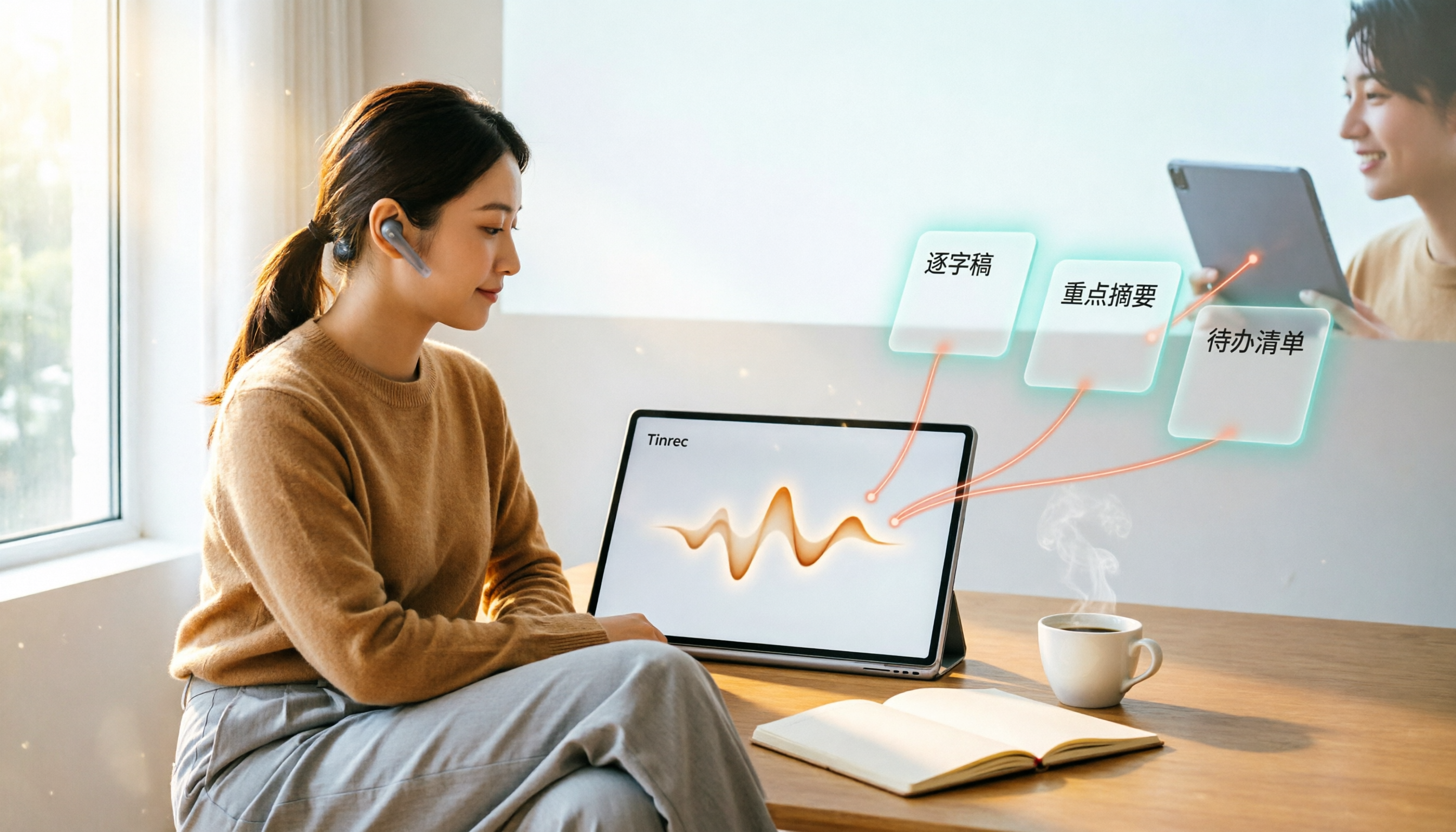
Turn recordings into transcripts and summaries in minutes
Upload audio or video for multilingual transcription, AI notes, and action items
Most People Get It Wrong on the First Step When Trying to Capture Web Audio
When many people see a webpage playing music or a broadcast, their first reaction is to "look for a download button." But honestly, most websites today won't give you that button at all in order to protect copyright.
So some people resort to holding their phone up to the speaker to record. The audio quality is poor, there's background noise, and turning it into text later is a disaster.
Another common misconception is thinking that pressing F12 to find the audio URL will let you save it. This trick only occasionally works for "MP3s loaded in one go"; many websites now use segmented streaming, so when you open developer tools you'll only see a bunch of requests with no audio URLs, and you can't capture anything.
If you just want to "keep the sound," any recording method can do it. But if your goal is actually to "listen later, find key points, and turn it into text," then the way you choose a tool is completely different.
This article tests several common web audio capture methods and shares my choices.
Before Capturing Web Audio, Understand These 4 Key Points
1. Are you capturing the "current tab" or the "entire computer's sound"?
Browser extensions usually only capture audio from the "current tab," which is clean and free from interference from other sounds.
Desktop recording software mostly captures "system sound"—the sound from webpages, communication apps, and players all comes in together.
Think clearly about which one you want. For capturing background music, the former is enough; for handling online meetings or courses, the latter is more practical.
2. After capturing, how do you plan to use it?
This is the point I think is most easily overlooked.
If you just want to save the audio file, any tool will do. But if your goal is to "turn a foreign-language broadcast into a transcript" or "save an online course so you can search for key points," then a tool that only "saves MP3s" will cost you more time in the next step.
So I usually ask myself first: is this audio file for "collecting" or for "using"?
3. Is there a time limit?
Many browser extensions, due to memory limits, can only record for about 20 minutes by default; beyond that you have to start over.
Desktop software usually doesn't have this problem, but you need to watch your hard drive space.
If you're capturing a two-hour online lecture, this point is crucial.
4. Are the supported platforms and devices sufficient?
Today you have a meeting on a Windows laptop, tomorrow you want to organize on a Mac; or you temporarily use your phone to record an idea.
If a tool is tied to a single device or a single browser, it will feel clunky. Cross-platform support isn't noticeable in daily use, but you realize how important it is when you really need it.
Tinrec — Our Most Recommended Capture and Organization Solution After Testing
Tinrec is a meeting notes tool that combines recording, transcription, and AI organization. It supports iOS, Android, and web versions, and the desktop version can directly capture your computer's system sound.
The biggest difference from ordinary web recording tools is: others give you an audio file, Tinrec gives you data you can use directly.
First, capture. The Tinrec desktop version uses a "capture device system sound" approach and doesn't require inviting an extra meeting bot to join. This means when you play an online meeting, internet radio, or course video in your browser, it can directly record those sounds and simultaneously convert them into a transcript.
It doesn't rely on the hit-or-miss method of "grabbing the audio URL"; instead, it directly processes the sound your ears hear, and it won't fail on streaming websites. Besides system sound, you can also import existing audio and video files.
Next, after capture—this is where Tinrec truly pulls ahead. After recording or importing, it automatically generates summaries, chapters, and to-do items.
You can ask questions directly about the content, such as "What are the three key points mentioned in this course?" It will answer based on semantic understanding, rather than throwing a bunch of keywords at you. It also supports real-time translation and original text, translated text, and bilingual comparison.
Stop organizing recordings by hand
Upload audio or video and automatically get a transcript, summary, and action items
Our test method was: playing a roughly 5-minute mixed Chinese-English clip in a browser (Windows 11, Chrome, indoor environment in June 2026), and recording the system sound through the desktop version. The resulting transcript connected naturally at the Chinese-English transitions, and the summary accurately captured the three key points the speaker wanted to convey.
Note that actual recognition performance can still be affected by recording quality, background noise, accents, and multiple people speaking at the same time; the official accuracy rate cannot be guaranteed.
There are roughly three advantages:
- Directly becomes usable data after capture: transcript, summary, chapters, and to-dos all in one go, no need to organize manually.
- Supports multiple sources and languages: besides system sound, you can import audio and video files, and some public web link content can also be processed, with real-time translation support.
- Cross-platform and collaborative: available on iOS, Android, and web; the team version can also store recordings centrally in a team space, shared for members to view, with role and seat management for usage permissions.
Limitations should also be stated honestly. The free version provides a basic quota, suitable for trying it out first; stable users with large amounts of recording every week will need to move to the Pro plan.
In addition, the team version currently focuses on team-level sharing and does not provide fine-grained permissions down to individual files.
Who is it for? If your purpose in capturing web audio is not just to save it, but to convert it to text, find key points, and even do follow-up organization, Tinrec is the smoothest workflow I've tested so far.
Besides Tinrec, What Other Options Are There?
Chrome Audio Capture: A Chrome extension that can capture audio from the current tab and save it as MP3 or WAV. Quick to install, simple to use, only captures the current tab, and won't be disturbed if your computer plays other music at the same time. Note that by default it can only record for up to 20 minutes, and what it gives you is just an audio file—no transcript, summary, or AI Q&A. If you just want a clean web recording, it's very useful.
Audacity: A free, open-source recording and editing software that can record system sound and also edit and mix. Its strength is post-production, but you need to set the audio source before recording, which is a bit of a barrier for beginners. It also only gives you an audio file, with no transcription or summary, and it's inconvenient to use across devices.
OBS Studio: A powerful recording and live-streaming software that can also capture audio. It has many features but is also the most complex, more suitable for people already using it for live streaming or recording. If you just want to capture web audio and organize it into data, it's overkill.
Pitfall Guide: The 4 Most Common Mistakes When Capturing Web Audio
Pitfall 1: Assuming every webpage has a download button. Most websites don't provide one, especially for streaming content. Instead of searching everywhere for a button, just record the system sound directly—it's much more reliable.
Pitfall 2: Trying to dig out the audio URL with F12. This trick only works when the audio file loads in one go. Many websites now use segmented streaming, so in developer tools you only see requests with no audio URLs—a waste of time.
Pitfall 3: Only focusing on recording, without thinking about later organization. Recording a bunch of audio files but never listening back is as good as not recording. Before capturing, think clearly about the purpose; if it includes "finding key points, taking notes," choose a tool that can also transcribe.
Pitfall 4: Ignoring the limits of long recordings. Browser extensions often have a 20-minute cap and will stop beyond that. To record long content, remember to choose a desktop tool without time limits.
Conclusion: Which One Should You Actually Choose?
In one sentence: if you just want a segment of web audio, Chrome Audio Capture is enough; but if what you want is data that's "ready to use after capture," Tinrec is currently the most hassle-free choice.
Route by scenario:
- Want to transcribe, find key points, and take meeting or course notes after capture → Tinrec (connects capture, transcription, summary, and Q&A into one workflow)
- Need to switch between phone and computer → Tinrec (iOS, Android, web)
- Chinese-English mixed or multilingual content → Tinrec (supports real-time translation and bilingual comparison)
- Need to turn recordings into shared team data → Tinrec (team version has team space, member and seat management)
- Only need a short sound effect and don't want to learn a new tool at all → Chrome Audio Capture (the only exception, free and lightweight)
I suggest starting with the Tinrec free version. Use the basic quota to record a short web audio clip and see if the transcription meets your expectations. If it works well, then consider upgrading—no need to pay from the start.
References
- Web Recording Tutorial: 4 Recommended Recording Tools to Easily Record Website Audio - EaseUS
- Chrome Audio Capture Web Recorder, Capture All Audio Output from a Webpage (Extension)
- Chrome Audio Capture Web Recording + Music Capture, Save and Download Audio as MP3
- Chrome Audio Capture Web Recorder, Capture All Audio Output from a Webpage (Extension) - Xiaoyao's Nest | Zi Media
- r/howto on Reddit: How to download an audio file from a page with no download option?
Turn every recording into actionable outcomes
Get 60 free transcription minutes when you sign in. No credit card required.
Related Reading
You might also like

4 Computer Recording Tools Tested and Compared in 2026: Why Your Screen Recording Has No Sound (It's Probably Not Your Microphone)
When your computer recording has no sound, it's usually not a broken microphone—it's that system audio wasn't captured. This article breaks down 5 common causes, 4 key factors for choosing a tool, and compares Tinrec, Granola, TurboScribe, and PLAUD for computer recording, so you can figure out whether to fix your settings or switch tools.

2026 AI Meeting Recorder Comparison: Why Tinrec Beats Notta for Students
A senior information management student tests AI meeting note tools including Tinrec and Notta across lectures, group discussions, and finals prep. This student-focused review breaks down free tiers, bot-free recording, post-meeting AI processing, and export options to find the best fit for students on a budget.

4 Best Cantonese Speech-to-Text Tools in 2026: Free Version Comparison
We tested 4 Cantonese speech-to-text tools in 2026, comparing free tiers, Cantonese and mixed Chinese-English recognition, post-meeting organization, and team collaboration. Tinrec stands out as our top pick for Chinese-language meetings, bot-free online meeting recording, AI Q&A, and team spaces.
2 Recording Tools Compared in 2026: Understand 'Can You Record Anyone?' Before Choosing
Students often want to record classes, group discussions, or phone calls for self-protection, but 'can you record anyone?' depends on whether you're part of the conversation, your purpose, and how you use the recording. This article explains key Taiwan recording laws from a student's perspective, then compares Tinrec and PLAUD Note across entry cost, recording scenarios, post-meeting organization, old file search, and team sharing, with final recommendations for students.

2026 Comparison of 3 Recording Meeting Note Tools: Which Saves the Most Time with Bot-Free Recording, AI Q&A, and Team Knowledge Retention?
2026 real-world comparison of recording meeting note tools, covering bot-free meeting capture, Chinese and mixed Chinese-English experience, post-meeting organization, team knowledge retention, and pricing quotas. Compares Tinrec and Otter.ai, and explains the positioning of similar tools like Notta, helping you choose the right meeting notes workflow for your needs.

2026 Comparison of 4 Meeting Transcription Tools: Chinese Meetings and Team Knowledge, Which Free Version Is Enough?
How to choose a meeting transcription tool? This article starts from the decision point of "who will use this record later," first outlining 4 key selection criteria, then comparing Tinrec, Otter.ai, Notta, and Granola on Chinese transcription, bot-free online meeting recording, AI Q&A, team knowledge retention, and free quotas, and finally provides selection advice based on use cases.

Free Audio-to-Text AI Options in 2026: 5 Tools Compared
Audio-to-text AI is more than just converting sound into words. This article reviews free options in 2026 and the differences among five types of tools, covering core capabilities like real-time transcription, bot-free meeting recording, AI summaries, action item extraction, and AI Q&A. It uses Tinrec as a hands-on example for meetings, interviews, and team knowledge retention, with five key buying considerations and FAQs.

Tinrec vs PLAUD Note 2026: 5-Dimension Comparison — Which Free AI Meeting Notes Solution Is Worth It?
How do you choose a free AI meeting notes tool? This article compares Tinrec and PLAUD Note across 5 dimensions: free quota, meeting capture method, post-meeting organization, Chinese language performance, and team collaboration. It also breaks down practical uses of AI transcription, summaries, action item extraction, and AI Q&A, plus the differences between personal and team plans.

2026 AI Meeting Notes Comparison: Tinrec vs Otter.ai vs Notta for Chinese-Speaking Teams
How to choose an AI meeting notes tool? This article compares Tinrec, Otter.ai, and Notta across five dimensions: meeting capture method, Chinese language processing, post-meeting outputs, team governance, and pricing/quotas. Based on official public feature and pricing information, it helps Chinese-speaking teams quickly determine which tool best fits their workflow.