

Turn recordings into transcripts and summaries in minutes
Upload audio or video for multilingual transcription, AI notes, and action items
4 Windows 11 Recording Tools Compared in 2026: Do Built-in Features Cut It for Meeting Transcripts and Summaries?
You Only Realize You Missed the Key Points After the Meeting — The Hard Part of Windows 11 Recording Was Never Just Pressing Record
"Make a note of this — we'll need it for the meeting minutes." Halfway through the meeting, your manager suddenly turns to you. You fumble to open your laptop, only to find the built-in Sound Recorder is picking up just your microphone — the other end of the online meeting isn't coming through at all. You switch to Game Bar on the fly, but end up with a video file, and you still have to replay it line by line to write up the notes.
Another scenario: an interview. The speaker talks for 40 minutes, and all you have is an audio file. You need a transcript, you need to pull out key points, you need to list follow-up action items — all of which takes twice as long to process. Class recordings, client calls, podcast material — they're all the same thing. There's no shortage of recording tools; what's missing is what to do after you hit stop.
This article breaks down four common approaches on Windows 11: the built-in Sound Recorder, Xbox Game Bar, Stereo Mix with free software, and Tinrec, a tool built specifically for meetings and interviews. First we'll cover how to choose, then who each option is best for.
Before Choosing a Windows 11 Recording Method, Understand These 5 Key Points
1. Do you need to record your microphone, or the sound coming out of your computer? This is where Windows 11 recording most often gets stuck. Many people hit record only to find they're capturing just their own voice — the other side of the online meeting isn't coming through at all. To record system audio, you need something like Stereo Mix, or a tool that can capture system sound directly.
2. After recording, do you want an audio file or usable data? If you're just jotting down a quick voice memo, an audio file is enough. But for meetings, interviews, or classes, the real time sink is turning that audio into readable text. Whether you can get a live transcript, auto-generated summaries, and action items determines whether you'll spend 10 more minutes or another hour afterward.
3. Can the transcript be searched? Can you jump to timestamps? A good transcript isn't just readable — it lets you quickly search for keywords and click a timestamp to jump back to the recording for verification. When you need to confirm "who said what and when," this matters more than anything else.
4. Cross-device access and file storage location. You record on your computer today, but tomorrow you want to listen on your phone, or continue writing meeting notes in Notion. If the tool locks content to a single device, organizing everything later becomes a real pain.
5. Free tier limits and team collaboration. For occasional personal use, the free version is usually enough. But once a team is involved, you need to consider who owns the meeting data and how it gets handed over when a member leaves. This is no longer a "recording" problem — it's a data governance problem.
Tinrec — The Top Choice for Meeting and Interview Recording After Real-World Use
Tinrec is an AI meeting notes and collaboration tool for individuals and teams. It doesn't just convert audio to text — it turns meeting recordings into searchable, summarizable, queryable, exportable, and further editable data.
No need to invite a bot into the meeting. The worst part of online meetings is having to invite an extra account into the room. Tinrec's desktop app takes a different approach: it directly captures your computer's system audio to handle sound from Zoom, Google Meet, Microsoft Teams, Webex, and other online meetings — no extra meeting bot required, and participants won't see an extra name on the list. To be precise here — this isn't "automatically joining all meetings"; the user actively opens the Tinrec desktop app to start recording.
Live transcript while recording, with summary and action items when you're done. The transcript generates in real time during the meeting. Afterward, AI organizes a summary, chapters, and action items — who committed to what, what's next — laid out for you directly. For cross-language meetings, you can enable real-time translation and view in original, translated, or bilingual mode.
Post-recording AI Q&A is where it differs most from ordinary recording software. You can ask directly: "What was the conclusion about the budget in the last meeting?" It answers based on semantic understanding, rather than dumping a list of keyword search results. The same data can be further turned into reports, tables, and documents, or exported to Notion, Google Docs, OneNote, Dropbox, and other tools for continued use.
In real-world use, Tinrec's advantages come down to three things:
Stop organizing recordings by hand
Upload audio or video and automatically get a transcript, summary, and action items
- No extra hardware, no disruption to the meeting flow. No need to buy a voice recorder, no need to invite a bot into the meeting — just open the desktop app to handle online meetings. The mobile app is great for in-person interviews and on-the-go use.
- What you get after recording is work-ready data. Transcript, summary, chapters, action items, and mind map all in one — what you save isn't recording time, it's post-meeting organization time.
- Meeting data can accumulate as a team asset. The team plan offers a dedicated team space where meeting data belongs to the team. Members can view and reuse past meetings, while admins can manage roles, seats, sharing permissions, usage, and audit logs.
Limitations should be stated honestly too. First, the free version provides a basic quota — good for trying it out. Long-term, high-frequency use will require a paid plan; please refer to the official purchase page for actual quotas and pricing. Second, no AI transcript should be treated as 100% accurate — recording quality, ambient noise, accents, overlapping speakers, and technical jargon all affect recognition. For important content, it's best to replay and verify using the transcript's timestamps.
If your meetings need written records, you frequently need to look back at "who said what," your content is in Chinese or mixed Chinese-English, or you're a team sharing meeting data, Tinrec will save you a significant amount of time compared to a plain recording tool.
Besides Tinrec, What Other Options Are There on Windows 11?
Windows 11 Built-in Sound Recorder Free and ready out of the box — good for solo voice memos, class recordings, or reading practice. But its purpose is simply "capture the audio." It won't transcribe for you, and it has no summaries or action items. What you get is an audio file, and you'll still have to replay it yourself to write meeting minutes. Tinrec does what it can't: live transcription with auto-generated summaries and action items.
Xbox Game Bar (Win+G) No installation required — designed primarily for game capture and audio, and it can also record sound playing from your computer. The limitation is that it outputs a video file and doesn't support direct audio editing — you'll need another tool to extract just the audio. Using it to record meetings means extra steps for post-processing. Tinrec fills exactly that gap: it directly produces transcripts, summaries, and action items, and can export to your existing workflow.
Stereo Mix + Free Open-Source Software Stereo Mix records what comes out of your computer's speakers or headphones — "whatever you hear is what you record." But this option is disabled by default on most Windows computers; you'll need to enable it in sound settings first. Paired with free open-source tools like Audacity, you can record and do basic editing — good for podcast material, music clips, or DIY post-production. However, it still only handles "recording." Transcription, highlighting key points, and cross-device collaboration are all on you. Tinrec covers that ground with Chinese transcripts, AI Q&A, and team spaces.
Pitfall Guide: The 4 Most Common Windows 11 Recording Mistakes
Pitfall 1: Assuming that pressing record will capture the other end of the meeting. The built-in Sound Recorder mostly captures only your microphone — remote participants' voices won't come through. Either enable Stereo Mix or switch to a desktop tool that can capture system audio. And always do a 10-second test recording first.
Pitfall 2: Only checking "did it record?" without thinking about "how will I use this later?" A one-hour meeting recording takes an hour to replay. If this recording is for meeting minutes or action items, choose a method that produces transcripts and summaries from the start — don't patch it together afterward.
Pitfall 3: Files scattered everywhere. One copy on your desktop, one on your phone, another sent via messaging app — and in the end, no one knows which version is the latest. Meeting data is best stored in one place, and make sure it belongs to the team, not an individual.
Pitfall 4: Treating AI transcripts as verbatim-accurate. Recording quality, noise, accents, people talking over each other, and technical jargon all affect recognition. The right approach is to treat it as "a draft that saves you 90% of typing time" — key numbers and commitments still need to be verified by replaying the audio.
One more reminder: before recording, make sure you've informed participants and obtained consent, and comply with relevant regulations in your area.
Summary: Which Windows 11 Recording Method Should You Actually Use?
| Your Scenario | Recommended Approach |
|---|---|
| Quick voice memos, solo practice | Windows 11 built-in Sound Recorder (free, sufficient) |
| Recording game footage, or temporarily capturing computer playback | Xbox Game Bar |
| Recording system audio for podcasts or material post-production | Stereo Mix + free tools like Audacity |
| Online meetings, interviews — need transcripts and meeting minutes | Tinrec (desktop app records without a bot, plus transcripts, summaries, action items) |
| Team needs to share meeting data, manage members and usage | Tinrec Team Plan (team space, roles and seats, usage and audit) |
Plan selection can be based on usage frequency: for occasional recording organization, start with the free version; for short-term intensive meetings or interviews, consider a weekly pass; for steady weekly needs, Pro is a good fit; for long-term accumulation of recording data, the annual plan has a lower monthly equivalent. The team plan currently offers a 7-day trial for first-time eligible users, 1 free seat, and 300 minutes of shared team import quota. Paid seats are USD 29.80/seat/month, or USD 199/seat/year (about USD 16.58/month). Each paid seat provides 2,000 minutes of shared team import quota per month. Real-time recording under an active plan is currently not deducted by the minute. Actual pricing and benefits are subject to the official purchase page.
Don't rush to pay: pick a meeting you've actually had, run a test, and see if the transcript recognition quality and summaries meet your needs before deciding whether to upgrade.
References
- Master Recording in Windows 11: A Guide to Using the Built-in Sound Recorder
- [Free] 4 Ways to Record Audio on Windows, Supporting Win 10/11 - EaseUS
- How to Record Audio on Windows 11? - Superman Marketing
- How to Record Computer Audio on Windows 11 Using Built-in/Third-Party Software - EaseUS
- 4 Ways to Record Computer Audio Decoded! Simple and Easy, Record Computer Sound Effortlessly [2026 Latest]
Turn every recording into actionable outcomes
Get 60 free transcription minutes when you sign in. No credit card required.
Related Reading
You might also like
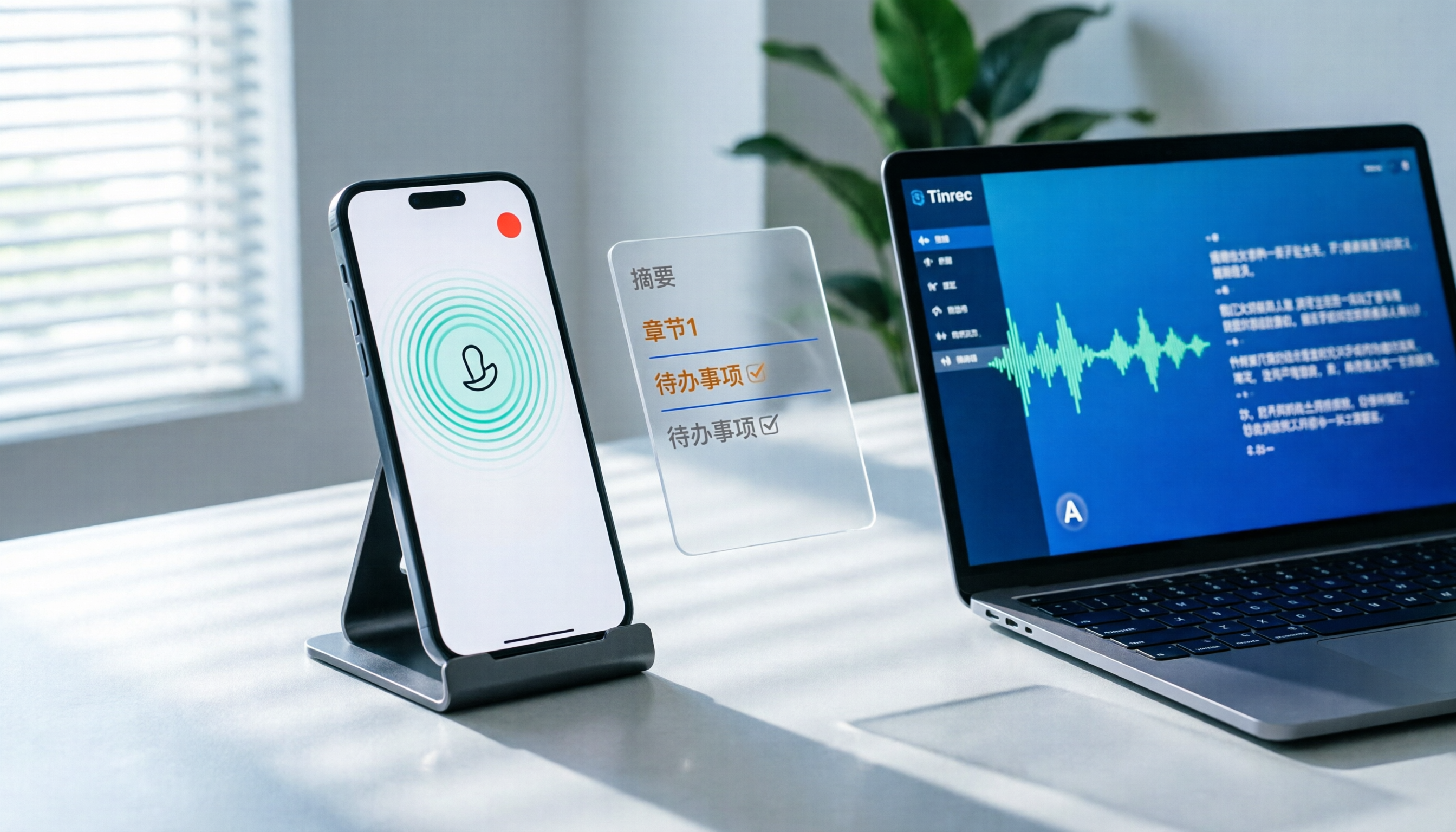
How to Record LINE Calls on iPhone in 2026: 3 Steps + Tinrec Auto Transcription
LINE doesn't have built-in call recording, but iPhone users can record LINE calls using the system's 'Local Capture' feature in iOS 26 or later. This guide shows you how to record in 3 steps, avoid the common mistake of not enabling speakerphone, and use Tinrec to turn recordings into transcripts, summaries, chapters, and action items. You can also ask AI questions to quickly find key points, plus 5 tips for choosing a call recording tool and FAQs.

6 Best iPhone Recording Apps in 2026: Free vs Paid Comparison
2026 update: A side-by-side comparison of 6 iPhone recording apps, from built-in Voice Memos and Recorder Pro to Tinrec, Notta, Otter.ai, and TurboScribe. See free tiers, pricing, and best use cases at a glance, plus practical recommendations for mid-level managers.

4 Noise-Canceling Recording Tools Tested for 2026: How Much Can AI Rescue Unusable Audio?
The low hum of an office air conditioner, background chatter in a café, or static during an online meeting often marks the beginning of a transcription disaster. This guide covers 5 key buying factors—from mic techniques to post-production noise reduction and AI transcription—and compares Tinrec, PLAUD, Otter.ai, and Notta to help you find the most time-saving setup.

5 iPhone Recording Methods Compared in 2026: Voice Memos, Action Button, and AI Meeting Notes — Which Should You Choose?
iPhone's built-in recording is more useful than you think: Voice Memos, one-tap recording with the Action Button, Back Tap quick launch, and iOS 18.1 call recording — learn how to set up all four methods. This article also covers audio quality, stereo, and spatial audio settings, and compares post-recording organization solutions, explaining how Tinrec differs in Chinese meeting transcription, AI Q&A, and team collaboration to help you choose the smoothest recording workflow.

Recording Meetings in 2026: 5 Scenarios Compared — What Protects You and What Could Be a Crime
Is recording a meeting illegal? This article compares five common scenarios against Taiwan's Criminal Code Article 315-1, the Communication Security and Surveillance Act, and the Labor Standards Act to identify recordings that protect you, common pitfalls, and how to turn recordings into usable transcripts, summaries, and action items with Tinrec.

2026 iPhone Call Recording Showdown: Tinrec vs PLAUD Note — Which One Fits Your Workflow?
iPhone has built-in call recording starting with iOS 18.1, but the real time sink is turning those recordings into transcripts, summaries, and action items. This article first answers whether you can record calls on iPhone using official sources, then compares Tinrec and PLAUD Note across five dimensions: hardware requirements, meeting scenarios, post-call organization, Chinese-language experience, and team collaboration, so you can decide which approach better fits your workflow.
3 iPhone 17 Screen Recording and Post-Meeting Solutions Compared: From Control Center Setup to Tinrec
Screen recording on iPhone 17 isn't hard—it's what comes after that's tricky. This guide walks you through adding Screen Recording to Control Center, enabling the microphone, and stopping and saving your recording. Then we compare built-in screen recording, Dual Capture, and Tinrec for post-meeting organization, so you can see which fits your workflow.

Tinrec vs Notta 2026: 5-Dimension Comparison of AI Meeting Assistants
A mid-level manager overseeing a 10-person team and 15 weekly meetings puts Tinrec and Notta head-to-head across 5 dimensions: recording methods, Chinese and mixed-language experience, post-meeting workflow, team governance, and plan quotas, with honest limitations and use cases.

4 Cantonese Speech-to-Text Tools Tested for 2026: Which Saves More Time on Transcripts and AI Meeting Notes?
The hardest part of a Cantonese meeting isn't understanding it—it's turning what you heard into written form. This hands-on comparison of Tinrec, Notta, Granola, and TurboScribe examines their differences in Chinese and Cantonese meeting transcription, post-meeting summaries, AI Q&A, and team collaboration. We break down each tool's free tier, pricing, and limitations, plus key buying factors and pitfalls to avoid, so you can pick the one that truly saves you cleanup time.