

Turn recordings into transcripts and summaries in minutes
Upload audio or video for multilingual transcription, AI notes, and action items
Many people's first misconception is thinking Word is only for typing, not for speaking input. The second misconception is even more common: assuming that turning on Word's dictation will automatically turn an entire meeting into a transcript.
Actually, neither is quite right. Word's dictation can indeed convert speech to text, but it's more like "speaking instead of typing" rather than "automating meeting notes." Understanding this difference helps you know when to use it and when to switch tools.
Can Word do speech-to-text? Yes, but most people only use half of it
First, the answer: yes. Microsoft 365's Word has a built-in "Dictate" feature that uses a microphone and a stable internet connection to convert speech to text. You can also use voice commands to add punctuation, bold, italics, underline, and even insert comments.
It's best for real-time dictation writing—you speak a sentence, it types it. It's great for drafting outlines, writing emails, or taking quick notes.
But note: its dictation is real-time input, not for uploading existing audio files to transcribe. It can't help with the recording left after a meeting.
Also, language and region support varies by version. It's best to check if your version supports the Chinese language you want to speak. It also won't summarize, extract action items, or save content to a team database.
In short: Word solves "replacing typing with speaking," while AI meeting note tools like Tinrec solve "turning an entire meeting into usable data." They address different problems.
What can Tinrec do for you? Three practical scenarios
Scenario 1: Get meeting notes within 5 minutes after the meeting A two-hour meeting used to take another hour to organize. With Tinrec, the transcript is generated in real-time during the meeting, and after it ends, summaries, chapters, key points, and action items are already organized. You can see who is responsible for what and when it's due at a glance.
Scenario 2: No need to invite a bot to online meetings Tinrec's desktop version directly captures your computer's system audio. When handling online meetings on Zoom, Google Meet, Microsoft Teams, or Webex, no extra meeting bot needs to be on the participant list.
Scenario 3: Rescue historical recordings Have a bunch of interviews or class recordings on your phone? Upload the audio or video files, and Tinrec can transcribe them, then generate summaries and action items—no need to listen from the beginning again.
What are Tinrec's core capabilities?
Real-time recording to text: Transcribes as you record, not after. During meetings, you can follow along to ensure no key points are missed—especially useful for in-person meetings and interviews.
Bot-free online meeting recording: The desktop version captures system audio without adding extra participants. Note that this is initiated by the user, not automatically joining all meetings on your calendar.
AI summary and chapters: Not just condensing the transcript into a paragraph, but structured organization—meeting topic, discussion conclusions, action items, and responsible parties listed separately. Long meetings can be quickly reviewed.
AI Q&A: After transcription, you can ask questions directly, such as "Who mentioned the budget in the meeting?" or "What was the customer feedback?" It answers based on semantics, so you don't have to scroll through the entire transcript.
Real-time translation and bilingual view: For cross-language meetings, you can view the original, translation, or bilingual content while recording.
Post-meeting output and export: Generate reports, tables, and documents, and export to common tools like Notion, Google Docs, OneNote, Dropbox—integrating back into your workflow.
Practical use cases
Daily meetings and weekly stand-ups: Open Tinrec on your computer, and after the meeting you have transcripts, summaries, and action items. For those with more than three meetings a week, the time saved on organizing is most noticeable.
Stop organizing recordings by hand
Upload audio or video and automatically get a transcript, summary, and action items
Customer interviews and sales conversations: Customer needs, concerns, and commitments are all in the transcript. Use AI Q&A to extract key points afterward—more reliable than recalling from memory.
Classes and lectures: Record live and transcribe in real-time. Review with summaries after class, and go back to the transcript's corresponding timestamp when you need to cite a section.
Content creation and interview organization: Interview recordings are directly transcribed, paired with AI summaries and chapters, making it much faster to find material when writing.
Team collaboration: If meeting data needs to be shared, Tinrec's team version provides a separate team space. Meeting data belongs to the team, and members leaving won't take data with them. Admins can manage members, roles, seats, view usage and audit logs, and improve recognition of technical terms through team hotwords.
5 things to consider when choosing a speech-to-text tool
1. Can it handle existing recordings: Many people only check if real-time dictation works well, but forget that their most common task is post-meeting organization. Tinrec supports uploading audio and video files, so historical recordings can be transcribed too.
2. Is it bot-free recording: Meeting bots join as participants, which isn't convenient in some situations. Tinrec's desktop version captures system audio directly, no extra bot needed.
3. Can you use it after transcription: Just getting a transcript usually means more time organizing. Tinrec generates summaries, chapters, and action items directly, plus AI Q&A and export to other tools.
4. Chinese and multilingual support: Actual performance is affected by recording quality, noise, accents, overlapping speakers, and technical terms. It's best to test with your own recordings. Tinrec covers Chinese and multilingual meetings and offers team hotword management.
5. Does the team need to use it together: Individuals can start with the free version's basic quota. If the whole team needs to share meeting data, check if the tool offers team spaces and member/seat management. Tinrec's team version centralizes these in one space and provides usage analytics and audit logs.
FAQ
Q: Is Word's built-in dictation free? Word's dictation is part of Microsoft 365. The actual available versions and plans are subject to Microsoft's official documentation. Microsoft also offers a free Word web version; check the official page for feature details.
Q: Can I just use Word dictation without other tools? If your need is "speaking to type," that's enough. But if you want to turn meeting recordings into transcripts, summaries, and action items, Word dictation can't handle existing audio files, nor does it have post-meeting organization or team collaboration. Tinrec would be more suitable.
Q: Can Tinrec record Zoom, Google Meet, Teams meetings? Yes. Tinrec's desktop version handles these platforms by capturing computer system audio, without a meeting bot. Note that recording must be initiated by the user; it currently doesn't automatically join all meetings on your calendar.
Q: Is Tinrec's free version enough? The free version offers a basic quota, suitable for trying out recording, importing, summarizing, and transcription. For short-term intensive use, consider a weekly pass; for steady weekly needs, a Pro monthly or annual plan is better; for long-term accumulation of recording data, the annual plan is more cost-effective.
Q: What's the difference between team and personal versions? Personal version data is managed by the individual account; the team version is a separate collaborative space where meeting data belongs to the team, with added capabilities like members, roles, seats, sharing benefits, usage analytics, and audit logs. Members without a seat can still view, play, and read team data, but operations like uploading, editing, importing/exporting require a seat.
Q: Do I need consent to record? Yes. Recording and transcription involve others' privacy and local regulations. Check relevant rules before recording and obtain participant consent when necessary.
Conclusion
Word can do speech-to-text, no doubt; its dictation is convenient for real-time dictation writing. But if you're dealing with meetings, interviews, or classes that need post-meeting organization, dictation alone isn't enough.
Tinrec fills that gap: from recording, transcript, summary, action items, to AI Q&A, export, and team sharing. To feel the difference, start with the free version's basic quota and record a meeting to try it out.
References
- Dictate your documents in Word - Microsoft Support
- Dictate your documents in Word | Microsoft Support
- Use free Word online to recognize Traditional Chinese speech dictation, automatically insert punctuation
- Office Word free speech-to-text, no more typing transcripts slowly - Northern Feather Forest
- How to turn on voice typing and dictation in Word | Speechify
Turn every recording into actionable outcomes
Get 60 free transcription minutes when you sign in. No credit card required.
Related Reading
You might also like

4 Audio-to-Text Tools Tested and Compared in 2026: Can Google Docs Really Transcribe Audio Files?
Can Google Docs really turn audio files into text? This article tests and compares 4 audio-to-text methods, breaks down how Google Docs voice typing works and the setup barriers of virtual audio cables, and explains how Tinrec differs with bot-free online meeting recording, AI summaries, and Q&A, helping you choose the right tool for your situation.

Word Voice Input in 2026: Built-in Dictation vs Windows Speech vs Tinrec for Meeting Notes
This guide covers how to use voice input in Word and common issues, from microphone permissions and internet connection to punctuation in Chinese and the differences between Word's built-in dictation, Windows speech recognition, and Tinrec for meeting notes. If you just want to type quickly in Word, built-in dictation is enough; if you need to organize meeting transcripts, summaries, action items, and team data, Tinrec is a better fit.

4 iPhone Recording to MP3 Tools Tested and Compared in 2026: Tinrec Makes Recordings Searchable and Queryable
iPhone Voice Memos record in m4a, so how do you convert them to MP3? This article covers 4 tested methods including online conversion services and mobile apps, then goes further to compare post-conversion organization needs, explaining how Tinrec turns meeting recordings into searchable, summarizable, and queryable data.
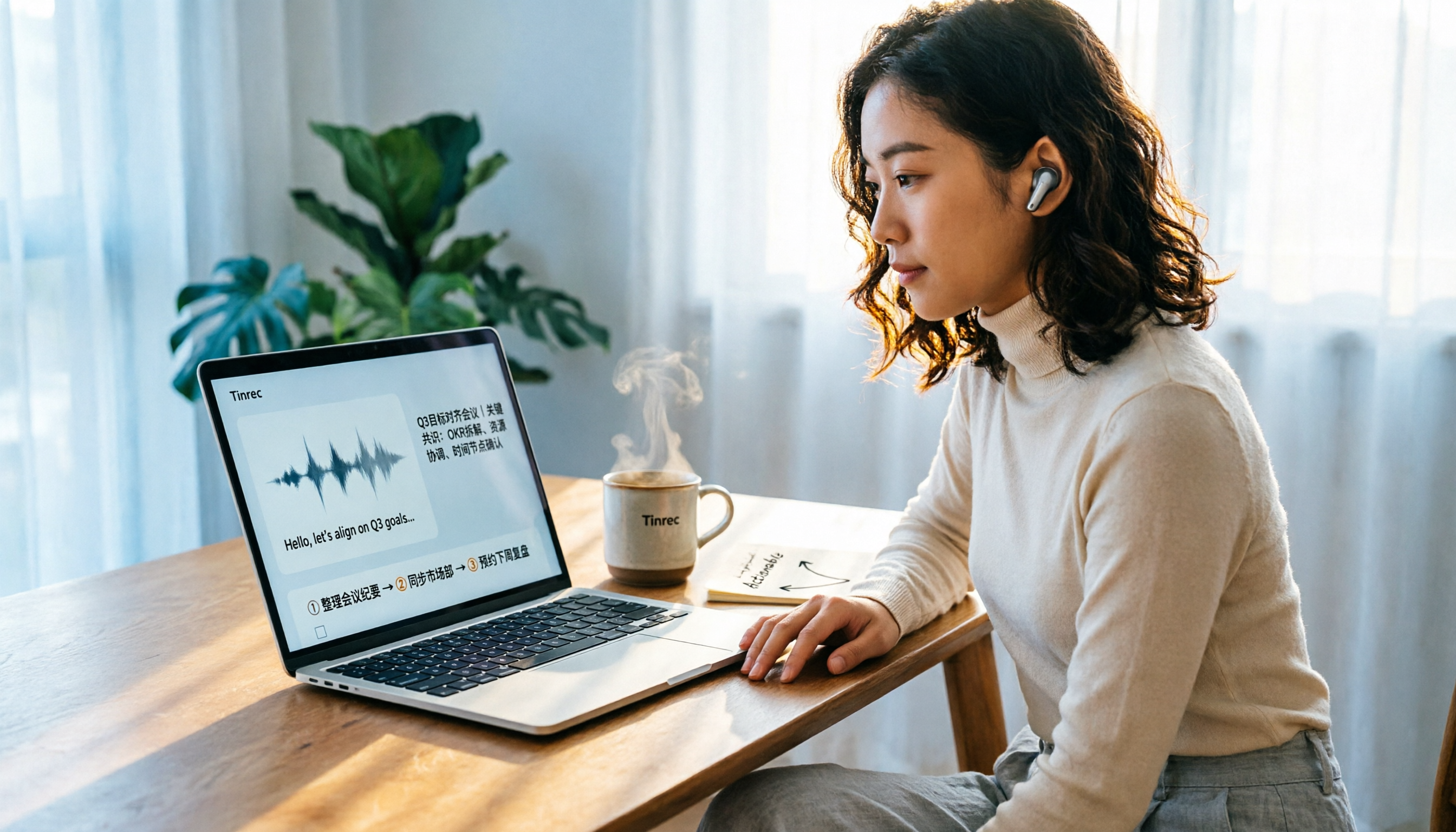
2026 Guide: Computer Speech-to-Text Without Meeting Bots + AI Summaries & Action Items
Computer speech-to-text isn't just turning on dictation. This article breaks down three common misconceptions, five key selection criteria, and compares Tinrec, Notta, Otter.ai, and Windows built-in dictation with practical tips and recommendations. Learn how to capture system audio on desktop to turn online meetings directly into transcripts, summaries, and action items.

Tinrec vs MyEdit 2026: 5-Factor Comparison for Online MP3 to Text
Looking for an online MP3 to text tool? This article covers common pitfalls and reviews 5 online speech-to-text options, including Tinrec, MyEdit, VEED, SpeakApp, and UniScribe. Compare features, free tiers, and use cases to find the best MP3 transcription tool for you.
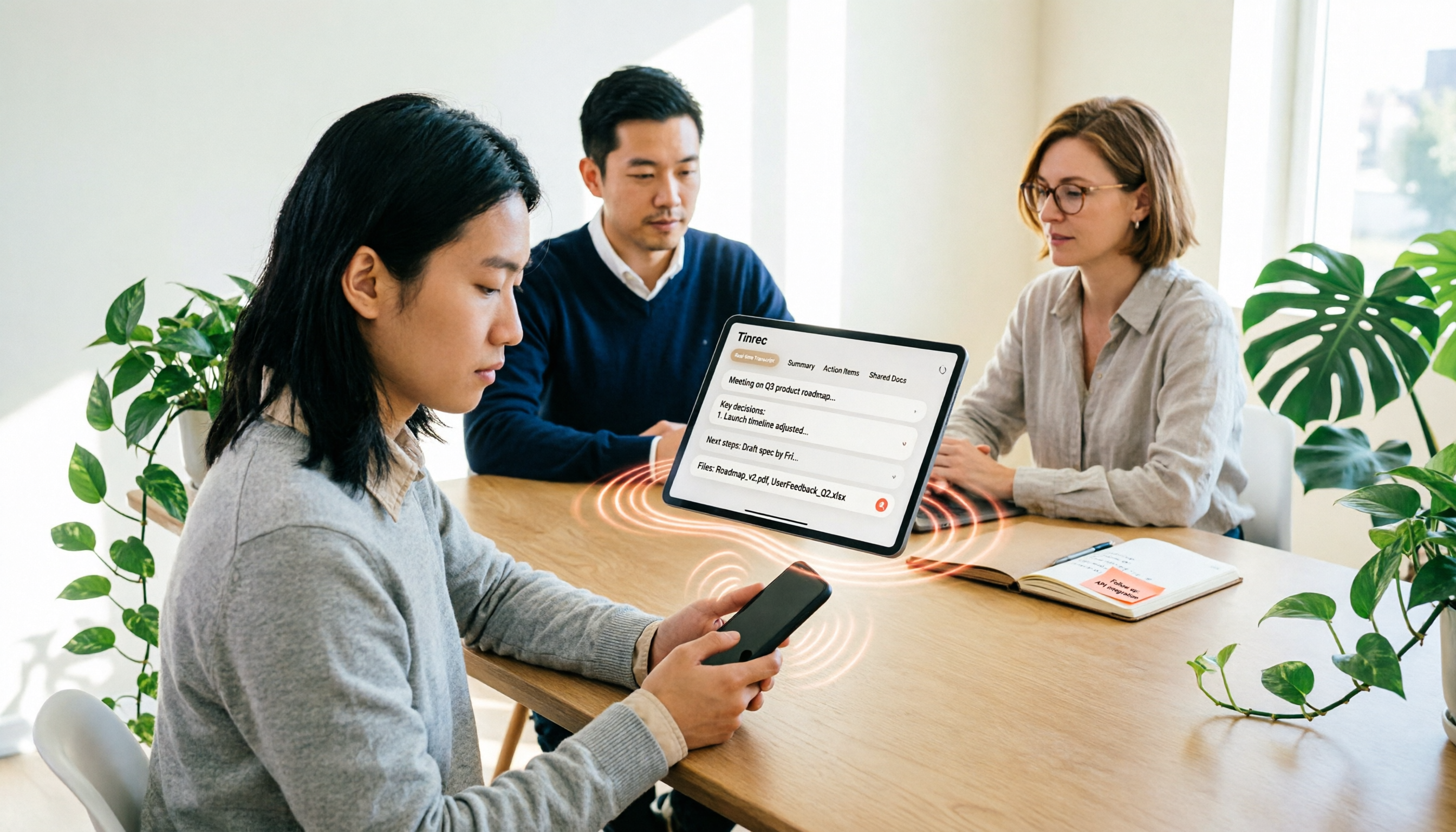
iPhone Voice to Text in 2026: Built-in Transcription vs. Tinrec — 3 Methods Compared
iPhone voice-to-text has two main paths: the built-in Voice Memos transcription, or AI meeting tools like Tinrec that turn transcripts into summaries, action items, and team data. This article compares them across 5 dimensions and includes step-by-step instructions for using the built-in transcription, helping you decide which approach fits your needs.

2026 Comparison of 4 Meeting Recording Tools: Which AI Meeting Notes App Saves the Most Time?
This hands-on comparison tests four meeting recording tools in 2026—Tinrec, Otter.ai, Notta, and PLAUD—evaluating Chinese recognition, bot-free recording, AI post-meeting organization, and team collaboration to determine which saves the most time on meeting notes.

5 Transcription Tools Tested and Compared in 2026: What Is a Transcript? How to Choose for Chinese Meetings?
What is a transcript? Starting from real-world selection needs, this article helps you understand the purpose of transcripts, the core capabilities of AI transcription tools, and key purchasing considerations. Using Tinrec as an example, it explains how bot-free meeting recording, AI summaries, action item extraction, and team spaces turn transcripts into searchable, collaborative, and actionable meeting data. Suitable for professionals and teams who need Chinese meeting notes.

5 Best Video to Text Tools in 2026: Which One Saves the Most Time for Chinese Video Transcription?
Video to text is more than just converting audio to words. This article explores three common pitfalls, explains what a truly time-saving workflow looks like, and demonstrates a complete process using Tinrec—from uploading videos and bot-free meeting recording to AI summaries, action item extraction, Q&A, and export. It concludes with a buying checklist and FAQs.