

Turn recordings into transcripts and summaries in minutes
Upload audio or video for multilingual transcription, AI notes, and action items
5 Best Video to Text Tools in 2026: Which One Saves the Most Time for Chinese Video Transcription?
Many people first look for a video-to-text tool because they're drawn in by the word "free." But after transcription, they discover Chinese errors everywhere, no punctuation, no paragraphs—and they end up having to re-listen to the entire recording.
Another common approach is the manual method: open the player, pause after each sentence, and type by hand. A 30-minute interview often takes two to three hours, and any distraction means rewinding and re-listening.
This article doesn't focus on spec sheets. Instead, it first clarifies the three most common pitfalls in video-to-text, then demonstrates a truly time-saving workflow using Tinrec.
The Three Most Common Pitfalls in Video-to-Text
Pitfall 1: Thinking a transcript equals completed organization. A transcript is just a string of text arranged by time—no summary, no conclusions, no assignments. What you can actually use for reporting or deliverables is an organized meeting record.
Pitfall 2: Assuming all free tools are similar. The biggest differences lie in Chinese recognition and handling mixed Chinese-English. Many tools perform well on pure English videos but start making errors on sentences like "We need to sync our OKRs next week."
Pitfall 3: Focusing only on transcription, not what comes after. Getting the text is just the first step. Whether it can automatically segment, provide timestamps, extract action items, and let you directly ask questions about the content—that's what truly determines whether you need to re-listen for an hour.
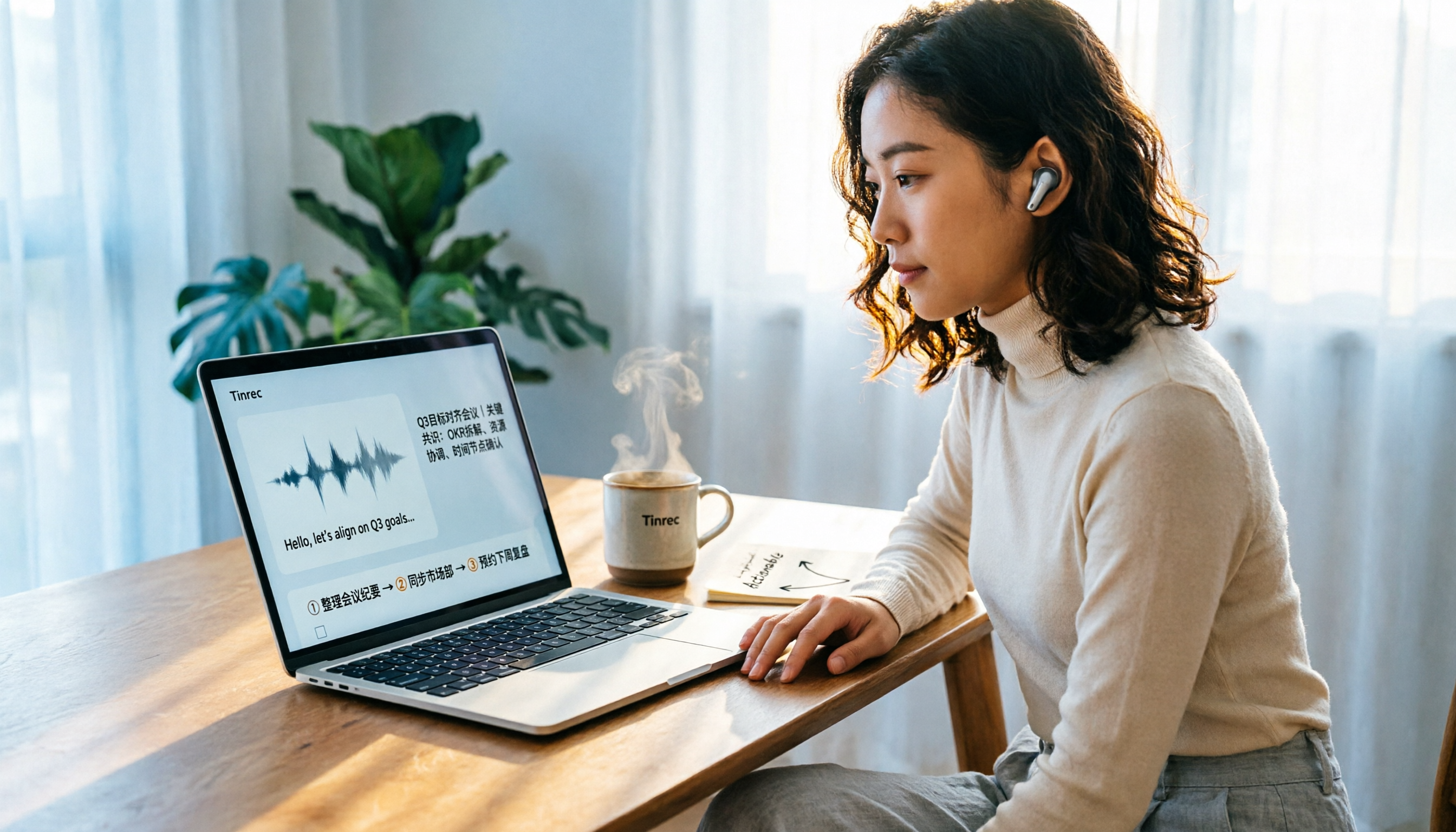
Take Tinrec as an example. It designs the workflow as "record or upload → transcribe → summarize and extract action items → Q&A and export," so almost all post-transcription organization happens within the same interface.
What Can Video-to-Text Do for You?
Scenario 1: After a meeting, the transcript and action items are already there. Previously, a two-hour meeting might require another hour to organize meeting notes. Tinrec's desktop version directly captures your computer's system audio, handling online meetings on Zoom, Google Meet, Microsoft Teams, Webex, and more—without inviting an extra meeting bot to join.
Scenario 2: Online courses and lectures become searchable notes. Upload course videos or audio to Tinrec. After transcription, you can directly ask follow-up questions via AI Q&A: "What three methods were mentioned in this course?" No more scrubbing through the timeline to find segments.
Scenario 3: Interviews and podcasts become written material. Interview transcripts, organized viewpoints, and quotable sentences are all generated at once, saving a round of work for subsequent writing or social media posts.
Scenario 4: Add subtitles to videos and repurpose content. With a timestamped transcript, cutting subtitles or rewriting into articles or posts is much faster than starting from scratch.
What Core Capabilities Should a Good Video-to-Text Tool Have?
1. Bot-free online meeting recording. Tinrec's desktop version captures the device's system audio. You don't need to pull an extra bot into the meeting room, and you don't have to worry about participants seeing an unfamiliar account.
2. Transcribe existing video files. In addition to live recording, Tinrec supports uploading audio and video files, ideal for organizing historical meetings, interview archives, and old course recordings.
3. Real-time transcript and live translation. During recording, you can see the text simultaneously and switch between original, translated, or bilingual views. Cross-language meetings don't require waiting until after the meeting to translate.
4. Summaries, chapters, and action item extraction. The biggest fear with long meetings is not finding the key points. Tinrec automatically generates summaries and chapter structures, and extracts action items from discussions, making it clear who is responsible for what.
5. AI Q&A. After transcription, you can directly ask Tinrec: "What was the budget the client mentioned?" It finds the corresponding passage based on semantics, rather than throwing a bunch of keyword matching results at you.
6. Multi-format export and post-processing. Results can be exported to common file formats and taken to tools like Notion, Google Docs, OneNote, Dropbox for further use; Agent post-processing can also generate reports, tables, and documents.
7. Team space and governance. The team version provides independent spaces, member and seat management, usage analytics, audit logs, and an audio recycle bin. Meeting data belongs to the team and won't disappear with individual accounts.
Turning Video into Text with Tinrec: Five Steps
Step 1: Choose the source. To organize existing videos, select upload file; to record online meetings, open the desktop version; for interviews on the go, use mobile live recording.
Step 2: Confirm language and translation. Select the recognition language, and enable live translation simultaneously if bilingual viewing is needed.
Stop organizing recordings by hand
Upload audio or video and automatically get a transcript, summary, and action items
Step 3: Start transcription. After uploading, the system processes automatically; for live recording, text appears as you record.
Step 4: Proofread and follow up. First look at the AI summary and chapters to grasp key points, then go back to verify the transcript. If there are doubts about names, proper nouns, or numbers, directly compare with the original timestamp and re-listen.
Step 5: Export or generate deliverables. For meeting notes, export the organized content; for subsequent materials, use Agent to generate reports or tables.
Note that AI transcription may still miss or misinterpret details. For important content, it's recommended to cross-check with the original text and recording.
Practical Application Scenarios
Sales and customer success. Transcribe customer interviews and requirement discussions in full. After the meeting, no need to rely on memory to recall what concerns the customer raised—the transcript and action items can be directly brought into the next communication.
Research and interviews. The most time-consuming part of qualitative interviews is organizing transcripts. After transcribing with Tinrec, use AI Q&A to extract what different interviewees said on the same topic, greatly improving organization efficiency.
Content creators and marketing. Podcasts and video interviews can be quickly transcribed into text, further rewritten into blog articles or social media posts—one piece of content, multiple uses.
Education and training. Online course videos are converted into notes and handouts. Students can also search by keywords during review, without repeatedly scrubbing the timeline.
Team management. Weekly meetings, review meetings, and decision meetings are all stored in the team space. New members can look back at historical context, while managers can monitor member usage and operation logs.
5 Things to Note When Choosing a Video-to-Text Tool
1. Stability of Chinese and mixed Chinese-English recognition. Don't just look at official marketing. It's recommended to test with a segment of your own meeting recording. Tinrec is designed for Chinese and multilingual meeting scenarios and also offers team hotword settings, making it easier to correctly recognize internal proper nouns and product codes.
2. Does it retain timestamps and original recording? A transcript without timestamps is hard to verify. Tinrec retains the original audio, and the team version also provides an audio recycle bin, allowing accidentally deleted audio to be recovered before permanent cleanup.
3. Post-transcription organization capabilities. A tool that only gives text is essentially returning the organization work to you unchanged. Tinrec automatically produces summaries, chapters, and action items, and allows AI Q&A for details—that's where the time savings come from.
4. Export formats and workflow integration. Confirm whether the transcribed content can go into the tools you normally use. Tinrec supports multiple export formats and can output to common work environments like Notion, Google Docs, OneNote, Dropbox.
5. Team sharing and permission governance. If meeting data is shared among multiple people, pay attention to how the tool distinguishes "roles" and "seats." Tinrec's team version uses roles to determine who can manage the team and audit logs, and seats to determine who can record, upload, edit, and export; members without seats can still view and read team data.
Frequently Asked Questions
Q1: What's the difference between video-to-text and subtitle files? Subtitle files are for display during playback; transcripts are for reading and organization. In practice, both are often needed together. Tinrec's transcript retains speaker order and time information, making it easy to cut subtitles or rewrite articles later.
Q2: Is the free version enough? If you only occasionally organize a recording, Tinrec's free version provides a basic quota, allowing you to experience the recording, import, summary, and transcription workflow. For short-term intensive meetings or interviews, consider a weekly pass; for consistent weekly use, the Pro plan is more suitable.
Q3: What video and meeting sources are supported? Tinrec supports uploading audio and video files, mobile live recording, and the desktop version can handle Zoom, Google Meet, Microsoft Teams, and Webex meeting audio played on your computer. Note that Tinrec is not a bot that automatically joins all calendar meetings; you need to actively start recording.
Q4: How accurate is the transcribed text? Does it need proofreading? In most cases, it saves a lot of typing time, but actual performance is affected by recording quality, background noise, accents, multiple people speaking simultaneously, and technical terminology. It's recommended to treat the transcript as a high-quality draft and verify important numbers and names against the recording.
Q5: What's the difference between the team version and the personal version? Personal version data is managed by the individual account. The team version is an independent team space where data belongs to the team, with additional member invitations, role and seat allocation, team shared import quota, usage analytics, audit logs, and audio recycle bin. The team trial is 7 days, includes 1 free seat and 300 minutes of team shared import quota; paid seats are USD 29.80/seat/month for monthly billing, or USD 199/seat/year for annual billing, with each seat providing 2,000 minutes of team shared import quota per month. Actual prices and benefits are subject to the official purchase page.
Q6: Are there legal issues with recording and transcription? Regulations on recording and personal data vary by location. Before recording, it's best to confirm local laws and obtain consent from participants when necessary.
Conclusion
The real value of video-to-text is never the pile of text itself, but the time it saves you from re-listening, and the summaries, action items, and Q&A that you can directly use after transcription.
If you handle videos, meetings, or interviews every day, it's recommended to start with Tinrec's free version. Throw a video you have on hand into it and transcribe once to see the difference between a transcript alone and one with AI summaries. Consider the team version when you want to centrally manage this data and have members use it together.
References
- Convert Video to Text | Transcribe App & Online Editor
- Online AI Speech, Video, Audio Auto Transcription - Free Trial - cSubtitle
- Transcribe Video to Text - Instant, 99.9% Accurate - VEED.IO
- Transcribe YouTube Videos to Text | TurboScribe
- Video to Text - Free Online AI Video Transcriber, Unlimited and No Registration | Video Transcriber AI
Turn every recording into actionable outcomes
Get 60 free transcription minutes when you sign in. No credit card required.
Related Reading
You might also like

4 Audio-to-Text Tools Tested and Compared in 2026: Can Google Docs Really Transcribe Audio Files?
Can Google Docs really turn audio files into text? This article tests and compares 4 audio-to-text methods, breaks down how Google Docs voice typing works and the setup barriers of virtual audio cables, and explains how Tinrec differs with bot-free online meeting recording, AI summaries, and Q&A, helping you choose the right tool for your situation.

Word Voice Input in 2026: Built-in Dictation vs Windows Speech vs Tinrec for Meeting Notes
This guide covers how to use voice input in Word and common issues, from microphone permissions and internet connection to punctuation in Chinese and the differences between Word's built-in dictation, Windows speech recognition, and Tinrec for meeting notes. If you just want to type quickly in Word, built-in dictation is enough; if you need to organize meeting transcripts, summaries, action items, and team data, Tinrec is a better fit.

4 iPhone Recording to MP3 Tools Tested and Compared in 2026: Tinrec Makes Recordings Searchable and Queryable
iPhone Voice Memos record in m4a, so how do you convert them to MP3? This article covers 4 tested methods including online conversion services and mobile apps, then goes further to compare post-conversion organization needs, explaining how Tinrec turns meeting recordings into searchable, summarizable, and queryable data.
2026 Guide: Computer Speech-to-Text Without Meeting Bots + AI Summaries & Action Items
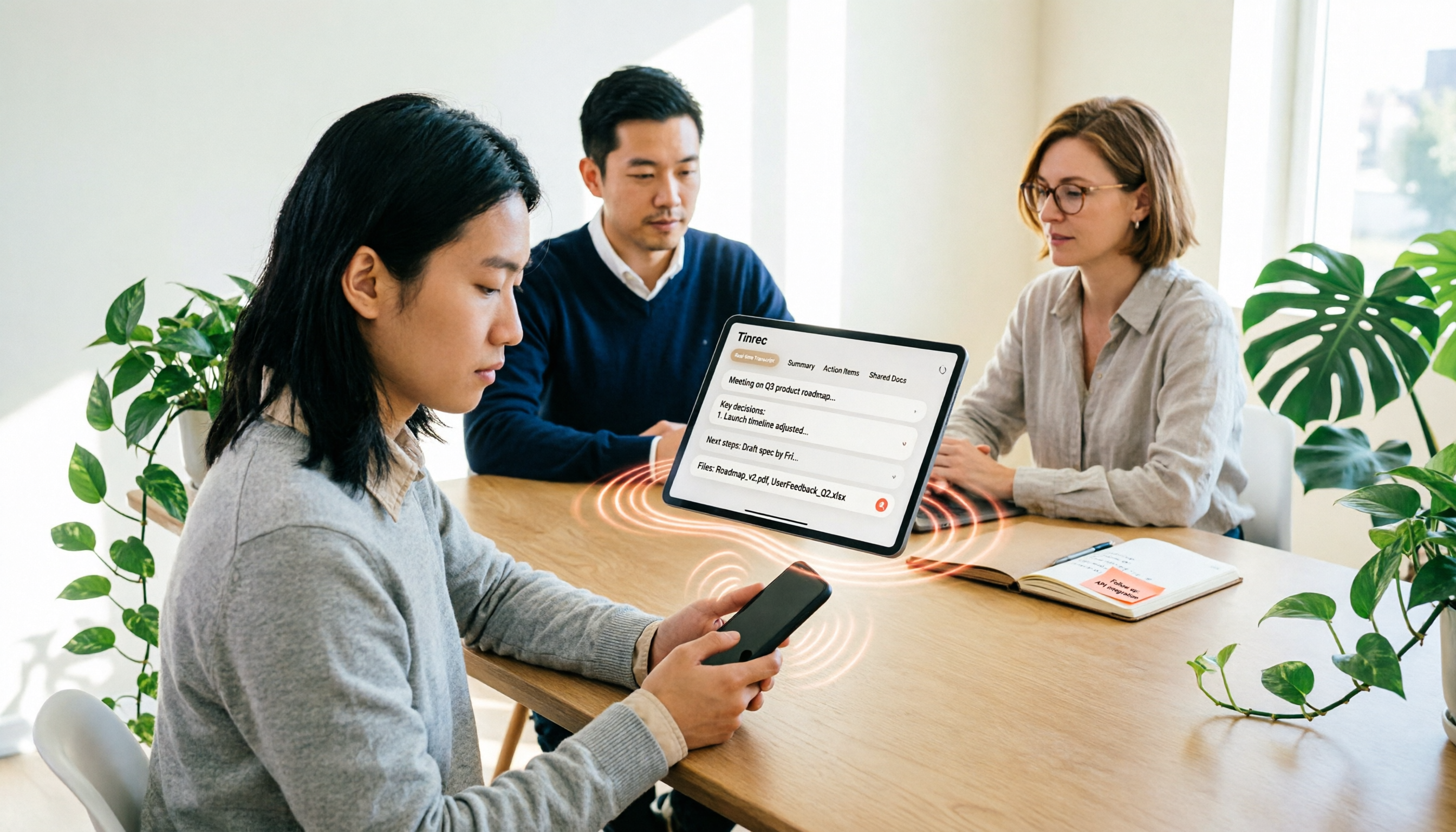
Computer speech-to-text isn't just turning on dictation. This article breaks down three common misconceptions, five key selection criteria, and compares Tinrec, Notta, Otter.ai, and Windows built-in dictation with practical tips and recommendations. Learn how to capture system audio on desktop to turn online meetings directly into transcripts, summaries, and action items.

Tinrec vs MyEdit 2026: 5-Factor Comparison for Online MP3 to Text
Looking for an online MP3 to text tool? This article covers common pitfalls and reviews 5 online speech-to-text options, including Tinrec, MyEdit, VEED, SpeakApp, and UniScribe. Compare features, free tiers, and use cases to find the best MP3 transcription tool for you.
iPhone Voice to Text in 2026: Built-in Transcription vs. Tinrec — 3 Methods Compared
iPhone voice-to-text has two main paths: the built-in Voice Memos transcription, or AI meeting tools like Tinrec that turn transcripts into summaries, action items, and team data. This article compares them across 5 dimensions and includes step-by-step instructions for using the built-in transcription, helping you decide which approach fits your needs.

Word Speech-to-Text vs Tinrec: 2026 Comparison of Dictation Limits and AI Meeting Notes
Can Word do speech-to-text? Yes, but most people only use half of its potential. This article explains what Word's built-in dictation is really for and its three common limitations, then shows how Tinrec fills the gap with post-meeting organization, AI summaries, action item extraction, AI Q&A, and team collaboration—turning meeting recordings into usable data.

2026 Comparison of 4 Meeting Recording Tools: Which AI Meeting Notes App Saves the Most Time?
This hands-on comparison tests four meeting recording tools in 2026—Tinrec, Otter.ai, Notta, and PLAUD—evaluating Chinese recognition, bot-free recording, AI post-meeting organization, and team collaboration to determine which saves the most time on meeting notes.

5 Transcription Tools Tested and Compared in 2026: What Is a Transcript? How to Choose for Chinese Meetings?
What is a transcript? Starting from real-world selection needs, this article helps you understand the purpose of transcripts, the core capabilities of AI transcription tools, and key purchasing considerations. Using Tinrec as an example, it explains how bot-free meeting recording, AI summaries, action item extraction, and team spaces turn transcripts into searchable, collaborative, and actionable meeting data. Suitable for professionals and teams who need Chinese meeting notes.