
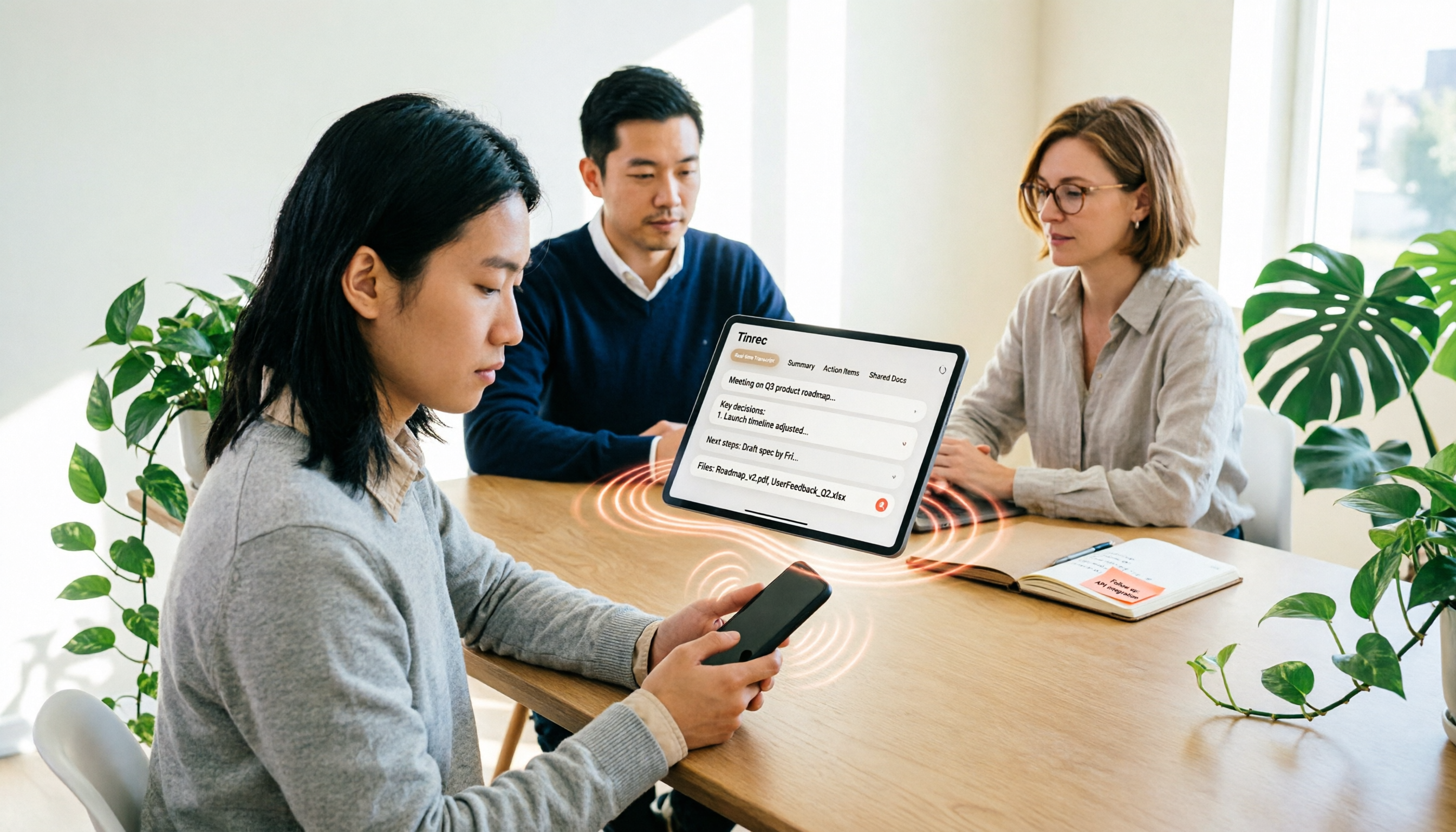
Turn recordings into transcripts and summaries in minutes
Upload audio or video for multilingual transcription, AI notes, and action items
After recording a 40-minute meeting, what do you really want: "text on the screen" or "meeting notes you can paste directly into a report"? These two things seem similar, but they determine whether you should use iPhone's built-in transcription or find another tool.
If you have an iPhone 12 or later and your system is updated to iOS 18, you actually have a free transcription feature hidden in Voice Memos that many people still don't know about.
But the free built-in feature has its limits, which is what I want to clarify in this article.
iPhone Built-in Transcription vs. Tinrec | Quick Overview
Bottom line first: the built-in solution solves "turning recordings into text," while Tinrec solves "turning meetings into data you can keep working with."
- iPhone built-in transcription: Lives in the Voice Memos and Notes apps, free, and transcripts can be viewed, copied, and pasted into other documents.
- Tinrec: An AI meeting notes and collaboration tool that, beyond transcripts, generates summaries, chapters, action items, and mind maps. It supports AI Q&A, multi-format export, and offers team spaces.
| Item | iPhone Built-in Transcription | Tinrec |
|---|---|---|
| Cost | Free, built into the system | Personal plan has a free tier, weekly pass, Pro monthly and annual plans; Team plan USD 29.80 per paid seat per month, or USD 199 per paid seat per year |
| Device requirements | iPhone 12 or later, iOS 18.0 or later (Chinese requires iOS 18.4 or later) | Available on web, desktop, and mobile |
| Main output | Transcript text, copy-paste ready | Transcript, summary, chapters, action items, mind map, reports, and tables |
| Best for | People who just want to turn phone recordings into text files | People who need meeting minutes, cross-device organization, and team collaboration |
Below I'll compare across 5 dimensions, and at the end I'll tell you how to choose.
First, Learn: 3 Steps to Turn iPhone Recordings into Text Files
This is what you asked about, so let's get it done before discussing tool choices.
Step 1: Check your system version. Go to Settings → General → Software Update and confirm you're on iOS 18.0 or later; for Chinese transcription, you need iOS 18.4 or later.
Step 2: Start recording. Open the Voice Memos app (in the Utilities folder) and tap the red record button. While recording, you can open "View Transcript" in the bottom left to see the text as you record.
Step 3: Export the text as a file. Tap the recording, select "View Transcript," then tap "Copy Transcript" to paste it into Mail, Notes, or any text file.
If you record using the Notes app, you can also tap "Add Transcript to Note" in the more menu, and the text will go directly into your note.
Note that old recordings made on iOS 17 or earlier won't automatically generate transcripts and need separate handling. Also, transcripts are searchable, and tapping a segment jumps back to the corresponding audio position, which is handy for verification.
Dimension 1 | Chinese and Multilingual Support
According to Apple's support page, audio transcription is available for English (all variants), Spanish, Portuguese, Italian, French, German, Japanese, Korean, and other languages, and is limited to iPhone 12 or later. Chinese (including Traditional Chinese) was added after iOS 18.4.
Tinrec covers Chinese, Traditional Chinese, and multilingual meeting scenarios, supports real-time translation during recording, and lets you view in original, translated, or bilingual mode. Teams can also maintain their own hotwords to improve recognition of technical terms.
→ This dimension: For simple Chinese recordings, the built-in feature is enough; if you often have mixed Chinese-English or cross-language meetings, Tinrec offers significantly more flexibility.
Dimension 2 | Recording Sources and Meeting Scenarios
The built-in solution uses the iPhone's microphone, which works best for in-person meetings, interviews, classes, or speakerphone calls. But online meetings usually happen on a computer, and capturing clean audio via phone is difficult.
Tinrec's desktop version directly captures your computer's system audio, handling online meetings on Zoom, Google Meet, Microsoft Teams, Webex, etc., without needing a meeting bot to join. It also supports uploading existing audio and video files, as well as mobile recording.
→ This dimension: Tinrec clearly wins, especially for those with a high proportion of online meetings.
Dimension 3 | What You Can Do After Transcription
The built-in feature gives you the transcript itself, including copy, search, and jump-to-segment playback, which is useful for reviewing against the recording. It won't summarize or tell you what action items came out of the meeting.
Stop organizing recordings by hand
Upload audio or video and automatically get a transcript, summary, and action items
Tinrec automatically generates summaries, chapters, key points, and action items on top of the transcript, and supports AI Q&A across single or multiple meetings. When you need deliverables, you can use Agent post-processing to generate reports, tables, and documents.
→ This dimension: If you want "meeting minutes" rather than just "a transcript," Tinrec saves the most time on organization.
Dimension 4 | Export and Workflow Integration
The built-in approach requires copying the transcript and manually pasting it into email or text files, one by one.
Tinrec supports multi-format export, letting you take results to Notion, Google Docs, OneNote, Dropbox, and other tools for further editing, directly plugging into your existing workflow.
→ This dimension: Tinrec wins, especially for archiving or sharing documents with teams.
Dimension 5 | Team Collaboration and Data Retention
Built-in transcripts live on your phone and personal account. If someone takes over or a team member leaves, this content easily gets scattered.
Tinrec's team plan is a separate team space: meeting data belongs to the team, you can create and switch between multiple team spaces, invite members via join links, set roles as owner/admin/member, and use "seats" to determine who can record, upload, edit, and import/export. There are also usage analytics, audit logs, an audio recycle bin (30-day retention), and team hotwords.
Keep in mind that roles and seats are two different things. Active members without a seat can still view, play, and read team data, but cannot upload or edit. Currently, team data is primarily shared at the team level, not with file-level granular permissions.
→ This dimension: When multiple people need to share meeting data, the built-in solution can't help.
What Unique Advantages Does Each Have?
Tinrec's advantages:
- The desktop version records online meetings via system audio, no need to invite a meeting bot.
- Beyond transcripts, it offers summaries, chapters, action items, mind maps, and AI Q&A, essentially handling the "organization" for you.
- Multi-format export and Agent post-processing can directly produce reports, tables, and meeting minutes.
- Team spaces with members, seats, usage, and audit features are suitable for project teams and departments long-term.
iPhone built-in transcription advantages:
- Completely free, no extra app to install, works as soon as you update the system.
- Record and view on the fly, almost irreplaceable for quick personal recordings.
Conclusion: Which Should You Choose?
- If you only occasionally want to turn iPhone recordings into text files → iPhone built-in transcription is enough, free and direct.
- If you frequently record online meetings → Tinrec (captures computer system audio, no bot needed).
- If transcripts need to become minutes, action items, and reports → Tinrec (built-in lacks these post-processing features).
- If you often encounter mixed Chinese-English or need translation → Tinrec (real-time translation and bilingual viewing).
- If meeting data needs to be shared, searchable, and transferable across the team → Tinrec team plan.
In one sentence: Built-in transcription is a free and good starting point for turning recordings into text, while Tinrec fills in "what comes after the text." I suggest recording a meeting on your phone to test the built-in feature first, then decide whether to hand off the organization process to Tinrec.
FAQ
Q1: Does iPhone voice-to-text cost money? The built-in Voice Memos and Notes transcription features are part of the system and require no extra payment. Tinrec has a free tier to try, and you can consider a weekly pass or Pro plan if you need more quota.
Q2: Why can't I see transcripts on my iPhone? First confirm your device is iPhone 12 or later and your system is iOS 18.0 or later (Chinese transcription requires iOS 18.4 or later). Also, old recordings made on iOS 17 or earlier won't automatically transcribe and need separate handling.
Q3: What languages does built-in transcription support? According to Apple's support documentation, it includes English (all variants), Spanish, Portuguese, Italian, French, German, Japanese, Korean, etc. Chinese (including Traditional Chinese) is supported starting from iOS 18.4.
Q4: How do I turn a transcript into a text file? On the recording page, tap "View Transcript" in the bottom left, then tap "Copy Transcript" and paste it into Mail, Notes, or any text editor. When recording with the Notes app, you can also select "Add Transcript to Note."
Q5: How accurate is the transcription? Actual performance depends on recording quality, ambient noise, accents, overlapping speakers, and technical terms. For important content, it's best to verify using transcript segment jumps and audio playback; it's not recommended to treat it as 100% accurate.
Q6: Does Tinrec require dedicated recording hardware? No. Tinrec works on web, desktop, and mobile. The desktop version handles online meetings via system audio, with no extra equipment needed.
Q7: Are there legal issues with voice-to-text? When recording and transcribing others' conversations, please comply with local laws and obtain consent from participants when necessary.
Product features, plan benefits, and pricing are subject to Tinrec's official purchase page; third-party tool information is subject to their official announcements.
References
- View Voice Memos transcripts on iPhone - Apple Support (Taiwan)
- iPhone Notes and Voice Memos also have transcription! Turn class, meeting, and speech content into text in seconds: simple 4-step tutorial | BusinessNext
- Free iPhone voice-to-text transcription! iOS 18 supports 10 languages | Quality Life | 500 Times
- No third-party app needed! Complete guide to iPhone Voice Memos and Notes app voice-to-text | Venus's Fantasy World
- Record and transcribe audio in Notes on iPhone - Apple Support (Hong Kong)
Turn every recording into actionable outcomes
Get 60 free transcription minutes when you sign in. No credit card required.
Related Reading
You might also like

4 Audio-to-Text Tools Tested and Compared in 2026: Can Google Docs Really Transcribe Audio Files?
Can Google Docs really turn audio files into text? This article tests and compares 4 audio-to-text methods, breaks down how Google Docs voice typing works and the setup barriers of virtual audio cables, and explains how Tinrec differs with bot-free online meeting recording, AI summaries, and Q&A, helping you choose the right tool for your situation.

Word Voice Input in 2026: Built-in Dictation vs Windows Speech vs Tinrec for Meeting Notes
This guide covers how to use voice input in Word and common issues, from microphone permissions and internet connection to punctuation in Chinese and the differences between Word's built-in dictation, Windows speech recognition, and Tinrec for meeting notes. If you just want to type quickly in Word, built-in dictation is enough; if you need to organize meeting transcripts, summaries, action items, and team data, Tinrec is a better fit.

4 iPhone Recording to MP3 Tools Tested and Compared in 2026: Tinrec Makes Recordings Searchable and Queryable
iPhone Voice Memos record in m4a, so how do you convert them to MP3? This article covers 4 tested methods including online conversion services and mobile apps, then goes further to compare post-conversion organization needs, explaining how Tinrec turns meeting recordings into searchable, summarizable, and queryable data.

2026 Guide: Computer Speech-to-Text Without Meeting Bots + AI Summaries & Action Items
Computer speech-to-text isn't just turning on dictation. This article breaks down three common misconceptions, five key selection criteria, and compares Tinrec, Notta, Otter.ai, and Windows built-in dictation with practical tips and recommendations. Learn how to capture system audio on desktop to turn online meetings directly into transcripts, summaries, and action items.

Tinrec vs MyEdit 2026: 5-Factor Comparison for Online MP3 to Text
Looking for an online MP3 to text tool? This article covers common pitfalls and reviews 5 online speech-to-text options, including Tinrec, MyEdit, VEED, SpeakApp, and UniScribe. Compare features, free tiers, and use cases to find the best MP3 transcription tool for you.

Word Speech-to-Text vs Tinrec: 2026 Comparison of Dictation Limits and AI Meeting Notes
Can Word do speech-to-text? Yes, but most people only use half of its potential. This article explains what Word's built-in dictation is really for and its three common limitations, then shows how Tinrec fills the gap with post-meeting organization, AI summaries, action item extraction, AI Q&A, and team collaboration—turning meeting recordings into usable data.

2026 Comparison of 4 Meeting Recording Tools: Which AI Meeting Notes App Saves the Most Time?
This hands-on comparison tests four meeting recording tools in 2026—Tinrec, Otter.ai, Notta, and PLAUD—evaluating Chinese recognition, bot-free recording, AI post-meeting organization, and team collaboration to determine which saves the most time on meeting notes.

5 Transcription Tools Tested and Compared in 2026: What Is a Transcript? How to Choose for Chinese Meetings?
What is a transcript? Starting from real-world selection needs, this article helps you understand the purpose of transcripts, the core capabilities of AI transcription tools, and key purchasing considerations. Using Tinrec as an example, it explains how bot-free meeting recording, AI summaries, action item extraction, and team spaces turn transcripts into searchable, collaborative, and actionable meeting data. Suitable for professionals and teams who need Chinese meeting notes.

5 Best Video to Text Tools in 2026: Which One Saves the Most Time for Chinese Video Transcription?
Video to text is more than just converting audio to words. This article explores three common pitfalls, explains what a truly time-saving workflow looks like, and demonstrates a complete process using Tinrec—from uploading videos and bot-free meeting recording to AI summaries, action item extraction, Q&A, and export. It concludes with a buying checklist and FAQs.