
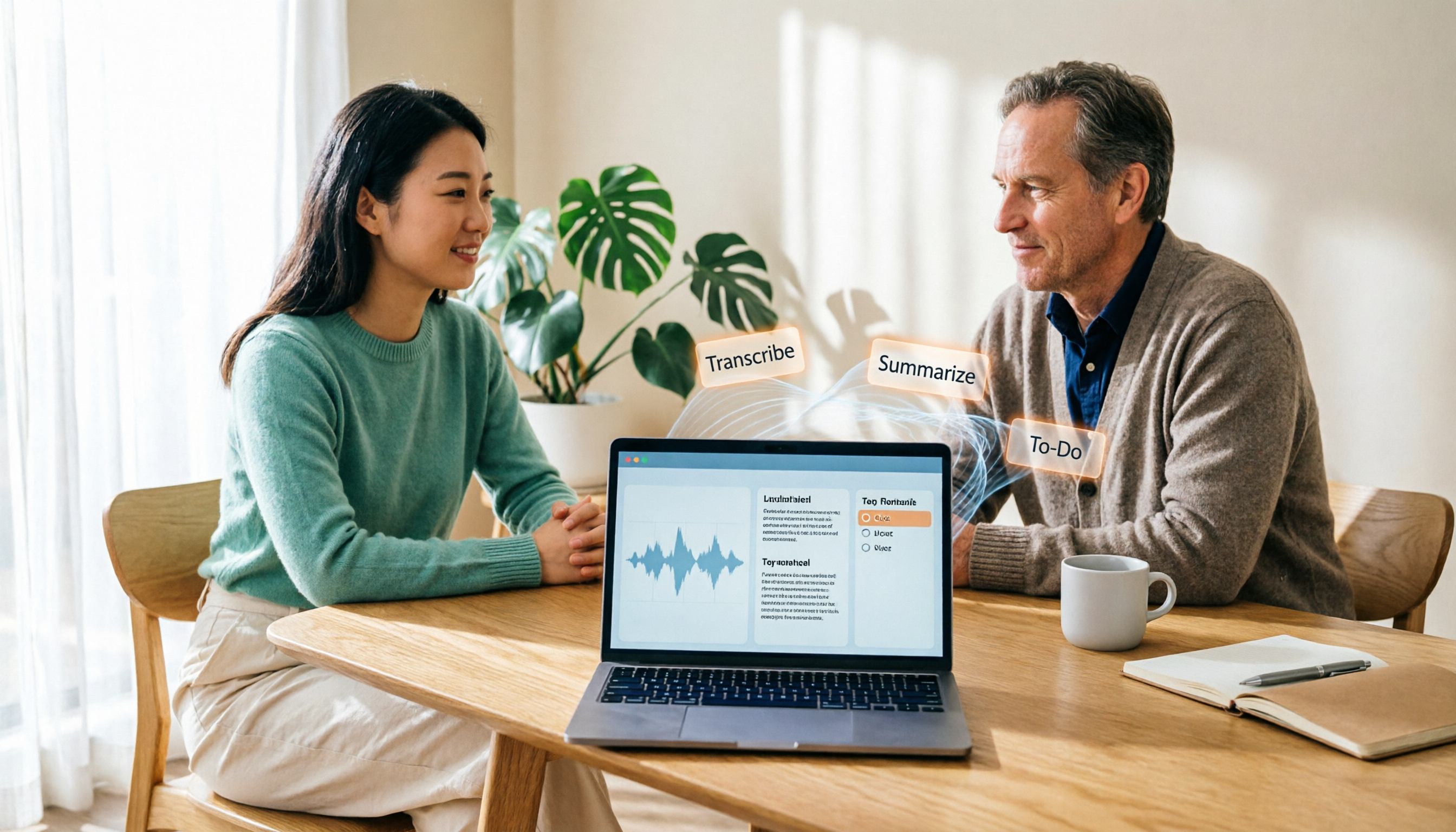
Turn recordings into transcripts and summaries in minutes
Upload audio or video for multilingual transcription, AI notes, and action items
2026 Laptop Recording Alternative: Why Tinrec Is Better Than Notta?
Your online meeting ends, and your manager asks you to organize the meeting notes. You look at the hour-long recording on your laptop, hear muffled voices through your headphones, and think: "How can I record on my laptop clearly and easily?" This is a common struggle for many office workers. In the past, we might have used the built-in Windows Voice Recorder or downloaded software like Audacity, but what happens after recording? You have to type the transcript yourself, pick out the key points yourself, and share with the team by sending files back and forth. This article not only teaches you the basic methods for laptop recording but also tests Tinrec, an AI meeting notes tool, and makes a simple comparison with Notta.
Why Are Some People Looking for Notta Alternatives?
Notta is a transcription tool many people have used. It supports multi-platform transcription, meeting notes, document import, translation, and team plans. The free version offers 120 minutes per month, with a maximum of 3 minutes per recording; the Pro version costs about USD 8.17/month when billed annually, with 1,800 minutes per month; the Business version costs about USD 16.67/seat/month when billed annually, offering unlimited transcription, role permissions, and usage reports.
However, in actual use, some people encounter a few issues. For example, the free version only allows 3 minutes per recording, so a meeting has to be split into many segments; or after the meeting, although there is a transcript, you still need to manually organize summaries and to-dos. Also, if you want team members to view historical meetings together and manage seats and usage, you might want a more complete team collaboration solution.
If you have similar needs, you might want to learn about Tinrec. It is also an audio-to-text tool, but it emphasizes post-meeting organization, AI Q&A, and team knowledge retention. Next, let's see how Tinrec and Notta differ in core experience.
Tinrec vs Notta: What's Different in Core Experience?
Recording Method: No Bot vs Meeting Bot
Tinrec desktop version directly captures computer system audio. When recording online meetings on Zoom, Google Meet, Microsoft Teams, Webex, etc., it does not require an extra meeting bot to join. You just open Tinrec, press record, and it transcribes while recording. Notta supports meeting bots or file uploads. For those who don't want a bot joining the meeting, Tinrec's approach is more seamless.
Post-Meeting Organization: AI Q&A and To-Do Extraction
After transcription, Tinrec automatically generates summaries, chapters, key points, and to-dos. It also lets you ask questions about the meeting content, such as "What was the meeting conclusion?" or "Who is responsible for what?" It provides answers based on semantic understanding, so you don't have to manually search through the transcript. Notta also has summary features, but Tinrec's AI Q&A and Agent post-processing (generating reports, tables, documents) are more aligned with post-meeting workflows.
Team Collaboration: Spaces, Seats, and Auditing
Tinrec team version provides independent team spaces where meeting data belongs to the team. It allows managing member roles, seats, sharing permissions, usage analytics, and audit logs. Notta Business also has role permissions and usage reports, but Tinrec additionally offers audio recycle bin, team hotwords, and ownership transfer governance features. When a member leaves, team resources can be handed over and won't disappear with their personal account.
Language Support: Chinese and Real-Time Translation
Tinrec covers Chinese, Traditional Chinese, and multilingual meeting scenarios. It supports mixed Chinese-English content organization, as well as real-time translation and bilingual viewing during recording. Notta is also good at multilingual transcription, but Tinrec has more packaging for Chinese meeting experiences and offers team hotwords to improve recognition of professional terminology.
Free Plan: Quota and Limitations
Tinrec free version provides a basic quota so you can try recording, importing, summarizing, and transcription. Notta free version offers 120 minutes per month, with a maximum of 3 minutes per recording. If you need to frequently record longer meetings, Tinrec's paid plan or team plan may be more suitable.
Overview of Tinrec's Core Features
Tinrec is not just about converting audio to text; it's more like a meeting workflow platform. Here are the features I found most impressive after actually using it.
Real-time audio-to-text: Open Tinrec to record, and text appears almost synchronously with less than 1 second delay. During the meeting, you can listen and read the text to confirm you haven't missed key points. By the time the meeting ends, the transcript is already complete.
Bot-free online meeting recording: The desktop version directly captures system audio, handling meetings on Zoom, Meet, Teams, Webex, etc., without inviting a bot. This is more seamless for participants and won't disrupt the meeting flow.
Stop organizing recordings by hand
Upload audio or video and automatically get a transcript, summary, and action items
AI summaries and chapters: The biggest fear with long meetings is not finding the key points. Tinrec automatically generates summaries and chapters, breaking an hour-long meeting into several topic sections so you can jump directly when reviewing.
To-do extraction: Action items mentioned during the meeting are automatically organized into a to-do list by Tinrec. After a project meeting, it's clear who should do what.
AI Q&A: This is my most-used feature. After recording a meeting, I directly ask Tinrec: "What budget constraints did the client mention?" It finds the answer from the transcript, saving a lot of searching time.
Multi-format export and Agent post-processing: Tinrec supports export to Notion, Google Docs, OneNote, Dropbox, etc., and can also generate reports, tables, and meeting minutes through Agent, directly usable for follow-up deliverables.
Team space: The team version centralizes meeting data. New members can view historical data, and managers can assign seats, view usage, and audit logs. Meeting assets are no longer scattered across personal devices.
Practical Use Cases
Online meeting notes: Use Tinrec desktop version to record Zoom or Teams meetings without a bot joining. After the meeting, the transcript, summary, and to-dos are already done and can be shared directly with the team.
Class and lecture notes: Students or lifelong learners can use Tinrec to record course content and review key points through AI Q&A after class, without re-listening to the entire recording.
Interview and research organization: After interviews, researchers can upload audio files to Tinrec to quickly get transcripts and viewpoint summaries for subsequent coding and analysis.
Personal inspiration and memos: Record ideas on your phone anytime, and Tinrec automatically converts them to text and archives them, turning scattered notes into a searchable knowledge base.
Points to Consider When Choosing an Audio-to-Text Tool
Does the recording method disrupt the meeting: Some tools require a bot to join the meeting, which may make participants uncomfortable. Choose a tool like Tinrec that directly captures system audio for a more natural process.
Post-meeting organization capability: Transcripts are just the basics. The ability to automatically generate summaries, to-dos, and even let you ask questions is key to saving time. Tinrec integrates AI Q&A and Agent post-processing in this regard.
Team collaboration and governance: If you need multiple people to share meeting data, pay attention to whether the tool provides team spaces, role permissions, seat management, and usage auditing. Tinrec team version puts all these on one platform.
Language support range: Chinese meetings often mix Chinese and English. Whether the tool can handle this accurately affects transcript usability. Tinrec supports Chinese, Traditional Chinese, and multiple languages, and provides real-time translation.
Free quota and price transparency: Start with the free version to see if it meets your needs before upgrading. Tinrec free version has a basic quota, and paid plan and team version prices are subject to the official website.
Conclusion: Is Tinrec Worth a Try?
If you are looking for a tool that can handle laptop recording and turn meeting content into usable data, Tinrec does stand out in several aspects. Its bot-free recording makes online meeting notes smoother, AI Q&A and to-do extraction save a lot of organization time, and the team version turns meeting data into collaborative, traceable assets.
Tinrec is especially suitable for office workers, teams, and researchers who need to frequently record meetings, interviews, or courses. If you only record a few times a year, the free version might be enough; if you have meetings every week, the Pro or team version will be more cost-effective.
It is recommended to download the Tinrec free version first and test it with your own meeting recordings. After all, recording quality, language, and scenarios vary from person to person, so trying it yourself is the most accurate.
FAQ
Q1: My laptop doesn't have a dedicated microphone. Will recording with Tinrec be clear? Tinrec supports using the laptop's built-in microphone, but recording quality will be affected by environmental noise. If the meeting is important, it is recommended to use an external microphone or record in a quiet space. Tinrec desktop version can also capture system audio, so the voices of online meeting participants are recorded directly from the computer output, not limited by microphone pickup.
Q2: Can Tinrec record Zoom, Google Meet, and Teams? Yes. Tinrec desktop version captures computer system audio, so it can handle meeting audio played on these platforms on a computer without a meeting bot joining. Actual support is subject to official instructions.
Q3: What are the limitations of Tinrec free version? Tinrec free version provides a basic quota so you can try recording, importing, summarizing, and transcription. If you need more minutes or team features, you can refer to paid plans. For detailed quotas, please refer to the Tinrec official website.
Q4: Which is more suitable for Chinese meetings, Tinrec or Notta? Both support Chinese, but Tinrec has more design for Chinese meetings, mixed Chinese-English content, and real-time translation, and also provides team hotwords to improve recognition of professional terminology. If you frequently handle Chinese meetings, Tinrec's experience will be more aligned with your needs.
Q5: Will meeting data disappear after team members leave? No. Meeting resources in Tinrec team version belong to the team. When a member exits, is removed, or loses their seat, their team resources can be handed over to other active members. Audio also has a recycle bin mechanism, which can be restored before permanent deletion.
Q6: Do I need to get participants' consent to record with Tinrec? Recording involves personal privacy and legal regulations. It is recommended to inform participants and obtain consent before recording, and comply with local laws.
References
- Record computer sound (computer recording) - Microsoft Q&A
- How to record on a laptop? - Superman Marketing
- 4 ways to record computer audio! Simple and easy, easily record computer sound [2026 latest]
- Can't keep up with online classes or meetings? Windows built-in Voice Recorder helps you record content, steps explained at once | BusinessNext
- [Super simple] computer recording solution
Turn every recording into actionable outcomes
Get 60 free transcription minutes when you sign in. No credit card required.
Related Reading
You might also like

5 Screen Recording Solutions Tested and Compared in 2026: The Easiest Way to Capture System Audio
Recording your screen but getting no sound is a common pain point. This article starts with the principles of system audio capture, compares 5 practical screen recording solutions, and shares the method I found easiest after hands-on testing.

3 Memo Recording Methods Compared in 2026: Can iPhone Built-in, Notta, or Tinrec Save You Cleanup Time?
How do you record audio in iPhone Notes? This article covers three built-in recording methods and compares iPhone built-in Notes, Notta, Otter.ai, and Tinrec. From post-recording organization and cross-platform export to AI meeting minutes, find the most time-saving memo recording workflow.
CapCut Desktop Recording 2026: Voiceover Steps & 4 Transcription Tools Compared
Can CapCut desktop record audio? Yes. This guide walks you through the complete voiceover recording steps in CapCut desktop, then answers the real question most people get stuck on: how to turn recordings into usable transcripts and meeting notes. It covers 4 key selection points and compares Tinrec, CapCut, Notta, and Otter.ai, with common pitfalls and scenario-based recommendations.

4 iPhone Voice Memos Organization Tools Compared: Where Are Recordings Stored? Tinrec Saves the Most Time
iPhone Voice Memos are stored locally by default, or in iCloud if sync is enabled. This article shows you where to find files and tests 4 organization tools. Tinrec stands out for Chinese transcription and AI Q&A, ideal for turning recordings into transcripts and to-dos.

How to Record Computer Screen Audio in 2026: 3 Methods + Automatic Meeting Transcription
How do you record computer screen audio? This guide covers screen recording methods that still work in 2026, including Windows Game Bar, built-in Mac tools, and FonePaw. It also explains how Tinrec uses desktop bot-free recording and AI organization to turn meeting content into searchable, trackable data when you need transcripts and meeting notes instead of just video.

5 Recording Tools Tested and Compared in 2026: Where's the Recording Feature? Whose AI Summarization Saves the Most Time?
Where is the recording feature? iPhone's Voice Memos is hidden in the Utilities folder, Android devices have their own built-in recorders, and online meeting recording permissions are tied to the host. This article clarifies the recording entry points for three scenarios and tests 5 recording tools, covering transcription, AI summaries, to-dos, and team knowledge retention, helping you avoid common pitfalls and find the one that truly saves time.

2026年4款电脑录屏工具实测对比:内置够用吗?还是得靠AI整理
电脑其实都有内置录屏功能,Windows 10 以上按 Win + G 就能调出 Xbox Game Bar,Mac 也有内置屏幕录制。但真正的问题是录完之后怎么办——本文比较内置工具、剪辑型录屏软件与 AI 会议记录工具 Tinrec,带你判断哪一种才符合你的实际需求。

Tinrec vs Yating Transcription 2026: 5-Dimension Comparison for Chinese Meeting Transcription
People searching for 'which AI can generate transcripts' are often stuck not on converting speech to text, but on the time-consuming post-meeting organization. This article compares Tinrec and Yating Transcription across five dimensions: post-meeting organization, online meeting recording, cross-language translation, pricing flexibility, and team collaboration. It includes third-party test highlights and buying advice to help you decide which tool to use.

What Is Speech-to-Text in 2026: How It Works + AI Meeting Notes
What is Speech-to-Text (STT)? This plain-language guide explains how voice-to-text works, the difference between ASR and TTS, and the key factors for choosing a tool in 2026. It compares Tinrec with Otter, Notta, and Granola to help you decide which one fits your needs.