
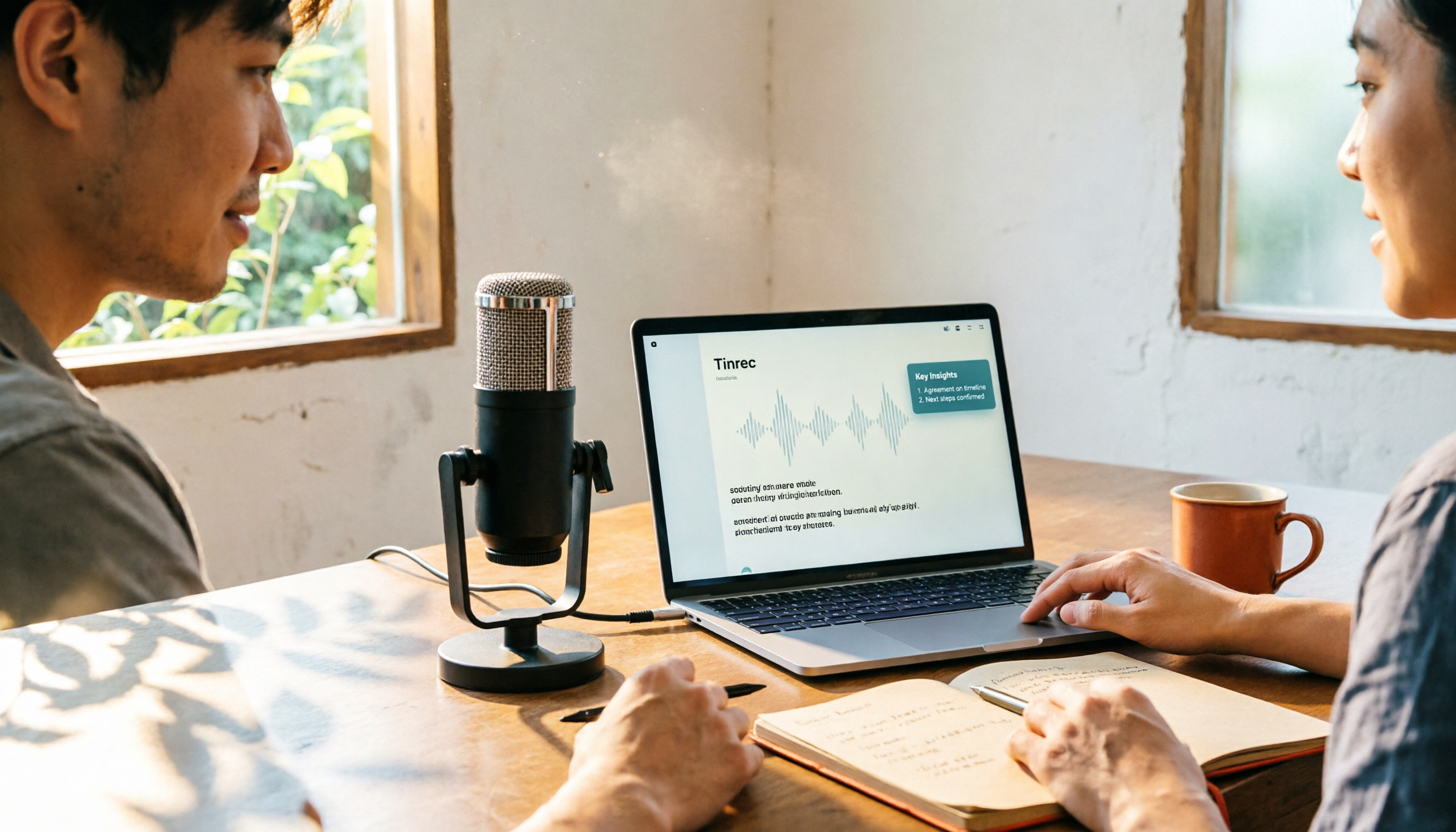
Turn recordings into transcripts and summaries in minutes
Upload audio or video for multilingual transcription, AI notes, and action items
CapCut Desktop Recording 2026: Voiceover Steps & 4 Transcription Tools Compared
Can CapCut Desktop Record Audio? Yes, But Most People Get Stuck After Recording
To answer your question first: CapCut desktop can record audio. The feature is hidden in the toolbar under "Audio," called "Voiceover." It's not a standalone recording app—it's designed for adding narration directly in your editing project.
There are only 3 steps:
- Open your project and drag the playhead on the timeline to where you want to start recording.
- Click "Audio" in the toolbar and select "Voiceover."
- Press and hold the microphone icon to start recording, release to stop, then click the checkmark in the bottom right corner when done.
The recorded audio track will appear directly on the timeline. You can drag it to reposition, trim its length, and use CapCut's audio editing features like adjusting volume, removing background noise, changing voice, and adjusting speed and pitch—more than enough for short video creators.
But here's the key: Voiceover is designed for "adding narration to videos," not for "turning a meeting into a transcript." If you record a two-hour meeting, CapCut will capture it, but you'll still have to listen from the beginning to know what was decided. People searching "Can CapCut desktop record audio" usually aren't stuck on the recording step—they're stuck on what comes after.
The Real Trouble Starts After Recording—You Don't Need an Editing Tool, You Need a Workflow
For a one-hour meeting, even if you type fast, manually transcribing takes hours. And these situations make it worse:
- You want to confirm "who's responsible for this budget," but you have to drag through the timeline listening carefully.
- Phone recordings, computer meetings, and client interview files are scattered across three or four places.
- The meeting conclusion was discussed, but two weeks later when you need to find it, you don't know where the recording is saved.
Editing tools can save the audio, but they can't turn it into searchable, queryable, handover-ready data. That requires dedicated transcription and meeting note tools. Choosing the right tool can save you most of these headaches.
4 Key Points to Understand Before Choosing a Transcription Tool
**First, will the audio file be kept?** Some tools discard the audio after transcription, so you can only rely on memory to verify original statements. Whether audio is retained and easy to replay alongside the transcript is the first question to ask.
**Second, can you ask questions directly after transcription?** Tools that only provide transcripts still require you to Ctrl+F for keywords. If a tool lets you ask "Who mentioned the budget in the last meeting?" and gives you a semantic answer, you'll cut meeting organization time in half.
**Third, Chinese and mixed Chinese-English recognition performance.** Many tools excel in English meetings but start making errors with Chinese mixed with English technical terms. Actual performance depends on recording quality, noise, accents, and overlapping speakers—test with your own recordings.
**Fourth, how is team data managed?** For personal use it's fine, but once shared across a department, questions arise like "Who can see meeting notes?" and "What happens to data when a member leaves?" Whether there's a team space and member/seat management determines if the tool can be used long-term.
Tinrec—After Testing, We Rank It First
Tinrec is an AI meeting notes and collaboration tool for individuals and teams, covering mobile, desktop, and web, with desktop version able to capture system audio directly. It's not positioned as a "voice recorder" but as a way to turn entire meetings into searchable, queryable, team-shareable data.
**Record online meetings without bots.** For Zoom, Google Meet, Microsoft Teams, Webex, the traditional approach is to have a meeting bot join as a participant. Tinrec desktop captures system audio directly, no extra bot on the attendee list. For client meetings or internal discussions, this difference matters.
**Transcribe while recording, auto-generate summaries and action items.** Open Tinrec during a meeting, and it transcribes in real time. When the meeting ends, AI has already organized summaries, chapters, and action items—who's responsible for what, what's next, all visible. Transcripts, summaries, chapters, action items, mind maps, reports, and tables can be exported to Notion, Google Docs, OneNote, Dropbox, and other tools for further processing.
Stop organizing recordings by hand
Upload audio or video and automatically get a transcript, summary, and action items
**Ask questions directly about meeting content after recording.** This is the biggest difference between Tinrec and ordinary transcription tools. You can ask "What was the conclusion of this meeting?" or "What concerns did the client raise?" and it gives answers based on semantic understanding, not a list of keyword search results. Recordings become a queryable database instead of just sitting on a hard drive.
In our tests with Chinese meetings and mixed Chinese-English interviews, with clear recording conditions, transcript usability was quite high; actual recognition still depends on recording quality, background noise, accents, and overlapping speakers. We recommend verifying important content against timestamps. Tinrec also supports real-time translation, allowing you to view content in original, translated, or bilingual format.
Notable advantages:
- Audio files are retained, and transcripts can be replayed with timestamps, so you don't worry about AI missing or mishearing.
- Handles Chinese and multilingual meetings, including mixed Chinese-English content, with team hotwords for maintaining technical terms.
- Scales from individual to team. Team version offers independent team spaces, member and role management, seat allocation, usage analytics, audit logs, and audio recycle bin. Meeting data belongs to the team, can be handed over when members leave, and won't disappear with individuals.
**Limitations to be clear about:** The free version provides basic quota, suitable for trying out. If you have many meetings or interviews to organize weekly, you'll need to upgrade to a paid plan. Team version has separate seat and shared quota rules; actual pricing, currency, and benefits are subject to the official purchase page.
**Who is it for?** If you frequently need to turn Chinese meetings, interviews, or course recordings into transcripts and notes, want to use AI to ask key points directly after recording, and even want to build these into team-shared assets—Tinrec is currently the closest fit.
Besides Tinrec, What Other Options Are There?
**CapCut.** Voiceover is free and intuitive, great for adding narration to short videos. But it's an editing tool; transcription, summaries, action items, and AI Q&A are not its focus. If you just need an audio track to drag into a timeline, CapCut is sufficient; but if you want to turn meeting recordings into searchable, queryable data, CapCut can't do Tinrec's AI Q&A and post-meeting organization.
**Notta.** The most similar tool to Tinrec, supporting multi-platform transcription, meeting notes, document import, translation, and team plans, with a good reputation for multilingual transcription. Official free version: 120 minutes per month, max 3 minutes per session; Pro annual billing about USD 8.17/month, 1,800 minutes per month; Business annual billing about USD 16.67/seat/month. However, if you value desktop bot-free recording of online meetings and asking questions directly after recording, Tinrec's post-meeting workflow is more complete.
**Otter.ai.** A mature choice for English business meetings, free version 300 minutes per month, one of the few options in this article more cost-effective than Tinrec for English scenarios. But it's English-centric; Chinese and mixed Chinese-English meetings are not its strong suit. If you mostly record pure English meetings, consider Otter.ai; for Chinese meetings, Tinrec is more suitable.
Pitfall Guide: 3 Most Common Mistakes When Choosing a Transcription Tool
**Pitfall 1: Only looking at "can it record."** CapCut can record, phone built-in recorder can record, but recording doesn't equal usable. When choosing a tool, ask "How much time will it take to find key points after recording?" not "Does it have a record button?"
**Pitfall 2: Using an editing tool to manage meeting recordings.** Editing tools are designed to produce videos; meeting tools are designed to extract data. Using an editing tool for meeting recordings leaves you with scattered audio tracks that you still can't find when needed.
**Pitfall 3: Thinking getting a transcript is the end.** A transcript is just the starting point. If you only use a transcription tool for "audio to text," you're using only one-third of its capability. With Tinrec's AI Q&A, asking "What was the meeting conclusion?" directly after recording is much faster than manually scanning a half-hour transcript.
Conclusion: Which One Should You Choose?
In one sentence: CapCut desktop can indeed record audio, but if you want to turn meetings and interviews into usable data, you need an AI meeting notes tool like Tinrec.
- Just need narration for videos, short videos → CapCut (free, sufficient)
- Want to turn meeting and interview recordings into transcripts and notes → Tinrec
- Want to use AI to find key points and ask conclusions after recording → Tinrec (AI Q&A is the key difference)
- Need to use on both phone and computer, centralized recording management → Tinrec
- Need department-shared meeting data, member and seat management → Tinrec Team
- Mostly record pure English meetings, limited budget → Otter.ai
Recommended approach: Take a meeting recording you have, run it through Tinrec free version, see how practical the transcript and summary are, then decide whether to upgrade. Rather than worrying about whether CapCut can record, spend time on "how to use it after recording."
References
- CapCut Tutorial: Learn CapCut Editing in 10 Minutes (Mobile & Desktop) - Social Genie
- CapCut AI Video Editor: Smart Online Video Editing Platform with Advanced AI Tools
- Audio Cutter Online: Unlock the Power of Audio Editing with CapCut
- How to Professionally Edit Voice Recordings in 4 Steps
- [2026 CapCut Tutorial] Essential Free Editing Software for Beginners: Features, Cost, Desktop Tutorial, and AI Subtitles Explained! — LeadingMRK
Turn every recording into actionable outcomes
Get 60 free transcription minutes when you sign in. No credit card required.
Related Reading
You might also like

5 Screen Recording Solutions Tested and Compared in 2026: The Easiest Way to Capture System Audio
Recording your screen but getting no sound is a common pain point. This article starts with the principles of system audio capture, compares 5 practical screen recording solutions, and shares the method I found easiest after hands-on testing.

3 Memo Recording Methods Compared in 2026: Can iPhone Built-in, Notta, or Tinrec Save You Cleanup Time?
How do you record audio in iPhone Notes? This article covers three built-in recording methods and compares iPhone built-in Notes, Notta, Otter.ai, and Tinrec. From post-recording organization and cross-platform export to AI meeting minutes, find the most time-saving memo recording workflow.

4 iPhone Voice Memos Organization Tools Compared: Where Are Recordings Stored? Tinrec Saves the Most Time
iPhone Voice Memos are stored locally by default, or in iCloud if sync is enabled. This article shows you where to find files and tests 4 organization tools. Tinrec stands out for Chinese transcription and AI Q&A, ideal for turning recordings into transcripts and to-dos.

How to Record Computer Screen Audio in 2026: 3 Methods + Automatic Meeting Transcription
How do you record computer screen audio? This guide covers screen recording methods that still work in 2026, including Windows Game Bar, built-in Mac tools, and FonePaw. It also explains how Tinrec uses desktop bot-free recording and AI organization to turn meeting content into searchable, trackable data when you need transcripts and meeting notes instead of just video.
2026 Laptop Recording Guide: Built-in Features Tested + Tinrec Smart Organization
How do you record audio on a laptop? This article covers built-in recording methods on Windows and Mac, tests how Tinrec turns recordings into transcripts, summaries, and to-dos, and compares Tinrec with Notta for meeting notes to help you find the best laptop recording solution.

5 Recording Tools Tested and Compared in 2026: Where's the Recording Feature? Whose AI Summarization Saves the Most Time?
Where is the recording feature? iPhone's Voice Memos is hidden in the Utilities folder, Android devices have their own built-in recorders, and online meeting recording permissions are tied to the host. This article clarifies the recording entry points for three scenarios and tests 5 recording tools, covering transcription, AI summaries, to-dos, and team knowledge retention, helping you avoid common pitfalls and find the one that truly saves time.

2026年4款电脑录屏工具实测对比:内置够用吗?还是得靠AI整理
电脑其实都有内置录屏功能,Windows 10 以上按 Win + G 就能调出 Xbox Game Bar,Mac 也有内置屏幕录制。但真正的问题是录完之后怎么办——本文比较内置工具、剪辑型录屏软件与 AI 会议记录工具 Tinrec,带你判断哪一种才符合你的实际需求。

Tinrec vs Yating Transcription 2026: 5-Dimension Comparison for Chinese Meeting Transcription
People searching for 'which AI can generate transcripts' are often stuck not on converting speech to text, but on the time-consuming post-meeting organization. This article compares Tinrec and Yating Transcription across five dimensions: post-meeting organization, online meeting recording, cross-language translation, pricing flexibility, and team collaboration. It includes third-party test highlights and buying advice to help you decide which tool to use.

What Is Speech-to-Text in 2026: How It Works + AI Meeting Notes
What is Speech-to-Text (STT)? This plain-language guide explains how voice-to-text works, the difference between ASR and TTS, and the key factors for choosing a tool in 2026. It compares Tinrec with Otter, Notta, and Granola to help you decide which one fits your needs.