

Turn recordings into transcripts and summaries in minutes
Upload audio or video for multilingual transcription, AI notes, and action items
Recorded the Screen but No Sound — The Most Common Screen Recording Fail
I've run into this way too many times.
A friend sent me a screen recording and asked me to check a certain step. The video opened, the picture was clear, but there was no sound from beginning to end.
"Did you not turn on the microphone when you recorded?" I asked.
"I did, I thought it would pick up automatically."
This isn't an isolated case. I've coached quite a few teams on online meeting notes, and eight out of ten fell into the same pit the first time they recorded their screen: the picture was captured, but the sound wasn't.
The problem lies in a very basic place — your computer's "system audio" and "microphone audio" are two different pipelines.
When you play YouTube, join an online meeting, or watch a presentation video, that sound goes through the system audio. When you speak into the microphone, it goes through another pipeline.
Most screen recording tools only capture the microphone by default, or even capture neither. If you don't manually turn it on, it just silently records a soundless picture.
What's more troublesome is that many people's recording purpose isn't just "record it."
After recording a two-hour meeting, your real challenge begins: you need to type a transcript, pick out key points, and organize to-dos. If the tool only gives you a video file, it's leaving the most time-consuming work to you.
So in this article, I want to start from the common misconception of "why can't I record sound" and take you through several practical screen recording solutions, and share the method I found easiest after hands-on testing.
Before Choosing a Screen Recording Tool, Understand These 4 Key Points
1. Where Does System Audio Come From
The sound your computer plays goes through the "system audio" pipeline, and the sound received by the microphone goes through another.
Which one do you want to record? Or both? This determines how to choose the tool.
Recording only the microphone is something almost all tools can do. To record system audio, you need to check whether the tool supports options like "Stereo Mix" or "Desktop Audio."
2. Can Microphone and System Audio Be Captured Simultaneously
Some tools can only choose one. But real scenarios often require both — you're playing a presentation while explaining, and both audio sources need to go in.
Before recording, confirm: can the tool capture system audio and microphone at the same time, and can the volume of each be adjusted separately?
3. How Much Time Will You Spend Organizing After Recording
Recording is just the first step. If you're doing it for meeting notes or course notes, the transcript and key point organization after recording is where the real time goes.
When choosing a tool, factor in the cost of "post-recording organization." A tool that can automatically generate transcripts and summaries saves a very considerable amount of time in the long run.
4. Do You Use It Occasionally or Every Day
For occasional recording, built-in tools are enough. For daily meeting recording, you need a workflow that can continuously accumulate data.
Ask yourself: after these recordings are done, will you need to look them up, share them with others, or use them with your team? If so, the choice of tool isn't just about "can it record."
Tinrec — For Those Who Need to Record Meetings but Don't Want to Organize Afterwards, This Is My Top Choice
Let me start with the conclusion: Tinrec is not a traditional screen recording tool. It's an AI meeting notes and collaboration tool.
But if your purpose for screen recording is to document online meetings, interviews, or courses, it's actually more suitable — because what it solves isn't "how to record," but "what to do after recording."
The Tinrec desktop version directly captures your computer's system audio. You don't need to set up Stereo Mix, you don't need to invite a meeting bot into the meeting room. Just open the desktop version and you can record ongoing meetings on Zoom, Google Meet, Microsoft Teams, and Webex.
(Screenshot: Tinrec desktop interface, arrow pointing to the "Start Recording" button)
This point is crucial for me. Previously, using a meeting bot always required scheduling in advance and confirming whether it successfully joined. With the Tinrec desktop version, it's just a matter of me pressing a key.
And it transcribes while recording. Halfway through the meeting, the transcript is already running alongside. When the meeting ends, AI automatically generates a summary, chapters, and to-dos — who's responsible for what, what to discuss next meeting, all clear at a glance.
(Screenshot: AI summary and to-do list screen after the meeting ends)
What surprised me most is the AI Q&A feature.
Last week I recorded a cross-department meeting. Afterwards, I wanted to confirm "who proposed the budget number," so I directly asked in Tinrec: "In this meeting, who mentioned the budget?"
It doesn't just throw keyword search results at me. It understood the meeting content and directly told me the answer, along with the timestamp of the statement.
(Screenshot: AI Q&A interface, showing the corresponding meeting segment after entering a question)
This ability to "continue asking questions after recording" is rare among tools at the same price point. Most transcription tools give you a transcript and that's it. Tinrec gives you meeting material you can converse with.
It also supports real-time translation. For cross-language meetings, you can choose to view the original text, translation, or bilingual comparison. For those of us who occasionally meet with overseas teams, it saves a lot of trouble.
Stop organizing recordings by hand
Upload audio or video and automatically get a transcript, summary, and action items
Recorded content can be exported to Notion, Google Docs, OneNote, Dropbox, or directly generate reports, tables, and meeting minutes documents.
Pros:
- Desktop version directly captures system audio, no need to set up Stereo Mix, no need to invite a meeting bot
- Transcribes while recording, automatically generates summary, chapters, and to-dos after ending
- Supports AI Q&A, can continue asking questions about meeting content
- Supports real-time translation and bilingual viewing
- Multi-format export, can connect to existing workflows
Limitations to be clear about:
- It's not a screen recording tool. If you need to record screen operation tutorials or game live streams, Tinrec is not for you.
- The free version has usage limits; heavy users need to consider a paid plan.
- Accuracy is affected by recording quality. Microphone too far, environment too noisy, multiple people speaking at the same time — all affect transcription results. For important content, it's recommended to cross-check with audio playback.
Who it's for:
If you record your screen to document online meetings, client interviews, or course content, and you want to avoid spending time organizing transcripts and notes afterwards — Tinrec is the smoothest solution I've used so far.
For team use, it also has an independent team space. Meeting data belongs to the team and won't be taken away if someone leaves. Administrators can assign seats, view usage, and check operation logs.
Besides Tinrec, What Other Screen Recording Solutions Are There?
Windows Built-in Game Bar: Free, no installation required, press Windows key + G to open. Can record application windows and sound, files are saved in the Captures folder. But its original design is for recording games, and it often refuses to record the desktop, and the system audio settings are also unreliable. If you just occasionally record game clips, it's enough. But it has no transcription feature, so you still have to organize it yourself after recording. This is something Tinrec can do that Game Bar cannot.
Mac Built-in QuickTime Player: A free choice for Mac users. Start from "File > New Screen Recording," press the red circle to record. But pay special attention — QuickTime does not capture audio by default, and it cannot record system internal audio. That is, if you want to record YouTube sound or meeting software sound, QuickTime can't do it, and you need to install another tool. It also has no transcription feature. The Tinrec desktop version can directly capture system audio and transcribe simultaneously.
OBS Studio: Free and open source, the most powerful, can record multiple audio sources simultaneously, set up scenes and filters. But its learning curve is also the steepest — just to get it to receive system audio, you first need to understand the difference between "Desktop Audio" and "Audio Input Capture." Suitable for those willing to spend time researching settings. It also has no transcription feature, which is where Tinrec is relatively easier.
Notta: Supports multi-platform transcription and meeting notes. Its transcription capability is good, but it requires an audio or video file to upload for processing, unlike the Tinrec desktop version which can directly capture system audio for real-time recording. If you already have a bunch of recorded files to organize, Notta is worth considering. But if you need to record and transcribe while meeting, Tinrec's process is more direct.
Pitfall Guide: The 3 Most Common Mistakes in Screen Recording Audio
Mistake 1: Assuming the tool will automatically record sound once installed
This is the most common. Most tools only capture the microphone by default, or even nothing. Before recording, be sure to open the audio settings and confirm that the system audio track is turned on.
Recommended practice: Before the formal recording, do a 10-second test. Play a video with sound and check whether the recorded file captured the system audio.
Mistake 2: Using the microphone to record computer playback sound
Some people simply point the microphone at the speaker and use the microphone to capture system audio. The sound quality will be very poor, and it will also pick up environmental noise and keyboard sounds.
Recommended practice: Choose a tool that can directly capture system audio. If the tool supports "Stereo Mix" or "Desktop Audio" options, choose that.
Mistake 3: Not organizing after recording is as good as not recording
After recording a two-hour meeting, the file sits in a folder. Next time you need to find a certain conclusion, you can only fast-forward from the beginning. This wastes more time than not recording.
Recommended practice: Choose a tool with transcription and summary features, or import the recording into a tool that can automatically organize. For example, Tinrec directly generates a summary and to-dos after recording, and later you can use AI Q&A to find key points. This is the key to turning recordings into usable data.
Conclusion: Which One Should You Choose?
In one sentence: it depends on your recording purpose.
- Need to record online meetings, interviews, courses, and want transcripts and key point organization right after recording → Tinrec (top choice)
- Need to switch between phone and computer, record anytime → Tinrec (desktop plus mobile)
- Team needs to share meeting data, manage members and usage uniformly → Tinrec Team version
- Only need to record game screen, no transcription needed → Windows Game Bar or OBS Studio
- Already have a batch of recorded audio files to transcribe → Notta
If, like me, your main purpose for screen recording is to document meetings and interviews, then I would suggest you first try the free version of Tinrec. It has a basic quota, enough for you to experience the "record and transcribe, ask directly after recording" process. If it feels smooth, then consider upgrading.
Quick Start Checklist
If you're going to record a meeting today, my recommended process is this:
- Confirm the meeting audio is playing from the computer (not just listening from the phone)
- Open the Tinrec desktop version, select the system audio source
- Press start recording, confirm the transcript is being generated
- After the meeting ends, check the AI summary and to-dos
- Use AI Q&A to confirm key numbers or decisions
- Export the results to your note-taking tool or team space
Test step by step, and you'll gradually find the recording workflow that suits you best.
References
- Computer Screen Recording Method Sharing - Mobile01
- Engineer Equals Labor: Win10 Screen Recording While Recording Computer Sound
- 2025 Applicable - Beginner Tutorial: How to Screen Record? (Phone / Computer / Windows / Mac / iOS / Android)
- Mac Screen Recording | 4 Methods to Record Video and Audio Simultaneously on Mac - Bandicam Blog
- 13 Methods and Tools for Win10 Screen Recording Released [Including Built-in Tutorial, Can Record Sound]
Turn every recording into actionable outcomes
Get 60 free transcription minutes when you sign in. No credit card required.
Related Reading
You might also like

3 Memo Recording Methods Compared in 2026: Can iPhone Built-in, Notta, or Tinrec Save You Cleanup Time?
How do you record audio in iPhone Notes? This article covers three built-in recording methods and compares iPhone built-in Notes, Notta, Otter.ai, and Tinrec. From post-recording organization and cross-platform export to AI meeting minutes, find the most time-saving memo recording workflow.
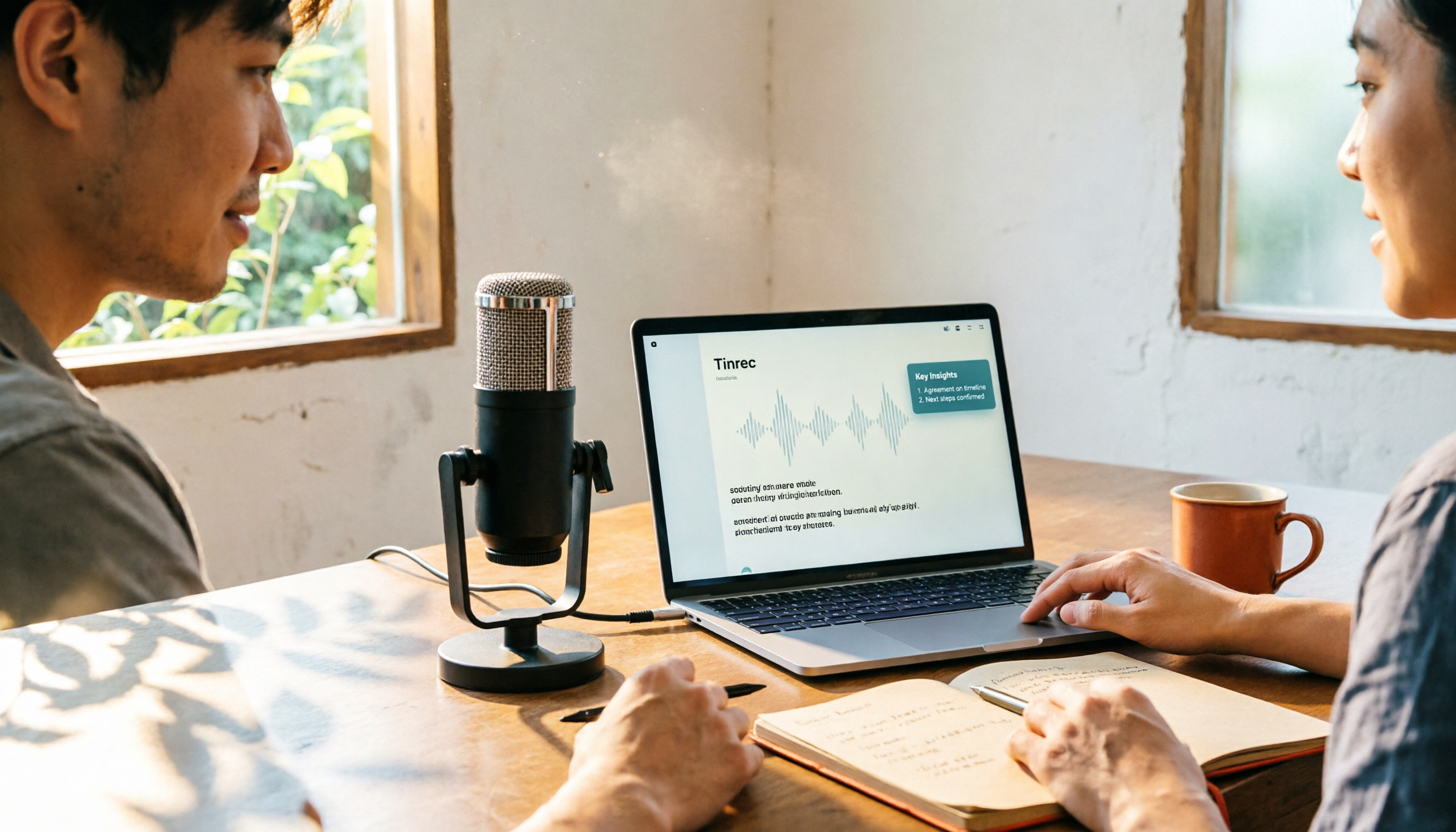
CapCut Desktop Recording 2026: Voiceover Steps & 4 Transcription Tools Compared
Can CapCut desktop record audio? Yes. This guide walks you through the complete voiceover recording steps in CapCut desktop, then answers the real question most people get stuck on: how to turn recordings into usable transcripts and meeting notes. It covers 4 key selection points and compares Tinrec, CapCut, Notta, and Otter.ai, with common pitfalls and scenario-based recommendations.
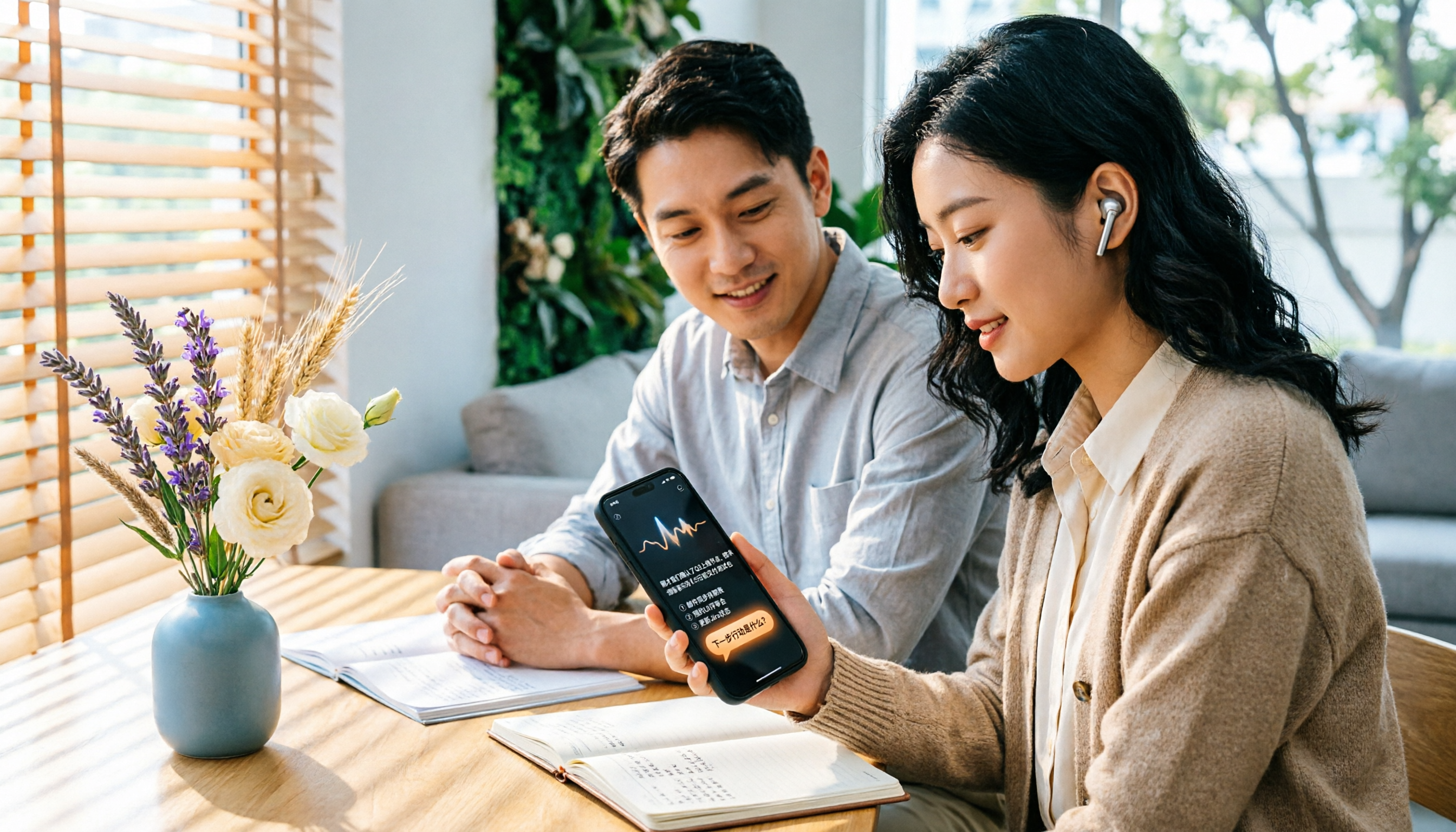
4 iPhone Voice Memos Organization Tools Compared: Where Are Recordings Stored? Tinrec Saves the Most Time
iPhone Voice Memos are stored locally by default, or in iCloud if sync is enabled. This article shows you where to find files and tests 4 organization tools. Tinrec stands out for Chinese transcription and AI Q&A, ideal for turning recordings into transcripts and to-dos.
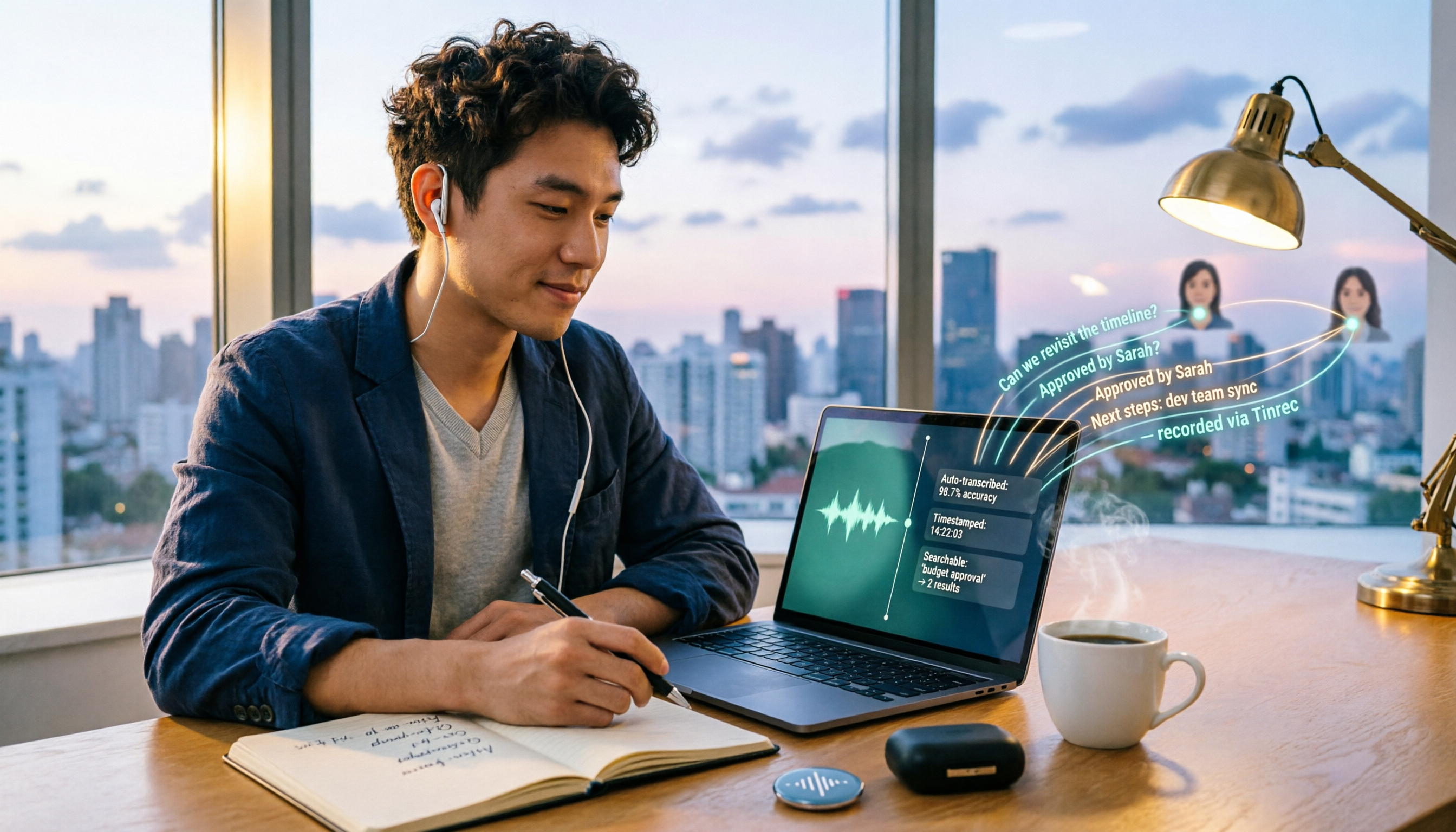
How to Record Computer Screen Audio in 2026: 3 Methods + Automatic Meeting Transcription
How do you record computer screen audio? This guide covers screen recording methods that still work in 2026, including Windows Game Bar, built-in Mac tools, and FonePaw. It also explains how Tinrec uses desktop bot-free recording and AI organization to turn meeting content into searchable, trackable data when you need transcripts and meeting notes instead of just video.
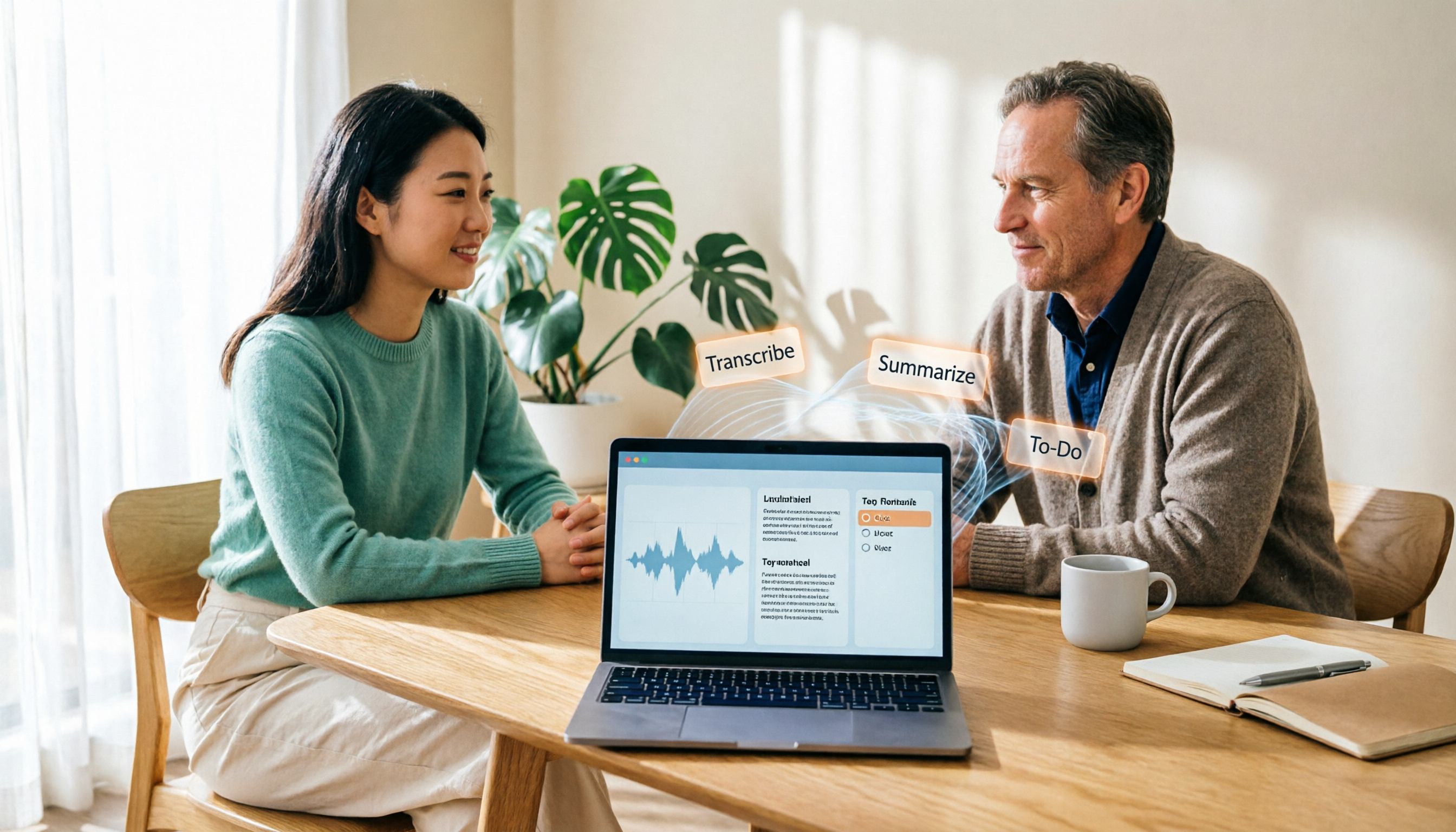
2026 Laptop Recording Guide: Built-in Features Tested + Tinrec Smart Organization
How do you record audio on a laptop? This article covers built-in recording methods on Windows and Mac, tests how Tinrec turns recordings into transcripts, summaries, and to-dos, and compares Tinrec with Notta for meeting notes to help you find the best laptop recording solution.
5 Recording Tools Tested and Compared in 2026: Where's the Recording Feature? Whose AI Summarization Saves the Most Time?
Where is the recording feature? iPhone's Voice Memos is hidden in the Utilities folder, Android devices have their own built-in recorders, and online meeting recording permissions are tied to the host. This article clarifies the recording entry points for three scenarios and tests 5 recording tools, covering transcription, AI summaries, to-dos, and team knowledge retention, helping you avoid common pitfalls and find the one that truly saves time.

2026年4款电脑录屏工具实测对比:内置够用吗?还是得靠AI整理
电脑其实都有内置录屏功能,Windows 10 以上按 Win + G 就能调出 Xbox Game Bar,Mac 也有内置屏幕录制。但真正的问题是录完之后怎么办——本文比较内置工具、剪辑型录屏软件与 AI 会议记录工具 Tinrec,带你判断哪一种才符合你的实际需求。
Tinrec vs Yating Transcription 2026: 5-Dimension Comparison for Chinese Meeting Transcription
People searching for 'which AI can generate transcripts' are often stuck not on converting speech to text, but on the time-consuming post-meeting organization. This article compares Tinrec and Yating Transcription across five dimensions: post-meeting organization, online meeting recording, cross-language translation, pricing flexibility, and team collaboration. It includes third-party test highlights and buying advice to help you decide which tool to use.

What Is Speech-to-Text in 2026: How It Works + AI Meeting Notes
What is Speech-to-Text (STT)? This plain-language guide explains how voice-to-text works, the difference between ASR and TTS, and the key factors for choosing a tool in 2026. It compares Tinrec with Otter, Notta, and Granola to help you decide which one fits your needs.