
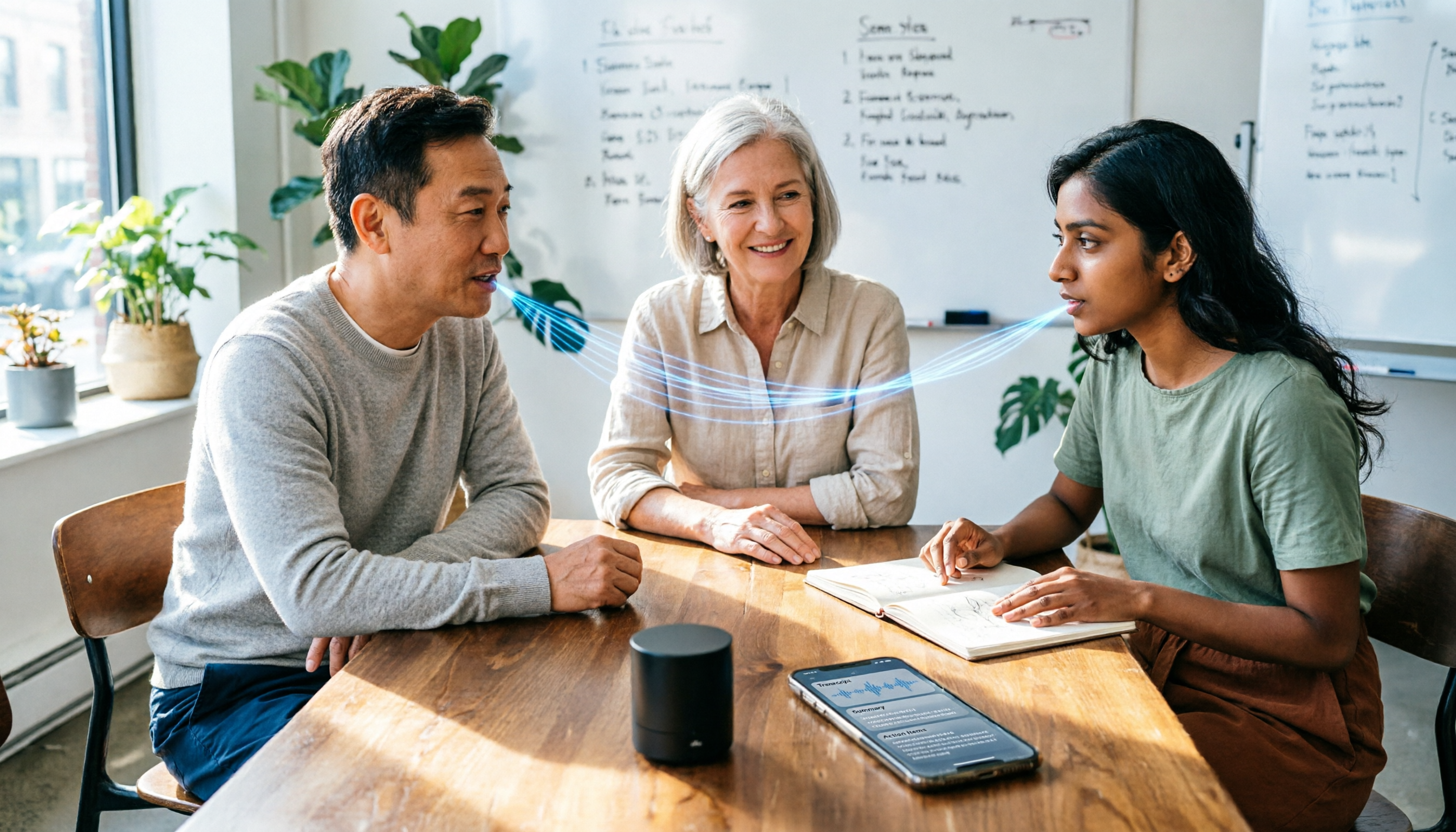
Turn recordings into transcripts and summaries in minutes
Upload audio or video for multilingual transcription, AI notes, and action items
Can't Find the Recording Feature? It's Not You—It's the Scattered Entry Points
When you need to record, have you ever had this experience: your finger swiping around the home screen, but you just can't find that red button?
This is actually a common misconception—thinking that "recording" is a basic phone feature you can just tap. The truth is, iPhone puts Voice Memos in the Utilities folder, not on the first page of the home screen; Android brands have their recorder apps in different places, some tucked into a "Tools" folder, some not pre-installed at all. As for online meetings, Zoom, Google Meet, and Microsoft Teams each have different recording permissions and storage locations, often only the host can press record, and the file stays locked in that platform.
What's worse is after recording. Audio files are scattered across your phone, cloud drives, and group chats. To find that one number mentioned in a meeting, you have to listen to 40 minutes from the start.
So the real problem is never "where is the recording feature," but "once you find it, can this recording become something useful?" Choosing the right tool solves both problems at once.
Where Exactly Is the Recording Feature? Three Scenarios Explained
iPhone: The built-in Voice Memos app is in the Utilities folder, which is why most people can't find it. To make it faster, go to Settings > Control Center and add Voice Memos to Control Center, then swipe down from the top right to open it with one tap. iPhone 15 Pro and 15 Pro Max users can also set the Action button to Voice Memos, so you can press it even when the screen is locked. Another way is Settings > Accessibility > Touch > Back Tap, set double-tap on the back of your phone to start recording (this requires unlocking the screen first).
While recording, an orange dot appears at the top of the screen, indicating the microphone is in use; on supported models, you can also see the ongoing recording in the Dynamic Island, tap it to return to Voice Memos, and you can also segment, pause, and resume during recording.
Android: Most brands have a built-in Recorder app, usually with a microphone icon, some models put it in a tools folder, or you may need to download one from Google Play.
Computer and online meetings: Zoom, Google Meet, and Microsoft Teams all have built-in recording, but usually only the host or authorized members can start it, and the file stays on each platform, making cross-platform consolidation quite troublesome.
This is why more and more office workers are switching to dedicated AI recording tools—binding the "recording entry" and "post-meeting organization" into the same workflow.
Before Choosing a Recording Tool, Understand These 4 Key Points
1. Is the recording entry direct enough? A tool that requires three layers of menus to start recording is a disaster in a real meeting. A good tool should let you enter recording mode in one second, on both phone and computer.
2. Recording alone is only half the job. Recording is just the raw material; the real time-consuming part is transcription, summaries, chapters, and to-dos. If a tool only gives you an audio file, you haven't saved much work time.
3. Do online meetings need a "meeting bot" to join? Some tools use a bot account to join meetings, which can be awkward for external client meetings. A method that directly captures computer system audio without extra participants is more natural for business settings.
4. Quota and cross-device. Is the free quota enough to try? Can you continue between phone and computer? Where is the data stored? These three things should be considered before buying, otherwise you might pay and find it unusable.
Tinrec—Our Top Recommendation After Testing
Tinrec is an AI meeting notes and collaboration tool for individuals and teams, available on phone, computer, and web. It's not just about "recording sound"—it turns meetings into searchable, collaborative, actionable data.
Scenario 1: Record online meetings without a meeting bot. The desktop version directly captures computer system audio, handling Zoom, Google Meet, Microsoft Teams, Webex, etc., without inviting any bot. The other party won't see an extra participant, which is especially important for client meetings and cross-department communication.
Scenario 2: Transcribe and translate while recording. Real-time audio-to-text, handles Chinese and mixed Chinese-English content; for cross-language meetings, you can instantly switch between original, translation, or bilingual view, keeping up with the content during the meeting.
Stop organizing recordings by hand
Upload audio or video and automatically get a transcript, summary, and action items
Scenario 3: Use AI to find key points right after recording. After the meeting, AI automatically generates summaries, chapters, highlights, and to-dos. More importantly, AI Q&A—you can directly ask "Who mentioned the budget in the last meeting?" "What was the conclusion?" It uses semantic understanding to give answers, rather than dumping keywords for you to search through the transcript. Few products at this price point have this capability.
Test performance. We put a ~5-minute Chinese meeting recording with air conditioning background noise into Tinrec (tested once in a quiet office, once on mobile and desktop each). The transcript was clearly segmented and highly readable, and the summary and to-dos were more accurate than expected; for product-specific terms, you need to use "team hotwords" to improve, which is also a practical point. The recorded content can be exported to Notion, Google Docs, OneNote, Dropbox with one click, or generate reports, tables, and meeting minutes.
Pros:
- Simple entry: recording, uploading, summarizing, and Q&A all in one workflow, no need to move files between five apps.
- Bot-free recording of online meetings, doesn't disrupt the meeting flow, and leaves no extra participant record.
- Complete post-meeting outputs—transcript, summary, chapters, to-dos, mind map, AI Q&A, multi-format export, and can be stored in team space for continuous search and follow-up questions.
Limitations: The free version offers basic quota, suitable for trying out; long-term high-frequency use requires upgrading. Also, Tinrec currently relies on users actively starting recording, not automatically joining all meetings on the calendar—this should be understood first.
Who it's for: If you frequently record Chinese or mixed Chinese-English meetings, want to use AI to ask key points right after recording, and don't want a meeting bot to join, Tinrec is currently the most suitable choice. The team version adds team space, member and seat management, usage analytics, and audit logs; eligible teams can try 7 days, 1 free seat, and 300 minutes of shared team import quota, then each paid seat is USD 29.80/month (annual USD 199, about USD 16.58/month), and provides 2,000 minutes per seat per month of shared team import quota. Real-time recording under an active plan is currently not deducted by minutes.
Besides Tinrec, What Other Options Are There?
Otter.ai is a mature AI meeting assistant, strongest for English business meetings. The free version offers 300 minutes per month, quite generous; Pro annual is about USD 8.49/user/month with 1,200 minutes. If your meetings are almost all in English, it's a good deal. But it's mainly English, and the experience with Chinese and mixed Chinese-English is not as good as Tinrec, and post-meeting team knowledge retention is not its focus.
Granola also takes the bot-free route, using your handwritten notes plus AI-generated meeting content. The English experience is good, Business is USD 14/user/month. Note that it does not support uploading pre-recorded audio files, nor does it save meeting audio—you can't go back and listen to the original. Tinrec keeps recordings, supports file import, and can also organize historical meetings.
Notta has the highest overlap with Tinrec, with multi-platform transcription, translation, and team plans. Free version has 120 minutes per month, max 3 minutes per session; Pro annual is about USD 8.17/month with 1,800 minutes. It's suitable for pure file transcription and subtitles; but Tinrec's bot-free online meeting recording, AI conversational Q&A, and Agent post-processing are what it currently lacks.
Pitfall Guide: 4 Most Common Mistakes When Looking for Recording Features
Pitfall 1: Thinking built-in phone recording is enough. Audio files scattered across phone, cloud, and groups, can't find, can't delete, high re-listening cost. The right approach is to consistently use a cross-device, searchable tool, so recordings have a unified home.
Pitfall 2: Only comparing free minutes. Minutes are just a threshold; what really determines work time is whether there are summaries, Q&A, to-dos, and export. Tinrec's value is in post-meeting organization, not who gives more.
Pitfall 3: Ignoring the social cost of "meeting bots." A bot suddenly joining a client meeting just feels wrong. A desktop version that directly captures system audio is more comfortable in business settings.
Pitfall 4: Forgetting legal and consent issues of recording. Before recording, comply with local laws and obtain participant consent when necessary. No matter how good the tool, it should not be used for illegal or infringing activities.
Conclusion: Where the Recording Feature Is Isn't the Point—What Happens After Recording Is
In one sentence: To save time on post-meeting organization, Tinrec is our top pick after testing.
- Often record Chinese/mixed Chinese-English meetings → Tinrec (Chinese experience and real-time translation)
- Want to use AI to ask key points and capture to-dos right after recording → Tinrec (AI conversational query)
- Need to use on phone, computer, and web, with unified data retention → Tinrec (team space, member and seat management)
- Only record English meetings, budget priority → Otter.ai
- Just want to quickly convert existing files to text → Notta and similar transcription tools
We suggest starting with the free version, throw one of your own meetings into it, and see if the transcript and summary can really help you work less overtime. If it works for you, consider upgrading; no need to pay from the start.
References
- Record in Voice Memos on iPhone - Apple Support (Taiwan)
- Recording feature introduction: Use recording feature to input approval comments, upload audio files
- Where is the recording feature on Apple phones? Teach you to open it quickly, recording is so convenient
- Recorder - Google Play app
- iPhone recording is not troublesome! One-tap quick self-protection at critical moments
Turn every recording into actionable outcomes
Get 60 free transcription minutes when you sign in. No credit card required.
Related Reading
You might also like

5 Screen Recording Solutions Tested and Compared in 2026: The Easiest Way to Capture System Audio
Recording your screen but getting no sound is a common pain point. This article starts with the principles of system audio capture, compares 5 practical screen recording solutions, and shares the method I found easiest after hands-on testing.

3 Memo Recording Methods Compared in 2026: Can iPhone Built-in, Notta, or Tinrec Save You Cleanup Time?
How do you record audio in iPhone Notes? This article covers three built-in recording methods and compares iPhone built-in Notes, Notta, Otter.ai, and Tinrec. From post-recording organization and cross-platform export to AI meeting minutes, find the most time-saving memo recording workflow.
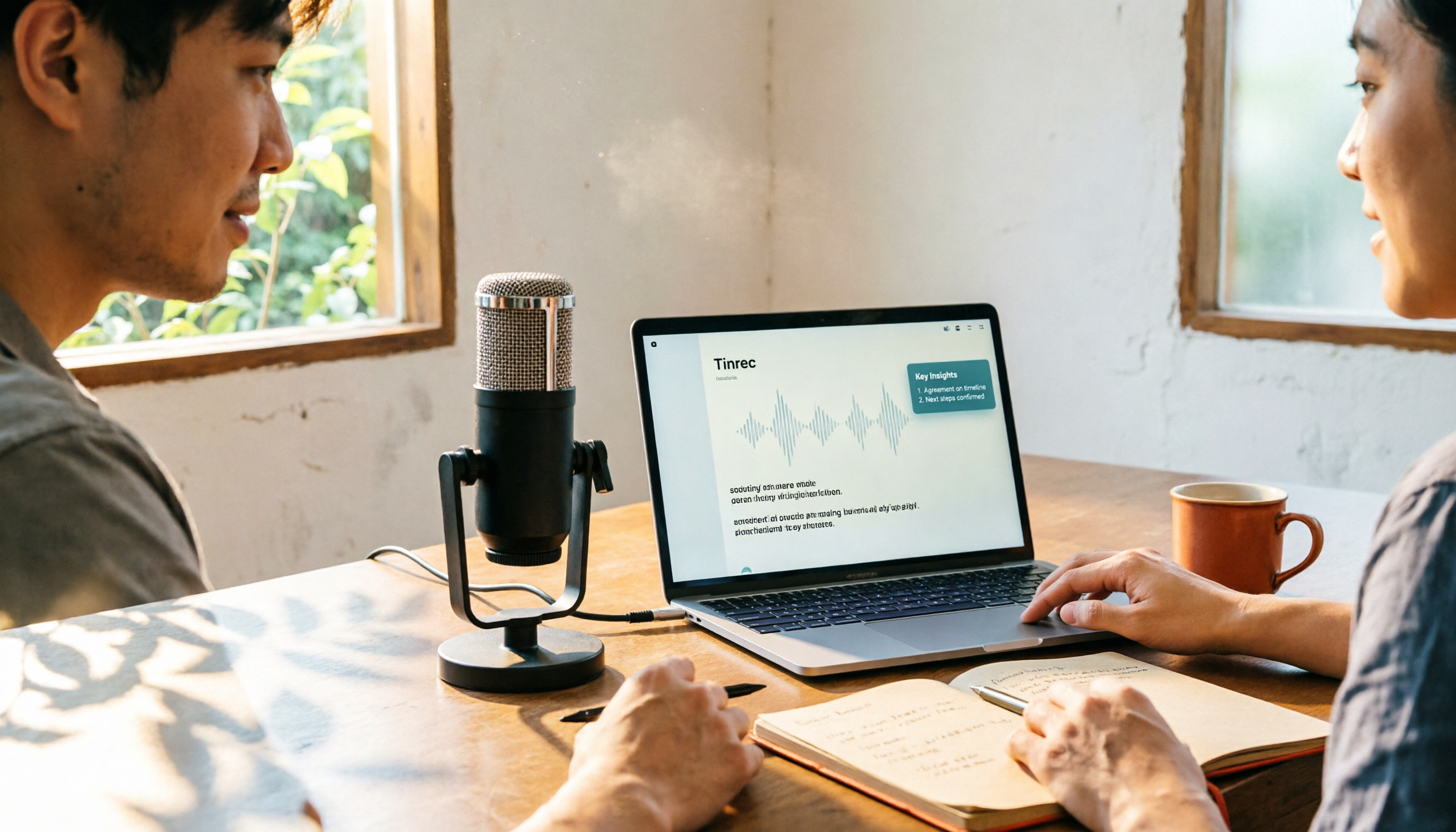
CapCut Desktop Recording 2026: Voiceover Steps & 4 Transcription Tools Compared
Can CapCut desktop record audio? Yes. This guide walks you through the complete voiceover recording steps in CapCut desktop, then answers the real question most people get stuck on: how to turn recordings into usable transcripts and meeting notes. It covers 4 key selection points and compares Tinrec, CapCut, Notta, and Otter.ai, with common pitfalls and scenario-based recommendations.
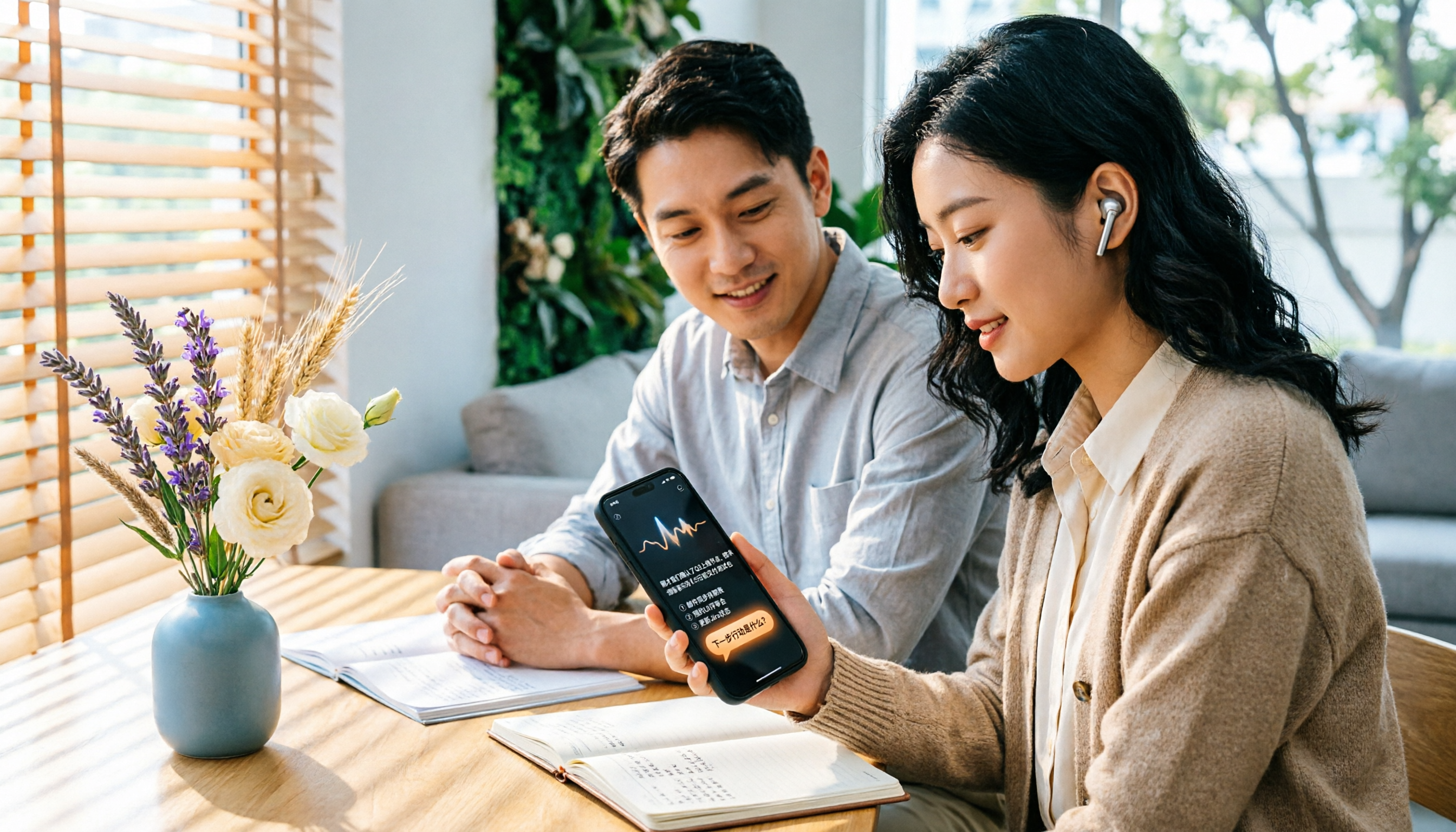
4 iPhone Voice Memos Organization Tools Compared: Where Are Recordings Stored? Tinrec Saves the Most Time
iPhone Voice Memos are stored locally by default, or in iCloud if sync is enabled. This article shows you where to find files and tests 4 organization tools. Tinrec stands out for Chinese transcription and AI Q&A, ideal for turning recordings into transcripts and to-dos.
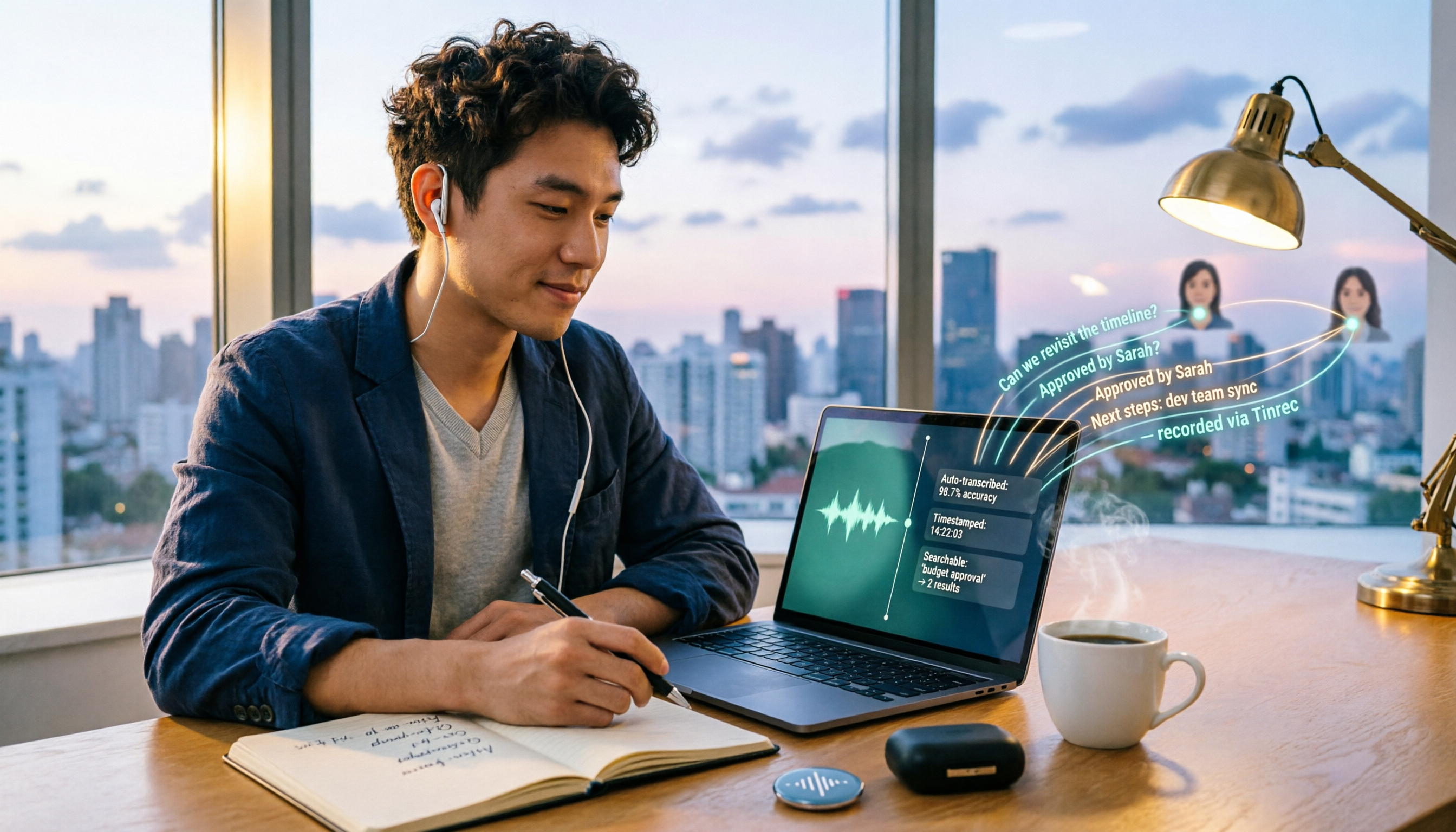
How to Record Computer Screen Audio in 2026: 3 Methods + Automatic Meeting Transcription
How do you record computer screen audio? This guide covers screen recording methods that still work in 2026, including Windows Game Bar, built-in Mac tools, and FonePaw. It also explains how Tinrec uses desktop bot-free recording and AI organization to turn meeting content into searchable, trackable data when you need transcripts and meeting notes instead of just video.
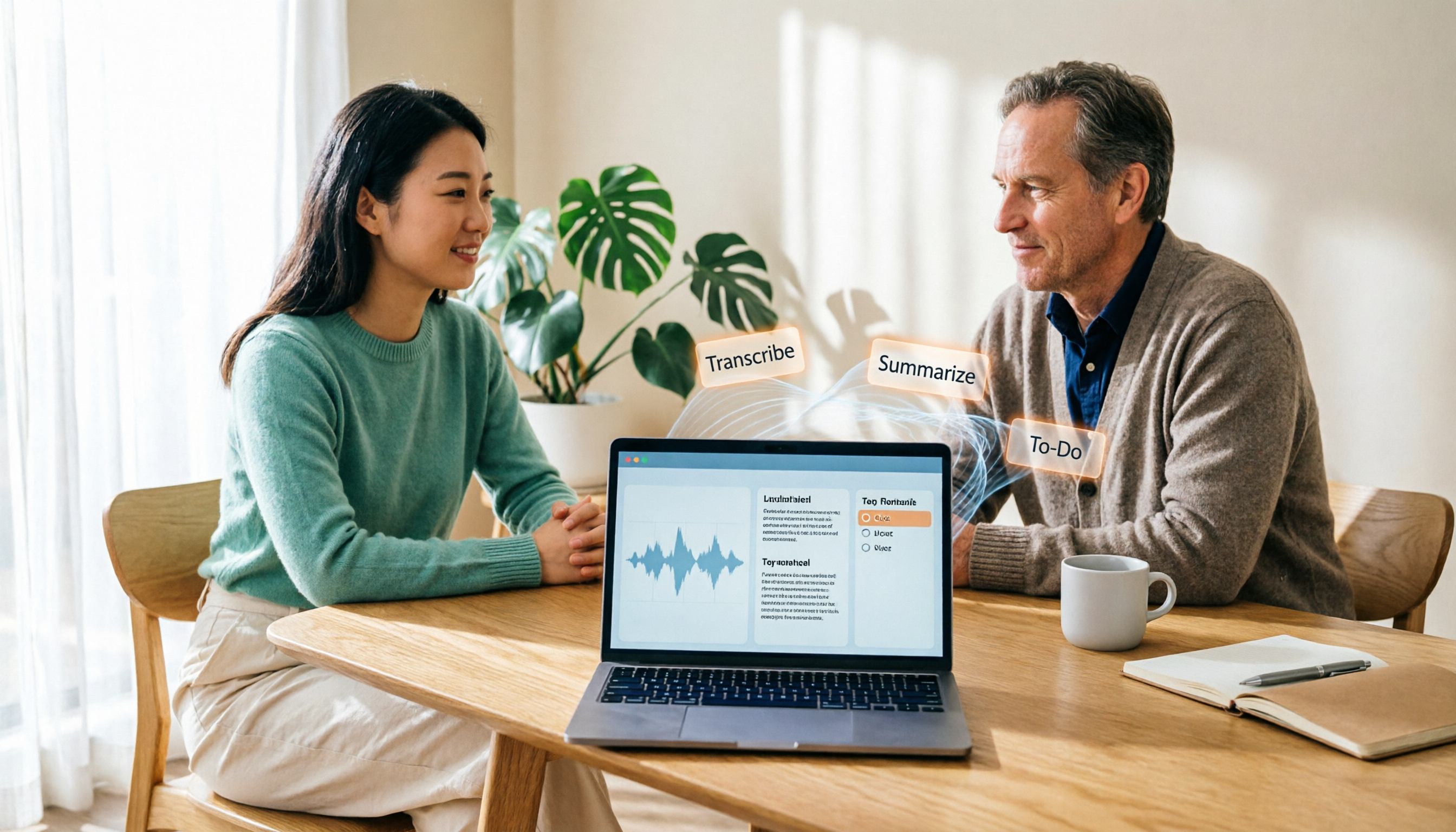
2026 Laptop Recording Guide: Built-in Features Tested + Tinrec Smart Organization
How do you record audio on a laptop? This article covers built-in recording methods on Windows and Mac, tests how Tinrec turns recordings into transcripts, summaries, and to-dos, and compares Tinrec with Notta for meeting notes to help you find the best laptop recording solution.

2026年4款电脑录屏工具实测对比:内置够用吗?还是得靠AI整理
电脑其实都有内置录屏功能,Windows 10 以上按 Win + G 就能调出 Xbox Game Bar,Mac 也有内置屏幕录制。但真正的问题是录完之后怎么办——本文比较内置工具、剪辑型录屏软件与 AI 会议记录工具 Tinrec,带你判断哪一种才符合你的实际需求。
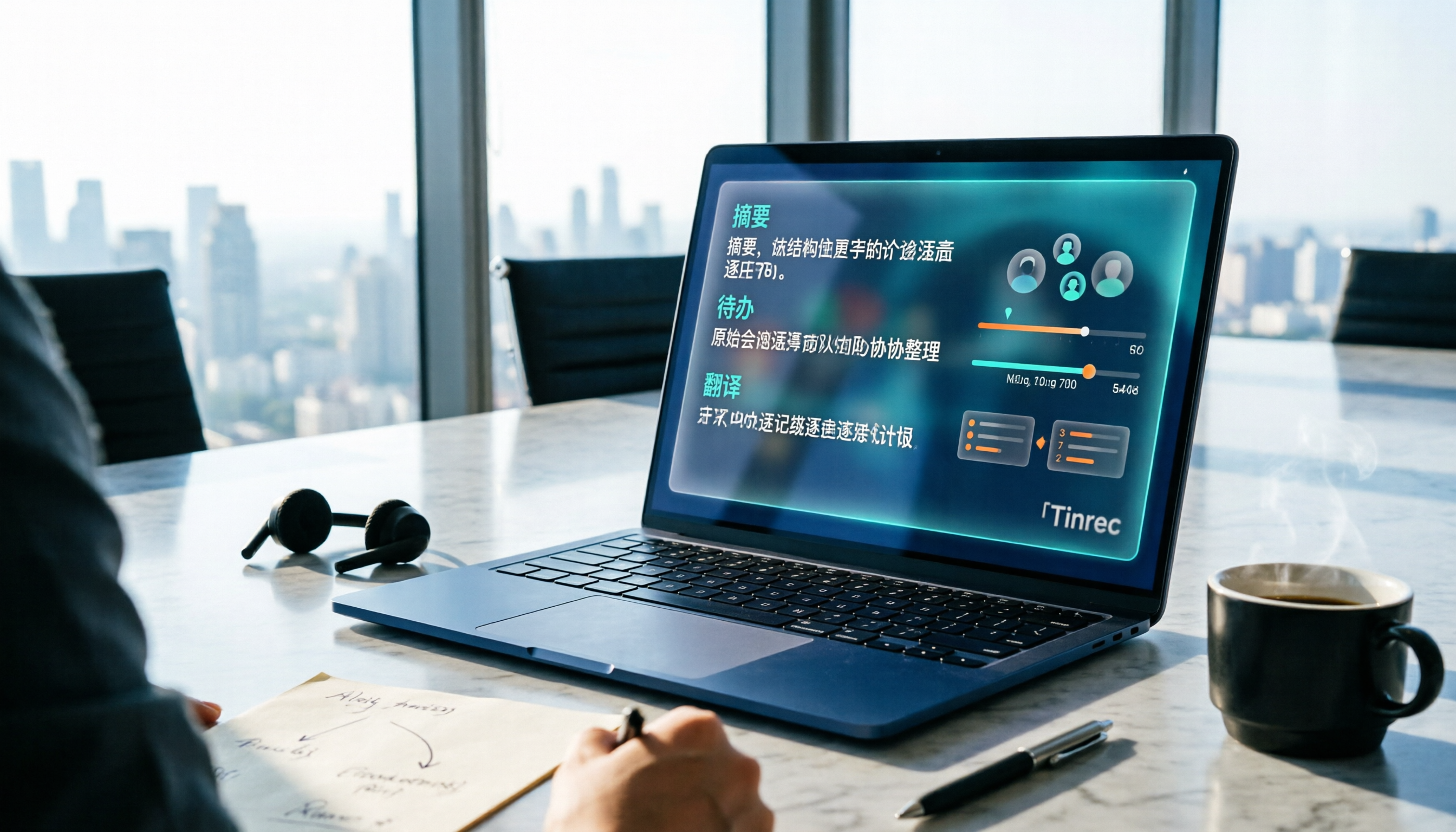
Tinrec vs Yating Transcription 2026: 5-Dimension Comparison for Chinese Meeting Transcription
People searching for 'which AI can generate transcripts' are often stuck not on converting speech to text, but on the time-consuming post-meeting organization. This article compares Tinrec and Yating Transcription across five dimensions: post-meeting organization, online meeting recording, cross-language translation, pricing flexibility, and team collaboration. It includes third-party test highlights and buying advice to help you decide which tool to use.

What Is Speech-to-Text in 2026: How It Works + AI Meeting Notes
What is Speech-to-Text (STT)? This plain-language guide explains how voice-to-text works, the difference between ASR and TTS, and the key factors for choosing a tool in 2026. It compares Tinrec with Otter, Notta, and Granola to help you decide which one fits your needs.