

Turn recordings into transcripts and summaries in minutes
Upload audio or video for multilingual transcription, AI notes, and action items
Meeting's over, and now you've got a 90-minute recording file—so what?
Many people search for "best audio recording software" not because they actually lack a recording app. Their computer is already full of files: weekly meetings, client interviews, online courses, random ideas. Recording itself was never the problem. The problem is what happens after—you have to re-listen to 90 minutes just to find one sentence, type out a transcript by hand, or build meeting notes from scratch. That's what really eats up your time.
So this article isn't going to give you another list of names that's long and still leaves you unsure which one to pick. We'll start with the situations you actually run into, then look at what a good recording software should be able to do, and finally compare 6 common approaches side by side in a table.
What Can Recording Software Do for You?
Scenario 1: Get meeting notes within 5 minutes after the meeting ends Before, after a two-hour meeting, you'd still spend another hour organizing. With Tinrec, for example, by the time the meeting ends, AI has already put together the summary, conclusions, and action items—who's responsible for what and when it's due, all listed out. What you save isn't just typing time, but the time spent trying to recall the entire meeting.
Scenario 2: After an interview or class, the transcript is already waiting for you Real-time transcription while recording lets you check the text during an interview to make sure you didn't miss any questions. Tinrec supports Chinese, Traditional Chinese, and multilingual content processing, and can handle mixed Chinese-English passages as well.
Scenario 3: No more relying on memory for cross-language meetings Tinrec supports real-time translation, letting you view the original text, translation, or bilingual comparison at the same time. After a multinational meeting or foreign-language interview, you don't have to write key points from memory.
Scenario 4: Find something from a recording three months ago with one sentence Transcribed content is searchable, and you can ask questions directly—"What was the budget the client mentioned?" Tinrec's AI Q&A answers based on semantic understanding, not just a keyword-matching list.
What Are the Core Capabilities of Recording Software?
Real-time recording to text Transcribe while recording, not after. Tinrec turns meeting content into text as it happens, so you can glance at it during the meeting to make sure nothing important is missed.
Bot-free online meeting recording This is the difference many people care about most. Tinrec's desktop version captures your computer's system audio directly, handling Zoom, Google Meet, Microsoft Teams, Webex, and other online meetings without adding a bot participant to the meeting room. Note: this is a recording initiated by the user through the desktop version, not automatic joining of all calendar meetings.
AI summaries and chapters It's not just condensing the transcript into a paragraph—it's structured organization: meeting topics, discussion conclusions, and action items listed separately, with long meetings split into easy-to-browse chapters.
Action item extraction Pulling out "who needs to do what" from the discussion—something traditional recording software won't do for you at all.
AI Q&A After transcription, you can ask Tinrec questions directly: "Who mentioned the budget in the meeting?" "What was the client's feedback?" It answers based on single or multiple meeting records, ideal for those who need to look back at historical records.
Multi-format export and post-processing Meeting results can flow into your existing workflow—export to Notion, Google Docs, OneNote, Dropbox, and other tools; Tinrec's Agent post-processing can further generate reports, tables, and documents for direct use in presentations or deliverables.
Team spaces and governance When meeting data needs to be used by the whole team, Tinrec's team plan provides team spaces, members and roles, seat allocation, sharing permissions, usage analytics, audit logs, audio recycle bin, and team hotwords. Roles determine who can manage the team; seats determine whether members can record, upload, edit, and import/export; active members without a seat can still view, play, and read team data.
6 Recording Software Approaches Compared Side by Side
Options on the market can be roughly divided into 6 approaches. Instead of memorizing a bunch of names, first figure out which column you fall into:
| Type | Main problem solved | Best for | What to watch out for |
|---|---|---|---|
| Built-in system recording tools | Quickly record microphone or system audio | Temporary, one-off recording needs | Almost no editing, transcription, or organization capabilities |
| Free open-source editing software | Recording plus audio editing and noise reduction | People willing to do post-production themselves | Steep learning curve, professional features often require plugins, transcripts still need to be handled manually |
| Online no-install tools | Record right from the browser | Quick capture of meeting or video audio | Mostly no editing or organization features; need another tool after recording |
| Screen recording tools with audio | Need both video and audio | Tutorial videos, livestream capture | Recording is just a secondary feature; weak for organizing long meeting audio |
| AI recording hardware | Portable recording, phone call recording | People often on the go who need a physical device | Requires buying extra equipment; online meetings and historical files still need software |
| AI meeting notes and collaboration tools (Tinrec) | From recording, transcription, summary, action items to Q&A and team sharing | People with weekly meetings who need content reusable by the team | File and web imports use plan quota |
Stop organizing recordings by hand
Upload audio or video and automatically get a transcript, summary, and action items
If you only occasionally record a memo, the first four approaches are enough. But once meeting content needs to be found again, handed off, or reused, the gap in the sixth approach becomes immediately obvious.
Real-World Use Cases
Project weekly meetings and cross-department meetings Regular weekly meetings are the most likely to produce "didn't we agree on this last time?" disputes. With Tinrec, for example, start a bot-free recording from the desktop app during the meeting, and after it ends you get transcripts, summaries, and action items directly. Decision records stay in the team space, and new members can look back at historical meetings.
Client interviews and requirement confirmation The biggest fear in client interviews is missing a commitment. Use Tinrec to transcribe while recording, confirm next steps directly from the action item list after the interview, and export organized content to note-taking tools to continue as a proposal draft.
Online courses and lectures Re-listening to a two-hour course to review is costly. Tinrec splits the course into chapters and generates summaries, so you can review the structure first, then go back to specific sections' transcripts and recordings to verify.
Content creation and video planning Interview footage can easily run several hours. Tinrec's AI Q&A helps you quickly find usable viewpoints and quotable passages, then use Agent post-processing to organize them into reports or script outlines.
5 Things to Watch Out for When Buying Recording Software
1. Can you use it right after recording? Recording is just the first step. Whether it can help you organize after transcription is the key. Tinrec's summaries, chapters, action items, and AI Q&A are designed for exactly this.
2. How does it record online meetings? One approach is to have a meeting bot join as a participant; another is to capture the computer's system audio directly. Tinrec takes the latter approach—no extra account in the meeting room, but the user needs to actively open the desktop app to start recording.
3. Chinese and multilingual support If your meetings often mix Chinese and English, or you need bilingual content, check how the tool performs here. Tinrec covers Chinese, Traditional Chinese, and multilingual meeting scenarios, and provides real-time translation and team hotwords.
4. Team collaboration and governance Working well for an individual doesn't mean it works well for a team. Tinrec's team plan provides independent team spaces, member roles, seat allocation, usage analytics, audit logs, and an audio recycle bin. When a member leaves or is removed, their team resources are handed over to other active members, so data doesn't leave with the individual.
5. Quota and billing First calculate how many times you record per week. Tinrec's personal plan ranges from a free version, weekly pass, to Pro monthly and annual plans, depending on usage frequency. The team plan is currently USD 29.80 per paid seat per month, or USD 199 per paid seat per year (about USD 16.58 per month). Each paid seat provides 2,000 minutes of team shared import quota per month; real-time recording is not deducted by the minute under an active team plan and active seat. Actual prices and benefits are subject to the official purchase page.
FAQ
Q1: Is free recording software enough? It depends on how many times you record per week. For occasional recording organization, the free quota is usually enough. If you have meetings to document every week, you'll need a larger quota. Tinrec's free version provides a basic quota so you can go through the full recording, import, summary, and transcription process before deciding whether to upgrade.
Q2: Can recording software record Zoom, Google Meet, and Microsoft Teams meetings directly? Yes, but the methods differ. A common approach is to have a bot join as a participant; Tinrec captures the computer's system audio through the desktop version, without adding an extra participant. Whichever method you use, you should inform participants in advance and get their consent.
Q3: How accurate is the transcription? Accuracy is affected by recording quality, background noise, accents, overlapping speakers, and technical terminology. No tool can guarantee 100%. Tinrec provides high-quality transcription under clear audio and common scenarios. For important content, it's recommended to verify with transcript timestamps and recording playback; team hotwords can improve recognition of technical terms.
Q4: What's the difference between the team plan and the personal plan? Personal plan data is managed under an individual account. Tinrec's team plan is an independent team space where meeting data belongs to the team, with additional members, roles, seats, sharing permissions, usage analytics, audit logs, and an audio recycle bin. Eligible teams can try it free for 7 days, including 1 free seat and 300 minutes of team shared import quota.
Q5: Do I need to inform others before recording? Yes. Recording and transcription involve local regulations. In practice, you should inform participants and get consent first, especially for client meetings and interviews.
Summary
Back to the original question: what recording software is out there? Roughly six approaches: built-in system tools, free open-source editing, online no-install, screen recording with audio, AI recording hardware, and AI meeting notes and collaboration tools. Most tools solve "recording," but what really eats your time is organizing, searching, and handing off after recording.
If you have more than 3 meetings per week, or your team needs to keep meeting content for reuse, start with Tinrec's free version and use the basic quota to go through the full "recording → transcript → summary → action items → Q&A" process, then decide whether you need the personal or team plan. To turn meetings into data the whole team can find and build on, the team plan's seat and governance design is more worth looking at than simply comparing recording minutes.
References
- 14 Highly Useful Free Recording Software Recommendations [2026 Latest Comprehensive Review]
- [2025 Best Recording Software] 6 Recording Apps, Free Download 🎶🎶 - EaseUS
- 5 Computer Recording Software Recommendations Used by Popular Podcasters for Editing and Recording (2023)
- 9 Highly Useful Recording Software Recommendations in 2026, Easily Handle Audio Recording and Editing!
- 4 Best Ways to Record Computer Audio [2026 Best Recording Software Tool Recommendations]
Turn every recording into actionable outcomes
Get 60 free transcription minutes when you sign in. No credit card required.
Related Reading
You might also like

3 iPhone Notes Alternatives Tested in 2026: You Can't Change Fonts, But You Can Improve Note-Taking Efficiency
iPhone Notes doesn't let you change fonts—only heading, bold, italic, and color styles. We tested 3 alternative tools, breaking down font limitations, buying criteria, and pitfalls, and using Tinrec as an example of how voice-to-text can boost meeting note efficiency.

Can You Record Your Own Police Interview? 2026 Guide to Taiwan Interrogation Recording Laws & Tinrec
2026 update: Can you secretly record your own police interrogation in Taiwan? Generally no, due to investigative confidentiality and legal risks. This article explains Articles 100-1 and 100-2 of the Criminal Procedure Code, police recording obligations, proper self-protection steps, and how Tinrec helps transcribe, summarize, and extract action items from lawful, consented recordings of meetings, interviews, and lectures.
3 Ways to Screen Record in 2026: Windows, Mac, and iPhone Shortcuts Plus What to Do After Recording
How do you pull up screen recording? This guide covers the built-in shortcuts and limitations for Windows (Win + G), Mac (Command + Shift + 5), and iPhone (Control Center), compares built-in recording, meeting note tools, and post-recording organization, and explains why turning recordings into transcripts, summaries, and action items is the real time-saver.

3 iPhone Photo Text Tools Compared: Is the Built-in Feature Enough?
Adding text to photos on iPhone doesn't require downloading an editing app. This hands-on comparison covers three methods: the built-in Markup tool, CapCut, and third-party editing apps. It walks you through using the built-in feature to add text, change fonts and colors, and highlights practical tips like protecting the original image and font limitations.

5 Screen Recording Solutions Tested and Compared in 2026: The Easiest Way to Capture System Audio
Recording your screen but getting no sound is a common pain point. This article starts with the principles of system audio capture, compares 5 practical screen recording solutions, and shares the method I found easiest after hands-on testing.

3 Memo Recording Methods Compared in 2026: Can iPhone Built-in, Notta, or Tinrec Save You Cleanup Time?
How do you record audio in iPhone Notes? This article covers three built-in recording methods and compares iPhone built-in Notes, Notta, Otter.ai, and Tinrec. From post-recording organization and cross-platform export to AI meeting minutes, find the most time-saving memo recording workflow.
CapCut Desktop Recording 2026: Voiceover Steps & 4 Transcription Tools Compared
Can CapCut desktop record audio? Yes. This guide walks you through the complete voiceover recording steps in CapCut desktop, then answers the real question most people get stuck on: how to turn recordings into usable transcripts and meeting notes. It covers 4 key selection points and compares Tinrec, CapCut, Notta, and Otter.ai, with common pitfalls and scenario-based recommendations.

4 iPhone Voice Memos Organization Tools Compared: Where Are Recordings Stored? Tinrec Saves the Most Time
iPhone Voice Memos are stored locally by default, or in iCloud if sync is enabled. This article shows you where to find files and tests 4 organization tools. Tinrec stands out for Chinese transcription and AI Q&A, ideal for turning recordings into transcripts and to-dos.
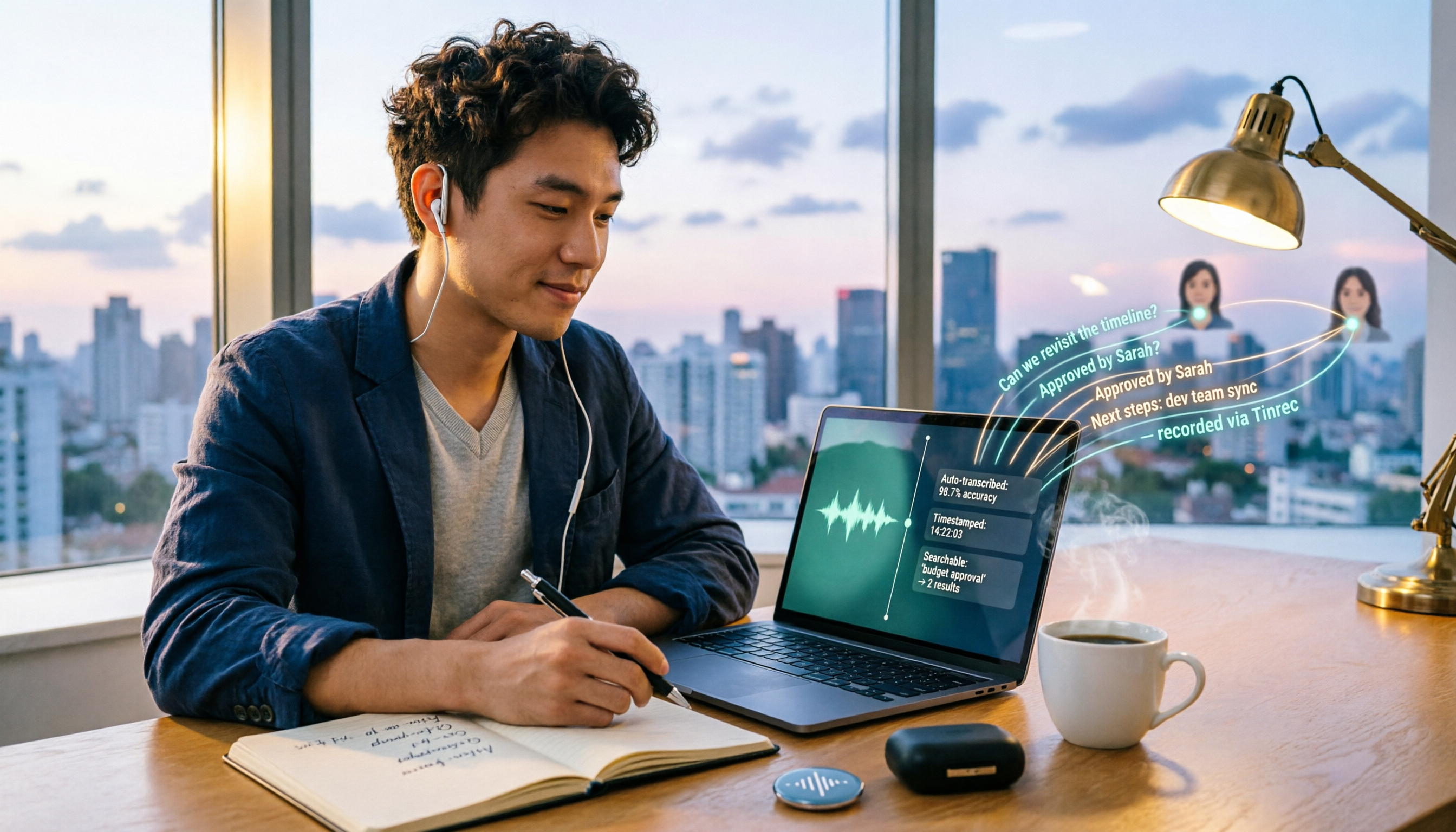
How to Record Computer Screen Audio in 2026: 3 Methods + Automatic Meeting Transcription
How do you record computer screen audio? This guide covers screen recording methods that still work in 2026, including Windows Game Bar, built-in Mac tools, and FonePaw. It also explains how Tinrec uses desktop bot-free recording and AI organization to turn meeting content into searchable, trackable data when you need transcripts and meeting notes instead of just video.