

Turn recordings into transcripts and summaries in minutes
Upload audio or video for multilingual transcription, AI notes, and action items
4 Windows Recording Tools Tested in 2026: Is Built-in Enough?
Does Windows Have a Recording Feature? Most People Get Stuck on Something Other Than 'Can It Record?'
Bottom line first: Yes.
Both Windows 10 and Windows 11 come with a built-in recording app that's free, requires no installation, and works right out of the box. This is less known than you'd think, and there's also the opposite scenario—people buy software before even checking if their computer can record.
But honestly, the real hurdle isn't 'can it record.'
Recording itself is just pressing a button. The hassle comes after: a 60-minute meeting where you spent 3 seconds hitting record, but then spend an hour replaying and typing to turn scattered conversation into readable highlights.
For interviews or online courses, it's even longer. The recorded file sits in a folder, and when you need it later, you can't find it, so you listen from the start again.
Another common issue is 'recorded, but wrong thing.' Many think computer recording only captures the microphone, so during a home meeting, they play back and find only their own voice—none of the other side.
So this article tackles two things: whether Windows can record and how; and after recording, how to turn that audio into truly usable data.
Before Choosing a Windows Recording Tool, Understand These 4 Key Points
There are many tools, but you don't need to look at all of them. Clarify these 4 things first, and the answer usually emerges.
1. Do you need to record the microphone, system sound, or both? This is the most overlooked aspect of Windows recording. Pure microphone recording is the easiest; but to record online meetings, videos, or system audio, you need to handle 'system sound.' Some tools solve this by switching input devices, others capture directly on desktop—stability varies greatly.
2. After recording, do you need to organize it? If it's just a quick memo, built-in tools suffice. But if the content needs review, citation, or delivery, consider transcripts, summaries, and action items—that's where tools differ most.
3. Where are files stored? Can you find them? The biggest problem with local recordings is they get scattered. On desktop, in folders, in the cloud—a year later, you can't remember. Centralized storage and keyword search affect whether you'll actually revisit them more than recording quality.
4. Is the free tier 'per month' or 'per session'? Many tools' free plans look generous but hide limits—some cap single-session length, others total monthly minutes. Check your usage frequency before choosing.
Tinrec – Our Top Recommendation After Testing
Tinrec is an AI meeting notes and collaboration tool for individuals and teams, supporting real-time recording, online meeting transcription, audio/video file import, AI Q&A, and multi-format export—ideal for those who need to truly organize meeting content.
Its biggest difference from regular recording software is that it doesn't just handle the 'recording' part.
Record online meetings without a bot. This is its most noticeable feature. Tinrec's desktop version directly captures system sound, so for Zoom, Google Meet, Microsoft Teams, or Webex, you don't need to invite a bot account—no unfamiliar attendee appears. Just open the app, hit record, and meeting audio is transcribed in real-time.
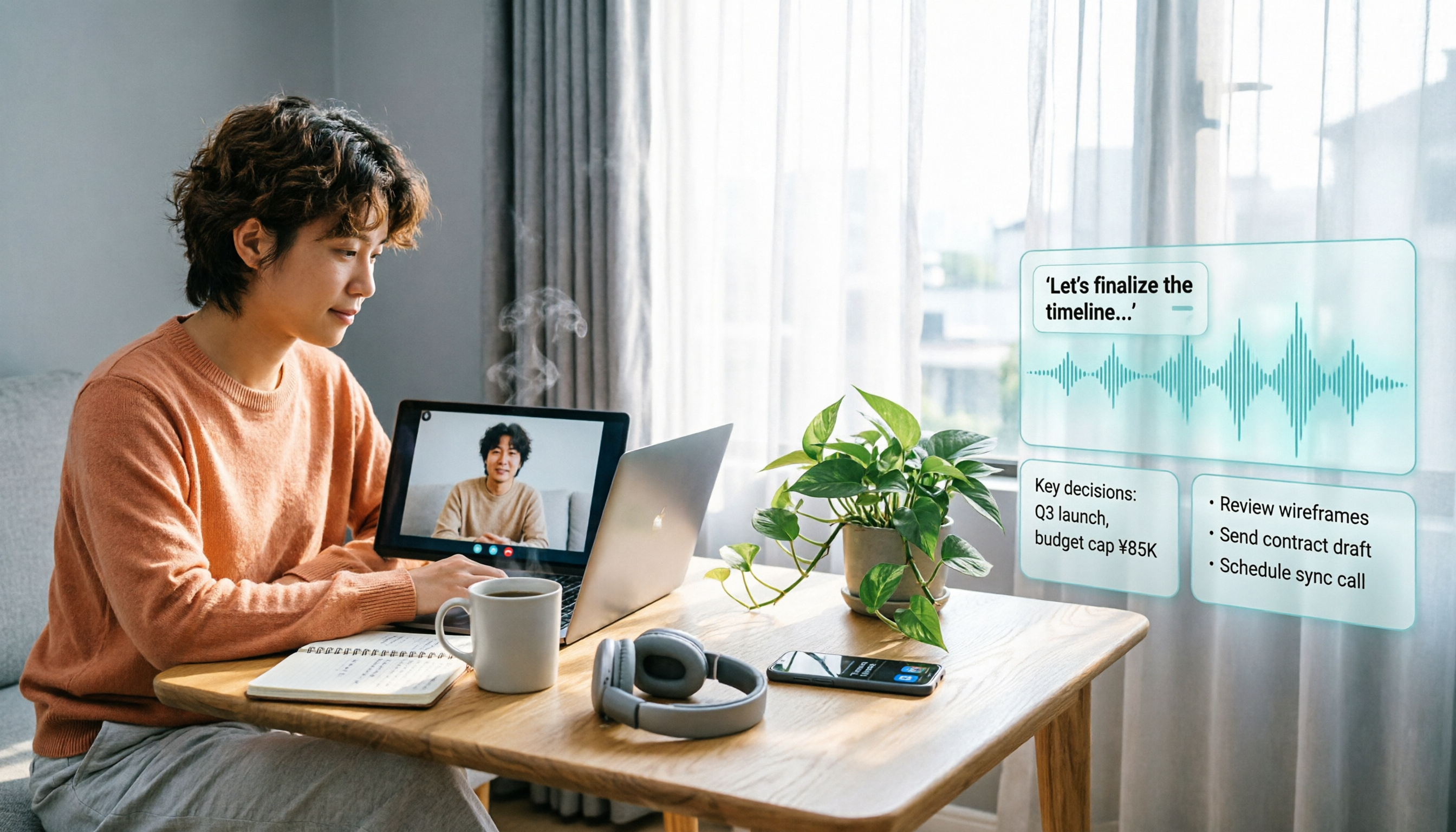
Content takes shape as the meeting happens. Live transcription generates simultaneously, and after the meeting, AI summaries, chapters, highlights, and action items are produced—who's responsible for what, next steps—no need to replay an hour to find out.
After recording, you can ask it questions directly. This is Tinrec's most practical differentiator. You can query meeting content, like 'Who mentioned the budget last time?' or 'What were the client's concerns about pricing?' It answers based on content, not just keywords. This capability is not common among similar tools.
Additionally, it supports real-time translation and bilingual view during recording, great for mixed-language meetings; results can be exported to Notion, Google Docs, OneNote, Dropbox for further processing, and via Agent post-processing, generate reports, tables, and meeting minutes documents.
Pricing includes free, weekly, Pro monthly, and Pro annual plans. The free version offers basic quota—try before deciding.
Stop organizing recordings by hand
Upload audio or video and automatically get a transcript, summary, and action items
For team sharing, Tinrec has a team version: a dedicated team space centralizes meeting recordings, transcripts, summaries, and action items, with member roles, seat allocation, usage analytics, audit logs, audio recycle bin, and team hotwords. Eligible teams can try 7 days free with 1 free seat and 300 minutes shared import quota; team monthly is USD 29.80/paid seat/month, annual USD 199/paid seat/year (about USD 16.58/month), each paid seat gets 2,000 minutes shared import quota monthly.
Limitations to note: First, Tinrec doesn't auto-join every meeting on your calendar—you must manually start the desktop app; second, transcription quality depends on audio conditions—noisy environments, multiple speakers, or heavy accents reduce accuracy, so official doesn't recommend fixed accuracy numbers. For important content, cross-check with transcript timestamps and recording playback.
Overall, if you want 'meeting recorded and ready to use' rather than just an audio file, Tinrec is currently the more complete choice.
Besides Tinrec, What Other Options Are on Windows?
Windows Built-in 'Voice Recorder' A basic, no-install, ready-to-use tool that records microphone and can be set to record system sound by changing input to speakers. You can add markers during recording, trim and rename afterward, and files default to the Documents folder under Sound Recordings. Limitations are clear: basic features, simple trimming only, no summaries or transcripts. Good for 'just keeping a record.' Tinrec's real-time transcription, AI summaries, and action item extraction are completely absent in built-in tools.
Audacity Open-source, free, cross-platform veteran audio editor with robust editing and noise reduction beyond recording—many people's first stop for audio files. Note it's more of an editing tool, not for meeting workflows—no transcripts, summaries, or AI Q&A. If you want 'record then edit well,' Audacity is great; if you want 'meeting highlights right after recording,' Tinrec saves more time.
Notta Closest to Tinrec in positioning, also focusing on multi-platform transcription, meeting notes, document import, and translation. Official current specs: free version 120 minutes/month, max 3 minutes per session; Pro annual about USD 8.17/month, 1,800 minutes/month; Business annual about USD 16.67/seat/month. Limitations are tight free tier per-session length and quota; bot-free desktop recording and team data governance are Tinrec's emphasized differentiators. Prices subject to Notta's official pricing page.
Pitfall Guide: 4 Most Common Mistakes When Choosing Windows Recording Tools
Pitfall 1: Assuming built-in recording captures the other party's voice. Whether Windows recording tools capture system sound depends on manually changing input to speakers or stereo mix. Many first-time online meeting recorders find only their own voice on playback. Test-record 10 seconds before—much cheaper than redoing later.
Pitfall 2: Only looking at free minutes, not per-session limits. '120 minutes/month' sounds enough, but if each session maxes at 3 minutes, a meeting becomes 20 segments—impractical. Check both numbers when choosing.
Pitfall 3: Recording then abandoning the file. Unorganized recordings are as good as none. Files scattered across local folders—three months later, you'll only remember 'I think I recorded it' and give up. Tools that centralize storage and allow keyword search make a huge long-term difference.
Pitfall 4: Using AI meeting tools as just recorders. Using it only for recording is like using one-third of its features. Transcripts, summaries, action items, AI Q&A are the time-savers—asking 'What was the conclusion?' after a meeting beats manually scanning a 30-minute transcript.
Final note: Recording involves others' privacy, and laws vary by region. Best to inform and get consent before recording.
Conclusion: Which One Should You Choose?
Back to the original question: Does Windows have a recording feature? Yes, and it's free. So if you just need occasional memos, use the built-in one—no need to pay.
But if your needs go beyond 'just recording,' choices differ:
- Need Chinese meeting transcripts plus post-meeting summaries and action items → Tinrec (live transcription, summaries, chapters, action items in one go)
- Want to ask AI about meeting details after recording → Tinrec (AI Q&A is relatively rare among similar tools)
- Record Zoom, Meet, Teams online meetings without bots → Tinrec (desktop captures system sound directly)
- Team sharing of meeting data, member and usage management → Tinrec Team (team space, seats, usage analytics, audit logs)
- Just occasional voice memos, no installs → Windows built-in Voice Recorder (no install, zero cost)
If you need precise audio editing and noise reduction, Audacity remains a free good choice.
Suggested order: First record once with built-in tools, feel how time-consuming 'recording then organizing yourself' is, then decide if you need to switch. To try Tinrec, the free version has basic quota—test with a real meeting, and consider paid plans if it fits—no need to buy upfront.
References
- Windows 10 Computer Recording Solutions Recommended - Mobile01
- Can't Keep Up with Online Classes or Meetings? Windows Built-in 'Voice Recorder' Helps You Record Content, Steps Explained | BusinessNext
- Windows Built-in Recording Feature ~ Voice Recorder, No Install! Record System, Microphone
- 4 Ways to Record Computer Audio Decoded! Easy to Understand, Easily Record Computer Sound [2026 Latest]
- Windows Voice Recorder - Free Download and Install on Windows | Microsoft Store
Turn every recording into actionable outcomes
Get 60 free transcription minutes when you sign in. No credit card required.
Related Reading
You might also like

Can You Record HOA Meetings in 2026? 3 Recording Tools Tested: Legal Basis and Evidence Practices
Can HOA meetings be recorded? If the chair says no, does that really mean no? This article breaks down three common misconceptions, then explains the practical boundaries using Articles 35 and 36 of the Condominium Administration Act and Article 315-1 of the Criminal Code. Finally, it compares three recording organization tools—Tinrec, Notta, and TurboScribe—to help you turn recordings into meeting minutes you can still find three months later.
Will LINE Screen Recording Be Detected in 2026? Real Tests + Tinrec Transcription Guide
Will LINE recording be detected? This guide covers notification behavior for iOS and Android screen recording, differences among third-party recording apps, and legal considerations. It also explains how to use Tinrec to turn LINE calls and meeting recordings into transcripts, summaries, and action items so your recordings become searchable and citable.

Can You Record a Mediation Committee Meeting in 2026? 3 Practical Scenarios Compared: What Happens If You Record Without Consent?
Can you record a mediation committee meeting? In principle, no, unless both parties and the mediator agree. This article compares three scenarios—court family mediation, township mediation, and labor dispute mediation—explaining the risks of recording without consent, the limits on recording's effectiveness, and how, if consent is obtained, Tinrec can instantly transcribe meeting content into verbatim transcripts, summaries, and action items.

2026 Comparison of 4 Meeting Recording Tools: Is Workplace Recording Legal? Whose AI Summarization Saves the Most Time?
Is workplace recording legal? This article outlines the legal keys to lawful recording from a practical standpoint and tests 4 meeting recording and organization tools, comparing Chinese transcription, AI summaries, team collaboration, and pricing to help you find the most suitable meeting notes solution within legal boundaries.

LINE Video Call Beauty Filters: Mobile vs Desktop Comparison (2026)
Does LINE video calling support beauty filters? Yes, and the mobile and desktop versions work differently. This article compares LINE mobile and desktop (version 7.8+) beauty features across 5 dimensions: where to find them, adjustable options, filters and backgrounds, supported call types, and whether settings are saved. We break down the differences and offer recommendations based on your usage scenario.

4 Ways to Record LINE Calls in 2026: Will the Other Person Know?
Will the other person know if you record a LINE call? This article compares four methods: iPhone's built-in screen recording, Android screen recording, third-party recording apps, and external recording devices. It explains which methods notify the other party and which might leave traces, and provides a practical workflow using Tinrec to turn recordings into transcripts, summaries, and action items.

5 Ways to Record LINE Calls in 2026: iPhone, Android, or PC — Which Is Most Reliable?
LINE doesn't have a built-in call recording feature, but there are 5 workarounds. This guide compares iPhone, Android, PC, and external device methods, including how they work, their limitations, and legal considerations. It also shows how to send your recorded calls to Tinrec to generate transcripts, summaries, and action items—so you don't have to rely on memory after hanging up.

4 Meeting Transcription Tools Tested in 2026: Which One Actually Turns Recordings into Meeting Minutes?
Tired of spending time after meetings writing up minutes? This hands-on comparison tests Tinrec, Otter.ai, Notta, and Granola on transcription accuracy, AI post-processing, meeting recording methods, and team collaboration. We also cover key buying factors and common pitfalls to help you find a tool that truly turns meeting recordings into usable meeting minutes.

iPhone Built-in Call Recording vs Tinrec in 2026: 5-Dimension Comparison — Which Should You Choose for Meeting Notes?
Can iPhone record calls while you're on the phone? iOS 18 supports it in some regions, but with many limitations. This article compares iPhone built-in call recording and Tinrec across 5 dimensions — compliance, recording source, post-meeting organization, cross-platform use, and team collaboration — to help you find the best meeting notes solution.