

Turn recordings into transcripts and summaries in minutes
Upload audio or video for multilingual transcription, AI notes, and action items
Your Wednesday afternoon project meeting ran 90 minutes, and your manager wrapped up with, "I'll just watch the recording later."
You close Google Meet, open your own Google Drive and search around—nothing. You check the shared drive again—still nothing.
It's not your memory. It's that Google Meet recordings are stored somewhere that doesn't match most people's intuition.
Why do people keep asking "Where are Google Meet recordings stored?"
The first reason is that most people assume the recording is saved on their own computer. In reality, Google Meet recordings aren't stored locally—they're uploaded directly to the cloud.
The second reason is that the recording is saved in the meeting organizer's Google Drive, not yours. If you were just an attendee, no wonder you can't find it.
The third reason is that many recordings never actually happened. Google Meet's official recording feature has plan and permission restrictions. If the button didn't appear, it's usually not a UI issue.
Understanding the storage logic—and then figuring out what to do after recording—is how you avoid letting an entire meeting's content go to waste.
Where are Google Meet recordings stored? 3 steps to find your meeting recording
Here's the bottom line: the recording is saved in the meeting organizer's Google Drive in a "Google Meet" folder, and the system creates a subfolder for each meeting.
Some accounts may see the folder as "Meet Recording." The name can vary slightly by account or version, but you can click into either one.
Step 1: Open the meeting organizer's Google Drive
Sign in to the Google account that hosted the meeting, open Google Drive, and look for the "Google Meet" folder in the left sidebar or file list.
Step 2: Open the subfolder for that meeting
Each meeting has its own subfolder, and the video file is inside.
Step 3: Open directly from Gmail or Calendar link
Both the meeting organizer and the person who actually recorded the meeting receive an email with a link to the recording. The system also adds the link to the Calendar event, so clicking that is the fastest way.
Two extra notes:
- Attendees automatically receive a "shortcut" to these files in their own Google Drive, but it's just a shortcut—the original file remains in the organizer's Drive.
- If the organizer role changed later, or if the meeting didn't happen at the originally scheduled time, the system sends the recording link to the original creator of the event. So when the host changes, remember to check with the original event creator.
Before you find the file, understand these 4 Google Meet recording limitations
Limitation 1: Not everyone can record. Only the meeting host and members of the host's organization can use the recording feature. External invitees don't have recording permission. And attendees can only record if the host has permission to record the meeting.
Limitation 2: You can only record from a computer or Android device. If you're looking for a record button on an iPhone, you won't find one.
Limitation 3: Recording always notifies everyone. When recording starts and stops, all participants receive a notification—you can't record secretly. There's also currently no setting to automatically record every meeting.
Limitation 4: Official recording requires a paid Google Workspace plan and has a length limit. The longer the recording, the larger the file and the longer the upload. Long recordings may also be interrupted when they reach 8 hours.
One more easily overlooked point: official documentation notes that if you joined the meeting only to share your screen, you can't use the recording feature. Also, the system records the current speaker and everything shown on screen, and you can optionally save captions.
By now you may have realized: finding the file is only the first hurdle. The real problem is "how do you watch a two-hour video again?"
Tinrec — making meeting content actually usable after recording
Tinrec is an AI meeting notes and collaboration tool for individuals and teams, available on iOS, Android, desktop, and web.
Its biggest difference from tools that just "record the meeting" is what happens after recording.
Record online meetings without inviting a bot. Tinrec's desktop app captures your computer's system audio directly, handling meeting audio played on Zoom, Google Meet, Microsoft Teams, Webex, and other platforms—no extra bot account needed to join the meeting. Note that this isn't "automatically join every meeting on your calendar"; the user actively opens Tinrec to start recording.
Transcribe while recording—get a transcript when the meeting ends. Open Tinrec during the meeting, and it produces text as it records. After the meeting, AI automatically generates a summary, chapters, key points, and action items—who's responsible for what, what to follow up on next time—so you don't have to re-listen to two hours. If the meeting includes mixed Chinese-English or foreign language content, you can enable real-time translation and view it in original, translated, or bilingual mode.
Stop organizing recordings by hand
Upload audio or video and automatically get a transcript, summary, and action items
Ask it questions directly after recording. This is where Tinrec stands apart from ordinary transcription tools. You can ask, "Who brought up the budget issue in the last meeting?" and it answers based on the meeting content's semantics, rather than just dumping keyword search results. You can also query and compare across multiple meetings from the same team.
In addition, Tinrec can process existing audio and video files, generate mind maps, export results to Notion, Google Docs, OneNote, Dropbox, and other tools, or use Agent post-processing to generate reports, tables, and meeting minutes. Simply put, it handles "turning meeting content into data you can keep working with."
Limitations to note:
Tinrec isn't a magic bullet. The free version offers a basic quota, good for trying it out. If you have regular weekly meetings, consider the Pro monthly or annual plan. Also, transcription quality is affected by recording quality, background noise, accents, overlapping speakers, and technical terminology. For important content, it's best to cross-check with transcript timestamps and audio playback.
If you need multi-person collaboration, the Team plan is another level.
The Team plan isn't "multiple people sharing one account"—it's a separate team workspace. Meeting data belongs to the team, and members can share and view it. Admins can manage roles and seats, view usage trends and member rankings, maintain team hotwords, query and export audit logs, and use the audio recycle bin to restore accidentally deleted audio. When a member leaves or loses their seat, their team resources can be handed over to other members—data doesn't leave with the person.
Current Team plan configuration: first-time eligible teams can try 7 days free, 1 free seat, 300 minutes of team shared import quota; team monthly billing is USD 29.80 per paid seat per month, annual billing is USD 199 per paid seat per year (about USD 16.58 per month), each paid seat provides 2,000 minutes of team shared import quota per month, and real-time recording is currently not deducted by minutes under an active team plan and active seat. Actual pricing and benefits are subject to the official purchase page.
Who is it for? If you frequently handle Chinese or mixed Chinese-English meetings, want to use AI to find key points right after recording, or want to move meeting data from personal drives into a team space, Tinrec is far more practical than a simple "recording plus cloud drive" combo.
Besides Tinrec, what other options are there?
Otter.ai: A mature English meeting assistant. Free version offers 300 minutes per month; Pro annual billing works out to about USD 8.49 per user per month. It's very strong for English business meetings—a big plus if almost all your recordings are in English. However, Chinese meetings aren't its strong suit. Tinrec's Chinese transcription, real-time translation, and team hotwords are harder for it to match.
Notta: A multilingual transcription tool with significant overlap with Tinrec. Free version offers 120 minutes per month with a 3-minute per-session limit; Pro annual billing works out to about USD 8.17 per month for 1,800 minutes per month; Business annual billing works out to about USD 16.67 per seat per month. Suitable for those who need captions and multilingual transcription. Tinrec's differences are its desktop app's bot-free online meeting recording, plus team governance capabilities like team workspace, member seats, and audit logs.
Granola: An AI meeting notes tool that takes a "no bot plus user notes" approach. Basic is free, Business is USD 14 per user per month. It supports viewing, copying, and searching real-time transcripts, but doesn't support uploading pre-recorded audio files and doesn't save meeting audio files. If you need archiving and want to organize existing recordings, Tinrec's recording retention and file import are more suitable.
Pitfall guide: 4 most common misconceptions about finding Google Meet recordings
Misconception 1: Thinking the recording is on your own computer. Google Meet recordings are uploaded directly to the cloud—no local copy is kept. If you want offline storage, you have to download it from Google Drive yourself.
Misconception 2: Thinking the file in an attendee's Google Drive is the original. It's just a shortcut. The meeting organizer actually owns the file. If they delete it or change permissions, the shortcut stops working.
Misconception 3: Thinking a free Google account can record. The official recording feature requires a paid Google Workspace plan, and only the host and members of the host's organization have permission. If the button doesn't appear, it's usually not because you don't know how to use it.
Misconception 4: Thinking finding the file is the end. Honestly, few people rewatch a two-hour video. Without a transcript, summary, or action items, the meeting was only "saved," not "used." That's why I recommend leaving recording to Google Meet and leaving organization to post-meeting tools like Tinrec.
Summary: Finding the file is just the first step
Back to the original question: Where are Google Meet recordings stored? The answer is the meeting organizer's Google Drive in the "Google Meet" folder, with one subfolder per meeting. Other attendees only get a shortcut.
But after you find the file, what really determines whether the meeting has value is how you organize it afterward. Here's a simple decision guide:
- Just want to confirm "where the recording is" → Open the organizer's Google Drive, or click the link in the Gmail notification.
- Frequently hold Chinese or mixed Chinese-English meetings → Tinrec (Chinese transcription, real-time translation, bilingual view).
- Want to use AI to find key points and ask questions right after recording → Tinrec (ask follow-up questions about meeting content without manually scanning the transcript).
- Need team sharing of meeting data, member and seat management → Tinrec Team plan (team workspace, seat management, usage analytics, audit logs).
- Zero budget, almost all English meetings → Otter.ai's free 300 minutes is a good starting point.
Overall, Google Meet helps you "record" the meeting, but turning the meeting into truly usable data still requires a post-meeting organization workflow. I suggest starting with Tinrec's free version, using a meeting you were already going to have, and seeing whether the transcript, summary, and action items really save you from re-listening.
References
- Record a video meeting - Computer - Google Meet Help
- Google Meet recording methods, storage location, and what to do when you can't record | Tanaka System
- How to use Google Meet recording to fully capture meeting details! - Tanaka System
- Where are Google Meet recordings stored? 2026 complete storage path analysis and AI transcription tool recommendation - Tinrec Blog
- Google Meet recording tutorial | Complete solutions for missing files, no sound, no permission
Turn every recording into actionable outcomes
Get 60 free transcription minutes when you sign in. No credit card required.
Related Reading
You might also like

4 Free Real-Time Transcription Tools Compared in 2026: A Generous Free Tier Doesn't Always Mean It's Enough
When looking for a free real-time transcription tool, most people make the wrong choice from the start. This article tackles common misconceptions, first clarifying the difference between "real-time" and "upload," and the three hidden limitations of free plans. It then compares Tinrec, Yating Transcription, cSubtitle, and Otter.ai to help you find a free meeting transcription solution that's actually sufficient.

2026 Live Transcription Tools Compared: Which Free Version Actually Transcribes as You Speak?
What does live transcription mean, and how is it different from recording first and uploading later? This article starts with a clear definition, then covers 5 key points to understand before choosing a live transcription tool. It compares Tinrec, Otter.ai, Granola, and PLAUD in real-world use, and includes common pitfalls and buying advice to help you decide which one truly fits your needs.

2026 Tinrec Review: Real-Time Transcription Without Meeting Bots + AI Q&A for Meeting Notes
Is real-time transcription worth it? This review breaks down 4 key factors for choosing a live transcription tool, focusing on Tinrec (秒聽錄音) and its no-bot online meeting recording, post-meeting AI Q&A, action item organization, and team spaces. We also compare Yating, Otter.ai, and Granola to help you decide which tool fits your needs.

2026 Live Transcription AI Comparison: Which Tool Best Handles Chinese Meetings and Post-Meeting Organization?
How to choose a live transcription AI? This article compares Tinrec, Otter.ai, Notta, and Granola across four aspects: meeting capture methods, Chinese recognition, post-meeting organization, and team collaboration, helping you find the best live transcription tool for your needs.

2026 Live Transcription Tools Compared: Which AI Meeting Assistant Works Best for Chinese?
Tired of re-listening to recordings to write meeting minutes? We tested four live transcription tools—Tinrec, Yating, Notta, and Otter.ai—comparing how they capture online meetings, AI summaries and action items, Chinese and mixed-language recognition, free tiers, and team data ownership. Includes a pitfalls guide and scenario-based recommendations to help you choose the right tool for your meeting needs.

5 Live Transcription Tools Tested in 2026: Which Handles Chinese Meetings Best?
How do you choose a live transcription tool? This article starts from the real pain points of Chinese meetings, outlines 4 key buying factors, and compares Tinrec, Yating Transcription, Otter.ai, and Notta after hands-on use. It honestly lists free quotas, team pricing, and pitfalls to avoid, helping you find the most convenient one.

4 Real-Time Transcription Tools Tested in 2026: Which One Can Summarize While You're Still in the Meeting?
Can't keep up with notes during meetings and then have to re-listen to an hour of recording? This article tests and compares four real-time transcription and AI summary tools—Tinrec, Otter.ai, Granola, and Notta—and outlines 4 key buying factors, 3 common pitfalls, and which one is best for Chinese-language meetings and professionals who want to use AI to query meeting highlights.
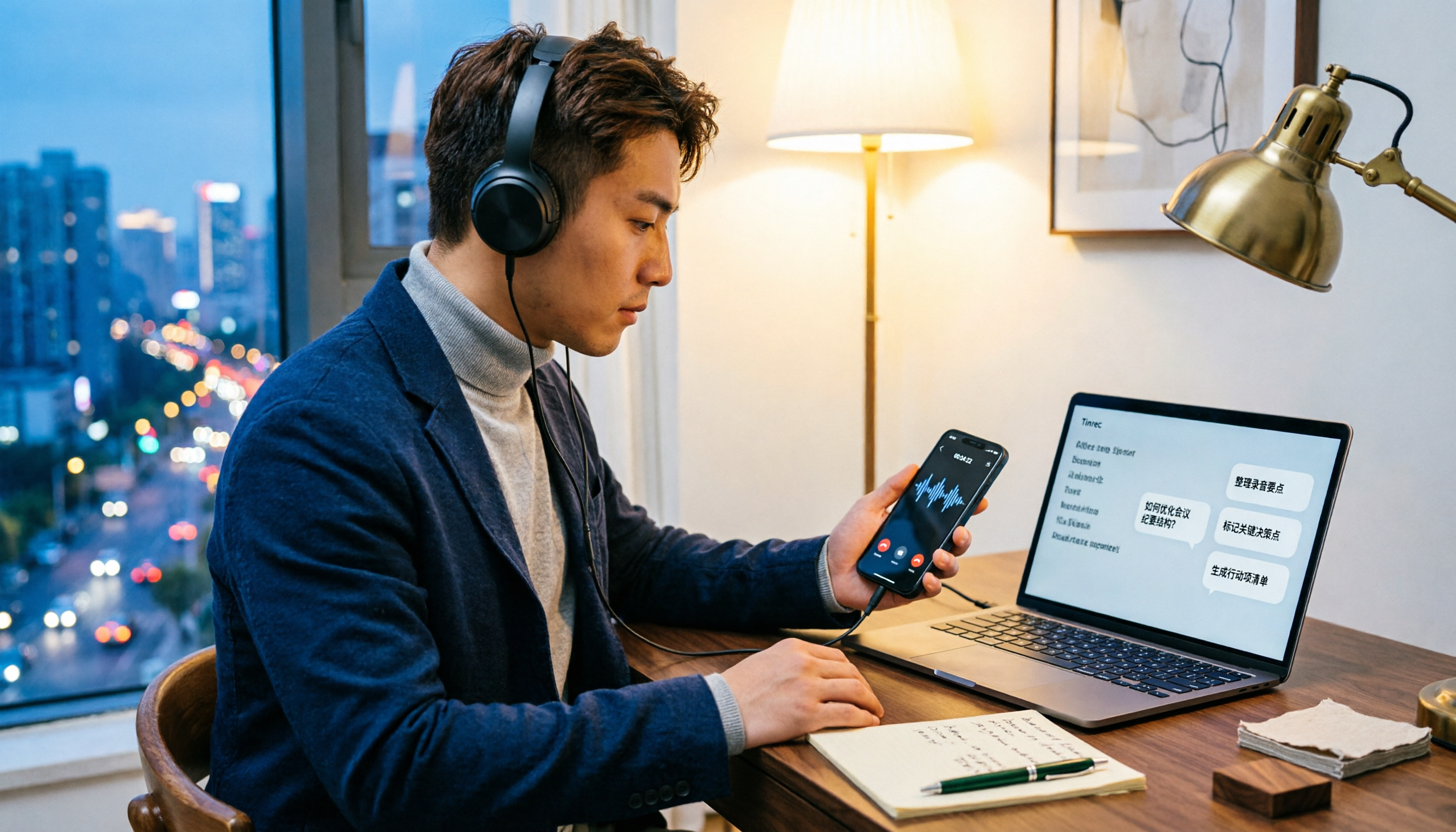
5 LINE Call Recording Methods Tested for 2026: Which Works Best for iPhone, Android, or AI Tools?
LINE doesn't have built-in call recording due to privacy protection and no third-party access, making "just record it" a hassle. This guide covers 5 practical methods—from iPhone built-in capture, Android screen recording, external recording devices, to AI tools—and compares post-recording efficiency. It explains why Tinrec's transcription, AI Q&A, and action item extraction make it the most practical final step for LINE call recording.

5 Best Video Conferencing Software in 2026: Which Free Version Is Enough?
Many people ask what video conferencing software is available. This article reviews 5 common options in 2026: Google Meet, Zoom, Microsoft Teams, Cisco Webex, and LINE. It compares free version limitations, use cases, and paid thresholds, and demonstrates how to use Tinrec to record online meetings without a bot, generate transcripts, summaries, action items, and team data.