
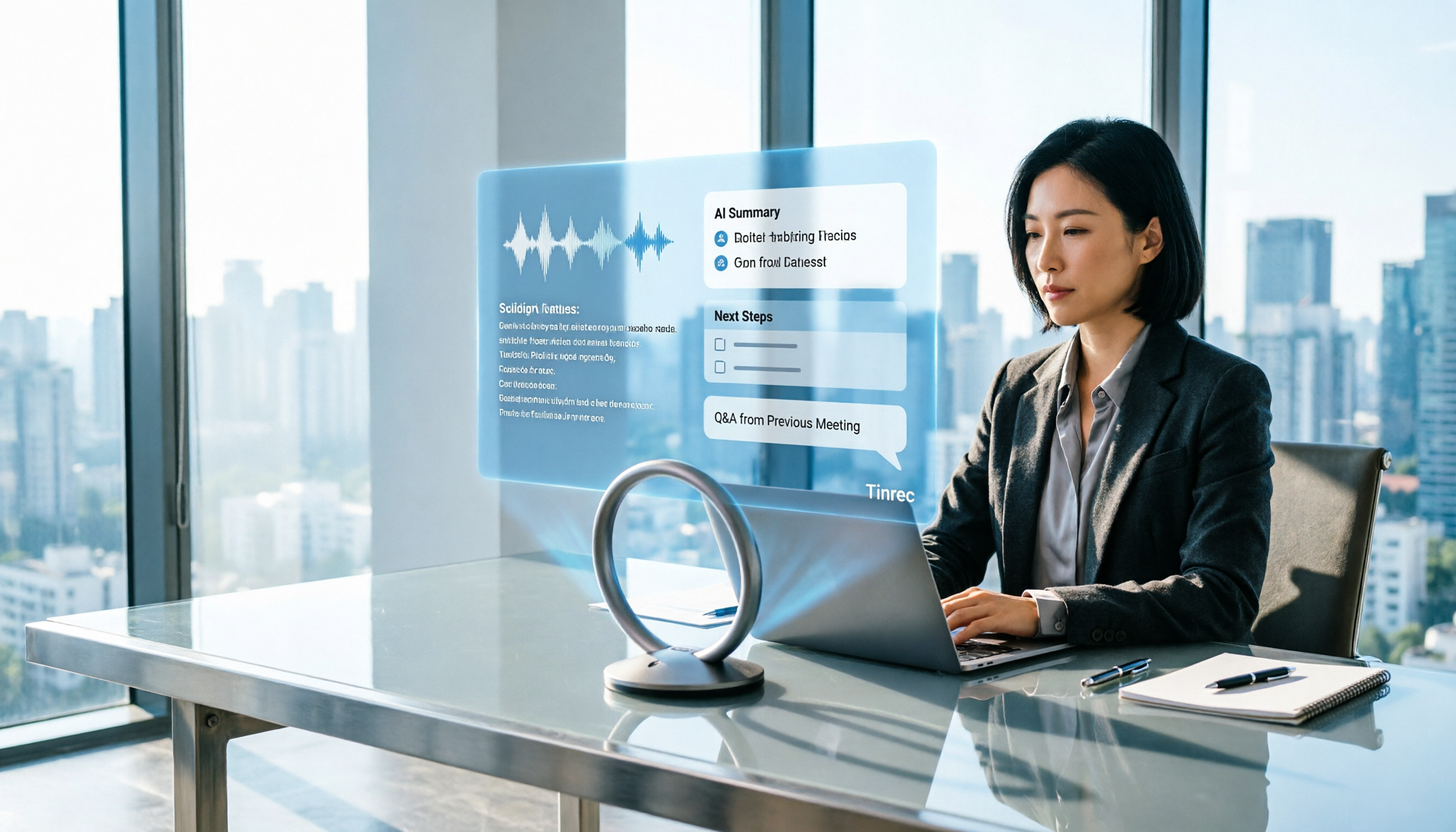
Turn recordings into transcripts and summaries in minutes
Upload audio or video for multilingual transcription, AI notes, and action items
How to Use Tinrec in 2026: AI Meeting Collaboration with Bot-Free Recording & Auto-Generated Meeting Minutes
The moment the meeting ends, your manager drops a message in the group chat: "Those three things we just discussed—who's responsible, and when is it due?" You flip through your notes and find only half a page of keywords, and the recording is still sitting on your phone. The problem usually isn't that the meeting didn't happen, but that the meeting content didn't turn into data that can be searched, tracked, and handed off. Here's how to actually use an AI meeting collaboration platform, using Tinrec as an example, in 5 steps.
Before You Start | What You Need to Prepare
- A device: A phone (iOS/Android) for in-person meetings and quick notes, and a desktop computer for recording online meetings. Tinrec supports multiple platforms.
- An account: You can start with the free version to experience basic recording, import, summary, and transcription quotas. Once you confirm the workflow suits you, consider upgrading.
- Meeting material: This can be an ongoing meeting or an already recorded audio or video file.
- A stable internet connection: Real-time transcription and AI summaries require an internet connection.
- If using with a team, think about three things first: how many team workspaces to create, who to invite, and who needs a "seat."
- Compliance reminder: Before recording, obtain consent from participants in accordance with local laws and respect your company's internal information security policies.
Step 1 | Create a Team Workspace and Centralize Meeting Data in One Place
The goal of this step is to make meeting data belong to the team, rather than being scattered across everyone's phones and chat histories.
After creating a team workspace in Tinrec, invite members via a join link and set up owners, admins, and regular members. Then determine who needs a seat: members who need to record, upload, edit, import, or export need a seat; members who only need to view historical meetings can still read, play, and view team data even without a seat.
Why make this distinction? Because the team version has two different concepts: roles determine governance permissions (who can manage members, audit, and team settings), and seats determine usage eligibility (whether one can record, upload, edit, import/export). This is the most easily confused aspect during purchasing and often leads to "bought but can't use" situations.
Once done, team members can open the same workspace to see all historical meetings, and new colleagues can directly review the context of previous discussions.
The current team version pricing is: first-time eligible users can try for 7 days, including 1 free seat and 300 minutes of team shared import quota; paid monthly is USD 29.80 per paid seat per month, annual is USD 199 per paid seat per year (about USD 16.58 per month), and each paid seat provides 2,000 minutes of team shared import quota per month. Actual prices and promotions are subject to the official purchase page.
(Scenario: A project manager opens the team workspace on a laptop, with this week's meetings listed on the left and the team member list with roles on the right, in a typical afternoon office setting.)
Step 2 | Record the Meeting: Live Recording or Bot-Free Online Meeting Recording
The goal of this step is to obtain a clean, usable meeting audio, which is the foundation for all subsequent steps.
For in-person meetings, use live recording directly: place your phone in the center of the table, close to the main speaker, and minimize background noise. For online meetings, use the Tinrec desktop version to directly capture the computer's system audio, handling meeting audio from platforms like Zoom, Google Meet, Microsoft Teams, and Webex played on the computer, without adding a meeting bot to the meeting room or changing the original meeting invitation list. If the meeting is already over, simply upload and import the audio or video file.
Why emphasize this approach? Because most people's impression of "meeting note tools" is that you need to invite a bot to the meeting first, and managers have to explain the unfamiliar account. The desktop version's system audio capture is zero-disturbance for participants.
After completion, this recording will appear in your team workspace. Note the entitlements: under an active team plan and active seat, live recording currently does not deduct minutes; file and web imports consume team shared import minutes and do not fall back on individual member quotas.
(Scenario: A phone lies flat in the center of a meeting room table recording, while the laptop screen next to it shows the transcript text in sync, and participants converse naturally.)
Step 3 | Let AI Transcribe to Text, Then Quickly Proofread
The goal of this step is to turn audio into searchable, quotable, and reprocessable text.
After recording or importing a file, AI generates a timestamped transcript. Chinese meetings, mixed Chinese-English discussions, and multilingual meetings can all be handled. When proofreading, you don't need to read every word; just quickly scan for names, product names, amounts, and numbers, and rely on timestamps to replay the rest.
Why proofread instead of leaving it all to AI? Because transcription quality is affected by recording clarity, background noise, accents, overlapping speech, and technical terminology. Tinrec does not promise a fixed accuracy rate, but you can maintain company-specific terms through team hotwords to improve recognition of specialized terms. For important content, it is recommended to verify against transcript timestamps and recording playback.
After completion, you will have a searchable transcript, which is the draft for subsequent summaries, action items, and AI Q&A.
Stop organizing recordings by hand
Upload audio or video and automatically get a transcript, summary, and action items
(Scenario: An editor sits at their desk, with the transcript text on the left side of the screen and the corresponding timeline on the right, cursor hovering over a segment to correct a name.)
Step 4 | Generate Meeting Minutes, Chapters, and Action Items
The goal of this step is to turn the transcript into a deliverable output.
After the transcript is ready, let AI generate summaries, chapters, key points, and action items. For long meetings, you can quickly jump through chapters without watching from start to finish; action items can be viewed and followed up directly in the team workspace. If you need more complete deliverables, you can further generate reports, tables, and documents.
Why is this step most critical? Because most people are stuck not on "no record," but on "the record is too long, no one wants to read it." Compressing a two-hour meeting into a one-page summary plus three action items is the form in which meeting notes are truly used.
After completion, a meeting will have four forms: transcript, summary, chapters, and action items, for different roles to use as needed.
(Scenario: Just after the meeting, the person in charge presses generate at their seat, and the screen shows the summary, chapter titles, and three action items in sequence.)
Step 5 | Use AI Q&A to Follow Up, Export, and Share with the Team
The goal of this step is to make meeting data reusable, not just archived.
For a single meeting or across multiple meetings, you can continue to ask questions via AI Q&A, such as: "What was the budget cap the client mentioned last month?" "How many times did the review committee change the specs this quarter?" The results can be exported as documents, reports, tables, or mind maps, and also exported to tools like Notion, Google Docs, OneNote, Dropbox for further processing. Team members can read, reference, and take over in the same workspace.
Why do this? Because the value of meeting data is not in "storing it," but in being found, referenced, and used for the next decision after the meeting.
After completion, what you have is no longer a pile of recording files, but a team meeting database you can query.
(Scenario: A newly joined member types a question at their seat, and the screen returns three answers from different meetings with corresponding timestamps.)
FAQs and Troubleshooting
Q: There are many typos in the Chinese meeting transcript. What should I do? First check the recording quality—a noisy environment or too much distance is the main cause. During recording, keep the phone close to the speaker and maintain a hotword list of common terms in the team workspace. Tinrec provides support for Chinese, Traditional Chinese, and multilingual meetings, but actual results are still affected by audio conditions; for important content, it is recommended to replay against transcript timestamps.
Q: Do I have to invite a bot to online meetings? No. The Tinrec desktop version directly captures computer system audio, without the need for an extra bot to join. Note that this means the user must actively open Tinrec to start recording, and it does not automatically join all meetings on the calendar—this is different from the operating logic of meeting bot-type tools.
Q: If a team member leaves, will meeting data be taken away? Team resources belong to the team, not to the individual uploader. When a member exits, is removed, or loses their seat, their team resources can be transferred to other active members, and data will not disappear with the person.
Q: Can members without a seat see meeting data? They can view, play, and read, but cannot perform resource usage operations such as upload, edit, import/export. Currently, the team version is primarily team-level sharing and does not yet provide fine-grained file-level permission settings.
Q: Can deleted recordings be recovered? After team audio enters the recycle bin, it can be restored before permanent cleanup begins; the current retention period is 30 days. Action items are not within the scope of the recycle bin.
Q: I just want to try it first. Where can I start? The free version allows you to experience basic quotas for recording, import, summary, and transcription. If you only have short-term intensive meetings, consider a weekly card; if you have steady weekly needs, Pro is suitable; if you need long-term accumulation of meeting data, the annual card has a lower monthly equivalent.
Advanced Tips | 3 Ways to Double Tinrec's Efficiency
1. Treat AI Q&A as a cross-meeting search engine Most transcription tools only give you a single meeting transcript, and when meetings pile up, they become scattered text files. Tinrec can answer questions for a single meeting or across multiple meetings, essentially storing each meeting in the same queryable database, saving time especially for handovers and reviews.
2. Real-time translation + bilingual view for cross-language meetings During recording, you can switch between original text, translation, or bilingual display. When multinational teams meet, participants don't have to wait until after the meeting to get a translated version; they can align in real-time during the discussion.
3. Use team hotwords, usage, and audit to complete governance Team hotwords can improve recognition of product names and proper nouns; the admin side can view usage trends, member rankings, and usage details, and query, filter, and export important operation logs. This is the most commonly missing piece when personal tools scale to team scenarios.
If You Don't Use Tinrec, Here Are Other Options
- Google Meet built-in features: Smooth integration with Google Workspace, suitable for teams where the whole company uses Workspace; however, post-meeting organization, follow-up questions, and cross-platform database still need separate solutions.
- Microsoft Teams Premium: Provides AI insights and meeting notes within the licensed scope, suitable for organizations heavily using Microsoft 365; if you also need to handle Zoom, Meet, and offline recordings, Tinrec's unified workspace is more convenient for organization efficiency.
Summary
After completing the above 5 steps, you have run through the basic workflow of an AI meeting collaboration platform: create a team workspace → record or import meetings → generate and proofread transcripts → generate summaries and action items → use AI Q&A to follow up and export/share. What truly sets you apart is not transcription speed, but whether meeting data is centrally stored, searchable, and usable by the next person who takes over. We suggest trying it with a recent meeting, starting with the free version's basic quota, to see if the workflow fits your team's habits, then decide whether to adopt the team version and seats.
References
- Zoom Meetings: Conference Call Service | Zoom
- Google Meet: Online Voice and Video Meeting Calls | Google Workspace
- Leverage AI in Meetings and Video Conferences | Google Workspace
- AI Meeting Notes - Smart Meeting Notes and Summaries | MaiAgent
- Smart Productivity with Microsoft Teams Premium - Microsoft Support
Turn every recording into actionable outcomes
Get 60 free transcription minutes when you sign in. No credit card required.
Related Reading
You might also like

2026年4款销售会议记录工具实测对比:免费额度谁最够用?
销售会议记录怎么写?本文拆解业务会议必记的4个字段与可直接套用的骨架,并实测比较 Tinrec、Notta、Granola、Otter.ai 四款工具的中文转写、AI 问答与免费额度,最后给学生与小团队的选用建议。

2026 Smart Meeting Collaboration Platforms Compared: Tinrec vs Granola — Which Is Better for Teams?
How do you choose a smart meeting collaboration platform in 2026? This article compares Tinrec and Granola across key dimensions—bot-free recording, audio retention, Chinese-language experience, post-meeting AI organization, team collaboration, and pricing—to help SMB managers and department heads quickly decide which platform best fits their team.

2026 Smart Meeting Collaboration Tools Compared: Which AI Meeting Assistant Saves the Most Time on Chinese Meeting Notes?
A mid-level manager who attends 15 meetings a week tested four common smart meeting collaboration approaches in 2026: built-in platform transcription, bot-based AI meeting assistants, standalone file transcription tools, and Tinrec, which he ultimately kept. The article covers real-world use cases, core capabilities, five key considerations when choosing a tool, and FAQs, including team plan roles, seats, and meeting data ownership.

Which AI Meeting Collaboration Platform Is Best? 2026 Hands-On Test of 4 Tools—This One Excels at Chinese Meetings
There are many AI meeting collaboration platforms on the market, but most people compare the wrong things. This article hands-on tests 4 tools, breaking down meeting capture methods, Chinese and mixed Chinese-English recognition, post-meeting organization workflows, team data ownership, and pricing. It also shares hands-on experience with Tinrec's bot-free recording, AI Q&A, and team spaces to help you decide which one fits your work rhythm.

Tinrec vs Notta 2026: 5-Factor Comparison for Chinese Meeting Collaboration Platforms
How to choose a smart meeting collaboration platform in 2026? This article addresses common pitfalls, outlines 5 key selection factors, shares hands-on testing highlights of Tinrec, and provides brief reviews and tips for Notta, Otter.ai, and Granola to help Chinese meetings and team knowledge retention find the right solution.

Tinrec vs Otter.ai 2026: 5-Dimension Test - Which Is Better for Chinese Meeting Collaboration?
In 2026, we tested smart meeting collaboration tools, comparing Tinrec and Otter.ai across five dimensions: bot-free recording, Chinese transcription, post-meeting organization, team collaboration, and pricing. We provide practical examples. If you're looking for a Chinese meeting note-taking tool, this hands-on review will help you decide which one suits you better.

2026 Smart Meeting Collaboration Tools Compared: Which One Actually Saves Time After Meetings?
From the perspective of a mid-level manager who holds 15 meetings a week, this article covers 3 latest changes in smart meeting collaboration in 2026, compares 4 common approaches through hands-on testing, and uses 5 buying criteria and 6 FAQs to explain how to choose an AI meeting note-taker and how to ensure post-meeting action items are not missed.

2026 Smart Meeting Collaboration Platforms Compared: Tinrec vs Notta — Which Builds Better Team Knowledge?
Discussions on PTT about smart meeting collaboration platforms often get stuck at 'you can record, but you can't use it.' This article compares Tinrec and Notta across meeting capture methods, Chinese transcription, post-meeting output, and team data ownership. It also covers Tinrec's bot-free online meeting recording, real-time translation, AI Q&A, action item extraction, and team workspace features to help you decide which workflow fits your meeting habits.

2026 Smart Meeting Collaboration Tools Compared: Which One Actually Saves Time on Meeting Notes?
Many people think finding a speech-to-text tool solves meeting notes, but it just turns typing into reading. This article uses the same mixed Chinese-English meeting recording to test and compare several smart meeting collaboration tools, breaking down key differences like bot-free recording, AI Q&A, action item extraction, team seats, and data ownership, with buying criteria and pitfalls to help you decide which one truly saves time.