

Turn recordings into transcripts and summaries in minutes
Upload audio or video for multilingual transcription, AI notes, and action items
The most common mistake when watching English videos is thinking that "finishing" equals "organizing." Most people pause and take notes while playing, turning a 1-hour video into 2–3 hours of work; or they just turn on auto-captions and skip through a few sections, feeling they've grasped the key points. Both approaches spend time moving text around rather than understanding the content.
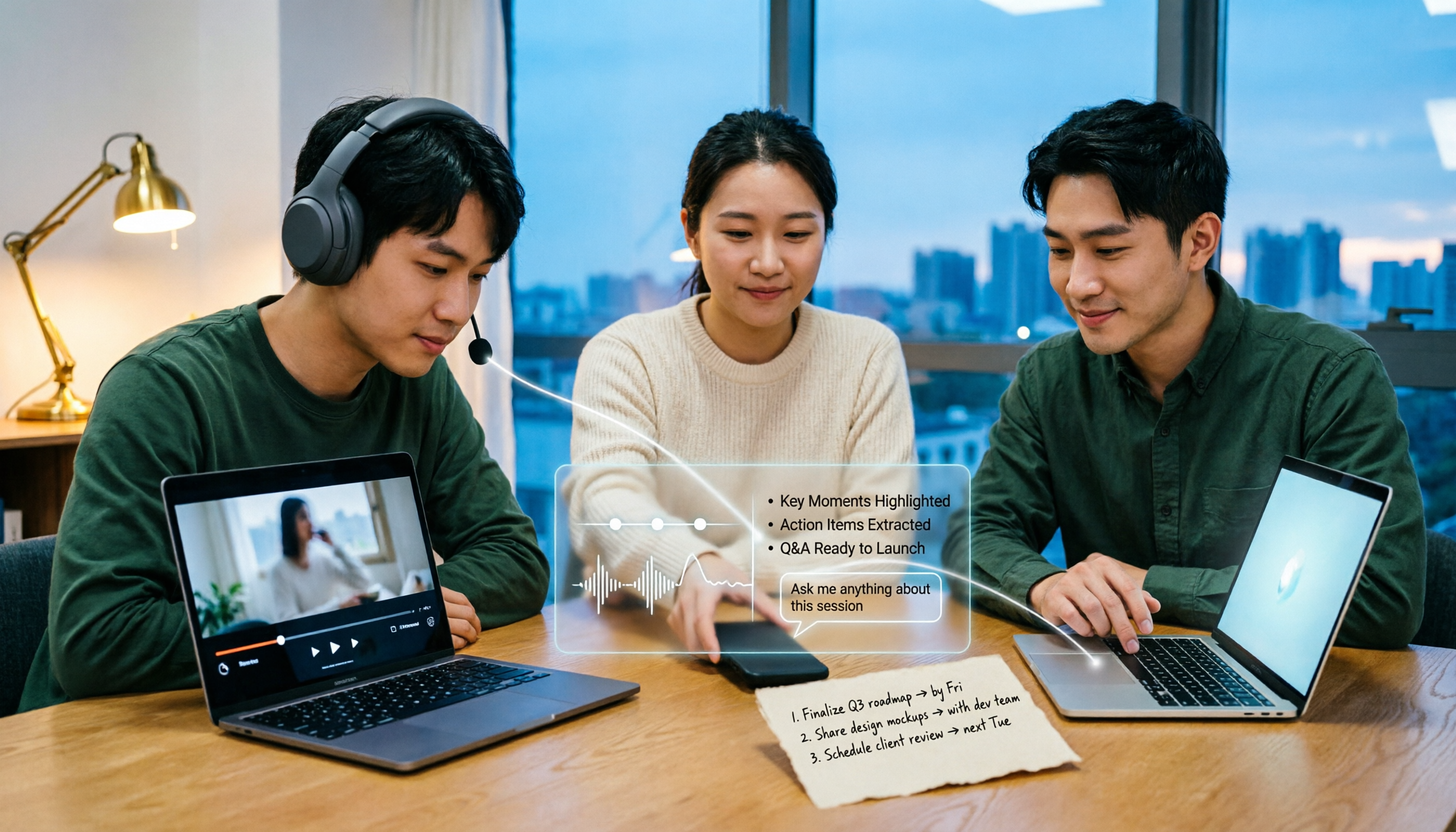
A more reasonable approach is to split the process into "first convert to transcript, then use AI summaries and Q&A to extract key points." Tinrec takes this route: after converting audio and video to text, it directly produces summaries, chapters, and to-dos, and you can ask follow-up questions about the content. If you have a pile of English videos to organize, the following decision points are worth reviewing first.
What's the difference between the 4 common approaches?
| Approach | Actual workflow | Common problems |
|---|---|---|
| Manual note-taking while watching | Play → pause → write → replay | A 1-hour video often takes 2–3 hours; note completeness depends on writing speed |
| Only using platform auto-captions | Turn on captions → skip through sections | Text stays in the player, hard to search and extend |
| Using a pure transcription tool | Upload file → get a large block of text | You have a transcript, but still need to read it all to extract key points |
| Tinrec's workflow | Upload or record → transcript → summary/chapters/to-dos → Q&A and export | Key points are produced directly; you can refer back to the original when needed |
How is Tinrec different from common approaches? 5 key criteria
1. English transcript and bilingual comparison
The first step in organizing English videos is getting a searchable transcript. Tinrec supports audio and video file transcription, can handle mixed Chinese-English content, and provides real-time translation and bilingual viewing, so you can compare the original and translation side by side. For English lectures or international meetings, this means no more switching back and forth to translation websites. Actual recognition accuracy is affected by recording quality, accent, background noise, and technical terminology; we recommend testing with your own real materials first.
2. Summaries and chapters automatically break down long content
Many people get stuck at "I have the transcript, but no time to read it." Tinrec automatically generates summaries and chapters based on the content, splitting long videos into scannable sections. You first look at the summary to get the big picture, then decide which original sections to read in detail—essentially replacing "watch from start to finish" with "see the structure first, then pick key points." This is also the biggest difference from approaches that only provide a transcript.
3. AI Q&A: get key points by asking directly
Once you have a transcript, the most time-consuming part is actually "finding out what the speaker really said." Tinrec supports AI Q&A about the content. You can directly ask "What is the conclusion of this video?" or "What are the three methods the speaker mentioned?" The system provides answers based on semantic understanding, so you don't have to manually flip through dozens of pages of transcript. For those who need to write reports or study notes, this step saves the most noticeable time.
4. Input sources and cross-device coverage
Tinrec supports real-time recording, desktop bot-free recording of online meetings (capturing system audio, can handle meeting audio played from Zoom, Google Meet, Microsoft Teams, Webex, etc.), audio and video file uploads, and web link import for some public videos. It works on mobile, computer, and web. When you need to handle both course videos and online meetings, you don't have to switch to another tool for different sources.
5. Export, post-processing, and team knowledge retention
Transcription is just the beginning. Tinrec supports exporting results to common tools like Notion, Google Docs, OneNote, and Dropbox for continued use, and can also use Agent post-processing to generate reports, tables, and documents. The team version stores content centrally in a team space, where members can search, ask follow-up questions, and reuse it, so it won't all disappear when someone leaves.
Tinrec's core features at a glance
Audio and video transcription: Convert uploaded English videos or audio files into transcripts, suitable for history courses, interviews, and already-recorded materials. After transcription, you can search keywords directly without scrubbing the timeline to find sections.
Stop organizing recordings by hand
Upload audio or video and automatically get a transcript, summary, and action items
Automatic summaries and chapters: The most frustrating part of long videos is "not knowing which minute the key point is in." Tinrec generates summaries and splits them into chapters. You grasp the structure first, then decide whether to watch in detail. By the end of a meeting or lecture, the summary can often serve directly as a draft of your notes.
To-do extraction and mind maps: Discussion-based content often contains many action items. Tinrec extracts to-dos from the content and can also present relationships between topics as a mind map, suitable for project discussions and course review.
AI Q&A and real-time translation: During recording or transcription, you can view the original, translation, or bilingual content; after the meeting, you can continue asking questions about single or multiple documents, turning "finding information" into "asking questions."
Multi-format export and Agent post-processing: Transcripts, summaries, and to-dos can be exported in common formats, or directly generate reports, tables, and documents. For those who need to submit weekly reports or meeting minutes, this saves a copy-paste step.
Real-world use cases
Online courses and English lectures: A one-hour English course used to require repeated pausing to take notes. Now, after converting the video to a transcript, you first look at the summary and chapters, then go back to the original for sections you don't understand. When reviewing, you can search keywords directly without rewatching the entire video.
Public English videos and interview materials: When you need to quote an expert's statement, the transcript plus AI Q&A can quickly locate the content. Some public videos can be imported via web link; actual support scope is subject to the product page.
International online meetings: Use the desktop version of Tinrec to capture system audio, record the meeting, and generate a transcript in real time without inviting an extra meeting bot. No unfamiliar account will appear in the participant list.
Team-shared learning and meeting materials: The team version provides an independent team space. New members can view past meetings and course records, and administrators can manage members, roles, seats, and usage. Note that members can view and play materials even without a seat, but they need a seat to record, upload, edit, and export.
Things to consider when choosing a tool
Language support and mixed Chinese-English: The real pain point for many users is mixed Chinese-English content. When choosing a tool, check whether it can handle mixed languages and whether it provides bilingual comparison, not just single-language recognition.
Can you refer back to the original? Tools that only provide summaries without transcripts are troublesome when you need to confirm details. Tinrec keeps both the transcript and searchable original text. For important information, it's still best to verify against the original and recording.
Are post-meeting outputs directly usable? Summaries, chapters, to-dos, export formats, and post-processing capabilities determine how much extra work you need to do. This affects the actual experience more than simply comparing transcription minutes.
Team governance: When multiple people use it, distinguish between "roles" and "seats." Roles determine who can manage the team and view audits; seats determine who can record, upload, and edit. This is the fundamental difference between the team version and "multiple people sharing one personal account."
Quotas and pricing logic: The personal version has a free version, weekly pass, Pro monthly, and Pro annual, suitable for choosing based on usage frequency. The team version offers a 7-day trial for first-time eligible users (1 free seat, 300 minutes of team shared import quota). Paid seats are USD 29.80/seat/month, or USD 199/seat/year (about USD 16.58/month). Each paid seat provides 2,000 minutes of team shared import quota per month; under an active team plan and seat, real-time recording currently does not deduct minutes. Prices and benefits are subject to the official purchase page.
Conclusion: Is Tinrec worth a try?
If all you need is "turn sound into text," there are many options. But if you want "after watching an English video, immediately get a summary, chapters, and a transcript you can ask questions about," Tinrec's value is much more obvious. It supports mixed Chinese-English content, real-time translation, and bilingual viewing. After transcription, you can use AI Q&A to find key points directly, and finally export the results into your existing workflow.
Situations suitable for Tinrec include: frequently organizing English courses and lectures, needing to handle international meeting records, having a large backlog of audio and video files to organize, and departments that want to turn meeting and learning materials into team assets. If you only occasionally organize a recording, start with the basic quota provided by the free version; if you have steady weekly needs, consider Pro or the annual pass; for multi-person collaboration, look directly at the team version.
The recommended test method is simple: pick an English video you really need to organize, run it once with the free version, and compare the time difference between "watching and taking notes yourself" and "transcript plus AI summary." This is more direct than reading any review. Finally, before recording and transcribing, please confirm compliance with local regulations and obtain consent when necessary.
References
- Do you know how to use it correctly? How to say "video" in English? | NativeCamp. Blog
- Learn English - Selected foreign videos (Chinese-English subtitles) - YouTube
- VoiceTube Learn English with videos | Hundreds of thousands of English learning videos, updated daily!
- FunTube Learn English with videos | FUNDAY combines learning with life
- VoiceTube Learn English with videos | Learn English online with the most practical and fun videos!
Turn every recording into actionable outcomes
Get 60 free transcription minutes when you sign in. No credit card required.
Related Reading
You might also like
5 Bilibili AI Summary Tools Tested in 2026: Which One Actually Saves Time on Long Videos?
Your Bilibili watch later list keeps growing, but you never finish watching? We tested 5 Bilibili AI summary tools, comparing subtitle recognition, AI follow-up questions, cross-device support, and team sharing. We also honestly explain how Tinrec handles meeting recordings while organizing videos, helping you pick the one that truly saves time.

Tinrec vs Notta 2026: 5-Dimension Comparison — Which Is Better for Dialect Transcription and Meeting Organization?
A tool review for dialect-to-text needs, comparing Tinrec and Notta across 5 dimensions: language support, post-meeting organization, recording retention, team collaboration, and pricing, with buying advice.

4 AI PPT Summarizers Tested in 2026: First Decide Whether You're Summarizing Slides or Meetings
Looking for an AI that can summarize PPTs? First, figure out whether you need to read an existing presentation file or meeting content that hasn't been turned into slides yet. This article compares SlidesPilot, Linnk, Microsoft 365 Copilot, and Tinrec, and explains how Tinrec, starting from meeting recordings, turns transcripts, summaries, and action items directly into presentation material.

How to Choose a Speech-to-Text App in 2026: A 5-Step Comparison
Looking for a reliable speech-to-text app? This article compares Tinrec and Otter.ai in 5 steps, covering Chinese recognition, meeting recording, file processing, AI organization, and team collaboration to help you find the best tool for your needs.

4 Meeting Transcription Tools Tested for 2026: Auto-Generate Minutes Without a Meeting Bot
The biggest pitfalls in meeting transcription are transcribing recordings word by word after the meeting or treating built-in transcripts as meeting minutes. This article compares four tools—Tinrec, Otter.ai, Granola, and PLAUD—using the same testing method, breaking down recording methods, output content, Chinese recognition, and team data ownership, with buying criteria and a guide to avoiding pitfalls.

2026 Free Real-Time Speech-to-Text for Classes: 2 Tools Compared
Can't keep up with note-taking in class? This guide compares the free plans of Tinrec and Yating Transcription, two real-time speech-to-text tools for classes, across 6 dimensions: live recording, post-class organization, AI Q&A, language support, export workflow, and team sharing. It also includes free and team plan quotas to help you decide which tool fits your class scenario.

Tinrec vs Otter.ai 2026: 5-Dimension Comparison — Which Is Better for Chinese Meeting Transcription?
How do you turn meeting recordings into usable text? This article tackles the common workplace pain point of transcription by comparing Tinrec and Otter.ai across five dimensions: Chinese transcription, meeting recording methods, post-meeting organization, AI Q&A, and team management. It also includes brief reviews of Notta and Granola, plus three common pitfalls when choosing a tool, helping you find the best recording-to-text solution for your needs.

How to Export Apple Voice Memos and Transcribe to Text in 2026: 5-Step Guide
How do you export iPhone Voice Memos recordings and turn them into text? This article first highlights common misconceptions like "seeing a transcript doesn't mean you have a text file," then walks you through 5 steps to export audio from Voice Memos, import it into Tinrec for transcription, and organize it into summaries, chapters, and action items. Finally, export to tools like Notion and Google Docs.

Tinrec vs Otter.ai 2026: 5-Dimension Comparison for Chinese Video-to-Text Scenarios
If you're looking for software to convert video to text, you're likely torn between Tinrec and Otter.ai. This article compares them across five dimensions: Chinese recognition, file transcription, meeting recording methods, post-meeting organization, and team governance. It also honestly lists the free tiers and paid prices of both to help you decide which one better suits your video and meeting scenarios.