

Turn recordings into transcripts and summaries in minutes
Upload audio or video for multilingual transcription, AI notes, and action items
47 whiteboard photos from meetings are sitting on your phone—what you need isn't OCR, it's usable data
Let's start with a scenario everyone has experienced: after a meeting, your phone's photo album has a dozen or more whiteboard photos and slide screenshots; after a client call, all that's left is a recording sitting in a folder. Three months later, when you need to write a quarterly review, you open that pile of screenshots and retype them one by one.
Most people's first reaction is to "download an image-to-text app." That direction isn't wrong, but it's easy to waste effort—because what you're really stuck on usually isn't "recognition," but the organizing, filing, and finding key points after recognition.
A more common misconception is thinking that as long as OCR supports Chinese, it can solve all content organization problems. In reality, half of the content in a meeting isn't in the images at all—it's in the audio. Choosing the right tool saves more time than downloading three more apps.
Before choosing an image-to-text app, understand these 4 key points
1. Recognition is just the starting point, not the end. Extracting text from an image is only the first step. Whether it can automatically segment, be searchable, or directly become weekly report material is what determines how many extra hours you'll spend.
2. Performance on Chinese and mixed Chinese-English recognition. A spec sheet saying "supports Chinese" is one thing; dealing with mixed Chinese-English, product terminology, and handwriting is another. The real gap usually shows up with this kind of mixed content.
3. Cross-device and export. Taking photos on your phone and organizing on your computer is almost inevitable. If the tool only stays on your phone, or export formats are missing pieces, you'll still end up manually copying and pasting.
4. Traps with free quotas and subscription methods. This is the easiest one to fall into. User reviews on Google Play for image-to-text apps have reported unexpected charges and carrier billing issues. Before downloading, check clearly whether it's subscription-based or one-time purchase, how the billing cycle works, and where the cancellation process is.
5. Think clearly: is your content "images" or "audio"? If you're dealing with meetings, interviews, or client calls, converting images to text only solves a small part—the real content is in the recording. This is why many people eventually turn to audio transcription tools.
Tinrec—a more complete path for organizing meeting content
Let's be clear: Tinrec is not an OCR tool that turns photos into text; it processes audio. But if your real task is "turning meeting content into usable data"—which is exactly the underlying purpose for most people searching for image-to-text apps—then Tinrec is currently one of the most complete paths for handling that.
Tinrec is an AI meeting notes and collaboration tool for individuals and teams, covering iOS, Android, and web.
Scenario 1: Online meetings without a meeting bot. The desktop version directly captures your computer's system audio, handling Zoom, Google Meet, Microsoft Teams, and Webex without needing a bot to join the meeting as an "invisible attendee." Transcripts are generated in real time during the meeting, and by the end, AI has already organized summaries and chapters, breaking long meetings into understandable key points.
Scenario 2: After recording, just ask it. This is where Tinrec differs most from ordinary transcription tools. After a meeting, you can directly ask questions about the meeting data: "Who mentioned the budget in the last meeting?" "What concerns did the client have about the delivery date?" It gives answers based on semantic understanding, not a string of keyword search results for you to dig through yourself. The recorded content can also be further organized into to-dos, reports, tables, or documents and brought into your existing workflow.
Scenario 3: Cross-language and team knowledge retention. During recording, you can view the original text, translation, or bilingual content, which is very useful for cross-language meetings. Team hotwords are used to maintain company terminology. The team version centralizes transcripts, summaries, and to-dos in a single team space: meeting data belongs to the team, and when members leave, are removed, or lose their seat, it must be handed over—it won't disappear with the individual; administrators can manage roles, seats, and sharing permissions, view usage trends, and query and export audit logs. Accidentally deleted audio can also be restored from the recycle bin.
Stop organizing recordings by hand
Upload audio or video and automatically get a transcript, summary, and action items
Practical limitations, to be clear upfront:
- It does not do image OCR. To handle paper documents or screenshot text, you still need dedicated OCR tools or built-in system features.
- The free version provides a basic quota, suitable for trying out the workflow; those with regular meeting needs should choose a weekly card or Pro monthly/annual card.
- Team version is priced per seat: USD 29.80 per paid seat per month, or USD 199 per paid seat per year (about USD 16.58 per month). Each paid seat provides 2,000 minutes of team shared import quota per month; eligible teams can try it for 7 days with 1 free seat and 300 minutes of shared import quota. Actual prices and benefits are subject to the official purchase page.
- Don't expect AI output to be 100% accurate. For important decisions, it's recommended to verify against transcript timestamps and recording playback.
- Accuracy is affected by recording quality, noise, accents, overlapping speakers, and technical terminology; in clear audio and common meeting scenarios, transcription of Chinese and mixed Chinese-English content is relatively stable.
Who it's for: People who have meetings every week and need to submit notes afterward; people who need to organize client interviews and requirements; and departments that need to turn meeting data into team assets. If you only occasionally need to convert a piece of paper to text, you don't actually need Tinrec.
Besides Tinrec, what other options are there?
"Image Scan - Image to Text" (App Store) Focuses on taking photos to extract text, and can also scan photos from your album, using a cloud OCR engine for recognition, supporting automatic segmentation, and the recognition results can be edited before export. If you only need to turn paper or screenshots into editable text, this type of tool is straightforward. But it only handles images—audio transcription, AI Q&A, and to-do extraction are beyond its capabilities.
"Image to Text Converter" (Chrome Web Store) A free OCR extension that can copy text from images, screenshots, screen recordings, and even videos. Suitable for quickly grabbing text from your screen on a computer. The downside is it stops at the "copy text" step, with no meeting recording, post-meeting summaries, or team data retention capabilities.
LINE built-in image-to-text LINE itself has built-in image-to-text and can even translate into other languages directly. Zero installation, no app switching, very convenient for temporary use. But it cannot handle audio files, nor is it suitable for long-term archiving and cross-device organization of meeting data.
(For the features and prices of the above third-party tools, please refer to their official pages.)
Pitfall guide: the 4 most common mistakes when choosing an image-to-text app
Pitfall 1: Only looking at advertised "recognition accuracy" numbers. Official accuracy rates are usually measured under ideal conditions. Your meeting room has air conditioning noise, keyboard sounds, and people interrupting—results will differ greatly. Testing with your own materials is more meaningful than looking at ads.
Pitfall 2: Not understanding subscription and billing methods. As mentioned earlier, user reviews on Google Play for image-to-text apps have reported unexpected charges and carrier billing issues. Before downloading, confirm whether it's subscription-based, how often it charges, and how to cancel.
Pitfall 3: Ignoring cross-device and export. Taking photos on your phone and organizing on your computer is almost inevitable. Before choosing, confirm whether there's a web version and whether you can export to the tools you normally use.
Pitfall 4: Treating "converting to text" as the end goal. Using the tool only as a typewriter means using only one-third of its capabilities. If you're dealing with meetings, what really saves time is the summarization, to-dos, and AI Q&A after recognition—this is also the reason tools like Tinrec exist.
Conclusion: Which one should you actually choose?
In one sentence: first distinguish whether what you have is "images" or "audio."
- Just need to turn paper, screenshots, or receipts into editable text → An OCR app like "Image Scan - Image to Text," or your system's built-in image-to-text feature is enough.
- Quickly copy on-screen text on a computer → Chrome's "Image to Text Converter" works well.
- Meetings, interviews, or client calls need to become transcripts and key points → Tinrec, that's its home turf.
- After recording, want to directly ask AI about meeting content → Tinrec, few transcription tools in the same price range currently have this capability.
- Need to use on both phone and computer, and export to tools like Notion or Google Docs → Tinrec, cross iOS, Android, and web.
- Team needs to retain meeting data, hand over, and check usage → Tinrec team version, priced by seat and shared quota.
To be blunt: if meeting notes are your weekly pain, Tinrec is worth trying, and it has a free quota so you can experience the whole workflow without spending money; if you only occasionally need to copy a piece of paper, don't rush into a subscription—your system's built-in features are enough.
References
Turn every recording into actionable outcomes
Get 60 free transcription minutes when you sign in. No credit card required.
Related Reading
You might also like
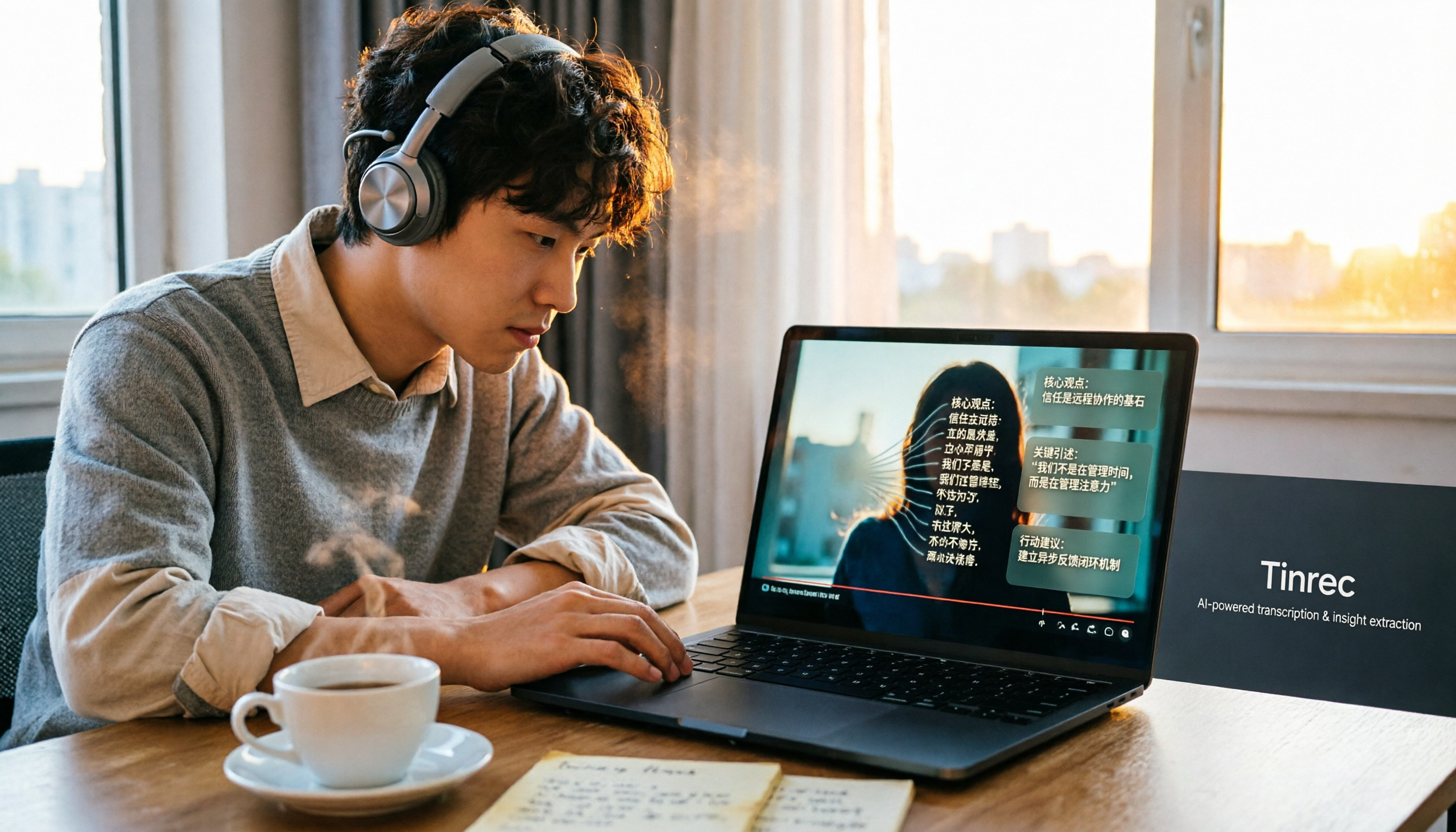
How to Convert Bilibili Videos to Text in 2026: 5 Methods + AI Summaries and Transcript Export
Bilibili's official CC subtitles cover less than 10% of videos, so turning videos into searchable, quotable text often means doing it yourself. This guide covers 5 ways to convert Bilibili videos into transcripts, from AI summaries and conversational queries to free tools, and explains who each method suits and how to choose.

4 Transcription Software Compared in 2026: Which Saves the Most Time on Chinese Meeting Transcripts?
How to choose transcription software in 2026? We tested and compared Tinrec, Notta, Otter.ai, and TurboScribe, covering Chinese recognition, meeting capture methods, post-meeting organization, free tiers, and pricing. We've compiled key selection points and pitfalls to help you find the most time-saving solution for meeting transcripts.
5 Best Text-to-Speech Tools with Realistic Human Voices in 2026: Which Free AI Voiceover Sounds Most Natural?
We tested MyEdit, Luvvoice, Vidnoz, Google Cloud TTS, and iMyFone VoxBox to compare accent naturalness, language support, free tiers, commercial use considerations, and best use cases—helping you find the closest thing to a real human voiceover.

Free Text-to-Speech Options in 2026: 5 Tools Compared
People searching for "text-to-speech" often want free TTS tools. But did you know many actually need speech-to-text—turning meeting and interview recordings into searchable, organized transcripts? This article takes a decision-focused approach to distinguish TTS from STT, and uses Tinrec as an example to show how an AI meeting notes tool turns voice into actionable team data.

Which AI Meeting Minutes Tool Is Best? 2026 Hands-On Test of 5 Options—This One Excels for Chinese Meetings
Tired of spending extra time organizing meeting notes after the meeting ends? This article starts with the key question of whether a tool can capture meeting audio, explains what AI-generated meeting minutes can do—summaries, action items, Q&A, and team knowledge retention—and uses Tinrec as an example to demonstrate bot-free recording, real-time translation, and post-meeting organization. It concludes with 5 purchasing considerations and FAQs.

5 Best Online Speech-to-Text Tools in 2026: Which One Saves the Most Time on Chinese Transcripts?
How do you choose an online speech-to-text tool? This article starts with the decision point of whether you're transcribing a file or a live meeting, breaks down core capabilities like real-time transcription, bot-free meeting recording, AI summaries, action item extraction, and team knowledge retention, and uses Tinrec as the main hands-on example. It covers 5 key buying considerations and FAQs to help you decide if the free version is enough or if the team plan is worth it.

How to Remove YouTube Watermarks in 2026: 3 Tested Methods + Online Extraction Without Watermarks
Downloading YouTube videos but stuck with a watermark on the screen? This article starts from real-world frustrations and tests three approaches: online extraction, cropping, masking, and blurring. It explains the image quality trade-offs and copyright restrictions of each, and compares which tool to use for two needs: 'just a clean file' versus 'reusable content organization.' It also includes a practical workflow for converting audio to transcripts and team collaboration practices.

4 iPhone Transcription Apps Tested in 2026: Is Apple's Built-in Transcript Enough?
Is the built-in Voice Memos transcript on iPhone enough? Based on real meeting scenarios, this article compares Apple's built-in tools, Notta, PLAUD, and Tinrec, highlighting key considerations and pitfalls for choosing a transcription solution, including transcripts, summaries, action items, and team collaboration.
5 Image-to-Text Tools Tested and Compared in 2026: Which Free OCR Is Good Enough?
This article reviews the use cases, free limitations, and target users of 5 common image-to-text tools in 2026, including Google Keep, LINE, Gaitubao, imagetotext.me, and Mac desktop OCR solutions, plus a note on meeting audio transcription tool Tinrec, helping you avoid common OCR pitfalls.