
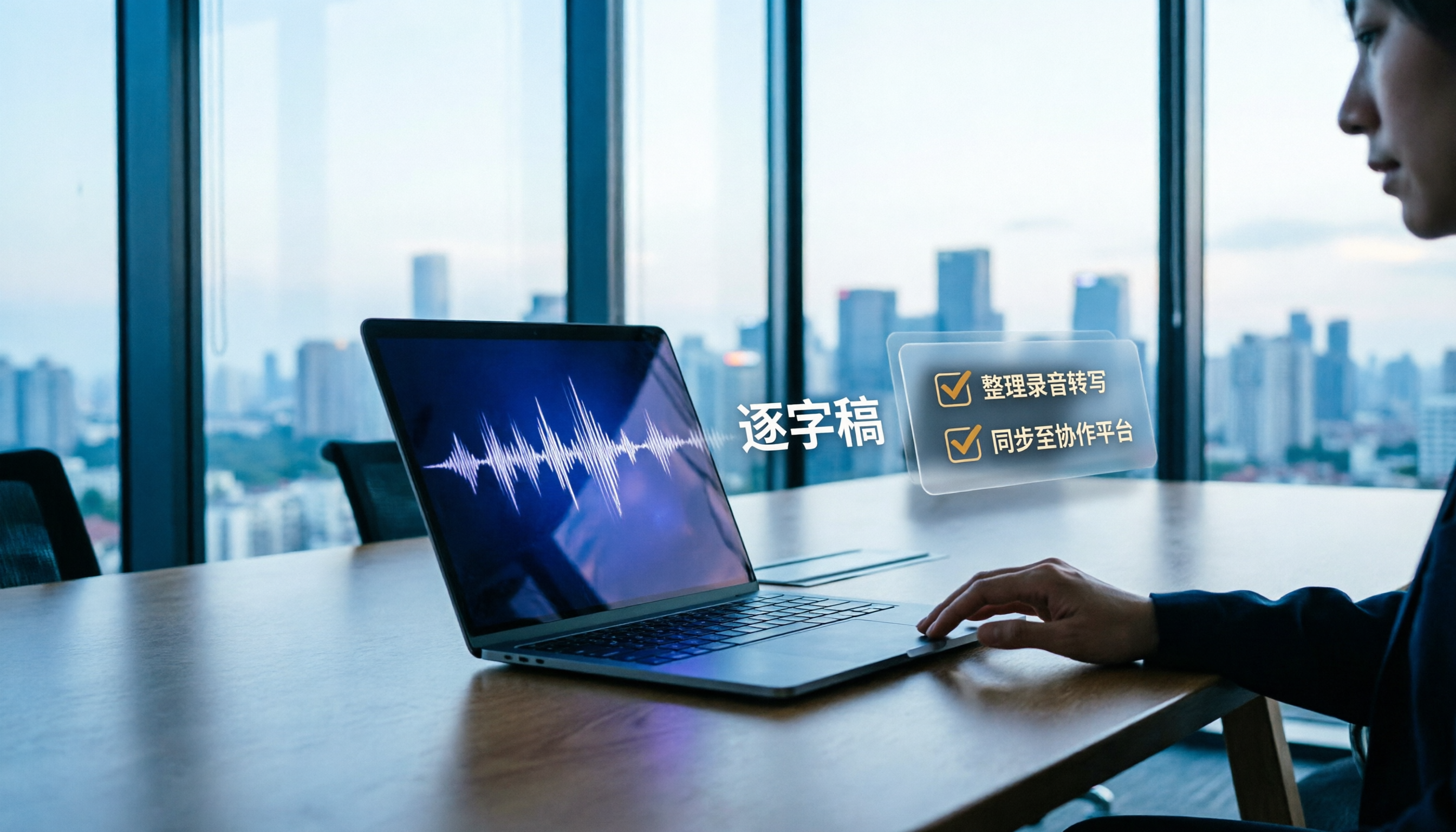
Turn recordings into transcripts and summaries in minutes
Upload audio or video for multilingual transcription, AI notes, and action items
How to Transcribe Meeting Recordings in 2026: Tinrec's 5 Steps + Auto-Generated Meeting Minutes
Last Wednesday, after a 90-minute project review meeting, I walked out of the conference room and realized: I hadn't written down a single action item. This happens to me three times a month. So I standardized my "meeting recording to text" workflow — record on phone or computer, drop it into Tinrec, and get a transcript and meeting minutes in five steps. Here's how my team actually does it.
Before You Start | What You'll Need
• A phone or computer. Tinrec has both a mobile app and a desktop version — the desktop version is key for handling online meetings.
• A meeting recording to convert to text. Whether it's recorded in person, has been sitting on your phone for a while, or is audio from an online meeting — any of these work.
• A stable internet connection. Real-time transcription requires being online.
• Before recording, check the laws in your area and get consent from participants when required.
Step 1 | Record the Meeting, or Import a Recording You Already Have
The only goal of this step is to get a clear audio file, because everything that follows depends on it.
For in-person meetings, open the Tinrec mobile app and hit record, then place your phone in the center of the table. The closer the distance and the fewer people talking over each other, the more usable the transcript will be. For online meetings, switch to the desktop version — it captures your computer's system audio directly, handling Zoom, Google Meet, Microsoft Teams, Webex, and similar platforms without needing to invite a meeting bot.
Why emphasize this? Because most people's meeting notes are actually written after the fact, relying on memory — and the first thing they forget is the action items. Instead of trying to recall later, just capture the audio during the meeting.
What you'll have: A meeting recording ready to be transcribed at any time. Already-recorded audio or video files can also be uploaded directly — no need to re-record.
Step 2 | Let AI Turn the Recording into a Transcript
This step turns "sound" into "searchable text."
In Tinrec, select the recording you just made and run transcription. It handles Chinese meetings and mixed Chinese-English content; for cross-language meetings, you can enable real-time translation and view the original, translated, or bilingual content as you record.
Why specifically mention "searchable"? Because the real value of a transcript isn't how it looks — it's that three months later, when you need to check "who exactly agreed to change the specs," you can type a keyword and find it. Handwritten notes can't do that.
What you'll have: A searchable, reviewable full-text transcript.
Step 3 | Proofread in 5 Minutes, Not Re-listen for 90 Minutes
AI transcription isn't 100% accurate — I'll be honest about that. Recording quality, background noise, accents, overlapping speakers, and technical jargon all affect the results.
The point of proofreading isn't to fix every typo — it's to catch three things: numbers (amounts, times, KPIs), names, and decision statements. If these three are wrong, the minutes that follow will be wrong too. If an adjective is wrong, honestly, nobody cares. If it's a meeting heavy on jargon, ask your admin to maintain team hotwords in the team space — it makes technical term recognition more reliable.
What you'll have: A transcript you can actually use.
Step 4 | Let AI Generate Summaries, Chapters, and Action Items
This is the biggest time-saver in the entire workflow.
Tinrec automatically generates an AI summary, chapters, and key points from the transcript, and extracts action items from the discussion. The most painful part of a long meeting is "not being able to find the key points" — with chapters, you can jump straight to the section you need. If you want to see how topics evolved, you can also pull up a mind map.
Why is this step especially important for managers? Because when reporting upward, what's needed is conclusions, not a transcript. When I report to my boss now, the first three sentences are the conclusions from the AI summary — details come after.
What you'll have: Summary, chapters, key points, and a to-do list — all at once.
Step 5 | Export, or Keep It in the Team Space for Ongoing Use
If only you need to see the meeting notes, just export them. Tinrec supports multiple export formats and can also send results to Notion, Google Docs, OneNote, Dropbox, or other tools you already use for further editing.
Stop organizing recordings by hand
Upload audio or video and automatically get a transcript, summary, and action items
If you lead a team, I'd suggest a different path: keep meeting data in the team space. The team plan is a separate collaborative space where meeting audio, folders, and action items belong to the team. New members can look back at historical meetings. When a member leaves, is removed, or loses their seat, the resources they were responsible for can be handed over to other active members — they won't disappear with the person. On the admin side, you can view usage trends, member rankings, and details, and query and export important operation logs.
It's important to distinguish between "roles" and "seats": roles determine who can manage the team, members, and team settings; seats determine who can record, upload, edit, and import/export. Active members without a seat can still view, play, and read team data. Currently, the team plan is primarily team-level sharing — not file-level granular permissions.
FAQs and Troubleshooting
Q: The transcript has a lot of errors. What should I do?
Ninety percent of the time it's a recording environment issue: too noisy, too far from the mic, or multiple people talking at once. Next time, put your phone in the center of the table, or switch to the desktop version to capture system audio (online meeting audio is usually cleaner than in-person). For meetings with lots of jargon, add technical terms to team hotwords first.
Q: How do I record online meetings? Do I need to invite a bot?
No. The Tinrec desktop version captures your computer's system audio directly, handling Zoom, Google Meet, Microsoft Teams, Webex, and similar platforms — no extra bot will appear on the participant list. Keep in mind that you need to open Tinrec yourself to start recording — it's not a service that automatically joins all calendar meetings.
Q: Can it handle meetings with mixed Chinese and English?
Yes. Tinrec covers Chinese, Traditional Chinese, and multilingual meeting scenarios, with real-time translation and bilingual viewing. Actual results are still affected by audio quality, accents, and technical terminology.
Q: Is the free version enough? When should I upgrade?
The free version provides a basic quota — good for trying out a recording or two. If you're like me and have a dozen-plus meetings a week, you'll need to move to a paid plan. The team plan currently costs USD 29.80/seat/month, or USD 199/seat/year with annual billing (about USD 16.58/month). Each paid seat provides 2,000 minutes of team shared import quota per month; under an active team plan and active seat, real-time recording currently doesn't deduct by the minute. Prices, currencies, and benefits are subject to the official purchase page.
Q: Can AI-generated minutes be sent out directly as official meeting records?
I'd recommend against it. AI can miss or misinterpret details. For important decisions and commitments, I go back and cross-check the transcript timestamps and recording one more time. It saves you time — it doesn't take responsibility for you.
Advanced Tips | 3 Ways to Double Your Tinrec Efficiency
1. Use AI Q&A instead of digging through records
"What was that quote we discussed in the last meeting?" Just ask directly. Tinrec supports AI Q&A around meeting content — you can ask about a single meeting or across multiple meetings. Most transcript tools just give you a document; Tinrec lets you have a conversation with it.
2. Real-time translation + bilingual transcript for cross-language meetings
When meeting with overseas colleagues or clients, you can switch between original, translated, or bilingual views during recording — no need to find someone to translate the entire transcript afterward.
3. Use Agent post-processing to turn meetings directly into deliverables
After a meeting, you often need a weekly report, a spreadsheet, or a document. Tinrec's Agent post-processing can generate reports, tables, and documents based on meeting content, then export to Notion, Google Docs, OneNote, or Dropbox for further editing.
If You Don't Use Tinrec, Here Are Other Options
Notta: Multi-platform transcription, multiple languages, meeting notes, and team plans — significant overlap with Tinrec. Best for people who mainly do file-based transcription. Tinrec's difference is bot-free online meeting recording and team knowledge retention.
TurboScribe: A value-oriented option, strong at long files and batch uploads — great for dumping a large number of files for subtitles. If what you want is to get minutes and action items immediately after a meeting, Tinrec's workflow is smoother.
Summary
Once these five steps become routine, my post-meeting cleanup time dropped from 40 minutes to under 10: record or import, transcribe, proofread numbers and names, generate summary and action items, export or keep in the team space. You don't need to replace your existing workflow — just hand off the most mechanical part to AI.
I'd suggest starting with one meeting: take one of your own recordings, drop it into Tinrec, and see if the transcript and minutes are usable as-is. The free version's basic quota is enough to try a few meetings — upgrade when it feels right. If you want your whole team to share the same meeting assets, then consider the team plan.
References
Turn every recording into actionable outcomes
Get 60 free transcription minutes when you sign in. No credit card required.
Related Reading
You might also like

How to Transcribe Meeting Recordings in 2026: 5 Steps to Transcripts and Meeting Minutes
What is meeting recording transcription? This guide starts with the decision point: do you need a verbatim transcript, or a ready-to-send meeting summary? Using Tinrec as an example, it walks through 5 steps—recording, transcription, proofreading, generating meeting minutes, and exporting/sharing—plus troubleshooting, advanced tips, and alternative comparisons.
2026 Comparison of 3 Meeting Recording-to-Transcript Tools: Which One Saves You Post-Meeting Cleanup Time?
Turning meeting recordings into transcripts isn't about who transcribes fastest—it's about who spares you from overtime cleanup after the meeting. This article starts from the three most common misconceptions, walks through the complete workflow of recording, transcription, proofreading, generating meeting minutes, and exporting/sharing using Tinrec, includes AI follow-up prompts you can copy directly, and explains the practical use of team spaces, hotwords, and seats.

2026 Meeting Transcription and Minutes Tools Buying Guide: 6 Tools Tested and Recommendations
Are meeting transcription and minutes tools actually useful? I have 15 meetings a week, and my key criteria for testing 6 tools are: whether the meeting is online or offline, whether you want a bot to join the meeting, and what you plan to do with the transcript afterward. This article covers the features, free quotas, and paid plans of Tinrec, CLOVA Note, Otter.ai, Notta, Granola, and TurboScribe, and offers selection advice from a mid-level manager's perspective.

How to Record and Transcribe Meetings in 2026: AI-Powered Step-by-Step Guide
After a meeting, the real time sink is the follow-up. This guide walks you through a proven 5-step meeting transcription workflow based on 15 weekly meetings: how to record in-person and online meetings, generate AI transcripts, proofread quickly, produce meeting minutes and action items, and export and share. Includes FAQs and advanced tips, using Tinrec as an example.

The Complete Guide to Meeting Recording Transcription in 2026: From Recording to Transcript, Summary, and Action Items
What is meeting recording transcription and what post-meeting pain points can it solve? This article, from a mid-level manager's practical perspective, breaks down core capabilities such as real-time transcription, bot-free online meeting recording, AI summaries, and action item extraction. It covers 5 key considerations for choosing a tool and answers common questions, using Tinrec as an example to illustrate a real-world workflow.

2026 Complete Guide to Meeting Recording Transcription: From Audio to Transcript and Action Items
How do you transcribe meeting recordings? This guide starts from practical decision points, breaking down core capabilities like real-time transcription, bot-free meeting recording, AI summaries, action item extraction, and AI Q&A. It uses Tinrec to demonstrate the complete workflow from recording to transcript, summary, and action items, while explaining when to choose personal vs. team plans and key considerations for tool selection.

The Complete Guide to Meeting Recording Transcription in 2026: From Transcript to Action Items
What is meeting recording transcription? This guide starts from the real pain points of mid-level managers, explaining what meeting recording transcription can do for you, five core capabilities, four practical use cases, and five things to consider when choosing a tool. It also uses Tinrec to demonstrate the complete workflow from recording to transcript, summary, action items, and team collaboration.

3 Ways to Manage iPhone Voicemail in 2026: Which Live Transcription Is Most Practical?
How does iPhone call forwarding to voicemail work? This article uses a mid-level manager's real-world scenarios to break down iPhone Live Voicemail's forwarding rules, exceptions for roaming and Low Power Mode, cost traps, and setup. It also compares Tinrec's transcription coverage, post-meeting to-dos, later search, and team collaboration across four dimensions, and finally tells you which situation calls for which tool.

Best iPad Real-Time Speech-to-Text in 2026: 4 Methods Tested, Top Pick for Chinese Meetings
Want to see words appear as you speak on iPad? Built-in dictation, Voice Memos transcripts, and third-party apps each have limits. This article compares 4 methods using Chinese meeting and interview scenarios, breaking down recognition stability, post-meeting organization, audio sources, and data ownership. It also explains how Tinrec differs in Chinese transcription, AI Q&A, and team spaces, and gives clear recommendations.