
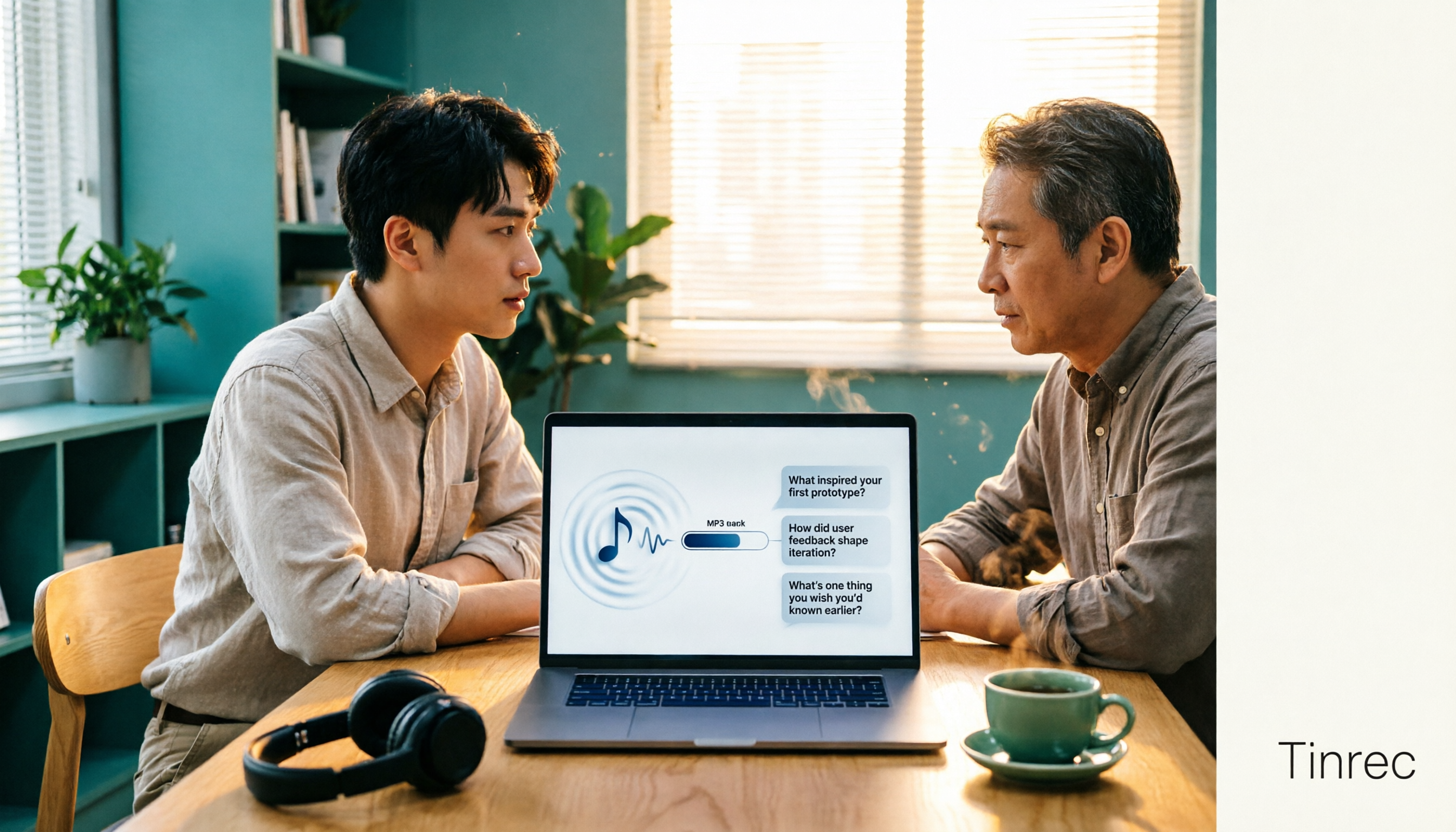
Turn recordings into transcripts and summaries in minutes
Upload audio or video for multilingual transcription, AI notes, and action items
When it comes to converting music to MP3, most people get stuck not on which button to press, but on two decisions: Is this audio file something you just want to listen to, or something you need for transcripts, summaries, and further organization? And how much audio quality are you willing to trade for how much file size?
Here's the bottom line. For pure format conversion, open an online converter in your browser and you're done in 3 steps—no installation, no registration. But if your audio file is a meeting, interview, or class recording, converting to MP3 is just the first step. The part that really determines whether you'll be working overtime is turning the content into searchable, queryable data.
Why Does Converting to MP3 Get Stuck? You Don't Need a Converter—You Need to Know Your Purpose
First common scenario: You want to put a concert recording, CD, or class audio file on your phone and car stereo, but the original file is WAV or FLAC and way too large—a few songs and it's full.
Second scenario: You recorded a 90-minute online meeting or client interview and want to convert it to MP3 to send to a colleague. They receive it but still have to listen from start to finish—because MP3 is just a different format; the content hasn't been organized.
Third scenario: You finally find a free online converter, upload your file, and discover it's over 200MB, or your browser isn't supported.
These three situations actually require different tools. Choosing the wrong one doesn't mean the tool is bad—it means you're mixing up "conversion" and "content organization."
4 Key Points to Understand Before Converting
1. Bitrate determines file size and audio quality. For the same song, 128kbps and 320kbps can differ by more than double in file size. Higher bitrate means better quality and larger files—that's the trade-off. For listening on your phone or car stereo, 128–192kbps is usually enough; for archiving masters or re-editing, go higher.
2. MP3 is lossy compression—accept that first. Converting WAV to MP3 compresses data and reduces audio quality; that's inherent to the format. But in most cases, the human ear can hardly detect such subtle differences unless your playback equipment is very good or the source file was already compressed once.
3. Free online tools usually limit file size and browser support. Many free services cap single files at 200MB or only work properly in certain browsers. Check the rules before uploading—it saves time compared to failing halfway through.
4. Your purpose determines which type of tool you need. If you just want to extract audio from a video or change a music file's format, an online converter is fastest. But if the value of that audio lies in its content—who said what, what was decided, what are the action items—then you actually need a different kind of tool.
Step-by-Step: Convert Music to MP3 in 3 Steps
Step 1: Choose an online converter and upload your file. Most services let you select files from your device or paste an online file URL. Some can even process video files and extract the audio track.
Step 2: Set output format and quality. Choose MP3 as the target format, then decide on bitrate and sample rate. If unsure, use the default or select "same as source" bitrate.
Step 3: Start conversion and download. Once done, the output file appears in the results area for download; some services also let you save to cloud storage.
After these three steps, you'll see that conversion itself isn't hard. The hard part is what comes after.
Tinrec—After Converting to MP3, If What You Need Is to Understand the Content
Let's be clear: Tinrec is not an MP3 converter. It's an AI meeting notes and collaboration tool for individuals and teams, available on iOS, Android, web, and desktop. It handles the content within audio, not the audio file format.
So why mention it when talking about conversion? Because most people rushing to convert recordings to MP3 actually want others to be able to listen or to make it easier to organize later. For the former, MP3 is enough; for the latter, you'll need Tinrec.
Here are three scenarios where it truly differs from pure conversion or pure transcription tools:
Scenario 1: No need to add a bot to online meetings. Tinrec desktop captures your computer's system audio directly, handling Zoom, Google Meet, Microsoft Teams, Webex, and other meetings without an extra meeting bot joining as a participant. The transcript is generated as the meeting happens.
Stop organizing recordings by hand
Upload audio or video and automatically get a transcript, summary, and action items
Scenario 2: After the meeting, summaries and action items are already there. After recording, Tinrec automatically generates a transcript, AI summary, chapters, and key points, and extracts action items from the discussion. You don't need to spend an hour re-listening to a 90-minute audio file—a glance tells you who's responsible for what.
Scenario 3: You can ask questions directly about the meeting content. This is the biggest difference from simple transcription tools. You can ask Tinrec: "Who mentioned the budget in the last meeting?" It doesn't dump a bunch of keyword search results on you—it answers directly based on semantic understanding, something a pure conversion workflow can't do.
Beyond meetings, it also supports uploading existing audio and video files for transcription, real-time translation during recording (switchable between original, translated, or bilingual view), and exporting results to Notion, Google Docs, OneNote, Dropbox, and other tools for further processing. For team collaboration, the team version offers a separate team space to manage members, roles, and seats, centrally store meeting data, and view usage and audit logs; team resources belong to the team and can be handed over to other active members when someone leaves, rather than disappearing with their personal account.
Limitations to note. The free version provides a basic quota to try recording, importing, summarizing, and transcribing; the team version's file and web link imports consume shared team import minutes—they're not unlimited. Also, Tinrec requires you to initiate recording yourself; it won't automatically join every meeting on your calendar. Actual transcription performance is affected by recording quality, noise, accents, overlapping speakers, and technical jargon. For important content, cross-check with transcript timestamps and audio playback.
Who is it for? If the audio files you're converting to MP3 are actually recordings of meetings, interviews, classes, or client conversations, and you want to search, query, and directly get action items and summaries after conversion, Tinrec is a top choice for this workflow.
Besides Tinrec, What Other Conversion and Audio Processing Options Are There?
Online Audio Converter: A browser-based online conversion service that claims to handle over 300 file formats, including video formats, extracting audio tracks to MP3, WAV, M4A, FLAC, OGG, etc. Suitable for simple needs like "I just want to convert this file to MP3." But its output is just a file—it won't organize summaries or action items for you, which is exactly where Tinrec fills the gap.
Aconvert: A veteran online conversion service that lets you set target format, bitrate, and sample rate, with a single-file limit of about 200MB and output saved to Google Drive or Dropbox. Suitable for video-to-MP3 or specifying audio parameters. The downside is it only does format conversion—no AI summaries, Q&A, or team data retention.
Movavi Video Converter: Desktop software supporting over 180 formats, batch conversion, clip editing, and adjusting video/audio quality, without online upload size limits. Suitable for offline bulk processing of many files. But it requires installation and payment, and if your goal is Chinese meeting transcripts and team data management, conversion software won't help.
FlexClip: Converts WAV, M4A, AAC, FLAC, OGG to MP3 in your browser—no registration, no installation, suitable for occasional use.
Pitfall Guide: 3 Most Common Mistakes When Converting to MP3
Pitfall 1: Only looking at the word "free." Many free online tools are conditionally free—200MB file limit, length limit, daily usage limit, or specific browser requirements. Check before uploading; it's better than getting stuck halfway.
Pitfall 2: Compressing bitrate too low to reduce file size. Cutting bitrate to 64kbps shrinks the file but makes it sound muffled and broken. Try 128kbps first; if not enough, go higher—usually smarter than cutting to the bottom from the start.
Pitfall 3: Thinking conversion is the end. This is the biggest pitfall. If that recording is a meeting or interview, you convert to MP3 and send to a colleague, but they still have to listen from start to finish because format conversion doesn't make content usable. The real time-saver is to give the audio directly to a tool that generates transcripts, summaries, and action items, and convert a separate MP3 copy only when needed for archiving.
Conclusion: Which One Should You Use?
- Just want to extract music or video to MP3, occasional use → Online converter (Online Audio Converter, Aconvert, FlexClip all work), fastest with no installation.
- Many files for offline batch processing, plus editing → Desktop conversion software, e.g., Movavi Video Converter.
- Recording content is meetings, interviews, classes; you need transcripts, summaries, and action items → Tinrec, turning audio into searchable, queryable data.
- Team needs to share meeting data, manage members and seats → Tinrec team version, data belongs to the team, transferable, with usage and audit logs.
- Need to understand foreign language content during recording → Tinrec's real-time translation and bilingual view.
Conversion isn't hard; the hard part is how much time you spend after. If your audio files contain meetings and interviews, start with Tinrec's free version, run a real recording or two with the basic quota, then decide whether to upgrade—no need to pay upfront.
Final reminder: Recording and transcription involve others' privacy and local regulations. Confirm you have necessary consent before recording.
References
- Online Audio Converter - Convert audio files to MP3, WAV, MP4, M4A, OGG, or iPhone ringtones
- MP4 to MP3 - Convert audio files online
- Free MP3 Converter - Convert audio files to MP3 online | FlexClip
- Convert files to MP3 for free | Transcribe
- Convert any video to MP3 | Free online video-to-audio tool
Turn every recording into actionable outcomes
Get 60 free transcription minutes when you sign in. No credit card required.
Related Reading
You might also like

2026 Video-to-Text Extractor Comparison: Tinrec vs VEED.IO for Chinese Meetings
How to choose a video-to-text extractor? This hands-on comparison of Tinrec and VEED.IO covers Chinese transcription, online meeting recording, AI post-processing, team collaboration, and pricing to help you find the best tool.
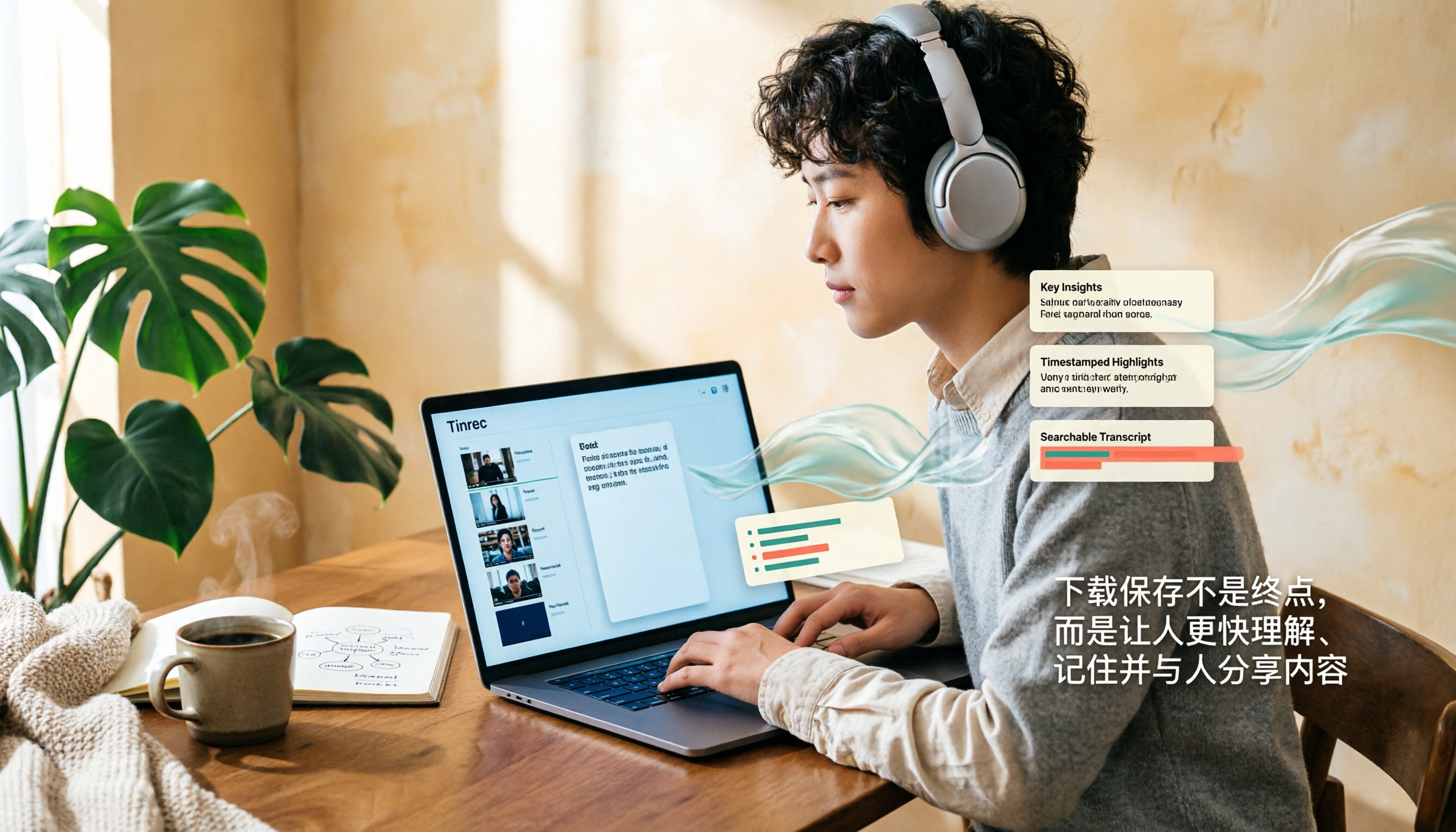
How to Download and Save YouTube Videos in 2026: A Complete 4-Step Tutorial
YouTube doesn't officially support direct video downloads. This guide covers three common methods—online tools, desktop software, and browser extensions—to save videos as MP4 or MP3 in 4 steps. It also explains how to use Tinrec to turn video content into searchable transcripts, summaries, and key points after downloading.

How to Take Better Notes from Short Videos in 2026: A 3-Step Template with AI Transcripts and To-Dos
Watching tons of how-to short videos but can't remember the key points? This guide offers a ready-to-use note-taking template for short video learning. It starts with common mistakes, then compares the transcription and organization capabilities of Tinrec, Notta, TurboScribe, and Granola, showing you how to use AI to turn videos into searchable, queryable, and actionable notes.

How to Transcribe Video to Text in Google Drive in 2026: 5-Step Tutorial and Tool Comparison
Google Drive's built-in automatic transcription can convert videos to text for free, but it currently only supports English. This guide walks you through the process in 5 steps and compares its limitations for Chinese videos, post-meeting organization, and online meeting recordings, as well as what Tinrec can fill in.

2026 Exam Video Summary Tools Compared: Which One Saves You Study Time?
A hands-on comparison of four exam video summary tools in 2026, covering no-subtitle video processing, timestamp traceability, AI Q&A, and note export, and explaining why Tinrec is better suited for turning course videos into reusable study materials.
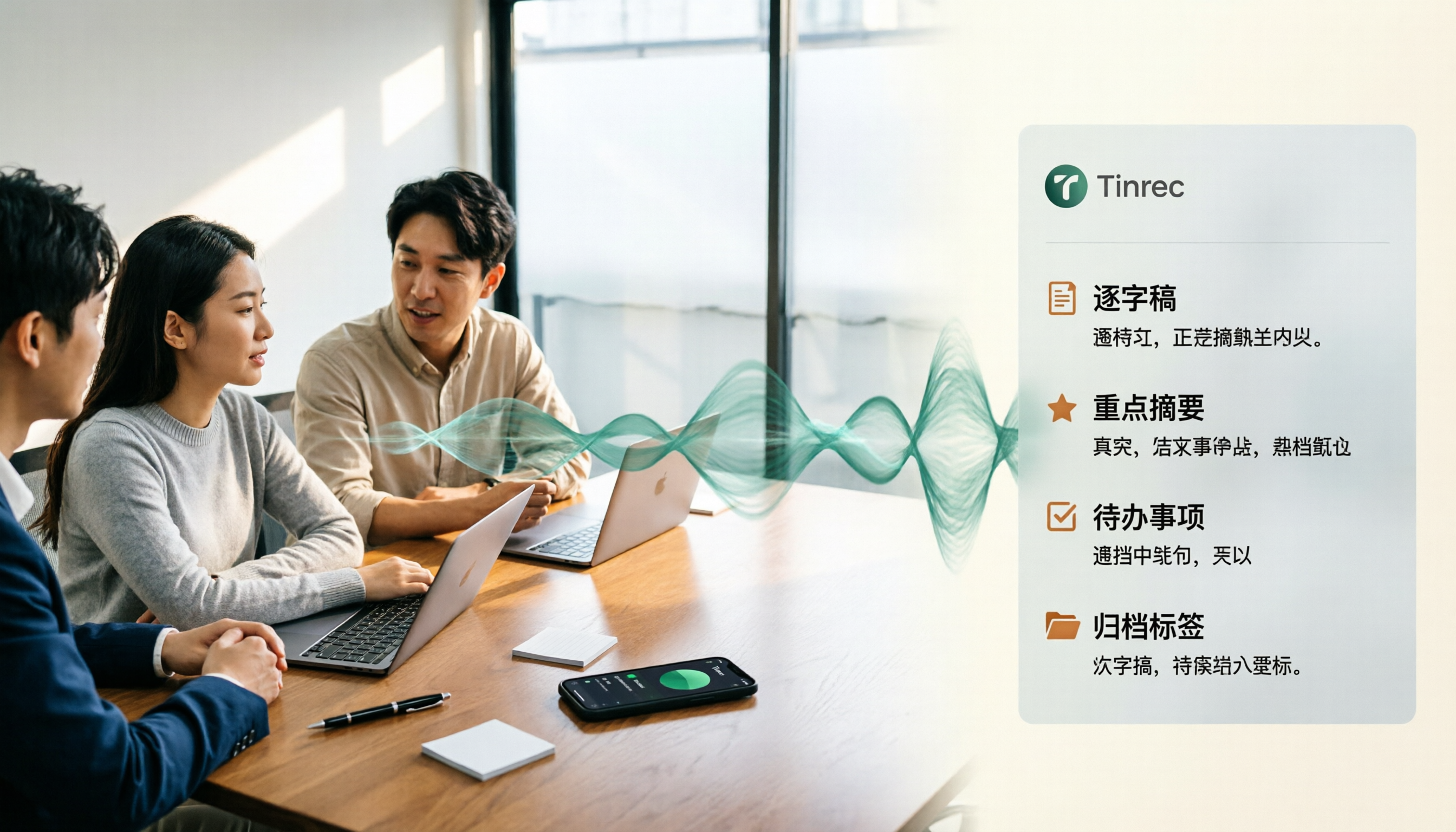
4 Best Speech-to-Text Tools for Chinese Meetings in 2026: Real-World Comparison
Turning meeting recordings into transcripts is just the first step. This article tackles the real pain points of Chinese meetings, outlines 5 key buying criteria, and puts four tools—Tinrec, Notta, Otter.ai, and Granola—to the test. We compare recording methods, post-meeting organization, and team data governance, then give clear recommendations based on your use case so you can choose the right tool without regrets.
2026 Recording Transcription App Comparison: Tinrec vs Yating Transcript, Which Saves More Time Across 5 Key Dimensions?
How do you choose a recording transcription app? This article compares Tinrec and Yating Transcript across 5 dimensions, from Chinese and mixed Chinese-English transcription, online meeting capture methods, post-meeting summaries and action items, cross-device usage, to team collaboration and seat management, helping you determine which one better fits your work scenario.

6 Live Stream Summarization Tools Compared: Which One Can Extract Key Points from a 2-Hour Replay First?
Live streams often run one to three hours, making it hard to catch up later. This article reviews six solutions for summarizing live stream content, including Tinrec, Notta, TurboScribe, Otter.ai, PLAUD, and free transcription tools. It clearly lists their purposes, free quotas, and paid pricing, and explains how to choose based on different scenarios.

2026 Audio Transcription Guide: Tinrec's Bot-Free Recording + AI Q&A to Find Key Points
How to choose an audio transcription tool? This article compares Tinrec, Notta, TurboScribe, and Otter.ai from a decision-making perspective, outlines 4 key purchasing factors and 3 common pitfalls, and tests Tinrec's desktop version for bot-free online meeting recording, AI Q&A, and team spaces. It explains how it turns recordings into usable meeting data, along with pricing and use cases.