
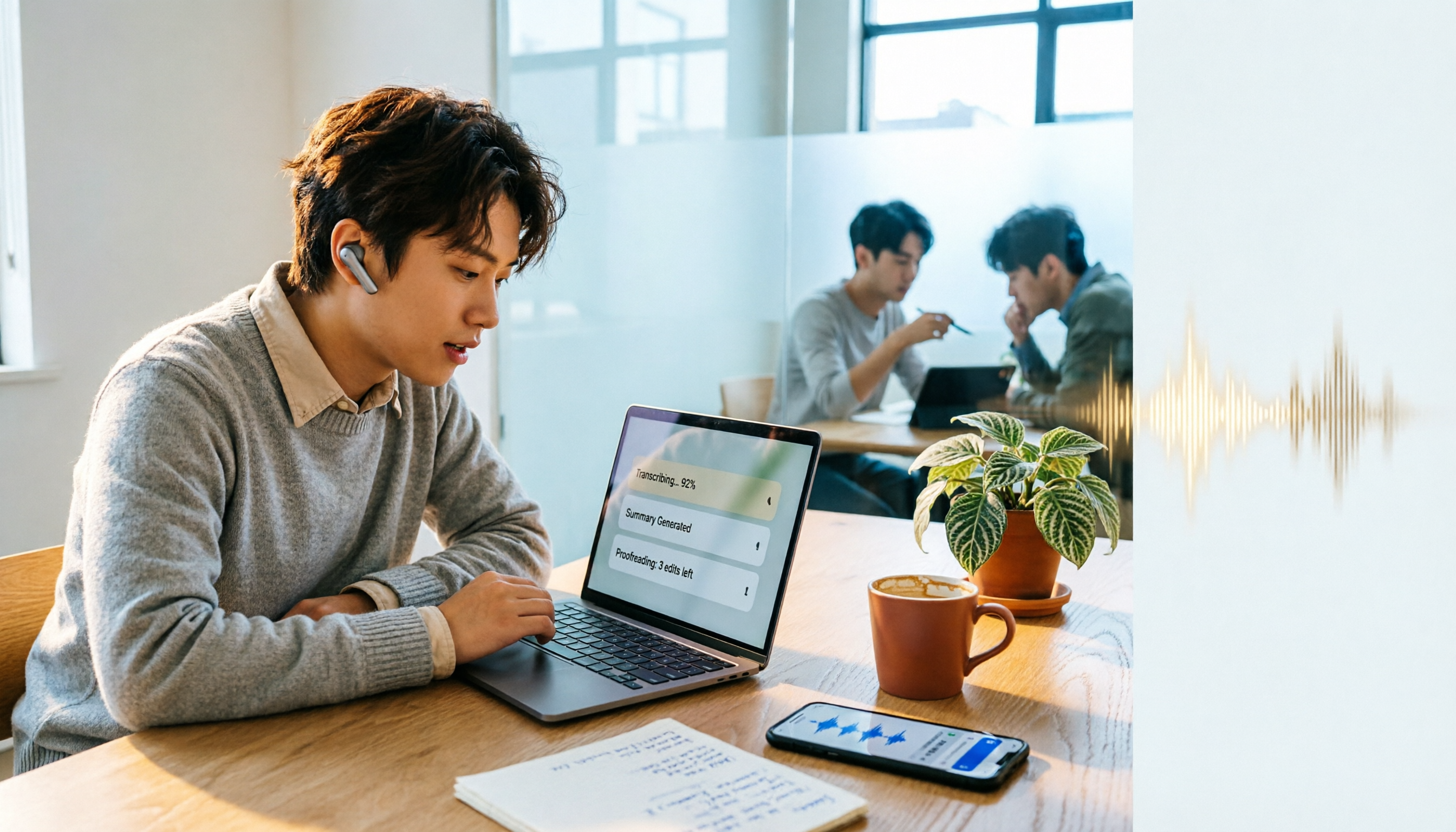
Turn recordings into transcripts and summaries in minutes
Upload audio or video for multilingual transcription, AI notes, and action items
Introduction: First, Determine What Kind of Tool You Need
Most people searching for Notta are stuck not on how to download it, but on a more fundamental question: Do you want to "quickly turn a spoken passage into text," or do you want to "turn a whole meeting into something you can deliver"?
These two answers will determine whether you should use the free version, the paid version, or whether you shouldn't use a transcription tool at all.
I usually look at three things first: whether the free quota can cover a full meeting, whether the transcript can be proofread, and whether a summary is available after transcription. Below, I'll walk through the complete process with Notta, explaining these three decision points as we go.
What Is Notta? First, Understand What Problem It Solves
Notta is an AI speech-to-text tool whose main job is to turn audio from recordings, videos, or online meetings into transcripts, and then further generate summaries.
It supports multiple devices—Android, iPhone, macOS, and Windows all have corresponding versions—and transcribed content syncs automatically.
For those who need to handle interviews, lectures, or meeting notes, it saves you the most tedious part: repeatedly listening to recordings, pausing, and typing.
Note that Notta's positioning is closer to "transcription plus organization" rather than a full meeting collaboration platform. It handles the content itself, not team permissions, seats, or audit management.
Before You Start | What You Need to Prepare
Confirm these items before you begin to avoid many detours:
- An account: Log in with Google or Apple ID; no credit card required for the free version.
- The material to process: This can be live recording, existing audio or video files, or audio from online meetings on Zoom, Google Meet, Microsoft Teams, Webex, etc.
- A stable internet connection: Real-time transcription requires connectivity; unstable signals can cause interruptions.
- Mental preparation: The free version has a clear minute limit, which will be listed honestly later.
There's also an often-overlooked preparation step: first clarify the purpose of this recording. Is it for meeting minutes, an interview transcript, or article material? Different purposes require different levels of proofreading later.
Step 1 | Decide Whether to "Record Live" or "Import a File"
The purpose of this step is to choose the right entry point, because the two modes have different quota calculations and use cases.
If the meeting hasn't happened yet, or you're on-site, using real-time transcription is the easiest—text starts accumulating as people speak, and you don't have to wait for another round of processing afterward.
If you have an already-recorded file, go the upload/import route. This mode is suitable for post-event organization and for catching up on old interview recordings all at once.
Why decide this first? Because the free version has different limits for these two modes; choosing the wrong entry point might make you think you've used up your quota when you've actually just gone through the wrong door.
After completion, you'll see this record in the list, with its length and processing status indicated next to it.
Step 2 | Start Transcribing and Confirm Language Settings
After pressing record or upload, Notta begins converting speech to text.
The only thing to pay attention to in this step is the language. If participants speak Chinese, select Chinese; for mixed Chinese-English situations, choose as appropriate, because incorrect language settings directly affect the error rate.
Why is language so critical? Because the transcription engine makes judgments based on the language you specify; choosing the wrong one is like making it guess what you're saying with the wrong dictionary.
When done, you'll get a transcript with timestamps. First-time users often feel "why are there so many typos"—don't worry, the next section is about proofreading.
Step 3 | Proofread the Transcript and Turn On Speaker Identification
The purpose of this step is to turn "usable" into "safe to deliver."
Notta offers speaker identification, which separates different speakers in multi-person meetings. It also has a custom vocabulary (dictionary) feature where you can add company names, product names, and technical terms to reduce repeated transcription errors.
The free version allows 3 custom words in the dictionary, while the paid version allows up to 200. If your content often contains fixed terminology, this number is worth considering.
Why spend time proofreading? Because AI transcription is essentially probabilistic; errors are normal with accents, fast speech, multiple people talking over each other, or background noise. For important numbers, names, and commitments, it's advisable to cross-check against the recording timestamps.
When done, you'll have a transcript that reads smoothly and matches both inside and outside quotation marks.
Step 4 | Use AI Summary to Capture Key Points
Transcripts are complete, but few people read them from beginning to end. This step compresses long content into a quickly scannable format.
Notta has a built-in AI summary feature that generates key point summaries based on the transcript, suitable for meeting minutes, class notes, or interview outlines.
In practice, my approach is: first read the summary to grasp the outline, then use the search function to find keywords and confirm the original wording of a certain passage. Notta has full-text search, which can quickly locate previously processed content.
Stop organizing recordings by hand
Upload audio or video and automatically get a transcript, summary, and action items
Note that summaries are ultimately machine-compressed results, and their criteria for what to include may not match yours. For content involving decisions, amounts, or responsibility attribution, always go back to the transcript to verify.
Step 5 | Translation, Export, and Cross-Device Sync
The final step is to bring the results to where you actually work.
Notta supports translation of transcribed content; the official page mentions translation into 42 languages, useful for cross-language meetings or interviews. For export, transcripts can be saved in multiple formats for easy inclusion in documents or reports.
The paid version also offers automatic proofreading, hidden timestamps, and other features to make output look more like formal documents.
Cross-device sync is a very practical point: record on your phone, then open on your computer to continue editing without transferring files back and forth.
When done, your recording goes from "a file sitting on your phone" to a text asset that can be searched and cited.
How Much Does Notta Cost? Is the Free Version Enough?
First, let's list the official figures, then discuss judgment.
Free version: 120 minutes of transcription per month, maximum 3 minutes per single session; can import files and preview the first 3 minutes; dictionary allows 3 custom words.
Pro version: Annual payment equivalent to about USD 8.17/month, 1,800 minutes of transcription per month, supports real-time transcription, audio and video import, automatic transcription of online meetings, export, dictionary with 200 custom words, translation, etc.
Business version: Annual payment equivalent to about USD 16.67/seat/month, provides unlimited transcription, role permissions, usage reports, and other team features.
Prices and benefits are subject to change; refer to Notta's official pricing page for the latest.
So is the free version enough? The key is your single-session length. The free version's 3-minute limit per session is enough for "jotting down a quick thought" but clearly insufficient for "a 40-minute meeting." This is where I think most people get stuck—not by running out of quota, but by hitting the single-session length limit first.
If you have meetings every week, Pro's 1,800 minutes translates to about 60 minutes per day, which is generous for the average office worker. Those who truly need Business are usually teams that need to manage multiple members' permissions and view usage.
FAQ and Troubleshooting
Q: What should I do if there are many typos in the transcription? First check if the language setting is correct, then check the recording quality. Noisy environments or a phone too far from the speaker will definitely increase the error rate. You can enable noise reduction before recording and add common proper nouns to the custom vocabulary.
Q: Do I have to upgrade from the free version? Not necessarily. If you only occasionally organize a voice memo under 3 minutes, the free version is enough. But as soon as you need to handle a full meeting, the 3-minute per-session limit will force you to consider a paid plan.
Q: How do I record online meetings? Notta supports transcription for meetings on Zoom, Google Meet, Microsoft Teams, Webex, and other platforms. Note that you should confirm participants' consent before recording and comply with relevant local regulations.
Q: What languages are supported? The official page lists different numbers of languages for different versions; refer to the list in the app for actual selectable languages. The 42 languages for the translation feature is a figure explicitly stated by the official.
Q: Is there an official accuracy rate? The Google Play page states approximately 98.86%. However, this is the official test result under specific conditions; actual performance will be affected by accents, noise, overlapping speakers, and technical terminology, so it's not recommended to treat it as a guaranteed value.
Q: Can multiple people use it together? Yes, but it must be managed through the Business plan's seats and role permissions. The personal version is not suitable for use as a shared team account.
Advanced Tips | 3 Ways to Make Notta Work More Smoothly
1. Put common terminology into the dictionary first Company names, product codes, and people's names are most prone to errors. Adding them to the custom vocabulary in advance is much faster than correcting them one by one afterward.
2. Use search instead of re-listening After a meeting, don't play from the beginning. First use keyword search to locate the section, then listen only to that 30 seconds to confirm the tone—much more efficient.
3. Process long meetings in segments If you're still on the free version, splitting a long meeting into several audio files under 3 minutes each is a barely workable workaround; but honestly, this approach is not cost-effective in terms of time, and upgrading directly is more practical for large volumes.
If You Don't Use Notta, Here Are Other Options
Tinrec also handles Chinese meeting transcription; the difference is in how meetings are captured: the desktop version directly captures computer system audio without needing a meeting bot to join Zoom, Google Meet, Teams, or Webex. After transcription, it can produce summaries, chapters, and to-dos, and also allows AI questions about meeting content, and export to Notion, Google Docs, and other tools. When multiple people need to share meeting data, the team version provides team spaces, role and seat management, usage analysis, and audit logs.
If you have a large number of long audio files that need batch processing, a file-transcription-focused tool like TurboScribe would be more suitable.
In short: for real-time meeting notes, look at Notta or Tinrec; for batch transcription of many files, look at TurboScribe. Define your use case first, then compare prices—that's what makes sense.
Conclusion
After going through these 5 steps, you should now be able to use Notta to turn a recording into a transcript that can be proofread, summarized, and exported.
Looking back at the initial judgment: if you only need to occasionally transcribe a short voice clip, the free version is truly enough; if you need to handle full meetings every week, the 3-minute per-session limit will be painful, and that's when it's time to compare Pro with other tools.
One final reminder: no matter how automatic the tool, it's still advisable to verify important content against the recording. AI saves you typing time, not judgment responsibility.
References
Turn every recording into actionable outcomes
Get 60 free transcription minutes when you sign in. No credit card required.
Related Reading
You might also like

How to Log In to Notta AI in 2026: 5-Step Guide & Troubleshooting
Notta's login page offers Google, Microsoft, Apple, and Email options—which one should you choose to avoid losing your data later? This guide walks you through Notta login in 5 steps, explains the 30-day login validity, why incognito mode causes login failures, and what to do if you don't have a password. It also covers an alternative approach that doesn't require a meeting bot.

2026 Notta App vs Web: 3 Cross-Device Meeting Notes Mistakes & Alternatives
Many assume that having a mobile app and opening a web version means full cross-device coverage. After a week of use, they discover crippled layouts, transcripts no one rereads, and team data scattered across personal accounts. This article breaks down three common misconceptions, explains how to choose a meeting notes tool, and uses Tinrec's bot-free recording, AI summaries and action items, team spaces, and seat governance as examples to provide actionable criteria.

Which Notta Alternative Is Best? 2026 Hands-On Test of 4 Apps: This One Makes Chinese Meeting Notes Easiest
Based on real experience leading team meetings, this comparison covers Notta, Otter.ai, TurboScribe, and Tinrec (秒聽錄音) in terms of Chinese meeting support, bot-free recording, post-meeting organization, and team collaboration. It also outlines 4 key buying criteria and common pitfalls to help you choose a meeting notes app that truly saves time.

What Is 'app nottai' in 2026? 5 Steps to Better Meeting Notes with Tinrec
Searching for 'app nottai' usually means you're looking for Notta.ai, but the real challenge isn't picking an app—it's establishing a consistent meeting notes workflow. This guide walks through 5 steps using Tinrec (Miao Ting Lu Yin) to go from recording, live transcription, proofreading, AI summaries and action items, all the way to exporting and building team knowledge, plus common pitfalls and troubleshooting.

Notta vs Tinrec: Which AI Meeting Transcription Tool Is Better for Team Meetings in 2026?
A procurement-focused comparison of Notta and Tinrec covering meeting capture methods, post-meeting organization depth, team roles and seat governance, Chinese bilingual experience, and pricing logic, with practical use cases and buying tips to help you decide which is better for long-term team use.
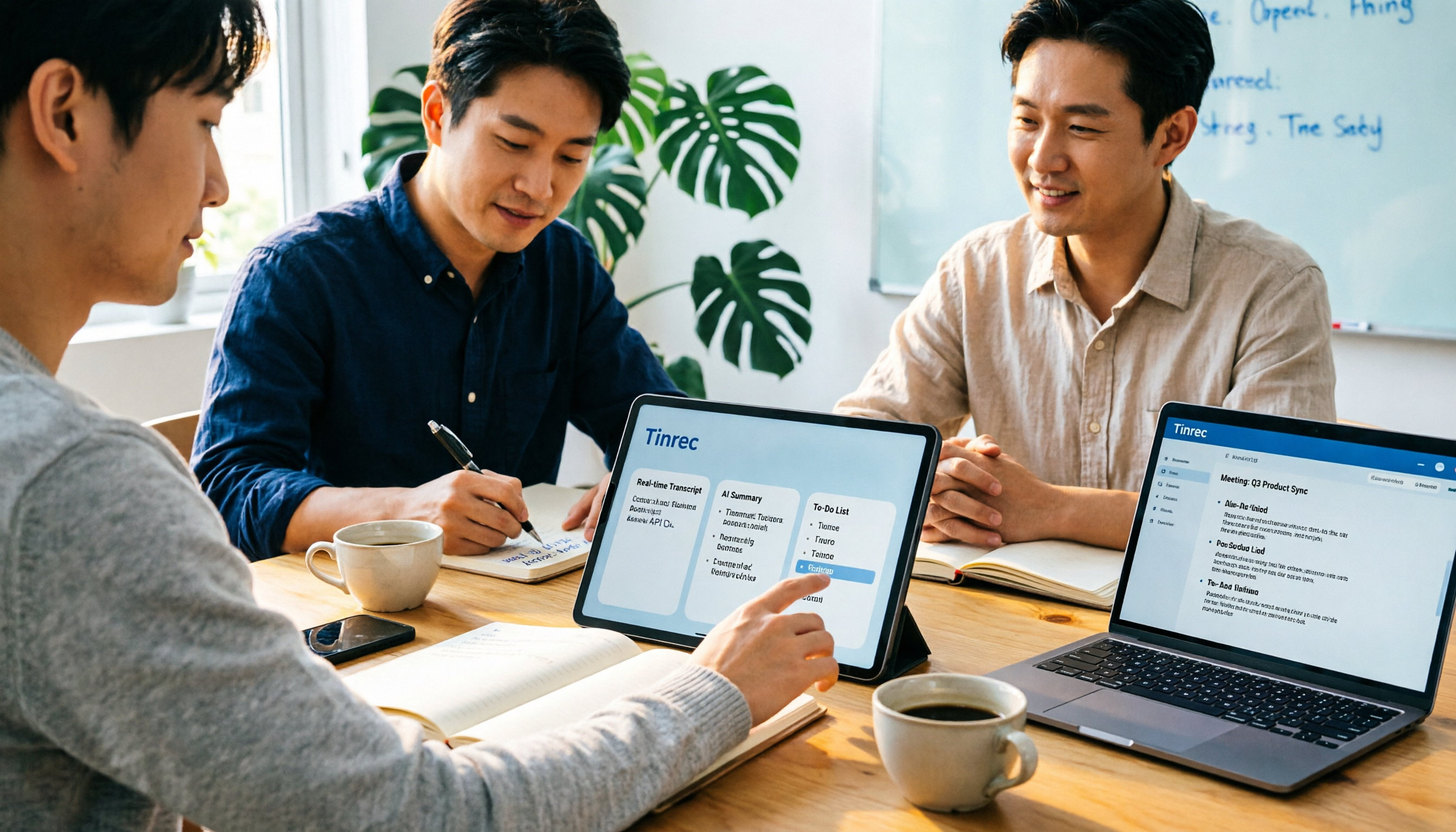
2026 Notta AI Complete Guide: Features, Limitations, and a Better Meeting Notes Alternative for Chinese-Speaking Teams
People searching for "app notta ai" usually have an unprocessed meeting recording sitting on their hands. This article doesn't cover spec sheets; instead, it breaks down the three missing steps between "turning voice into text" and "turning meetings into actionable data," and uses Tinrec to demonstrate a complete workflow—bot-free recording, real-time transcription, AI summaries and action items, meeting Q&A, and team knowledge retention—to help you decide which tool truly fits your work.

5 Legal Alternatives to Notta Mod APK: Free Audio Transcription Options for 2026
People searching for Notta Mod APK usually just want a free way to turn meeting recordings into text. This article covers 5 legal, actually usable alternatives, including free quotas, paid pricing, and best-use scenarios, and explains why installing APKs from unknown sources is not recommended.

The Complete 2026 Guide to AI Meeting Notes: From Transcripts to Team Knowledge
Meetings end, but notes and action items don't materialize? This guide, from a mid-level manager's practical perspective, breaks down the core capabilities, use cases, and 5 key purchasing considerations for AI meeting note tools, and demonstrates with Tinrec a complete workflow from recording to transcript, summary, and team knowledge retention.

Notta Country of Origin 2026: Headquarters, Language Support, and Chinese Meeting Tool Guide
Notta is developed by NOTTA PTE. LTD., a Singapore-based company with R&D in Shenzhen and a separate entity in Japan. This guide clarifies its registration and localization, then offers practical advice on Chinese transcription, meeting recording methods, and post-meeting organization for teams, using Tinrec as an example with bot-free recording, AI summaries, and team spaces.