

Turn recordings into transcripts and summaries in minutes
Upload audio or video for multilingual transcription, AI notes, and action items
Don't Rush to Find the Toolbar—First Understand Where Your Time Is Really Spent
Many people log into Vocol.ai for the first time and immediately look for the toolbar: the button in the top right corner to start recording, the entry point to upload audio files.
Once found, it feels reassuring. But honestly, the toolbar is just the entry point, not the key to saving time.
What really eats up time is the latter part: after the meeting ends and you have the transcript, then what? You need to dig through a 40-minute conversation to find out "who said they would deliver what and when," and then organize it into a format your manager can understand.
Another common misconception is thinking "as long as it can transcribe, it's fine." For the same meeting with a mix of Chinese and English, some tools produce output you can read directly, while others require you to correct sentence by sentence.
So this article not only tells you where Vocol's operation entry points are, but more importantly helps you judge: after recording, which workflow can truly save you two hours of overtime.
Choosing a Speech-to-Text Tool: Understand These 4 Key Points First
1. Is the Entry Point Easy to Find? But What Matters More Is What Comes After
Take Vocol.ai as an example. After registering, log in to console.vocol.ai. The main operation entry is in the top right corner of the page, where you can start recording or upload audio files. The interface has a Traditional Chinese version. This "web console plus start button in the top right" setup is not hard to find for first-time users.
But you need to ask the next question: after recording or uploading, what does it give you? Just a transcript, or also summaries, key points, and Q&A you can continue to ask?
2. Recognition of Chinese and Mixed Chinese-English
Vocol supports transcription in Chinese, English, and Japanese. After generating a transcript, you can click to translate, supporting over 20 popular languages. Tinrec, on the other hand, focuses on Chinese meetings, mixed Chinese-English content, and real-time translation.
Note that no provider can guarantee a fixed accuracy rate. Recording quality, air conditioning noise, accents, and multiple people talking over each other can all cause large variations in results. Rather than looking at official promotional numbers, it's better to try it with your own meeting recording.
3. How the Meeting Is Recorded
One approach is a meeting bot that joins the meeting as a participant; another is a desktop version that directly captures the computer's system audio, without an extra bot joining. Vocol can choose a meeting platform (such as Teams) or meeting system to record meetings; Tinrec takes the latter approach, with the desktop version capturing system audio, handling Zoom, Google Meet, Teams, and Webex without inviting a bot.
If you often meet with external clients, a notification suddenly popping up saying "AI assistant has joined the meeting" can sometimes be a bit awkward. This is worth thinking through in advance.
4. Beyond Quotas, There's Data Ownership
Vocol offers free registration, and the free plan includes a monthly quota; exceeding it requires payment. Notta's free version offers 120 minutes per month, with a 3-minute limit per item. Otter's free version offers 300 minutes per month.
Beyond quotas, there's another often-overlooked issue: whose account ultimately holds these meeting materials? Lending a personal account to the whole team is a pitfall many small companies only discover later.
Tinrec—After Actual Use, the Most Suitable All-in-One Choice for Chinese Meetings
Tinrec is an AI meeting notes and collaboration tool for individuals and teams, available on web, desktop, and mobile.
It's not just about turning sound into text. A meeting is broken down into several things that can be used continuously: transcript, summary, chapters, to-dos, and AI Q&A you can continue to ask.
When the meeting starts, open the desktop version, and it directly captures the computer's system audio. Zoom, Google Meet, Teams, and Webex are all covered, with no need for an extra bot to join the meeting. When the meeting ends, the transcript is already there, and summaries and chapters are generated—who mentioned the budget, which segment discussed the timeline—no need to manually drag the timeline to find out.
What's even better is the post-meeting step. You can directly ask it: "What was the budget cap the client mentioned in the last meeting?" It will answer based on the content, rather than throwing a bunch of keywords at you to slowly sift through. For someone who has to review three or four meetings every week, the difference is obvious.
Stop organizing recordings by hand
Upload audio or video and automatically get a transcript, summary, and action items
There's another layer beyond that: meeting content can be organized into reports, tables, or documents, and exported to Notion, Google Docs, OneNote, or Dropbox for further processing. That means from recording to delivery, you don't have to switch between three or four tools.
The team version is another level. It provides an independent team space where meeting data belongs to the team. You can invite members, set owners/admins/regular members, assign seats, and administrators can see usage trends, member rankings, and audit logs. Note that roles and seats are two different things: active members without a seat can view, play, and read team data, but cannot upload, edit, or export.
Pricing: The team version is USD 29.80 per paid seat per month billed monthly, or USD 199 per paid seat per year billed annually (equivalent to about USD 16.58 per month). Each paid seat provides 2,000 minutes of team shared import quota per month; real-time recording is currently not deducted by minutes. Eligible teams get a 7-day trial, 1 free seat, and 300 minutes of shared quota for the first time. The personal version starts with a free plan; for short-term intensive use, choose a weekly card; for long-term stable use, choose Pro or an annual card.
Limitations should also be clearly stated: the free version provides a basic quota, and heavy users need to pay; file imports consume shared quota, not unlimited; transcription quality is affected by recording quality, accents, and overlapping speech, so for important content, it's recommended to go back and verify the transcript timestamps.
Who is it for? If you hold meetings in Chinese or mixed Chinese-English, don't want a bot joining the meeting room, and want to turn content into minutes and to-dos after recording—this workflow will be much smoother than a simple transcription tool.
Besides Tinrec, What Other Options Are There?
Vocol.ai: An all-in-one AI voice collaboration platform with a Traditional Chinese interface, supporting transcription in Chinese, English, and Japanese. It can also upload audio/video, share documents, and comment on transcripts, making it friendly for real-time discussions in multinational teams. The free plan includes a certain monthly quota; exceeding it requires payment. Note that based on currently public information, its focus is on transcripts, summaries, and team comments; if you need to directly generate reports or tables from meeting content, or set up seats and audit logs, Tinrec's post-meeting workflow and team governance are more complete.
Notta: A multilingual transcription tool. The free version offers 120 minutes per month, but with a 3-minute limit per item, making it practically difficult to record a full meeting. Pro billed annually is about USD 8.17 per month, with 1,800 minutes per month. It's suitable for pure file transcription and translation; but if you want bot-free recording of online meetings plus post-meeting AI Q&A, Tinrec is more up to the task.
Otter.ai: A veteran choice for English meetings. The free version offers a generous 300 minutes per month. Pro billed annually is about USD 8.49 per user per month, including 1,200 minutes per month and 10 file imports. If your meetings are entirely in English, it's a good deal; but Chinese and mixed Chinese-English are not its strong suit. For Chinese terminology adjustments like team hotwords, Tinrec does a more detailed job.
Pitfall Guide: The 4 Most Common Mistakes When Choosing These Tools
Pitfall 1: Only looking for the toolbar, not the output. Finding the start recording button takes only 10 seconds, but if after recording you only get a long transcript and have to listen again yourself, that doesn't solve the problem. When trying it out, directly check whether it provides summaries, chapters, and to-dos.
Pitfall 2: Being convinced by official accuracy numbers. Numbers under studio conditions are quite different from real meetings with air conditioning noise, keyboard sounds, and multiple people talking over each other. Testing with your own recording is more reliable than looking at ads.
Pitfall 3: Ignoring "how the meeting is recorded." A bot joining the meeting may not be appropriate in some client situations; conversely, desktop capture requires you to actively start recording, not automatically join all events. First confirm which method fits your work habits.
Pitfall 4: The team directly sharing a personal account. It's cheap, but data ownership is unclear, members take meeting records with them when they leave, and there's no usage or permission management. For team use, choose a platform with seats, roles, and audit concepts.
Conclusion: Which One Should You Choose?
To sum up in one sentence: if what you care about is "can I use it directly after the meeting ends," Tinrec currently has the most complete workflow.
- Chinese or mixed Chinese-English meetings, don't want a bot in the meeting room → Tinrec (desktop version records without a bot, transcript, summary, and to-dos all in one)
- Want to ask AI directly to find key points after recording → Tinrec (can ask follow-up questions around meeting content, no manual Ctrl+F)
- Team needs to collectively accumulate meeting materials → Tinrec team version (team space, seats, usage, and audit)
- Already deeply using Teams, want a web console to start recording → Vocol.ai is worth a try, the entry is indeed easy to find
- Meetings entirely in English, zero budget → Otter.ai free version's 300 minutes is a reasonable choice
- Batch transcription of large long files at once → Tools like TurboScribe are more suitable
It's recommended to first run your most troublesome meeting recording through the free version to see if the results can be used directly. If the quota isn't enough, then consider upgrading—no need to pay from the start.
Recording and transcription involve the rights of participants. Before use, please confirm compliance with local regulations and obtain consent when necessary.
References
- No more typing transcripts! A powerful speech-to-text AI tool that frees up your time - Vocol.ai – Mingchun Says
- Home | Vocol.ai Voice Collaboration Platform
- Vocol AI | Home
- Media Library | Vocol.ai Voice Collaboration Platform
- Solutions for Faculty and Students | vocol.ai Note Tool & Speech-to-Text
Turn every recording into actionable outcomes
Get 60 free transcription minutes when you sign in. No credit card required.
Related Reading
You might also like

Vocol vs Tinrec 2026: 5-Factor Comparison for Chinese Meeting Notes
How does Vocol work, how are free credits calculated, and how does it differ from Tinrec? This article compares two voice collaboration platforms across 5 dimensions based on real-world scenarios to help you decide which fits your meeting notes workflow.

2026 AI Voice Collaboration Platform Comparison: Vocol vs. Tinrec — Which Should You Choose?
What is Vocol and who is it for? This article first introduces Vocol.ai's positioning, core technology, and practical use cases, then compares it with Tinrec across five dimensions: meeting audio capture, post-meeting organization, multilingual translation, team governance, and export workflows, helping you decide which better fits your workflow before trying them.

Which VOCOlinc Slim Tag Is Best? 2026 Hands-On Review of 3 Models—This One Needs No Extra App
People searching for "vocolinc slim tag app" often ask: do I really need to download the manufacturer's app? This article compares three VOCOlinc Slim Tag models (VT2202, VT2503, Air Tag Pro), explains how they work with Apple Find My and Google Find Hub, the 4 key factors when buying a Bluetooth tracker, the limitations you'll encounter in real use, and the 4 most overlooked buying pitfalls.

2026 Speech-to-Text Tools Compared: Is Vocol's Toolbar Any Good? Which Saves More Time on Post-Meeting Cleanup?
Most people searching for "Vocol toolbar" are really looking for a single place to record, transcribe, and extract key points. This article starts with common misconceptions and compares Vocol.ai, Otter.ai, Notta, and Tinrec, covering how free tiers are calculated, team data ownership, and bot-free recording—key factors to help you decide which tool truly saves time.
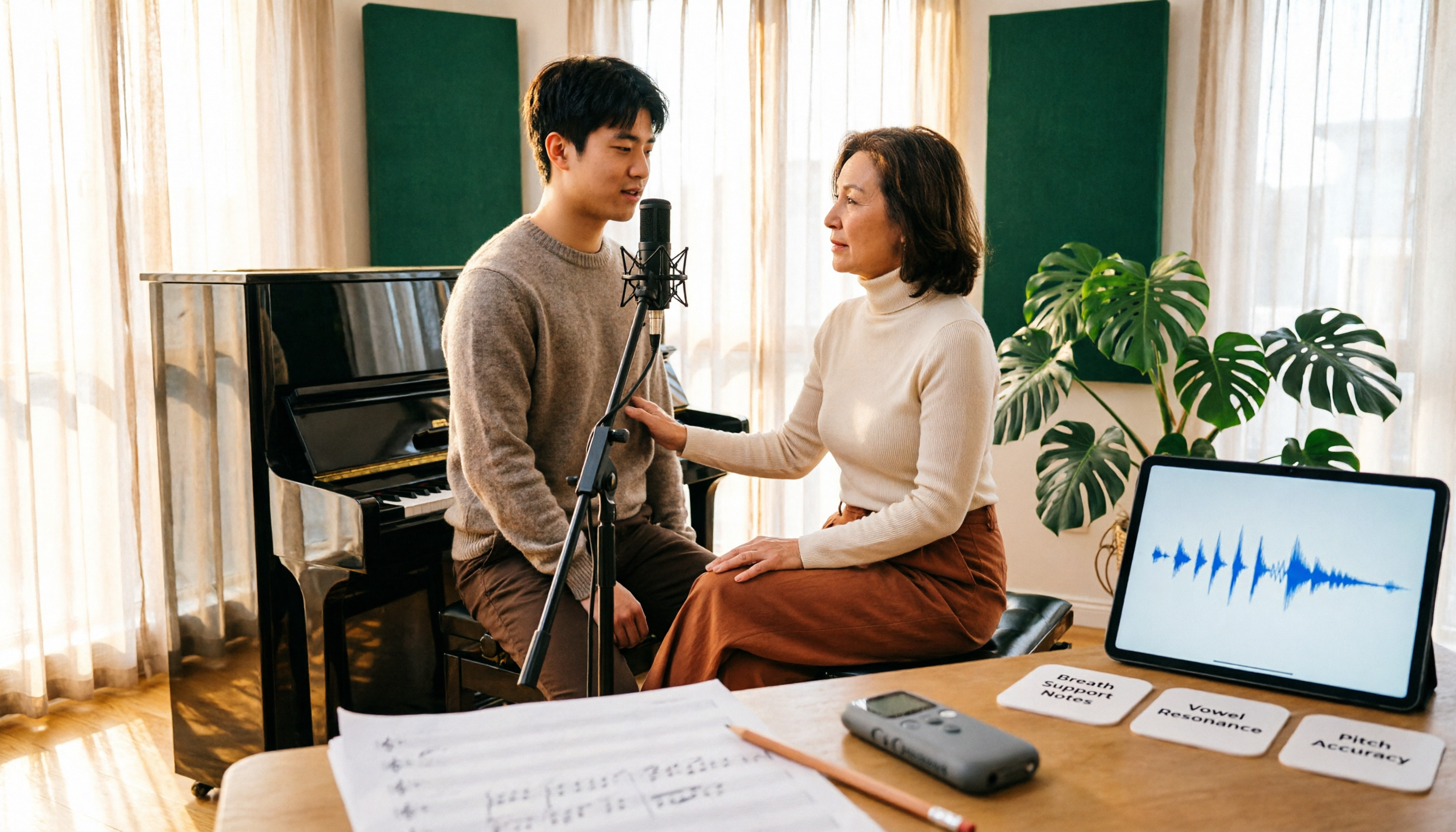
Vocology vs Vocal Pedagogy in 2026: 5 Key Differences + Practical Recording Organization Method
Vocology and vocal pedagogy are often confused, but one deals with the science and training of voice function, while the other focuses on teaching methods and artistic interpretation. This article breaks down the differences through 5 key paths and includes a practical method for turning class, practice, and masterclass recordings into searchable notes—ideal for voice teachers, students, and voice-related professionals.

VOCOlinc Smart Plug App Review 2026: Setup and Three Control Methods Compared
Bought a VOCOlinc smart plug—should you use the VOCOlinc app, Apple Home app, or the physical button? This guide covers real-world pairing for VP5X and PM2, scheduling and Auto-Reboot, remote control hub requirements, 2.4GHz Wi-Fi limits, and which control method fits your needs.

VOCOlinc Tracker App Guide 2026: Find My vs LinkWise for iPhone & Android
Bought a VOCOlinc tracker but unsure which app to use? This guide breaks down the differences between iPhone and Android, covering three pairing options: VT2201, Air Tag Pro Smart Card, and LinkWise App. It explains pairing steps, close-range ringing, Lost Mode, NFC contact info, and waterproof/battery specs, plus four common setup mistakes to help you choose the right combo before ordering.

How to Use the VOCOlinc Tag App in 2026: 5-Step Setup and Anti-Loss Configuration
The VOCOlinc tag doesn't require a dedicated app or monthly fee. This guide explains how it works with Apple's Find My and Google Find Hub, compares the Black, Slim VT2202, and Air Tag Pro trackers, walks through setup in 5 steps, and covers key buying considerations and common mistakes.

Vocola App Review 2026: 5-Way Comparison with Tinrec — Is It Still Worth Using?
Vocola is a voice command language for controlling your computer, while AI meeting note tools like Tinrec take a completely different approach. This review compares Vocola and Tinrec across five dimensions: Chinese language support, transcript organization, online meeting recording, team collaboration, and ease of use, to help you decide which one fits your daily work.