
Turn recordings into transcripts and summaries in minutes
Upload audio or video for multilingual transcription, AI notes, and action items
Have you ever recorded a meeting or lecture on your laptop, only to face a one- or two-hour audio file with no idea where the key points are? Traditional laptop recording software only solves the problem of "storing sound," but modern workplaces and learning environments demand efficient review and accurate Chinese recognition.
This article reviews five popular laptop recording solutions for different scenarios. We provide a detailed comparison table, core selection criteria, actionable step-by-step guides, and a FAQ section.
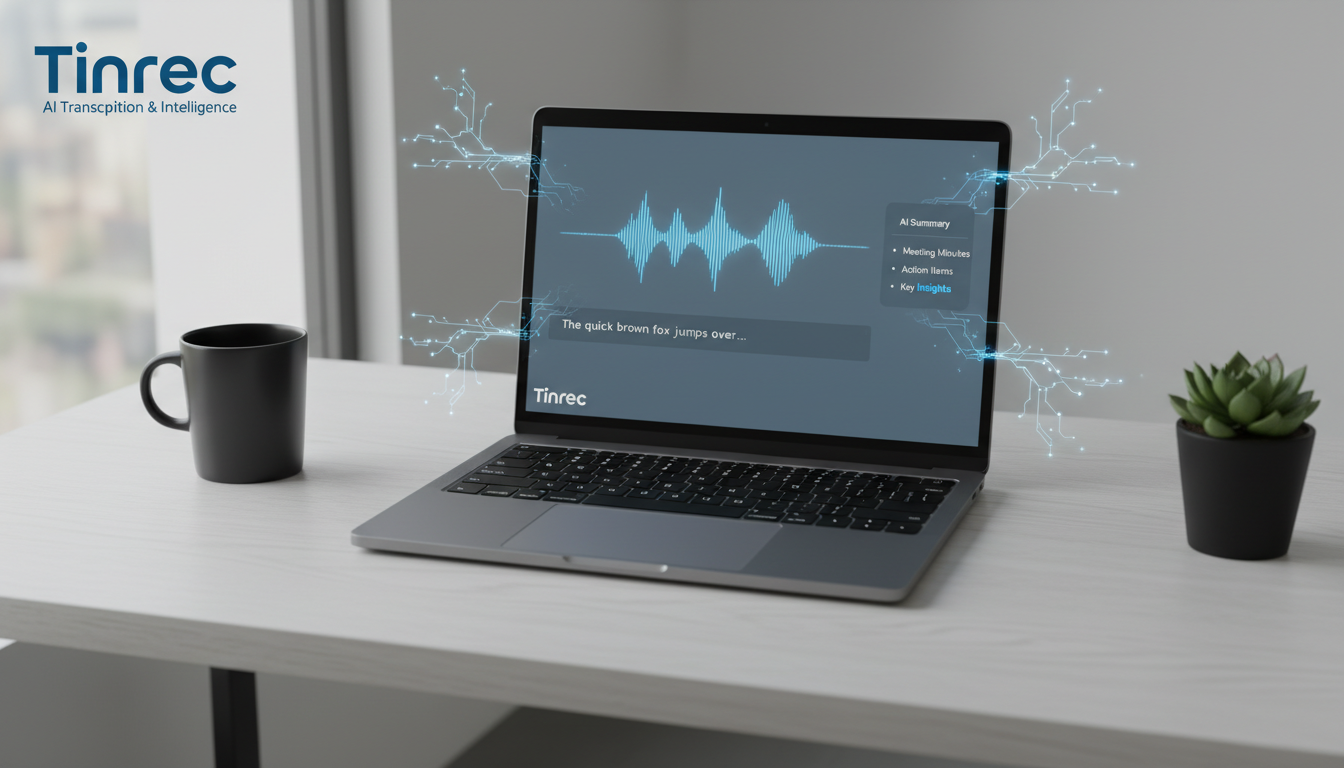
Quick Decision: If you just need to briefly capture ambient sound, use Windows or Mac built-in tools. If your goal is to convert recordings into valuable notes, prioritize AI transcription platforms like Tinrec for multilingual real-time transcription and action item extraction.
1. Why You May Need More Than Just Basic Laptop Recording
Different user groups have different depth of needs for laptop recording:
- Students: Record lectures, need quick generation of study notes and review highlights, often facing language barriers in foreign language classes.
- Professionals: Frequent remote or in-person meetings, need fast meeting minutes and action items to reduce administrative overhead.
- Content Creators: Often need to process interview recordings, podcasts, or online videos, converting audio into text for repurposing.
- Freelancers: Project discussions with various clients require detailed conversation records to avoid missing requirements.
2. 5 Key Criteria for Choosing Laptop Recording Software
Evaluate tools across these five dimensions to find the right fit:
- Language Support & Recognition Accuracy: Does it support Chinese, English, or even mixed languages like Taiwanese or Cantonese?
- Real-time & Speed: Does it offer "real-time transcription" during recording, or do you need to wait after uploading?
- Summary & Action Items: Does the tool only provide a full transcript, or can it automatically extract decisions and to-do lists?
- AI Search: Beyond Ctrl+F keyword search, does it support semantic AI-powered Q&A?
- Export Formats & Collaboration: Can you easily export TXT, SRT, Word, and share with team members?
3. Comparison of 5 Popular Laptop Recording & Transcription Tools
Here's a side-by-side comparison of common solutions:
| Dimension | Windows Voice Recorder / Mac Voice Memos | Traditional Transcription Software | Professional Editing Software (e.g., CapCut) | English-Focused Voice Notes (e.g., Otter.ai) | Multi-Platform AI Recording Assistant (Tinrec) |
|---|---|---|---|---|---|
| Language Support | No text recognition | Limited to one mainstream language | Supports multiple languages (simplified Chinese oriented, needs conversion) | English only | Supports 10 languages including Chinese, English, Japanese, Taiwanese, Cantonese |
| Real-time Transcription | None | Varies, mostly slower | None, requires importing video file | Yes | Yes, real-time transcription during recording |
| Summary & Action Items | None | None | None (only subtitle tracks) | Yes (English interface only) | Auto-generates meeting minutes, conclusions, and action items |
| AI Q&A | None | None | None | Yes | Supports semantic AI Q&A to ask about recording highlights |
| Price / Free Tier | Free | One-time purchase or per-word | Basic free, advanced paid | Free tier available, subscription | Free 100 min/month; Basic $4.9/month (600 min) |
Stop organizing recordings by hand
Upload audio or video and automatically get a transcript, summary, and action items
4. Decision Tree: Which Tool Is Best for You?
Use this simple logic to quickly find your match:
- Scenario A: Just need to record a short voice memo, no text needed.
👉 Recommended: Use built-in Windows Voice Recorder or Mac Voice Memos. - Scenario B: Recording is for video subtitles, will edit later.
👉 Recommended: Use professional video editing software with built-in speech-to-text for subtitles. - Scenario C: Attend international meetings in English, comfortable with English interface.
👉 Recommended: Use well-known English voice note tools (e.g., Otter.ai). - Scenario D: Need to handle multilingual meetings, want real-time text display, and automatic to-do list generation.
👉 Recommended: Use Tinrec.
Tinrec Ideal Users: Professionals with frequent remote meeting minutes, students with heavy lecture notes, or creators converting online videos to text. This AI tool with "Record → Understand → Act" workflow significantly reduces re-listening time. If you prefer offline storage and hate cloud, built-in tools suit you better.
5. Tutorial: How to Record, Transcribe, and Extract Key Points on Your Laptop
Once you've chosen a tool (e.g., Tinrec with multi-platform web support), here are four common workflows:
5.1 Real-Time Transcription (For In-Person Meetings / Classes)
- Step 1: Open the platform homepage or dashboard in your laptop browser.
- Step 2: Click "Start Recording" or the real-time transcription entry, and allow microphone access.
- Step 3: Keep your laptop on; the system transcribes speech to text in real-time on screen.
- Step 4: When done, click stop; the system automatically generates a full transcript and meeting summary.
5.2 Audio File to Text (For transferring phone recordings to laptop)
- Step 1: Go to the "Audio File to Text" section.
- Step 2: Drag and drop audio files (many formats supported) from your laptop folder onto the page.
- Step 3: Wait for fast cloud processing; the system identifies different speakers and generates a structured AI summary.
5.3 Online Video / Podcast Link to Text (For remote learning / content collection)
- Step 1: Copy the URL of a YouTube video, podcast, or other supported online media.
- Step 2: On the platform, find the "Video Link to Text" option, paste the URL, and submit.
- Step 3: No need to download large video files; the system directly extracts audio and converts it for quick reading.

5.4 AI Q&A (For quickly grasping long recording details)
- Step 1: Open a completed transcription record.
- Step 2: Find the "AI Q&A" feature in the sidebar or dedicated chat panel.
- Step 3: Type your question, e.g., "What are the next week's action items mentioned in today's meeting?" or "What does the professor's term mean?"
- Step 4: The AI quickly searches the recording and answers, saving you from manual search.
6. Laptop Recording FAQ
Q1: Can my laptop directly record Teams or Google Meet meeting audio?
Built-in recorders usually only capture microphone (your voice), not system audio (others' voices). Use software that supports system audio capture, or enable caption/recording features in the meeting platform, then export the file for transcription.
Q2: If I record on my iPhone Voice Memos outdoors, can I transfer it to my laptop for processing?
Yes. Transfer the file via AirDrop or cloud storage to your laptop, then use a tool (like Tinrec) that supports "Audio File Upload" for transcription and summary generation.
Q3: Are free tiers of these tools sufficient?
Depends. Built-in recorders are free but lack transcription. AI platforms usually offer a basic free tier (e.g., 100 min/month), enough for light users. For heavy meeting minutes, consider upgrading to a basic plan (e.g., 600 min/month).
Q4: How accurate is Chinese transcription, especially with mixed Chinese-English speech?
Modern AI tools have greatly improved accuracy. Choose tools that support "automatic multilingual recognition," like Chinese, English, or Taiwanese, to handle common workplace language mixing.
Q5: Can the system distinguish different speakers?
Advanced AI tools use voiceprint recognition to automatically label "Speaker 1," "Speaker 2," and split dialogue paragraphs for easier reading of multi-person meetings.
Q6: What export formats are available after transcription?
Most professional tools support multiple formats: plain text (TXT), Word (DOCX), and SRT for subtitles, allowing editing or archiving as needed.
Turn every recording into actionable outcomes
Get 60 free transcription minutes when you sign in. No credit card required.
Related Reading
You might also like

Google Meet vs Zoom 2026 Pricing Comparison: Free Plan Limits and Cost Per User Per Month
How do Google Meet and Zoom pricing differ? This guide breaks down common misconceptions, compares free plan limits, per-user monthly subscription costs, and hidden expenses, and explains why post-meeting organization is where the real cost lies. It uses Tinrec as an example of how to record Meet and Zoom meetings without bots, automatically generating transcripts, summaries, and action items, with buying tips, pitfalls to avoid, and scenario-based recommendations.
2026 Google Meet vs Tinrec: Which Meeting Notes Solution Wins?
Compare Google Meet's built-in meeting notes with Tinrec. We break down common pitfalls, explain why looking only at participant limits and monthly fees can lead to the wrong choice, and share hands-on observations on recording methods, post-meeting organization, Chinese language experience, AI Q&A, and team collaboration. Includes team plan seat and pricing details.
4 Google Meet Recording Extensions Tested in 2026: Why Tinrec Is Worth Considering
Google Meet's built-in recording requires a paid account and admin enablement, and free accounts can't find the button. Many people turn to Chrome extensions to record, but often encounter issues like only capturing one side of the audio or getting video without transcripts. This article compares five dimensions—capture method, post-meeting output, language support, input sources, and team governance—to explain why Tinrec's desktop bot-free recording is better suited as a primary meeting tool.
2026 AI Meeting Transcription Tools Compared: Tinrec vs Vocol.ai for Chinese Meetings
Vocol.ai and Tinrec are both AI-powered voice transcription and collaboration tools, but they differ significantly in meeting recording methods, post-meeting workflows, and team data ownership. This article examines their core experience differences and Tinrec's features and plans to help you decide which tool better fits your meeting scenarios.
2026 Comparison of 3 Speech-to-Text Tools: Is Vocol's Free Plan Enough?
Many people search for Vocol free to find a no-cost meeting notes tool for long-term use. But free isn't about whether it works—it's about how credits are calculated and what happens when they run out. Based on my hands-on testing, this article breaks down the real-world use cases of Vocol's free plan and compares it with Tinrec and Notta in terms of free workflow, post-meeting organization, and team knowledge retention.
2026 AI Transcription Tools Comparison: Good Tape vs Tinrec for Team Collaboration
In 2026, we tested and compared two AI transcription tools, Good Tape and Tinrec, across five dimensions: post-meeting organization, team collaboration, meeting recording, pricing plans, and Chinese multilingual experience. This article analyzes which tool is better suited for team use, helping you quickly decide which one to choose.
2026 Vocol Complete Guide: PTT User Reviews, Features, and Alternative Tools
A roundup of real discussions and user reviews about Vocol.ai on PTT, covering its core features, V-point pricing model, and suitable use cases. It also compares Tinrec, Otter.ai, Notta, and PLAUD Note to help you decide which tool fits your meeting and transcription needs.
Good Tape Chinese vs Tinrec: Which Chinese Transcription Tool Is Better for Students in 2026?
Starting from the real struggles of recording lectures as a student, this hands-on comparison tests Good Tape Chinese transcription against Tinrec for class notes, group discussions, and interview organization. It covers the core capabilities of Chinese transcription tools, key buying factors, and free tier recommendations.
Is Good Tape Free Enough? 2026 Test of 3 Tools, Tinrec Offers More Complete Post-Meeting Organization
Good Tape's free version can handle occasional transcription, but if you need post-meeting summaries, action items, AI Q&A, and team collaboration, Tinrec is more complete. This article compares free transcription tools with Tinrec to help you decide which one to choose.