

Turn recordings into transcripts and summaries in minutes
Upload audio or video for multilingual transcription, AI notes, and action items
A 40-minute client interview recording has been sitting on your phone for three days, and you still haven't started organizing it.
It's not that you don't want to. It's that the thought of replaying, pausing, typing, and replaying again is exhausting before you even begin.
I've changed my process for handling this kind of recording three times: first fully manual, then handing it off to AI transcription tools like Otter, and now I decide which tool to use based on the meeting language.
This article walks you through Otter's complete workflow from start to finish—signing up, connecting your calendar, letting it join meetings, and asking follow-up questions and organizing afterward. Along the way, I'll honestly share where it gets stuck and what I switched to for Chinese-dominant meetings.
Before You Start | What You Need to Prepare
- A Google or Microsoft account (Otter supports both sign-up methods; I recommend using the one where you receive meeting invitations)
- A recent meeting or interview recording you need to process (if you don't have one, try a routine meeting first)
- Meeting platform info: Otter works with Zoom, Google Meet, Microsoft Teams, and other services
- A stable internet connection (real-time transcription requires connectivity)
- One judgment call: Is this meeting primarily in English, or mixed Chinese-English?
That last point is the most critical—I'll explain later.
Step 1 | Sign Up and Choose the Right Plan First
The goal here isn't just to create an account—it's to lay the foundation for all the automated workflows that follow.
Go to the Otter.ai website and click "Start for free" in the top right corner. It will ask you to choose between the Basic or Enterprise trial—if this is your first time, just pick Basic and run through the complete workflow once before anything else.
You can sign up with a Google account, Microsoft account, or manually enter your email. I recommend choosing the account you normally use to receive meeting invitations, because the next step involves connecting your calendar, and using the same account will save you a lot of authorization hassle.
Why emphasize this? Because Otter's value isn't in "recording"—it's in "automatically showing up in the meetings where it should be." And it decides where to go based on your calendar.
The free version has a monthly minute limit (the official Basic plan currently shows 300 minutes per month), while paid versions offer more usage and features. Run through the workflow once with the free quota first—that's how you'll know whether what you're really missing is minutes or an organizing method.
(Illustrative image: A person sitting at a desk, laptop screen showing a calendar and meeting list, illustrating that the tool has already queued everything up)
Step 2 | Connect Your Calendar and Let It Queue Itself
After logging in, you'll see the main screen: the left side has the home page and feature entries, and the right side shows your calendar.
Connect your Google or Outlook calendar, and after authorization, all future events with online meeting links will appear on the right side.
The logic behind this step: The most time-consuming part of meeting notes isn't transcription—it's remembering to record. Hand this off to your calendar, and you won't need to rely on willpower.
Next comes OtterPilot—it joins your online meetings as a participant, automatically starts recording, and generates notes.
Two practical reminders here.
First, it's a bot that joins the meeting, so it needs a spot in the meeting invitation, and other participants will see it. If your clients or managers are sensitive to this kind of thing, giving them a heads-up beforehand will save a lot of awkwardness.
Second, in Taiwan, recording involves personal data and privacy—informing participants and getting consent before formal meetings is a basic step. No matter how convenient the tool is, this line shouldn't be crossed.
One difference worth mentioning: Otter now also offers desktop capabilities, so it's not limited to the meeting bot approach. Tools like Tinrec take a different path—the desktop version directly captures system audio, so no extra bot needs to join the meeting. Both approaches work; the difference is whether your participants mind an extra account in the meeting room.
(Illustrative image: An online meeting screen with a participant tile labeled as a note-taking tool, while others are discussing)
Step 3 | Review the Transcript and Speakers After the Meeting
After the meeting ends, the transcript automatically appears in your meeting list with speaker labels.
Don't skip this step—and it only takes a few minutes.
My approach is a "three-pass scan": First, check the first two minutes to confirm the transcription matches the right people; then look at the most heated discussion section, where the key points and disagreements usually are; finally, search for a few keywords—decisions, deadlines, amounts, owners.
Why scan this way? Because AI transcription will always make mistakes, but the errors tend to follow patterns: overlapping speakers, proper nouns, and mixed Chinese-English sections are the most error-prone.
In Taiwan's meeting environments, mixed Chinese-English is almost the norm. "This case we'll review next week, first give the spec to RD"—sentences like this are a challenge for English-dominant transcription engines. My hands-on experience: English meetings perform quite stably, but once the Chinese ratio increases, manual proofreading becomes necessary.
Stop organizing recordings by hand
Upload audio or video and automatically get a transcript, summary, and action items
So I frame proofreading as "invest five minutes, save the next half hour"—not an extra burden.
(Illustrative image: A laptop screen showing a transcript with some text highlighted, a cup of coffee nearby, illustrating the post-meeting organizing scenario)
Step 4 | Use AI Chat to Ask Follow-Up Questions, Not Replay
Most people stop once they get the transcript. The real time-saver is the next step: just ask it directly.
Otter has built-in AI Chat that works for a single meeting or can search across your past meeting data for answers. This is what I think is its most underrated feature—you don't need to read through an hour of text from the beginning; you can just ask questions directly.
My go-to question types are roughly these three:
"Please list all the names mentioned in this meeting and their assigned action items."
"What budget figures were mentioned in this meeting? Please quote the original words."
"Were there any objections raised in this meeting? Please quote the original statements."
The "please quote the original words" in the second question is key. It forces the tool to paste the answer back into the transcript, so you can immediately verify accuracy. Without this step, you're trusting AI; with this step, you're using AI.
(Illustrative image: A person typing a question into a laptop, with a question box at the top and a response below quoting transcript excerpts)
Step 5 | Organize Into Meeting Minutes You Can Send Out
The final step: turn scattered content into a document others will actually want to read.
Otter generates summaries and action items, and my habit is to go through them once more myself, adding three things: what was decided, who's responsible, and when it's due.
The reason is simple: tools can extract "what was discussed," but "so what did we decide" usually requires human judgment. This is also something I often remind my team—AI saves you typing time, not thinking time.
Once organized, I paste the minutes back into the team's usual document tool or project management system. Different tools handle this step differently: Otter lets you copy the summary and transcript directly; if what you need is long-term accumulation of meeting data in a team space—searchable, queryable, and exportable to Notion or Google Docs—then a team-database-centric design like Tinrec's is smoother, and its team version can separately manage members, roles, seats, and usage.
(Illustrative image: A cleanly formatted meeting minutes document divided into summary, decisions, and action items sections)
FAQ and Troubleshooting
Q: Is the free version enough? Otter's official Basic plan currently shows 300 minutes per month. If you have one one-hour meeting per week, you'll be near the limit in a month. My advice: run through the complete workflow two or three times with the free version before deciding whether to pay—many people are actually missing proofreading and organizing methods, not minutes.
Q: How accurate is it for Chinese meetings? Don't expect zero corrections. Actual performance is affected by recording quality, noise, accents, overlapping speakers, and technical terminology. Three ways to improve: keep the microphone close to the speaker, try to have one person speak at a time, and reserve five minutes for proofreading afterward.
Q: What if it doesn't join the meeting? First confirm it's in the meeting invitation, the calendar is connected, and the meeting link is on a supported platform. If it's a last-minute meeting that can't be scheduled, desktop recording or phone recording are backup options.
Q: Can it record meetings I don't attend? Yes. It joins as a participant and records, so you don't need to be present. But this also means—make sure the host and participants know the meeting is being recorded.
Q: Do I have to keep the transcript? The benefit of keeping it is that you can later verify "who actually agreed to what." This is also why I recommend centralizing meeting data rather than scattering it across individual computers.
Advanced Tips | 3 Methods to Double Your Meeting Notes Efficiency
Use one sentence to trigger speaker correction After the transcript is generated, first ask: "Please re-identify the speakers based on what was said, and list the basis for your judgment." This is much faster than comparing line by line yourself.
Treat the transcript as raw material, not a finished product I'll feed the entire transcript to ChatGPT for specific formatting—such as a fixed-field meeting record, client requirements table, or teaching notes. The tool's generated summary gives you a generic answer; only your own instructions will get you the format you want.
Manage meetings by category, not search Rather than relying on keyword search, categorize meetings in advance: project, client, internal, one-on-one. Clear categories give you a starting point for future queries and reviews. Otter offers Channels for this kind of categorization; if you need team-level permission and seat management, Tinrec's team version handles members, roles, and usage quotas separately—another approach.
If You Don't Use Otter, Here Are Other Options
Tinrec: Also handles meeting transcription but takes a bot-free approach—the desktop version directly captures system audio, so no extra account needs to join the meeting; its strength is Chinese and mixed Chinese-English meeting experience, and after the meeting it can generate summaries, chapters, action items, answer questions about meeting content, and export to common tools.
Built-in transcription in Zoom, Google Meet, and Teams: The advantage is no installation needed; the disadvantage is data scattered across platforms, limited post-meeting organizing capabilities, and difficulty searching across platforms.
Conclusion
Looking back at these five steps, what really determines efficiency isn't the tool—it's the sequence: first connect your calendar so recording happens automatically; then use proofreading and follow-up questions to turn content into usable data; only then talk about export and archiving.
Otter is a mature workflow demonstration, and its English meeting experience is especially stable. If your meetings are primarily in Chinese, or you need to accumulate data into team assets, Tinrec is another route worth testing—it also starts with recording and transcription but emphasizes post-meeting organizing, follow-up questions, and team collaboration.
The next step is simple: pick a meeting you've already had this week and run through the complete workflow with the free quota. You'll quickly know whether what you're missing is a tool or a method.
References
- Otter.ai Tutorial | How to Get Started with Otter.ai
- Is Otter.ai Good in 2026? Complete Chinese Tutorial, Features, Pricing, and Review | Meeting Notes and Automatic Transcription Helper - RosyArts
- Complete Otter.ai Tutorial: Let Meeting Notes Write Themselves, and Ask It Later "Who Agreed to What" | TheAI Academy
- Otter.ai | Teaching and Learning Resource Center
- Must-Have Tool for Meetings and Classes! AI Assistant Otter That Automatically Generates Notes or Subtitles (Click CC for subtitles) - YouTube
Turn every recording into actionable outcomes
Get 60 free transcription minutes when you sign in. No credit card required.
Related Reading
You might also like

Where Is Nottawa, Ontario in 2026? Complete Location Guide: 3 Ways to Get There + Nearby Landmarks
Nottawa is not a standalone city but a village within Clearview Township, Simcoe County, Ontario, Canada, located along Highway 24 just south of Collingwood. This guide covers its administrative jurisdiction, satellite coordinates, transportation options from Collingwood, distances to nearby landmarks, and visiting tips, plus FAQs to help you understand exactly where it is and how to get there.

5 Teams Meeting Transcription Solutions Tested for 2026: AI Summaries Without Copilot?
Teams' built-in transcription only gives you a verbatim transcript; AI summaries require an add-on like Teams Premium or Microsoft 365 Copilot. This article compares 5 ways to do AI meeting notes in Teams, covering licensing thresholds, Chinese language performance, post-meeting Q&A, and team data retention, and explains how Tinrec desktop records Teams meetings without inviting a meeting bot and generates summaries and action items right after the meeting.

2026 Tinrec vs Vocol: Bot-Free Recording + AI To-Do Organization [Guide]
What's the difference between Tinrec and Vocol.ai? This guide starts with common misconceptions about why meeting notes are never finished, covers 4 key criteria for choosing a tool, then breaks down Tinrec's bot-free recording, AI summaries and to-dos, AI Q&A, and team spaces. It also briefly reviews who Vocol.ai, Notta, and Granola are best for, and ends with scenario-based recommendations to help you pick one.

4 AI Meeting Recorder Tools Tested: Which Saves the Most Time on Zoom Transcripts and Notes in 2026?
Still re-listening to recordings and typing notes after Zoom meetings? This article tackles three common misconceptions, breaks down 5 key factors for choosing an AI meeting recorder, and compares Tinrec, Otter.ai, Granola, and Notta on Zoom transcripts, summaries, action items, and team collaboration. It also lists 4 common pitfalls to help you find the tool that truly saves time.
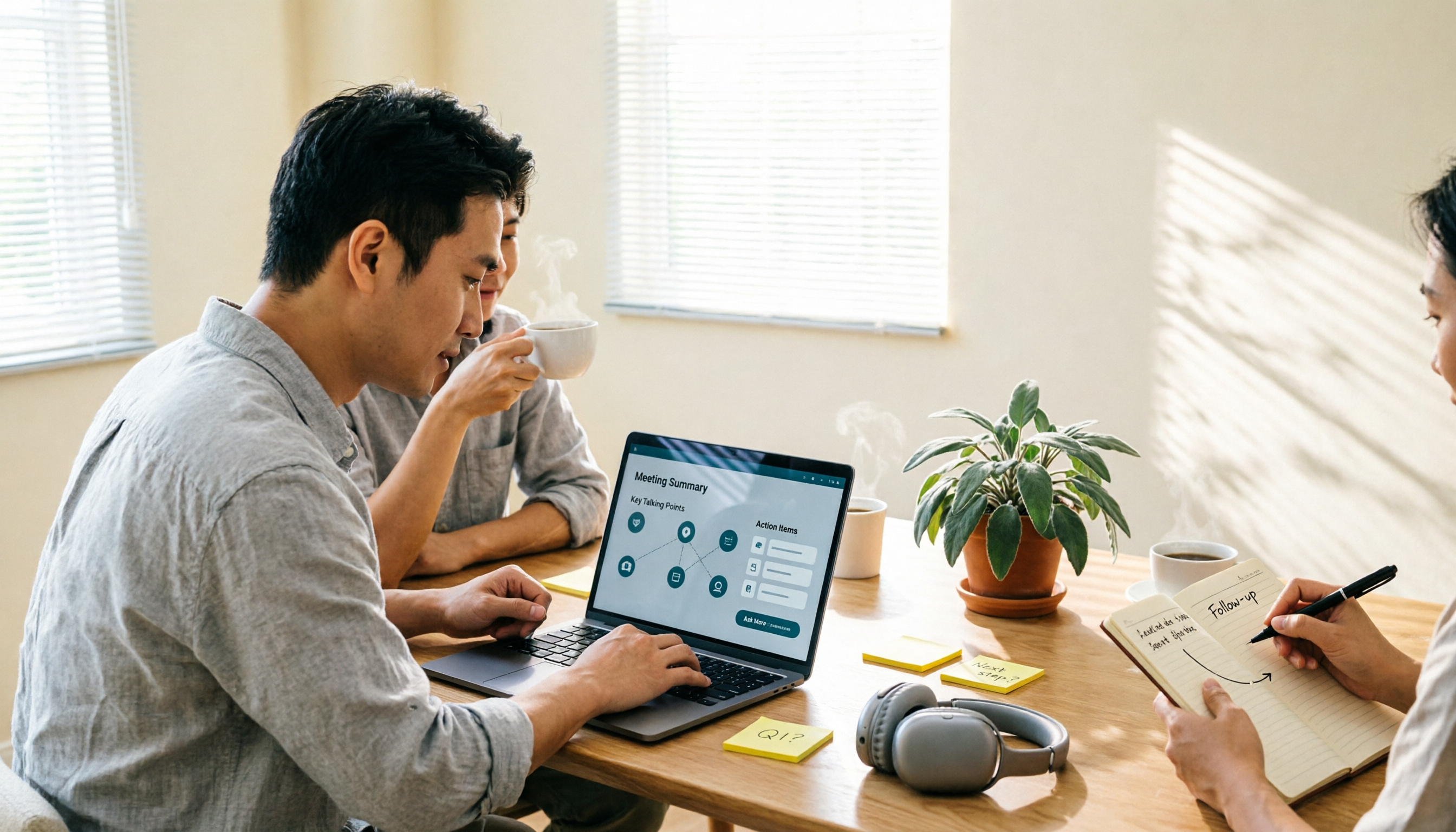
2026 AI Meeting Notes Free Plans Compared: Vocol, Tinrec, and More
If you're looking up Vocol tutorials, you might already have a transcript but still need to manually move summaries and action items elsewhere. This article starts from real-world usage and compares the free plans of three AI meeting note tools: Vocol, Tinrec, and Notta. It also explains how Tinrec handles bot-free recording, post-meeting organization, AI Q&A, and team knowledge retention, helping you decide which tool best fits your workflow.

2026 AI Speech-to-Text Comparison: Vocol Review vs Tinrec — Which Should You Choose?
People searching for Vocol reviews are usually deciding whether a one-stop AI voice collaboration platform is worth adopting. This article compiles third-party hands-on evaluations of Vocol (speed, accuracy, noisy-environment performance, interface limitations) and uses the same buying criteria to compare Tinrec, Yating Transcription, and Otter.ai. It includes a pitfalls guide and scenario-based selection advice to help you get your meeting-notes tool purchase decision right the first time.

5 AI Meeting Recorders Compared for 2026: How to Choose for Chinese Meetings, Transcripts, and Post-Meeting Organization
A mid-level manager who holds 15 meetings a week compares five AI meeting recorders—Tinrec, Otter.ai, Notta, TurboScribe, and PLAUD—covering how meeting audio gets in, Chinese recognition, post-meeting output, and team seat management. Includes practical buying criteria and four common pitfalls to avoid.
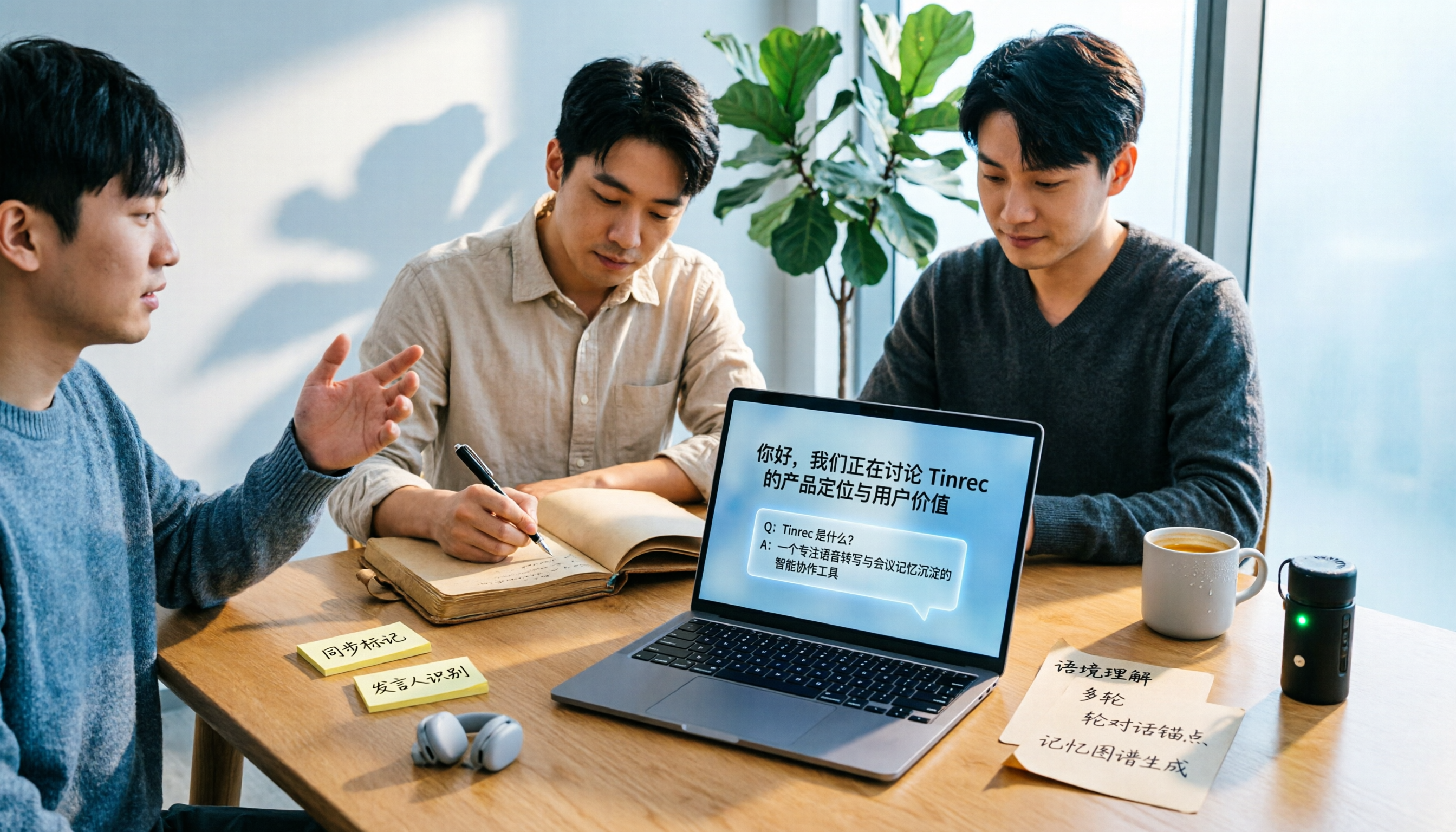
2026 Vocol Alternative Buying Guide: 5 Key Factors and Tinrec Hands-On Review
Looking for a Vocol alternative? Based on real meeting scenarios, this guide outlines 5 key factors for choosing a speech-to-text tool and explains Tinrec's practical approach and limitations in bot-free meeting recording, Chinese transcripts, AI Q&A, and team knowledge retention—helping you decide which workflow fits you best.

2026 Comparison of 4 AI Meeting Transcription Tools: From Free Tiers to Team Knowledge Management
Drowning in meeting recordings and endless transcription? This article compares four AI meeting transcription tools—Tinrec, Otter.ai, Notta, and Granola—based on real-world usage scenarios. It covers audio capture methods, post-meeting organization capabilities, performance with Chinese and mixed Chinese-English, team permissions, and pricing. It also highlights three common pitfalls in tool selection to help you choose the right tool at a glance.