

Turn recordings into transcripts and summaries in minutes
Upload audio or video for multilingual transcription, AI notes, and action items
When others can't hear you on Google Meet, the problem usually isn't that you're speaking too softly
Halfway through a client meeting, you've covered the key points of a three-page presentation, and the other person replies, "Did you say something?" You look down at the screen—the mic icon is clearly on, system volume is maxed out, but the blue speaking indicator in the top right corner just won't light up.
There's an even more common scenario: you can hear everyone, but your voice isn't going through. This is actually a very useful clue—it means the problem is on the "input" side (microphone), not the "output" side (speakers), which immediately narrows down the troubleshooting scope by half.
This article is divided into two parts: the first half rules out "it's not the tool's fault," and the second half discusses how to choose among these 4 tools in 2026 if you need something that can reliably record meetings and let you look back afterward.
Spend 6 minutes ruling out these 6 things before switching tools
Step 1: Confirm the microphone is actually on. Click "Turn on microphone" at the bottom of the meeting screen—this is the most basic yet most commonly overlooked step. Some people mute themselves to avoid background noise and then forget to unmute.
Step 2: Check the blue speaking indicator in the top right corner. It should light up when you speak. If it doesn't light up when others speak, the problem is their microphone or your speakers; if it only fails to light up when you speak, then your input side has an issue. This diagnostic method is much faster than randomly trying things.
Step 3: Check whether the correct microphone and speakers are selected in Meet. When your browser is connected to headphones, a monitor, and an external microphone at the same time, Meet can easily pick the wrong device. Also, external monitors are sometimes detected as audio output—make sure the output device isn't your monitor.
Step 4: Confirm the browser has granted microphone permission. Click the site settings icon to the left of the address bar and check whether the microphone has been set to "Block." Google Meet must have browser microphone permission to send your voice—if this is blocked, no amount of system setting adjustments will help.
Step 5: Turn up the system input volume and confirm Bluetooth is connected to the right device. In Windows or macOS sound settings, increase the input volume (in practice, test at least at 70%), and make sure your Bluetooth headset is connected to the correct pair, not another headset on your desk.
Step 6: Close other programs that are using the microphone. Communication apps, recording software, or other browser tabs may be occupying the microphone; extensions can also interfere. Close them and rejoin the meeting, and if necessary, restart the browser or system audio service and try again. Also, Windows' built-in noise reduction actively suppresses background sound, which in a quiet environment can sometimes make audio capture behave oddly—check that as well.
If you've done all six steps and still have no sound, it's usually down to hardware (the microphone itself) or the browser version—the fastest way is to cross-test with another device or browser. One more reminder: spending the entire meeting troubleshooting means the most expensive cost is actually "the content wasn't recorded"—which is also why we're discussing tools next.
Before choosing a meeting recording and transcription tool, understand these 4 key points
Key point 1: How the meeting is "recorded." One approach is a meeting bot that joins the meeting as a participant; the other is a desktop app that directly captures the computer's system audio, so no extra person appears in the meeting. Many companies are sensitive about "a strange account appearing on screen," so clarify this first.
Key point 2: A transcript alone isn't enough. A transcript solves "having text to search," but what meeting notes really need are summaries, chapters, action items, and owners. When choosing a tool, check whether it can organize the transcript one level up, rather than just giving you a tens-of-thousands-of-words document.
Key point 3: Chinese and mixed Chinese-English handling capability. Meetings in Taiwan are almost always primarily in Chinese, mixed with product names and English abbreviations. Whether you can customize terminology and whether it can recognize mixed Chinese-English directly affects whether you'll keep using it. No tool should be treated as "guaranteed 100% accurate"—audio quality, accents, and multiple people talking over each other all affect results, and important numbers and commitments should still be verified against the original audio.
Key point 4: Whether audio files are retained and whether the team can share them. Some tools keep only text and not audio, so if you later want to confirm "what exactly did they say at the time," there's no way to check. If meeting data needs to be used by the whole department, also check whether it has team spaces, member and seat distinctions, and usage and activity logs.
Tinrec (秒聽錄音)—our top pick after hands-on testing
Tinrec (秒聽錄音) is an AI meeting notes and collaboration tool for individuals and teams, available on web, desktop, and mobile, covering iOS, Android, and browsers. It doesn't just convert audio to text—it organizes meetings into data you can search, query, and continue to process.
Bot-free recording fits perfectly with the troubleshooting scenario. The desktop version directly captures the computer's system audio, so when handling online meetings like Zoom, Google Meet, Microsoft Teams, and Webex, there's no need to invite an extra bot into the meeting. For someone who just finished troubleshooting their microphone, this is very practical: you don't have to explain to participants "who is that on screen"—just open Tinrec and start recording to get a live transcript.
Stop organizing recordings by hand
Upload audio or video and automatically get a transcript, summary, and action items
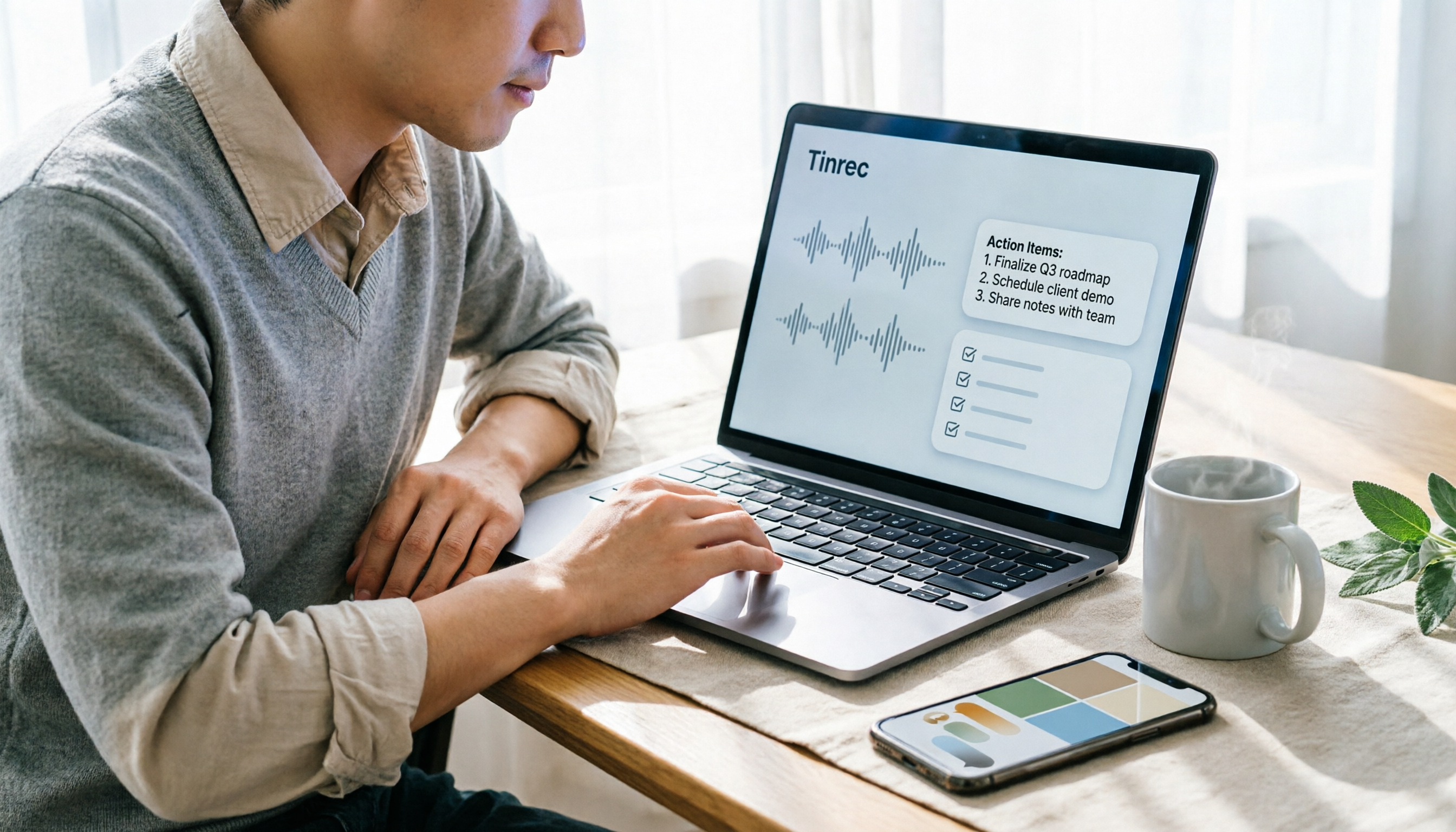
After the meeting ends is where it shines. After recording, it automatically generates summaries, chapters, and action items, so for long meetings you can quickly grasp conclusions and assignments; when you need to follow up, you can ask questions directly about the meeting content, such as "Who mentioned the budget in the last meeting?" or "What were the client's concerns about the delivery date?" It organizes answers by meaning rather than dumping a bunch of keyword search results on you. This makes a big difference for people who have several meetings every week and still have to write notes afterward.
Output and collaboration. Transcripts, summaries, and action items can be exported to commonly used tools like Notion, Google Docs, OneNote, and Dropbox, and post-processing can generate reports, tables, and meeting minutes. The team version provides an independent team space: meeting data belongs to the team, and members can view, play, and read data even without a seat; only seat holders can record, upload, edit, and export; admins can manage roles, seats, usage trends, and activity logs, and when a member leaves, resources are transferred to other members rather than disappearing with the personal account.
Limitations and pricing should be clearly stated. The free version offers a basic quota, suitable for trying out the workflow; regular meeting attendees need a paid plan. The team version currently offers a 7-day trial for first-time eligible users, 1 free seat, and 300 minutes of shared onboarding quota; monthly billing is USD 29.80 per paid seat per month, annual billing is USD 199 per paid seat per year (equivalent to about USD 16.58 per month), each paid seat provides 2,000 minutes of team shared onboarding quota per month, and real-time recording under an active team plan is currently not deducted by minutes. Also, it should not be described as "automatically joining all meetings"—you need to actively start recording.
Who it's for. If you have regular weekly meetings, frequently conduct client interviews, have mixed Chinese-English meetings, and want to avoid spending another hour organizing notes afterward, Tinrec is currently the choice that best fits this workflow.
Besides Tinrec, what other options are there?
Otter.ai: A mature choice for English meetings. Otter is an early AI meeting assistant; the Basic free version offers 300 minutes per month, and Pro annual billing is about USD 8.49 per user per month, including 1,200 minutes of in-app recording and 10 file imports per month. It has high mindshare for English business meetings. If 90% of your meetings are in English, it's a great value; but for Chinese meetings, mixed Chinese-English, and team-customized terminology, Tinrec's design is closer to the usage habits of Taiwanese teams.
Notta: Focused on multilingual transcription and file processing. Notta's free version offers 120 minutes per month with a 3-minute limit per item; Pro annual billing is about USD 8.17 per month for 1,800 minutes per month; Business annual billing is about USD 16.67 per seat per month and provides unlimited transcription and usage reports. It's suitable for bulk file transcription and subtitle needs; but if what you want is "record online meetings without inviting a bot, and after the meeting directly generate action items and a queryable database," Tinrec's meeting workflow is more complete.
Granola: Bot-free AI meeting notes. Granola also captures system audio on the desktop and focuses on "your handwritten notes + AI enhancement." Basic is free, Business is USD 14 per user per month, and Enterprise is USD 35 per user per month. Note that it has two clear limitations: it does not support uploading pre-recorded audio files, and it does not save meeting audio. Tinrec, on the other hand, retains recordings and supports importing audio and video files—when you want to verify numbers or commitments against the original audio afterward, this difference becomes very obvious.
Pitfall guide: The 3 most common mistakes when choosing meeting tools
Pitfall 1: Only looking at free minutes, not whether audio files are retained. Minutes are the easiest spec to compare and one of the least important. What will really cause you pain is "three months later, you want to confirm what the client said, and the audio file was never saved." When choosing a tool, first ask: does it keep audio files, and for how long?
Pitfall 2: Assuming a transcript equals meeting notes. A transcript without summaries, chapters, or action items still requires someone to read through it again after the meeting. Rather than quibbling over a few percentage points of recognition accuracy, look at whether it can directly organize "who is responsible for what and when it's due."
Pitfall 3: The whole team sharing one personal account. This may seem cost-saving for a three-person team, but once someone leaves or people need to search old meetings together, it becomes a disaster. A team version should have an independent space, role and seat distinctions, and usage and activity logs—the personal version can't do these, and shouldn't be forced to.
Conclusion: Which one should you actually choose?
In one sentence: If your meetings are primarily in Chinese, you need bot-free recording, and you care about post-meeting summaries, action items, and data retention, Tinrec is the most suitable default answer among these 4 tools.
- Chinese meetings + mixed Chinese-English, need summaries and action items afterward → Tinrec
- Don't want an extra bot account in the meeting → Tinrec (desktop version captures system audio)
- Need to retain audio files and verify against original audio afterward → Tinrec (Granola does not save meeting audio)
- Department needs to share meeting data and manage members and usage → Tinrec team version (roles, seats, usage, activity logs)
- Meetings are almost entirely in English, only care about meeting notes → Otter.ai
- Main work is bulk file transcription and subtitles → Notta
- Only want to use the free version for lightweight meeting notes and don't need audio files → Granola
Practical advice: first run a round of your most common meeting type with the free version and see whether the transcript and summary can be used directly. If it saves you that post-meeting organizing time, then talk about upgrading; conversely, if even the free version doesn't run smoothly, then no amount of features will be used. As a reminder, recording and transcription involve personal data and local regulations—remember to obtain participants' consent before recording.
References
- Fix audio issues in Google Meet - Computer - Google Meet Help
- What is the reason for My voice is not audible to other person - Google Meet Community
- Others can't hear me on google meet, even if I'm unmuted. And I'm audible on other apps - Web Applications Stack Exchange
- Can't Hear Me on Google Meet? 5 Proven Fixes (2026 Guide) - Official Tinrec Blog
- Google meet audio is not working, I can hear the other persons audio but they aren't hear my audio - Google Meet Community
Turn every recording into actionable outcomes
Get 60 free transcription minutes when you sign in. No credit card required.
Related Reading
You might also like

Google Meet vs Messenger in 2026: Which Should You Choose? Breaking Down Video Meetings vs Instant Messaging
Google Meet or Messenger? They're not the same type of tool: one is built for formal meetings, the other for everyday communication. This article breaks down use cases, account requirements, post-meeting output, and data retention across four key decision points, and tests how Tinrec fills the gap in post-meeting organization, with a pitfalls guide and selection advice.

Google Meet vs Skype in 2026: 6 Key Differences Compared — Which Is Right for You?
Is Google Meet like Skype? The answer is that they overlap but are fundamentally different: Meet is an online meeting room you can open in a browser, while Skype is a communication app installed on your computer—and Skype has been retired, with users directed to Microsoft Teams. This article compares the two across six dimensions—positioning, participant limits, join requirements, chat features, and post-meeting organization—to help you decide which one to choose.

Google Meet vs WhatsApp: Which Is Better? 2026 Hands-On Test of 3 Tools — Meetings and Chatting Can't Replace Each Other
Many people assume Google Meet and WhatsApp are similar because both offer video calls, but one is a meeting tool and the other is a chat tool. This article examines four key aspects—use cases, participant scale, post-meeting records, and data ownership—to explain the differences, and adds a point most people overlook: after a meeting ends, how to retain transcripts, summaries, and action items.
Google Meet vs WhatsApp in 2026: 5-Dimension Comparison — They're Actually Completely Different
Google Meet and WhatsApp both offer video calls and messaging, but they are not the same type of tool. This article breaks down the differences across 5 dimensions: positioning, meeting features, how to invite people, post-meeting data, and account mechanisms. It also covers common scenarios where people use the wrong tool, helping you decide when to use Meet and when to use WhatsApp.

2026 Complete Guide to Meeting Notes: Google Meet vs WhatsApp and Tinrec Use Cases
Google Meet and WhatsApp are often compared, but they serve different purposes. This guide starts from real meeting scenarios to explain their differences and shared gaps, then outlines the capabilities meeting notes tools should have, key purchasing considerations, and how Tinrec is applied in practice.

2026 Comparison of 4 Meeting Note Tools: When You See All Participants in Google Meet, Who Can Take Notes for You?
When you only see a few people in Google Meet, it's not because others have their cameras off—it's the layout setting. This article first shows you how to use 'Change layout → Tiled' to see up to 49 participants, then tests and compares four meeting note tools: Tinrec, Otter.ai, Granola, and Notta, so you can focus on the screen while still getting transcripts, summaries, and action items after the meeting. Tinrec stands out with bot-free recording, Chinese-language experience, and team spaces.

Google Meet Premium in 2026: 3 Purchase Paths Tested and Compared — How to Buy Without Getting Burned
Google Meet doesn't have a standalone Premium subscription; advanced features are tied to Google Workspace and Google One plans. This guide covers 3 purchase paths, account and version issues to check before paying, 4 common mistakes, and compares Tinrec's post-meeting organization and team knowledge retention to help you choose the most cost-effective way to buy.

Google Meet vs Tinrec (2026): 5-Dimension Comparison — Which Saves More Effort for Meeting Notes and Post-Meeting Organization?
Google Meet is indeed an app, but after a meeting, transcripts, summaries, and action items often require separate tools. This article compares Google Meet and Tinrec across five dimensions: meeting sources, post-meeting outputs, Chinese language support, data retention, and ease of use, to help you decide which approach to use for capturing meeting content.

3 Ways to Use Google Meet on a Laptop in 2026: Which Is Easiest?
How does Google Meet actually work on a laptop? This article starts with the three most common misconceptions, then compares three methods—browser version, desktop app, and Google Workspace integration—through hands-on testing, explaining who each is for and where the limits are. Finally, it covers how to keep records after a meeting, including Tinrec desktop's bot-free recording and the team version's practical approach.